
在PC上测试移动端网站和模拟手机浏览器的5大方
查了很多资料,尝试了大部分方法,下面将这一天的努力总结下分享给大家,也让大家免去看那么多文章,以下介绍的方法,都是本人亲自测试成功的方法,测试环境winxp。
一、Chrome*浏览器
chrome模拟手机总共有四种方法,原理都一样,通过伪装User-Agent,将浏览器模拟成Android设备。以下标星的为推荐方法。
1.新建Chrome快捷方式
右击桌面上的Chrome浏览器图标,在弹出的右键菜单中选择“复制”,复制一个图标副本到桌面。右击该副本,选择“属性”,打开相应的对话框,在“目标”文本框的字符后面添加以下语句:“–user-agent=”Android””,如下图:
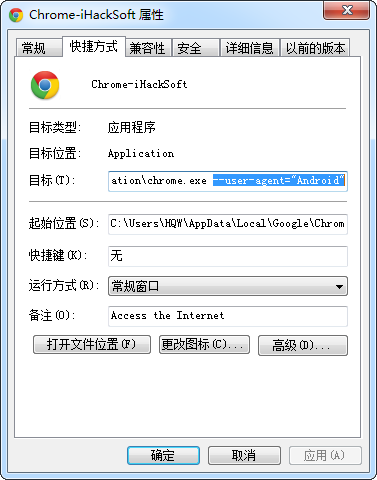
注意user前面是两个“-”,并且“chrome.exe”与“–user”之间有一个空格。确定之后,打开这个新建的Chrome快捷方式,输入3g.qq.com就可以浏览到像手机里打开一样的页面了。
这时可以新建一个用户,就不影响原来用户访问的时候也是访问的手机版。
2.一次性模拟iPhone和安卓手机
开始–运行中输入以下命令,启动浏览器:
模拟谷歌Android:
chrome.exe --user-agent="Mozilla/5.0 (Linux; U; Android 2.2; en-us; Nexus One Build/FRF91) AppleWebKit/533.1 (KHTML, like Gecko) Version/4.0 Mobile Safari/533.1"模拟苹果iPhone:
chrome.exe --user-agent="Mozilla/5.0 (iPad; U; CPU OS 3_2_2 like Mac OS X; en-us) AppleWebKit/531.21.10 (KHTML, like Gecko) Version/4.0.4 Mobile/7B500 Safari/531.21.10"这种方法仅供特殊情况下使用,因为重启Chrome将不能恢复正常User-Agent,所以是一次性。
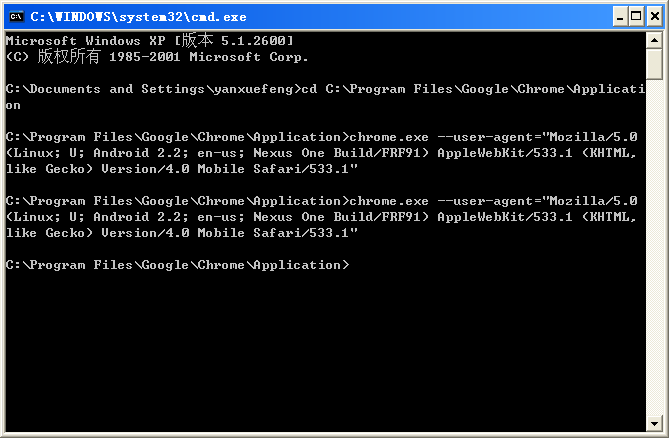
更多的user-agent请自行搜索。
3.安装插件
插件可以很方便切换各种user-agent,很方便,但是可能会稍微影像性能。
User-Agent Selector地址:https://chrome.google.com/webstore/detail/user-agent-selector/fnbmdojpgjpmjjmnjdnbobcdhenmmgod/related
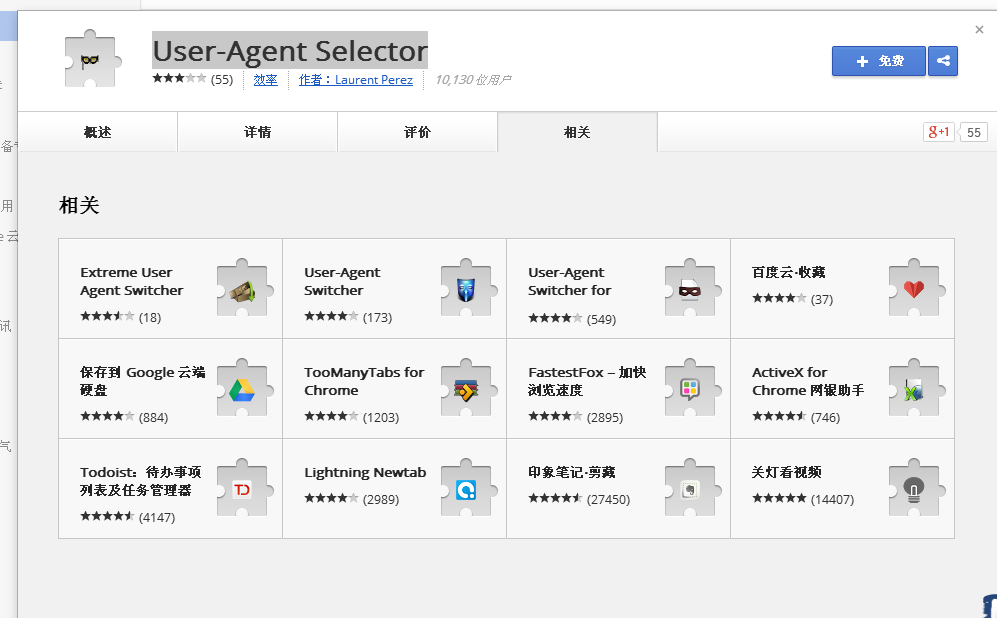
从上图可以看到,还有很多类似的插件,其实功能都大同小异。
4:自带模拟器*
打开chrome开发者工具,按F12(r32版本),然后找到右上角的齿轮按钮,打开设置面板,选择Overrides,勾上Show ‘Emulation’ view in console drawer(在控制台视图中显示“仿真”)。
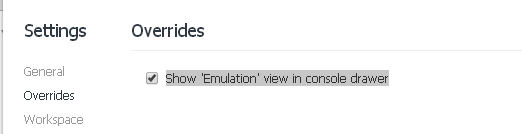
然后关闭设置面板,选择Elements面板(非Console就可以),找到右上角打开控制台面板,选择控制台面板里的Emulation面板,右边有很多选项,选择一个点击Emulate就可以了,Reset按钮能恢复到默认状态。
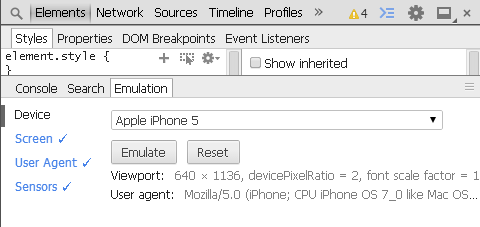
打开仿真后,打开http://xw.qq.com,即可看到如下的手机下的界面
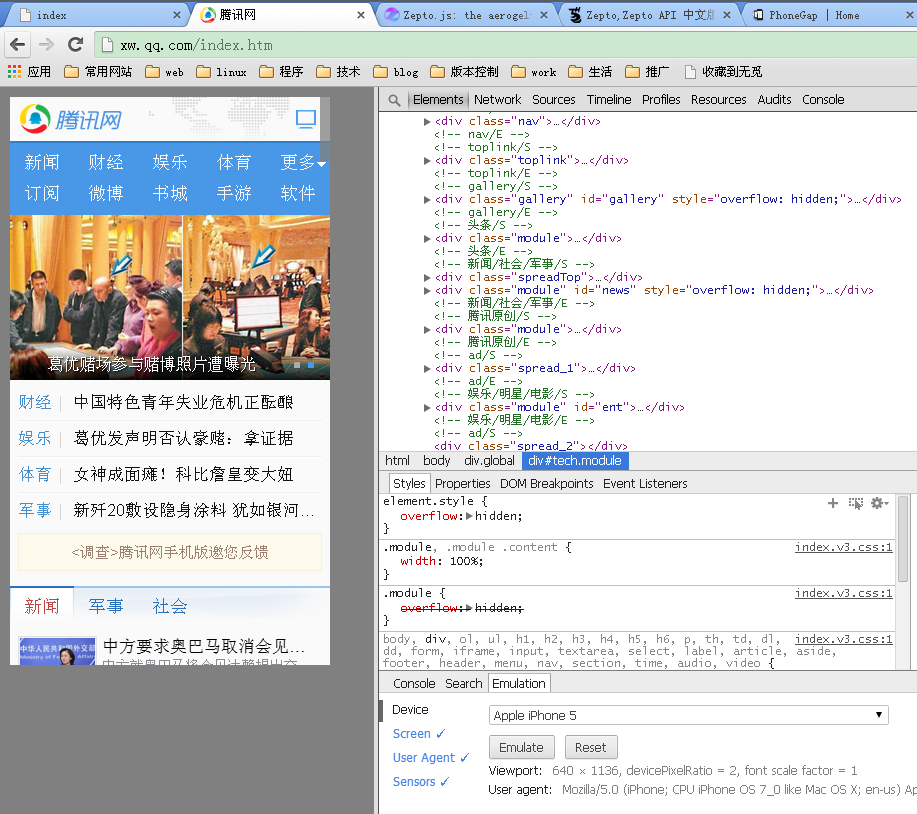
这种方法简单好用,而且不需要重启,推荐这种方法。
注意:以上第一种和第二种方法都需要将全部打开的chrome窗口关闭,再打开才能起作用。
二、Firefox*浏览器
1.修改user-agent
和chrome一样安装插件修改user-agent的方法,搜索wmlbrowser、XHTML Mobile Profile以及User Agent Switcher三个插件
2.火狐响应式设计+修改user-agent*
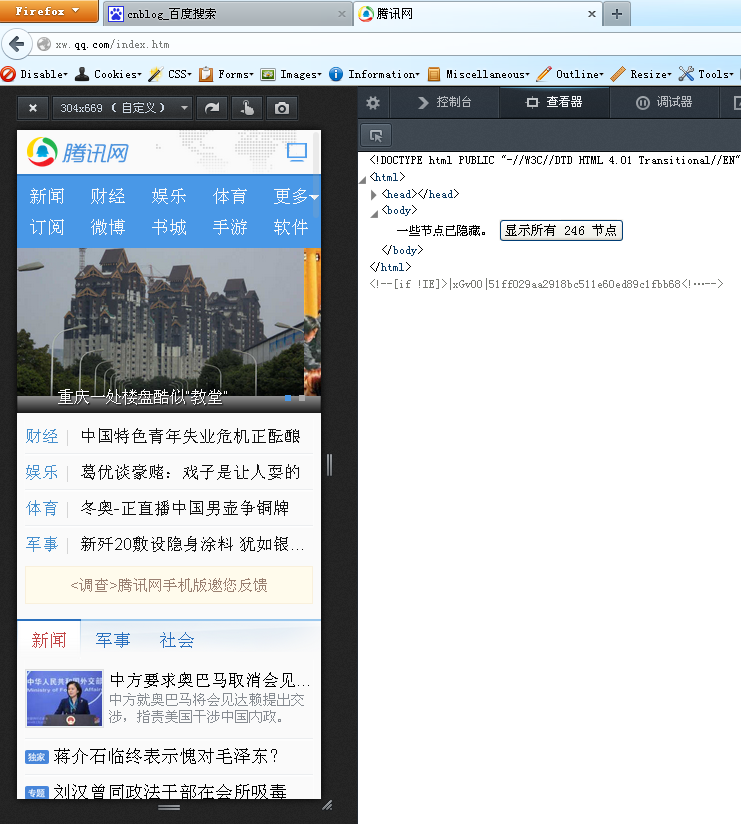
最近的火狐自己添加响应式设计功能和3D试图都很棒,打开火狐自己的控制台(非firebug),找到右上角的响应式设计按钮。
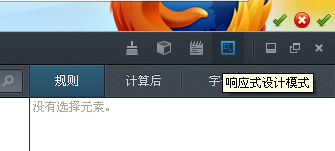
打开后即切换到响应式设计界面
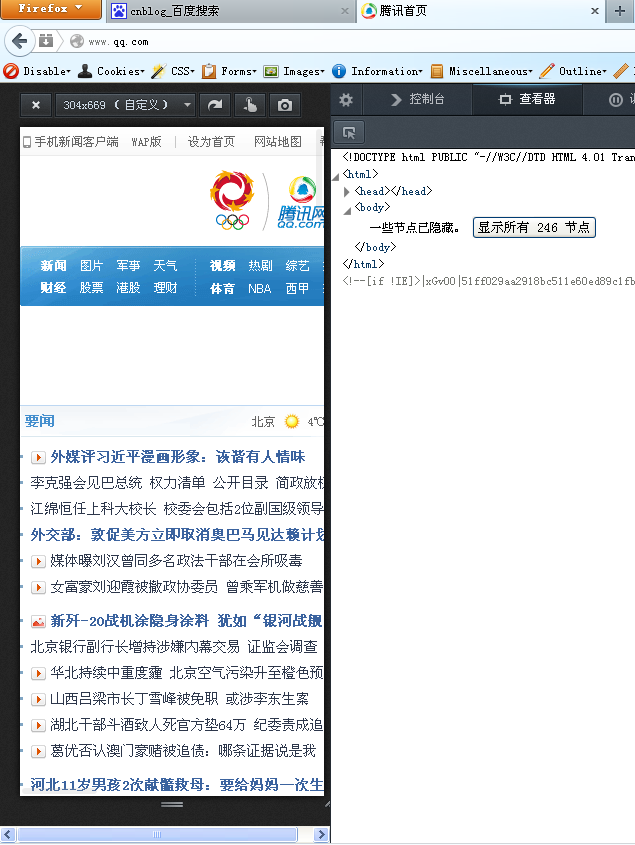
但我们看到打开QQ的站点并未被自动引到QQ的移动页面,这样只对响应式设计的界面起作用,对想QQ这样云端判断,返回不同页面的并不适应,这里就要配合上面的方法,再改下user-agent,即可实现类似chrome的调试功能。
3.Firefox OS 模拟器
安装的方法 参考这里:https://developer.mozilla.org/zh-CN/docs/Tools-840092-dup/Firefox_OS_%E6%A8%A1%E6%8B%9F%E5%99%A8#Installing
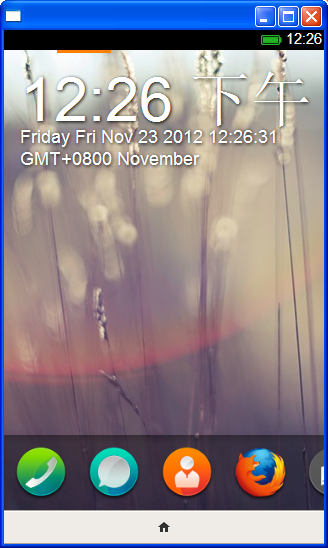
安装完成后可打开如下界面,可用里面的浏览器打开网站即可,但这种方法打开的是电脑网站,而不是手机网站,也就是他的user-agent不是手机的,故对响应式界面起作用,对判断user-agent的网站不起作用,访问qq,baidu等返回的都是电脑界面。
三、Opera*浏览1.修改user-agent
和chrome和firefox类似,可自行安装插件,自opera12之后,opera改用webkit内核,故可安装chrome的插件,也可自行在opera的商店中搜索插件
User Agent Changer下载: https://addons.opera.com/zh-cn/extensions/details/user-agent-changer/?display=en
2.Opera Mobile Emulator + dragonfly*
下载适合自己的版本,安装完毕会开如下界面:
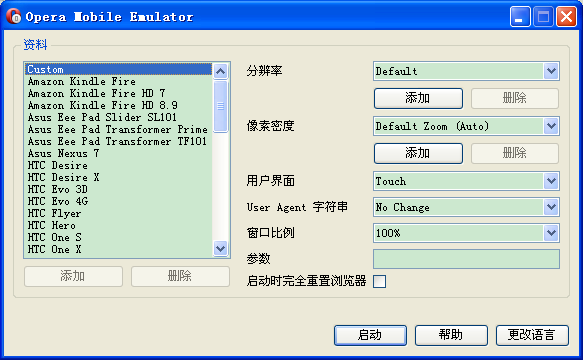
左侧选择平台,右侧选择参数,选择完毕点击启动,如下的几面,用过手机opera的朋友会很熟悉,就是手机opera
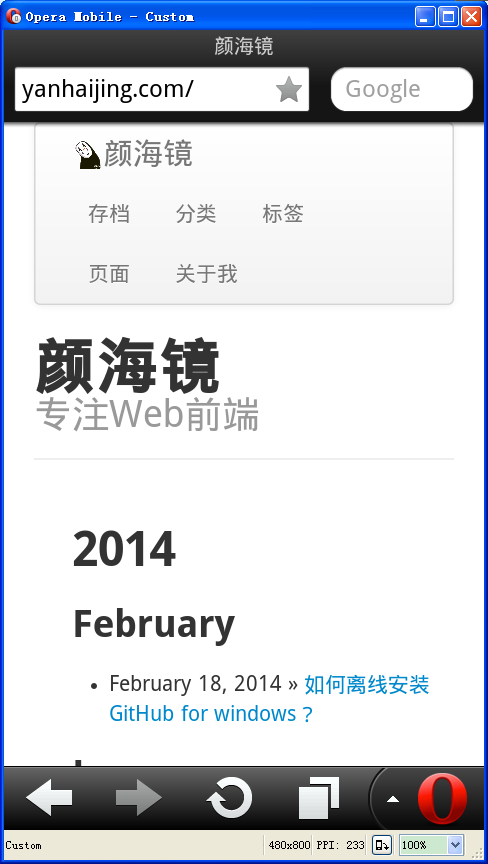
关于opera mobile emulator的更详细介绍参看文章末尾参考资料的相关内容。
但此时,还是只能看而已,不能调试模拟器里的网站,这里需要dragonfly配合以实现调试,由于opera12后换了内核,不能安装dragonfly了,所有你需要一款opera12的浏览器,和dragonfly的离线包,配置好后具体如何连接请参看这里http://www.opera.com/dragonfly/documentation/remote/
全部设置好后即可实现在电脑上调试手机网页,如下图所示:
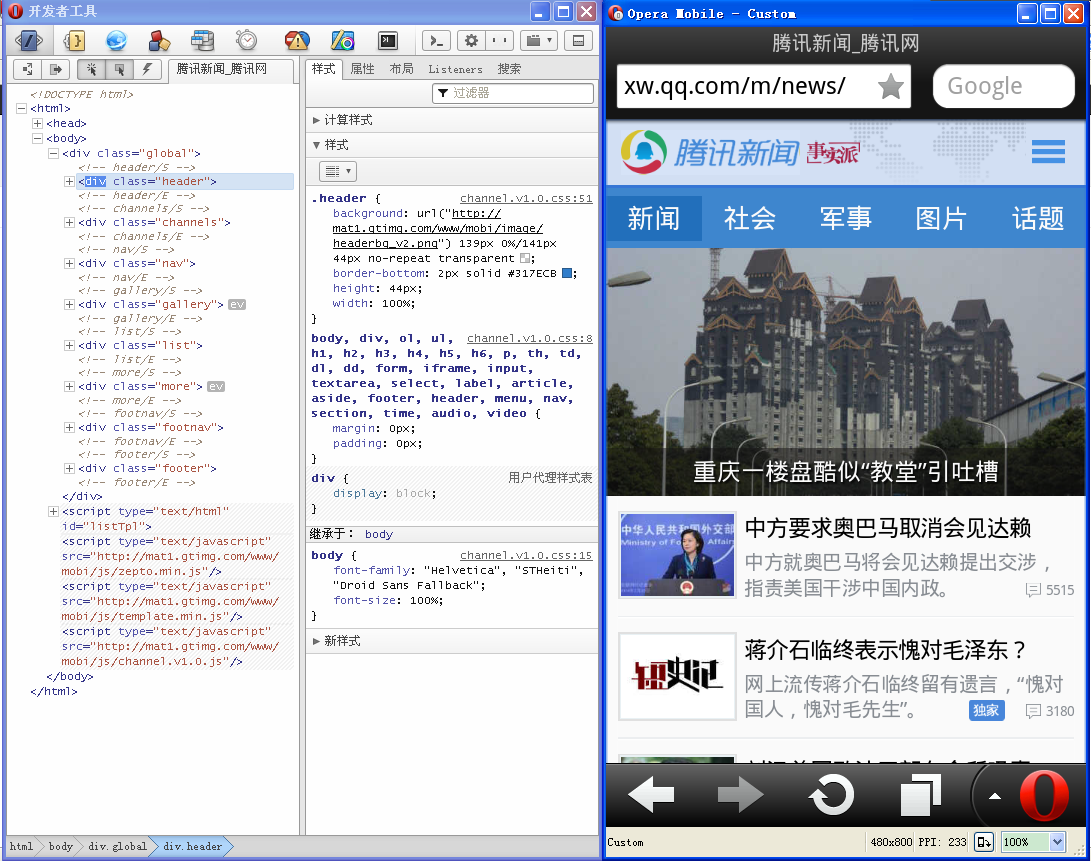
opera mobile emulator下载地址:http://www.opera.com/zh-cn/developer/mobile-emulator
配置说明:
Opera Dragonfly documentation
Remote Debugging
The Remote Debug feature allows Opera Dragonfly to connect to other instances of Opera, either on the same machine or on a remote device. This is especially useful when working with devices such as mobile phones, tablets, and TVs. When put into Remote Debugging mode, Opera Dragonfly will listen for a connection to the IP address and Port specified. The separate instance of the Opera browser can then connect over a network and pass debugging information across the connection. Opera Dragonfly can then interact with the webpages and applications on the remote instance, just as if it were running locally.
Setup
The following steps create the setup for a remote debugging session.
Stage 1: Network setup
The first step is to make sure both instances are connected to the same network, so they can "see" each other. If debugging a mobile device, it will be useful to connect to a Wi-Fi network. To establish a connection, you will need to point the instance of Opera you want to debug (the client) to the instance of Opera Dragonfly (the server). For this, you'll need to make a note of the IP address of the machine running Opera Dragonfly.
If connecting to a separate instance on the same machine, such as a different version of the Opera browser or the Opera Mobile Emulator, it is possible to simply use 127.0.0.1 (localhost).

In OS X, the quickest way to find the IP address of your machine is to go to the system's Network preferences. Similarly, Linux will generally provide a Connection Information dialog relating to the currently active network connections.
In both OS X and Linux it is also possible to go the command-line route. Enter ifconfig in a terminal window and look for the inet value of the active connection. If there are multiple active network connections – such as Ethernet, Wi-Fi, Bluetooth, or others – there will be multiple inet values, so it is important to make sure you're checking the right connection.
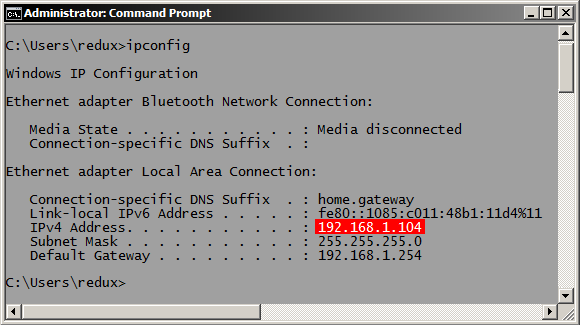
On Windows, there is no easy method to check the current IP address from the system settings. However, opening a Command prompt and entering ipconfig will yield a similar result to ifconfig on OS X and Linux.
Stage 2: Listen for a connection
To begin debugging remotely In Opera Dragonfly perform the following steps:
- Click the Remote Debug button at the top-right of the Opera Dragonfly window.
- Specify the port that will be used to connect over. This defaults to 7001. Make sure the firewall is configured to allow connections on the chosen port.
- Click the Apply button.
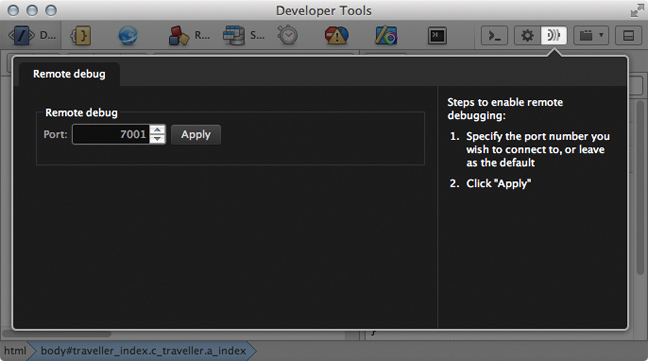
Stage 3: Connect to Opera Dragonfly
On the remote Opera instance, perform the following steps:
- Enter opera:debug in the URL field.
- Enter the IP address and port number from stage 1.
- Click Connect.
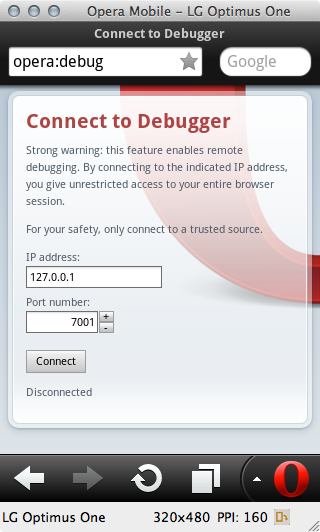
If the connection is successful, Opera Dragonfly will communicate with the remote instance and will be ready to debug the selected document. The Remote Debug button will light up to show the connection is established. If the connection drops for whatever reason, it will switch to an error indicator.
Debugging pages on a remote device
With the connection established, the final step is to select the document to debug. The debugging context selector at the upper-right of the Opera Dragonfly window contains a list of the open documents on the remote device. Navigate to the page to be debugged on the remote device and make sure the correct document is selected in the document selector. It may also be useful to detach Opera Dragonfly to provide more visual real estate.

Everything will behave as if a local document is being debugged. The main difference is that the page being debugged is controlled and displayed on the remote device. Changes made to the DOM or styles can still be made in real time. There may. however, be some delay depending on the latency of the connection and the performance of the device.
Disconnecting
Once the debugging session is over, the remote debugging connection can be disconnected by clicking on the Remote Debug button, and then clicking on the Cancel button. It can also be disconnected on the device by returning to opera:debug and clicking the Disconnect button. Opera Dragonfly will then return to local debug mode.
四、模拟器*
1.官方模拟器*
做安卓开发的肯定都知道安卓模拟器,这是谷歌官方的提供的开发环境,能模拟安卓环境,还可切换各个版本,可下载配置好的环境,然后打开eclipes,直接打开AVDM,穿件一个AVD,然后start,如下图:
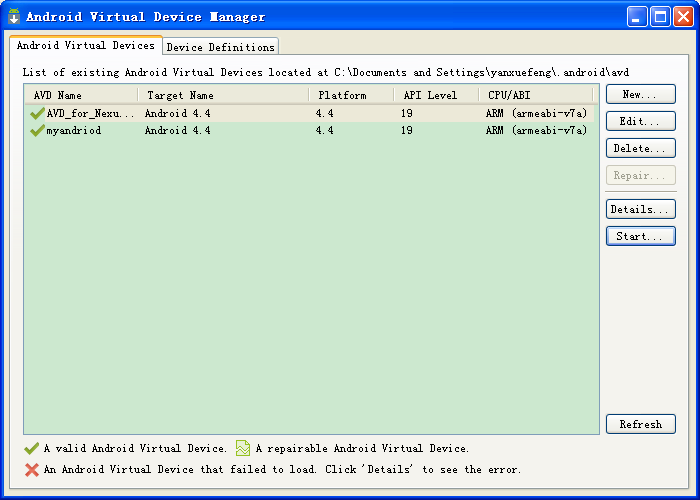
要等一大会时间,会打开模拟器,和安卓环境一样,打开里面的浏览器测试即可。但我的浏览器打不开不知道为什么,郁闷的很啊。
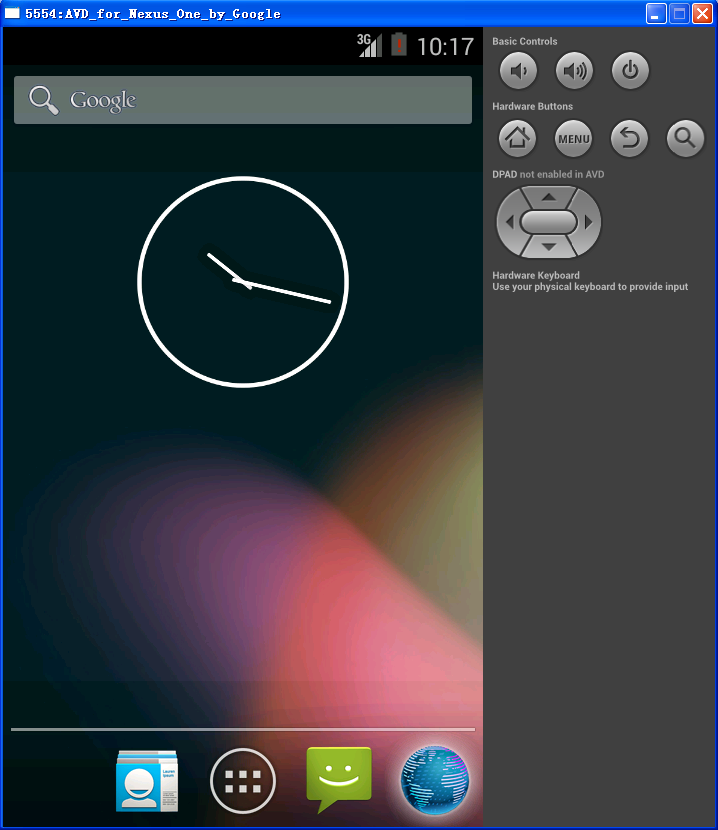
下载地址:http://developer.android.com/sdk/index.html
2.bluestacks
这也是一款模拟器,可自行搜索,本人安装后电脑就卡死了,可能我的电脑配置不行吧,看介绍还是不错的。
五、在线测试
在线只能测试界面的视觉效果,不能调试,但也是很不错的。
1.Mobile Emulator*
非常不错,速度也很快,界面很简洁,支持多种平台。
http://emulator.mobilewebsitesubmit.com/
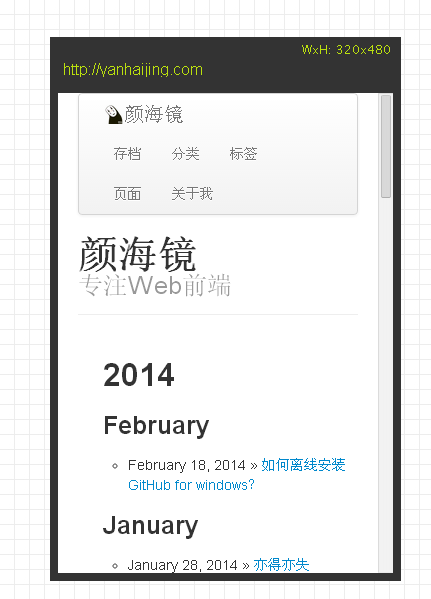
2.opera mini simulator
需要java环境支持,单一平台,opera出品,速度很快。
http://www.opera.com/zh-cn/developer/opera-mini-simulator
3.webpage mobile
说实话弄了半天也没弄出来,大大的鄙视下吧,但是能测试的平台很全面。
http://www.webpagetest.org/mobile
六、总结
以上列出了多种方法,各有利弊,希望大家选择适合自己的方法,本人推荐chrome自带模拟器和opera mobile emulator + dragonfly的方法。因为这两种方法,接近真是手机环境,又能调试css和js。
当然文中没有提到的还有最好的方法就是你有一台手机,那就太好了,配合远程调试,是最最理想的办法
在PC上测试移动端网站和模拟手机浏览器的5大方的更多相关文章
- 在PC上测试移动端网站和模拟手机浏览器的5大方法
在PC上测试移动端网站和模拟手机浏览器的5大方法 来源:互联网 作者:佚名 时间:03-19 10:14:54 [大 中 小] 最近公司要开发网站的移动版,让我准备准备知 ...
- 【转】在PC上测试移动端网站和模拟手机浏览器的5大方法
查了很多资料,尝试了大部分方法,下面将这一天的努力总结下分享给大家,也让大家免去看那么多文章,以下介绍的方法,都是本人亲自测试成功的方法,测试环境winxp. 一.Chrome*浏览器 chrome模 ...
- PC上测试移动端网站和模拟手机浏览器
一.Chrome*浏览器 chrome模拟手机总共有四种方法,原理都一样,通过伪装User-Agent,将浏览器模拟成Android设备.以下标星的为推荐方法. 1.新建Chrome快捷方式 右击桌面 ...
- Opera浏览器测试移动端网站和模拟手机浏览器的方法
链接地址:http://www.neirong.org/post-256.html?utm_source=tuicool Chrome浏览器请看:Chrome浏览器测试移动端网站和模拟手机浏览器的方法 ...
- c#pc上测试微信端企业公众商城个人中心链接的工具JMeter
工具 Apache JMeter 抓包工具,支持回放功能 安装JMeter http://jmeter.apache.org/download_jmeter.cgi 下载页 下边是下载链接 h ...
- 用PC浏览器模拟手机浏览器(一):无扩展版
想浏览手机版,打开对应网址却跳转到PC版?怎么办? 下面咱们来说下在只是安装了浏览器,无需其他安装操作的情况下来怎么用PC浏览器模拟手机浏览器,然后访问手机站点. 浏览器众多,IE系列的咱就不考虑了, ...
- 20、在PC上测试虚拟驱动vivi
在Ubuntu上测试 准备工作:安装xawtv(是一个应用程序,用来在Ubuntu上捕获摄像头数据并显示)sudo apt-get install xawtv 源码xawtv-3.95.tar.gz: ...
- python3 selenuim PC端使用chrome模拟手机进行H5自动化
情况说明:初次在做PC端使用chrome进行H5自动化测试时,以为和app端自动化一样使用click()就可以对按钮进行点击,找了好几天也没有找到解决方法,有些人说是工程问题,有些人是使用微信进行H5 ...
- 怎样使用Chrome模拟手机浏览器測试移动端网站
作者:zhanhailiang 日期:2014-10-10 环境说明: Chrome 37.0.2062.124 m 1. 通过[菜单→工具→开发人员工具|Javascript控制台]或[快捷键Ctr ...
随机推荐
- 旺财速啃H5框架之Bootstrap(四)
上一篇<<旺财速啃H5框架之Bootstrap(三)>>已经把导航做了,接下来搭建内容框架.... 对于不规整的网页,要做成自适应就有点玩大了.... 例如下面这种版式的页面. ...
- 在ubuntu16.10 PHP测试连接MySQL中出现Call to undefined function: mysql_connect()
1.问题: 测试php7.0 链接mysql数据库的时候发生错误: Fatal error: Uncaught Error: Call to undefined function mysqli_con ...
- Vertica 数据库知识汇总篇
Vertica 数据库知识汇总篇(更新中..) 1.Vertica 集群软件部署,各节点硬件性能测试 2.Vertica 创建数据库,创建业务用户测试 3.Vertica 数据库参数调整,资源池分配 ...
- jsp页面无法识别el表达式的解决方案
今天在写一个springmvc的小demo时,碰到一个问题,在jsp页面中书写为${user.username}的表达式语言,在浏览器页面中仍然显示为${user.username},说明jsp根本不 ...
- SQL-日期函数
GETDATE() :取得当前日期时间 DATEADD (datepart , number, date ),计算增加以后的日期.参数date为待计算的日期:参数number为增量:参数datepar ...
- SymmetricDS 快速和灵活的数据库复制
开始谈谈开源的SymmetricDS,谈谈实际使用中,遇到的一些问题和解决办法.持续更新: SymmetricDS 快速和灵活的数据库复制 实际使用 和 埋过的坑 (一)知识篇 SymmetricDS ...
- CentOS:ECDSA host key "ip地址" for has changed and you have requested strict checking(转)
原文地址:http://blog.csdn.net/ausboyue/article/details/52775281 Linux SSH命令错误:ECDSA host key "ip地址& ...
- 超千个节点OpenStack私有云案例(1):CERN 5000+ 计算节点私有云
CERN:欧洲核子研究组织 本文根据以下几篇文章整理而来: https://www.openstack.org/summit/tokyo-2015/videos/presentation/unveil ...
- .NET面试题系列[4] - C# 基础知识(2)
2 类型转换 面试出现频率:主要考察装箱和拆箱.对于有笔试题的场合也可能会考一些基本的类型转换是否合法. 重要程度:10/10 CLR最重要的特性之一就是类型安全性.在运行时,CLR总是知道一个对象是 ...
- Dubbo 备注
Dubbo是阿里开源的一款服务治理中间件,主要包含如下节点: Provider: 暴露服务的服务提供方. Consumer: 调用远程服务的服务消费方. Registry: 服务注册与发现的注册中心. ...