
使用Flex布局的几个小技巧
前情
Flex 是 Flexible Box 的缩写,意为"弹性布局",用来为盒状模型提供最大的灵活性,任何一个容器都可以指定为 Flex 布局,如果说目前我开发中离不开的布局方式那就非Flex莫属了,而且小程序就是推荐使用Flex布局的,对 Grid布局的支持不太理想。
在一次次使用flex布局的时候遇到了一些小困扰,而解决这些小困扰的过程中发现了一些小技巧,特记录并分享出来。
技巧内容
技巧 1:flex-direction为column的子元素自适应内容宽
<!DOCTYPE html>

<html lang="en">

  <head>

    <meta charset="UTF-8" />

    <meta name="viewport" content="width=device-width, initial-scale=1.0" />

    <style>

	    .test {

			  width: 100%;

			  display: flex;

			  flex-direction: column;

			}

			.test-item {

			  height: 100px;

			  display: flex;

			  flex-direction: row;

			  justify-content: center;

			  align-items: center;

			  background-color: red;

			  color: white;

			}

			.test-item:nth-of-type(3){

			  align-self: flex-start;

			}

    </style>

  </head>

  <body>

      <div class="test">

        <div class="test-item">010101</div>

        <div class="test-item">020202</div>

        <div class="test-item">030303</div>

      </div>

  </body>

</html>
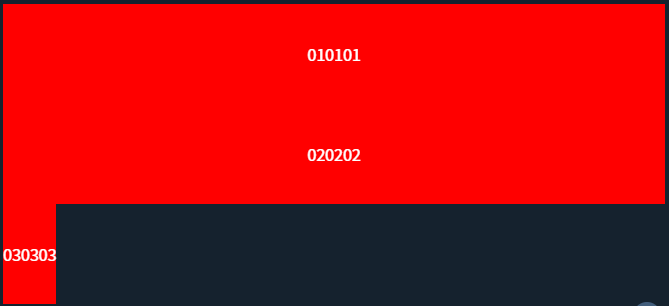
当设置为flex-direction: column后,项目元素align-self样式值默认为stretch,导致项目元素会充满整行,如果你想做到项目元素自适应内容宽你设置为align-self:baseline或者flex-start即可
上述示例可以实现如下图布局效果:
体验链接:CSS Playground
技巧 2:利用margin:auto实现一些特殊布局
对于如下需求你第一想到的flex布局方式是怎么实现:

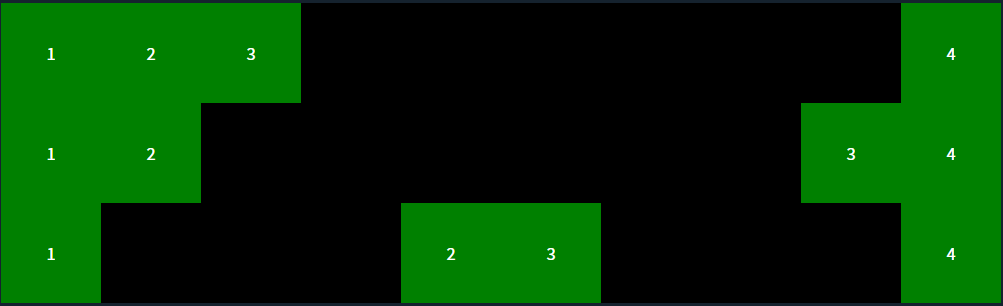
按正常的实现思路是左边一个div包住左边内容,右边再一个div,再使用justify-content:between可以实现或者让左边的div为 flex:1,那有什么方式可以让结构打平一层,左边的包裹div免去了,那就是margin:auto,利用好margin:auto可以实现一些特殊布局,演示代码如下:
<!DOCTYPE html>

<html lang="en">

  <head>

    <meta charset="UTF-8" />

    <meta name="viewport" content="width=device-width, initial-scale=1.0" />

	  <style>

	  .test,.test0,.test1 {

			  width: 100%;

			  display: flex;

			  flex-direction: row;

			  background-color: black;

			}

			.test-item,.test-item0,.test-item1 {

			  width: 100px;

			  height: 100px;

			  display: flex;

			  justify-content: center;

			  align-items: center;

			  color: white;

			  background-color: green;

			}

			.test-item:nth-last-of-type(1){

			  margin-left: auto;

			}

			.test-item0:nth-last-of-type(2){

			  margin-left: auto;

			}

			.test-item1:nth-of-type(2){

			  margin-left: auto;

			}

			.test-item1:nth-of-type(3){

			  margin-right: auto;

			}

	  </style>

  </head>

  <body>

    <div class="test">

      <div class="test-item">1</div>

      <div class="test-item">2</div>

      <div class="test-item">3</div>

      <div class="test-item">4</div>

    </div>

    <div class="test0">

      <div class="test-item0">1</div>

      <div class="test-item0">2</div>

      <div class="test-item0">3</div>

      <div class="test-item0">4</div>

    </div>

    <div class="test1">

      <div class="test-item1">1</div>

      <div class="test-item1">2</div>

      <div class="test-item1">3</div>

      <div class="test-item1">4</div>

    </div>

  </body>

</html>
上述示例可以实现如下图布局效果:
体验链接:CSS Playground
技巧 3:利用align-self实现交叉轴(Cross Axis)上单个元素位置控制
<!DOCTYPE html>

<html lang="en">

  <head>

    <meta charset="UTF-8">

    <meta name="viewport" content="width=device-width, initial-scale=1.0">

    <style>

	    .test {

			  display: flex;

			  flex-direction: column;

			  align-items: center;

			}

			.test-item {

			  width: 100px;

			  height: 100px;

			  display: flex;

			  flex-direction: row;

			  justify-content: center;

			  align-items: center;

			  color: white;

			  background-color: red;

			}

			.test-item:nth-of-type(1){

			  align-self: flex-start;

			}

			.test-item:nth-of-type(3){

			  align-self: flex-end;

			}

    </style>

  </head>

  <body>

    <div class="test">

      <div class="test-item">1</div>

      <div class="test-item">2</div>

      <div class="test-item">3</div>

    </div>

  </body>

</html>
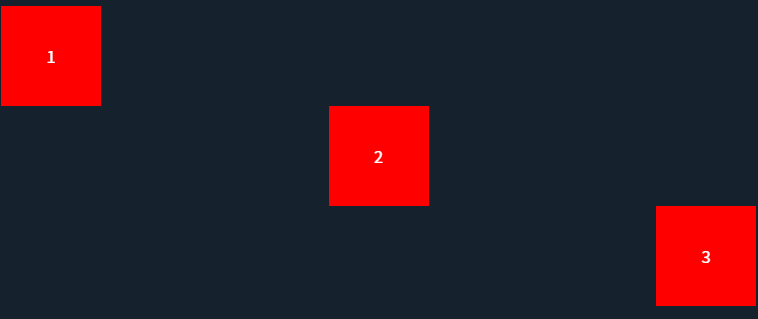
通过align-items可以整体控制交项目元素在叉轴上的对齐方式,但如果想单个控制它的对齐方式,那就用好align-self吧,上述示例可以实现如下图布局效果:
体验链接:CSS Playground
技巧 4:使用gap设置容器内项目之间的间距
<!DOCTYPE html>

<html lang="en">

  <head>

    <meta charset="UTF-8" />

    <meta name="viewport" content="width=device-width, initial-scale=1.0" />

	  <style>

		  .wrap {

			  display: flex;

			  flex-direction: row;

			}

			.test {

			  width: 320px;

			  display: flex;

			  flex-direction: row;

			  align-items: center;

			  justify-content: space-between;

			  flex-wrap: wrap;

			  margin-right: 20px;

			}

			.test-item {

			  width: 100px;

			  height: 100px;

			  margin-bottom: 10px;

			  flex: none;

			  display: flex;

			  flex-direction: row;

			  justify-content: center;

			  align-items: center;

			  color: white;

			  background-color: red;

			}

			.test0 {

			  width: 320px;

			  display: flex;

			  flex-direction: row;

			  align-items: center;

			  flex-wrap: wrap;

			  margin-right: 20px;

			  gap: 10px 10px;

			}

			.test-item0 {

			  width: 100px;

			  height: 100px;

			  flex: none;

			  display: flex;

			  flex-direction: row;

			  justify-content: center;

			  align-items: center;

			  color: white;

			  background-color: red;

			}

	  </style>

  </head>

  <body>

    <div class="wrap">

      <div class="test">

        <div class="test-item">01</div>

        <div class="test-item">02</div>

        <div class="test-item">03</div>

        <div class="test-item">04</div>

        <div class="test-item">05</div>

        <div class="test-item">06</div>

        <div class="test-item">07</div>

        <div class="test-item">08</div>

      </div>

      <div class="test0">

        <div class="test-item0">11</div>

        <div class="test-item0">12</div>

        <div class="test-item0">13</div>

        <div class="test-item0">14</div>

        <div class="test-item0">15</div>

        <div class="test-item0">16</div>

        <div class="test-item0">17</div>

        <div class="test-item0">18</div>

      </div>

    </div>

  </body>

</html>
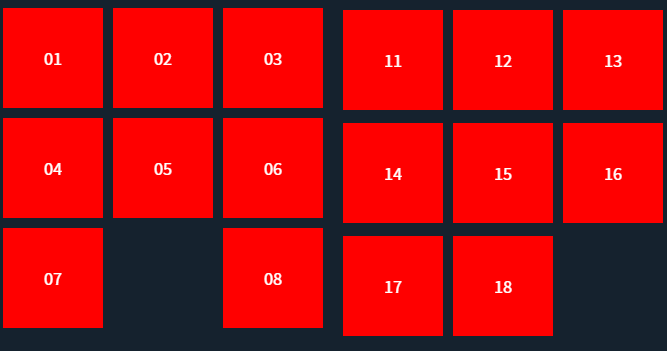
Flex布局如果不依赖gap想实现如下右图的布局是比较麻烦的,通过justify-content: space-between可以做到平分余下空间让元素间有间距,但是如果遇到未行元素不够的时候就会出现如下左图的问题,解决办法是手动生成一个空的元素让它补齐一行内容也是可以做到的;另一种实现方式是通过margin来实现元素间距,再通过:nth-child()方式来去除每行最边缘元素的margin。上述二种方式都相对比较麻烦,如果你使用gap就可以轻松实现右图效果
体验地址:CSS Playground
技巧 5:比较常用的几个缩写
flex: 1/flex: 0%; 等效于flex:1 1 0%; 子元素平分父元素空间,各子元素尺寸一样

flex: none; 等效于flex:0 0 auto; 元素保持自身原始大小不变

flex:auto; 等效于flex:1 1 auto; 元素尺寸可以弹性增大,也可以弹性变小,具有十足的弹性,项目会根据自身大小和剩余空间进行伸缩

注:flex:1和flex:auto区别:
- flex-basis属性定义了项目在分配多余空间之前,占据的主轴空间(main size)
- flex:1相当于flex: 1 1 0%,表示项目的基准大小为0%,不考虑项目本身的大小,只根据剩余空间进行伸缩
- flex:auto相当于flex: 1 1 auto,表示项目的基准大小为auto,即项目本身的大小,同时也会根据剩余空间进行伸缩
- 如果容器有足够的空间,flex:1和flex:auto都会平分剩余空间,但是flex:auto会保持项目本身的最小宽度,而flex:1不会
- 如果容器没有足够的空间,flex:1会优先压缩内容,使得所有项目都能等分空间,而flex:auto会优先保持内容的完整性,挤压其他项目的空间
在线测试地址:JS Bin - Collaborative JavaScript Debugging
技巧 6:浏览器开发者工具辅助使用
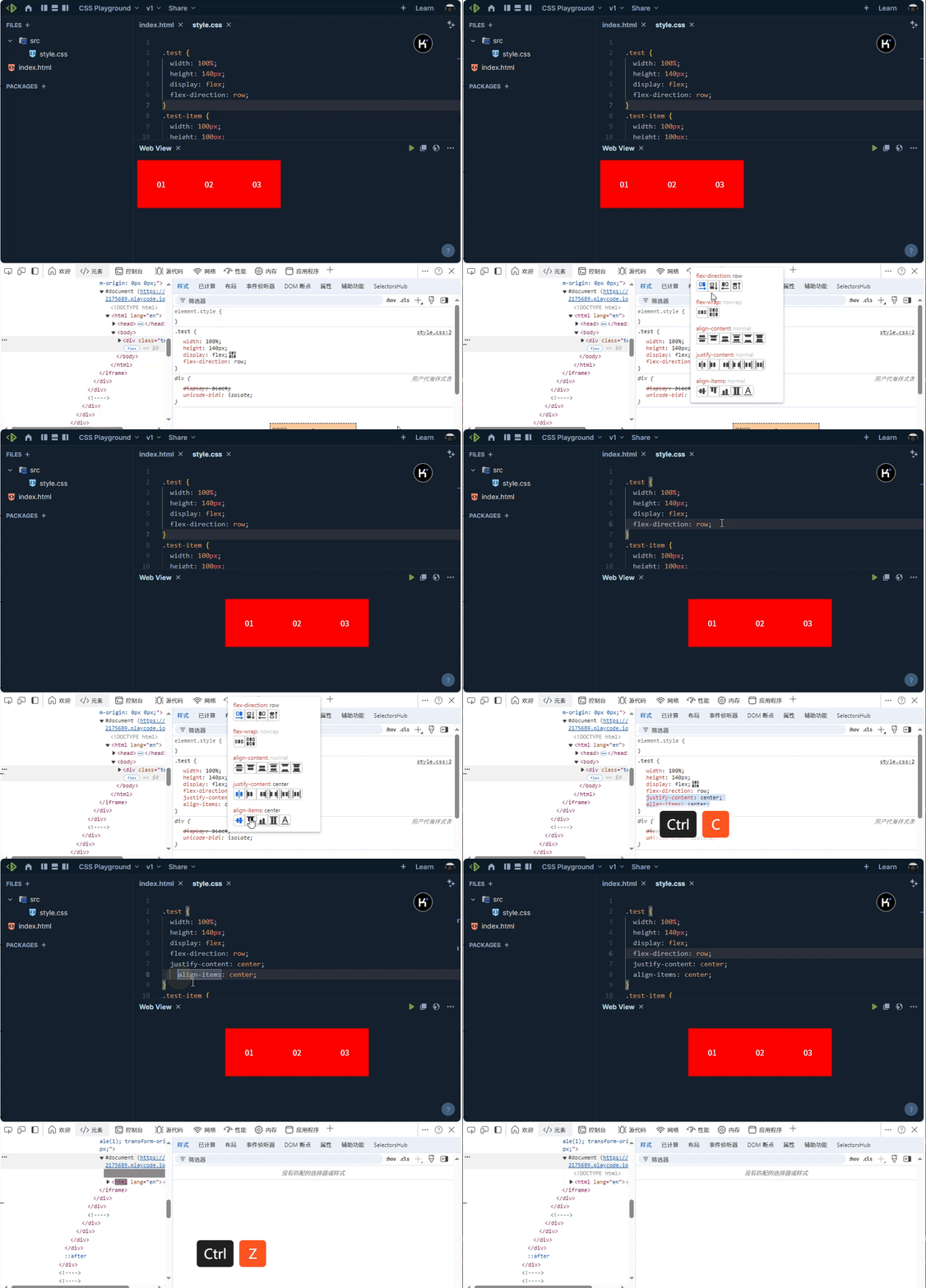
对于新手刚刚学习使用flex布局,经常容易忘记一些属性,其实可以通过浏览器开发者工具辅助来学习flex布局,vs code也有对应的插件可以辅助
期望
上述只是个人在开发中发现的一些Flex布局小技巧,如果你有好的技巧欢迎也分享出来,共同学习进步。期待你的留言。
使用Flex布局的几个小技巧的更多相关文章
- Android开发——布局性能优化的一些技巧(二)
, 0, drawable.getMinimumWidth(),dra.getMinimumHeight()); tv.setCompoundDrawables(null, null, drawabl ...
- css的flex布局调试
学习经验-css的flex布局 今天遇到一个小问题 在给三个div布局时,设置父元素display:flex 此时三个div的宽度均为50%,他们并没有超出屏幕的宽度,还是撑满了父元素. 为什么呢? ...
- 原创:新手布局福音!微信小程序使用flex的一些基础样式属性
来源:新手布局福音!微信小程序使用flex的一些基础样式属性 作者:Nazi Flex布局相对于以前我们经常所用到的布局方式要好的很多,在做微信小程序的时候要既能符合微信小程序的文档开发要求,又能 ...
- 写给 Android 开发的小程序布局指南,Flex 布局!
一.序 Hi,大家好,我是承香墨影! 最近在做小程序,验证一些方向,开发效率确实很快,就是各种微信的审核有点费劲,但是总归是有办法解决的. 想要开发一款小程序,其实和我们正常写一款 App 类似,你需 ...
- 微信小程序开发:Flex布局
微信小程序页面布局方式采用的是Flex布局.Flex布局,是W3c在2009年提出的一种新的方案,可以简便,完整,响应式的实现各种页面布局.Flex布局提供了元素在容器中的对齐,方向以及顺序,甚至他们 ...
- flex开发小技巧集锦
关于flex开发网上有非常多的相关信息介绍,因此我们要想学习关于flex开发的知识信息技能是一件非常简单和方便的事情.而针对于flex开发小编要告诉大家的是一些flex开发小技巧.利用这些小技巧能够有 ...
- 微信小程序前置课程:flex布局(二)
原文:http://www.ruanyifeng.com/blog/2015/07/flex-examples.html 上一篇文章介绍了Flex布局的语法,今天介绍常见布局的Flex写法. 你会看到 ...
- 微信小程序前置课程:Flex 布局教程(一):语法篇
原文:http://www.ruanyifeng.com/blog/2015/07/flex-grammar.html?utm_source=tuicool 网页布局(layout)是CSS的一个重点 ...
- 第八十四节,css布局小技巧及font-awesome图标使用
css布局小技巧及font-awesome图标使用 图片鼠标放上去遮罩效果,显示文字 当鼠标放上去时 /*最外层div*/ .a{ width: 384px; height: 240px; backg ...
- 在微信小程序中学习flex布局
网页布局(layout)是CSS的一个重点应用. 布局的传统解决方案,基于盒状模型,依赖display属性 + position属性 + float属性.它对于那些特殊布局非常不方便,比如,垂直居中就 ...
随机推荐
- java基础 -IO流笔记
610,文件的基础知识 文件流 输入流和输出流都是相对 java程序内存 而言 611,创建文件 在D盘下创建文件. package com.hspedu.file; import org.junit ...
- template fastread
昨天梦到一种快读,你给他传多少参,他就读多少数 今天学了折叠表达式和隐式转换,现在来把这玩意实现一下 特化函数 void read(int) 读入一个整数 void read(char&[], ...
- 【赵渝强老师】Flink的DataSet算子
Flink为了能够处理有边界的数据集和无边界的数据集,提供了对应的DataSet API和DataStream API.我们可以开发对应的Java程序或者Scala程序来完成相应的功能.下面举例了一些 ...
- vue前端开发仿钉图系列(5)右侧编辑页面的开发详解
右侧编辑页面主要有两个入口,一是添加marker或者线面双击结束的时候,新建数据信息:二是点击底部数据的单元行或者查看编辑或者点击地图上的marker以及线面,编辑相关数据.整理总结不易,如需全部代码 ...
- .Net 的扩展方法
// 扩展方法 // ps:js中的扩展方法 比如 给数组定义一个自定义的全局的方法 使用 prototype (原型链) // .Net 给 string 添加一些扩展方法 String 是一个密封 ...
- [第一章 web入门]SQL注入-1
启动靶机 很明显注入点为id值,单引号闭合影响语句,说明为单引号闭合 构造注入语句 ?id=1 ' and 1 =1 --+ 发现没报错,说明没有其他过滤 ,开始sql注入 ?id=1 ' order ...
- 在 KubeSphere 中使用 Rook 构建云原生存储环境
Rook 介绍 Rook 是一个开源的云原生存储编排器,为各种存储解决方案提供平台.框架和支持,以便与云原生环境进行原生集成. Rook 将分布式存储系统转变为自管理.自扩展.自修复的存储服务.它使存 ...
- 远程连接服务器时出现“这可能是由于CredSSP加密数据库修正”的错误提示的解决办法
当我们远程连接服务器时,有时候会出现以下提示,从而导致我们无法成功连接服务器,如下所述: 原因: 远程桌面使用的是"凭据安全支持提供程序协议 (CredSSP) ",这个协议在未修 ...
- 了解 Uniswap V2(DEX)
Uniswap V2 是一个基于以太坊的去中心化交易所(DEX),它通过流动性池和自动化做市商(AMM)模型来实现去中心化的代币交换.以下是 Uniswap V2 的核心概念: 1. 自动化做市商(A ...
- Python获取jenkins job信息
pip install Python-jenkins 如果只是想获取到jenkins的全局变量(比如job url),使用jenkins全局变量就能做到. https://www.jb51.net/ ...