
纯手画WinForm的Alert提示弹出框
纯手画WinForm的Alert弹框
一、窗体设置
设置以下属性:
| 属性名 | 属性值 | 说明 |
|---|---|---|
| AutoScaleMode | None | 确定屏幕分辨率或字体更改时窗体如何缩放 |
| BackColor | 103, 194, 58 | 背景色 |
| Font | Microsoft Sans Serif, 14.25pt | 字体 |
| FormBorderStyle | None | 标题栏和边框样式 |
| ShowIcon | False | 是否显示窗体图标 |
| ShowInTaskBar | False | 是否显示在Windows任务栏 |
| Size | 450,100 | 窗体大小 |
| TopMost | True | 窗口置顶 |
二、界面控件
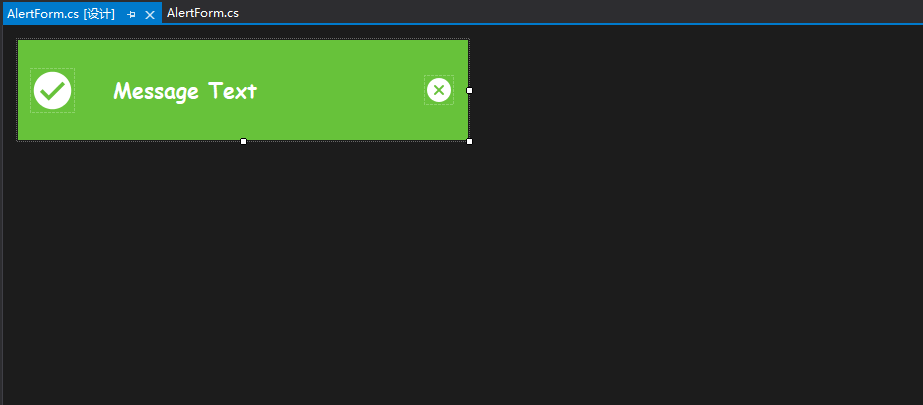
两个PictureBox和一个Label以及一个定时器,控件大小大家自己定义吧,PictureBox设置SizeMode的值为Zoom,Label的ForeColor为white,AutoSIze为True。
效果如下:
三、代码以及思路
1.首先新建三个枚举类:AlertTypes.cs、ActionType.cs、ShowDirection.cs
AlertTypes控制弹框的类型,ActionType弹框的状态,ShowDirection弹框的显示位置
public enum AlertType

{

    /// <summary>

    /// 成功

    /// </summary>

    Success,

    /// <summary>

    /// 提示

    /// </summary>

    Info,

    /// <summary>

    /// 错误

    /// </summary>

    Error,

    /// <summary>

    /// 警告

    /// </summary>

    Warning

}

public enum ActionType

{

    /// <summary>

    /// 等待

    /// </summary>

    wait,

    /// <summary>

    /// 开启

    /// </summary>

    start,

    /// <summary>

    /// 关闭

    /// </summary>

    close

}

public enum ShowDirection

{

    /// <summary>

    /// 头部中心

    /// </summary>

    TopCenter,

    /// <summary>

    /// 右下角

    /// </summary>

    BottomRight,

    /// <summary>

    /// 右上角

    /// </summary>

    TopRight,

}
2.思路
1.滑动的效果通过可以通过定时器修改位置
2.隐藏的效果可以通过控制透明度
3.每一种类型的Alert最多只能弹出10个
3.代码实现
1.公共变量
/// <summary>

/// Alert类型

/// </summary>

private ActionType action;

/// <summary>

/// 位置Point

/// </summary>

private int x, y;

/// <summary>

/// 动画持续的时间

/// </summary>

private int Duration;

/// <summary>

/// 弹出的位置

/// </summary>

private ShowDirection Direction;
2.showAlert方法
- 定义窗体的初始位置以及窗体最后的位置并调用this.Show()
- 设置行为状态为ActionType.start
- 启动定时器
/// <summary>

/// 内部调用显示窗体

/// </summary>

/// <param name="msg"></param>

protected void ShowAlert(string msg)

{

    this.Opacity = 0.0;

    this.StartPosition = FormStartPosition.Manual;

    string fname;

    for (int i = 1; i < 10; i++)

    {

        fname = "alert" + i.ToString() + Direction.ToString();

        AlertForm frm = (AlertForm)Application.OpenForms[fname];

        if (frm == null)

        {

            this.Name = fname;

            // 初始位置

            switch (Direction)

            {

                case ShowDirection.TopCenter:

                    this.x = (Screen.PrimaryScreen.WorkingArea.Width - this.Width) / 2;

                    this.y = this.Height * i + 5 * i;

                    break;

                case ShowDirection.BottomRight:

                    this.x = Screen.PrimaryScreen.WorkingArea.Width - this.Width + 15;

                    this.y = Screen.PrimaryScreen.WorkingArea.Height - this.Height * i - 5 * i;

                    break;

                case ShowDirection.TopRight:

                    this.x = Screen.PrimaryScreen.WorkingArea.Width - this.Width + 15;

                    this.y = this.Height * i + 5 * i;

                    break;

            }

            this.Location = new Point(this.x, this.y);

            break;

        }

    }

    // 横向最后的显示位置 形成滑动距离

    switch (Direction)

    {

        case ShowDirection.BottomRight:

        case ShowDirection.TopRight:

            this.x = Screen.PrimaryScreen.WorkingArea.Width - base.Width - 5;

            break;

    }

    this.lbMsg.Text = msg;

    //字体大小自适应

    LabelAutoSize();

    this.Show();

    this.action = ActionType.start;

    this.hideTimer.Interval = 1;

    this.hideTimer.Start();

}
3.定时器事件控制动画效果
private void hideTimer_Tick(object sender, EventArgs e)

{

    switch (this.action)

    {

        case ActionType.wait:

            this.hideTimer.Interval = Duration;

            this.action = ActionType.close;

            break;

        case ActionType.start:

            this.hideTimer.Interval = 1;

            this.Opacity += 0.1;

            switch (Direction)

            {

                case ShowDirection.TopCenter:

                    if (this.Opacity.Equals(1.0))

                    {

                        this.action = ActionType.wait;

                    }

                    break;

                case ShowDirection.BottomRight:

                case ShowDirection.TopRight:

                    if (this.x < this.Location.X)

                    {

                        this.Left--;

                    }

                    else

                    {

                        if (this.Opacity.Equals(1.0))

                        {

                            this.action = ActionType.wait;

                        }

                    }

                    break;

            }

            break;

        case ActionType.close:

            this.hideTimer.Interval = 1;

            this.Opacity -= 0.1;

            if (Direction == ShowDirection.TopCenter)

                this.Top -= 10;

            else

                this.Left -= 3;

            if (base.Opacity == 0.0)

                base.Close();

            break;

    }

}
4.暴露给外部使用的ShowAlert方法
/// <summary>

/// 暴露的方法

/// </summary>

/// <param name="msg">内容</param>

/// <param name="type">弹出类型</param>

/// <param name="duration">展示时间 秒</param>

/// <param name="direction">位置</param>

public static void ShowAlert(string msg, AlertType type,

                             int duration = 3, ShowDirection direction = ShowDirection.TopCenter)

{

    Duration = duration * 1000;

    Direction = direction;

    AlertForm alert = new AlertForm();

    switch (type)

    {

        case AlertType.Success:

            alert.picAlertType.Image = Resources.Success;

            alert.BackColor = Color.FromArgb(103, 194, 58);

            break;

        case AlertType.Info:

            alert.picAlertType.Image = Resources.Info;

            alert.BackColor = Color.FromArgb(64, 158, 255);

            break;

        case AlertType.Error:

            alert.picAlertType.Image = Resources.Error;

            alert.BackColor = Color.FromArgb(245, 108, 108);

            break;

        case AlertType.Warning:

            alert.picAlertType.Image = Resources.Warning;

            alert.BackColor = Color.FromArgb(230, 162, 60);

            break;

    }

    alert.ShowAlert(msg);

}
5.关闭按钮的事件
private void btnPicClose_Click(object sender, EventArgs e)

{

    this.hideTimer.Interval = 1;

    this.action = ActionType.close;

}
4.全部代码
using Alert_Form.Properties;

using System;

using System.Collections.Generic;

using System.ComponentModel;

using System.Data;

using System.Drawing;

using System.Linq;

using System.Runtime.CompilerServices;

using System.Text;

using System.Threading.Tasks;

using System.Windows.Forms;

namespace Alert_Form.Component.Alert

{

    public partial class AlertForm : Form

    {

        /// <summary>

        /// Alert类型

        /// </summary>

        private ActionType action;

        private int x, y;

        /// <summary>

        /// 动画持续的时间

        /// </summary>

        private int Duration;

        /// <summary>

        /// 弹出的位置

        /// </summary>

        private ShowDirection Direction;

        /// <summary>

        /// 暴露的方法

        /// </summary>

        /// <param name="msg">内容</param>

        /// <param name="type">弹出类型</param>

        /// <param name="duration">展示时间 秒</param>

        /// <param name="direction">位置</param>

        public static void ShowAlert(string msg, AlertType type,

            int duration = 3, ShowDirection direction = ShowDirection.TopCenter)

        {

            AlertForm alert = new AlertForm();

            switch (type)

            {

                case AlertType.Success:

                    alert.picAlertType.Image = Resources.Success;

                    alert.BackColor = Color.FromArgb(103, 194, 58);

                    break;

                case AlertType.Info:

                    alert.picAlertType.Image = Resources.Info;

                    alert.BackColor = Color.FromArgb(64, 158, 255);

                    break;

                case AlertType.Error:

                    alert.picAlertType.Image = Resources.Error;

                    alert.BackColor = Color.FromArgb(245, 108, 108);

                    break;

                case AlertType.Warning:

                    alert.picAlertType.Image = Resources.Warning;

                    alert.BackColor = Color.FromArgb(230, 162, 60);

                    break;

            }

            alert.Duration = duration * 1000;

            alert.Direction = direction;

            alert.ShowAlert(msg);

        }

        public AlertForm()

        {

            InitializeComponent();

        }

        private void btnPicClose_Click(object sender, EventArgs e)

        {

            this.hideTimer.Interval = 1;

            this.action = ActionType.close;

        }

        private void hideTimer_Tick(object sender, EventArgs e)

        {

            switch (this.action)

            {

                case ActionType.wait:

                    this.hideTimer.Interval = Duration;

                    this.action = ActionType.close;

                    break;

                case ActionType.start:

                    this.hideTimer.Interval = 1;

                    this.Opacity += 0.1;

                    switch (Direction)

                    {

                        case ShowDirection.TopCenter:

                            if (this.Opacity.Equals(1.0))

                            {

                                this.action = ActionType.wait;

                            }

                            break;

                        case ShowDirection.BottomRight:

                        case ShowDirection.TopRight:

                            if (this.x < this.Location.X)

                            {

                                this.Left--;

                            }

                            else

                            {

                                if (this.Opacity.Equals(1.0))

                                {

                                    this.action = ActionType.wait;

                                }

                            }

                            break;

                    }

                    break;

                case ActionType.close:

                    this.hideTimer.Interval = 1;

                    this.Opacity -= 0.1;

                    if (Direction == ShowDirection.TopCenter)

                        this.Top -= 10;

                    else

                        this.Left -= 3;

                    if (base.Opacity == 0.0)

                        base.Close();

                    break;

            }

        }

        /// <summary>

        /// 内部调用显示窗体

        /// </summary>

        /// <param name="msg"></param>

        protected void ShowAlert(string msg)

        {

            this.Opacity = 0.0;

            this.StartPosition = FormStartPosition.Manual;

            string fname;

            for (int i = 1; i < 10; i++)

            {

                fname = "alert" + i.ToString() + Direction.ToString();

                AlertForm frm = (AlertForm)Application.OpenForms[fname];

                if (frm == null)

                {

                    this.Name = fname;

                    // 初始位置

                    switch (Direction)

                    {

                        case ShowDirection.TopCenter:

                            this.x = (Screen.PrimaryScreen.WorkingArea.Width - this.Width) / 2;

                            this.y = this.Height * i + 5 * i;

                            break;

                        case ShowDirection.BottomRight:

                            this.x = Screen.PrimaryScreen.WorkingArea.Width - this.Width + 15;

                            this.y = Screen.PrimaryScreen.WorkingArea.Height - this.Height * i - 5 * i;

                            break;

                        case ShowDirection.TopRight:

                            this.x = Screen.PrimaryScreen.WorkingArea.Width - this.Width + 15;

                            this.y = this.Height * i + 5 * i;

                            break;

                    }

                    this.Location = new Point(this.x, this.y);

                    break;

                }

            }

            // 横向最后的显示位置 形成滑动距离

            switch (Direction)

            {

                case ShowDirection.BottomRight:

                case ShowDirection.TopRight:

                    this.x = Screen.PrimaryScreen.WorkingArea.Width - base.Width - 5;

                    break;

            }

            this.lbMsg.Text = msg;

            //字体大小自适应

            LabelAutoSize();

            this.Show();

            this.action = ActionType.start;

            this.hideTimer.Interval = 1;

            this.hideTimer.Start();

        }

        /// <summary>

        /// msg文字大小自适应

        /// </summary>

        private void LabelAutoSize()

        {

            Font font;

            while (true)

            {

                var lbFont = this.lbMsg.Font;

                if (lbMsg.Right >= this.btnPicClose.Left)

                {

                    font = new Font(lbFont.Name,lbFont.Size-1,lbFont.Style);

                    this.lbMsg.Font = font;

                }

                else

                {

                    var top = (this.Height - this.lbMsg.Height) / 2;

                    lbMsg.Top = top;

                    break;

                }

            }

        }

    }

}
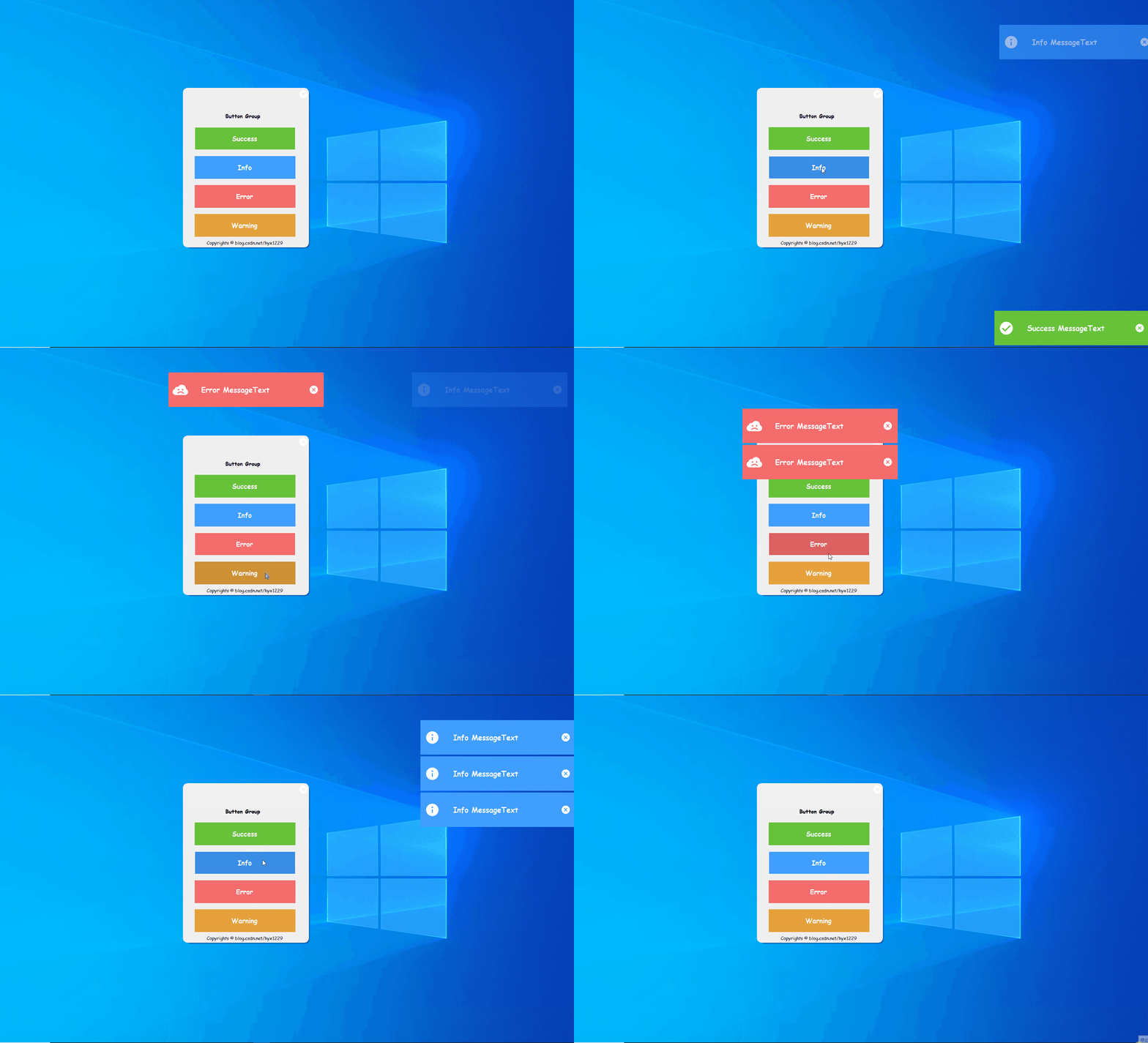
四、最终效果
调用:
AlertForm.ShowAlert("Success MessageText",AlertType.Success,direction:ShowDirection.BottomRight);

AlertForm.ShowAlert("Info MessageText", AlertType.Info,direction:ShowDirection.TopRight);

AlertForm.ShowAlert("Error MessageText", AlertType.Error);

AlertForm.ShowAlert("Warning MessageText",AlertType.Warning);
五、nuget下载使用
1.nuget包管理器控制台
Install-Package Alert_Form -Version 1.1.2.2
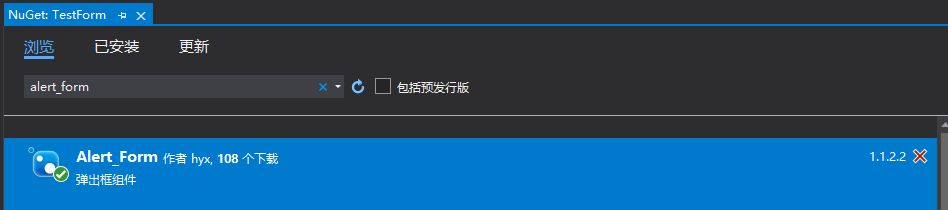
2.nuget包管理器GUI下载
注:
1.这个包并不会长期维护,因为我只是为了学习nuget发布包以及自己写winform项目会用到而弄的。
2.自己封装其实主要是为了学习和改变对winform丑的看法,实际上现在已经有很多winform的UI框架了,比如:SunnyUI、HZHControls、SyncfusionUI等。自己造没有太大的必要。对于字体自适应,我这里也做的不好,文字太多了字号就会小到看不清。主要还是以学习为主。
版权声明
本文首发链接为:https://www.cnblogs.com/hyx1229/p/15763483.html
作者:不想只会CURD的猿某人
更多原著文章请参考:https://www.cnblogs.com/hyx1229/
纯手画WinForm的Alert提示弹出框的更多相关文章
- 四种常见的提示弹出框(success,warning,error,loading)原生JavaScript和jQuery分别实现
原文:四种常见的提示弹出框(success,warning,error,loading)原生JavaScript和jQuery分别实现 虽然说现在官方的自带插件已经有很多了,但是有时候往往不能满足我们 ...
- Winform form窗体已弹出框的形式出现并回传值
From2(弹出框)回传数据到From1 Form1(数据接收form): public string Sstr; private void button1_Click(object sender, ...
- 讨论asp.net通过机器cookie仿百度(google)实现搜索input搜索提示弹出框自己主动
为实现自己主动弹出通过用户输入关键词相关的搜索结果,在这里,我举两个解决方案,对于两个不同的方案. 常用的方法是建立一个用户数据库中查找关系表.然后输入用户搜索框keyword异步调用数据表中的相关数 ...
- iOS自定义提示弹出框(类似UIAlertView)
菜鸟一枚,大神勿喷.自己在牛刀小试的时候,发现系统的UIAlertView有点不喜欢,然后就自己自定义了一个UIAlertView,基本上实现了系统的UIAlertView,可以根据项目的需求修改UI ...
- iOS 提交代码出现提示弹出框显示 “A commit message is required to perform this operation.Enter a commit message and try again.“
需要你写一下你确认提交的信息,就是你这次提交上去修改了什么功能,简单描述一下
- C# Winform 模拟QQ新闻弹出框
一开始做的时候,觉得这个太简单了.真心做的时候还是遇到了不少的坑啊. 1)循环播放新闻内容,建议使用showdialog(),不要用show(),不太好控制前后之间的停顿. 2)窗口的初始位置为有下角 ...
- JS组件系列——Bootstrap寒冬暖身篇:弹出框和提示框效果以及代码展示
前言:对于Web开发人员,弹出框和提示框的使用肯定不会陌生,比如常见的表格新增和编辑功能,一般常见的主要有两种处理方式:行内编辑和弹出框编辑.在增加用户体验方面,弹出框和提示框起着重要的作用,如果你的 ...
- Bootstrap:弹出框和提示框效果以及代码展示
前言:对于Web开发人员,弹出框和提示框的使用肯定不会陌生,比如常见的表格新增和编辑功能,一般常见的主要有两种处理方式:行内编辑和弹出框编辑.在增加用户体验方面,弹出框和提示框起着重要的作用,如果你的 ...
- JS组件Bootstrap实现弹出框和提示框效果代码
这篇文章主要介绍了JS组件Bootstrap实现弹出框和提示框效果代码,对弹出框和提示框感兴趣的小伙伴们可以参考一下 前言:对于Web开发人员,弹出框和提示框的使用肯定不会陌生,比如常见的表格新增和编 ...
随机推荐
- 去除爬虫采集到的\xa0、\u3000等字符
\xa0表示不间断空白符,爬虫中遇到它的概率不可谓不小,而经常和它一同出现的还有\u3000.\u2800.\t等Unicode字符串.单从对\xa0.\t.\u3000等含空白字符的处理来说,有以下 ...
- [BUUCTF]REVERSE——[GXYCTF2019]luck_guy
[GXYCTF2019]luck_guy 附件 步骤: ida载入,shift+f12查看程序里的字符串,看到了关于flag的提示 双击跟进跳转,ctrl+x找到关键函数 flag是由f1和f1拼接而 ...
- Chrome的强大搜索功能
前言 前几天一个好朋友求助我,大概问题是他的电脑QQ啥都能上网,就浏览器上不了网不是IE而是chrome,我第一反应可能是dns问题.后来发甩过来一张图,好家伙把我吓得,类似于下面这张图 这图是我自己 ...
- LocalDate转换成Date
LocalDate nowLocalDate = LocalDate.now(); Date date = Date.from(nowLocalDate.atStartOfDay(ZoneOffset ...
- 1686 第K大区间
1686 第K大区间 时间限制:1 秒 空间限制:131072 KB 定义一个区间的值为其众数出现的次数.现给出n个数,求将所有区间的值排序后,第K大的值为多少. 众数(统计学/数学名词)_百度百 ...
- anaconda 如何更换镜像源
今天需要对anaconda更换其镜像源. 故而做一个小记: 一 查看anaconda的本源方法 电脑路径:C:\Users\14269,找到 .condarc 文件. 打开.condarc文件,可看 ...
- 如何改善win10录屏时声音降噪(消除杂音)
此文章是针对win10系统中安装Realtek声卡的麦克风出现杂音的设置办法 1. 打开win10的控制面板,找到"硬件和声音选项" 2. 进入"硬件和声音"选 ...
- Java并发:五种线程安全类型、线程安全的实现、枚举类型
1. Java中的线程安全 Java线程安全:狭义地认为是多线程之间共享数据的访问. Java语言中各种操作共享的数据有5种类型:不可变.绝对线程安全.相对线程安全.线程兼容.线程独立 ① 不可变 不 ...
- uniapp蓝牙传输中文乱码问题
问题描述:app接收到蓝牙传出过来的二进制数据,1.app进行arrbuff转成16进制字符串 // ArrayBuffer转16进度字符串示例 function ab2hex(buffer) { c ...
- CapstoneCS5212|DP to VGA|CS5212设计电路方案
CS5212功能概述 CS5212是一款DisplayPort端口到VGA转换器,它结合了DisplayPort输入接口和模拟RGB DAC输出接口.嵌入式单片机基于工业标准8051核心. CS521 ...