
Sample Code之Take a screenshot of a SceneView
周末事情太多了,以后就工作日发布随笔吧。周末的话,看心情,也许也会发~
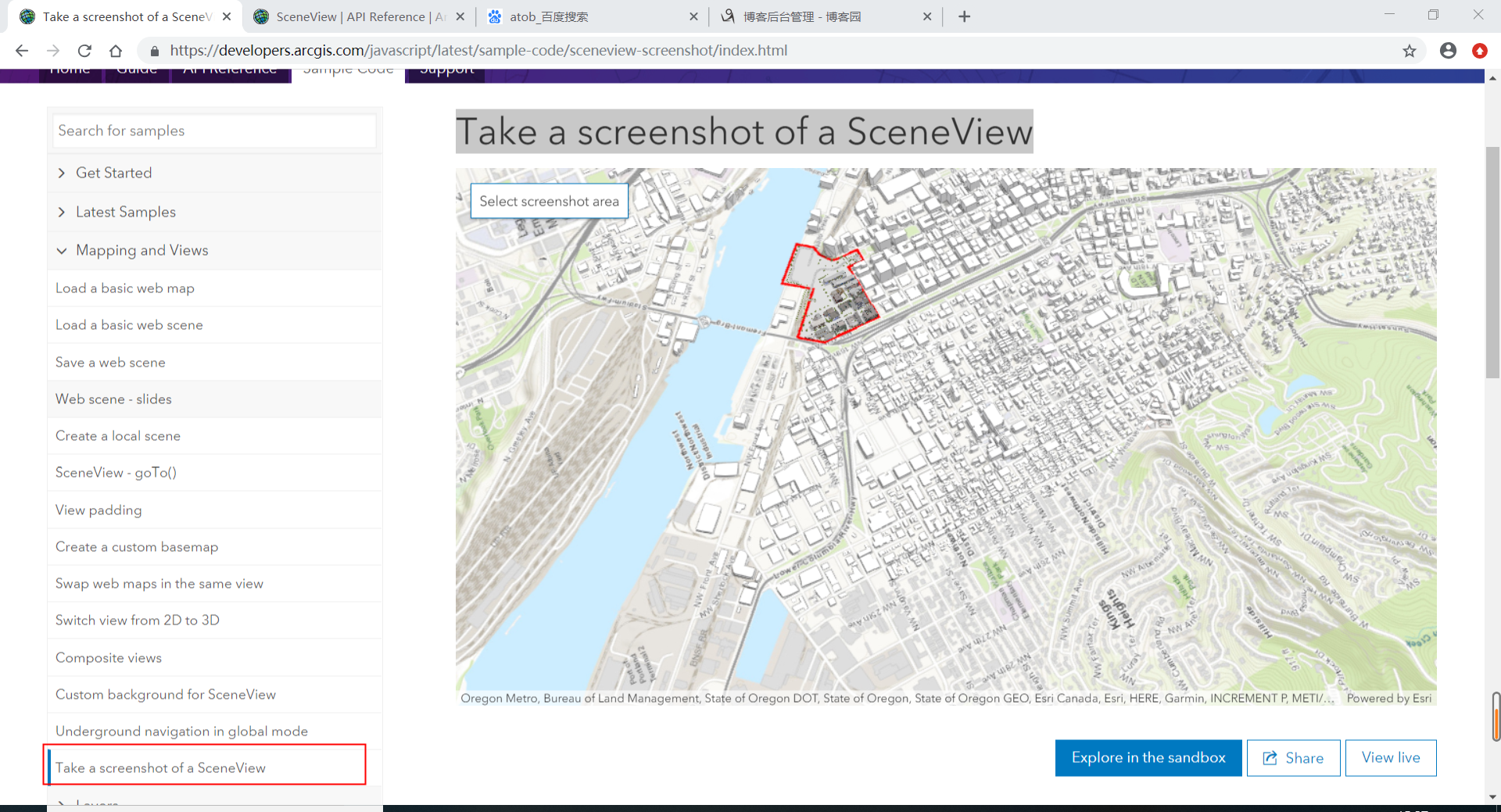
今天的实例代码解析是Take a screenshot of a SceneView,也就是获取快照,话不多说,进入正题。
首先,官方网址的位置为:https://developers.arcgis.com/javascript/latest/sample-code/sceneview-screenshot/index.html
截图:
接下来进入代码的解析部分
第一段:
这一部分没有什么难度,就是加载地图。如果还能记得SceneView是3D视图,MapView是2D视图,就足够了。

第二段:
所谓蒙版,就是当用户要进行截图时所需的容器

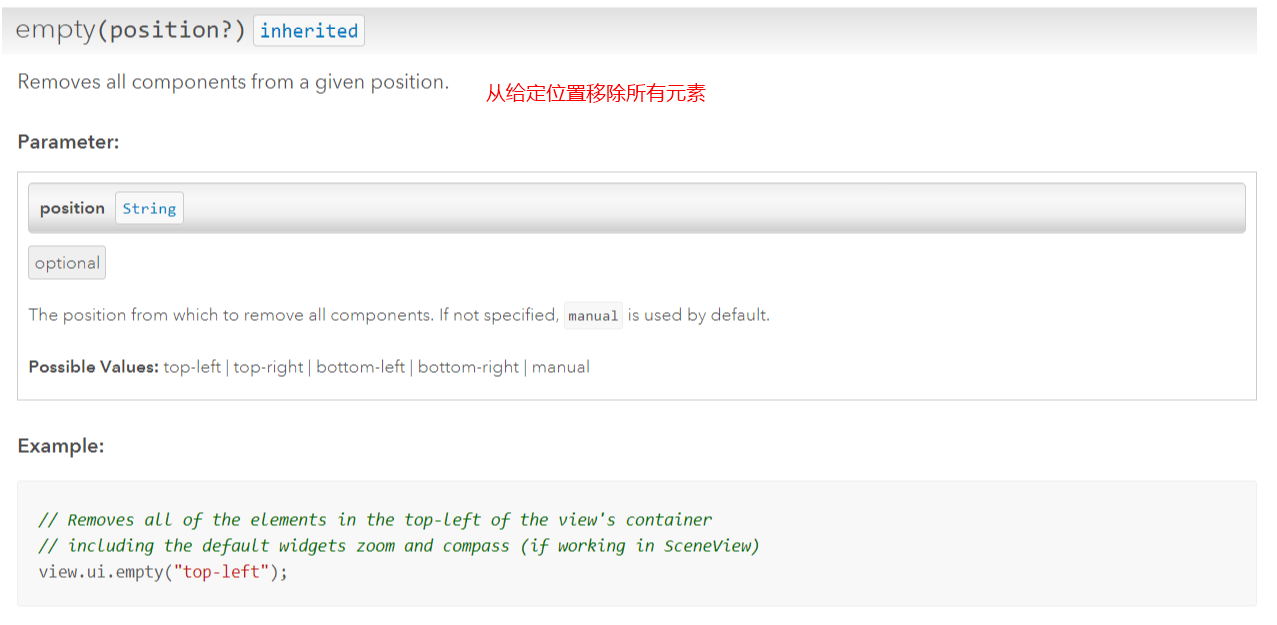
其中有一个view.ui.empty()方法,遇到不懂的方法就去API REFERENCE里面查找,很容易找到解释。这里是介绍看代码的方法。
第三段:
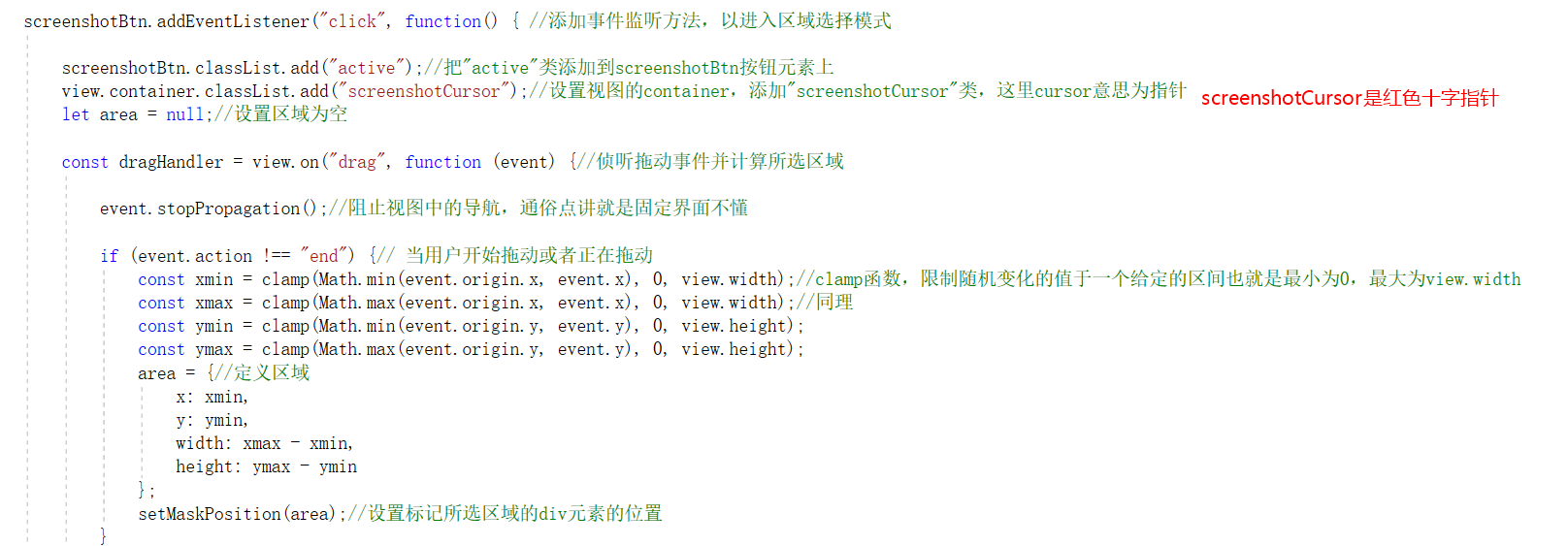
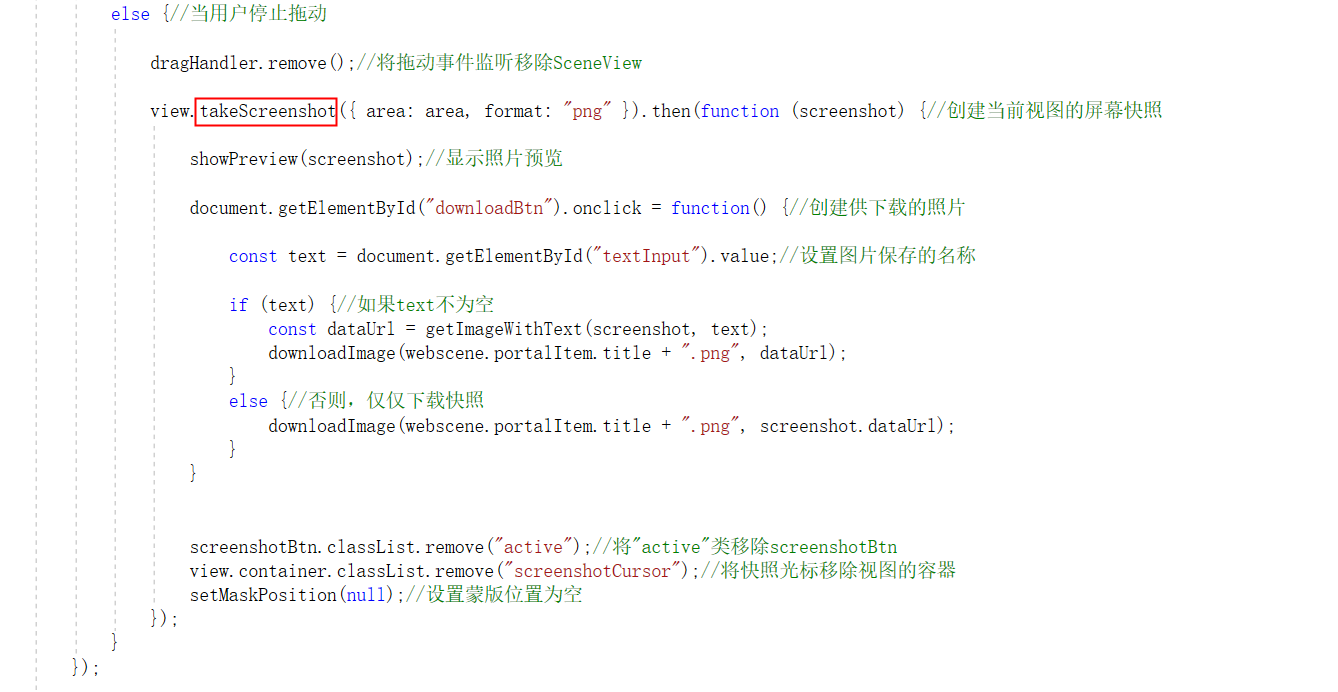
首先对快照按钮的click事件进行监听,此时开始进入截屏;然后对视图的拖动事件进行监听,对截屏的一些属性进行保存显示在预览DIv容器中
第四段:
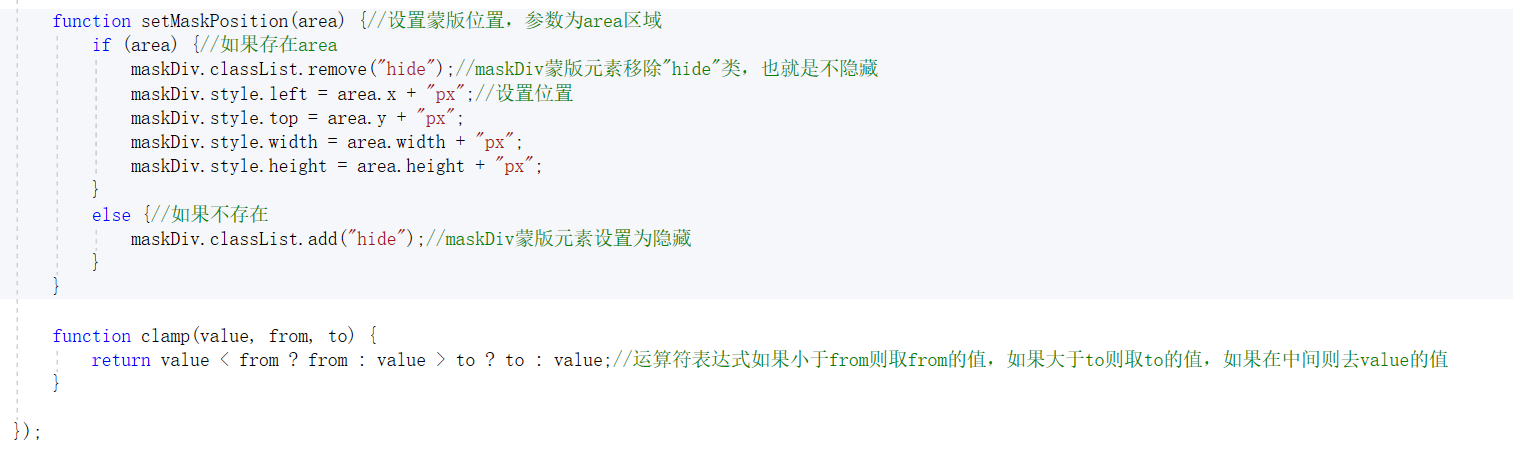
第五段:
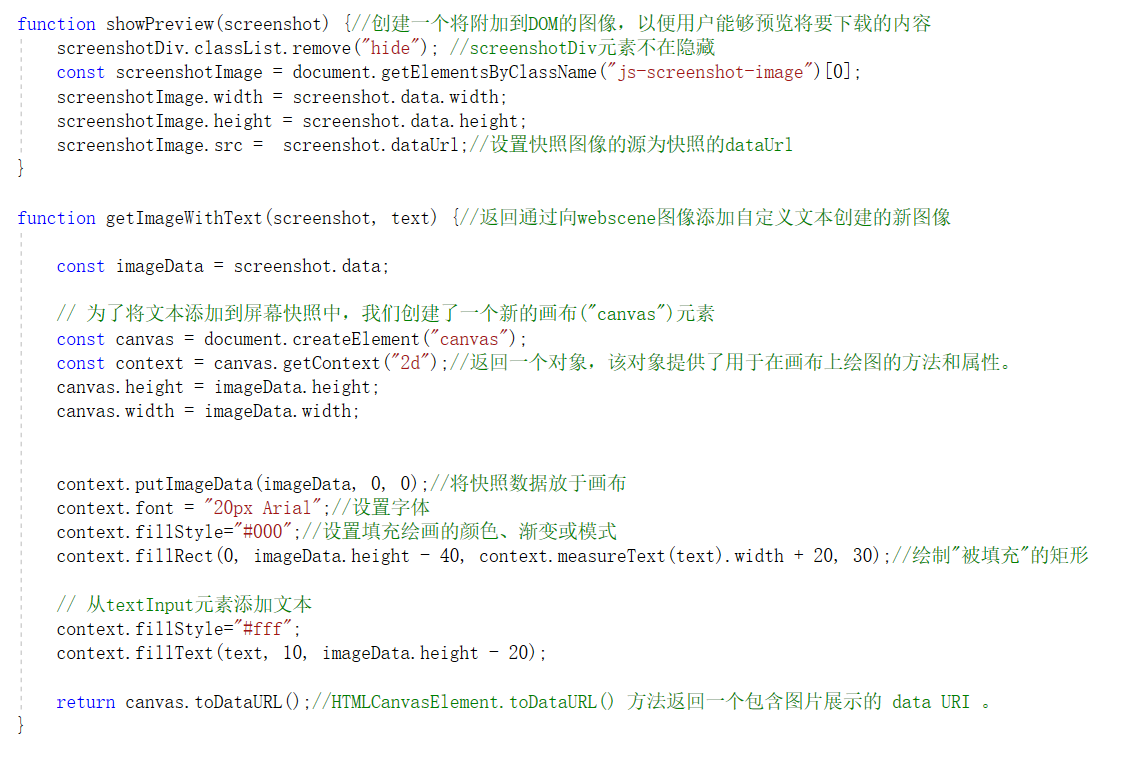
第六段:
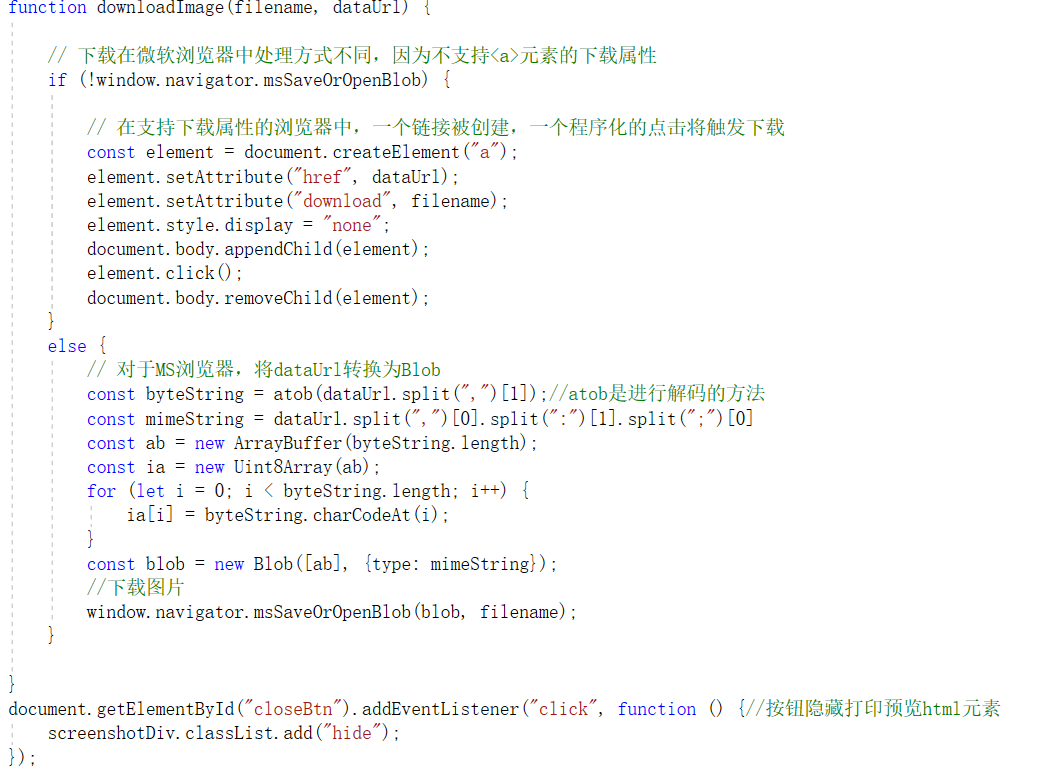
最后附上全部代码:
<!DOCTYPE html>
<html>

<head>
    <meta charset="utf-8">
    <meta name="viewport" content="initial-scale=1,maximum-scale=1,user-scalable=no">
    <title>Take a screenshot of a SceneView - 4.10</title>
    <link rel="stylesheet" href="http://localhost/arcgis_js_v410_sdk/arcgis_js_api/library/4.10/esri/css/main.css">
    <script src="http://localhost/arcgis_js_v410_sdk/arcgis_js_api/library/4.10/dojo/dojo.js"></script>
    <script>

    require([
        "esri/WebScene",//网络场景
        "esri/views/SceneView"//3D视图,上一篇提到:2D视图为MapView
        ], function(WebScene, SceneView) {//两个参数,顺序不能改变,其他的不重复

            const webscene = new WebScene({
                portalItem: {
                id: "19dcff93eeb64f208d09d328656dd492"
                }
            });

            const view = new SceneView({
                map: webscene,
                container: "viewDiv"
            });

            // 从这里开始要进行截图操作了
            const screenshotBtn = document.getElementById("screenshotBtn");//getElementById方法用于获得HTML的元素"screenshotBtn",也就是快照按钮

            const maskDiv = document.getElementById("maskDiv");//获取元素"maskdiv",用于选择区域的蒙版

            const screenshotDiv = document.getElementById("screenshotDiv");//用于显示打印预览的元素

            view.ui.empty("top-left");//地图默认左上角有一些小部件,比如放大缩小,这里清空这些小部件
            view.ui.add(screenshotBtn, "top-left");//将快照按钮放置于左上角

            screenshotBtn.addEventListener("click", function() { //添加事件监听方法,以进入区域选择模式

                screenshotBtn.classList.add("active");//把"active"类添加到screenshotBtn按钮元素上
                view.container.classList.add("screenshotCursor");//设置视图的container,添加"screenshotCursor"类,这里cursor意思为指针
                let area = null;//设置区域为空

                const dragHandler = view.on("drag", function (event) {//侦听拖动事件并计算所选区域

                    event.stopPropagation();//阻止视图中的导航,通俗点讲就是固定界面不懂

                    if (event.action !== "end") {// 当用户开始拖动或者正在拖动
                        , view.width);//clamp函数,限制随机变化的值于一个给定的区间也就是最小为0,最大为view.width
                        , view.width);//同理
                        , view.height);
                        , view.height);
                        area = {//定义区域
                            x: xmin,
                            y: ymin,
                            width: xmax - xmin,
                            height: ymax - ymin
                        };
                        setMaskPosition(area);//设置标记所选区域的div元素的位置
                    }
                    else {//当用户停止拖动

                        dragHandler.remove();//将拖动事件监听移除SceneView

                        view.takeScreenshot({ area: area, format: "png" }).then(function (screenshot) {//创建当前视图的屏幕快照

                            showPreview(screenshot);//显示照片预览

                            document.getElementById("downloadBtn").onclick = function() {//创建供下载的照片

                                const text = document.getElementById("textInput").value;//设置图片保存的名称

                                if (text) {//如果text不为空
                                    const dataUrl = getImageWithText(screenshot, text);
                                    downloadImage(webscene.portalItem.title + ".png", dataUrl);
                                }
                                else {//否则,仅仅下载快照
                                    downloadImage(webscene.portalItem.title + ".png", screenshot.dataUrl);
                                }
                            }

                            screenshotBtn.classList.remove("active");//将"active"类移除screenshotBtn
                            view.container.classList.remove("screenshotCursor");//将快照光标移除视图的容器
                            setMaskPosition(null);//设置蒙版位置为空
                        });
                    }
                });

                function setMaskPosition(area) {//设置蒙版位置,参数为area区域
                    if (area) {//如果存在area
                        maskDiv.classList.remove("hide");//maskDiv蒙版元素移除"hide"类,也就是不隐藏
                        maskDiv.style.left = area.x + "px";//设置位置
                        maskDiv.style.top = area.y + "px";
                        maskDiv.style.width = area.width + "px";
                        maskDiv.style.height = area.height + "px";
                    }
                    else {//如果不存在
                        maskDiv.classList.add("hide");//maskDiv蒙版元素设置为隐藏
                    }
                }

                function clamp(value, from, to) {
                    return value < from ? from : value > to ? to : value;//运算符表达式如果小于from则取from的值,如果大于to则取to的值,如果在中间则去value的值
                }

            });

            function showPreview(screenshot) {//创建一个将附加到DOM的图像,以便用户能够预览将要下载的内容
                screenshotDiv.classList.remove("hide"); //screenshotDiv元素不在隐藏
                ];
                screenshotImage.width = screenshot.data.width;
                screenshotImage.height = screenshot.data.height;
                screenshotImage.src =  screenshot.dataUrl;//设置快照图像的源为快照的dataUrl
            }

            function getImageWithText(screenshot, text) {//返回通过向webscene图像添加自定义文本创建的新图像

                const imageData = screenshot.data;

                // 为了将文本添加到屏幕快照中,我们创建了一个新的画布("canvas")元素
                const canvas = document.createElement("canvas");
                const context = canvas.getContext("2d");//返回一个对象,该对象提供了用于在画布上绘图的方法和属性。
                canvas.height = imageData.height;
                canvas.width = imageData.width;

                context.putImageData(imageData, , );//将快照数据放于画布
                context.font = "20px Arial";//设置字体
                context.fillStyle="#000";//设置填充绘画的颜色、渐变或模式
                context.fillRect(, imageData.height - , context.measureText(text).width + , );//绘制"被填充"的矩形

                // 从textInput元素添加文本
                context.fillStyle="#fff";
                context.fillText(text, , imageData.height - );

                return canvas.toDataURL();//HTMLCanvasElement.toDataURL() 方法返回一个包含图片展示的 data URI 。
            }

            function downloadImage(filename, dataUrl) {

                // 下载在微软浏览器中处理方式不同,因为不支持<a>元素的下载属性
                if (!window.navigator.msSaveOrOpenBlob) {

                    // 在支持下载属性的浏览器中,一个链接被创建,一个程序化的点击将触发下载
                    const element = document.createElement("a");
                    element.setAttribute("href", dataUrl);
                    element.setAttribute("download", filename);
                    element.style.display = "none";
                    document.body.appendChild(element);
                    element.click();
                    document.body.removeChild(element);
                }
                else {
                    // 对于MS浏览器,将dataUrl转换为Blob
                    ]);//atob是进行解码的方法
                    ].split(].split(]
                    const ab = new ArrayBuffer(byteString.length);
                    const ia = new Uint8Array(ab);
                    ; i < byteString.length; i++) {
                        ia[i] = byteString.charCodeAt(i);
                    }
                    const blob = new Blob([ab], {type: mimeString});
                    //下载图片
                    window.navigator.msSaveOrOpenBlob(blob, filename);
                }

            }
            document.getElementById("closeBtn").addEventListener("click", function () {//按钮隐藏打印预览html元素
                screenshotDiv.classList.add("hide");
            });
        });
    </script>
    <style>
        html,
        body,
        #viewDiv {
            padding: ;
            margin: ;
            height: %;
            width: %;
            font-family: Helvetica, Arial, sans-serif;
        }

        #screenshotDiv {
            position: absolute;
            top: ;
            left: ;
            right: ;
            bottom: ;
            text-align: center;
            background-color: rgba(, , , 0.8);
        }

        .hide {
            display: none;
        }

        img {
            border: 10px solid white;
            box-shadow: 2px 2px 5px  rgba(, , , 0.5);
        }

        #screenshotDiv > * {
            margin: .5em;
        }

        .screenshotCursor {
            cursor: crosshair;
        }

        .action-button {
            padding: .6em;
            border: 1px solid #0079c1;
            text-align: center;
            background-color: white;
            cursor: pointer;
        }

            .action-button:hover,
            .action-button:focus {
                background: #0079c1;
                color: white;
            }

        #maskDiv {
            position: absolute;
            background: rgba(, , , 0.1);
            border: 2px dashed rgb(, , );
        }
    </style>
</head>

<body>
    <div id="viewDiv">
        <button id="screenshotBtn" class="action-button esri-widget" aria-label="Select screenshot area"
                title="Select screenshot area">
            Select
            screenshot area
        </button>
    </div>
    <div id="screenshotDiv" class="hide">
        <img class="js-screenshot-image">
        <div>
            <label>Set a text to be displayed on the image: </label><input type="text"
                                                                           placeholder="Image text" id="textInput" autofocus>
        </div>
        <button id="downloadBtn" class="action-button" aria-label="Download image"
                title="Download image">
            Download image
        </button>
        <button id="closeBtn" class="action-button" aria-label="Back to webscene"
                title="Back to webscene">
            Back to webscene
        </button>
    </div>
    <div id="maskDiv" class="hide screenshotCursor"></div>
</body>

</html>
Sample Code之Take a screenshot of a SceneView的更多相关文章
- android studio2.2 的Find Sample Code点击没有反应
1 . 出现的问题描述: 右键点击Find Sample Code后半天没有反应,然后提示 Samples are currently unavailable for :{**** ...
- 如何将经纬度利用Google Map API显示C# VS2005 Sample Code
原文 如何将经纬度利用Google Map API显示C# VS2005 Sample Code 日前写了一篇如何用GPS抓取目前所在,并回传至资料库储存,这篇将会利用这些回报的资料,将它显示在地图上 ...
- IOS开发苹果官方Sample Code及下载地址
IOS开发苹果官方Sample Code及下载地址 在线浏览地址:https://developer.apple.com/library/ios/navigation/#section=Resourc ...
- OAF Sample Code(转)
原文地址: OAF Sample Code
- Sample Code之Web scene-slides
这是我的第一篇随笔,在开始正文前说几句. 这个系列会记录我学习Arcgis js API 4.10的全过程,希望能对自己也对其他有需要的人有帮助.很多时候上网看一些大神的帖子会感到一头雾水,一是自己水 ...
- sample code java pom.xml
pom.xml <?xml version="1.0" encoding="UTF-8"?> <project xmlns="htt ...
- sqoop sample code
本文使用的数据库是mysql的sample database employees. download url:https://launchpad.net/test-db/employees-db-1/ ...
- Sample Code for Qp_preq_pub.Price_request Api to Simulate an Ask for Promotion Modifier
DECLARE p_line_tbl QP_PREQ_GRP.LINE_TBL_TYPE; p_qual_tbl QP_PREQ_GRP.QUAL_TBL_TYPE; p_line_attr_tbl ...
- 虹软人脸识别Android Sample Code
AFR_FSDKInterface engine = new AFR_FSDKEngine(); //用来存放提取到的人脸信息, face_1 是注册的人脸,face_2 是要识别的人脸 AFR_FS ...
随机推荐
- jackson中的@JsonBackReference和@JsonManagedReference,以及@JsonIgnore
jackson中的@JsonBackReference和@JsonManagedReference,以及@JsonIgnore均是为了解决对象中存在双向引用导致的无限递归(infinite recur ...
- H3C NAT的信息显示和调试
- [转]分布式监控工具Ganglia 介绍 与 集群部署.
如果你目的很明确就是冲着标题来的,不爱看我唠叨,请直接进入第二个分割线之后的内容. 其实之前就是有做Swift监控平台的打算的,但是因为没什么硬性需求么,也不要紧的,就一直搁置了.最近实验室来了个大二 ...
- redis cluster和hash slot
redis cluster介绍 从redis3.0.0开始,官方支持了redis cluster的集群模式,结束了redis没有集群的时代. redis cluster 支撑 N 个 redis ma ...
- 2018-8-10-如何在-UWP-使用-wpf-的-Trigger-
title author date CreateTime categories 如何在 UWP 使用 wpf 的 Trigger lindexi 2018-08-10 19:16:51 +0800 2 ...
- JAXB常用注解讲解(超详细)
简介: JAXB(Java Architecture for XML Binding) 是一个业界的标准,是一项可以根据XML Schema产生Java类的技术.该过程中,JAXB也提供了将XML实例 ...
- element ui 批量删除
<el-table :data="tableData" stripe border style="width: 100%" @selection-chan ...
- 性能测试基础-HTTP用例设计
JSON格式请求: web_custom_request("https://xx.xx.xx.xx:xx/pvcpappinf//msgcustomization/xinPowGenDay, ...
- 2019-8-31-dotnet-core-隐藏控制台
title author date CreateTime categories dotnet core 隐藏控制台 lindexi 2019-08-31 16:55:58 +0800 2019-2-1 ...
- Hibernate管理Session
Hibernate自身提供了三种管理Session对象的方法 Session对象的生命周期与本地线程绑定 Session对象的生命周期与JTA事务绑定 Hibernate委托程序管理Session对象 ...