
TableLayout表格布局
1.本节学习路线图
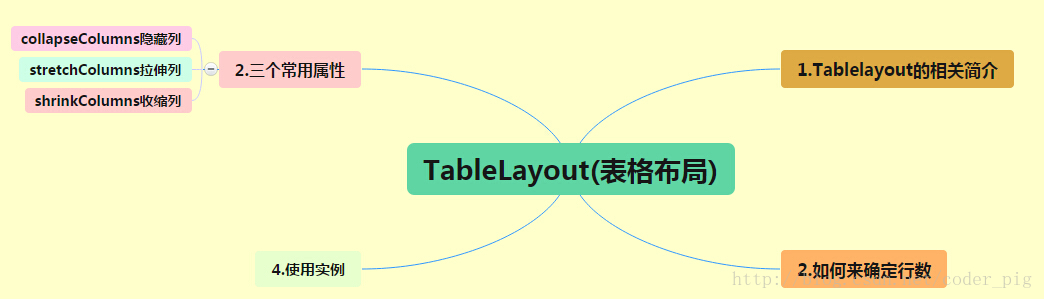
路线图分析: 从上面的路线图,可以看出TableLayout的用法还是很简单的,无非就是确定表格的行数,以及使用 那三个属性来设置每一行中的第某列的元素隐藏,拉伸,或者收缩即可!
2.TableLayout的介绍
相信学过HTML的朋友都知道,我们可以通过< table >< tr >< td >就可以生成一个HTML的表格, 而Android中也允许我们使用表格的方式来排列组件,就是行与列的方式,就说我们这节的TableLayout! 但却不像我们后面会讲到的Android 4.0后引入的GridLayout(网格)布局一样,直接就可以设置多少行与多少列!
3.如何确定行数与列数
- ①如果我们直接往TableLayout中添加组件的话,那么这个组件将占满一行!!!
- ②如果我们想一行上有多个组件的话,就要添加一个TableRow的容器,把组件都丢到里面!
- ③tablerow中的组件个数就决定了该行有多少列,而列的宽度由该列中最宽的单元格决定
- ④tablerow的layout_width属性,默认是fill_parent的,我们自己设置成其他的值也不会生效!!! 但是layout_height默认是wrapten——content的,我们却可以自己设置大小!
- ⑤整个表格布局的宽度取决于父容器的宽度(占满父容器本身)
- ⑥有多少行就要自己数啦,一个tablerow一行,一个单独的组件也一行!多少列则是看tableRow中 的组件个数,组件最多的就是TableLayout的列数
4.三个常用属性
android:collapseColumns:设置需要被隐藏的列的序号
android:shrinkColumns:设置允许被收缩的列的列序号
android:stretchColumns:设置运行被拉伸的列的列序号以上这三个属性的列号都是从0开始算的,比如shrinkColunmns = "2",对应的是第三列!
可以设置多个,用逗号隔开比如"0,2",如果是所有列都生效,则用"*"号即可
除了这三个常用属性,还有两个属性,分别就是跳格子以及合并单元格,这和HTML中的Table类似:android:layout_column="2":表示的就是跳过第二个,直接显示到第三个格子处,从1开始算的!
android:layout_span="4":表示合并4个单元格,也就说这个组件占4个单元格
属性使用示例:
①collapseColumns(隐藏列)
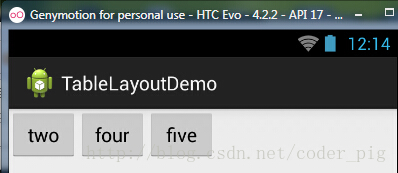
流程:在TableRow中定义5个按钮后,接着在最外层的TableLayout中添加以下属性: android:collapseColumns = "0,2",就是隐藏第一与第三列,代码如下:
<TableLayout

    android:id="@+id/TableLayout2"

    android:layout_width="fill_parent"

    android:layout_height="wrap_content"

    android:collapseColumns="0,2" >

    <TableRow>

        <Button

            android:layout_width="wrap_content"

            android:layout_height="wrap_content"

            android:text="one" />

        <Button

            android:layout_width="wrap_content"

            android:layout_height="wrap_content"

            android:text="two" />

        <Button

            android:layout_width="wrap_content"

            android:layout_height="wrap_content"

            android:text="three" />

        <Button

            android:layout_width="wrap_content"

            android:layout_height="wrap_content"

            android:text="four" />

        <Button

            android:layout_width="wrap_content"

            android:layout_height="wrap_content"

            android:text="five" />

    </TableRow>

</TableLayout>
运行效果图:
②stretchColumns(拉伸列)
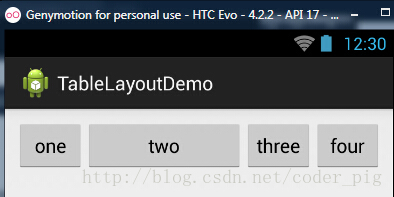
流程:在TableLayout中设置了四个按钮,接着在最外层的TableLayout中添加以下属性: android:stretchColumns = "1"
设置第二列为可拉伸列,让该列填满这一行所有的剩余空间,代码如下:
<TableLayout

    android:id="@+id/TableLayout2"

    android:layout_width="fill_parent"

    android:layout_height="wrap_content"

    android:stretchColumns="1" >

    <TableRow>

        <Button

            android:layout_width="wrap_content"

            android:layout_height="wrap_content"

            android:text="one" />

        <Button

            android:layout_width="wrap_content"

            android:layout_height="wrap_content"

            android:text="two" />

        <Button

            android:layout_width="wrap_content"

            android:layout_height="wrap_content"

            android:text="three" />

        <Button

            android:layout_width="wrap_content"

            android:layout_height="wrap_content"

            android:text="four" />

    </TableRow>

</TableLayout>
运行效果图:
③shrinkColumns(收缩列)
步骤:这里为了演示出效果,设置了5个按钮和一个文本框,在最外层的TableLayout中添加以下属性: android:shrinkColumns = "1"
设置第二个列为可收缩列,代码如下:
<TableLayout

    android:id="@+id/TableLayout2"

    android:layout_width="fill_parent"

    android:layout_height="wrap_content"

    android:shrinkColumns="1" >

    <TableRow>

        <Button

            android:layout_width="wrap_content"

            android:layout_height="wrap_content"

            android:text="one" />

        <Button

            android:layout_width="wrap_content"

            android:layout_height="wrap_content"

            android:text="two" />

        <Button

            android:layout_width="wrap_content"

            android:layout_height="wrap_content"

            android:text="three" />

        <Button

            android:layout_width="wrap_content"

            android:layout_height="wrap_content"

            android:text="four" />

        <Button

            android:layout_width="wrap_content"

            android:layout_height="wrap_content"

            android:text="five" />

        <TextView

            android:layout_width="wrap_content"

            android:layout_height="wrap_content"

            android:text="文本XX" />

    </TableRow>

</TableLayout>
运行截图:
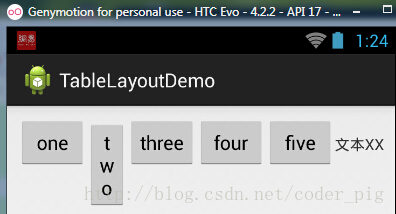
从图中我们可以看到two这个按钮被挤压成条条状,这个就是收缩,为了保证表格能适应 父容器的宽度!至于另外两个属性就不讲解了,用法和HTML相同!有兴趣的可以研究下!
5.使用实例
使用TableLayout来完成简单的登录界面,运行效果图如下:
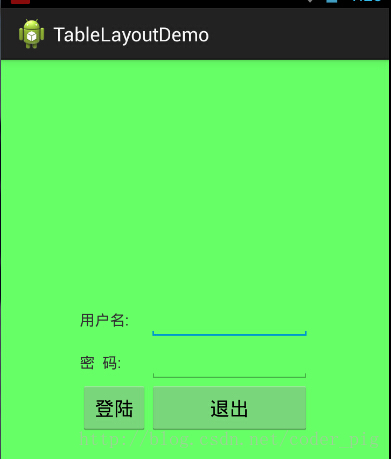
流程解析:
①调用gravity属性,设置为center_vertical,让布局里面的组件在竖直方向上居中
②将TableLayout中的第一和第四列设置为可拉伸
③在每个TableRow中添加两个TextView,用于拉伸填满该行,这样可以让表格水平居中
android:stretchColumns="0,3" 设置为0.3,是为了让两边都充满,那么中间部分就可以居中了
详细代码如下:
<TableLayout xmlns:android="http://schemas.android.com/apk/res/android"

    xmlns:tools="http://schemas.android.com/tools"

    android:id="@+id/TableLayout1"

    android:layout_width="match_parent"

    android:layout_height="match_parent"

    tools:context=".MainActivity"

    android:stretchColumns="0,3"

    android:gravity="center_vertical"

    android:background="#66FF66"

    >

    <TableRow>

        <TextView />

        <TextView

            android:layout_width="wrap_content"

            android:layout_height="wrap_content"

            android:text="用户名:"/>

        <EditText

            android:layout_width="wrap_content"

            android:layout_height="wrap_content"

            android:minWidth="150dp"/>

        <TextView />

    </TableRow>

    <TableRow>

        <TextView />

        <TextView

            android:layout_width="wrap_content"

            android:layout_height="wrap_content"

            android:text="密  码:"

        />

        <EditText

            android:layout_width="wrap_content"

            android:layout_height="wrap_content"

            android:minWidth="150dp"

        />

        <TextView />

    </TableRow>

    <TableRow>

        <TextView />

        <Button

            android:layout_width="wrap_content"

            android:layout_height="wrap_content"

            android:text="登陆"/>

        <Button

            android:layout_width="wrap_content"

            android:layout_height="wrap_content"

            android:text="退出"/>

        <TextView />

    </TableRow>

</TableLayout>
6.发现的问题
相信大家在使用这个这TableLayout的TableRow的时候会遇到这个警告:
当然,程序还是可以运行的,不过或许你是强迫症患者,看到黄色感叹号你就不爽的话! 而解决这个警告的方法也是很奇葩的:只要你的TableLayout里面有2个或以上的TableRow就可以了!
本节小结:
好的,关于Android的第三个布局:TableLayout就到这里~无非就是五个属性的使用而已,实际开发 表格布局我们用的不多,知道简单的用法就可以了!

TableLayout表格布局的更多相关文章
- 【转】TableLayout(表格布局)
转自:http://www.cnblogs.com/zhangs1986/archive/2013/01/17/2864536.html TableLayout(表格布局) 表格布局模型以行列的形式管 ...
- Android零基础入门第29节:善用TableLayout表格布局,事半功倍
原文:Android零基础入门第29节:善用TableLayout表格布局,事半功倍 前面学习了线性布局和相对布局,线性布局虽然方便,但如果遇到控件需要排列整齐的情况就很难达到要求,用相对布局又比较麻 ...
- Android布局-TableLayout表格布局
一.表格布局-TableLayout 1.概念 表格布局采用行列的形式来管理UI的控件.表格布局适合于有规则的布局. TableRow,用来管理行,TableRow中的一个空间占据该行的一列.若不用T ...
- 案例:TableLayout表格布局——迷你计算器
计算器可以常用线性布局(LinearLayout)和表格布局(tableLayout).Gridlayout 今天我用的是表格布局 效果如下: 代码如下: <TableLayout xmlns: ...
- TableLayout(表格布局)
表格布局模型以行列的形式管理子控件,每一行为一个TableRow的对象,当然也可以是一个View的对象.TableRow可以添加子控件,每添加一个为一列. TableLayout属性: android ...
- 2.2.3 TableLayout(表格布局)
3.如何确定行数与列数 ①如果我们直接往TableLayout中添加组件的话,那么这个组件将占满一行!!! ②如果我们想一行上有多个组件的话,就要添加一个TableRow的容器,把组件都丢到里面! ③ ...
- android的布局-----TableLayout(表格布局)
学习导图 (1)TableLayout的相关简介 java的swing编程和html中经常会使用到表格,可见表格的应用开发中使用还是比较多的,同样android也为我们提供这样的布局方式. (2)如何 ...
- Android之TableLayout表格布局
1.相关属性 1.1.常用属性 android:collapseColumns 设置需要被隐藏的列的序列号 android:shrinkColumns 设置允许被收缩的列的序列号 android:st ...
- TableLayout表格布局详解
一.Tablelayout简介 Tablelayout类以行和列的形式对控件进行管理,每一行为一个TableRow对象,或一个View控件.当为TableRow对象时,可在TableRow下添加子控件 ...
随机推荐
- iOS_04_数据类型、常量、变量
一.数据 1.什么是数据 * 生活中时时刻刻都在跟数据打交道,比如体重数据.血压数据.股价数据等.在我们使用计算机的过程中,会接触到各种各样的数据,有文档数据,图片数据,视频数据,还有聊天QQ产生的文 ...
- Codeforces Round #258 (Div. 2)——B. Sort the Array
B. Sort the Array time limit per test 1 second memory limit per test 256 megabytes input standard in ...
- 云服务器搭建 Nginx 静态网站
第一步:安装 Nginx 在 CentOS 上,可直接使用 yum 来安装 Nginx(当然也可以通过下载压缩包.解压.编译的方式安装,不过太麻烦了) yum install nginx -y 第二步 ...
- simple-word-Highlighter 支持网址正则表达式匹配
- GitHub 上排名前 100 的 IOS 开源库简介
主要对当前 GitHub 排名前 100 的项目做一个简单的简介, 方便初学者快速了解到当前 Objective-C 在 GitHub 的情况. 项目名称 项目信息 1. AFNetworking 作 ...
- 【习题 5-11 UVA 12504 】Updating a Dictionary
[链接] 我是链接,点我呀:) [题意] 在这里输入题意 [题解] 不确定某个map里面是否有某个关键字的时候. 要用find来确定. 如果直接用访问下标的形式去做的话. 会强行给他加一个那个关键字( ...
- 25、驱动调试之打印到proc虚拟文件
1.dmesg指令是通过读/proc/kmsg来获取打印信息,也可以通过cat /proc/kmsg打印: 说明:kmsg是环形缓存区,只能读一次 2.内核中fs/proc目录下有相关文件,比如pro ...
- 得到INI文件所有Section(所有节点名称)
char SectionNames[MAX_PATH],*pSectionName; ZeroMemory(SectionNames,MAX_PATH); GetPrivateProfileSecti ...
- [Swift] Add Scroll View
import UIKit class AboutViewController : UIViewController @IBOutlet weak var scrollView: UIScrollVie ...
- 对延时敏感的应用是否应该使用Docker?
在High Scalability上看到一篇文章 How Does The Use of Docker Effect Latency? .文章回答了一个问题 I keep hearing about ...