Building a Database Test Plan

In this section, you will learn how to create a basic Test Planto test a database server. You will create ten users that send five SQL requests to the database server. Also, you will tell the users to run their tests three times. So, the total number of requests is (10 users) x (2 requests) x (repeat 3 times) = 60 JDBC requests. To construct the Test Plan, you will use the following elements: Thread GroupJDBC Request , Graph Results .

This example uses the MySQL database driver. To use this driver, its containing .jar file must be copied to the JMeter lib directory (see JMeter's Classpathfor more details).
 
7.1 Adding Users

The first step you want to do with every JMeter Test Plan is to add a Thread Groupelement. The Thread Group tells JMeter the number of users you want to simulate, how often the users should send requests, and the how many requests they should send.

Go ahead and add the ThreadGroup element by first selecting the Test Plan, clicking your right mouse button to get the Add menu, and then select Add --> ThreadGroup.

You should now see the Thread Group element under Test Plan. If you do not see the element, then "expand" the Test Plan tree by clicking on the Test Plan element.

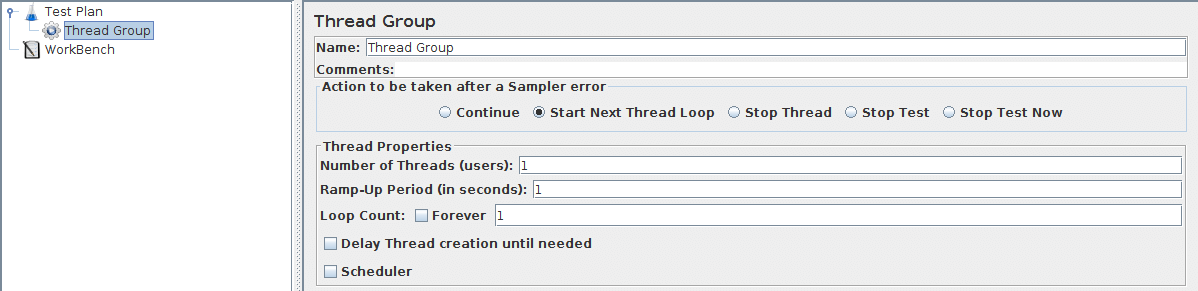
Next, you need to modify the default properties. Select the Thread Group element in the tree, if you have not already selected it. You should now see the Thread Group Control Panel in the right section of the JMeter window (see Figure 7.1 below)


Figure 7.1. Thread Group with Default Values

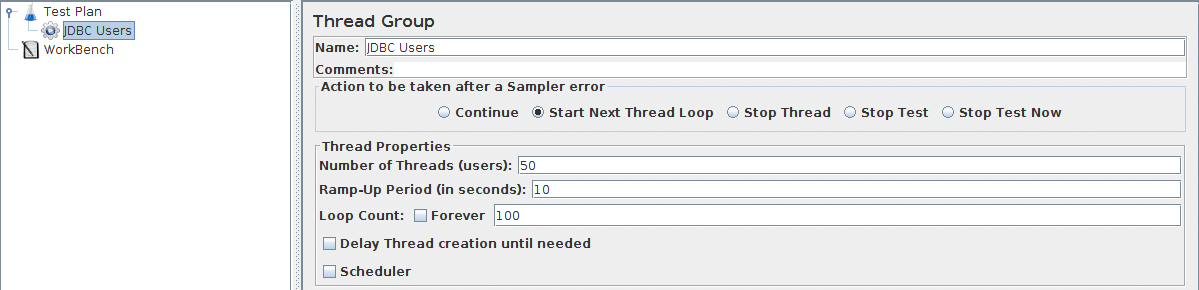
Start by providing a more descriptive name for our Thread Group. In the name field, enter JDBC Users.

You will need a valid database, database table, and user-level access to that table. In the example shown here, the database is 'mydb' and the table name is 'Stocks'.

Next, increase the number of users to 10.

In the next field, the Ramp-Up Period, leave the the default value of 0 seconds. This property tells JMeter how long to delay between starting each user. For example, if you enter a Ramp-Up Period of 5 seconds, JMeter will finish starting all of your users by the end of the 5 seconds. So, if we have 5 users and a 5 second Ramp-Up Period, then the delay between starting users would be 1 second (5 users / 5 seconds = 1 user per second). If you set the value to 0, then JMeter will immediately start all of your users.

Finally, enter a value of 3 in the Loop Count field. This property tells JMeter how many times to repeat your test. To have JMeter repeatedly run your Test Plan, select the Forever checkbox.

In most applications, you have to manually accept changes you make in a Control Panel. However, in JMeter, the Control Panel automatically accepts your changes as you make them. If you change the name of an element, the tree will be updated with the new text after you leave the Control Panel (for example, when selecting another tree element).

See Figure 7.2 for the completed JDBC Users Thread Group.


Figure 7.2. JDBC Users Thread Group
 
7.2 Adding JDBC Requests

Now that we have defined our users, it is time to define the tasks that they will be performing. In this section, you will specify the JDBC requests to perform.

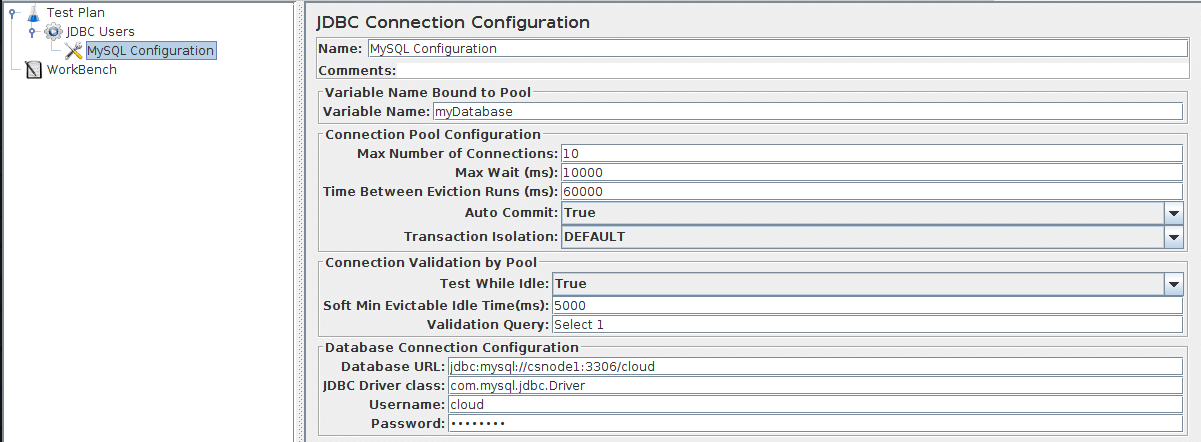
Begin by selecting the JDBC Users element. Click your right mouse button to get the Add menu, and then select Add --> Config Element --> JDBC Connection Configuration. Then, select this new element to view its Control Panel (see Figure 7.3).

Set up the following fields (these assume we will be using a local MySQL database called test):

  • Variable name bound to pool. This needs to uniquely identify the configuration. It is used by the JDBC Sampler to identify the configuration to be used.
  • Database URL: jdbc:mysql://localhost:3306/test
  • JDBC Driver class: com.mysql.jdbc.Driver
  • Username: guest
  • Password: password for guest

The other fields on the screen can be left as the defaults.

JMeter creates a database connection pool with the configuration settings as specified in the Control Panel. The pool is referred to in JDBC Requests in the 'Variable Name' field. Several different JDBC Configuration elements can be used, but they must have unique names. Every JDBC Request must refer to a JDBC Configuration pool. More than one JDBC Request can refer to the same pool.


Figure 7.3. JDBC Configuration

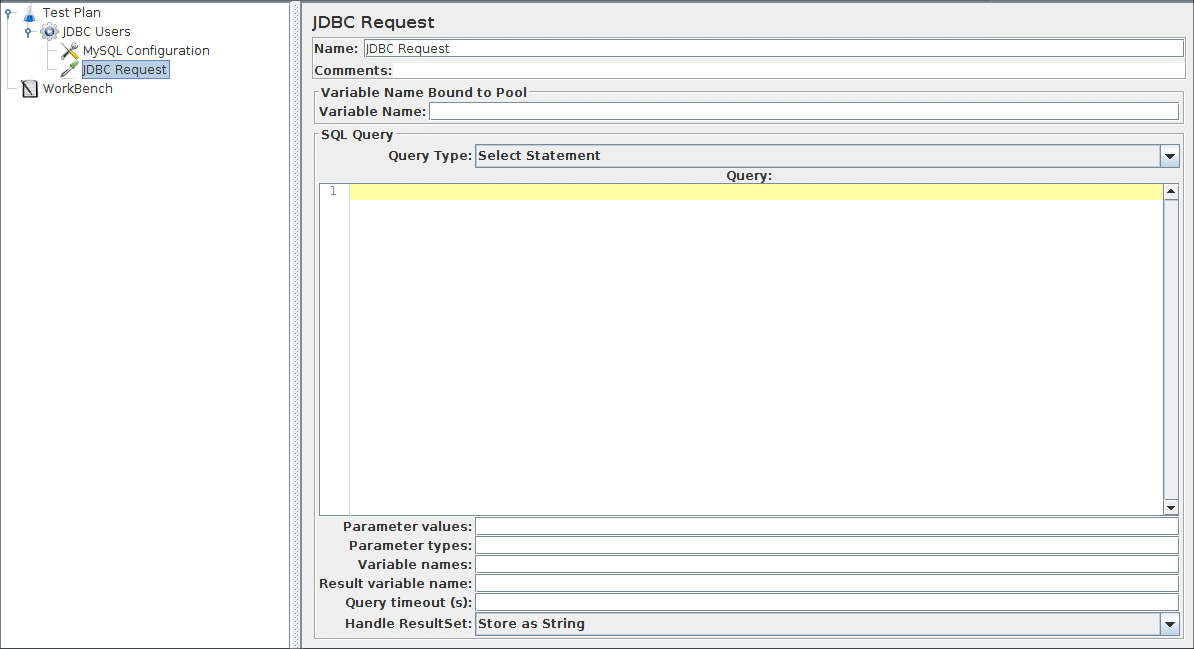
Selecting the JDBC Users element again. Click your right mouse button to get the Add menu, and then select Add --> Sampler --> JDBC Request. Then, select this new element to view its Control Panel (see Figure 7.4).


Figure 7.4. JDBC Request

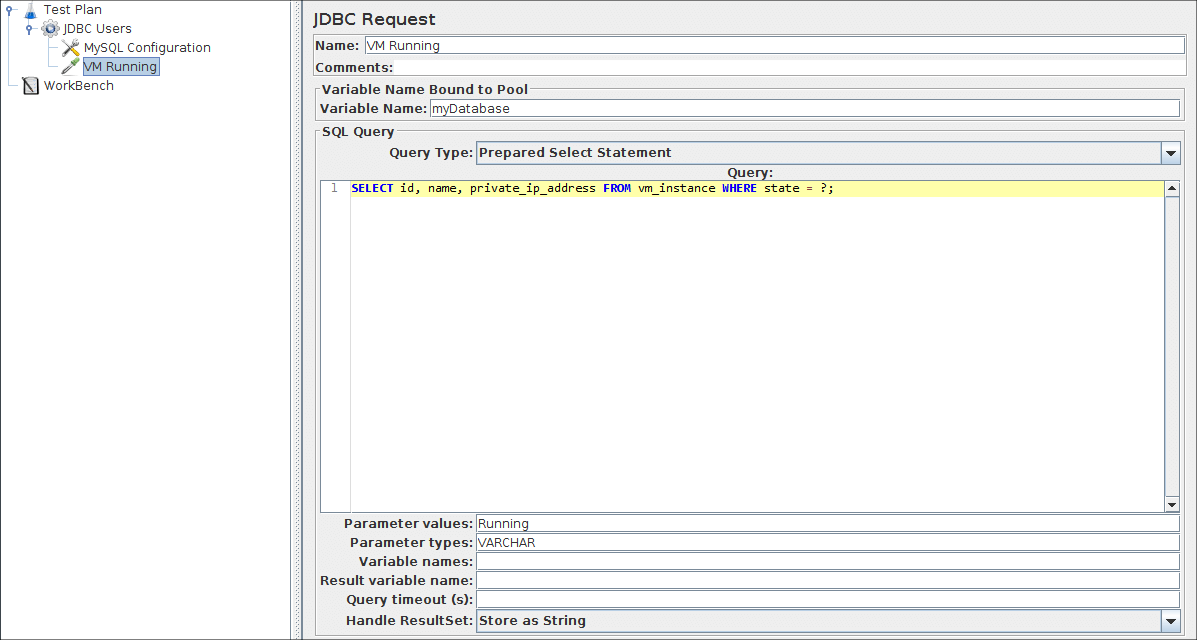
In our Test Plan, we will make two JDBC requests. The first one is for Eastman Kodak stock, and the second is Pfizer stock (obviously you should change these to examples appropriate for your particular database). These are illustrated below.

JMeter sends requests in the order that you add them to the tree.

Start by editing the following properties (see Figure 7.5):

  • Change the Name to "Kodak".
  • Enter the Pool Name: MySQL (same as in the configuration element)
  • Enter the SQL Query String field.

Figure 7.5. JDBC Request for Eastman Kodak stock

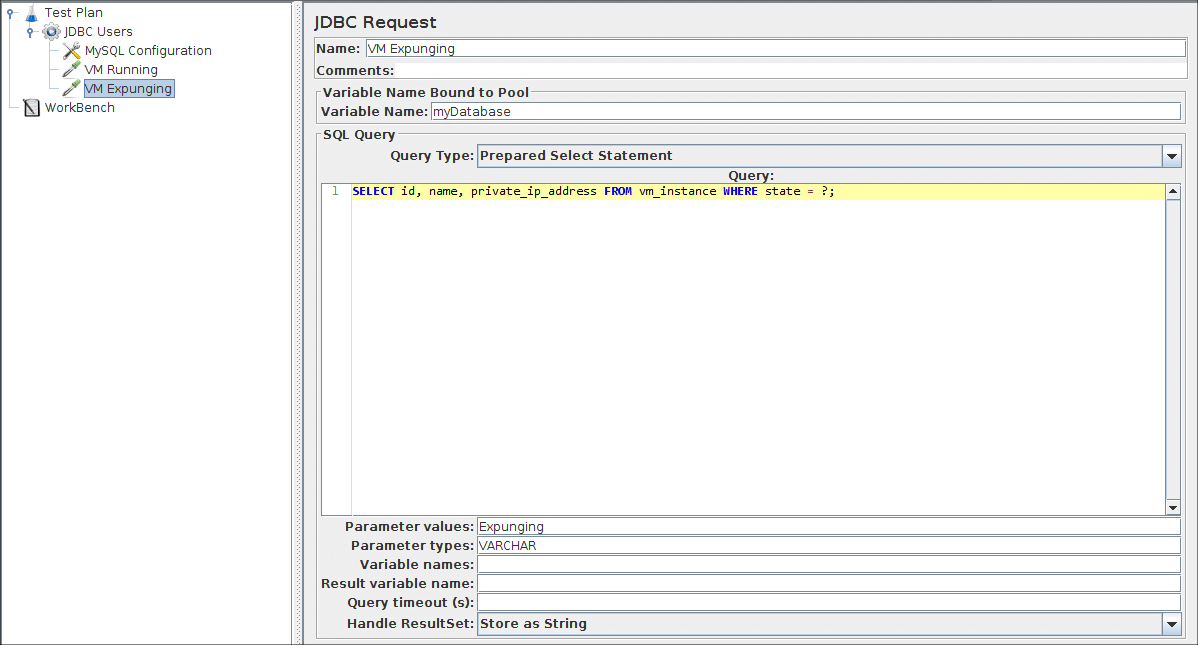
Next, add the second JDBC Request and edit the following properties (see Figure 7.6):

  • Change the Name to "Pfizer".
  • Enter the SQL Query String field.

Figure 7.6. JDBC Request for Pfizer stock
 
7.3 Adding a Listener to View/Store the Test Results

The final element you need to add to your Test Plan is a Listener. This element is responsible for storing all of the results of your JDBC requests in a file and presenting a visual model of the data.

Select the JDBC Users element and add a Graph Results listener (Add --> Listener --> Graph Results).


Figure 7.7. Graph results Listener

JMeter Building a Database Test Plan的更多相关文章

  1. Building An Effective Marketing Plan

    “New ideas are a dime a dozen,” observes Arthur R. Kydd, “and so are new products and new technologi ...

  2. Building an FTP Test Plan

    参考:http://jmeter.apache.org/usermanual/build-ftp-test-plan.html 1.创建一个线程组 2.线程组--->添加--->配置元件- ...

  3. Jmeter 建立数据库测试计划

    建立数据库测试计划(Building a Database Test Plan) 在本节中,将学习如何创建测试数据库服务器一个简单的测试计划.您将创建五十个用户向数据库服务器发送2个SQL请求.并且, ...

  4. Database 2 Day DBA guide_Chapter3

    Chapter 3: Getting Started with Oracle Enterprise Manager 第三章:开始oracle企业管理器. Purpose(目的) This chapte ...

  5. 性能测试--Jmeter随机生成/随机选取/csv读取关键字

    Jmeter随机生成/随机选取/csv读取关键字 一.随机生成关键字 随机生成关键字,需要组件:随机变量配置元件(Random Variable)  该组件的作用是生成字符+随机数字格式的字符串,并保 ...

  6. 性能测试--初识Jmeter

    初识Jmeter Apache JMeter是Apache组织开发的基于Java的压力测试工具.用于对软件做压力测试,它最初被设计用于Web应用测试,但后来扩展到其他测试领域. 它可以用于测试静态和动 ...

  7. Apache Kafka - How to Load Test with JMeter

    In this article, we are going to look at how to load test Apache Kafka, a distributed streaming plat ...

  8. Automatically generating nice graphs at end of your Load Test with Apache JMeter and JMeter-Plugins

    Update as of November 2017: Since JMeter 3.0, last version being 3.3, JMeter provides Out Of The Box ...

  9. Apache JMeter

    https://en.wikipedia.org/wiki/Apache_JMeter Apache JMeter 是 Apache 的一个项目,它是一个负载测试工具可以用于进行各种服务器的性能测试分 ...

随机推荐

  1. 关于ubuntu16.04给firefox安装flash的补充

    这两天把自己的老笔记本安装了ubuntu的16.04版本,关于给firefox安装flash player的方法,网上有很多,但不知道是版本还是其它原因,他们文章都出现目录错误的问题,我个人由于是ub ...

  2. box-shadow全面解析

    一.box-shadow语法: box-shadow: none | inset(可选值,不设置,为外投影,设置,为内投影) x-offset(阴影水平偏移量,正方向为right) y-offset( ...

  3. android开发架构理解

    1. android 开发和普通的PC程序开发的,我觉得还是不要过度设计,因为手机开发,项目相对传统软件开发就小很多,而且手机的性能有限,过度设计代码mapping需要消耗的能相对就高,而且手机开发的 ...

  4. C++ list用法

    创建一个list实例并赋值: // 创建实例以及赋值 #include <iostream> #include <list> using namespace std; int ...

  5. vim+ctags+cscope工具

    最近在看一个开源的项目,突然发现在Linux上不知道有什么方便的工具来看开源代码.以前,在Windows上用VS2010集成开发环境,对于任意一个函数直接有快捷键跳转到函数定义处.可现在在Linux上 ...

  6. MySQL学习笔记(5) - 修改和删除数据库

    1.完整语句 ALTER {DATABASE | SCHEMA} [db_name] [DEFAULT] CHARACHER SET [=] charset_name; 2.修改数据库的编码方式 al ...

  7. [Mugeda HTML5技术教程之7]添加动画

    前一节我们讲述了怎么在新建的作品中添加元素,元素加好以后我们还想让他们动起来,来实现比较炫的效果.这节我们将要讲述怎么给元素添加动画.Mugeda动画是通过时间轴和帧来实现的.通过在时间轴上创建图层和 ...

  8. 使用PHP对数据库输入进行恶意代码清除

    这是一个有用的PHP函数清理了所有的输入数据,并删除代码注入的几率. function sanitize_input_data($input_data) { $input_data = trim(ht ...

  9. [vim]插件NerdTree

    NerdTree 这是插件的作用就是在vim中增加一个资源管理器 使用 利用设置的快捷键 C-e 可以快速打开或者关闭文件树 然后在文件树中可以快速搜索到你的文件, o打开当当前, t打开一个新的ta ...

  10. Holes in the text Add problem to Todo list Problem code: HOLES

    import sys def count_holes(letter): hole_2 = ['A', 'D', 'O', 'P', 'Q', 'R'] if letter == 'B': return ...