
C#(Wpf)实现小键盘
花了一天时间小键盘基本功能已完成,先看看效果图吧!

默认: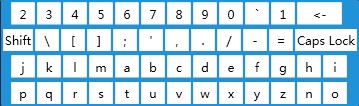
Shift: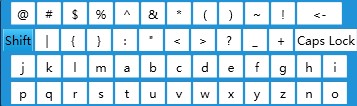
Caps Lock: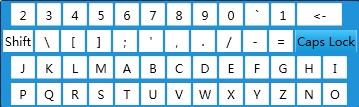
Button style
<Style x:Key="KeyButton" TargetType="Button">

        <Setter Property="Background" Value="White"/>

        <Setter Property="Margin" Value="1,2"/>

        <Setter Property="Width" Value="24"/>

        <Setter Property="Height" Value="24"/>

        <Setter Property="BorderThickness" Value=".5"/>

        <Setter Property="Template">

            <Setter.Value>

                <ControlTemplate TargetType="Button">

                    <Grid>

                        <VisualStateManager.VisualStateGroups>

                            <VisualStateGroup x:Name="CommonStates">

                                <VisualState x:Name="Normal"/>

                                <VisualState x:Name="MouseOver">

                                    <Storyboard>

                                        <ColorAnimation Duration="0" Storyboard.TargetName="BackgroundGradient" Storyboard.TargetProperty="(Rectangle.Fill).(GradientBrush.GradientStops)[0].(GradientStop.Color)" To="#47C9FB"/>

                                        <ColorAnimation Duration="0" Storyboard.TargetName="BackgroundGradient" Storyboard.TargetProperty="(Rectangle.Fill).(GradientBrush.GradientStops)[1].(GradientStop.Color)" To="#2BA8E8"/>

                                        <ColorAnimation Duration="0" Storyboard.TargetName="BackgroundGradient" Storyboard.TargetProperty="(Rectangle.Fill).(GradientBrush.GradientStops)[2].(GradientStop.Color)" To="#1097D7"/>

                                    </Storyboard>

                                </VisualState>

                                <VisualState x:Name="Pressed">

                                    <Storyboard>

                                        <ColorAnimation Duration="0" Storyboard.TargetName="BackgroundGradient" Storyboard.TargetProperty="(Rectangle.Fill).(GradientBrush.GradientStops)[0].(GradientStop.Color)" To="#1097D7"/>

                                        <ColorAnimation Duration="0" Storyboard.TargetName="BackgroundGradient" Storyboard.TargetProperty="(Rectangle.Fill).(GradientBrush.GradientStops)[1].(GradientStop.Color)" To="#2BA8E8"/>

                                        <ColorAnimation Duration="0" Storyboard.TargetName="BackgroundGradient" Storyboard.TargetProperty="(Rectangle.Fill).(GradientBrush.GradientStops)[2].(GradientStop.Color)" To="#47C9FB"/>

                                    </Storyboard>

                                </VisualState>

                                <VisualState x:Name="Disabled" />

                            </VisualStateGroup>

                            <VisualStateGroup x:Name="FocusStates">

                                <VisualState x:Name="Focused" />

                                <VisualState x:Name="Unfocused" />

                            </VisualStateGroup>

                        </VisualStateManager.VisualStateGroups>

                        <Border x:Name="Background"  Background="White" BorderThickness="{TemplateBinding BorderThickness}" BorderBrush="{TemplateBinding BorderBrush}">

                            <Grid Background="{TemplateBinding Background}">

                                <Rectangle x:Name="BackgroundGradient" >

                                    <Rectangle.Fill>

                                        <LinearGradientBrush StartPoint=".5,0" EndPoint=".5,1">

                                            <GradientStop Color="White" Offset="0" />

                                            <GradientStop Color="White"  Offset="0.4" />

                                            <GradientStop Color="White" Offset="1" />

                                        </LinearGradientBrush>

                                    </Rectangle.Fill>

                                </Rectangle>

                            </Grid>

                        </Border>

                        <ContentPresenter

                              x:Name="contentPresenter"

                              Content="{TemplateBinding Content}"

                              ContentTemplate="{TemplateBinding ContentTemplate}"

                              VerticalAlignment="{TemplateBinding VerticalContentAlignment}"

                              HorizontalAlignment="{TemplateBinding HorizontalContentAlignment}"

                              Margin="{TemplateBinding Padding}"/>

                    </Grid>

                </ControlTemplate>

            </Setter.Value>

        </Setter>

    </Style>
Window style
<Style TargetType="{x:Type local:KeyBoard}">
<Setter Property="Width" Value="360px"></Setter>
<Setter Property="Height" Value="108px"></Setter>
<Setter Property="AllowsTransparency" Value="true"/>
<Setter Property="ResizeMode" Value="NoResize"/>
<Setter Property="WindowStyle" Value="None"/>
<Setter Property="Template">
<Setter.Value>
<ControlTemplate TargetType="{x:Type local:KeyBoard}">
<Border Background="#2092D8"
BorderBrush="#043150"
BorderThickness="1" CornerRadius="2">
<Grid>
<Grid.RowDefinitions>
<RowDefinition />
<RowDefinition />
<RowDefinition />
<RowDefinition />
</Grid.RowDefinitions>
<StackPanel Orientation="Horizontal">
<Button x:Name="btnNum2" Margin="10,2,1,2" Style="{StaticResource KeyButton}">2</Button>
<Button x:Name="btnNum3" Style="{StaticResource KeyButton}">3</Button>
<Button x:Name="btnNum4" Style="{StaticResource KeyButton}">4</Button>
<Button x:Name="btnNum5" Style="{StaticResource KeyButton}">5</Button>
<Button x:Name="btnNum6" Style="{StaticResource KeyButton}">6</Button>
<Button x:Name="btnNum7" Style="{StaticResource KeyButton}">7</Button>
<Button x:Name="btnNum8" Style="{StaticResource KeyButton}">8</Button>
<Button x:Name="btnNum9" Style="{StaticResource KeyButton}">9</Button>
<Button x:Name="btnNum0" Style="{StaticResource KeyButton}">0</Button>
<Button x:Name="btnDot" Style="{StaticResource KeyButton}">`</Button>
<Button x:Name="btnNum1" Style="{StaticResource KeyButton}">1</Button>
<Button x:Name="btnDelete" Style="{StaticResource KeyButton}" Width="45"><-</Button>
</StackPanel>
<StackPanel Orientation="Horizontal" Grid.Row="1">
<Button x:Name="btnShift" Margin="2,2,1,2" Style="{StaticResource KeyButton}" Width="30">Shift</Button>
<Button x:Name="btnBackslant" Style="{StaticResource KeyButton}">\</Button>
<Button x:Name="btnLParenthesis" Style="{StaticResource KeyButton}">[</Button>
<Button x:Name="btnRParenthesis" Style="{StaticResource KeyButton}">]</Button>
<Button x:Name="btnSemicolon" Style="{StaticResource KeyButton}">;</Button>
<Button x:Name="btnSQuotes" Style="{StaticResource KeyButton}">'</Button>
<Button x:Name="btnComma" Style="{StaticResource KeyButton}">,</Button>
<Button x:Name="btnPeriod" Style="{StaticResource KeyButton}">.</Button>
<Button x:Name="btnSlant" Style="{StaticResource KeyButton}">/</Button>
<Button x:Name="btnSub" Style="{StaticResource KeyButton}">-</Button>
<Button x:Name="btnEquip" Style="{StaticResource KeyButton}">=</Button>
<Button x:Name="btnCapsLock" Style="{StaticResource KeyButton}" Width="62">Caps Lock</Button>
</StackPanel>
<StackPanel Orientation="Horizontal" Grid.Row="2">
<Button x:Name="btnj" Margin="10,2,1,2" Style="{StaticResource KeyButton}">j</Button>
<Button x:Name="btnk" Style="{StaticResource KeyButton}">k</Button>
<Button x:Name="btnl" Style="{StaticResource KeyButton}">l</Button>
<Button x:Name="btnm" Style="{StaticResource KeyButton}">m</Button>
<Button x:Name="btna" Style="{StaticResource KeyButton}">a</Button>
<Button x:Name="btnb" Style="{StaticResource KeyButton}">b</Button>
<Button x:Name="btnc" Style="{StaticResource KeyButton}">c</Button>
<Button x:Name="btnd" Style="{StaticResource KeyButton}">d</Button>
<Button x:Name="btne" Style="{StaticResource KeyButton}">e</Button>
<Button x:Name="btnf" Style="{StaticResource KeyButton}">f</Button>
<Button x:Name="btng" Style="{StaticResource KeyButton}">g</Button>
<Button x:Name="btnh" Style="{StaticResource KeyButton}">h</Button>
<Button x:Name="btni" Style="{StaticResource KeyButton}">i</Button>
</StackPanel>
<StackPanel Orientation="Horizontal" Grid.Row="3">
<Button x:Name="btnp" Margin="10,2,1,2" Style="{StaticResource KeyButton}">p</Button>
<Button x:Name="btnq" Style="{StaticResource KeyButton}">q</Button>
<Button x:Name="btnr" Style="{StaticResource KeyButton}">r</Button>
<Button x:Name="btns" Style="{StaticResource KeyButton}">s</Button>
<Button x:Name="btnt" Style="{StaticResource KeyButton}">t</Button>
<Button x:Name="btnu" Style="{StaticResource KeyButton}">u</Button>
<Button x:Name="btnv" Style="{StaticResource KeyButton}">v</Button>
<Button x:Name="btnw" Style="{StaticResource KeyButton}">w</Button>
<Button x:Name="btnx" Style="{StaticResource KeyButton}">x</Button>
<Button x:Name="btny" Style="{StaticResource KeyButton}">y</Button>
<Button x:Name="btnz" Style="{StaticResource KeyButton}">z</Button>
<Button x:Name="btnn" Style="{StaticResource KeyButton}">n</Button>
<Button x:Name="btno" Style="{StaticResource KeyButton}">o</Button>
</StackPanel>
</Grid>
</Border>
</ControlTemplate>
</Setter.Value>
</Setter>
</Style>
存在的问题:还不能自动定位,弹出键盘需要手动控制,这些以后会解决的
周末愉快!
C#(Wpf)实现小键盘的更多相关文章
- WPF 触摸屏小键盘样式
WPF程序,用于平板时,一些输入数量的地方我们需要弹出小键盘输入,这个键盘可以调系统的,也可以自己写. 分享个我现在用的一个数字键盘界面. <Window xmlns:dxe="htt ...
- WinForm数字小键盘/WPF数字小键盘
模仿原本的WinForm触摸屏小键盘制作WPF触摸屏小键盘 原WinForm触摸屏小键盘样式(WinForm采用Krypton系列控件)如下图: Designer代码如下: // // BtnNum1 ...
- 在WPF中使用依赖注入的方式创建视图
在WPF中使用依赖注入的方式创建视图 0x00 问题的产生 互联网时代桌面开发真是越来越少了,很多应用都转到了浏览器端和移动智能终端,相应的软件开发上的新技术应用到桌面开发的文章也很少.我之前主要做W ...
- MVVM框架从WPF移植到UWP遇到的问题和解决方法
MVVM框架从WPF移植到UWP遇到的问题和解决方法 0x00 起因 这几天开始学习UWP了,之前有WPF经验,所以总体感觉还可以,看了一些基础概念和主题,写了几个测试程序,突然想起来了前一段时间在W ...
- MVVM模式解析和在WPF中的实现(六) 用依赖注入的方式配置ViewModel并注册消息
MVVM模式解析和在WPF中的实现(六) 用依赖注入的方式配置ViewModel并注册消息 系列目录: MVVM模式解析和在WPF中的实现(一)MVVM模式简介 MVVM模式解析和在WPF中的实现(二 ...
- MVVM模式解析和在WPF中的实现(五)View和ViewModel的通信
MVVM模式解析和在WPF中的实现(五) View和ViewModel的通信 系列目录: MVVM模式解析和在WPF中的实现(一)MVVM模式简介 MVVM模式解析和在WPF中的实现(二)数据绑定 M ...
- MVVM设计模式和WPF中的实现(四)事件绑定
MVVM设计模式和在WPF中的实现(四) 事件绑定 系列目录: MVVM模式解析和在WPF中的实现(一)MVVM模式简介 MVVM模式解析和在WPF中的实现(二)数据绑定 MVVM模式解析和在WPF中 ...
- MVVM模式解析和在WPF中的实现(三)命令绑定
MVVM模式解析和在WPF中的实现(三) 命令绑定 系列目录: MVVM模式解析和在WPF中的实现(一)MVVM模式简介 MVVM模式解析和在WPF中的实现(二)数据绑定 MVVM模式解析和在WPF中 ...
- MVVM模式和在WPF中的实现(二)数据绑定
MVVM模式解析和在WPF中的实现(二) 数据绑定 系列目录: MVVM模式解析和在WPF中的实现(一)MVVM模式简介 MVVM模式解析和在WPF中的实现(二)数据绑定 MVVM模式解析和在WPF中 ...
随机推荐
- Linux/Mac里复制终端Session(像SecureCRT一样)
在你的登录账户下的.ssh文件夹新建一个文件:config cd ~/.ssh config的文件中,内容为: host * ControlMaster auto ControlPath ~/.ssh ...
- python基础-第七篇-7.2面向对象(进阶篇)
进入到今天的探索前,我先对上节内容进行一下回顾: 面向对象是一种编程方式,此编程方式的实现是基于对类和对象的使用 类是一个模板,模板中包装了多个函数可供使用 对象是基于类创建的,实例用于调用被包装在类 ...
- 软件project--作图
软工学习进行了一个多月,但是真正静下心来学习也只是一周左右吧,这段时间里给自己印象最深刻的就是作图了, 机房收费系统我们是先进行的编码,后学习软件project对它来了一次回想性的文档编写. 刚開始当 ...
- Unity3D Quaternion各属性和函数測试
Quaternion属性与方法 一,属性: x.y.z就不说了,仅仅看一个eulerAngles.代码例如以下: public Quaternion rotation = Quaternion.ide ...
- 007-Hadoop Hive sql语法详解2-修改表结构
一.表 更改表名:ALTER TABLE table_name RENAME TO new_table_name 增加表的元数据信息:ALTER TABLE table_name SET TBLPRO ...
- 记CM+kerberos环境停电后无法启动报错An error: (java.security.PrivilegedActionException: javax.security.sasl.SaslException: GSS initiate failed [Caused by GSSException: No valid credentials provided (Mechanism leve
公司突然停电,然后cm环境无法重启,报错 An error: (java.security.PrivilegedActionException: javax.security.sasl.SaslExc ...
- R语言之多重共线性的判别以及解决方法
多重共线性(Multicollinearity)是指线性回归模型中的解释变量之间由于存在精确相关关系或高度相关关系而使模型估计失真或难以估计准确. 1.可以计算X矩阵的秩qr(X)$rank,如果 ...
- matlab手写神经网络实现识别手写数字
实验说明 一直想自己写一个神经网络来实现手写数字的识别,而不是套用别人的框架.恰巧前几天,有幸从同学那拿到5000张已经贴好标签的手写数字图片,于是我就尝试用matlab写一个网络. 实验数据:500 ...
- mysql数据库从删库到跑路之mysql完整性约束
一 介绍 约束条件与数据类型的宽度一样,都是可选参数 作用:用于保证数据的完整性和一致性主要分为: PRIMARY KEY (PK) 标识该字段为该表的主键,可以唯一的标识记录 FOREIGN KEY ...
- 《mysql必知必会》读书笔记--触发器及管理事务处理
触发器 触发器是MySQL响应DELETE,INSERT,UPDATE而自动执行的一条MySQL语句,其他语句不支持触发器. 创建触发器时,需要4个条件: 唯一的触发器名 触发器关联的表 触发器应该响 ...