
PyQt:个性化登录界面模仿QQ登录
写在前面
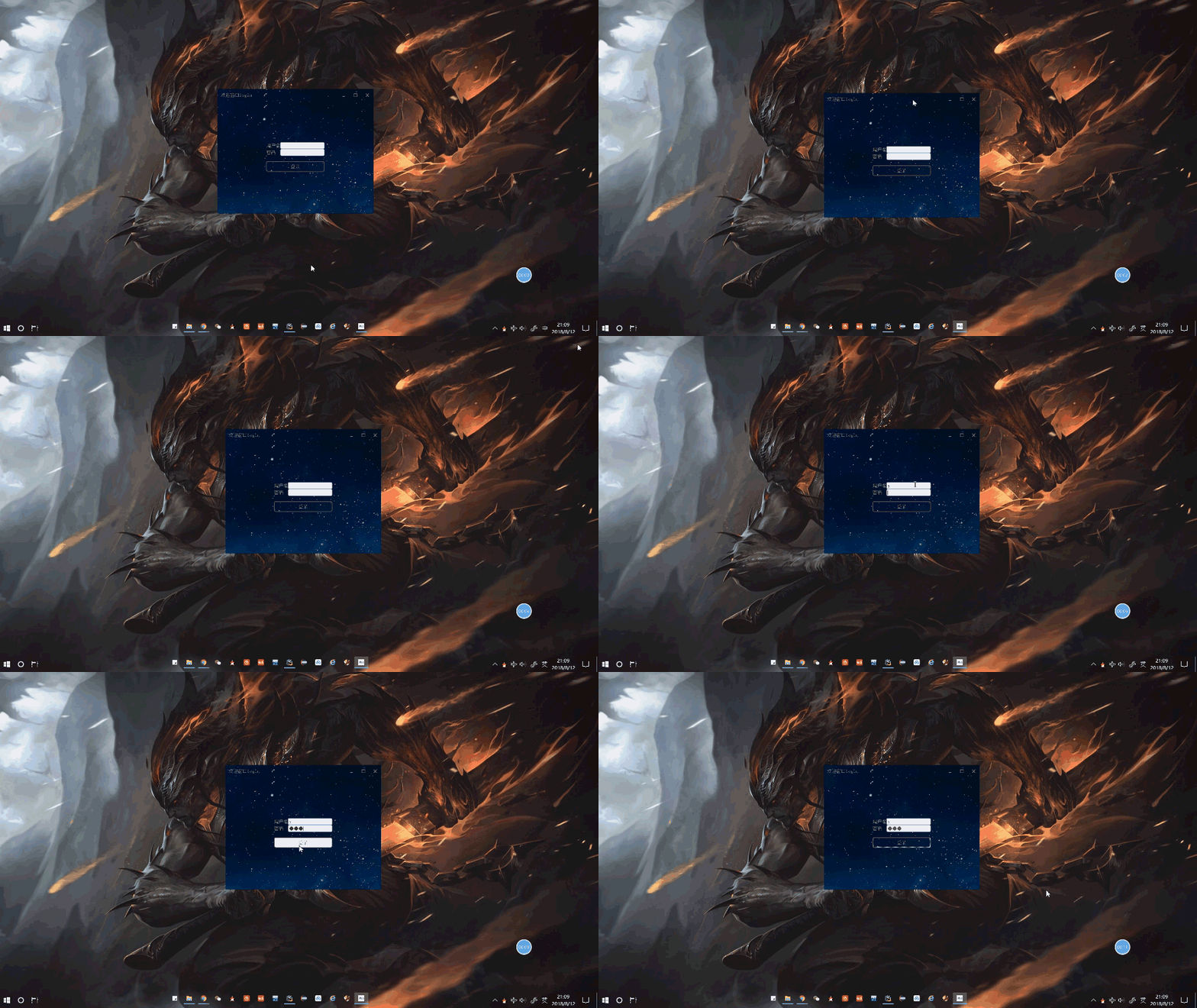
写了一个登录界面的demo,类似QQ的,写的自己喜欢的样式,贴一下代码,先上效果,如下
陈述
PyQt5+Python3.5.2
login.py是里登录的主界面loginWnd类,Header.py里是标题栏和整个窗口的类,我在login.py里面创建了application对象。(其实也没有必要分成两个文件来写,直接按照我这一篇的处理就ok的 https://www.cnblogs.com/jyroy/p/9461317.html,本人话多)
主要是效果实现为主,没有写登录的槽函数啥的,代码中写了解释
效果
代码
 #login.py

 #!/usr/bin/env python

 # -*- coding:utf-8 -*-

 # Author: jyroy

 import sys

 from PyQt5.QtCore import QSize

 from PyQt5.QtWidgets import QApplication

 from PyQt5.QtCore import Qt

 from PyQt5.QtWidgets import QComboBox

 from PyQt5.QtWidgets import QGridLayout

 from PyQt5.QtWidgets import QLineEdit

 from PyQt5.QtWidgets import QLabel

 from PyQt5.QtGui import QIcon

 from PyQt5.QtWidgets import QWidget, QVBoxLayout, QPushButton, QTextEdit

 from Header import TitleBar,FramelessWindow

 from qtpy import QtGui

 StyleSheet = """

 /*最小化最大化关闭按钮通用默认背景*/

 #buttonMinimum,#buttonMaximum,#buttonClose {

     border: none;

 }

 /*悬停*/

 #buttonMinimum:hover,#buttonMaximum:hover {

     color: white;

 }

 #buttonClose:hover {

     color: white;

 }

 /*鼠标按下不放*/

 #buttonMinimum:pressed,#buttonMaximum:pressed {

 }

 #buttonClose:pressed {

     color: white;

 }

 """   #标题栏Button的样式

 StyleSheet_2 = """

 QComboBox{

         height: 20px;

         border-radius: 4px;

         border: 1px solid rgb(111, 156, 207);

         background: white;

 }

 QComboBox:enabled{

         color: grey;

 }

 QComboBox:!enabled {

         color: rgb(80, 80, 80);

 }

 QComboBox:enabled:hover, QComboBox:enabled:focus {

         color: rgb(51, 51, 51);

 }

 QComboBox::drop-down {

         background: transparent;

 }

 QComboBox::drop-down:hover {

         background: lightgrey;

 }

 QComboBox QAbstractItemView {

         border: 1px solid rgb(111, 156, 207);

         background: white;

         outline: none;

 }

  QLineEdit {

         border-radius: 4px;

         height: 20px;

         border: 1px solid rgb(111, 156, 207);

         background: white;

 }

 QLineEdit:enabled {

         color: rgb(84, 84, 84);

 }

 QLineEdit:enabled:hover, QLineEdit:enabled:focus {

         color: rgb(51, 51, 51);

 }

 QLineEdit:!enabled {

         color: rgb(80, 80, 80);

 }

 """   #QComobox和QLineEdite的样式

 StyleSheet_btn = """

 QPushButton{

     height:30px;

     background-color: transparent;

     color: grey;

     border: 2px solid #555555;

     border-radius: 6px;

 }

 QPushButton:hover {

     background-color: white;

     border-radius: 6px;

 }

 """  #登录Button的样式

 class loginWnd(QWidget):

     '''登录窗口'''

     def __init__(self, *args, **kwargs):

         super(loginWnd, self).__init__()

         self._layout = QVBoxLayout(spacing=0)

         self._layout.setContentsMargins(0, 0, 0, 0)

         self.setAutoFillBackground(True)

         self.setWindowOpacity(0.1)

         self.setLayout(self._layout)

         self._setup_ui()

     def _setup_ui(self):

         self.main_layout = QGridLayout()

         self.main_layout.setAlignment(Qt.AlignCenter)

         name_label = QLabel('用户名')

         name_label.setStyleSheet("color:grey;")

         passwd_label = QLabel('密码')

         passwd_label.setStyleSheet("color:grey;")

         name_box = QComboBox()

         name_box.setEditable(True)

         passwd_box = QLineEdit()

         passwd_box.setEchoMode(QLineEdit.Password)

         name_box.setStyleSheet(StyleSheet_2)

         passwd_box.setStyleSheet(StyleSheet_2)

         label = QLabel()

         login_btn = QPushButton("登录")

         login_btn.setStyleSheet(StyleSheet_btn)

         self.main_layout.addWidget(name_label,0,0,1,1)

         self.main_layout.addWidget(passwd_label,1,0,1,1)

         self.main_layout.addWidget(name_box,0,1,1,2)

         self.main_layout.addWidget(passwd_box,1,1,1, 2)

         self.main_layout.addWidget(label,3,0,1,3)

         self.main_layout.addWidget(login_btn,4,0,1,3)

         self._layout.addLayout(self.main_layout)

 def main():

     ''':return:'''

     app = QApplication(sys.argv)

     mainWnd = FramelessWindow()

     mainWnd.setWindowTitle('欢迎窗口login')

     mainWnd.setWindowIcon(QIcon('Qt.ico'))

     mainWnd.setFixedSize(QSize(500,400))  #因为这里固定了大小,所以窗口的大小没有办法任意调整,想要使resizeWidget函数生效的话要把这里去掉,自己调节布局和窗口大小

     mainWnd.setWidget(loginWnd(mainWnd))  # 把自己的窗口添加进来

     mainWnd.show()

     app.exec()

 if __name__ == '__main__':

     main()
 #Header.py

 #!/usr/bin/env python

 # -*- coding:utf-8 -*-

 # Author: jyroy

 from PyQt5.QtCore import Qt, pyqtSignal, QPoint

 from PyQt5.QtGui import QFont, QEnterEvent, QPainter, QColor, QPen

 from PyQt5.QtWidgets import QHBoxLayout, QLabel,QSpacerItem, QSizePolicy

 from PyQt5.QtWidgets import QWidget, QVBoxLayout, QPushButton, QTextEdit

 from qtpy import QtGui

 StyleSheet = """

 /*最小化最大化关闭按钮通用默认背景*/

 #buttonMinimum,#buttonMaximum,#buttonClose {

     border: none;

 }

 #buttonClose,#buttonMaximum,#buttonMinimum{

     color:grey;

 }

 /*悬停*/

 #buttonMinimum:hover,#buttonMaximum:hover {

     color: white;

 }

 #buttonClose:hover {

     color: white;

 }

 /*鼠标按下不放*/

 #buttonMinimum:pressed,#buttonMaximum:pressed {

     color:grey;

 }

 #buttonClose:pressed {

     color: white;

 }

 """

 class TitleBar(QWidget):

     # 窗口最小化信号

     windowMinimumed = pyqtSignal()

     # 窗口最大化信号

     windowMaximumed = pyqtSignal()

     # 窗口还原信号

     windowNormaled = pyqtSignal()

     # 窗口关闭信号

     windowClosed = pyqtSignal()

     # 窗口移动

     windowMoved = pyqtSignal(QPoint)

     def __init__(self, *args, **kwargs):

         super(TitleBar, self).__init__(*args, **kwargs)

         self.setStyleSheet(StyleSheet)

         self.mPos = None

         self.iconSize = 20  # 图标的默认大小

         # 布局

         layout = QHBoxLayout(self, spacing=0)

         layout.setContentsMargins(0, 0, 0, 0)

         # 窗口图标

         self.iconLabel = QLabel(self)

 #         self.iconLabel.setScaledContents(True)

         layout.addWidget(self.iconLabel)

         # 窗口标题

         self.titleLabel = QLabel(self)

         self.titleLabel.setStyleSheet("color:grey")

         self.titleLabel.setMargin(2)

         layout.addWidget(self.titleLabel)

         # 中间伸缩条

         layout.addSpacerItem(QSpacerItem(

             40, 20, QSizePolicy.Expanding, QSizePolicy.Minimum))

         # 利用Webdings字体来显示图标

         font = self.font() or QFont()

         font.setFamily('Webdings')

         # 最小化按钮

         self.buttonMinimum = QPushButton(

             '', self, clicked=self.windowMinimumed.emit, font=font, objectName='buttonMinimum')

         layout.addWidget(self.buttonMinimum)

         # 最大化/还原按钮

         self.buttonMaximum = QPushButton(

             '', self, clicked=self.showMaximized, font=font, objectName='buttonMaximum')

         layout.addWidget(self.buttonMaximum)

         # 关闭按钮

         self.buttonClose = QPushButton(

             'r', self, clicked=self.windowClosed.emit, font=font, objectName='buttonClose')

         layout.addWidget(self.buttonClose)

         # 初始高度

         self.setHeight()

     def showMaximized(self):

         if self.buttonMaximum.text() == '':

             # 最大化

             self.buttonMaximum.setText('')

             self.windowMaximumed.emit()

         else:  # 还原

             self.buttonMaximum.setText('')

             self.windowNormaled.emit()

     def setHeight(self, height=38):

         """设置标题栏高度"""

         self.setMinimumHeight(height)

         self.setMaximumHeight(height)

         # 设置右边按钮的大小

         self.buttonMinimum.setMinimumSize(height, height)

         self.buttonMinimum.setMaximumSize(height, height)

         self.buttonMaximum.setMinimumSize(height, height)

         self.buttonMaximum.setMaximumSize(height, height)

         self.buttonClose.setMinimumSize(height, height)

         self.buttonClose.setMaximumSize(height, height)

     def setTitle(self, title):

         """设置标题"""

         self.titleLabel.setText(title)

     def setIcon(self, icon):

         """设置图标"""

         self.iconLabel.setPixmap(icon.pixmap(self.iconSize, self.iconSize))

     def setIconSize(self, size):

         """设置图标大小"""

         self.iconSize = size

     def enterEvent(self, event):

         self.setCursor(Qt.ArrowCursor)

         super(TitleBar, self).enterEvent(event)

     def mouseDoubleClickEvent(self, event):

         super(TitleBar, self).mouseDoubleClickEvent(event)

         self.showMaximized()

     def mousePressEvent(self, event):

         """鼠标点击事件"""

         if event.button() == Qt.LeftButton:

             self.mPos = event.pos()

         event.accept()

     def mouseReleaseEvent(self, event):

         '''鼠标弹起事件'''

         self.mPos = None

         event.accept()

     def mouseMoveEvent(self, event):

         if event.buttons() == Qt.LeftButton and self.mPos:

             self.windowMoved.emit(self.mapToGlobal(event.pos() - self.mPos))

         event.accept()

 # 枚举左上右下以及四个定点

 Left, Top, Right, Bottom, LeftTop, RightTop, LeftBottom, RightBottom = range(8)

 class FramelessWindow(QWidget):

     # 四周边距

     Margins = 5

     def __init__(self, *args, **kwargs):

         super(FramelessWindow, self).__init__(*args, **kwargs)

         palette1 = QtGui.QPalette()

         palette1.setBrush(self.backgroundRole(), QtGui.QBrush(

             QtGui.QPixmap('D:\python\code\qilucontest\qt\WholeDemo/resource/sky.jpg')))  # 设置背景图片

         self.setPalette(palette1)

         self.setAutoFillBackground(True)

         self.setGeometry(300, 300, 250, 150)

         self._pressed = False

         self.Direction = None

         # 无边框

         self.setWindowFlags(Qt.FramelessWindowHint)  # 隐藏边框

         # 鼠标跟踪

         self.setMouseTracking(True)

         # 布局

         layout = QVBoxLayout(self, spacing=0)

         layout.setContentsMargins(0,0,0,0)

         # 标题栏

         self.titleBar = TitleBar(self)

         layout.addWidget(self.titleBar)

         # 信号槽

         self.titleBar.windowMinimumed.connect(self.showMinimized)

         self.titleBar.windowMaximumed.connect(self.showMaximized)

         self.titleBar.windowNormaled.connect(self.showNormal)

         self.titleBar.windowClosed.connect(self.close)

         self.titleBar.windowMoved.connect(self.move)

         self.windowTitleChanged.connect(self.titleBar.setTitle)

         self.windowIconChanged.connect(self.titleBar.setIcon)

     def setTitleBarHeight(self, height=38):

         """设置标题栏高度"""

         self.titleBar.setHeight(height)

     def setIconSize(self, size):

         """设置图标的大小"""

         self.titleBar.setIconSize(size)

     def setWidget(self, widget):

         """设置自己的控件"""

         if hasattr(self, '_widget'):

             return

         self._widget = widget

         # 设置默认背景颜色,否则由于受到父窗口的影响导致透明

         self._widget.setAutoFillBackground(True)

         self._widget.installEventFilter(self)

         self.layout().addWidget(self._widget)

     def move(self, pos):

         if self.windowState() == Qt.WindowMaximized or self.windowState() == Qt.WindowFullScreen:

             # 最大化或者全屏则不允许移动

             return

         super(FramelessWindow, self).move(pos)

     def showMaximized(self):

         """最大化,要去除上下左右边界,如果不去除则边框地方会有空隙"""

         super(FramelessWindow, self).showMaximized()

         self.layout().setContentsMargins(0, 0, 0, 0)

     def showNormal(self):

         """还原,要保留上下左右边界,否则没有边框无法调整"""

         super(FramelessWindow, self).showNormal()

         self.layout().setContentsMargins(0, 0, 0, 0)

     def eventFilter(self, obj, event):

         """事件过滤器,用于解决鼠标进入其它控件后还原为标准鼠标样式"""

         if isinstance(event, QEnterEvent):

             self.setCursor(Qt.ArrowCursor)

         return super(FramelessWindow, self).eventFilter(obj, event)

     def paintEvent(self, event):

         """由于是全透明背景窗口,重绘事件中绘制透明度为1的难以发现的边框,用于调整窗口大小"""

         super(FramelessWindow, self).paintEvent(event)

         painter = QPainter(self)

         painter.setPen(QPen(QColor(255, 255, 255, 1), 2 * self.Margins))

         painter.drawRect(self.rect())

     def mousePressEvent(self, event):

         """鼠标点击事件"""

         super(FramelessWindow, self).mousePressEvent(event)

         if event.button() == Qt.LeftButton:

             self._mpos = event.pos()

             self._pressed = True

     def mouseReleaseEvent(self, event):

         '''鼠标弹起事件'''

         super(FramelessWindow, self).mouseReleaseEvent(event)

         self._pressed = False

         self.Direction = None

     def mouseMoveEvent(self, event):

         """鼠标移动事件"""

         super(FramelessWindow, self).mouseMoveEvent(event)

         pos = event.pos()

         xPos, yPos = pos.x(), pos.y()

         wm, hm = self.width() - self.Margins, self.height() - self.Margins

         if self.isMaximized() or self.isFullScreen():

             self.Direction = None

             self.setCursor(Qt.ArrowCursor)

             return

         if event.buttons() == Qt.LeftButton and self._pressed:

             self._resizeWidget(pos)

             return

         if xPos <= self.Margins and yPos <= self.Margins:

             # 左上角

             self.Direction = LeftTop

             self.setCursor(Qt.SizeFDiagCursor)

         elif wm <= xPos <= self.width() and hm <= yPos <= self.height():

             # 右下角

             self.Direction = RightBottom

             self.setCursor(Qt.SizeFDiagCursor)

         elif wm <= xPos and yPos <= self.Margins:

             # 右上角

             self.Direction = RightTop

             self.setCursor(Qt.SizeBDiagCursor)

         elif xPos <= self.Margins and hm <= yPos:

             # 左下角

             self.Direction = LeftBottom

             self.setCursor(Qt.SizeBDiagCursor)

         elif 0 <= xPos <= self.Margins and self.Margins <= yPos <= hm:

             # 左边

             self.Direction = Left

             self.setCursor(Qt.SizeHorCursor)

         elif wm <= xPos <= self.width() and self.Margins <= yPos <= hm:

             # 右边

             self.Direction = Right

             self.setCursor(Qt.SizeHorCursor)

         elif self.Margins <= xPos <= wm and 0 <= yPos <= self.Margins:

             # 上面

             self.Direction = Top

             self.setCursor(Qt.SizeVerCursor)

         elif self.Margins <= xPos <= wm and hm <= yPos <= self.height():

             # 下面

             self.Direction = Bottom

             self.setCursor(Qt.SizeVerCursor)

     def _resizeWidget(self, pos):

         """调整窗口大小"""

         if self.Direction == None:

             return

         mpos = pos - self._mpos

         xPos, yPos = mpos.x(), mpos.y()

         geometry = self.geometry()

         x, y, w, h = geometry.x(), geometry.y(), geometry.width(), geometry.height()

         if self.Direction == LeftTop:  # 左上角

             if w - xPos > self.minimumWidth():

                 x += xPos

                 w -= xPos

             if h - yPos > self.minimumHeight():

                 y += yPos

                 h -= yPos

         elif self.Direction == RightBottom:  # 右下角

             if w + xPos > self.minimumWidth():

                 w += xPos

                 self._mpos = pos

             if h + yPos > self.minimumHeight():

                 h += yPos

                 self._mpos = pos

         elif self.Direction == RightTop:  # 右上角

             if h - yPos > self.minimumHeight():

                 y += yPos

                 h -= yPos

             if w + xPos > self.minimumWidth():

                 w += xPos

                 self._mpos.setX(pos.x())

         elif self.Direction == LeftBottom:  # 左下角

             if w - xPos > self.minimumWidth():

                 x += xPos

                 w -= xPos

             if h + yPos > self.minimumHeight():

                 h += yPos

                 self._mpos.setY(pos.y())

         elif self.Direction == Left:  # 左边

             if w - xPos > self.minimumWidth():

                 x += xPos

                 w -= xPos

             else:

                 return

         elif self.Direction == Right:  # 右边

             if w + xPos > self.minimumWidth():

                 w += xPos

                 self._mpos = pos

             else:

                 return

         elif self.Direction == Top:  # 上面

             if h - yPos > self.minimumHeight():

                 y += yPos

                 h -= yPos

             else:

                 return

         elif self.Direction == Bottom:  # 下面

             if h + yPos > self.minimumHeight():

                 h += yPos

                 self._mpos = pos

             else:

                 return

         self.setGeometry(x, y, w, h)
PyQt:个性化登录界面模仿QQ登录的更多相关文章
- [转]Android:布局实例之模仿QQ登录界面
Android:布局实例之模仿QQ登录界面 预览图: 准备: 1.找到模仿对象 QQ登陆界面UI下载>>>>> 2.导入工程 3.查看布局结构和使用控件 其对应效果图分布 ...
- WPF模仿QQ登录按钮
原文:WPF模仿QQ登录按钮 如下图,第一张是未点击时按钮样式,第二张是鼠标划过时按钮样式. 样式代码: <Style TargetType="{x:Type Button}" ...
- Django商城项目笔记No.11用户部分-QQ登录1获取QQ登录网址
Django商城项目笔记No.11用户部分-QQ登录 QQ登录,亦即我们所说的第三方登录,是指用户可以不在本项目中输入密码,而直接通过第三方的验证,成功登录本项目. 若想实现QQ登录,需要成为QQ互联 ...
- Android:布局实例之模仿QQ登录界面
预览图: 准备: 1.找到模仿对象 QQ登陆界面UI下载>>>>> 2.导入工程 3.查看布局结构和使用控件 其对应效果图分布为 4.分析样式选择器 下拉箭头2种样式:点 ...
- vue项目里登录界面实现回车登录
全局监听enter键,是把监听事件绑定到document上,无需获取焦点之类的 created() { let that = this; document.onkeydown =function(e) ...
- js脚本实现在该界面直接跳转到一个登录界面并且自动登录
1:首先说明的是自动登录也是需要密码的,这是前一个网页传输过去的 2:这里我使用的是post提交表单的形式 <------------------------------------------ ...
- java代码完全手写模仿qq登录界面
这是我模仿QQ2015版界面,实现的基本功能有登陆验证,重置等,当然直接复制代码运行是不一样的,还要注意自己插入自己的图片. 结果截图如下所示: import java.awt.BorderLayou ...
- 登录界面点击登录后如何延迟提示成功的div的显示时间并跳转
需求: 在登录页面点击sign in跳转到下个页面之前,我需要显示成功的窗口2秒然后自动关闭 那我们来研究下setTimeout: 关于这个setTimeout首先下面的代码实现的是两秒之后再显示Su ...
- Android:布局实例之模仿京东登录界面
预览图及布局结构参考: 布局: <?xml version="1.0" encoding="utf-8"?> <RelativeLayout ...
随机推荐
- 随机生成UserAgent包之fake-useragent
一.安装 pip install fake-usragent 二.使用 .导包 from fake-useragent import UserAgent .实例化 ua = UserAgent() . ...
- connector for python实验
MySQL 是最流行的关系型数据库管理系统,如果你不熟悉 MySQL,可以阅读 MySQL 教程. 下面为大家介绍使用 mysql-connector 来连接使用 MySQL, mysql-conne ...
- 批量删除Excel里面的换行符
关于批量删除excel里面的换行符,应该说写程序的遇上excel大体都会有这么个问题,在解决这个问题前,我的解决办法是把excel 的数据全部复制到txt里面, 因为操作txt比操作excel更为简单 ...
- CDN(Content Delivery Network)技术原理概要
简介 CDN(Content Delivery Network)即内容分发网络,依靠部署在各地的边缘服务器,通过中心平台的负载均衡.内容分发.调度等功能,使用户就近获取所需内容,提高用户访问响应速度和 ...
- python-简单邮件报警
在scrapy爬虫项目中经常遇到 爬取数据时报错无法及时处理 导致数据爬取不完整 只能先查看log才能发现报错 首先写一个简单的邮件发送模块 """ @file: ema ...
- cmd 创建用户,并授权管理员权限就可以远程登陆了
创建账号 net user 用户名 密码 /add //注意空格 授权管理员权限 net localgroup Administrators 用户名 /add // ...
- Session Cookie介绍和使用
Cookie机制 Cookie机制 Cookie是服务器存储在本地计算机上的小块文本,并随每个请求发送到同一服务器. IETF RFC 2965 HTTP状态管理机制是一种通用的cookie规范. W ...
- HBuilder git使用-分工合作
1.初始项目的创建 创建好项目,在项目名上右键,Team->共享 完成后,就实现了本地仓库的建立,另外你要注意现在创建的项目所有文件变成了红色,Git Repositories视图列出了相应的本 ...
- 微信小程序开发-tabbar组件
"tabBar": { "backgroundColor": "#303133", "color": "#ff ...
- IOS - 上APPSTORE为何因IPv6被拒?
http://blog.csdn.net/wanglixin1999/article/details/52182001