
Android:布局实例之模仿QQ登录界面
预览图:
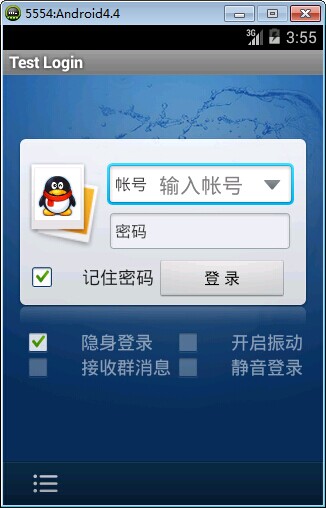
准备:
1、找到模仿对象 QQ登陆界面UI下载>>>>>
2、导入工程
3、查看布局结构和使用控件

其对应效果图分布为

4、分析样式选择器
下拉箭头2种样式:点击和默认状态
文本框2种样式:聚焦和默认状态
复选框3种样式:选择、不选择和鼠标点着不放
左下角按钮2种样式:点击和默认
登录按钮2样式:点击和默认
============================================帖代码===========================
布局:
 <?xml version="1.0" encoding="utf-8"?>

 <LinearLayout xmlns:android="http://schemas.android.com/apk/res/android"

     android:layout_width="match_parent"

     android:layout_height="match_parent"

     android:orientation="vertical" >

     <include layout="@layout/head" />

     <LinearLayout

         android:layout_width="match_parent"

         android:layout_height="wrap_content"

         android:layout_weight="1.0"

         android:background="@drawable/default_bg"

         android:orientation="vertical" >

         <RelativeLayout

             android:layout_width="match_parent"

             android:layout_height="wrap_content"

             android:layout_marginLeft="15px"

             android:layout_marginRight="15px"

             android:layout_marginTop="63px"

             android:background="@drawable/login_back"

             android:paddingBottom="10px"

             android:paddingTop="21px" >

             <!-- QQ左栏logo -->

             <ImageView

                 android:id="@+id/faceImg"

                 android:layout_width="wrap_content"

                 android:layout_height="wrap_content"

                 android:background="@drawable/qqfaceleft" />

             <!-- 帐号文本框 -->

             <EditText

                 android:id="@+id/login_edit_account"

                 android:layout_width="match_parent"

                 android:layout_height="wrap_content"

                 android:layout_alignParentTop="true"

                 android:layout_marginBottom="5px"

                 android:layout_marginLeft="5dp"

                 android:layout_marginRight="5dp"

                 android:layout_marginTop="5dp"

                 android:layout_toRightOf="@+id/faceImg"

                 android:background="@drawable/qq_edit_login"

                 android:paddingLeft="45sp"

                 android:text="输入帐号"

                 android:textColor="#ddd" />

             <!-- 文本框左边帐号提示 -->

             <TextView

                 android:layout_width="wrap_content"

                 android:layout_height="wrap_content"

                 android:layout_alignBottom="@+id/login_edit_account"

                 android:layout_alignLeft="@+id/login_edit_account"

                 android:layout_alignTop="@+id/login_edit_account"

                 android:layout_marginRight="15.0sp"

                 android:gravity="center_vertical"

                 android:paddingLeft="7sp"

                 android:text="帐号"

                 android:textSize="16dp" />

             <!-- 下拉菜单按钮 -->

             <ImageButton

                 android:layout_width="wrap_content"

                 android:layout_height="wrap_content"

                 android:layout_alignBottom="@+id/login_edit_account"

                 android:layout_alignRight="@+id/login_edit_account"

                 android:layout_alignTop="@+id/login_edit_account"

                 android:layout_marginRight="1dp"

                 android:background="@drawable/more_select" />

             <!-- 密码文本框 -->

             <EditText

                 android:id="@+id/login_edit_pwd"

                 android:layout_width="wrap_content"

                 android:layout_height="wrap_content"

                 android:layout_alignLeft="@+id/login_edit_account"

                 android:layout_alignRight="@+id/login_edit_account"

                 android:layout_below="@+id/login_edit_account"

                 android:background="@drawable/qq_edit_login"

                 android:paddingLeft="45sp"

                 android:text="输入帐号"

                 android:textColor="#ddd" />

             <TextView

                 android:layout_width="wrap_content"

                 android:layout_height="wrap_content"

                 android:layout_alignBottom="@+id/login_edit_pwd"

                 android:layout_alignLeft="@+id/login_edit_pwd"

                 android:layout_alignTop="@+id/login_edit_pwd"

                 android:layout_marginRight="15.0sp"

                 android:gravity="center_vertical"

                 android:paddingLeft="7sp"

                 android:text="密码"

                 android:textSize="16dp" />

             <!-- 记住密码选项 -->

             <CheckBox

                 android:layout_width="wrap_content"

                 android:layout_height="wrap_content"

                 android:layout_alignBaseline="@+id/login_btn_login"

                 android:button="@drawable/qq_btn_check"

                 android:text="记住密码" />

             <!-- 登录按钮 -->

             <Button

                 android:id="@+id/login_btn_login"

                 android:layout_width="130px"

                 android:layout_height="42px"

                 android:layout_alignParentRight="true"

                 android:layout_below="@+id/login_edit_pwd"

                 android:layout_marginRight="7px"

                 android:layout_marginTop="12px"

                 android:text="登录" />

         </RelativeLayout>

         <!-- 复选框层 -->

         <TableLayout

             android:layout_width="match_parent"

             android:layout_height="wrap_content"

             android:layout_marginLeft="20px"

             android:layout_marginRight="20px"

             android:stretchColumns="1" >

             <TableRow>

                 <CheckBox

                     style="@style/MyCheckBox"

                     android:layout_width="wrap_content"

                     android:layout_height="wrap_content"

                     android:text="隐身登录" />

                 <CheckBox

                     style="@style/MyCheckBox"

                     android:layout_width="wrap_content"

                     android:layout_height="wrap_content"

                     android:layout_gravity="right"

                     android:text="开启震动" />

             </TableRow>

             <TableRow>

                 <CheckBox

                     style="@style/MyCheckBox"

                     android:layout_width="wrap_content"

                     android:layout_height="wrap_content"

                     android:text="接收群消息" />

                 <CheckBox

                     style="@style/MyCheckBox"

                     android:layout_width="wrap_content"

                     android:layout_height="wrap_content"

                     android:layout_gravity="right"

                     android:text="静音登录" />

             </TableRow>

         </TableLayout>

     </LinearLayout>

     <!-- 底部 -->

     <RelativeLayout

         android:layout_width="match_parent"

         android:layout_height="44dp"

         android:background="@drawable/bottom"

         android:gravity="center_vertical" >

         <ImageButton

             android:layout_width="wrap_content"

             android:layout_height="wrap_content"

             android:background="@drawable/option" />

     </RelativeLayout>

 </LinearLayout>
布局xml
样式:
    <style name="MyCheckBox" parent="@android:style/Widget.CompoundButton.CheckBox">

        <item name="android:textSize">16sp</item>

        <item name="android:textColor">#7fffffff</item>

        <item name="android:paddingLeft">28px</item>

        <item name="android:button">@drawable/qq_btn_check</item>

    </style>
CheckBox样式
样式选择器:
<?xml version="1.0" encoding="UTF-8"?>

<selector

  xmlns:android="http://schemas.android.com/apk/res/android">

    <item android:state_window_focused="false" android:state_enabled="true" android:state_checked="true" android:drawable="@drawable/btn_check_on" />

    <item android:state_window_focused="false" android:state_enabled="true" android:state_checked="false" android:drawable="@drawable/btn_check_off" />

    <item android:state_enabled="true" android:state_checked="true" android:state_pressed="true" android:drawable="@drawable/btn_check_on_pressed" />

    <item android:state_enabled="true" android:state_checked="false" android:state_pressed="true" android:drawable="@drawable/btn_check_off_pressed" />

    <item android:state_focused="true" android:state_enabled="true" android:state_checked="true" android:drawable="@drawable/btn_check_on_selected" />

    <item android:state_focused="true" android:state_enabled="true" android:state_checked="false" android:drawable="@drawable/btn_check_off_selected" />

    <item android:state_enabled="true" android:state_checked="false" android:drawable="@drawable/btn_check_off" />

    <item android:state_enabled="true" android:state_checked="true" android:drawable="@drawable/btn_check_on" />

</selector>
复选框selector
<?xml version="1.0" encoding="utf-8"?>

<selector xmlns:android="http://schemas.android.com/apk/res/android" >

    <item android:state_enabled="false" android:drawable="@drawable/login_input"></item>

    <item android:state_pressed="true" android:drawable="@drawable/login_input"></item>

    <item android:state_focused="true" android:drawable="@drawable/input_over"></item>

</selector>
文本框selector
<?xml version="1.0" encoding="UTF-8"?>

<selector

  xmlns:android="http://schemas.android.com/apk/res/android">

    <item android:state_pressed="true" android:drawable="@drawable/option_selected" />

    <item android:state_focused="true" android:state_enabled="true" android:drawable="@drawable/option_selected" />

    <item android:state_enabled="true" android:drawable="@drawable/option_normal" />

</selector>
左下角按钮selector
<?xml version="1.0" encoding="UTF-8"?>

<selector

  xmlns:android="http://schemas.android.com/apk/res/android">

    <item android:state_pressed="true" android:drawable="@drawable/button2_down" />

    <item android:state_focused="true" android:state_enabled="true" android:drawable="@drawable/button2_over" />

    <item android:state_enabled="true" android:drawable="@drawable/button2" />

</selector>
下拉菜单selector
相关文章:
Android:布局实例之模仿QQ登录界面的更多相关文章
- [转]Android:布局实例之模仿QQ登录界面
Android:布局实例之模仿QQ登录界面 预览图: 准备: 1.找到模仿对象 QQ登陆界面UI下载>>>>> 2.导入工程 3.查看布局结构和使用控件 其对应效果图分布 ...
- Android:布局实例之模仿京东登录界面
预览图及布局结构参考: 布局: <?xml version="1.0" encoding="utf-8"?> <RelativeLayout ...
- java代码完全手写模仿qq登录界面
这是我模仿QQ2015版界面,实现的基本功能有登陆验证,重置等,当然直接复制代码运行是不一样的,还要注意自己插入自己的图片. 结果截图如下所示: import java.awt.BorderLayou ...
- 界面编程模仿篇(QQ登录界面逼真篇)
写了好多天的爬虫,偷空前前后后用了两天的时间(排除吃饭睡觉)写完了这个QQ登录界面,看起来还凑和着吧,如果是的大神的,莫见笑,纯属业余作品,废话先不多说,截图如下,其中第二幅图片中的红色方框部份有待完 ...
- Android菜鸟的成长笔记(3)——给QQ登录界面说So Easy
原文:Android菜鸟的成长笔记(3)--给QQ登录界面说So Easy 上一篇:Android菜鸟的成长笔记(2)--第一个Android应用 我们前面已经做了第一个Android应用程序,虽然有 ...
- QQ登录界面布局
简单的qq登录界面布局 <?xml version="1.0" encoding="utf-8"?> <RelativeLayout xmln ...
- WPF开发实例——仿QQ登录界面
原文:WPF开发实例--仿QQ登录界面 版权声明:本文为博主原创文章,如需转载请标明转载地址 http://blog.csdn.net/u013981858 https://blog.csdn.net ...
- swing实现QQ登录界面1.0( 实现了同一张图片只加载一次)、(以及实现简单的布局面板添加背景图片控件的标签控件和添加一个关闭按钮控件)
swing实现QQ登录界面1.0( 实现了同一张图片只加载一次).(以及实现简单的布局面板添加背景图片控件的标签控件和添加一个关闭按钮控件) 代码思路分析: 1.(同一张图片仅仅需要加载一次就够了,下 ...
- 编写Java程序,使用Swing布局管理器和常用控件,实现仿QQ登录界面
返回本章节 返回作业目录 需求说明: 使用Swing布局管理器和常用控件,实现仿QQ登录界面 实现思路: 创建登录界面的类QQLogin,该类继承父类JFrame,在该类中创建无参数的构造方法,在构造 ...
随机推荐
- ubuntu tomcat的安装与配置
一.下载jdk 大概是tomat大部分是由java写的, 所以一开始安装tomcat必须得配置好jdk http://www.oracle.com/technetwork/java/javase/do ...
- perl6中字符串字母编历
use v6; my $input = prompt '输入字符串:'; for $input.words -> $word { say $word; } for $input.comb -&g ...
- Msfvenom学习总结-MSF反弹webshell
1. –p (- -payload-options) 添加载荷payload. 载荷这个东西比较多,这个软件就是根据对应的载荷payload生成对应平台下的后门,所以只有选对payload,再填 ...
- Vue组件-组件的注册
注册组件 全局组件 注册组件就是利用Vue.component()方法,先传入一个自定义组件的名字,然后传入这个组件的配置. Vue.component('my-component', { templ ...
- JS中的日期内置函数
用JS中的日期内置函数实现在页面显示:“今天是:2013年9月26日14:32:45”. var date=new Date(Date.parse('9/26/2013 14:32:45')); ...
- const 引用的分析
const 引用: 在初始化常量引用时,允许用任意表达式作为初始值,只要该表达式的结果能转换成引用的类型即可.尤其,允许为一个常量引用绑定非常量的对象.字面值,甚至是一个表达式.我们来看 const ...
- linux 设置开机启动项两种方式
原文链接:http://blog.csdn.net/karchar/article/details/52489572 有时候我们需要Linux系统在开机的时候自动加载某些脚本或系统服务. 在解问题之前 ...
- Insertion Sort List——链表的插入排序
Sort a linked list using insertion sort. 这道题跟 Sort List 类似,要求在链表上实现一种排序算法,这道题是指定实现插入排序.插入排序是一种O(n^2) ...
- HDR文件格式简介及其读写函数
转自:http://blog.csdn.net/lqhbupt/article/details/7828827 1.HDR简介HDR的全称是High-DynamicRange(高动态范围).在此,我们 ...
- gitlab备份与恢复
(1)备份 1.创建备份目录,并授权 mkdir /data/backups/gitlab -pv chown -R git.git /data 2.修改gitlab配置 vim /etc/gitla ...