
JProfiler远程监控 -转
1、 服务端安装JProfiler(与客户端版本一致)
2、 客户端配置连接:
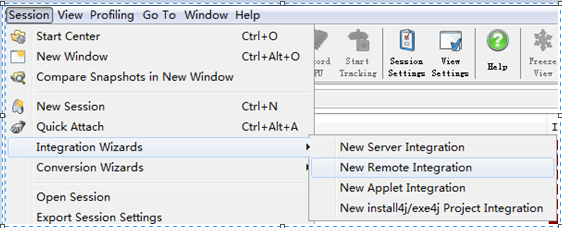
A)、session——integration wizards——New remote integration
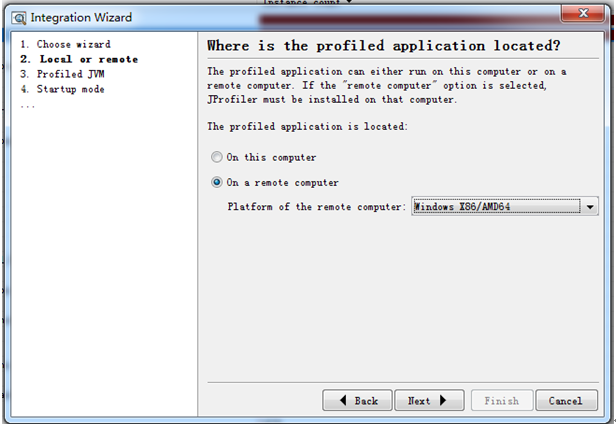
B)、选择远程监控的平台windows,点击next
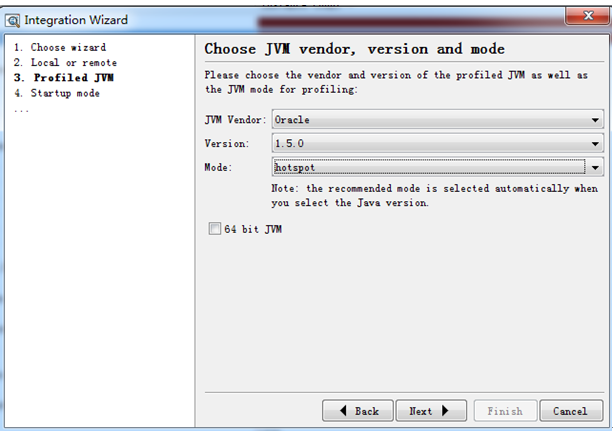
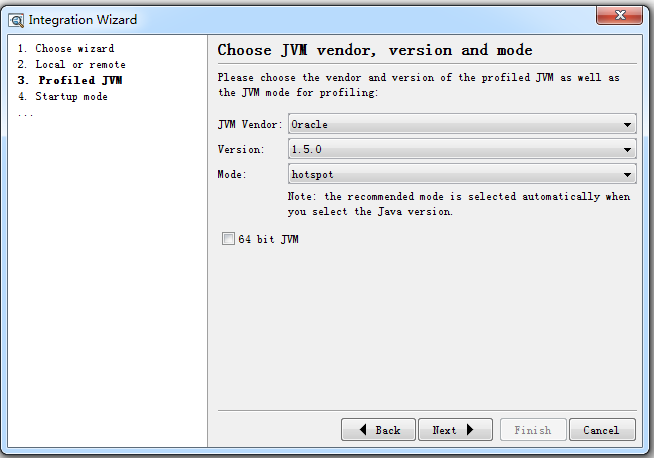
C)、选择jdk版本,如果服务器是64位的jdk则勾上64 bit jvm,点击next
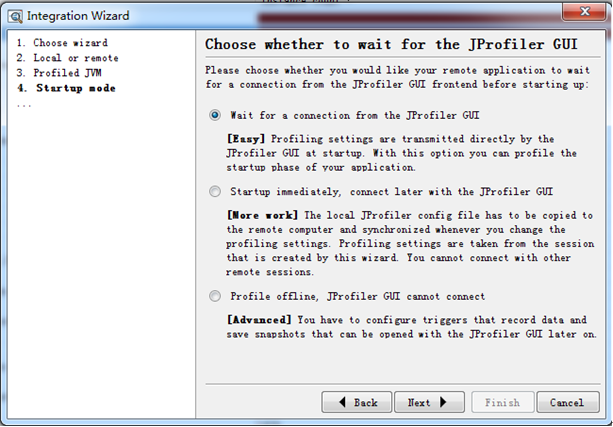
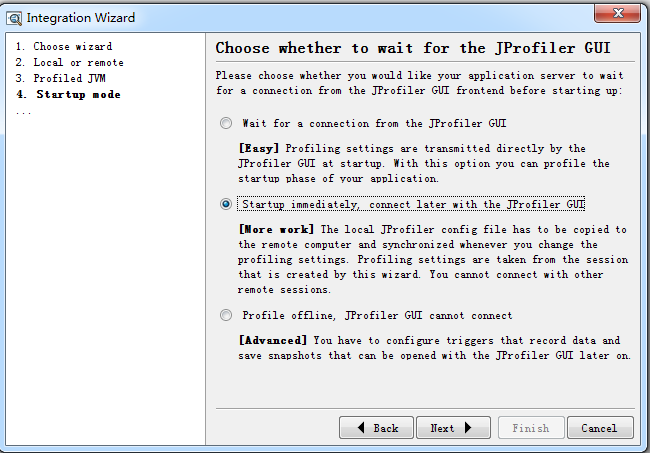
D)、选择等待连接,点击next
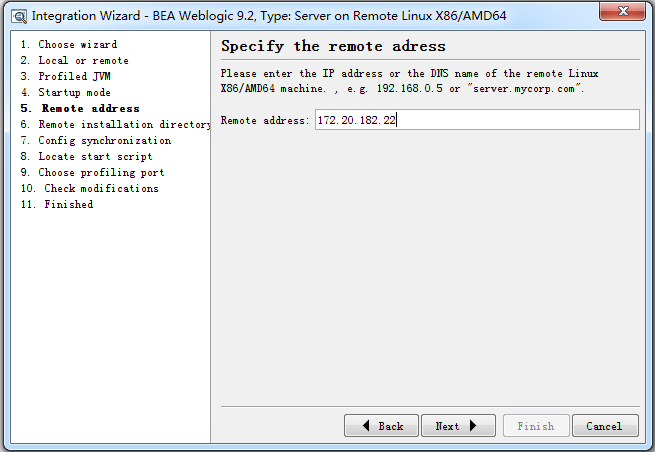
E)、输入服务端ip地址,点击next
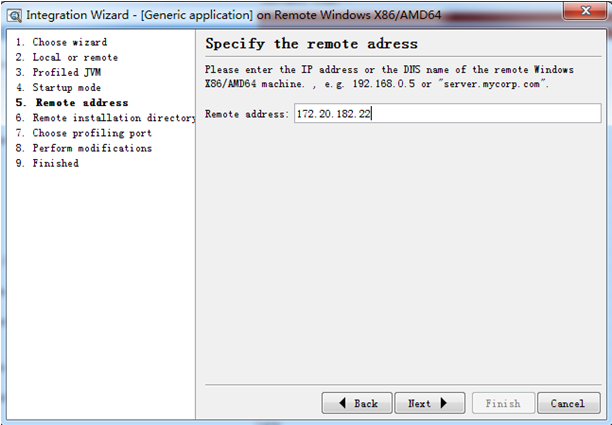
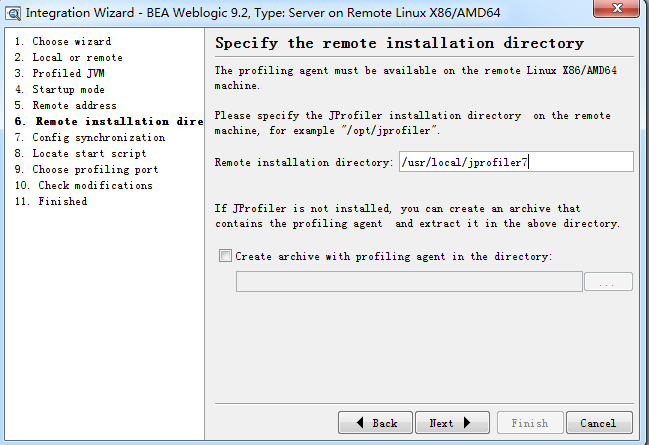
F)、输入服务端机器上的jprofiler的安装路径,点击next
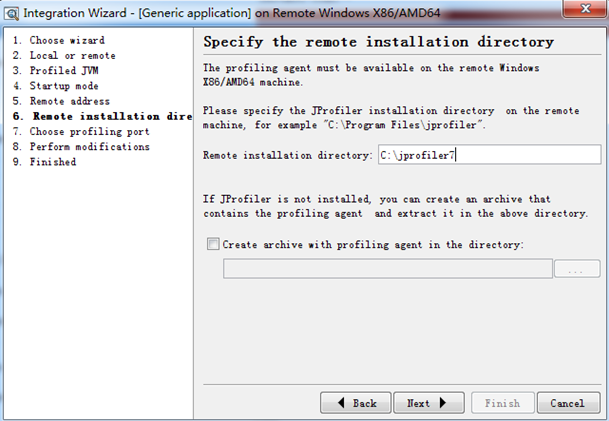
G)、端口默认8849,点击next
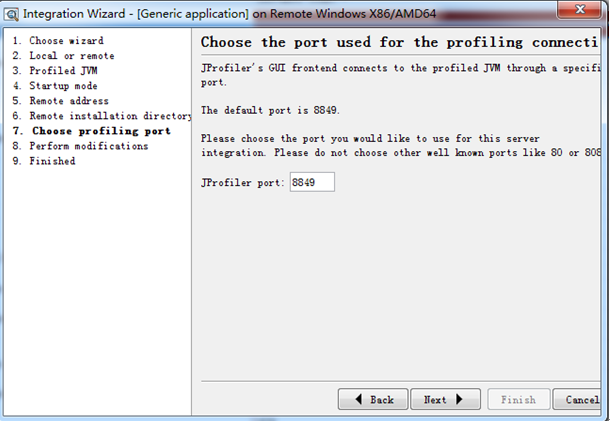
H)、提示需要在服务端插入下面的启动命令:-agentpath:C:\jprofiler7\bin\windows\jprofilerti.dll=port=8849
客户端配置完成

3、 服务端,在C:\jboss-4.2.3.GA(2)\jboss-4.2.3.GA\bin下面编辑run.bat
加入下面的启动项-agentpath:C:\jprofiler7\bin\windows\jprofilerti.dll=port=8849
如set JAVA_OPTS=%JAVA_OPTS% -Xms128m -Xmx512m -agentpath:C:\jprofiler7\bin\windows\jprofilerti.dll=port=8849
启动jboss,看到waiting for a connection from the JProfiler GUI… 就可以了
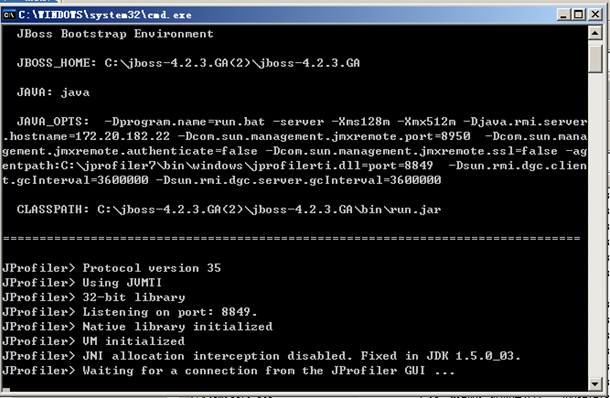
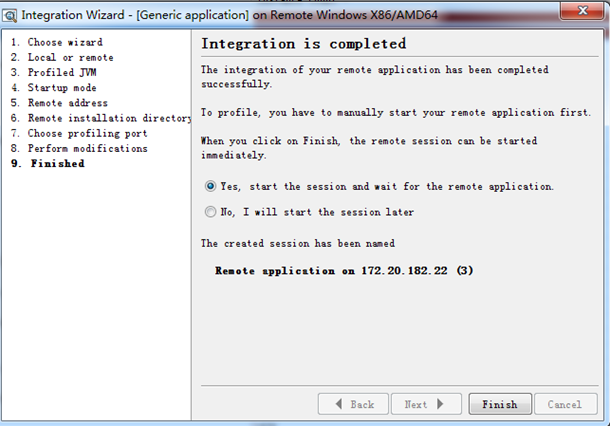
4、 配置好服务端后,继续点击客户端的next,然后再点击finish,连接即可
注:
A)、如果是tomcat则在编辑C:\my\apache-tomcat-6.0.14\apache-tomcat-6.0.14\bin下面catalina.bat
如set JAVA_OPTS=%JAVA_OPTS% -Djava.util.logging.manager=org.apache.juli.ClassLoaderLogManager -Djava.util.logging.config.file="%CATALINA_BASE%\conf\logging.properties" -agentpath:C:\my\jprofiler_windows_7_1_2\jprofiler7\bin\windows\jprofilerti.dll=port=8849
B)、如果是weblogic则编辑C:\bea\weblogic92\samples\domains\workshop\bin下面的setDomainEnv.cmd
如:
set JAVA_OPTIONS=%JAVA_OPTIONS% %JAVA_PROPERTIES% -Dwlw.iterativeDev=%iterativeDevFlag% -Dwlw.testConsole=%testConsoleFlag% -Dwlw.logErrorsToConsole=%logErrorsToConsoleFlag% -agentpath:C:\jprofiler7\bin\windows\jprofilerti.dll=port=8849
C)、如果是linux中的tomcat,则编辑/usr/local/apache-tomcat-6.0.35/bin下面的catalina.sh文件,在java_opts后面加上
-agentpath:/usr/local/jprofiler7/bin/linux-x86/libjprofilerti.so=port=8849"
(注意-agent参数要加载“之内)
如:
if [ -z "$LOGGING_MANAGER" ]; then
JAVA_OPTS="$JAVA_OPTS -Djava.util.logging.manager=org.apache.juli.ClassLoaderLogManager -agentpath:/usr/local/jprofiler7/bin/linux-x86/libjprofilerti.so=port=8849"
else
JAVA_OPTS="$JAVA_OPTS $LOGGING_MANAGER -agentpath:/usr/local/jprofiler7/bin/linux-x86/libjprofilerti.so=port=8849"
D)、如果是linux中的jboss,则编辑/usr/local/jboss-4.2.3.GA/bin下面的run.sh文件,在java_opts后面加上
-agentpath:/usr/local/jprofiler7/bin/linux-x86/libjprofilerti.so=port=8849
(注意-agent参数要加载“之内)
如:
if [ "$linux" = "true" ]; then
JAVA_OPTS="$JAVA_OPTS -Djava.net.preferIPv4Stack=true -agentpath:/usr/local/jprofiler7/bin/linux-x86/libjprofilerti.so=port=8849"
Fi
E)、如果是linux中的weblogic,则编辑/home/weblogic/user_projects/domains/Test/bin下面的setDomainEnv.sh
如:
JAVA_OPTIONS="${JAVA_OPTIONS} ${JAVA_PROPERTIES} -Dwlw.iterativeDev=${iterativeDevFlag} -Dwlw.testConsole=${testConsoleFlag} -Dwlw.logErrorsToConsole=${logErrorsToConsoleFlag} -agentpath:/usr/local/jprofiler7/bin/linux-x86/libjprofilerti.so=port=8849"
export JAVA_OPTIONS
----------------------------------------------------------------------------------------------------------------------------------------------------------------------------------------------------------------------------------
另一种方式(方便的操作linux+weblogic)
1、 客户端连接配置:
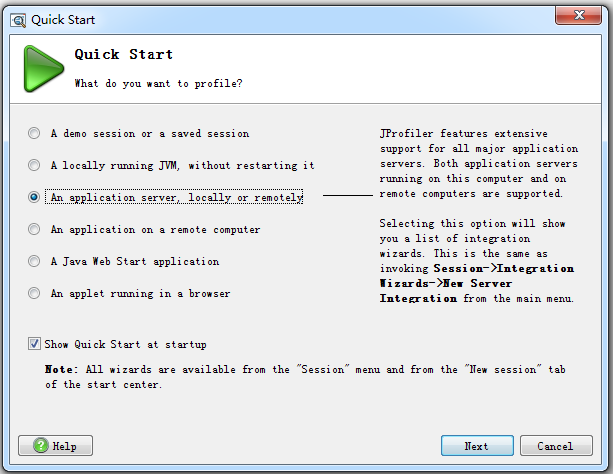
A)、session——new window,选择an application server,locally or remotely,点击next
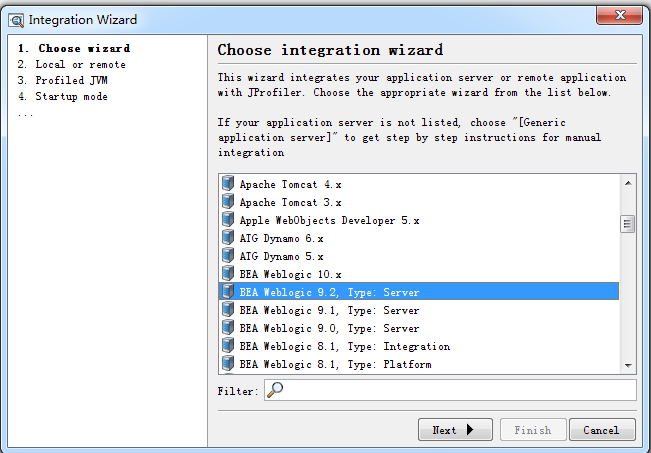
B)、选择监控的服务器(weblogic9.2),点击next
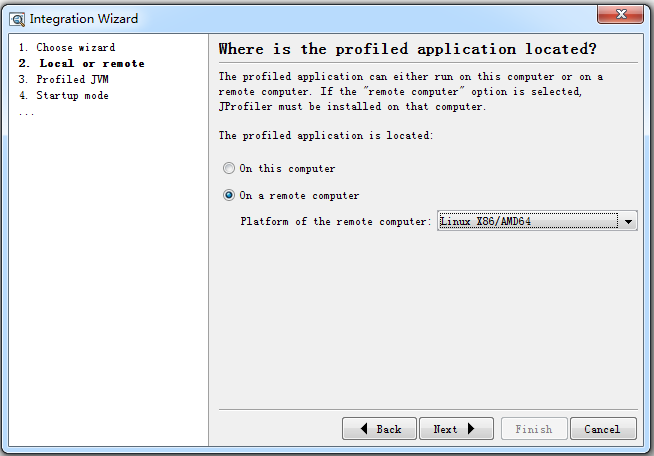
C)、选择远程监控机器平台
D)、选择jdk版本
E)、选择立即启动,随时可以连接jprofiler,(即手动启动服务后,随时jprofiler可以连接)
F)、输入远程ip地址
G)、输入远程机器上的jprofiler的路径
H)、选择远程配置文件的路径(完成后要把本地生成的config.xml拷贝到这)
选择拷贝配置文件到这个路径
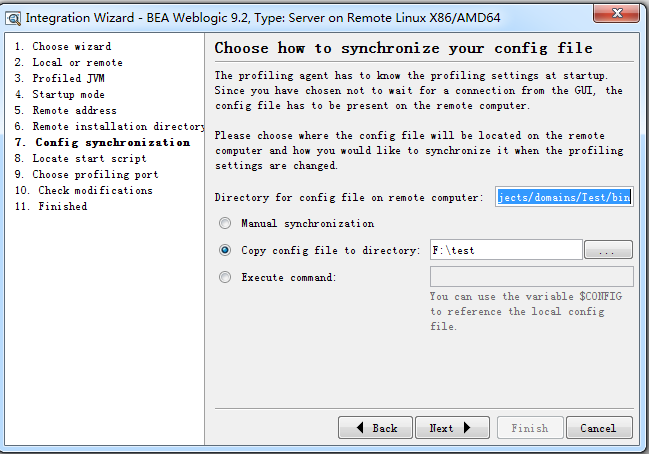
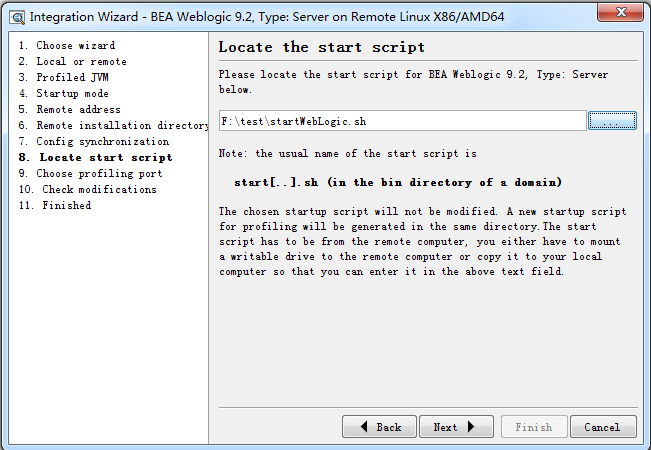
I)、这里选择提前在服务器上拷贝下来的startWebLogic.sh文件
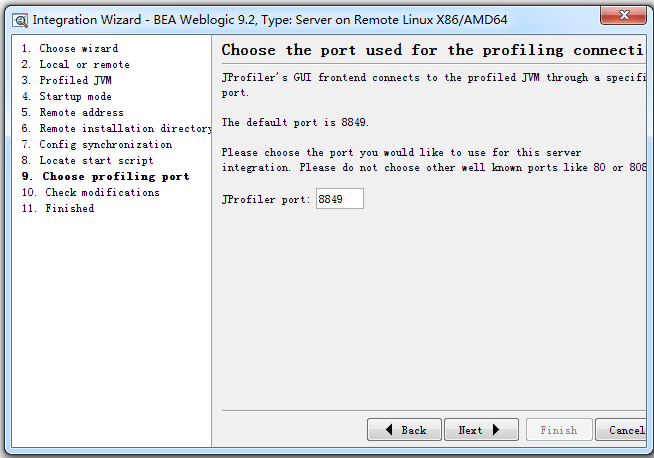
J)、显示端口,点击next
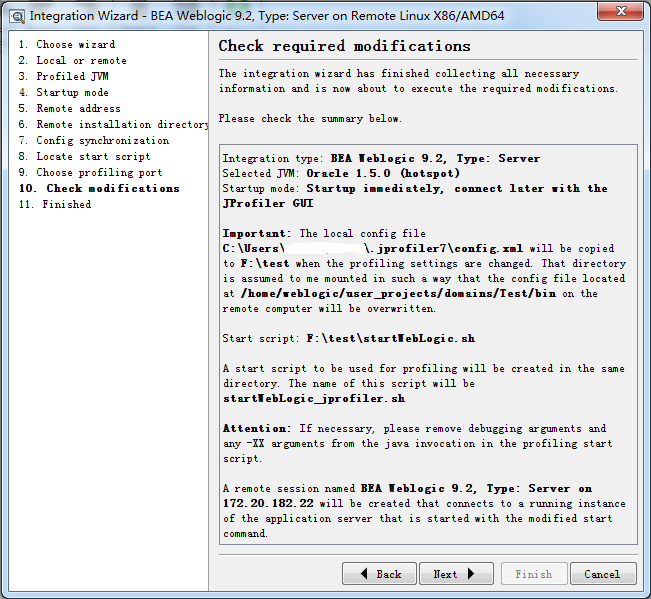
K)、提示要在服务端操作的内容,点击next
2、 服务端
A)、把C:\Users\xxxxxxx\.jprofiler7\config.xml拷贝到服务器的/home/weblogic/user_projects/domains/Test/bin路径下(要设置下这个文件的可操作权限chmod a+x /home/weblogic/user_projects/domains/Test/bin/config.xml)
B)、把F:\test\startWebLogic_jprofiler.sh拷贝到/home/weblogic/user_projects/domains/Test/bin路径下并授于可操作权
C)、./startWebLogic_jprofiler.sh启动weblogic即可

第一行是连接成功
第二行和第三行是断开
第四行是重新连接
JProfiler远程监控 -转的更多相关文章
- 转载:JProfiler远程监控LINUX上的Tomcat过程细讲
来源于xuwanbest的博客 所谓"工欲善其事,必先利其器",好的工具确能起到事半工倍的作用.我用到的最多的就两个JConsole 和JProfiler .JConsole监 ...
- JProfiler远程监控Linux上Tomcat的安装过程细讲(步骤非常详细!!!)
JProfiler远程监控Linux上Tomcat的安装过程细讲(步骤非常详细!!!) 1.文件准备: 服务器:CentOS Linux release 7.3.1611 (Core) Apa ...
- JProfiler远程监控
1. 服务端安装JProfiler(与客户端版本一致) 2. 客户端配置连接: A).session——integration wizards——New remote integration B) ...
- Windows客户端的JProfiler远程监控Linux上的Tomcat
1.测试环境 服务器:RedHat Linux 3.4.3-9.EL4(内核版本 2.6.9-5.EL),Tomcat5.5.20,Sun JDK 1.5.0_09,JProfiler 4.3.2 f ...
- Jprofiler远程监控JVM
一.下载并安装 本地和远程服务器分别安装Jprofiler,下载地址 二.Windows远程连接JVM配置 1.打开Windows客户端Jprofiler 2.点Cancel 3.创建远程会话 4.添 ...
- java自带的监控工具VisualVM(二)远程监控
ps:尝试了网上的几个网友提供的方法,始终不得其法,汇总后,终于尝试成功!将一些需要注意的细节也记录下来以后备用! 我们经常需要对我们的开发的软件做各种测试, 软件对系统资源的使用情况更是不可少, 目 ...
- JProfiler8 远程监控tomcat配置过程
1. 阅读人群 1.熟悉liunx服务器,起码知道liunx常见的命令 2.熟悉tomcat容器,起码知道怎么tomcat的启动以及停止 3.熟悉java编程语言,JProfiler8是专门监控jav ...
- SNMP远程监控进程信息的OID
最近有个项目需要用snmp远程监控进程信息.于是我查了一下资料. 一.资料 .1.3.6.1.2.1.25.4.2.1.1.iso.org.dod.internet.mgmt.mib-2.host.h ...
- c# 远程监控(4) 接收端 RTP包重组 分屏显示
我们在上一期使用RTP协议,并进行了配置,打包了视频数据,这一期我们就对发送的数据进行重组,并显示在接受端上.最后对其进行扩展,支持多客户端视频发送,并在接收端分屏显示.完成远程监控的模拟. 先来个效 ...
随机推荐
- python实现复制整个目录的方法
import shutil #复制文件 shutil.copyfile('listfile.py', 'd:/test.py') #复制目录 shutil.copytree('d:/temp', 'c ...
- 安装nginx包
1.二进制安装源码包,直接输入yum stall nginx -y就可以 2,后面会涉及路径,所以先查下nginx的路径rpm -ql nginx 3,进入bin目录进行设置 4, 5,查看系统自带的 ...
- Linux中进程在前后台的切换
把进程放入后台执行 tar -zcf etc.tar.gz /etc &把进程放入后台暂停 在命令执行的过程中,按下ctrl+z 查看后台的命令 jobs[root@localhost tem ...
- 解决github访问慢和clone慢解决方案
在http://tool.chinaz.com/dns/ 这个网站输入github.com 打开cmd ping各个服务器ip地址,看看哪个比较好 windows下C:\Windows\System3 ...
- OpenCV3计算机视觉+Python(五)
人脸检测和识别 本章将介绍Haar级联分类器,通过对比分析相邻图像区域来判断给定图像或子图像与已知对象是否匹配.本章将考虑如何将多个Haar级联分类器构成一个层次结构,即一个分类器能识别整体区域(如人 ...
- boost之正则表达式
正则表示主要用于查找一系列符合规则的对象,而我们之前的查找是对某一特定的字符串进行查找. #include <iostream> #include <vector> #incl ...
- mysql数据库中表记录的玩法
一.增加表记录(相当于插入表记录) 1. 插入完整数据(顺序插入) 语法一: INSERT INTO 表名(字段1,字段2,字段3…字段n) VALUES(值1,值2,值3…值n); 语法二: INS ...
- Log level with log4j and Spark
Log Level Usages OFF This is the most specific, which allows no logging at all FATAL This is the mos ...
- django-admin 设计User外键,设计model
设置外键 class profile_user(AbstractBaseUser, PermissionsMixin): company = models.ForeignKey(Company, de ...
- Android:日常学习笔记(8)———探究UI开发(5)
Android:日常学习笔记(8)———探究UI开发(5) ListView控件的使用 ListView概述 A view that shows items in a vertically scrol ...