
运用Edraw为WPF应用程序嵌入Office文档的方法总结
具体描述了运用Edraw Office Viewer Component为WPF应用长须嵌入MS Word,Excel以及Power Point的方法。
打开Visual Studio,并创建一个新的WPF应用程序。
右键单击WpfApplication1 Solution。 然后单击Add添加菜单,并点击User Control…
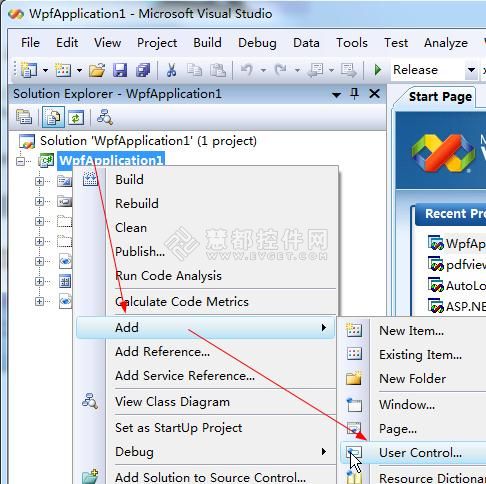
wpf的项目中将会出现一个新窗口。在Solution面板双击UserControl1.CS。
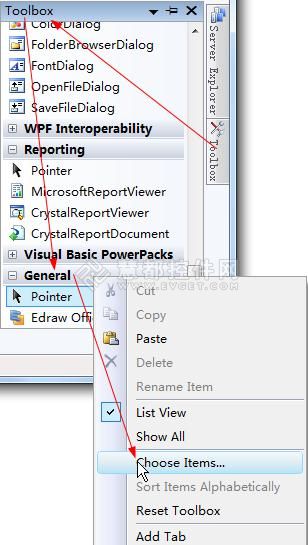
打开Toolbox面板,然后单击Choose Items…。
在弹出的Choose Toolbox Items选择工具箱项目对话框中,选择Edraw Office Viewer Component组件然后单击Ok。
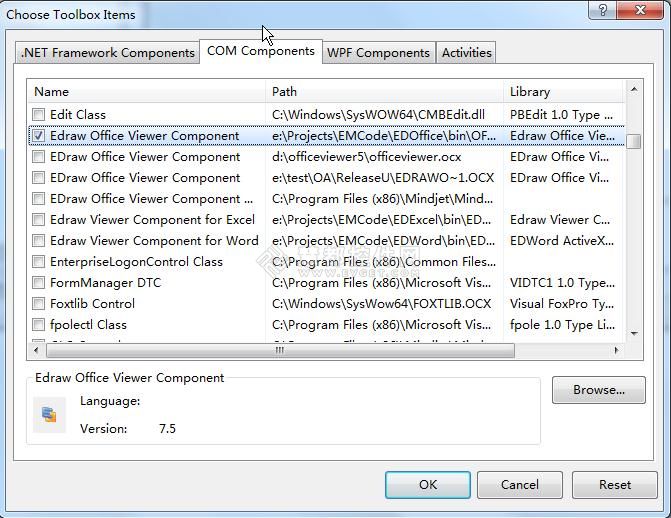
Edraw Office Viewer Component组件就已经被添加到Toolbox工具箱中添加工具箱的General选项卡中。之后将它拖放到UserControl窗口。
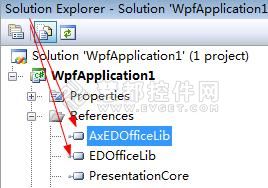
这个AxEDofficeLib和EDOfficeLib将通过Visual Studio向导被添加到解决方案中。
键入以下的c#代码,打开一个word文档,并保护该Word文档不被修改:
|
1
2
3
4
5
6
7
8
9
10
11
12
13
14
15
16
17
18
19
20
21
22
23
24
25
26
27
28
29
30
31
32
33
34
35
36
37
|
using System;using System.Collections.Generic;using System.ComponentModel;using System.Drawing;using System.Data;using System.Linq;using System.Text;using System.Windows.Forms;namespace WpfApplication1{public partial class UserControl1 : UserControl{public UserControl1(){InitializeComponent();}public void Open(){axEDOffice1.OpenFileDialog();}public void Protect(){if (axEDOffice1.GetCurrentProgID() == "Word.Application"){axEDOffice1.ProtectDoc(2);}}public void Print(){axEDOffice1.PrintPreview();}public void Close(){axEDOffice1.ExitOfficeApp();}}} |
最后,您需要为UserControl编写一个主机窗口。切换到Windows1.xaml文件然后加入开放、保护、打印和关闭按钮,如下图所示:
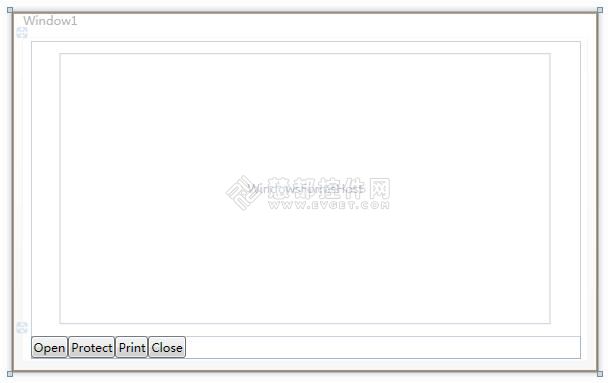
添加如下代码:
|
1
2
3
4
5
6
7
8
9
10
11
12
13
14
15
16
17
18
19
20
21
22
23
24
25
26
27
28
29
30
31
32
33
34
35
36
37
38
39
|
using System;using System.Collections.Generic;using System.Linq;using System.Text;using System.Windows;using System.Windows.Controls;using System.Windows.Data;using System.Windows.Documents;using System.Windows.Input;using System.Windows.Media;using System.Windows.Media.Imaging;using System.Windows.Navigation;using System.Windows.Shapes;namespace WpfApplication1{public partial class Window1 : Window{public Window1(){InitializeComponent();}private void Open_Click(object sender, RoutedEventArgs e){_host.Open();}private void Protect_Click(object sender, RoutedEventArgs e){_host.Protect();}private void Print_Click(object sender, RoutedEventArgs e){_host.Print();}private void Close_Click(object sender, RoutedEventArgs e){_host.Close();}}} |
打开Configuration Manager配置管理器。改变 Active解决方案平台为x86选项。然后构建并运行。
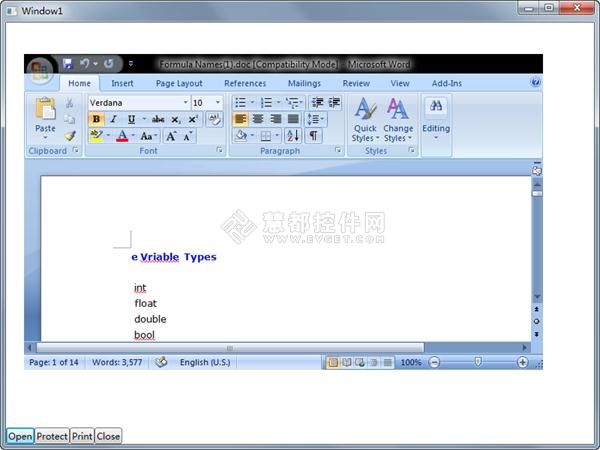
Office Viewer Component组件支持所有版本MS Word。嵌入MS Excel或PowerPoint,Visio、项目到一个WPF应用程序中,您不必改变任何东西,只能调用Open方法,如下所示:
|
1
2
3
4
5
6
7
8
9
|
public void Open(){//axEDOffice1.OpenFileDialog();axEDOffice1.Open(sPath, "Word.Application");axEDOffice1.Open(sPath, "Excel.Application");axEDOffice1.Open(sPath, "PowerPoint.Application");axEDOffice1.Open(sPath, "Visio.Application");axEDOffice1.Open(sPath, "MSProject.Application");} |
运用Edraw为WPF应用程序嵌入Office文档的方法总结的更多相关文章
- WPF:将Office文档、任意类型文件嵌入到EXE可执行文件中
原文:WPF:将Office文档.任意类型文件嵌入到EXE可执行文件中 版权声明:本文为博主原创文章,未经博主允许可以随意转载 https://blog.csdn.net/songqingwei198 ...
- WPF应用程序嵌入第三方exe
把其它应用嵌入到C#窗口 源代码-CSDN下载 https://download.csdn.net/download/aiqinghee/10652732 WPF应用程序嵌入第三方exe - gao2 ...
- 使用WebDAV实现Office文档在线编辑
Office的文档处理能力是非常强大的,但是它是本地资源,在Office Web App尚未成熟前,仍需要使用本地能力来进行文档编辑,可是现代的系统的主流却是B/S,所以在B/S中调用本地的Offic ...
- 海量Office文档搜索
知识管理系统Data Solution研发日记之十 海量Office文档搜索 经过前面两篇文章的介绍,<分享制作精良的知识管理系统 博客备份程序 Site Rebuild>和<分 ...
- Office文档在线编辑的实现之二
讲述了如何通过iis的webdav支持实现客户端的office直接编辑服务器上的文件,本篇将讲解如何实现客户端的office直接编辑数据库中的二进制形式保存的office文件. 实现的关键:模拟IIS ...
- 在线office文档编辑NTKO使用心得
目录 前言 什么是ntko 准备工作 实战演练 总结 一.前言 Web开发中经常需要用到在线处理office文档的功能,现在市面上有一些常用的Web页面调用显示Office的控件技术,用起来很方便.有 ...
- 在线预览-Java 使用 Print2Flash 实现Office文档在线阅读
近期项目上遇到一个需求是用户上传的文档进行在线浏览,之前有过一篇使用 OpenOffice 将 word 转换成 html 页面进行展示的.现在介绍一个新的工具那就是 Print2Flash . ...
- NTKO OFFICE文档控件
目录 前言 什么是ntko 准备工作 实战演练 总结 一.前言 Web开发中经常需要用到在线处理office文档的功能,现在市面上有一些常用的Web页面调用显示Office的控件技术,用起来很方便. ...
- 转:C#实现office文档转换为PDF或xps的一些方法
代码支持任意office格式 需要安装office 2007 还有一个office2007的插件OfficeSaveAsPDFandXPS 下载地址 [url]http://www.microsoft ...
随机推荐
- cnd 计费流量查询服务模块设计与实现
一.cdn模块结构: 2.内部模块结构:
- 扩展jQuery---选中指定索引的文本
<script type="text/javascript"> //1.扩展jQuery $.fn.selectRange = function (start, end ...
- python语法学习面向对象之继承
python语法学习面向对象之继承 转载自:http://www.cnblogs.com/Joans/archive/2012/11/09/2757368.html 只要涉及到面向对象,”类“是必须出 ...
- leetcode 88 Merge Sorted Array 归并排序
归并排序:先将数组一分为二,将左边部分排序(同样将其一分为二),再将右边部分排序,最后逐层归并.(分治策略)(稳定排序). 算法稳定性 -- 假设在数列中存在a[i]=a[j],若在排序之前,a[i] ...
- 在linux服务器上配置anaconda和Tensorflow,并运行
1. 查看服务器上的Python安装路径: whereis python 2. 查看安装的Python版本号: python 3. 安装Anaconda: 1)下载 Anaconda2-4.0.0-L ...
- js css div 点亮半颗星星(二)
上回说到js css点亮星星 换种方式来点亮 <!DOCTYPE html> <html lang="en"> <head> <meta ...
- webAPI过滤器返回数据加密
项目需求: 接口返回的数据,存在一些敏感信息,不希望其他用户看到,将Data进行加密传输 代码如下: public class EncryptDataFilterAttribute : ActionF ...
- Android Zygote进程启动分析
dvm,app进程,linux进程三者关系 DVM指 dalivk 的虚拟机.每一个 Android 应用程序都在它自己的进程中运行,都拥有一个独立的 Dalvik 虚拟机实例.而每一个 DVM 都是 ...
- innoback 参数及使用说明
--defaults-file 同xtrabackup的--defaults-file参数,指定mysql配置文件; --apply-log 对xtrabackup的--prepare参数的封装; - ...
- 022-pinyin4j工具类模板
模板一 package ${enclosing_package}; import java.util.Arrays; import net.sourceforge.pinyin4j.PinyinHel ...