
python-GUI-tkinter之excel密码破解工具
python gui 之熟悉tkinter部分控件使用。一个简单的excel暴力密码破解,核心很简单,基本就是一个函数外面加了GUI,写的很啰嗦,希望大家可以在优化改良下,主要是为了再熟悉下tkinter的部分控件怎么使用,tk打包后的文件比较小。仅限于个人忘记密码时使用,请勿用于其它用途。如想转载,请联系本人,或贴上本博客地址。
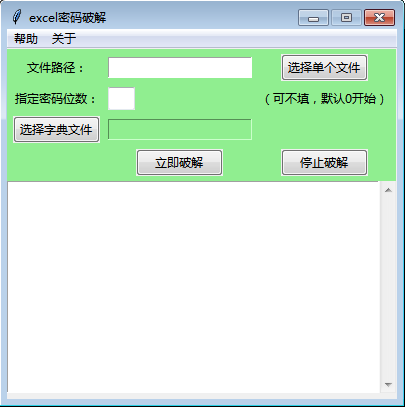
程序截图如下:
import os,sys,subprocess

from tkinter import *

import socket

import threading

import time

import queue

import tkinter.messagebox as msgbox

import win32com.client

#多线程调用win32com模块打开excel,报错,加下面

import pythoncom

import tkinter as tk

from tkinter import ttk

from tkinter import *

from tkinter import scrolledtext

#选择文件

from tkinter import filedialog

#窗体居中

def center_window(root, width, height):

    screenwidth = root.winfo_screenwidth()

    screenheight = root.winfo_screenheight()

    size = '%dx%d+%d+%d' % (width, height, (screenwidth - width)/2, (screenheight - height)/2)

    #print(size)

    root.geometry(size)

class MyGui():

    def __init__(self, init_window_name):

        self.init_window_name = init_window_name

    def set_init_window(self):              #初始化窗口

        self.k = 0

        self.init_window_name.title("excel密码破解")

        self.window_center(390, 350)

        self.init_window_name.resizable(0,0)    #固定窗口,禁止拖拉

        #参数是父级控件

        self.menubar = Menu(self.init_window_name)

        #新增2个级联菜单

        self.cascadehelp=Menu(self.menubar,tearoff=False)#tearoff=False 表示这个菜单不可以被拖出来

        self.cascadeabout=Menu(self.menubar,tearoff=False)#tearoff=False 表示这个菜单不可以被拖出来

        #向父控件添加help级联菜单

        self.menubar.add_cascade(label='帮助', menu = self.cascadehelp)

        #级联菜单增加选项

        self.cascadehelp.add_command(label='使用说明',command = self.howuse)

        self.menubar.add_cascade(label='关于', menu = self.cascadeabout)

        self.cascadeabout.add_command(label='关于本工具',command = self.about)

        self.init_window_name.config(menu = self.menubar)

        self.frame_top = Frame(self.init_window_name, width=390, height=350,borderwidth = 1,bd=2,bg='lightgreen')

        self.frame_top.grid(row=0, column=0)

        self.PortScan = ttk.Button(self.frame_top, text="立即破解", command= self.runing).grid(row=4, column=1)

        #停止

        self.StopScan = ttk.Button(self.frame_top, text="停止破解",command=self.stop).grid(row=4, column=2)

        self.select_path = tk.StringVar()

        # 初始化Label控件的textvariable属性值

        self.select_dic_path = tk.StringVar()

        # 布局控件

        tk.Label(self.frame_top, text="文件路径:",bg='lightgreen').grid(column=0, row=0)#columnspan和rowspan分别可以设置控件在行和列方向的合并数量

        tk.Entry(self.frame_top, textvariable = self.select_path).grid(column=1, row=0)

        ttk.Button(self.frame_top, text="选择单个文件", command=self.select_file).grid(row=0, column=2)

        #指定数字位数

        tk.Label(self.frame_top, text="指定密码位数:",bg='lightgreen').grid(column=0, row=1)

        self.feet = StringVar()

        feet_entry = ttk.Entry(self.frame_top, width=3, textvariable=self.feet).grid(column=1, row=1,sticky=(W))#sticky=(W)左对齐, sticky=(W, E))左右对齐,控件占满行列

        #feet_entry.bind('', self.keyPress)

        tk.Label(self.frame_top, text="(可不填,默认0开始)",bg='lightgreen').grid(column=2, row=1,sticky=(W))

        #选择字典文件

        ttk.Button(self.frame_top, text="选择字典文件", command=self.select_dic).grid(row=3, column=0)

        tk.Entry(self.frame_top, textvariable = self.select_dic_path,bg='lightgreen').grid(column=1, row=3)

        #历史记录

        scrolW  = 30; scrolH  =  16

        scr = scrolledtext.ScrolledText(width=scrolW, height=scrolH, wrap=tk.WORD) #monty,

        scr.grid(column=0, row=1, sticky='WE', columnspan=1)

        scr.config(state=DISABLED)

        for child in self.frame_top.winfo_children(): child.grid_configure(padx=3, pady=3) # padx表示在x轴方向上的边距,一般用法是padx=10,表示距离左右两边组件的长度都为10

    def about(self):

        messagebox.showinfo('关于','欢迎使用本工具,本工具开源免费,仅限于个人忘记密码时使用,请勿用于商业用途。')

    def close_handler(self):

        # 在colse_handler函数中,使得父窗口重新变得可用

        self.init_window_name.attributes('-disabled', 0)

    def howuse(self):

        help_text1 = '1、破解数字密码,可直接选择文件,点击 “立即破解”,如果直接数字密码大概是几位,可以指定密码位数,可加快破解效率。'

        help_text2 = '2、如有常用密码的txt字典,可选择文件,再选择字典文件,点击“立即破解”。'

        top = Toplevel()

        top.title('使用帮助')

        #顶级窗口也屏幕居中显示

        center_window(top,700,60)

        #窗口置顶

        top.wm_attributes('-topmost',1)

        top.resizable(0,0)    #固定窗口,禁止拖拉

        tk.Label(top, text=help_text1).grid(row=1,column=1,padx=1,pady=1)

        tk.Label(top, text=help_text2).grid(row=2,column=1,padx=1,pady=1,sticky=(W))  #左对齐

    # 窗口居中

    def window_center(self, width, height):

        screenwidth = self.init_window_name.winfo_screenwidth()

        screenheight = self.init_window_name.winfo_screenheight()

        size = '%dx%d+%d+%d' % (width, height, (screenwidth - width) / 2, (screenheight - height) / 2)

        self.init_window_name.geometry(size)

    # 获取当前时间

    def get_current_time(self):

        current_time = time.strftime('%Y-%m-%d %H:%M:%S', time.localtime(time.time()))

        return current_time

    # 单个文件选择

    #指定文件类型

    def select_file(self):

        # 使用askopenfilename函数选择单个文件

        selected_file_path = filedialog.askopenfilename(title='选择表格文件',

                                filetypes=[('All Files', '*'),

                                            ('表格', '*.xlsx')])

        self.select_path.set(selected_file_path)

    #选择字典文件

    def select_dic(self):

        selected_dic = filedialog.askopenfilename(title='选择字典文件',

                                filetypes=[('All Files', '*'),

                                            ('txt', '*.txt')])

        self.select_dic_path.set(selected_dic)

    class MyThread(threading.Thread):

        def __init__(self, func, *args):

            super().__init__()

            self.func = func

            self.args = args

            self.setDaemon(True)

            self.start()  #开始

        def run(self):

            self.func(*self.args)

    def stop(self):

        self.k = 0

        msgbox.showinfo(title='提示', message='停止破解。')

        ttk.Button(self.frame_top, text="立即破解", command= self.runing).grid(row=4, column=1)

    def runing(self):

        pythoncom.CoInitialize()

        if self.select_path.get() =='':

            msgbox.showinfo(title="提示", message="请先选择文件!")

        else:

            ttk.Button(self.frame_top, text="立即破解", command= self.runing, state=tk.DISABLED).grid(row=4, column=1)#, padx=15, pady=20)

            self.k = 1

            self.MyThread(self.get_sheetpw)

    def get_sheetpw(self):

        pythoncom.CoInitialize()

        cmdwps ='taskkill /F /IM wps.exe'

        cmdexcel = 'taskkill /F /IM EXCEL.exe'

        p = subprocess.Popen(cmdwps)

        p.wait()

        p2 = subprocess.Popen(cmdexcel)

        p2.wait()

        #历史记录

        scrolW  = 30; scrolH  =  16

        scr = scrolledtext.ScrolledText(width=scrolW, height=scrolH, wrap=tk.WORD) #monty,

        scr.grid(column=0, row=1, sticky='WE', columnspan=1)

        scr.config(state=DISABLED)

        for child in self.frame_top.winfo_children(): child.grid_configure(padx=3, pady=3)

        file_path =  self.select_path.get()

        dic_path = self.select_dic_path.get()

        print(file_path)

        try:

            xls = win32com.client.Dispatch("Excel.Application")

        except:

            xls = win32com.client.Dispatch("ket.Application")

        xls.DisplayAlerts=0

        if dic_path!='':

            with open(dic_path,'r',encoding='utf-8') as f:

                flag=0

                for i in f.readlines():

                    print('破解中......')

                    start_time = time.time()

                    if self.k == 1:

                        try:

                            xlsheet = xls.Workbooks.Open(file_path, False, True, None, Password=i.strip())

                            print('破解成功!')

                            print("文档密码是:{}".format(i.strip()))

                            xlsheet.Close()

                            end_time = time.time()

                            use_time = end_time - start_time

                            use_time = round(use_time,2)

                            print('共耗时:' + str(use_time) +'秒')

                            flag=1

                            msgbox.showinfo(title="提示", message="破解成功!excel密码是:%s。共耗时: %s秒" %(i.strip(),use_time))

                            ttk.Button(self.frame_top, text="立即破解", command= self.runing).grid(row=4, column=1)

                            break

                            #return True

                        except Exception as e:

                            print('完成一次,'+'当前测试的密码是'+ str(i.strip()))

                            info = '完成一次,当前测试的密码是'+ str(i.strip())

                            scr.config(state=NORMAL)

                            value = info

                            value=value.replace("'\n'","")

                            oldvalue=scr.get(0.0,tk.END)

                            delvalue=scr.delete(0.0,tk.END)

                            scr.insert(tk.INSERT,value +'\n'+oldvalue)

                            scr.config(state=DISABLED)

                if flag==0:

                    msgbox.showinfo(title="提示", message='破解失败,此字典未破解出密码!')

                    ttk.Button(self.frame_top, text="立即破解", command= self.runing).grid(row=4, column=1)

        else:

            num = int(self.feet.get()) if self.feet.get()!='' else 0

            #num = int(self.feet.get())

            if num!='':

                if int(num)==1:

                    p=0

                elif int(num)==2:

                    p=10

                elif int(num)==3:

                    p=100

                elif int(num)==4:

                    p=1000

                elif int(num)==5:

                    p=10000

                elif int(num)==6:

                    p=100000

                elif int(num)==7:

                    p=1000000

                elif int(num)==8:

                    p=10000000

                elif int(num)==9:

                    p=100000000

                elif int(num)==10:

                    p=1000000000

                elif int(num)==11:

                    p=10000000000

                elif int(num)==11:

                    p=100000000000

                elif int(num)==12:

                    p=1000000000000

                else:

                    p=0

            else:

                p=0

            print('破解中......')

            start_time = time.time()

            while True:

                if self.k == 1:

                    try:

                        xlsheet = xls.Workbooks.Open(file_path, False, True, None, Password=p)

                        print('破解成功!')

                        print("文档密码是:{}".format(p))

                        xlsheet.Close()

                        end_time = time.time()

                        use_time = end_time - start_time

                        use_time = round(use_time,2)

                        print('共耗时:' + str(use_time) +'秒')

                        msgbox.showinfo(title="提示", message="破解成功!excel密码是:%s。共耗时: %s秒" %(p,use_time))

                        ttk.Button(self.frame_top, text="立即破解", command= self.runing).grid(row=4, column=1)#, padx=15, pady=20)

                        break

                        #return True

                    except Exception as e:

                        print('完成一次,'+'当前测试的密码是'+ str(p))

                        info = '完成一次,当前测试的密码是'+ str(p)

                        scr.config(state=NORMAL)

                        value = info

                        value=value.replace("'\n'","")

                        oldvalue=scr.get(0.0,tk.END)

                        delvalue=scr.delete(0.0,tk.END)

                        scr.insert(tk.INSERT,value +'\n'+oldvalue)

                        scr.config(state=DISABLED)

                        p=p+1

                else:

                    breakpoint

if __name__ == "__main__":

    pygui=Tk()

    #窗口置顶

    pygui.wm_attributes('-topmost',1)

    init_window = MyGui(pygui)

    init_window.set_init_window()

    pygui.mainloop()
python-GUI-tkinter之excel密码破解工具的更多相关文章
- [转]Linux下的暴力密码破解工具Hydra详解
摘自:http://linzhibin824.blog.163.com/blog/static/735577102013144223127/ 这款暴力密码破解工具相当强大,支持几乎所有协议的在线密码破 ...
- 这款Office密码破解工具,无坚不摧!
你是否曾经陷入过这样的尴尬:因为忘记Word文档密码去找了一个Word密码破解工具,接着又忘记Excel文档密码去找了一个专门破击Excel的工具,那么如果忘记PowerPoint.Outlook.P ...
- hydra 密码破解工具详解
一.简介 hydra是著名黑客组织thc的一款开源的暴力密码破解工具,可以在线破解多种密码.官 网:http://www.thc.org/thc-hydra,可支持AFP, Cisco AAA, Ci ...
- Word密码破解工具字典攻击用来干什么的
AOPR全称Advanced Office Password Recovery作为一款专业的Word密码破解工具,是通过暴力破解的方式帮助用户迅速恢复各种Word文档的密码,其中常常会用到字典攻击,这 ...
- Office密码破解工具最好用的是哪款
很多的用户朋友设置密码的office文档一般都含有比较重要的信息.因此,忘记密码在破解的过程中非常重视安全保密性.现在有很多款office密码破解工具,很多的用户朋友不知道用哪一款比较好,其中Adva ...
- Python GUI - Tkinter tkMessageBox
Python GUI - Tkinter tkMessageBox: tkMessageBox模块用于显示在您的应用程序的消息框.此模块提供了一个功能,您可以用它来显示适当的消息 tkMess ...
- Windows密码破解工具ophcrack
Windows密码破解工具ophcrack Windows用户密码都采用哈希算法加密进行保存.Kali Linux内置了专用破解工具ophcrack.该工具是一个图形化界面工具,支持Windows ...
- WEP/WPA-PSK密码破解工具aircrack-ng
WEP/WPA-PSK密码破解工具aircrack-ng aircrack-ng是Aircrack-ng工具集中的一个工具.该工具主要用于根据已经抓取的.cap文件或者.ivs文件破解出WEP/W ...
- linux暴力密码破解工具hydra安装与使用
说明:hydra是著名黑客组织thc的一款开源的暴力密码破解工具,可以在线破解多种密码.官网:http://www.thc.org/thc-hydra,可支持AFP, Cisco AAA, Cisco ...
- 快讯 | FireEye在GitHub上开源密码破解工具GoCrack
近日,FireEye 开源了一款密码破解工具 GoCrack,可在多机器上部署破解任务. GoCrack 是由 FireEye’s Innovation and Custom Engineering ...
随机推荐
- CF850F 题解
题意 传送门 有一袋 \(n\) 个颜色球,第 \(i\) 个颜色的球有 \(a_i\) 个. 当袋子里至少有两个不同颜色的球时,执行以下步骤: 一个接一个的按照顺序随机取出两个的球,这些球的颜色可能 ...
- 多个el-table在使用v-if在同一页面切换渲染时相互影响的解决办法
解决办法 给每个el-table设置一个唯一的key值,如: <el-table key='uniqueName' ></el-table> <el-table key= ...
- iOS开发之时间格式化
//返回当前时间,以GMT为准 NSDate * date = [NSDate date]; NSLog(@"%@", date); //显示当前时间距离1970-01-01 00 ...
- iOS开发之定时器和tableview滑动阻塞问题
NSTimer *timer = [[NSTimer alloc]initWithFireDate:[NSDate distantPast] interval:1 target:self select ...
- vue3 微信支付和支付宝支付 H5和微信内置浏览器
vue3微信支付和支付宝支付 // 判断是否为微信内置浏览器 let browser: any = navigator.userAgent.toLowerCase(); let isWechat: a ...
- react native 上传图片(后面有空写一个,完整的案例)
图片上传的思路很正确 https://www.jianshu.com/p/c9f030fa6754 1. 获取图片路径 利用react-native-image-crop-pick 从手机中获得图片的 ...
- Study python_03
函数 基本思想---函数是用来重复使用的 def shili(input_): print("我了个去 %s"%input_) shili('你竟然') 当一个函数中即有默认参数, ...
- 【BOOK】数据存储—文件存储(TXT、JSON、CSV)
数据存储 文本文件-TXT.JSON.CSV 关系型数据库-MySQL.SQLite.Oracle.SQL Server.DB2 非关系型数据库-MongoDB.Redis 文件打开 open() ...
- FATAL Exited too quickly (process log may have details)的解决方案
作为一个混混的开发,不会啥容器操作.所以一般都是用supervisor来管理一些运行的进程 用了一段时间还是比较好用的,这个软件也是用的Python开发. 但在使用的过程中,status时会出现 FA ...
- flask中request请求中各种传参
from flask import Flask, request from werkzeug.datastructures import FileStorage app = Flask(__name_ ...