
来瞧瞧,WPF 炫酷走马灯!
来瞧瞧,WPF 炫酷走马灯!
控件名:SpotLight
作者:WPFDevelopersOrg
框架使用大于等于
.NET40;Visual Studio 2022;项目使用 MIT 开源许可协议;
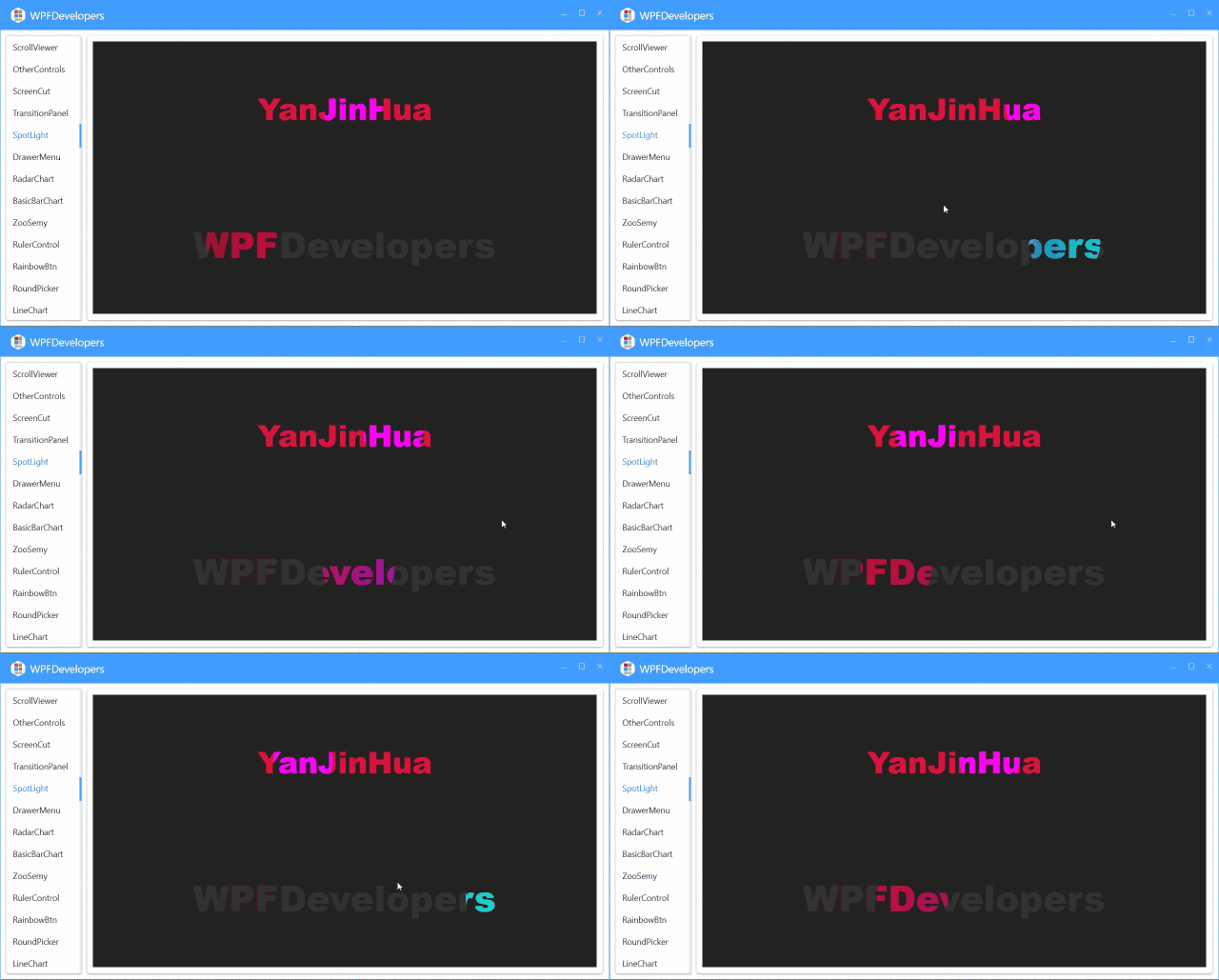
用Canvas做容器方便针对文本TextBlock做裁剪Clip动画操作;
Canvas内部创建两个TextBlock;
第一个做为背景字体设置字体颜色为浅灰
Foreground="#323232",也可以通过依赖属性设置DefaultForeground;第二个字体设置会彩虹色当聚光灯走到某个区域后并显示;
Duration可设置动画的从左到右的时长,默认3秒;
根据字体的实际宽度ActualWidth做动画展示从左到右并循环Forever播放;
1)SpotLight.cs 代码如下;
using System;

using System.Windows;

using System.Windows.Controls;

using System.Windows.Media;

using System.Windows.Media.Animation;

namespace WPFDevelopers.Controls

{

    [TemplatePart(Name = TextBlockBottomTemplateName, Type = typeof(TextBlock))]

    [TemplatePart(Name = TextBlockTopTemplateName, Type = typeof(TextBlock))]

    [TemplatePart(Name = EllipseGeometryTemplateName, Type = typeof(EllipseGeometry))]

    public class SpotLight : Control

    {

        private const string TextBlockBottomTemplateName = "PART_TextBlockBottom";

        private const string TextBlockTopTemplateName = "PART_TextBlockTop";

        private const string EllipseGeometryTemplateName = "PART_EllipseGeometry";

        public static readonly DependencyProperty TextProperty =

            DependencyProperty.Register("Text", typeof(string), typeof(SpotLight),

                new PropertyMetadata("WPFDevelopers"));

        public static readonly DependencyProperty DefaultForegroundProperty =

            DependencyProperty.Register("DefaultForeground", typeof(Brush), typeof(SpotLight),

                new PropertyMetadata(new SolidColorBrush((Color)ColorConverter.ConvertFromString("#323232"))));

        public static readonly DependencyProperty DurationProperty =

            DependencyProperty.Register("Duration", typeof(TimeSpan), typeof(SpotLight),

                new PropertyMetadata(TimeSpan.FromSeconds(3)));

        private EllipseGeometry _ellipseGeometry;

        private TextBlock _textBlockBottom, _textBlockTop;

        static SpotLight()

        {

            DefaultStyleKeyProperty.OverrideMetadata(typeof(SpotLight),

                new FrameworkPropertyMetadata(typeof(SpotLight)));

        }

        public TimeSpan Duration

        {

            get => (TimeSpan)GetValue(DurationProperty);

            set => SetValue(DurationProperty, value);

        }

        public Brush DefaultForeground

        {

            get => (Brush)GetValue(DefaultForegroundProperty);

            set => SetValue(DefaultForegroundProperty, value);

        }

        public string Text

        {

            get => (string)GetValue(TextProperty);

            set => SetValue(TextProperty, value);

        }

        public override void OnApplyTemplate()

        {

            base.OnApplyTemplate();

            _textBlockBottom = GetTemplateChild(TextBlockBottomTemplateName) as TextBlock;

            _textBlockTop = GetTemplateChild(TextBlockTopTemplateName) as TextBlock;

            _ellipseGeometry = GetTemplateChild(EllipseGeometryTemplateName) as EllipseGeometry;

            var center = new Point(FontSize / 2, FontSize / 2);

            _ellipseGeometry.RadiusX = FontSize;

            _ellipseGeometry.RadiusY = FontSize;

            _ellipseGeometry.Center = center;

            if (_textBlockBottom != null && _textBlockTop != null && _ellipseGeometry != null)

                _textBlockTop.Loaded += _textBlockTop_Loaded;

        }

        private void _textBlockTop_Loaded(object sender, RoutedEventArgs e)

        {

            var doubleAnimation = new DoubleAnimation

            {

                From = 0,

                To = _textBlockTop.ActualWidth,

                Duration = Duration

            };

            Storyboard.SetTarget(doubleAnimation, _textBlockTop);

            Storyboard.SetTargetProperty(doubleAnimation,

                new PropertyPath("(UIElement.Clip).(EllipseGeometry.Transform).(TranslateTransform.X)"));

            var storyboard = new Storyboard

            {

                RepeatBehavior = RepeatBehavior.Forever,

                AutoReverse = true

            };

            storyboard.Children.Add(doubleAnimation);

            storyboard.Begin();

        }

    }

}
2)SpotLight.xaml 代码如下;
<ResourceDictionary xmlns="http://schemas.microsoft.com/winfx/2006/xaml/presentation"

                    xmlns:x="http://schemas.microsoft.com/winfx/2006/xaml"

                    xmlns:controls="clr-namespace:WPFDevelopers.Controls">

    <ResourceDictionary.MergedDictionaries>

        <ResourceDictionary Source="Basic/ControlBasic.xaml"/>

    </ResourceDictionary.MergedDictionaries>

    <LinearGradientBrush x:Key="RainbowBrush" EndPoint="1,1" MappingMode="RelativeToBoundingBox" StartPoint="0,0">

        <GradientStop Color="#FF9C1031" Offset="0.1"/>

        <GradientStop Color="#FFBE0E20" Offset="0.2"/>

        <GradientStop Color="#FF9C12AC" Offset="0.7"/>

        <GradientStop Color="#FF0A8DC3" Offset="0.8"/>

        <GradientStop Color="#FF1AEBCC" Offset="1"/>

    </LinearGradientBrush>

    <Style TargetType="{x:Type controls:SpotLight}" BasedOn="{StaticResource ControlBasicStyle}">

        <Setter Property="Background" Value="#222222"/>

        <Setter Property="FontSize" Value="60"/>

        <Setter Property="FontFamily" Value="Arial Black"/>

        <Setter Property="FontWeight" Value="Bold"/>

        <Setter Property="Foreground" Value="{StaticResource RainbowBrush}"/>

        <Setter Property="VerticalAlignment" Value="Center"/>

        <Setter Property="HorizontalAlignment" Value="Center"/>

        <Setter Property="Template">

            <Setter.Value>

                <ControlTemplate TargetType="{x:Type controls:SpotLight}">

                    <Grid x:Name="PART_Canvas" Background="{TemplateBinding Background}">

                        <TextBlock x:Name="PART_TextBlockBottom" Text="{TemplateBinding Text}"

                                   FontSize="{TemplateBinding FontSize}"

                                   FontFamily="{TemplateBinding FontFamily}"

                                   FontWeight="{TemplateBinding FontWeight}"

                                   Foreground="{TemplateBinding DefaultForeground}"/>

                        <TextBlock x:Name="PART_TextBlockTop" Text="{TemplateBinding Text}"

                                   FontSize="{TemplateBinding FontSize}"

                                   FontFamily="{TemplateBinding FontFamily}"

                                   FontWeight="{TemplateBinding FontWeight}"

                                   Foreground="{TemplateBinding Foreground}">

                            <TextBlock.Clip>

                                <EllipseGeometry x:Name="PART_EllipseGeometry">

                                    <EllipseGeometry.Transform>

                                        <TranslateTransform/>

                                    </EllipseGeometry.Transform>

                                </EllipseGeometry>

                            </TextBlock.Clip>

                        </TextBlock>

                    </Grid>

                </ControlTemplate>

            </Setter.Value>

        </Setter>

    </Style>

</ResourceDictionary>
3)SpotLightExample.xaml代码如下如何使用;
<UniformGrid Rows="2" Background="#222222">

        <wpfdev:SpotLight FontSize="50" Text="YanJinHua"

                          DefaultForeground="Crimson"

                          Foreground="Fuchsia"

                          Duration="00:00:05" />

        <wpfdev:SpotLight/>

</UniformGrid>
SpotLight.cs|Github
SpotLight.cs|码云
SpotLight.xaml|Github
SpotLight.xaml|码云
来瞧瞧,WPF 炫酷走马灯!的更多相关文章
- WPF炫酷UI及动画
偶然看见了一张图,感觉挺好看的,花了点时间将他转化成了我代码仓库的一部分.虽然不难但也费时间.其中除了背景是百度的一张底图,其他所有内容均通过WPF的Path.Line.TextBlock.Borde ...
- Photoshop和WPF双剑配合,打造炫酷个性的进度条控件
现在如果想打造一款专业的App,UI的设计和操作的简便性相当重要.UI设计可以借助Photoshop或者AI等设计工具,之前了解到WPF设计工具Expression Blend可以直接导入PSD文件或 ...
- 基于WPF的酷炫GUI窗口的实现全过程
title: 基于WPF的酷炫GUI窗口的实现全过程 date: 2020-08-14 permalink: /build/wpfgui sidebarDepth: 2 tags: wpf gui 软 ...
- swiper3d横向滚动多张炫酷切换banner
最近有了个新需求,swiper3d横向滚动多张炫酷切换banner要和elementUI里边走马灯的卡片化card 类似,但是还需要h5手机触摸滚动啊啊啊啊,昨天折腾了半个早上总算完成,今天乖乖跑来m ...
- WebGIS简单实现一个区域炫酷的3D立体地图效果
1.别人的效果 作为一个GIS专业的,做一个高大上的GIS系统一直是我的梦想,虽然至今为止还没有做出一个理想中的系统,但是偶尔看看别人做的,学习下别人的技术还是很有必要的.眼睛是最容易误导我们的,有时 ...
- 炫酷的jQuery对话框插gDialog
js有alert,prompt和confirm对话框,不过不是很美体验也不是很好,用jQuery也能实现, 体验效果:http://hovertree.com/texiao/jquery/34/ 代码 ...
- html5跟随鼠标炫酷网站引导页动画特效
html5跟随鼠标炫酷网站引导页动画特效一款非常不错的引导页,文字效果渐变,鼠标跟随出绚丽的条纹.html5炫酷网站引导页,鼠标跟随出特效. 体验效果:http://hovertree.com/tex ...
- 简单CSS3实现炫酷读者墙
如题,给大家介绍和讲解几个常用的CSS3属性,并用到实处. 先看demo(请使用Chrome或者Firefox浏览,IE的靠边): 点此查看实例 觉得爽的可以继续阅读下面的知识点,感觉不爽的可绕行. ...
- 【DevOps】DevOps成功的八大炫酷工具
为自动化和分析所设计的软件及服务正加速devops改革的步伐,本文为你盘点了Devops成功的八大炫酷工具 Devops凭借其连接弥合开发与运营团队的能力正在各个行业呈现席卷之势.开发人员和运营人员历 ...
随机推荐
- c++ 超大整数除法 高精度除法
c++ 超大整数除法 高精度除法 解题思路 计算a/b,其中a为大整数,b为普通整数,商为c,余数为r. 根据手算除法的规则,上一步的余数记为r,则本次计算的被除数为t=r*10+被除数的本位数值a[ ...
- Linux文本搜索及截取操作
Linux文本搜索及截取操作 cat 查看 grep 搜索 awk 截取 查看dna-server.xml 文件的内容 [root@localhost servers]# cat cwag9002/w ...
- C语言- 基础数据结构和算法 - 队列的顺序存储
听黑马程序员教程<基础数据结构和算法 (C版本)>, 照着老师所讲抄的, 视频地址https://www.bilibili.com/video/BV1vE411f7Jh?p=1 喜欢的朋友 ...
- 基于SqlSugar的开发框架循序渐进介绍(7)-- 在文件上传模块中采用选项模式【Options】处理常规上传和FTP文件上传
在基于SqlSugar的开发框架的服务层中处理文件上传的时候,我们一般有两种处理方式,一种是常规的把文件存储在本地文件系统中,一种是通过FTP方式存储到指定的FTP服务器上.这种处理应该由程序进行配置 ...
- BUUCTF-[BJDCTF2020]你猜我是个啥
[BJDCTF2020]你猜我是个啥 下载压缩包提示打不开,16进制直接拉最下方可以查看到flag flag{i_am_fl@g}
- React与Koa一起打造一个功能丰富的全栈个人博客(业务篇)
前言 豆哥的个人博客又改版了,本版主要技术栈是前台用的React,后台用的Koa.博客改版的初衷是自己可以练练React(公司的项目部分要用React,我也没法啊,再说早晚得学).本文主要介绍博客的业 ...
- 机械硬盘和ssd固态硬盘的原理对比分析
固态硬盘和机械硬盘的区别 机械硬盘 磁头是不是直接和盘片接触的呢 磁盘中有几个盘片 机械硬盘的工作原理 固态硬盘的寻址方式 SMR叠瓦式真的比PMR优秀吗 固态硬盘 主控芯片 闪存颗粒 缓存单元 固态 ...
- bat-命令行安装软件
批处理 执行的两种方式 1.直接右键以管理员身份运行 2.在管理员身份的cmd窗口中 .\xxx.bat 执行 区别 第一种方式 当前cmd默认路径为 C:\windows\system32 第二种方 ...
- 7 个有趣的 Python 实战项目,超级适合练手
关于Python,有一句名言:不要重复造轮子. 但是问题有三个: 1.你不知道已经有哪些轮子已经造好了,哪个适合你用.有名有姓的的著名轮子就400多个,更别说没名没姓自己在制造中的轮子. 2.确实没重 ...
- 【MAUI】为 Label、Image 等控件添加点击事件
一.前言 已经习惯了 WPF.WinForm 中"万物皆可点击"的方式. 但是在 MAUI 中却不行了. 在 MAUI 中,点击.双击的效果,是需要通过"手势识别器&qu ...