
Maven下载 || 配置本地仓库 || IntelliJ IDEA配置Maven教程
本文章主要介绍1.Maven下载 2.配置本地仓库Repository 3.IDEA配置Maven 三点。
相关博客:
Eclipse配置Maven https://www.cnblogs.com/hero123/p/9076260.html
ItelliJ IDEA下载及获取注册码详解 https://www.cnblogs.com/hero123/p/9092178.html
IntelliJ IDEA创建Maven+SSM+Tomcat+Git项目【全程详解】https://www.cnblogs.com/hero123/p/9092576.html
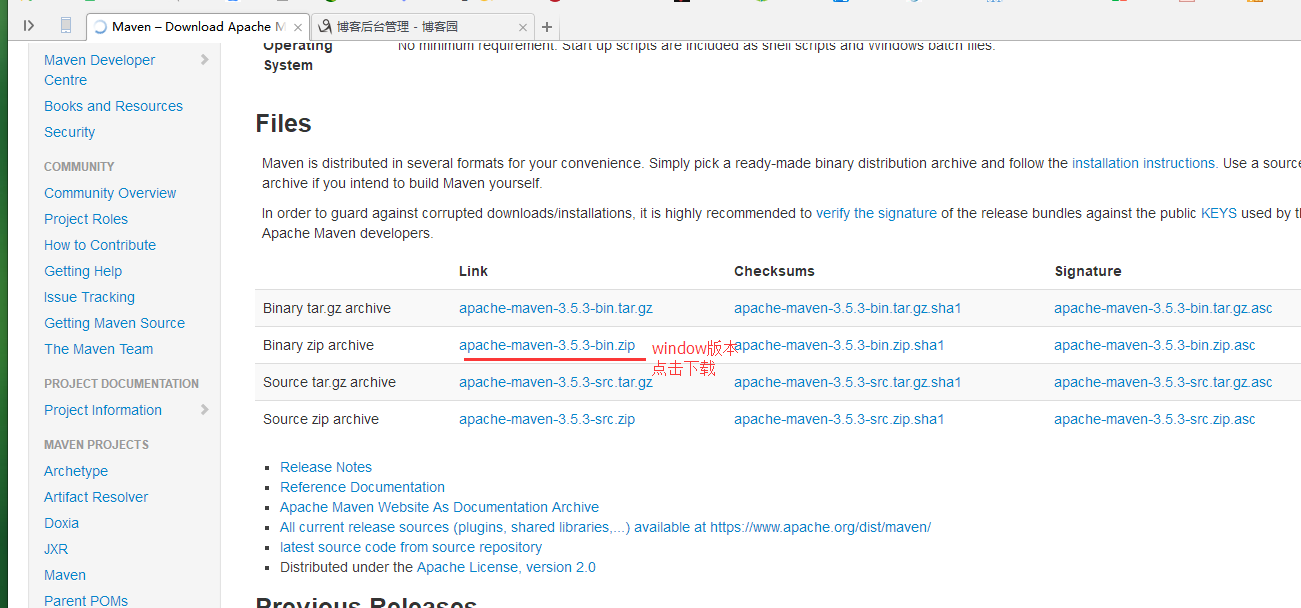
首先下载Maven :
Maven官网下载地址:http://maven.apache.org/download.cgi ,下载后解压:
其次配置Maven中的setting 文件:
1/找到刚才解压Maven文件,然后找到/conf/settings.xml
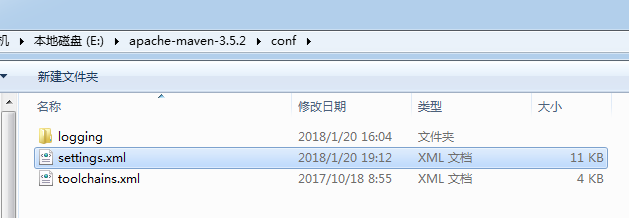
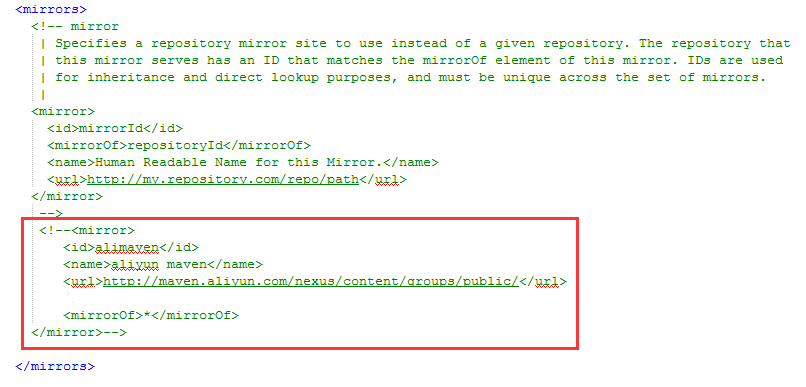
2/修改配置文件中的本地仓库路径,和远程仓库路径(我配置的是阿里镜像仓库,jar包下载速度快)
<?xml version="1.0" encoding="UTF-8"?>

<!--

Licensed to the Apache Software Foundation (ASF) under one

or more contributor license agreements.  See the NOTICE file

distributed with this work for additional information

regarding copyright ownership.  The ASF licenses this file

to you under the Apache License, Version 2.0 (the

"License"); you may not use this file except in compliance

with the License.  You may obtain a copy of the License at

    http://www.apache.org/licenses/LICENSE-2.0

Unless required by applicable law or agreed to in writing,

software distributed under the License is distributed on an

"AS IS" BASIS, WITHOUT WARRANTIES OR CONDITIONS OF ANY

KIND, either express or implied.  See the License for the

specific language governing permissions and limitations

under the License.

-->

<!--

 | This is the configuration file for Maven. It can be specified at two levels:

 |

 |  1. User Level. This settings.xml file provides configuration for a single user,

 |                 and is normally provided in ${user.home}/.m2/settings.xml.

 |

 |                 NOTE: This location can be overridden with the CLI option:

 |

 |                 -s /path/to/user/settings.xml

 |

 |  2. Global Level. This settings.xml file provides configuration for all Maven

 |                 users on a machine (assuming they're all using the same Maven

 |                 installation). It's normally provided in

 |                 ${maven.conf}/settings.xml.

 |

 |                 NOTE: This location can be overridden with the CLI option:

 |

 |                 -gs /path/to/global/settings.xml

 |

 | The sections in this sample file are intended to give you a running start at

 | getting the most out of your Maven installation. Where appropriate, the default

 | values (values used when the setting is not specified) are provided.

 |

 |-->

<settings xmlns="http://maven.apache.org/SETTINGS/1.0.0"

          xmlns:xsi="http://www.w3.org/2001/XMLSchema-instance"

          xsi:schemaLocation="http://maven.apache.org/SETTINGS/1.0.0 http://maven.apache.org/xsd/settings-1.0.0.xsd">

  <!-- localRepository

   | The path to the local repository maven will use to store artifacts.

   |

   | Default: ${user.home}/.m2/repository  -->

  <localRepository>E:/repository</localRepository>

  <!-- interactiveMode

   | This will determine whether maven prompts you when it needs input. If set to false,

   | maven will use a sensible default value, perhaps based on some other setting, for

   | the parameter in question.

   |

   | Default: true

  <interactiveMode>true</interactiveMode>

  -->

  <!-- offline

   | Determines whether maven should attempt to connect to the network when executing a build.

   | This will have an effect on artifact downloads, artifact deployment, and others.

   |

   | Default: false

  <offline>false</offline>

  -->

  <!-- pluginGroups

   | This is a list of additional group identifiers that will be searched when resolving plugins by their prefix, i.e.

   | when invoking a command line like "mvn prefix:goal". Maven will automatically add the group identifiers

   | "org.apache.maven.plugins" and "org.codehaus.mojo" if these are not already contained in the list.

   |-->

  <pluginGroups>

    <!-- pluginGroup

     | Specifies a further group identifier to use for plugin lookup.

    <pluginGroup>com.your.plugins</pluginGroup>

    -->

  </pluginGroups>

  <!-- proxies

   | This is a list of proxies which can be used on this machine to connect to the network.

   | Unless otherwise specified (by system property or command-line switch), the first proxy

   | specification in this list marked as active will be used.

   |-->

  <proxies>

    <!-- proxy

     | Specification for one proxy, to be used in connecting to the network.

     |

    <proxy>

      <id>optional</id>

      <active>true</active>

      <protocol>http</protocol>

      <username>proxyuser</username>

      <password>proxypass</password>

      <host>proxy.host.net</host>

      <port>80</port>

      <nonProxyHosts>local.net|some.host.com</nonProxyHosts>

    </proxy>

    -->

  </proxies>

  <!-- servers

   | This is a list of authentication profiles, keyed by the server-id used within the system.

   | Authentication profiles can be used whenever maven must make a connection to a remote server.

   |-->

  <servers>

    <!-- server

     | Specifies the authentication information to use when connecting to a particular server, identified by

     | a unique name within the system (referred to by the 'id' attribute below).

     |

     | NOTE: You should either specify username/password OR privateKey/passphrase, since these pairings are

     |       used together.

     |

    <server>

      <id>deploymentRepo</id>

      <username>repouser</username>

      <password>repopwd</password>

    </server>

    -->

    <!-- Another sample, using keys to authenticate.

    <server>

      <id>siteServer</id>

      <privateKey>/path/to/private/key</privateKey>

      <passphrase>optional; leave empty if not used.</passphrase>

    </server>

    -->

  </servers>

  <!-- mirrors

   | This is a list of mirrors to be used in downloading artifacts from remote repositories.

   |

   | It works like this: a POM may declare a repository to use in resolving certain artifacts.

   | However, this repository may have problems with heavy traffic at times, so people have mirrored

   | it to several places.

   |

   | That repository definition will have a unique id, so we can create a mirror reference for that

   | repository, to be used as an alternate download site. The mirror site will be the preferred

   | server for that repository.

   |-->

  <mirrors>

    <!-- mirror

     | Specifies a repository mirror site to use instead of a given repository. The repository that

     | this mirror serves has an ID that matches the mirrorOf element of this mirror. IDs are used

     | for inheritance and direct lookup purposes, and must be unique across the set of mirrors.

     |

    <mirror>

      <id>mirrorId</id>

      <mirrorOf>repositoryId</mirrorOf>

      <name>Human Readable Name for this Mirror.</name>

      <url>http://my.repository.com/repo/path</url>

    </mirror>

     -->

     <!--<mirror>

        <id>alimaven</id>

        <name>aliyun maven</name>

        <url>http://maven.aliyun.com/nexus/content/groups/public/</url>

        //<mirrorOf>central</mirrorOf>

        <mirrorOf>*</mirrorOf>

    </mirror>-->

  </mirrors>

  <!-- profiles

   | This is a list of profiles which can be activated in a variety of ways, and which can modify

   | the build process. Profiles provided in the settings.xml are intended to provide local machine-

   | specific paths and repository locations which allow the build to work in the local environment.

   |

   | For example, if you have an integration testing plugin - like cactus - that needs to know where

   | your Tomcat instance is installed, you can provide a variable here such that the variable is

   | dereferenced during the build process to configure the cactus plugin.

   |

   | As noted above, profiles can be activated in a variety of ways. One way - the activeProfiles

   | section of this document (settings.xml) - will be discussed later. Another way essentially

   | relies on the detection of a system property, either matching a particular value for the property,

   | or merely testing its existence. Profiles can also be activated by JDK version prefix, where a

   | value of '1.4' might activate a profile when the build is executed on a JDK version of '1.4.2_07'.

   | Finally, the list of active profiles can be specified directly from the command line.

   |

   | NOTE: For profiles defined in the settings.xml, you are restricted to specifying only artifact

   |       repositories, plugin repositories, and free-form properties to be used as configuration

   |       variables for plugins in the POM.

   |

   |-->

  <profiles>

    <!--

    <id>jdk17</id>

    <activation>

        <activeByDefault>true</activeByDefault>

        <jdk>1.7</jdk>

    </activation>

    <properties>

        <maven.compiler.source>1.7</maven.compiler.source>

        <maven.compiler.target>1.7</maven.compiler.target>

        <maven.compiler.compilerVersion>1.7</maven.compiler.compilerVersion>

    </properties>  -->

    <!-- profile

     | Specifies a set of introductions to the build process, to be activated using one or more of the

     | mechanisms described above. For inheritance purposes, and to activate profiles via <activatedProfiles/>

     | or the command line, profiles have to have an ID that is unique.

     |

     | An encouraged best practice for profile identification is to use a consistent naming convention

     | for profiles, such as 'env-dev', 'env-test', 'env-production', 'user-jdcasey', 'user-brett', etc.

     | This will make it more intuitive to understand what the set of introduced profiles is attempting

     | to accomplish, particularly when you only have a list of profile id's for debug.

     |

     | This profile example uses the JDK version to trigger activation, and provides a JDK-specific repo.

    <profile>

      <id>jdk-1.4</id>

      <activation>

        <jdk>1.4</jdk>

      </activation>

      <repositories>

        <repository>

          <id>jdk14</id>

          <name>Repository for JDK 1.4 builds</name>

          <url>http://www.myhost.com/maven/jdk14</url>

          <layout>default</layout>

          <snapshotPolicy>always</snapshotPolicy>

        </repository>

      </repositories>

    </profile>

    -->

    <!--

     | Here is another profile, activated by the system property 'target-env' with a value of 'dev',

     | which provides a specific path to the Tomcat instance. To use this, your plugin configuration

     | might hypothetically look like:

     |

     | ...

     | <plugin>

     |   <groupId>org.myco.myplugins</groupId>

     |   <artifactId>myplugin</artifactId>

     |

     |   <configuration>

     |     <tomcatLocation>${tomcatPath}</tomcatLocation>

     |   </configuration>

     | </plugin>

     | ...

     |

     | NOTE: If you just wanted to inject this configuration whenever someone set 'target-env' to

     |       anything, you could just leave off the <value/> inside the activation-property.

     |

    <profile>

      <id>env-dev</id>

      <activation>

        <property>

          <name>target-env</name>

          <value>dev</value>

        </property>

      </activation>

      <properties>

        <tomcatPath>/path/to/tomcat/instance</tomcatPath>

      </properties>

    </profile>

    -->

  </profiles>

  <!-- activeProfiles

   | List of profiles that are active for all builds.

   |

  <activeProfiles>

    <activeProfile>alwaysActiveProfile</activeProfile>

    <activeProfile>anotherAlwaysActiveProfile</activeProfile>

  </activeProfiles>

  -->

</settings>
其中两个位置需要注意:本地仓库路径(你生成自己的仓库地址,注意路径时/ ,不是\ )和阿里云maven镜像配置(此处我注了,你可以放开)

然后在IDEA中配置Maven:
打开IDEA,点击右上角File --> Setting .
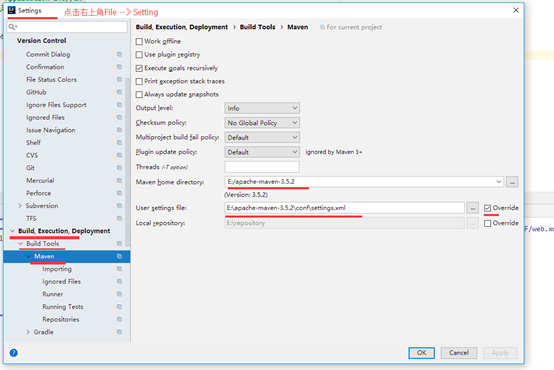
配置好后,点击Apply,--> OK 应用即可。
Maven下载 || 配置本地仓库 || IntelliJ IDEA配置Maven教程的更多相关文章
- Maven配置,使用IntelliJ IDEA和Maven创建Java Web项目
1. 下载Maven 官方地址:http://maven.apache.org/download.cgi 解压并新建一个本地仓库文件夹 2.配置本地仓库路径 3.配置maven环境变量 4 ...
- maven的下载安装,配置本地仓库
maven的下载安装 下载地址:http://maven.apache.org/download.cgi 下载完成后解压到某一个目录 配置环境变量 第一个环境变量 MAVEN_HOME A:\mave ...
- 安装时后的idea,项目不能运行,pom.xml文件不能下载到本地仓库,maven配置是正确的
安装时后的idea,项目不能运行,pom.xml文件不能下载到本地仓库,maven配置是正确的 项目上传到svn后,同事下载项目后,没有识别出来mavn中的pom.xml文件,导致idea不能自动下载 ...
- Java开发学习(三十四)----Maven私服(二)本地仓库访问私服配置与私服资源上传下载
一.本地仓库访问私服配置 我们通过IDEA将开发的模块上传到私服,中间是要经过本地Maven的 本地Maven需要知道私服的访问地址以及私服访问的用户名和密码 私服中的仓库很多,Maven最终要把资源 ...
- (一)maven之——maven基础及本地仓库的配置
一.初步了解maven Apache Maven是一个软件项目管理的综合工具.基于项目对象模型(POM)的概念,提供了帮助管理构建.文档.报告.依赖.发布等方法,Maven简化和标准化项目建设过程.处 ...
- myeclipse2014 安装maven3.3.9和maven配置本地仓库 及错误修改
结合网上的知识梳理以及自己安装的经验 myeclipse2014 安装maven3.3.9和maven配置本地仓库 及犯的错误修改 成功搞定maven 1,安装 Maven 之前要求先确定你的 J ...
- maven配置本地仓库、maven配置阿里中央仓库、eclipse配置maven
一.maven配置本地仓库路径 1.打开下载好的maven目录 (若没安装,可以看我写的安装步骤https://www.cnblogs.com/xjd-6/p/11344719.html) 2.进入c ...
- maven的setting.xml文件中只配置本地仓库路径的方法
maven的setting.xml文件中只配置本地仓库路径的方法 即:settings标签下只有一个 localRepository标签,其他全部注释掉即可 <?xml version=&quo ...
- maven配置本地仓库和国内镜像仓库,解决国内访问国外中央仓库速度过慢问题
Maven项目对象模型(POM),可以通过一小段描述信息来管理项目的构建,报告和文档的软件项目管理工具. 1.配置本地仓库 打开conf文件夹下面的setting.xml文件 红色方框为配置本地仓 ...
随机推荐
- python cookbook第三版学习笔记二十:可自定义属性的装饰器
在开始本节之前,首先介绍下偏函数partial.首先借助help来看下partial的定义 首先来说下第一行解释的意思: partial 一共有三个部分: (1)第一部分也就是第一个参数,是一个函数, ...
- 020-Spring Boot 监控和度量
一.概述 通过配置使用actuator查看监控和度量信息 二.使用 2.1.建立web项目,增加pom <dependency> <groupId>org.springfram ...
- Matlab mser(最大极值稳定区域)
在Matlab R2013a 和R2014a中已经实现MSER特征的提取. 一.函数detectMSERFeatures 输入的是M*N的灰度图片.可以指定阈值刻度,区域范围,感兴趣区域等参数. 输出 ...
- Django Rest Framework(一)
一.什么是RESTful REST与技术无关,代表一种软件架构风格,REST是Representational State Transfer的简称,中文翻译为“表征状态转移”. REST从资源的角度审 ...
- python中的关键字global和nonlocal
知识点: global将一个变量变为全局变量 nonlocal改变最近的变量,又不是全局作用. 1.global 在python中,当引用一个变量的时候,对这个变量的搜索按找本地作用域(Local). ...
- Mac 远程连接 Windows 系统无法全屏
远程连接之后,Mac 工具栏中 配置 RDC 下 “首选项”. “显示” ----远程桌面大小:全屏 ----打开远程桌面窗口:第二显示器(我用的是双显示器,根据实际情况设定显示器) 配置完成后,点击 ...
- Objective-C系列总结之基础知识
//第一个程序示例 #import <Foundation/Foundation.h> int main(int argc,const char * argv[]) { @autorele ...
- C# RSACryptoServiceProvider加密解密签名验签和DESCryptoServic
C#在using System.Security.Cryptography下有 DESCryptoServiceProvider RSACryptoServiceProvider DESCryptoS ...
- SQL单行函数和多行函数
单行函数和多行函数示意图: 单行函数分为五种类型:字符函数.数值函数.日期函数.转换函数.通用函数 单行函数: --大小写控制函数 select lower('Hello World') 转小写, u ...
- linux环境vim升级到vim74
作为编辑器之神,vim7.4已经发布近两个月了.从vim7.3到vim7.4,时隔两年之久,做了多项改正和性能提升,作为Linux Geeksters的你,怎能错过. 由于各大主流linux操作系统都 ...