
微信小程序获取手机验证码
一种比较常见的功能获取手机验证码
先看效果图:
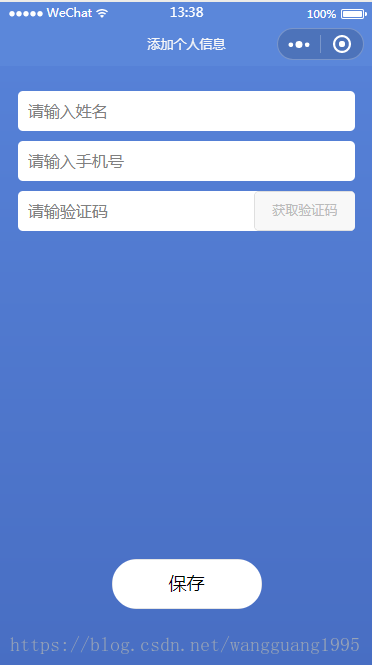
其实这个功能实现起来很简单,主要就是调取第三方接口,拿到返回值验证的问题
直接上代码吧:
wxml页面:
<view class='changeInfo'>

  <view class='changeInfoName'>

     <input placeholder='请输入姓名' bindinput='getNameValue' value='{{name}}'/>

  </view>

  <view class='changeInfoName'>

     <input placeholder='请输入手机号' bindinput='getPhoneValue' value='{{phone}}'/>

  </view>

  <view class='changeInfoName'>

     <input placeholder='请输验证码' bindinput='getCodeValue' value='{{code}}' style='width:70%;'/>

     <button class='codeBtn' bindtap='getVerificationCode' disabled='{{disabled}}' >{{codename}}</button>

  </view>

  <button class='changeBtn' bindtap='save'>保存</button>

</view>
wxss页面:
page{

  height: 100%;

  width: 100%;

  background: linear-gradient(#5681d7, #486ec3);

}

.changeInfo{

  display: flex;

  flex-direction: column;

  justify-content: space-between;

  width: 90%;

  margin: 50rpx auto;

}

.changeInfoName{

  position: relative;

  height: 80rpx;

  width: 100%;

  border-radius: 10rpx;

  background: #fff;

  margin-bottom: 20rpx;

  padding-left: 20rpx;

  box-sizing: border-box;

}

.codeBtn{

  position: absolute;

  right:;

  top:;

  color: #bbb;

  width: 30%;

  font-size: 26rpx;

  height: 80rpx;

  line-height: 80rpx;

}

.changeInfoName input{

  width: 100%;

  height:100%;

}

.changeBtn{

  width: 40%;

  height: 100rpx;

  background: #fff;

  color: #000;

  border-radius: 50rpx;

  position: absolute;

  bottom: 10%;

  left: 50%;

  margin-left: -20%;

  line-height: 100rpx;

}
js页面:
var app = require('../../resource/js/util.js');

Page({

  /**

   * 页面的初始数据

   */

  data: {

    name:'',//姓名

    phone:'',//手机号

    code:'',//验证码

    iscode:null,//用于存放验证码接口里获取到的code

    codename:'获取验证码'

  },

  //获取input输入框的值

  getNameValue:function(e){

    this.setData({

      name:e.detail.value

    })

  },

  getPhoneValue:function(e){

    this.setData({

      phone:e.detail.value

    })

  },

  getCodeValue: function (e) {

    this.setData({

      code: e.detail.value

    })

  },

  getCode:function(){

    var a = this.data.phone;

    var _this = this;

    var myreg = /^(14[0-9]|13[0-9]|15[0-9]|17[0-9]|18[0-9])\d{8}$$/;

    if (this.data.phone == "") {

      wx.showToast({

        title: '手机号不能为空',

        icon: 'none',

        duration: 1000

      })

      return false;

    } else if (!myreg.test(this.data.phone)) {

      wx.showToast({

        title: '请输入正确的手机号',

        icon: 'none',

        duration: 1000

      })

      return false;

    }else{

      wx.request({

        data: {},

        'url': 接口地址,

        success(res) {

          console.log(res.data.data)

          _this.setData({

            iscode: res.data.data

          })

          var num = 61;

          var timer = setInterval(function () {

            num--;

            if (num <= 0) {

              clearInterval(timer);

              _this.setData({

                codename: '重新发送',

                disabled: false

              })

            } else {

              _this.setData({

                codename: num + "s"

              })

            }

          }, 1000)

        }

      })

    }

  },

  //获取验证码

  getVerificationCode() {

    this.getCode();

    var _this = this

    _this.setData({

      disabled: true

    })

  },

  //提交表单信息

  save:function(){

    var myreg = /^(14[0-9]|13[0-9]|15[0-9]|17[0-9]|18[0-9])\d{8}$$/;

    if(this.data.name == ""){

      wx.showToast({

        title: '姓名不能为空',

        icon: 'none',

        duration: 1000

      })

      return false;

    }

    if(this.data.phone == ""){

      wx.showToast({

        title: '手机号不能为空',

        icon: 'none',

        duration: 1000

      })

      return false;

    }else if(!myreg.test(this.data.phone)){

      wx.showToast({

        title: '请输入正确的手机号',

        icon: 'none',

        duration: 1000

      })

      return false;

    }

    if(this.data.code == ""){

      wx.showToast({

        title: '验证码不能为空',

        icon: 'none',

        duration: 1000

      })

      return false;

    }else if(this.data.code != this.data.iscode){

      wx.showToast({

        title: '验证码错误',

        icon: 'none',

        duration: 1000

      })

      return false;

    }else{

      wx.setStorageSync('name', this.data.name);

      wx.setStorageSync('phone', this.data.phone);

      wx.redirectTo({

        url: '../add/add',

      })

    }

  },

  /**

   * 生命周期函数--监听页面加载

   */

  onLoad: function (options) {

  },

  /**

   * 生命周期函数--监听页面初次渲染完成

   */

  onReady: function () {

  },

  /**

   * 生命周期函数--监听页面显示

   */

  onShow: function () {

  },

  /**

   * 生命周期函数--监听页面隐藏

   */

  onHide: function () {

  },

  /**

   * 生命周期函数--监听页面卸载

   */

  onUnload: function () {

  },

  /**

   * 页面相关事件处理函数--监听用户下拉动作

   */

  onPullDownRefresh: function () {

  },

  /**

   * 页面上拉触底事件的处理函数

   */

  onReachBottom: function () {

  },

  /**

   * 用户点击右上角分享

   */

  onShareAppMessage: function () {

  }

})
微信小程序获取手机验证码的更多相关文章
- 微信小程序获取手机信息
wx.getSystemInfo({ success: function (res) { console.log(res.model)//手机型号 console.log(res.pixelRatio ...
- 微信小程序发送手机验证码---倒计时
var currentTime = 59 //倒计时的事件(单位:s)var interval = null //倒计时函数 Page({ data: { time:59 //倒计时 }, onLoa ...
- 微信小程序获取手机号码看这篇文章就够了
前言 微信小程序获取手机号码,从官方文档到其他博主的文档 零零散散的 (我就是这样看过来 没有一篇满意的 也许是我搜索姿势不对) 依旧是前人栽树 后人乘凉 系列.保证看完 就可以实现获取手机号码功能 ...
- 微信小程序获取地理位置授权
微信小程序获取地理位置授权,首先需要在app.json中添加配置: "permission": { "scope.userLocation": { " ...
- 微信小程序-获取经纬度
微信小程序-获取经纬度 最近公司新功能 要求在外的市场人员 发送位置信息回来. 用的还是微信小程序开发.... 微信小程序 提供一个接口 getLocation 这个接口反回来的位置 相对实际位置 相 ...
- 微信小程序-获取当前城市位置及再次授权地理位置
微信小程序-获取当前城市位置 1. 获取当前地理位置,可通过wx.getLocation接口,返回经纬度.速度等信息; 注意---它的默认工作机制: 首次进入页面,调用该api,返回用户授权结果,并保 ...
- 微信小程序获取Access_token和页面URL生成小程序码或二维码
1.微信小程序获取Access_token: access_token具体时效看官方文档. using System; using System.Collections.Generic; using ...
- 微信小程序与手机APP区别
微信小程序与手机APP区别 ------------------<><><><>------------------ 微信小程序自去年年初,张小龙放话要 ...
- [微信小程序] 微信小程序获取用户定位信息并加载对应城市信息,wx.getLocation,腾讯地图小程序api,微信小程序经纬度逆解析地理信息
因为需要在小程序加个定位并加载对应城市信息 然而小程序自带api目前只能获取经纬度不能逆解析,虽然自己解析方式,但是同时也要调用地图,难道用户每次进小程序还要强行打开地图选择地址才定位吗?多麻烦也不利 ...
随机推荐
- noi.openjudge 1.12.6
http://noi.openjudge.cn/ch0112/06/ 总时间限制: 2000ms 内存限制: 65536kB 描述 传说很遥远的藏宝楼顶层藏着诱人的宝藏.小明历尽千辛万苦终于找到传 ...
- C# 正则表达式中的顺序环视和逆序环视
环视结构不匹配任何字符,只匹配文本中的特定位置. 顺序环视:从左向右查看文本,尝试匹配子表达式,如果能够匹配则返回匹配成功信息.顺序环视使用「 (?=...) 来标识」,例如「 (?=\d) 」,它表 ...
- websocket实现简单的通信
websocket server端 #coding=utf8 #!/usr/bin/python import struct,socket import hashlib import threadin ...
- bzoj2243 树链剖分
https://www.lydsy.com/JudgeOnline/problem.php?id=2243 新学的树剖,在维护的时候线段树维护区间内颜色数量以及左右两端的颜色.统计的时候区间合并时判断 ...
- hadoop datanode 启动出错
FATAL org.apache.hadoop.hdfs.server.datanode.DataNode: Initialization failed for block pool Block po ...
- 安装 ArcGISAPI31forSilverlight an i/o error occured while installing a file错误解决
安装ArcGISAPI31forSilverlight出现“an i/o error occured while installing a file……”主要是这个文件可能已经损坏了,如此,你在用到该 ...
- C# 绘图时使用抗锯齿会多出一个像素
如下图,使用局部绘图覆盖后的效果. 减去像素后效果
- 大规模数据导入和导出(mysql)
测试数据2.5G,共有数据9427567条.用的mysql的large服务器的配置.load 一次需要大概10分钟左右.建的表用的是MYISAM,调整了几个session的参数值 SET SESSIO ...
- QWidget-控件层级关系
lower() 将控件降低到最底层 raise_() 将控件提升到最上层 label.raise_() a.stackUnder(b) 让a放在b下面 注意:以上操作专指同级控件 ...
- 理解JS的执行环境
执行环境(Execution context,EC)或执行上下文,是JS中一个极为重要的概念 EC的组成 当JavaScript代码执行的时候,会进入不同的执行上下文,这些执行上下文会构成了一个执行上 ...