
python+selenium下拉列表option对象操作方法一
参考官方文档:https://selenium.dev/selenium/docs/api/py/webdriver_support/selenium.webdriver.support.select.html?highlight=all_selected_options#selenium.webdriver.support.select.Select.all_selected_options
一、导入(import)
from selenium.webdriver.support.select import Select
二、选择(select)
Select类提供了三种选择某一选项的方法:
               select_by_index(index)

               select_by_value(value)

               select_by_visible_text(text)
注意:
- index从 0 开始
- value是option标签的一个属性值,并不是显示在下拉框中的值
- visible_text是在option标签中间的值,是显示在下拉框的值
三、反选(deselect)
有选择必然有反选,即取消选择。Select提供了四个方法给我们取消原来的选择:
           deselect_by_index(index)


           deselect_by_value(value)


           deselect_by_visible_text(text)

           deselect_all()
前三种分别于select相对应,第四种是全部取消选择,是的,你没看错,是全部取消。
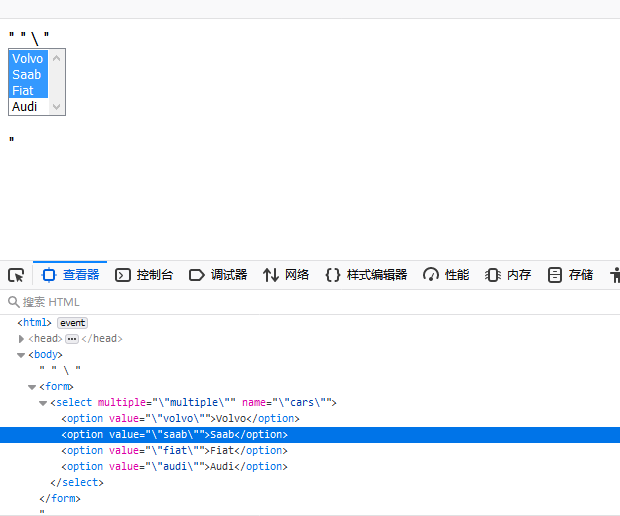
有一种特殊的select标签,即设置了multiple=”multiple”属性的select,这种select框是可以多选的,
可以通过多次select,选择多项选项,而通过deselect_all()来将他们全部取消。
注意:下面两个,表示的意思一样
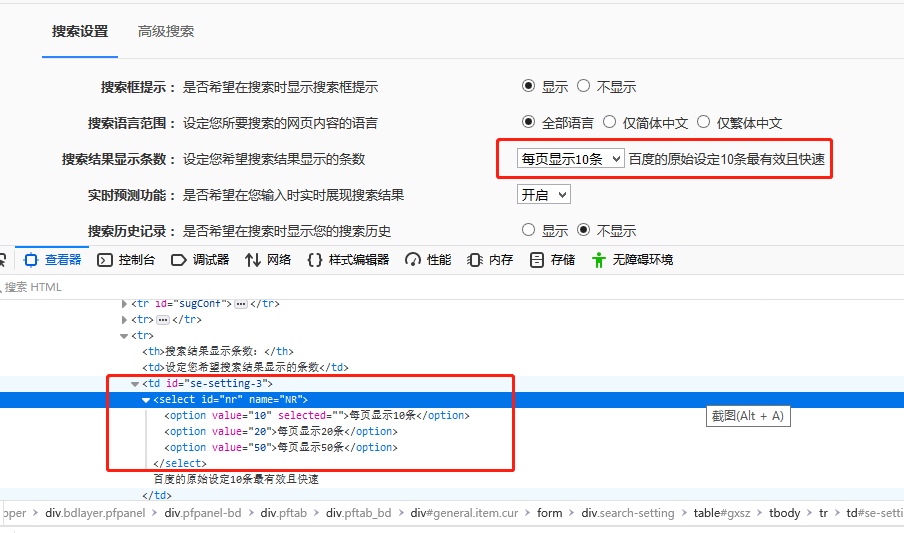
#返回第一个或者当前 被选中 的子项
print(Select(driver.find_element_by_xpath("//select[@id='nr']")).first_selected_option.text)
                                                            # 输出当前选择的第一项,即显示第二个
now = Select(driver.find_element_by_css_selector("body > form > select")).first_selected_option
print(now.text)
================================================================================
from selenium import webdriver
from selenium.webdriver.common.action_chains import ActionChains
#from selenium.webdriver.support.select import Select
from selenium.webdriver.support.ui import Select
from time import sleep
driver = webdriver.Firefox()
driver.implicitly_wait(10)
driver.get('http://www.baidu.com')

#--------------------------------------------------------------------------------

link = driver.find_element_by_link_text("设置")
ActionChains(driver).move_to_element(link).perform()         #鼠标悬停在上面
sleep(5)

driver.find_element_by_class_name("setpref").click()      # 打开搜索设置
sleep(2)

#-------------------------------------------------------------------------

sleep(3)
print('显示第二个子项(2):')
Select(driver.find_element_by_xpath("//select[@id='nr']")).select_by_index(1)                 #选择第二个options子项 ,每页显示20条
print(Select(driver.find_element_by_xpath("//select[@id='nr']")).first_selected_option.text)  #返回第一个或者当前  被选中  的子项

sleep(3)
print('显示第三个子项(50):')
Select(driver.find_element_by_xpath("//select[@id='nr']")).select_by_value('50')              #选择value为'每页显示50条'的子项,即选择第三个子项
print(Select(driver.find_element_by_xpath("//select[@id='nr']")).first_selected_option.text)  #返回第一个或者当前  被选中  的子项

sleep(3)
print('显示第二个子项(20):')
Select(driver.find_element_by_xpath("//select[@id='nr']")).select_by_visible_text('每页显示20条')   #选择text值为'每页显示20条'的子项
print(Select(driver.find_element_by_xpath("//select[@id='nr']")).first_selected_option.text)       #返回第一个或者当前  被选中  的子项

sleep(3)
print('显示当前被选中的子项(第二个子项20):')
print(Select(driver.find_element_by_xpath("//select[@id='nr']")).first_selected_option.text)    #返回第一个或者当前  被选中  的子项   #每页显示20条

#-------------------------------------------------------------------------------------
options = driver.find_elements_by_xpath('//*[@id="nr"]/option')

options[1].click()             #第二个子项被选中
sleep(2)

options[2].click()             #第三个子项被选中
sleep(2)

options[0].click()            #第一个子项被选中
sleep(2)

#-----------------------------------------------------------------------

print(options[0].text)
print(options[1].text)
print(options[2].text)
#-----------------------------------------------------------------------

driver.quit()
显示第二个子项(2):
每页显示20条
显示第三个子项(50):
每页显示50条
显示第二个子项(20):
每页显示20条
显示当前被选中的子项(第二个子项20):
每页显示20条
每页显示10条
每页显示20条
每页显示50条
+++++++++++++++++++++++++++++++++++++++++++++++++++++++++++++++++++++++++

===============================================================================================================
from selenium import webdriver
from selenium.webdriver.support.ui import Select
from time import sleep

driver = webdriver.Firefox()
driver.get("https://www.runoob.com/runcode")             # 打开浏览器,进入演示页面

driver.find_element_by_css_selector("#codeinp").clear()   # 定位输入框文本域  # 清空文本域

                                                               # 输入多选下拉框的演示源码 (multiple="multiple\")
texts = "<html> " \
        "<body><form><select multiple=\"multiple\" name=\"cars\"><option value=\"volvo\">Volvo</option>" \
        "<option value=\"saab\">Saab</option><option value=\"fiat\">Fiat</option>\" \
        \"<option value=\"audi\">Audi</option></select></form></body></html>"

driver.find_element_by_css_selector("#codeinp").send_keys(texts)

driver.find_element_by_css_selector("#btrun").click()                 # 点击提交代码
sleep(2)

#--------------------------------------------------------------------------------------------------------

all_handles = driver.window_handles
driver.switch_to.window(all_handles[1])             #切换到新的打开的运行页面

#-------------------------------------------------------------------------------------------------------
                                              # 选择全部的选项(多选),一个接着一个选择,直到全部选择

Select(driver.find_element_by_css_selector("body > form > select")).select_by_index(0)
sleep(1)

Select(driver.find_element_by_css_selector("body > form > select")).select_by_index(1)
sleep(1)

Select(driver.find_element_by_css_selector("body > form > select")).select_by_index(2)
sleep(1)

Select(driver.find_element_by_css_selector("body > form > select")).select_by_index(3)
sleep(1)

#----------------------------------------------------------------------------------------------------------------

                                                                  # 取消选择第一项选项(页面上可以观察到变化)
Select(driver.find_element_by_css_selector("body > form > select")).deselect_by_index(0)
sleep(1)
                                                            # 输出当前选择的第一项,即显示第二个
now = Select(driver.find_element_by_css_selector("body > form > select")).first_selected_option
print(now.text)

                                                                          #取消第二个选项
#Select(driver.find_element_by_css_selector("body > form > select")).deselect_by_value('\"saab\"')
Select(driver.find_element_by_css_selector("body > form > select")).deselect_by_visible_text('Saab')
sleep(3)

                                                                              #即取消三、四选项
Select(driver.find_element_by_css_selector("body > form > select")).deselect_all()  #取消所有选项
sleep(3)

#---------------------------------------------------------------------------------------------------------

driver.close()
python+selenium下拉列表option对象操作方法一的更多相关文章
- python+selenium下拉列表option对象操作方法二
options = driver.find_elements_by_tag_name('option') #获取所有的option子元素 o ...
- python+selenium的WebElement对象操作
webelement对象操作 webelement对象是selenium中所有元素的父类,也就是webelement对象拥有的方法,其它元素对象都会有: 只是不同的对象在调用特定方法时,效果是不一样的 ...
- python+selenium之字符串切割操作
python+selenium之字符串切割操作 在Python中自带的一个切割方法split(),这个方法不带参数,就默认按照空格去切割字段,如果带参数,就按照参数去切割. 新建一个python文件, ...
- Python+Selenium自动化-模拟键盘操作
Python+Selenium自动化-模拟键盘操作 0.导入键盘类Keys() selenium中的Keys()类提供了大部分的键盘操作方法:通过send_keys()方法来模拟键盘上的按键. # ...
- Python+Selenium自动化 模拟鼠标操作
Python+Selenium自动化 模拟鼠标操作 在webdriver中,鼠标的一些操作如:双击.右击.悬停.拖动等都被封装在ActionChains类中,我们只用在需要使用的时候,导入这个类就 ...
- python+selenium文本框对象以及按钮对象操作
文本框对象 from selenium import webdriverfrom time import sleep driver = webdriver.Firefox() # 指定和打开浏览器ur ...
- Python+Selenium学习--操作测试对象
场景 前面已经讲解了如果定位对象,定位之后需要对这个对象进行操作.是鼠标点击还是键盘输入,取决于我们定位的对象缩支持的操作. webdriver中比较常用的操作元素的方法有下面几个: clear ...
- python+selenium 滑动滚动条的操作
工作中碰到一种情况就是,要定位的元素需要滚动条滑到下方后才可以显示出来. 这种情况下,就要先滑动滚动条,再定位元素. 那么滑动滚动条我以前记录了appium中的操作,那么,selenium中该如何操作 ...
- python+selenium:浏览器webdriver操作(1)--基本对象定位
1.简单对象的定位-----自动化测试的核心 对象的定位应该是自动化测试的核心,要想操作一个对象,首先应该识别这个对象.一个对象就是一个人一样,他会有各种的特征(属性),如比我们可以通过一个人的身份证 ...
随机推荐
- FPGA引脚锁定 注意err和高阻状态
1.fpga没有用的的管脚一定要设置成高阻状态设置路径如下: Assignmen->Device->Device&Pin Option->Unused pins->As ...
- 软件包管理(rpm、yum、dpkg)
一. 大多数Linux应用软件包的命名也有一定的规律,它遵循:名称-版本-修正版-类型,通常Linux应用软件的安装包有三种: 1) tar包,如software-1.2.3-1.tar.gz.以源码 ...
- Flask【第7篇】:Flask中的wtforms使用
flask中的wtforms使用 一.简单介绍flask中的wtforms WTForms是一个支持多个web框架的form组件,主要用于对用户请求数据进行验证. 安装: pip3 install w ...
- Vue中 axios+QS 插件往后台传参
之前用Vue+element写了一个后台管理系统,在登录时使用axios请求数据传参时无法正常的获取数据.发现原因是传递参数要将参数序列化.这里使用了qs插件: 简单来说,qs 是一个增加了一些安全性 ...
- 主席树(静态区间第k大)
前言 如果要求一些数中的第k大值,怎么做? 可以先就这些数离散化,用线段树记录每个数字出现了多少次. ... 那么考虑用类似的方法来求静态区间第k大. 原理 假设现在要有一些数 我们可以对于每个数都建 ...
- JS高阶函数--------map、reduce、filter
一.filter filter用于对数组进行过滤.它创建一个新数组,新数组中的元素是通过检查指定数组中符合条件的所有元素. 注意: filter() 不会对空数组进行检测. 注意: filter() ...
- mysql FULL JOIN关键字 语法
mysql FULL JOIN关键字 语法 作用:只要其中某个表存在匹配,FULL JOIN 关键字就会返回行.“富瑞华”牌大理石构件 语法:SELECT column_name(s) FROM ta ...
- WEB超大文件上传与下载
1.介绍enctype enctype 属性规定发送到服务器之前应该如何对表单数据进行编码. enctype作用是告知服务器请求正文的MIME类型(请求消息头content-type的作用一样) 1. ...
- asp.net大文件上传解决方案
以ASP.NET Core WebAPI 作后端 API ,用 Vue 构建前端页面,用 Axios 从前端访问后端 API ,包括文件的上传和下载. 准备文件上传的API #region 文件上传 ...
- div的文字倾斜
最近要写一个页面,需要一排文字是倾斜的,我就写了一下 <div class="qingx">倾斜导航</div> div.qingx{ -moz-trans ...