
实现Vue的多页签组件
在之前的博客中 关于vue的多页面标签功能,对于嵌套router-view缓存的最终无奈解决方法 有写过vue的多页签功能的解决方案
可以看到我当时那个多页签的组件还是比较简单 的,只有打开跟关闭功能,后面有不少网友找我,能不能实现刷新当前页,关闭其它页面,关闭左边页面,关闭右边页面的功能。
这几天项目上线后有点时间,把这个多页签组件给完善一下。
直接看效果,增加了右键菜单,分别有重新加载、关闭左边、关闭右边、关闭其他功能。
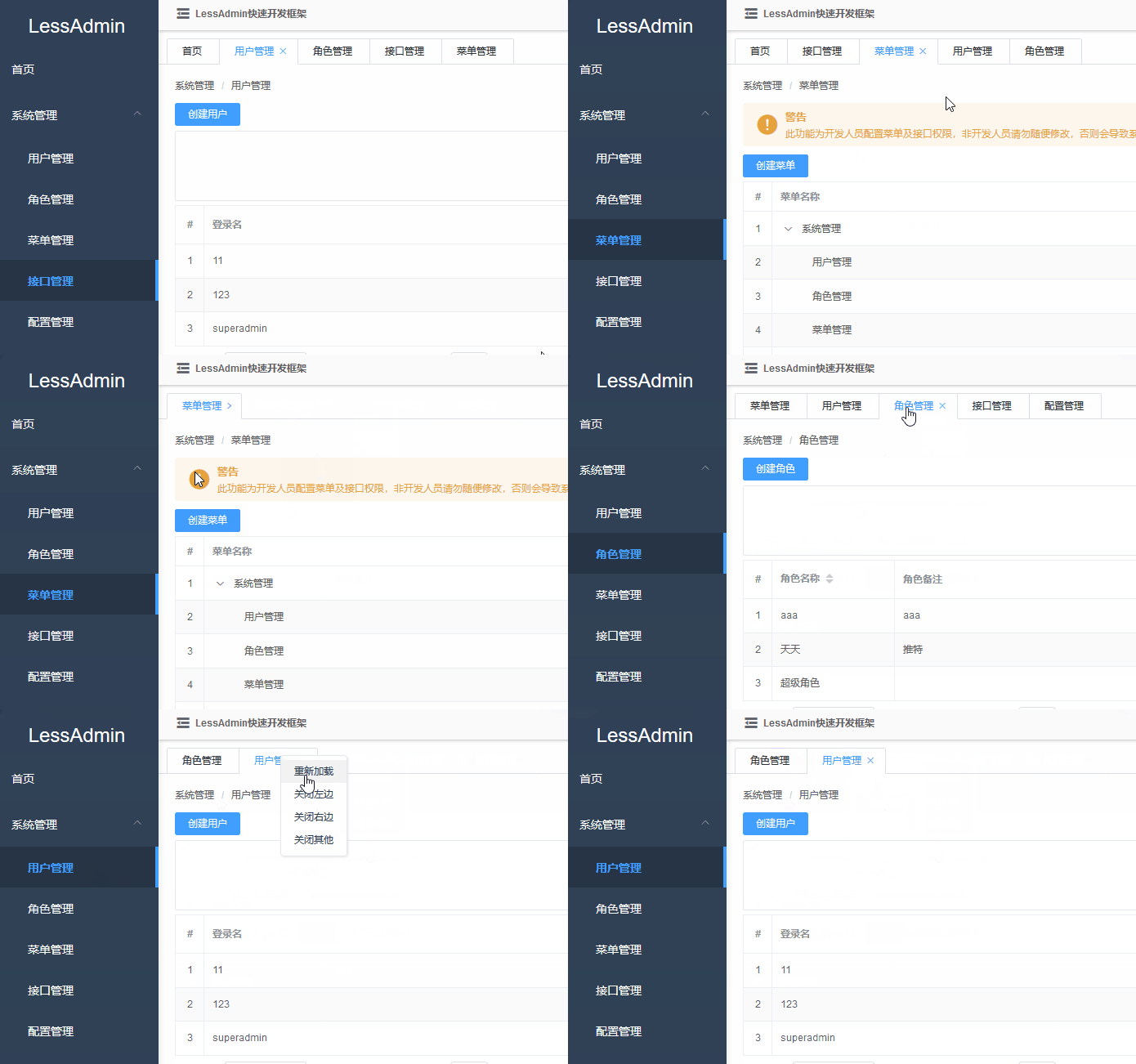
也可以到我的github上,如果觉得这个组件有用的话,别忘了顺手给个小星星。
代码:https://github.com/Caijt/VuePageTab
演示:https://caijt.github.io/VuePageTab/
我这个多页签组件里面的删除缓存的方法不是使用keep-alive组件自带的include、exculde结合的效果,而是使用暴力删除缓存的方法,这个在上个博客中也有提到,用这种方法的话,可以实现更完整的多页签功能,例如同个路由可以根据参数的不同同时打开不同的页签,也能不用去写那些路由的name值。
先直接看组件代码(里面用了一些element-ui的组件,如果你们不用element-ui的话。可以去掉,自己实现)
<template>

  <div class="__common-layout-pageTabs">

    <el-scrollbar>

      <div class="__tabs">

        <div

          class="__tab-item"

          v-for="item in openedPageRouters"

          :class="{

            '__is-active': item.fullPath == $route.fullPath,

          }"

          :key="item.fullPath"

          @click="onClick(item)"

          @contextmenu.prevent="showContextMenu($event, item)"

        >

          {{ item.meta.title }}

          <span

            class="el-icon-close"

            @click.stop="onClose(item)"

            @contextmenu.prevent.stop=""

            :style="openedPageRouters.length <= 1 ? 'width:0;' : ''"

          ></span>

        </div>

      </div>

    </el-scrollbar>

    <div v-show="contextMenuVisible">

      <ul

        :style="{ left: contextMenuLeft + 'px', top: contextMenuTop + 'px' }"

        class="__contextmenu"

      >

        <li>

          <el-button type="text" @click="reload()" size="mini">

            重新加载

          </el-button>

        </li>

        <li>

          <el-button

            type="text"

            @click="closeOtherLeft"

            :disabled="false"

            size="mini"

            >关闭左边</el-button

          >

        </li>

        <li>

          <el-button

            type="text"

            @click="closeOtherRight"

            :disabled="false"

            size="mini"

            >关闭右边</el-button

          >

        </li>

        <li>

          <el-button type="text" @click="closeOther" size="mini"

            >关闭其他</el-button

          >

        </li>

      </ul>

    </div>

  </div>

</template>

<script>

export default {

  props: {

    keepAliveComponentInstance: {}, //keep-alive控件实例对象

    blankRouteName: {

      type: String,

      default: "blank",

    }, //空白路由的name值

  },

  data() {

    return {

      contextMenuVisible: false, //右键菜单是否显示

      contextMenuLeft: 0, //右键菜单显示位置

      contextMenuTop: 0, //右键菜单显示位置

      contextMenuTargetPageRoute: null, //右键所指向的菜单路由

      openedPageRouters: [], //已打开的路由页面

    };

  },

  watch: {

    //当路由变更时,执行打开页面的方法

    $route: {

      handler(v) {

        this.openPage(v);

      },

      immediate: true,

    },

  },

  mounted() {

    //添加点击关闭右键菜单

    window.addEventListener("click", this.closeContextMenu);

  },

  destroyed() {

    window.removeEventListener("click", this.closeContextMenu);

  },

  methods: {

    //打开页面

    openPage(route) {

      if (route.name == this.blankRouteName) {

        return;

      }

      let isExist = this.openedPageRouters.some(

        (item) => item.fullPath == route.fullPath

      );

      if (!isExist) {

        let openedPageRoute = this.openedPageRouters.find(

          (item) => item.path == route.path

        );

        //判断页面是否支持不同参数多开页面功能,如果不支持且已存在path值一样的页面路由,那就替换它

        if (!route.meta.canMultipleOpen && openedPageRoute != null) {

          this.delRouteCache(openedPageRoute.fullPath);

          this.openedPageRouters.splice(

            this.openedPageRouters.indexOf(openedPageRoute),

            1,

            route

          );

        } else {

          this.openedPageRouters.push(route);

        }

      }

    },

    //点击页面标签卡时

    onClick(route) {

      if (route.fullPath !== this.$route.fullPath) {

        this.$router.push(route.fullPath);

      }

    },

    //关闭页面标签时

    onClose(route) {

      let index = this.openedPageRouters.indexOf(route);

      this.delPageRoute(route);

      if (route.fullPath === this.$route.fullPath) {

        //删除页面后,跳转到上一页面

        this.$router.replace(

          this.openedPageRouters[index == 0 ? 0 : index - 1]

        );

      }

    },

    //右键显示菜单

    showContextMenu(e, route) {

      this.contextMenuTargetPageRoute = route;

      this.contextMenuLeft = e.layerX;

      this.contextMenuTop = e.layerY;

      this.contextMenuVisible = true;

    },

    //隐藏右键菜单

    closeContextMenu() {

      this.contextMenuVisible = false;

      this.contextMenuTargetPageRoute = null;

    },

    //重载页面

    reload() {

      this.delRouteCache(this.contextMenuTargetPageRoute.fullPath);

      if (this.contextMenuTargetPageRoute.fullPath === this.$route.fullPath) {

        this.$router.replace({ name: this.blankRouteName }).then(() => {

          this.$router.replace(this.contextMenuTargetPageRoute);

        });

      }

    },

    //关闭其他页面

    closeOther() {

      for (let i = 0; i < this.openedPageRouters.length; i++) {

        let r = this.openedPageRouters[i];

        if (r !== this.contextMenuTargetPageRoute) {

          this.delPageRoute(r);

          i--;

        }

      }

      if (this.contextMenuTargetPageRoute.fullPath != this.$route.fullPath) {

        this.$router.replace(this.contextMenuTargetPageRoute);

      }

    },

    //根据路径获取索引

    getPageRouteIndex(fullPath) {

      for (let i = 0; i < this.openedPageRouters.length; i++) {

        if (this.openedPageRouters[i].fullPath === fullPath) {

          return i;

        }

      }

    },

    //关闭左边页面

    closeOtherLeft() {

      let index = this.openedPageRouters.indexOf(

        this.contextMenuTargetPageRoute

      );

      let currentIndex = this.getPageRouteIndex(this.$route.fullPath);

      if (index > currentIndex) {

        this.$router.replace(this.contextMenuTargetPageRoute);

      }

      for (let i = 0; i < index; i++) {

        let r = this.openedPageRouters[i];

        this.delPageRoute(r);

        i--;

        index--;

      }

    },

    //关闭右边页面

    closeOtherRight() {

      let index = this.openedPageRouters.indexOf(

        this.contextMenuTargetPageRoute

      );

      let currentIndex = this.getPageRouteIndex(this.$route.fullPath);

      for (let i = index + 1; i < this.openedPageRouters.length; i++) {

        let r = this.openedPageRouters[i];

        this.delPageRoute(r);

        i--;

      }

      if (index < currentIndex) {

        this.$router.replace(this.contextMenuTargetPageRoute);

      }

    },

    //删除页面

    delPageRoute(route) {

      let routeIndex = this.openedPageRouters.indexOf(route);

      if (routeIndex >= 0) {

        this.openedPageRouters.splice(routeIndex, 1);

      }

      this.delRouteCache(route.fullPath);

    },

    //删除页面缓存

    delRouteCache(key) {

      let cache = this.keepAliveComponentInstance.cache;

      let keys = this.keepAliveComponentInstance.keys;

      for (let i = 0; i < keys.length; i++) {

        if (keys[i] == key) {

          keys.splice(i, 1);

          if (cache[key] != null) {

            delete cache[key];

          }

          break;

        }

      }

    },

  },

};

</script>

<style lang="scss">

.__common-layout-pageTabs {

  .__contextmenu {

    // width: 100px;

    margin: 0;

    border: 1px solid #e4e7ed;

    background: #fff;

    z-index: 3000;

    position: absolute;

    list-style-type: none;

    padding: 5px 0;

    border-radius: 4px;

    font-size: 14px;

    color: #333;

    box-shadow: 1px 1px 3px 0 rgba(0, 0, 0, 0.1);

    li {

      margin: 0;

      padding: 0px 15px;

      &:hover {

        background: #f2f2f2;

        cursor: pointer;

      }

      button {

        color: #2c3e50;

      }

    }

  }

  $c-tab-border-color: #dcdfe6;

  position: relative;

  &::before {

    content: "";

    border-bottom: 1px solid $c-tab-border-color;

    position: absolute;

    left: 0;

    right: 0;

    bottom: 0;

    height: 100%;

  }

  .__tabs {

    display: flex;

    .__tab-item {

      white-space: nowrap;

      padding: 8px 6px 8px 18px;

      font-size: 12px;

      border: 1px solid $c-tab-border-color;

      border-left: none;

      border-bottom: 0px;

      line-height: 14px;

      cursor: pointer;

      transition: color 0.3s cubic-bezier(0.645, 0.045, 0.355, 1),

        padding 0.3s cubic-bezier(0.645, 0.045, 0.355, 1);

      &:first-child {

        border-left: 1px solid $c-tab-border-color;

        border-top-left-radius: 2px;

        margin-left: 10px;

      }

      &:last-child {

        border-top-right-radius: 2px;

        margin-right: 10px;

      }

      &:not(.__is-active):hover {

        color: #409eff;

        .el-icon-close {

          width: 12px;

          margin-right: 0px;

        }

      }

      &.__is-active {

        padding-right: 12px;

        border-bottom: 1px solid #fff;

        color: #409eff;

        .el-icon-close {

          width: 12px;

          margin-right: 0px;

          margin-left: 2px;

        }

      }

      .el-icon-close {

        width: 0px;

        height: 12px;

        overflow: hidden;

        border-radius: 50%;

        font-size: 12px;

        margin-right: 12px;

        transform-origin: 100% 50%;

        transition: all 0.3s cubic-bezier(0.645, 0.045, 0.355, 1);

        vertical-align: text-top;

        &:hover {

          background-color: #c0c4cc;

          color: #fff;

        }

      }

    }

  }

}

</style>
这个组件它需要两个属性,一个是keepAliveComponentInstance(keep-alive的控件实例对象),blankRouteName(空白路由的名称)
为什么我需要keep-alive的控件实例对象呢,因为这个对象里面有两个属性,一个是cache,一个是keys,存储着keep-alive的缓存的数据,有了这个对象,我就能在页签关闭时手动删除缓存。那这个对象怎么获取呢,如下所示,在keep-alive所在的父页面上的mounted事件上进行获取(如果keep-alive跟多页签组件不在同一个父页面,那可能就得借用vuex来传值了)
<template>

  <div id="app">

    <page-tabs :keep-alive-component-instance="keepAliveComponentInstance" />

    <div ref="keepAliveContainer">

      <keep-alive>

        <router-view :key="$route.fullPath" />

      </keep-alive>

    </div>

  </div>

</template>

<script>

import pageTabs from "./components/pageTabs.vue";

export default {

  name: "App",

  components: {

    pageTabs,

  },

  mounted() {

    if (this.$refs.keepAliveContainer) {

      this.keepAliveComponentInstance = this.$refs.keepAliveContainer.childNodes[0].__vue__;//获取keep-alive的控件实例对象

    }

  },

  data() {

    return {

      keepAliveComponentInstance: null,

    };

  }

};

</script>
而空白路由的名称,是干什么,主要我要实现刷新当前页面的功能,我们知道vue是不允许跳转到当前页面,那么我就想我先跳转到别的页面,再跳转回回来的页面,不就也实现刷新的效果了。(当然我用的是relpace,所以不会产生历史记录)
注:这个空白路由并不是固定定义在根路由上,需根据多页签组件所在位置,假如你有一个根router-view,还有一个布局组件,这个组件里面也有一个子router-view,多页签组件就在这个布局组件里,那么空白路由就需定义在布局组件对应的路由的children里面了
还有这个组件会根据路由对象的meta对象进行不同的配置,如下所示
let router = new Router({

  routes: [

    //这个是空白页面,重新加载当前页面会用到

    {

      name: "blank",

      path: "/blank",

    },

    {

      path: "/a",

      component: A,

      meta: {

        title: "A页面", //页面标题

        canMultipleOpen: true //支持根据参数不同多开不同页签,如果你需要/a跟/a?v=123都分别打开两个页签,请设置为true,否则就只会显示一个页签,后打开的会替换到前打开的页签

      }

    }

}
实现Vue的多页签组件的更多相关文章
- JavaScript选项卡/页签/Tab的实现
选项卡,也称页签,英文用Tab(Module-Tabs)表示.Tab将不同的内容重叠放在一个布局块内,重叠的内容区里每次只有其中一个是可见的. Tab可以在相同的空间里展示更多的信息,它把相似的主题分 ...
- 移动端 vue + mintUI 实现头部页签切换,按需加载~
记录~记录~~有时候,我们会遇到一个页面有两个页签切换需求,但是为了避免同时加载两个页面,我们要做到的就是当前进入的是那个页面,就先加载哪一个页面,并且也不会造成浏览器地址的变化.一开始我使用的方法是 ...
- vue-multi-tab--一个让你在SPA里使用多页签的框架页
介绍 vue-multi-tab 是一套基于 vue 和 element-ui 的 , 实现了 tab-router (一个基于 tab 的路由) 的 单页面, 多页签 应用程序. 我之前写这个项目的 ...
- 基于微前端qiankun的多页签缓存方案实践
作者:vivo 互联网前端团队- Tang Xiao 本文梳理了基于阿里开源微前端框架qiankun,实现多页签及子应用缓存的方案,同时还类比了多个不同方案之间的区别及优劣势,为使用微前端进行多页签开 ...
- 做一个gulp+webpack+vue的单页应用开发架子
1.目标 最近项目上的事情不多,根据我自己的开发习惯,决定开发一些简单的开发架子,方便以后事情多的时候直接套用.本文讲的一个gulp+webpack+vue的单页应用架子,想要达到的目的: 可以通过命 ...
- 基于Vue.js的表格分页组件
有一段时间没更新文章了,主要是因为自己一直在忙着学习新的东西而忘记分享了,实在惭愧. 这不,大半夜发文更一篇文章,分享一个自己编写的一个Vue的小组件,名叫BootPage. 不了解Vue.js的童鞋 ...
- office如何去除多页签
写文档会遇到同时打开多个文档,偶尔可能需要对比,而有时office会出现跟浏览器类似的多页签界面.如何去除多页签,office本身没有此加载项,一般都是作为插件或组件形式另外安装,导致我们不知道从哪里 ...
- asp.mvc中的vue分页实例,分页组件无法重置reload,解决点击查询按钮后,分页不刷新的问题
刚刚接触Vue.js,现在需要做一个查询功能,并且进行服务端分页.主要思路是在页面中注册一个分页组件,然后进行调用.代码如下 1.引用vue.js,具体去网上下载 2.在html的body中添加如下代 ...
- 【分享】Vue 资源典藏(UI组件、开发框架、服务端、辅助工具、应用实例、Demo示例)
Vue 资源典藏,包括:UI组件 开发框架 服务端 辅助工具 应用实例 Demo示例 element ★11612 - 饿了么出品的Vue2的web UI工具套件 Vux ★7503 - 基于Vue和 ...
随机推荐
- mybatis批量修改数据
xxxMapper.xml: <update id="updateSensorWarnings" parameterType="java.util.List&quo ...
- 揭秘 VMAF 视频质量评测标准
作者:杨洋,阿里云技术专家,从事直播相关媒体处理引擎开发 背景 图像质量的衡量是个老问题,对此人们提出过很多简单可行的解决方案.例如均方误差(Mean-squared-error,MSE).峰值信噪比 ...
- webpack项目如何正确打包引入的自定义字体?
一. 如何在Vue或React项目中使用自定义字体 在开发前端项目时,经常会遇到UI同事希望在项目中使用一个炫酷字体的需求.那么怎么在项目中使用自定义字体呢? 其实实现起来并不复杂,可以借用CSS3 ...
- 移动端点击300ms延迟问题
移动端点击延迟事件 1. 移动端浏览器在派发点击事件的时候,通常会出现300ms左右的延迟 2. 原因: 移动端的双击会缩放导致click判断延迟 解决方式 1. 禁用缩放 `<meta nam ...
- 一文看懂 Kubernetes 服务发现: Service
Service 简介 K8s 中提供微服务的实体是 Pod,Pod 在创建时 docker engine 会为 pod 分配 ip,"外部"流量通过访问该 ip 获取微服务.但 ...
- AcWing 195. 骑士精神
双向BFS (广搜) \(O(8 ^ 7)\) 看到没有双向BFS的题解我就过来了 这道题也可以用双向\(BFS\)来做,时间复杂度与\(IDA*\)不相上下. 双向\(BFS\)的实现有多种: 把初 ...
- [日常摸鱼]JSOI2008最大数
校运会的时候随手抽的题- 一句话题意 维护一个序列,初始为空,要求滋兹: 1.查询这个序列末尾$x$个数的最大值 2.设上一次查询的答案为$t$(如果还没查询$t=0$),在末尾插入一个数$(x+t) ...
- Docker跑项目中常见的中间件
声明: 本章只作为记录 前端时间跑项目,发现每次都需要启动大量的中间件.在Windows 上启动特别麻烦 就想着写篇文章总结一下,把所有的 中间件全放服务器上启动 ,下次 直接复制黏贴命令就好了. 例 ...
- 一个小技巧助您减少if语句的状态判断
作者:依乐祝 首发地址:https://www.cnblogs.com/yilezhu/p/14174990.html 在进行项目的开发的过程中, if 语句是少不了的,但我们始终要有一颗消灭 if ...
- Python3和高性能全文检索引擎Redisearch进行交互
安装 pip install redisearch 使用 from redisearch import Client, TextField # 创建一个客户端与给定索引名称 client = Clie ...