
自定义Toast的显示效果
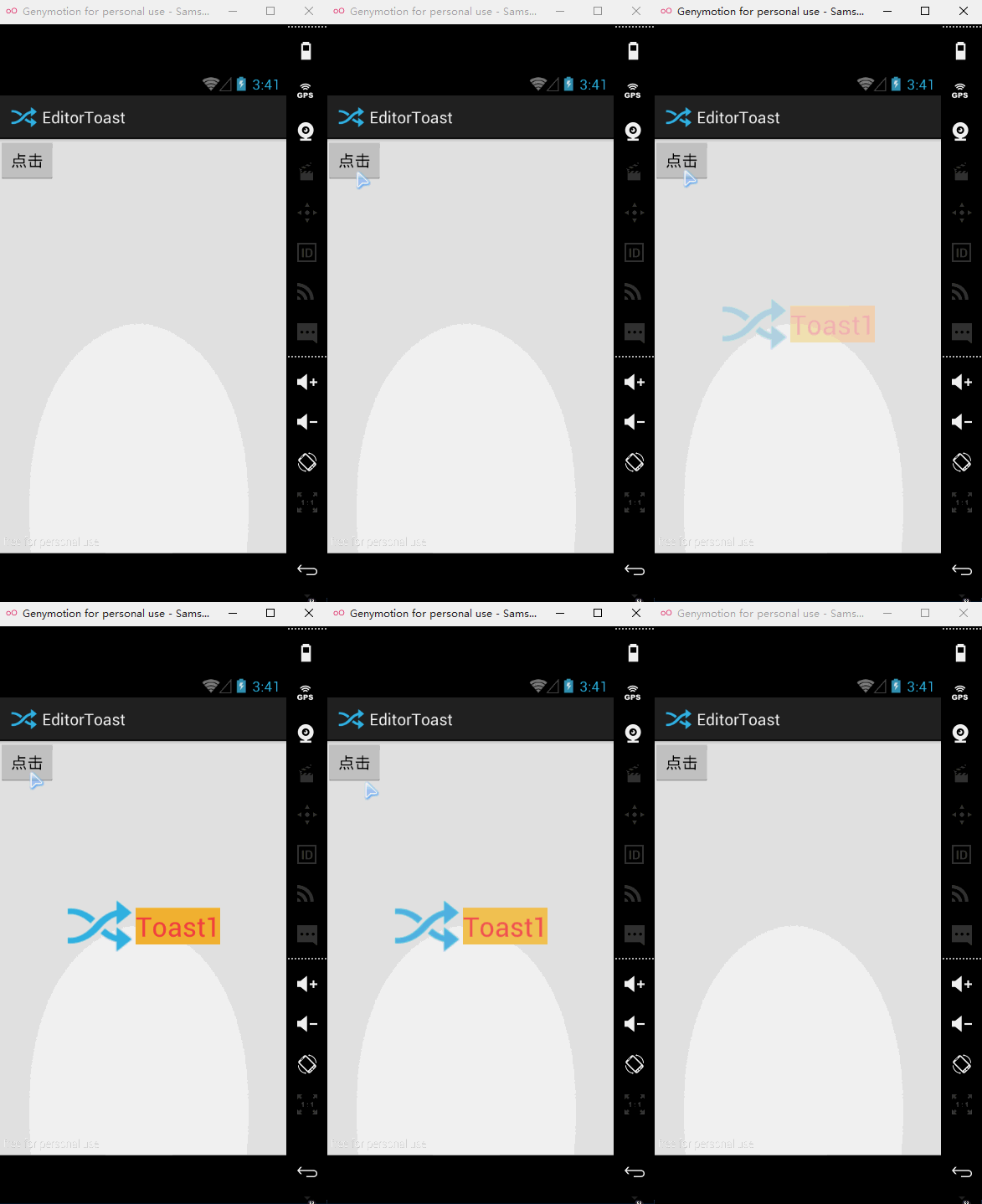
Activity:
 package com.example.editortoast;

 import android.app.Activity;

 import android.os.Bundle;

 import android.view.Gravity;

 import android.view.LayoutInflater;

 import android.view.View;

 import android.view.View.OnClickListener;

 import android.widget.TextView;

 import android.widget.Toast;

 public class MainActivity extends Activity {

     @Override

     protected void onCreate(Bundle savedInstanceState) {

         super.onCreate(savedInstanceState);

         setContentView(R.layout.activity_main);

         findViewById(R.id.bt).setOnClickListener(new OnClickListener() {

             @Override

             public void onClick(View v) {

                 toastShow();

             }

         });

     }

     private void toastShow() {

         LayoutInflater inflater = LayoutInflater.from(getApplicationContext());

         View view = inflater.inflate(R.layout.item_toast, null);

         TextView textView1 = (TextView) view.findViewById(R.id.TextView_1);

         textView1.setText("Toast1");

         Toast toast = new Toast(getApplicationContext());

         toast.setGravity(Gravity.CENTER_VERTICAL, 0, 0);

         toast.setDuration(0);

         toast.setView(view);

         toast.show();

     }

 }
activity_main.xml:
 <RelativeLayout xmlns:android="http://schemas.android.com/apk/res/android"

     xmlns:tools="http://schemas.android.com/tools"

     android:layout_width="match_parent"

     android:layout_height="match_parent"

     tools:context="com.example.editortoast.MainActivity" >

     <Button

         android:id="@+id/bt"

         android:layout_width="wrap_content"

         android:layout_height="wrap_content"

         android:text="点击" />

 </RelativeLayout>
item_toast.xml:
 <?xml version="1.0" encoding="utf-8"?>

 <RelativeLayout xmlns:android="http://schemas.android.com/apk/res/android"

     android:layout_width="match_parent"

     android:layout_height="match_parent"

     android:orientation="vertical" >

     <ImageView

         android:id="@+id/image"

         android:layout_width="80dp"

         android:layout_height="80dp"

         android:layout_centerVertical="true"

         android:src="@drawable/ic_launcher" />

     <TextView

         android:id="@+id/TextView_1"

         android:textSize="30sp"

         android:textColor="@android:color/holo_red_light"

         android:layout_width="wrap_content"

         android:layout_height="wrap_content"

         android:layout_centerVertical="true"

         android:layout_toRightOf="@id/image" />

 </RelativeLayout>
自定义Toast的显示效果的更多相关文章
- 023 Android 自定义Toast控件
1.Toast自定义控件工具类 package com.example.administrator.test62360safeguard.Utils; import android.content.C ...
- Android带图片的Toast(自定义Toast)
使用Android默认的Toast Toast简介: Toast是一个简单的消息显示框,能够短暂的出现在屏幕的某个位置,显示提示消息. 默认的位置是屏幕的下方正中,一般Toast的使用如下: Toas ...
- 自定义Toast和RatingBar的简单用例
Toast是一个包含用户点击消息.Toast类会帮助你创建和显示这些.Android中的Toast是一种简易的消息提示框. 当视图显示给用户,在应用程序中显示为浮动 向右划动五角星增加 单击按钮显示自 ...
- 朝花夕拾-android 自定义toast
在一个只有你而且还未知的世界中,不去探索未知,死守一处,你到底在守什么呢? 作为一个目前的android程序员,可能过去写着delphi的代码,可能未来回去搭建服务器.不管怎样,你现在是一名安卓程序员 ...
- Android 自定义Toast
自定义Toast 其实就是自定义布局文件 感觉利用Dialog或者PopupWindow做也差不多 上图上代码 public class MainActivity extends Activity { ...
- Android Toast 设置到屏幕中间,自定义Toast的实现方法,及其说明
http://blog.csdn.net/wangfayinn/article/details/8065763 Android Toast用于在手机屏幕上向用户显示一条信息,一段时间后信息会自动消失. ...
- Android开发必知--自定义Toast提示
开发过Android的童鞋都会遇到一个问题,就是在打印Toast提示时,如果短时间内触发多个提示,就会造成Toast不停的重复出现,直到被触发的Toast全部显示完为止.这虽然不是什么大毛病,但在用户 ...
- android 自定义Toast显示风格
1.创建一个自己想要显示Toast风格的XML如下代码(toast_xml.xml): <?xml version="1.0" encoding="utf-8&qu ...
- 自定义Toast
简易自定义Toast public class MainActivity extends ListActivity );//边角 gradientDrawable.setGradien ...
随机推荐
- 前端之JavaScript
JavaScript JavaScript 是一种轻量级的编程语言:是可插入 HTML 页面的编程代码:JavaScript 插入 HTML 页面后,可由所有的现代浏览器执行. 一,编写方式 1.Ja ...
- 范式(Oracle)
三范式 ------------数据库的三范式-------------- (1).要有主键,列不可分 (2).不能存在部分依赖:当有多个字段联合起来作为主键的时候,不是主键的字段不能部分依赖于主键中 ...
- HDU 4407 Sum 容斥原理
Sum Time Limit: 2000/1000 MS (Java/Others) Memory Limit: 32768/32768 K (Java/Others) Problem Desc ...
- 【测试】并使用scott用户下的emp表写一条SQL语句,执行计划走唯一索引
SQL; SAL ---------- Execution Plan ---------------------------------------------------------- ------ ...
- windows2008 设置会话超时时间
[ 组策略 ]开始-->运行-->gpedit.msc 计算机配置->管理模板->Windows组件->终端服务->会话
- org.springframework.beans.factory.BeanDefinitionStoreException
org.springframework.beans.factory.BeanDefinitionStoreException: Invalid bean definition with name 'd ...
- 洛谷P2734 游戏 A Game
P2734 游戏 A Game 27通过 60提交 题目提供者该用户不存在 标签USACO 难度普及+/提高 提交 讨论 题解 最新讨论 暂时没有讨论 题目背景 有如下一个双人游戏:N(2 < ...
- PL/SQL 导入excel表格到oracle数据表
通过使用PL/SQL 批量查询取数时,将excel中的每一列数据复制黏贴进新建的中间表,黏贴时会有贴歪的情况,也就是某些列会从第二第三行开始插入整列,导致数据乱掉,然后好像又不支持批量删除整列数据,所 ...
- 在VS2012中采用C++中调用DLL中的函数 (4)
这两天因为需要用到VS2012来生成一个DLL代码,但是之前并没有用过DLL相关的内容,从昨天开始尝试调试DLL的文件调用,起初笔者在网络上找到了3片采用VSXXX版本进行调试的例子,相关的内容见本人 ...
- WP8_给图片、按钮设置自定义图片
工程目录下新建文件夹Images,将图片文件复制到Images文件夹里,本文以image1为例 1).在xaml里加背景图片 image图片: <Stretch="Fill" ...