
WPF实现统计图(饼图仿LiveCharts)
WPF开发者QQ群: 340500857 | 微信群 -> 进入公众号主页 加入组织
每日一笑
下班和实习生一起回家,公交站等车,一乞丐把碗推向实习生乞讨。这时,实习生不慌不忙的说了句:“我不要你的钱,你这钱来的也不容易。”
前言
有小伙伴需要统计图。
欢迎转发、分享、点赞,谢谢大家~。
效果预览(更多效果请下载源码体验)
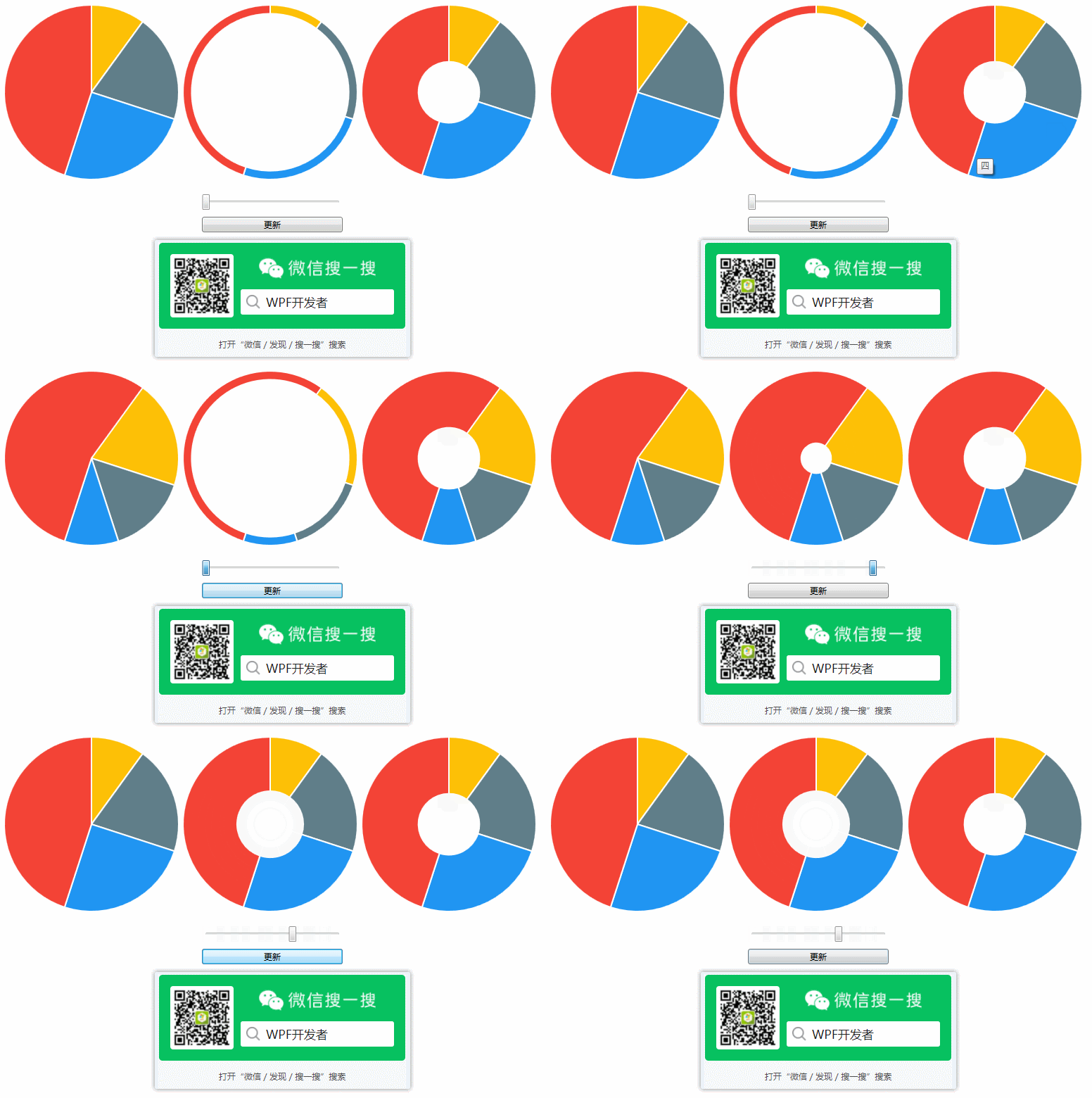
一、PieControl.cs 代码如下
using System.Collections.ObjectModel;

using System.Windows;

using System.Windows.Controls;

using System.Windows.Media;

using WpfPieControl.Models;

namespace WpfPieControl

{

    public class PieControl: Control

    {

        public ObservableCollection<PieSegmentModel> PieSegmentModels

        {

            get { return (ObservableCollection<PieSegmentModel>)GetValue(PieSegmentModelsProperty); }

            set { SetValue(PieSegmentModelsProperty, value); }

        }

        public static readonly DependencyProperty PieSegmentModelsProperty =

            DependencyProperty.Register("PieSegmentModels", typeof(ObservableCollection<PieSegmentModel>), typeof(PieControl), new UIPropertyMetadata(OnPieSegmentModelChanged));

        private static void OnPieSegmentModelChanged(DependencyObject d, DependencyPropertyChangedEventArgs e)

        {

            PieControl pieControl = d as PieControl;

            if (e.NewValue != null)

            {

                var array = e.NewValue as ObservableCollection<PieSegmentModel>;

                double angleNum = 0;

                foreach (var item in array)

                {

                    var color = new SolidColorBrush((Color)ColorConverter.ConvertFromString(pieControl.ColorArray[array.IndexOf(item)]));

                    item.Color = color;

                    item.StartAngle = angleNum;

                    item.EndAngle = angleNum + item.Value / 100 * 360;

                    angleNum = item.EndAngle;

                }

            }

        }

        /// <summary>

        /// colors

        /// </summary>

        private string[] ColorArray = new string[] { "#FDC006", "#607E89", "#2095F2", "#F34336" };

        /// <summary>

        /// 0~1

        /// </summary>

        public double ArcThickness

        {

            get { return (double)GetValue(ArcThicknessProperty); }

            set { SetValue(ArcThicknessProperty, value); }

        }

        public static readonly DependencyProperty ArcThicknessProperty =

            DependencyProperty.Register("ArcThickness", typeof(double), typeof(PieControl), new PropertyMetadata(1.0));

        static PieControl()

        {

            DefaultStyleKeyProperty.OverrideMetadata(typeof(PieControl), new FrameworkPropertyMetadata(typeof(PieControl)));

        }

    }

}
二、App.xaml 代码如下
<Style TargetType="{x:Type local:PieControl}">

            <Setter Property="UseLayoutRounding" Value="True" />

            <!--<Setter Property="Background" Value="#252525"/>-->

            <Setter Property="Foreground" Value="White"/>

            <Setter Property="Width" Value="250"/>

            <Setter Property="Height" Value="250"/>

            <Setter Property="Template">

                <Setter.Value>

                    <ControlTemplate TargetType="{x:Type local:PieControl}">

                        <ItemsControl Width="{TemplateBinding Width}" Height="{TemplateBinding Height}"

                                      ItemsSource="{TemplateBinding PieSegmentModels}"

                                      Background="{TemplateBinding Background}">

                            <ItemsControl.ItemsPanel>

                                <ItemsPanelTemplate>

                                    <Grid IsItemsHost="True"/>

                                </ItemsPanelTemplate>

                            </ItemsControl.ItemsPanel>

                            <ItemsControl.ItemTemplate>

                                <DataTemplate>

                                    <ed:Arc Width="{TemplateBinding Width}" Height="{TemplateBinding Height}"

                                                ArcThickness="{Binding ArcThickness,RelativeSource={RelativeSource FindAncestor,AncestorType=local:PieControl}}" ArcThicknessUnit="Percent"

                                                EndAngle="{Binding EndAngle}"

                                                StartAngle="{Binding StartAngle}"

                                                Stretch="None"

                                                ToolTip="{Binding Name}"

                                                Stroke="{Binding ColorStroke}"

                                                StrokeThickness="2"

                                                Fill="{Binding Color}">

                                    </ed:Arc>

                                </DataTemplate>

                            </ItemsControl.ItemTemplate>

                        </ItemsControl>

                    </ControlTemplate>

                </Setter.Value>

            </Setter>

</Style>
三、MainWindow.xaml 代码如下
<Window x:Class="WpfPieControl.MainWindow"

        xmlns="http://schemas.microsoft.com/winfx/2006/xaml/presentation"

        xmlns:x="http://schemas.microsoft.com/winfx/2006/xaml"

        xmlns:d="http://schemas.microsoft.com/expression/blend/2008"

        xmlns:mc="http://schemas.openxmlformats.org/markup-compatibility/2006"

        xmlns:local="clr-namespace:WpfPieControl"

        mc:Ignorable="d"

        Title="微信公众号:WPF开发者" Height="450" Width="800">

    <StackPanel>

        <WrapPanel Margin="10">

            <local:PieControl PieSegmentModels="{Binding PieSegmentModels,RelativeSource={RelativeSource AncestorType=local:MainWindow}}" ArcThickness="1"/>

            <local:PieControl PieSegmentModels="{Binding PieSegmentModels,RelativeSource={RelativeSource AncestorType=local:MainWindow}}"

                                  Margin="4,0"

                                  ArcThickness="{Binding ElementName=PRAT_Slider,Path=Value}"/>

            <local:PieControl PieSegmentModels="{Binding PieSegmentModels,RelativeSource={RelativeSource AncestorType=local:MainWindow}}" ArcThickness="0.65"/>

        </WrapPanel>

        <Slider Maximum="0.9" Minimum="0.1" x:Name="PRAT_Slider" Margin="10" Width="200"/>

        <Button Content="更新" Click="Button_Click" VerticalAlignment="Bottom" Width="200"/>

    </StackPanel>

</Window>
四、MainWindow.xaml.cs 代码如下
using System;

using System.Collections.Generic;

using System.Collections.ObjectModel;

using System.Linq;

using System.Text;

using System.Windows;

using System.Windows.Controls;

using System.Windows.Data;

using System.Windows.Documents;

using System.Windows.Input;

using System.Windows.Media;

using System.Windows.Media.Imaging;

using System.Windows.Navigation;

using System.Windows.Shapes;

using WpfPieControl.Models;

namespace WpfPieControl

{

    /// <summary>

    /// MainWindow.xaml 的交互逻辑

    /// </summary>

    public partial class MainWindow : Window

    {

        public ObservableCollection<PieSegmentModel> PieSegmentModels

        {

            get { return (ObservableCollection<PieSegmentModel>)GetValue(PieSegmentModelsProperty); }

            set { SetValue(PieSegmentModelsProperty, value); }

        }

        public static readonly DependencyProperty PieSegmentModelsProperty =

            DependencyProperty.Register("PieSegmentModels", typeof(ObservableCollection<PieSegmentModel>), typeof(MainWindow), new PropertyMetadata(null));

        List<ObservableCollection<PieSegmentModel>> collectionList = new List<ObservableCollection<PieSegmentModel>>();

        public MainWindow()

        {

            InitializeComponent();

            PieSegmentModels = new ObservableCollection<PieSegmentModel>();

            var collection1 = new ObservableCollection<PieSegmentModel>();

            collection1.Add(new PieSegmentModel { Name = "一", Value = 10 });

            collection1.Add(new PieSegmentModel { Name = "二", Value = 20 });

            collection1.Add(new PieSegmentModel { Name = "三", Value = 25 });

            collection1.Add(new PieSegmentModel { Name = "四", Value = 45 });

            var collection2 = new ObservableCollection<PieSegmentModel>();

            collection2.Add(new PieSegmentModel { Name = "一", Value = 30 });

            collection2.Add(new PieSegmentModel { Name = "二", Value = 15 });

            collection2.Add(new PieSegmentModel { Name = "三", Value = 10 });

            collection2.Add(new PieSegmentModel { Name = "四", Value = 55 });

            collectionList.AddRange(new[] { collection1, collection2 });

            PieSegmentModels = collectionList[0];

        }

        bool isRefresh = false;

        private void Button_Click(object sender, RoutedEventArgs e)

        {

            if (!isRefresh)

                PieSegmentModels = collectionList[1];

            else

                PieSegmentModels = collectionList[0];

            isRefresh = !isRefresh;

        }

    }

}
更多教程欢迎关注微信公众号:

WPF开发者QQ群: 340500857
blogs: https://www.cnblogs.com/yanjinhua/p/14345136.html
源码Github:https://github.com/yanjinhuagood/WPFDevelopers.git
gitee:https://gitee.com/yanjinhua/WPFDevelopers.git
WPF实现统计图(饼图仿LiveCharts)的更多相关文章
- WPF C#截图功能 仿qq截图
原文:WPF C#截图功能 仿qq截图 先上效果图 源码下载地址:http://download.csdn.net/detail/candyvoice/9788099 描述:启动程序,点击窗口butt ...
- WPF系列教程——(一)仿TIM QQ界面 - 简书
原文:WPF系列教程--(一)仿TIM QQ界面 - 简书 TIM QQ 我们先来看一下TIM QQ长什么样,整体可以将界面分为三个部分 TIM QQ 1. 准备 阅读本文假设你已经有XAML布局的基 ...
- WPF ”真正的“高仿QQ
时常可以在各种论坛 博客 看到 各种所谓的 高仿QQ. 说实话 越看越想笑呢.(PS:纯粹的 抨击 那些 不追求 UI 完美主义者) 例如: 本次模仿 采用 C# WPF XAML , 总 ...
- WPF实现截图(仿微信截图)
WPF开发者QQ群: 340500857 | 微信群 -> 进入公众号主页 加入组织 每日一笑 肚子疼,去厕所排便,结果什么都没拉出来.看着自己坐在马桶上痛苦又努力却一无所获的样子,仿佛看到了 ...
- WPF实现统计图
WPF开发者QQ群: 340500857 | 微信群 -> 进入公众号主页 加入组织 前言 有小伙伴提出需要实现统计图. 由于在WPF中没有现成的统计图控件,所以我们自己实现一个. PS:有更 ...
- WPF优秀组件推荐之LiveCharts
概述 LiveCharts是一个比较漂亮的WPF图表控件,在数据变化时还会有动画切换的效果,并且样式也可以控制. 官方网站:Live Charts (lvcharts.net) 开源代码:GitHub ...
- Silverlight/WPF绘制统计图Visifire.dll文件
官网:http://www.visifire.com/ 一直没找到好的中文文档,希望有的这个的可以发个我! 效果图: 前台代码: <UserControl x:Class="Text_ ...
- WPF实现雷达图(仿英雄联盟)
WPF开发者QQ群: 340500857 | 微信群 -> 进入公众号主页 加入组织 前言 有小伙伴提出需要实现雷达图. 由于在WPF中没有现成的雷达图控件,所以我们自己实现一个. PS:有更 ...
- WPF开发随笔收录-仿安卓Toast
一.前言 在项目中,经常需要用到消息提醒功能,在以前接触安卓开发那会使用过Toast,于是打算在WPF上也来模仿一个,话不多说,撸起袖子干起来! 二.正文 1.首先新建一个工程,工程的目录如下 2.编 ...
随机推荐
- 输入npm install 报错node-sass@4.13.0 postinstall:`node scripts/build.js` Failed at the node-sass@4.13.0
这个是因为sass安装时获取源的问题,先修改sass安装的源,再运行npm install就成功了 npm config set sass_binary_site=https://npm.taobao ...
- 写webpack插件报警告Tapable.plugin is deprecated. Use new API on .hooks instead解决方案,webpack4插件新写法
最近写了个小插件报了个警告,然后去百度了一下,全都给我说extract-text-webpack-plugin这个插件有问题要更新,我也是无语了,这个插件我用都没用,百度翻了下齐刷刷全是这个答案,搞得 ...
- android kotlin determine file type from bytes 根据文件内容识别文件类型,类似python的filetype
尝试了 URLConnection.guessContentTypeFromStream(ByteArrayInputStream(bytes)) 和 Tika().detect(bytes) 一个识 ...
- NOIP模拟13「工业题·卡常题·玄学题」
T1:工业题 基本思路 这题有一个重要的小转化: 我们将原来的函数看作一个矩阵,\(f(i,j-1)*a\)相当于从\(j-1\)向右走一步并贡献a,\(f(i-1,j)*b\)相当于从\(i-1 ...
- Ubantu启动失败,提示“Started GNOME Display Manager”之后起不来了
我是在搭建DPDK环境时,为了尝试下多网卡多列配置,将虚拟机的网卡类型由e1000改成了vxnet3类型.之后修改了下内存大小和CPU核数.然后启动ubantu虚拟机,结果无法成功启动,显示结果如下: ...
- 数据结构(c++)(第二版) Dijkstra最短路径算法 教学示范代码出现重大问题!
前言 去年在数据结构(c++)的Dijkstra教学算法案例中,发现了一个 bug 导致算法不能正常的运行,出错代码只是4行的for循环迭代代码. 看到那里就觉得有问题,但书中只给了关键代码的部分,其 ...
- CSS滤镜让图片模糊(毛玻璃效果)
CSS代码: .blur { filter: url(blur.svg#blur); /* FireFox, Chrome, Opera */ -webkit-filter: blur(10px); ...
- Jsoup快速查询
一.selector选择器 二.Xpath查询
- Vue设置全局js/css样式
''' 配置全局js mian.js: import settings from '@/assets/js/settings' Vue.prototype.$settings = settings; ...
- MySQL索引、事务、存储引擎
一.MySQL 索引 1.索引的概念 ●索引是一个排序的列表,在这个列表中存储着索引的值和包含这个值的数据所在行的物理地址(类似于C语言的链表通过指针指向数据记录的内存地址).●使用索引后可以不用扫描 ...