
iOS开发UI篇—xib的简单使用
iOS开发UI篇—xib的简单使用
一、简单介绍
xib和storyboard的比较,一个轻量级一个重量级。
共同点:
都用来描述软件界面
都用Interface Builder工具来编辑
不同点:
Xib是轻量级的,用来描述局部的UI界面
Storyboard是重量级的,用来描述整个软件的多个界面,并且能展示多个界面之间的跳转关系
二、xib的简单使用
1.建立xib文件
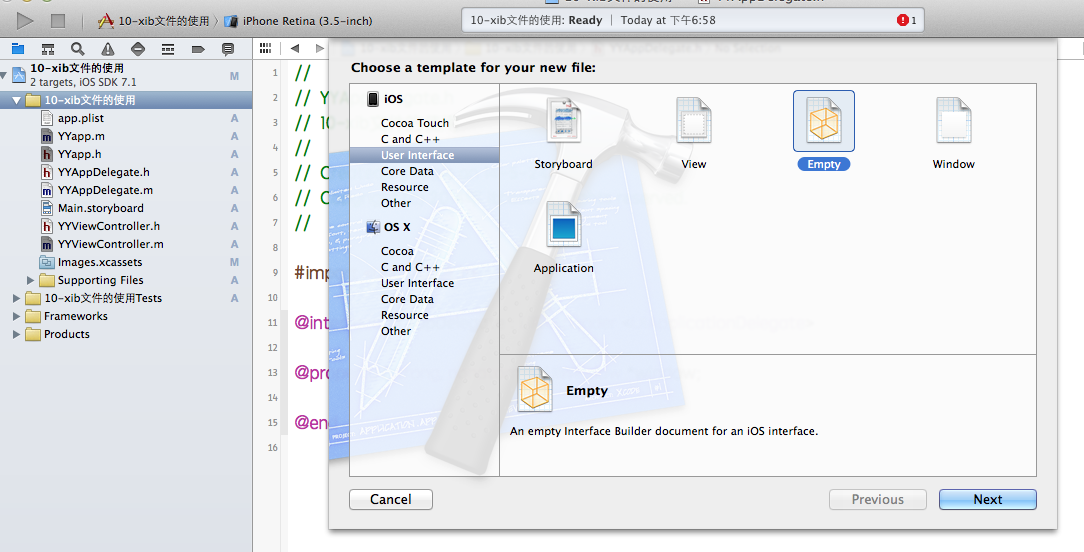
建立的xib文件命名为appxib.xib

2.对xib进行设置
根据程序的需要,这里把view调整为自由布局
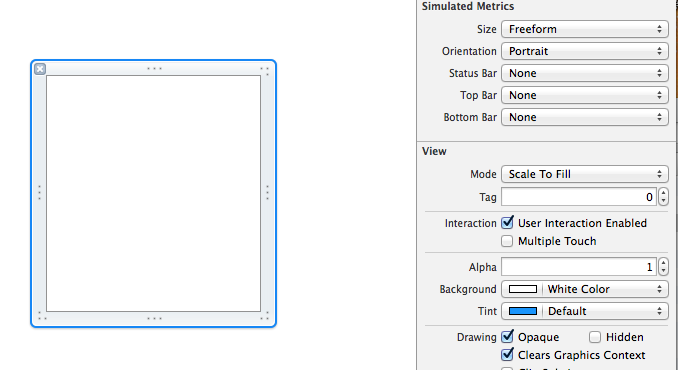
建立view模型(设置长宽等参数)
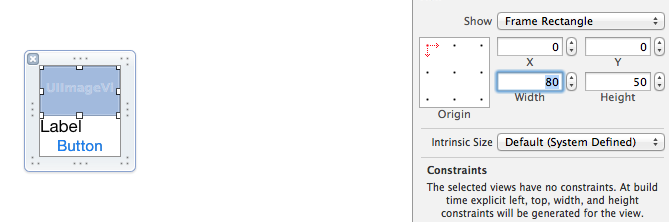
调整布局和内部的控件
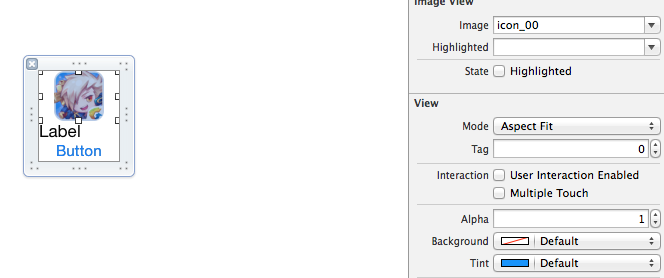
完成后的单个view

3.使用xib文件的代码示例
YYViewController.m文件代码如下:
 //

 //  YYViewController.m

 //  10-xib文件的使用

 //

 //  Created by apple on 14-5-24.

 //  Copyright (c) 2014年 itcase. All rights reserved.

 //

 #import "YYViewController.h"

 #import "YYapp.h"

 @interface YYViewController ()

 @property(nonatomic,strong)NSArray *app;

 @end

 @implementation YYViewController

 //1.加载数据信息

 -(NSArray *)app

 {

     if (!_app) {

         NSString *path=[[NSBundle mainBundle]pathForResource:@"app.plist" ofType:nil];

         NSArray *temparray=[NSArray arrayWithContentsOfFile:path];

         //字典转模型

         NSMutableArray *arrayM=[NSMutableArray array ];

         for (NSDictionary *dict in temparray) {

             [arrayM addObject:[YYapp appWithDict:dict]];

         }

         _app=arrayM;

     }

     return _app;

 }

 //创建界面原型

 - (void)viewDidLoad

 {

     [super viewDidLoad];

     NSLog(@"%d",self.app.count);

     //九宫格布局

     int totalloc=;

     CGFloat appviewW=;

     CGFloat appviewH=;

     CGFloat margin=(self.view.frame.size.width-totalloc*appviewW)/(totalloc+);

     int count=self.app.count;

     for (int i=; i<count; i++) {

         int row=i/totalloc;

         int loc=i%totalloc;

         CGFloat appviewX=margin + (margin +appviewW)*loc;

         CGFloat appviewY=margin + (margin +appviewH)*row;

         YYapp *app=self.app[i];

         //拿出xib视图

        NSArray  *apparray= [[NSBundle mainBundle]loadNibNamed:@"appxib" owner:nil options:nil];

         UIView *appview=[apparray firstObject];

         //加载视图

         appview.frame=CGRectMake(appviewX, appviewY, appviewW, appviewH);

         UIImageView *appviewImg=(UIImageView *)[appview viewWithTag:];

         appviewImg.image=app.image;

         UILabel *appviewlab=(UILabel *)[appview viewWithTag:];

         appviewlab.text=app.name;

         UIButton *appviewbtn=(UIButton *)[appview viewWithTag:];

         [appviewbtn addTarget:self action:@selector(appviewbtnClick:) forControlEvents:UIControlEventTouchUpInside];

         appviewbtn.tag=i;

         [self.view addSubview:appview];

     }

 }

 /**按钮的点击事件*/

 -(void)appviewbtnClick:(UIButton *)btn

 {

     YYapp *apps=self.app[btn.tag];

     UILabel *showlab=[[UILabel alloc]initWithFrame:CGRectMake(, , , )];

     [showlab setText:[NSString stringWithFormat: @"%@下载成功",apps.name]];

     [showlab setBackgroundColor:[UIColor lightGrayColor]];

     [self.view addSubview:showlab];

     showlab.alpha=1.0;

     //简单的动画效果

     [UIView animateWithDuration:2.0 animations:^{

         showlab.alpha=;

     } completion:^(BOOL finished) {

         [showlab removeFromSuperview];

     }];

 }

 @end
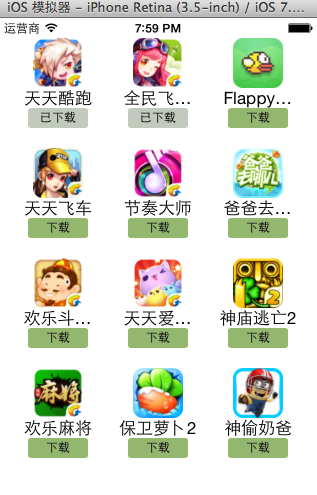
运行效果:
三、对xib进行连线示例
1.连线示例
新建一个xib对应的视图类,继承自Uiview

在xib界面右上角与新建的视图类进行关联

把xib和视图类进行连线
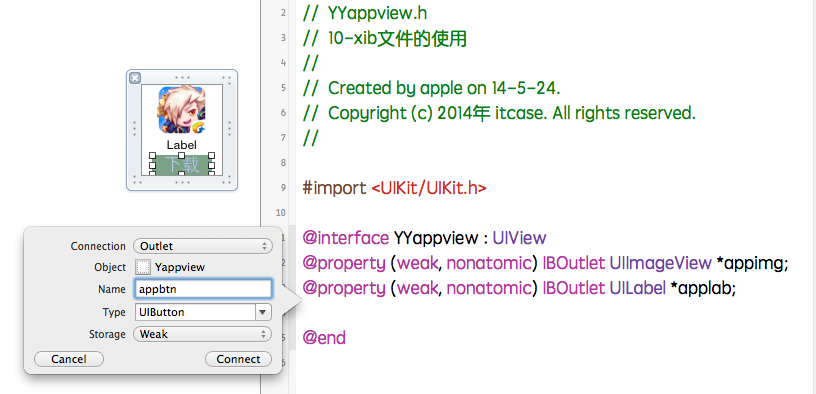
注意:在使用中把weak改成为强引用。否则...
2.连线后的代码示例
YYViewController.m文件代码如下:
 //

 //  YYViewController.m

 //  10-xib文件的使用

 //

 //  Created by apple on 14-5-24.

 //  Copyright (c) 2014年 itcase. All rights reserved.

 //

 #import "YYViewController.h"

 #import "YYapp.h"

 #import "YYappview.h"

 @interface YYViewController ()

 @property(nonatomic,strong)NSArray *app;

 @end

 @implementation YYViewController

 //1.加载数据信息

 -(NSArray *)app

 {

     if (!_app) {

         NSString *path=[[NSBundle mainBundle]pathForResource:@"app.plist" ofType:nil];

         NSArray *temparray=[NSArray arrayWithContentsOfFile:path];

         //字典转模型

         NSMutableArray *arrayM=[NSMutableArray array ];

         for (NSDictionary *dict in temparray) {

             [arrayM addObject:[YYapp appWithDict:dict]];

         }

         _app=arrayM;

     }

     return _app;

 }

 //创建界面原型

 - (void)viewDidLoad

 {

     [super viewDidLoad];

     NSLog(@"%d",self.app.count);

     //九宫格布局

     int totalloc=;

     CGFloat appviewW=;

     CGFloat appviewH=;

     CGFloat margin=(self.view.frame.size.width-totalloc*appviewW)/(totalloc+);

     int count=self.app.count;

     for (int i=; i<count; i++) {

         int row=i/totalloc;

         int loc=i%totalloc;

         CGFloat appviewX=margin + (margin +appviewW)*loc;

         CGFloat appviewY=margin + (margin +appviewH)*row;

         YYapp *app=self.app[i];

         //拿出xib视图

        NSArray  *apparray= [[NSBundle mainBundle]loadNibNamed:@"appxib" owner:nil options:nil];

         //注意这里的类型名!

         //UIView *appview=[apparray firstObject];

         YYappview  *appview=[apparray firstObject];

         //加载视图

         appview.frame=CGRectMake(appviewX, appviewY, appviewW, appviewH);

           [self.view addSubview:appview];

         appview.appimg.image=app.image;

         appview.applab.text=app.name;

         appview.appbtn.tag=i;

         [ appview.appbtn addTarget:self action:@selector(appviewbtnClick:) forControlEvents:UIControlEventTouchUpInside];

     }

 }

 /**按钮的点击事件*/

 -(void)appviewbtnClick:(UIButton *)btn

 {

     YYapp *apps=self.app[btn.tag];

     UILabel *showlab=[[UILabel alloc]initWithFrame:CGRectMake(, , , )];

     [showlab setText:[NSString stringWithFormat: @"%@下载成功",apps.name]];

     [showlab setBackgroundColor:[UIColor lightGrayColor]];

     [self.view addSubview:showlab];

     showlab.alpha=1.0;

     //简单的动画效果

     [UIView animateWithDuration:2.0 animations:^{

         showlab.alpha=;

     } completion:^(BOOL finished) {

         [showlab removeFromSuperview];

     }];

 }

 @end
YYappview.h文件代码(已经连线)
#import <UIKit/UIKit.h>

@interface YYappview : UIView

@property (strong, nonatomic) IBOutlet UIImageView *appimg;

@property (strong, nonatomic) IBOutlet UILabel *applab;

@property (strong, nonatomic) IBOutlet UIButton *appbtn;

@end
iOS开发UI篇—xib的简单使用的更多相关文章
- iOS开发UI篇—使用xib自定义UItableviewcell实现一个简单的团购应用界面布局
iOS开发UI篇—使用xib自定义UItableviewcell实现一个简单的团购应用界面布局 一.项目文件结构和plist文件 二.实现效果 三.代码示例 1.没有使用配套的类,而是直接使用xib文 ...
- ios开发UI篇—使用纯代码自定义UItableviewcell实现一个简单的微博界面布局
本文转自 :http://www.cnblogs.com/wendingding/p/3761730.html ios开发UI篇—使用纯代码自定义UItableviewcell实现一个简单的微博界面布 ...
- iOS开发UI篇—多控制器和导航控制器简单介绍
iOS开发UI篇—多控制器和导航控制器简单介绍 一.多控制器 一个iOS的app很少只由一个控制器组成,除非这个app极其简单.当app中有多个控制器的时候,我们就需要对这些控制器进行管理 有多个vi ...
- iOS开发UI篇—Quartz2D简单使用(三)
iOS开发UI篇—Quartz2D简单使用(三) 一.通过slider控制圆的缩放 1.实现过程 新建一个项目,新建一个继承自UIview的类,并和storyboard中自定义的view进行关联. 界 ...
- iOS开发UI篇—UITabBarController简单介绍
iOS开发UI篇—UITabBarController简单介绍 一.简单介绍 UITabBarController和UINavigationController类似,UITabBarControlle ...
- iOS开发UI篇—Modal简单介绍
iOS开发UI篇—Modal简单介绍 一.简单介绍 除了push之外,还有另外一种控制器的切换方式,那就是Modal 任何控制器都能通过Modal的形式展⽰出来 Modal的默认效果:新控制器从屏幕的 ...
- iOS开发UI篇—简单的浏览器查看程序
iOS开发UI篇—简单的浏览器查看程序 一.程序实现要求 1.要求 2. 界面分析 (1) 需要读取或修改属性的控件需要设置属性 序号标签 图片 图片描述 左边按钮 右边按钮 (2) 需要监听响应事件 ...
- iOS开发UI篇—Kvc简单介绍
ios开发UI篇—Kvc简单介绍 一.KVC简单介绍 KVC key valued coding 键值编码 KVC通过键值间接编码 补充: 与KVC相对的时KVO,即key valued observ ...
- iOS开发UI篇—iOS开发中三种简单的动画设置
iOS开发UI篇—iOS开发中三种简单的动画设置 [在ios开发中,动画是廉价的] 一.首尾式动画 代码示例: // beginAnimations表示此后的代码要“参与到”动画中 [UIView b ...
随机推荐
- Number类型方法
//1.toString(); 转换成字符串 var s=123; console.log(typeof s.toString()); //string //2.toLocaleString() ...
- 在CentOS 7上安装Node.js的4种方法
一.源码安装 1.下载源码(官网查看最新版本链接) wget http://nodejs.org/dist/v0.10.30/node-v0.10.30.tar.gz 2.解压源码 tar xzvf ...
- 转:客制FORM调用会计科目弹性域/根据科目取得CODE_COMBINATION_ID
1.首先在创建数据表时,添一个字段用来保存会计科目的ID.如:CODE_COMBINATION_ID 2.在FORM相应的数据块增加两个ITEM,用来显示科目NUMBER与DESCRITION. 例: ...
- Eclipse中实现JAVA代码的自动提示功能
1.打开Eclipse,在.出现时进行代码提示换成任意字母+.出现时的代码提示了(.abcdefghijklmnopqrstuvwxyz):
- 【笔记】after,before,insertAfter,insertBefore的作用
这几个方法的作用是插入外部节点,所谓外部插入节点就是我们平常在网页编程中手动添加代码到某一句语句的前面或后面,如图: 红色框的P是在蓝色框span的前面插入的外部节点,反过来说蓝色框的span是在红色 ...
- mysql出现“SELECT list is not in GROUP BY clause and contains nonaggregated column [duplicate]”错误提示
项目跨平台时由于mysql设置的问题,原代码运行出现这个错误,此时把mysql设置改下就好了 sql_mode='NO_ENGINE_SUBSTITUTION'
- java中的乱码问题
1如果使用的tomcat服务器,在server.xml中Connector 标签后加 URIEncoding="UTF-8": 2使用web过滤器: (1).新建一个SetChar ...
- phpcms无法读取index.html的解决步骤
代码如下: phpcms\modules\content\classes\html.class.php 查找 复制代码 代码如下: /** * 更新首页 */ public function inde ...
- php常用函数汇总
php常用函数汇总 字符串截取: 1.substr('要截取的字符串','从第几个字符开始','到第几个字符结束'); * 截取英文或者数字 ...
- SUDTOJ 3323园艺问题 (线段树)
园艺问题 Time Limit: 1000ms Memory limit: 65536K 有疑问?点这里^_^ 题目描述 本巨养了一盆双色茉莉.这种花有一种特点:第i朵花在第Di天盛开,刚开时是紫色的 ...