
WPF中RDLC报表的钻取实现
1、新建wpf项目,并引入3个程序集:
Microsoft.ReportViewer.WinForms
WindowsFormsIntegration
System.Windows.Forms
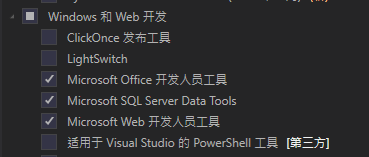
如果无法搜索到,可能是VS没有安装相关组件,请如图添加:
2、新建Entities文件夹,在其中添加Entities.cs文件,其中创建两个实体类,Department和Employee
class Department

    {

        public int DepartmentId { get; set; }

        public string DepartmentName { get; set; }

        public string DepartmentInfo { get; set; }

    }

    class Employee

    {

        public int EmployeeId { get; set; }

        public int DepartmentId { get; set; }

        public string Name { get; set; }

        public string NickName { get; set; }

    }
3、创建钻取表——部门表Department.rdlc,内部控件可在工具箱窗口创建:
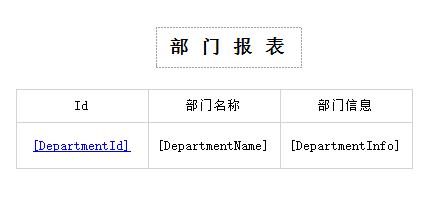
3.1、绑定数据集/源,在Report Data中的数据集项目右键-添加数据集(名称为:DepartmentDS)-新建数据源-对象,下一步选择sep2中建立的Department对象。
3.2、完成后即可将数据源的字段添加如报表中。
3.3、在DepartmentId中右键-文本框属性-操作-选择“转到报表”,指定报表填入“Emploee”(此报表下一步创建)参数填入DepartmentId:
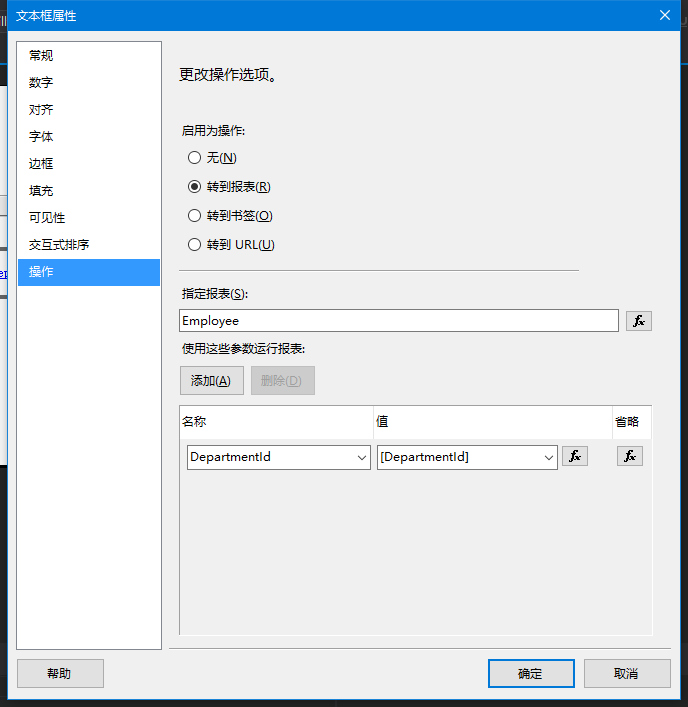
再设置一下钻取关键字的字体样式,钻取表配置完成。
4、创建目标表——员工表Employee:
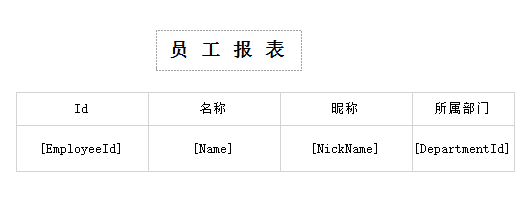
4.1、添加绑定Employee对象,操作如部门表,数据集名称指定为:(名称为:EmployeeDS)。
4.2、定义参数,Report Data窗口中:参数右键-添加参数,名称填入DepartmentId,类型为Integer(要与传入类型一致)。
4.3、添加筛选器,筛选器可以采用指定参数来自动过滤数据,选择数据集所在行右键-tablix属性-筛选器-点击fx进入表达式编写。
其中表达式填入:=CInt(Fields!DepartmentId.Value)类型为Integer,运算符为“=”,值填入:=CInt(Parameters!DepartmentId.Value)
到此,报表主要设计完成。
5、在MainWindow窗体中放入ReportViewer:
5.1、xaml窗口代码,先引入命名空间:xmlns:rv="clr-namespace:Microsoft.Reporting.WinForms;assembly=Microsoft.ReportViewer.WinForms"
然后主体部分:
    <Grid>

        <WindowsFormsHost>

            <rv:ReportViewer x:Name="reportViewer"/>

        </WindowsFormsHost>

    </Grid>
5.2、窗口交互代码,功能是为报表填充数据,数据介质是DataTable,内容正是对应的实体类。
public partial class MainWindow : Window

    {

        public MainWindow()

        {

            InitializeComponent();

            this.Loaded += DepartmentLoaded;

            //this.Loaded += EmployeeLoaded;

        }

        // 载入部门报表

        private void DepartmentLoaded(object sender, RoutedEventArgs e)

        {

            // 模拟一个DataTable

            DataTable dt = new DataTable();

            dt.Columns.Add("DepartmentId", typeof(int));

            dt.Columns.Add("DepartmentName", typeof(string));

            dt.Columns.Add("DepartmentInfo", typeof(string));

            dt.Rows.Add(, "内勤", "B3456123");

            dt.Rows.Add(, "外勤", "U3884912");

            ReportDataSource reportDataSource = new ReportDataSource();

            reportDataSource.Name = "DepartmentDS";

            reportDataSource.Value = dt;

            reportViewer.Reset();

            reportViewer.LocalReport.ReportPath = Directory.GetCurrentDirectory() + "\\Department.rdlc";

            reportViewer.LocalReport.DataSources.Add(reportDataSource);

            reportViewer.Drillthrough += new DrillthroughEventHandler(report_Drillthrough);// 处理钻取事件

            reportViewer.RefreshReport();

        }

        // 载入员工报表

        private void EmployeeLoaded(object sender, RoutedEventArgs e)

        {

            // 模拟一个DataTable

            DataTable dt = MakeEmployeeDT();

            ReportDataSource reportDataSource = new ReportDataSource();

            reportDataSource.Name = "EmployeeDS";

            reportDataSource.Value = dt;

            reportViewer.Reset();

            reportViewer.LocalReport.ReportPath = Directory.GetCurrentDirectory() + "\\Employee.rdlc";

            reportViewer.LocalReport.DataSources.Add(reportDataSource);

            ReportParameter departmentId = new ReportParameter("DepartmentId", "");

            reportViewer.LocalReport.SetParameters((new ReportParameter[] { departmentId }));// 放入参数测试

            reportViewer.RefreshReport();

        }

        // 填充钻取的数据

        private void report_Drillthrough(object sender, DrillthroughEventArgs e)

        {

            int dId = ;

            DataTable dt = MakeEmployeeDT();

            ReportDataSource reportDataSource = new ReportDataSource();

            reportDataSource.Name = "EmployeeDS";

            reportDataSource.Value = dt;

            Report newRV = e.Report;

            if (newRV.GetParameters().Count >  && newRV.GetParameters()["DepartmentId"] != null)

            {

                string tmp = newRV.GetParameters()["DepartmentId"].Values[].Trim();

                dId = Int32.Parse(tmp, );

            }

            LocalReport localReport = (LocalReport)e.Report;

            localReport.DataSources.Add(reportDataSource);

            //reportViewer.RefreshReport();// 钻取操作不能refresh,否则会导致刷新窗口,清除钻取记录

        }

        // 创建员工数据表

        private DataTable MakeEmployeeDT()

        {

            DataTable dt = new DataTable();

            dt.Columns.Add("EmployeeId", typeof(int));

            dt.Columns.Add("Name", typeof(string));

            dt.Columns.Add("NickName", typeof(string));

            dt.Columns.Add("DepartmentId", typeof(string));

            dt.Rows.Add(, "张三", "John", );

            dt.Rows.Add(, "李四", "Joo", );

            return dt;

        }

    }
总结/说明:
1、本例使用实体对象作为绑定数据源,可以较好的整合进当前项目,维持现有架构的层级关系,另外也可直接配置数据库或WCF服务,请自行测试;
2、新建数据源时若找不到step2建立的实体类,请重新编译项目。
3、初次接触者RDLC文件的xml源码图形化的布局设计都定义在里面。
4、钻取目标表的结构结果筛选即可由rdlc定义完成,也可以获取参数后自行组装DataTable,前者简单省事,后者性能高一些,看需求~。
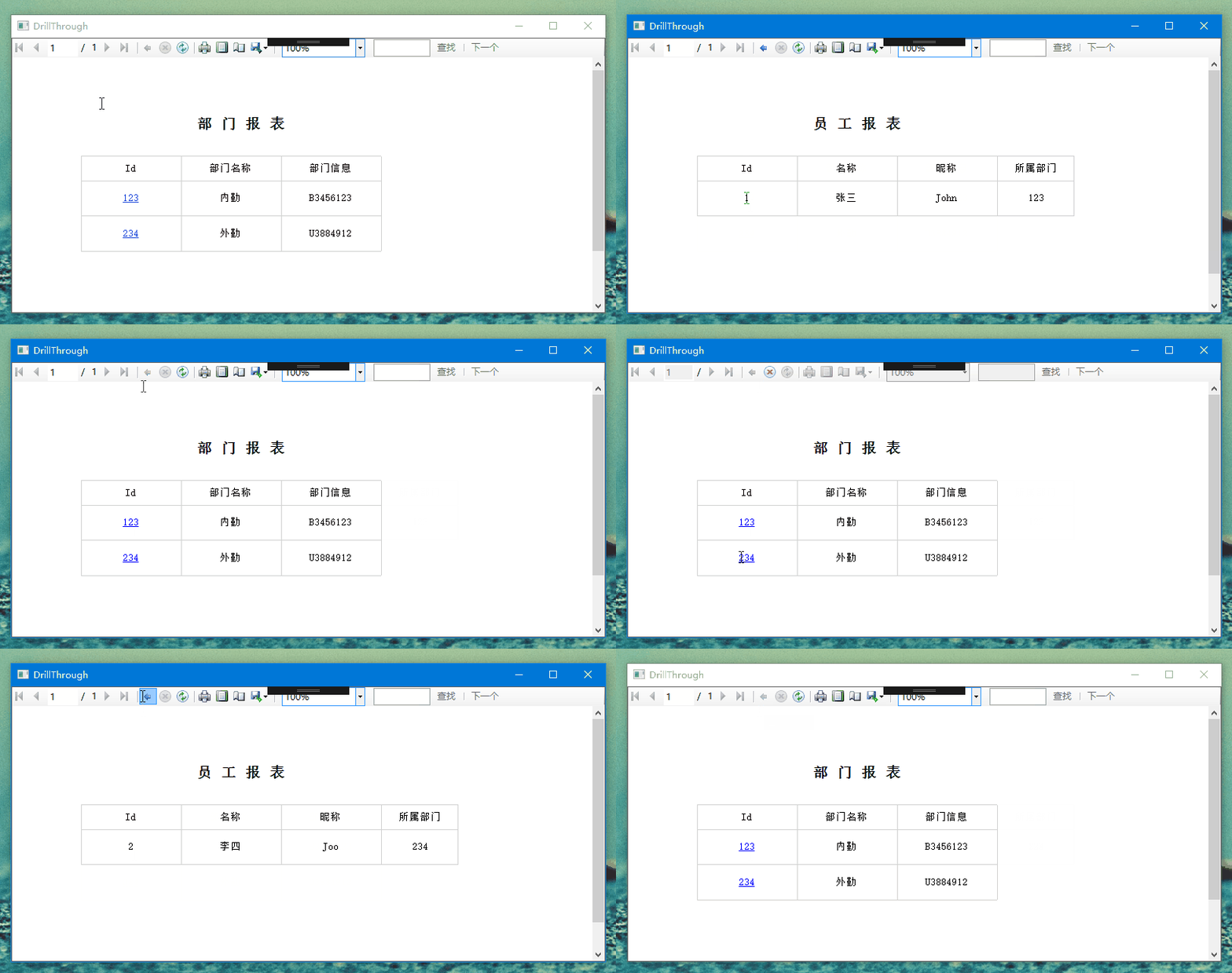
最后,贴一张运行效果图:
WPF中RDLC报表的钻取实现的更多相关文章
- Vs2010中rdlc报表绑定DataTable数据源
首先,新建一个网站,接着添加数据集,并且命名为student,如下图所示: 在该数据集对象上面添加datatable,并且设置列名,如下图所示: 添加一张报表,命名为student,如下图所示: 向报 ...
- C#中RDLC报表常用表达式(字符串和转换)
字符串函数 (1)使用串联运算符和 Visual Basic 常量可将多个字段组合在一起.以下表达式返回两个字段,它们分别位于同一文本框的不同行中:=Fields!FirstName.Value &a ...
- C#中RDLC报表判断某字段的值为null
=iif(Isnothing(Fields!VerifyStateName.Value),"未上报",Fields!VerifyStateName.Value) 空值时赋予默认 ...
- C#中RDLC报表中日期显示格式
转换为日期类型再格式化 =CDate(Fields!UseDate.Value).ToString("yyyy-MM-dd") 使用Format ==Format(Fields!C ...
- win10下rdlc报表在vs(visual studio)中中文显示小方块的批量处理解决方法
在网上找vs中rdlc报表显示中文时显示小方块的解决方案,无外就是修改文本框的字体属性.但是对于维护已有的rdlc报表时,有中文的地方(此时都显示了小方块)会很多,再一个一个设置实在太麻烦.所以自己花 ...
- [转]使用RDLC报表
使用RDLC报表(一) 1 建立数据源 启动VS2005新建一个窗体项目,命名为TestProj 在左边的窗体内选择“添加新数据源”或在菜单上操作“添加新数据源”: 选择后出现对话窗体,选 ...
- WPF中使用ReportViewer报表
本篇博客将介绍如何在WPF中使用ReportViewer控件. 1. 环境准备:下载安装最新版ReportViewer(PS:需要安装Microsoft SQL Server System CLR T ...
- 让rdlc报表在ReportViewer中水平居中的方法
正常情况下,rdlc报表在Reportviewer中是居左显示的,如图: 在Reporviewer的属性中,我没有找到能让rdlc的居中显示的方法.网上其他人用的方法都试了,没能实现,只能自己找方法解 ...
- VSTO 学习笔记(六)在 Excel 2010中使用RDLC报表
原文:VSTO 学习笔记(六)在 Excel 2010中使用RDLC报表 Excel具有强大的图表显示.分析功能,这点毋庸置疑,但是如果将常规MIS系统中的数据以报表的形式在Excel中显示,却并不那 ...
随机推荐
- win7远程桌面连接windows2008服务器,连接启动很慢。我是这样解决的。
1.在本地链接属性中把IPv6勾选取消掉. 2.在window命令中运行 (cmd) netsh int tcp setglobal autotuninglevel=disable 祝君成功!
- VMWare虚拟机下为Ubuntu 12.04.1配置静态IP(NAT连接方式)
背景 在虚拟机下运行操作系统,尤其是Linux系统已经是非常常见的做法.有时你想在虚拟机下搭建一个(模拟)服务器来供主机访问,比如搭建一个telnet/ssh.此时你会发现,每次启动虚拟机,VMWar ...
- python 中使用celery
http://www.thinksaas.cn/group/topic/395734/
- Javascript中bind、call、apply函数用法
js 里函数调用有 4 种模式:方法调用.正常函数调用.构造器函数调用.apply/call 调用. 同时,无论哪种函数调用除了你声明时定义的形参外,还会自动添加 2 个形参,分别是 this 和ar ...
- C语言中关于POW在不同状态下四舍五入的解决方法
这是今天作业中的一个代码: #include <stdio.h>#include<math.h>int main(){ printf("请输入一个整数:") ...
- ping命令脚本实现显示网络状态、学生姓名、学号
#!/bin/bash a=. ####定义一个固定变量 h=(wanghao xieyunshen 刘桃) ####定义数组 ..} ####for循环,后面的in是条件即从多少循环到多少 do # ...
- Oracle数据库基础
Oracle基础知识 Oracle的主要特点 1.支持多用户.大事务量的事务处理 2.在保持数据安全性和完整性方面性能的优越 3.支持分布式数据处理.将分布在不同物理位置的数据库用通信网络连接起来,在 ...
- jdbc连接mysql
package june25jdbcTest; import java.sql.Connection;import java.sql.DriverManager;import java.sql.Res ...
- MVC JS中非表单元素路由传值
<span id="a" onclick="aaa(111)" style="cursor:pointer;">跳</sp ...
- (转载)The One Sign You Will Be Rich-(by Brian de Haaff Founder and CEO Aha! -- world's #1 product roadmap software)
When I was studying Philosophy at Berkeley, a friend told me that she could tell who was going to be ...