
MySQL入门——在Linux下安装和卸载MySQL
MySQL入门——在Linux下安装和卸载MySQL
摘要:本文主要学习了如何在Linux系统中安装和卸载MySQL数据库。
查看有没有安装过MySQL
使用命令查看有没有安装过:
 [root@localhost ~]# yum list installed | grep mysql

 [root@localhost ~]#
从CentOS版本6开始,官方版本的yum源中用MariaDB替换了MySQL,新的Linux系统中将不会默认安装MySQL,安装MySQL一般需要去官网下载rpm包或者源码包等方式。
安装MySQL源码包
查看yum可用的软件包
因为如果没有源码包,yum的仓库里是没有MySQL的安装包的,使用命令查看yum仓库里有关MySQL的软件包:
 [root@localhost ~]# yum repolist all | grep mysql

 [root@localhost ~]#
找到源码包下载链接
MySQL的官网地址如下:
https://www.mysql.com
登录官网如图:
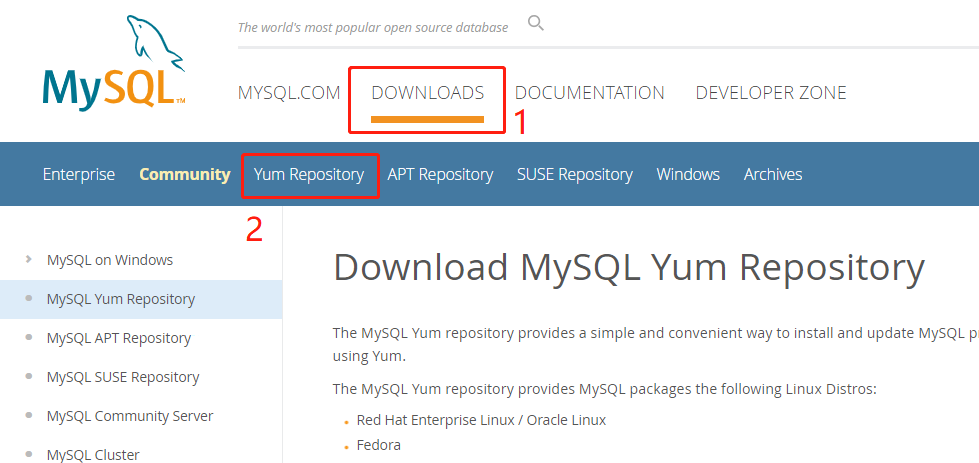
将页面滑动到下面,点击Red Hat Enterprise Linux 7对应的Download下载按钮:

在新的页面找到下方的地址链接,右键复制链接地址:

下载源码包
在Linux系统中使用wget命令下载rpm包,地址即为刚刚在MySQL官网复制的链接地址:
 [root@localhost ~]# wget https://dev.mysql.com/get/mysql80-community-release-el7-3.noarch.rpm

 ---- ::--  https://dev.mysql.com/get/mysql80-community-release-el7-3.noarch.rpm

 正在解析主机 dev.mysql.com (dev.mysql.com)... 137.254.60.11

 正在连接 dev.mysql.com (dev.mysql.com)|137.254.60.11|:... 已连接。

 已发出 HTTP 请求,正在等待回应...  Found

 位置:https://repo.mysql.com//mysql80-community-release-el7-3.noarch.rpm [跟随至新的 URL]

 ---- ::--  https://repo.mysql.com//mysql80-community-release-el7-3.noarch.rpm

 正在解析主机 repo.mysql.com (repo.mysql.com)... 184.26.157.95

 正在连接 repo.mysql.com (repo.mysql.com)|184.26.157.95|:... 已连接。

 已发出 HTTP 请求,正在等待回应...  OK

 长度: (25K) [application/x-redhat-package-manager]

 正在保存至: “mysql80-community-release-el7-.noarch.rpm.”

 %[=====================================================================================================>] ,      .9KB/s 用时 .3s

 -- :: (88.9 KB/s) - 已保存 “mysql80-community-release-el7-.noarch.rpm.” [/])

 [root@localhost ~]#
安装源码包
使用命令安装MySQL的源码包:
 [root@localhost ~]# yum install -y mysql80-community-release-el7-.noarch.rpm

 已加载插件:fastestmirror

 正在检查 mysql80-community-release-el7-.noarch.rpm: mysql80-community-release-el7-.noarch

 mysql80-community-release-el7-.noarch.rpm 将被安装

 正在解决依赖关系

 --> 正在检查事务

 ---> 软件包 mysql80-community-release.noarch..el7- 将被 安装

 --> 解决依赖关系完成

 依赖关系解决

 ...

 完毕!

 [root@localhost ~]#
再次查看yum仓库中的源码包
使用命令查看yum仓库中有关MySQL的软件包:
 [root@localhost ~]# yum repolist all | grep mysql

 mysql-cluster-7.5-community/x86_64 MySQL Cluster 7.5 Community      禁用

 mysql-cluster-7.5-community-source MySQL Cluster 7.5 Community - So 禁用

 mysql-cluster-7.6-community/x86_64 MySQL Cluster 7.6 Community      禁用

 mysql-cluster-7.6-community-source MySQL Cluster 7.6 Community - So 禁用

 mysql-cluster-8.0-community/x86_64 MySQL Cluster 8.0 Community      禁用

 mysql-cluster-8.0-community-source MySQL Cluster 8.0 Community - So 禁用

 !mysql-connectors-community/x86_64 MySQL Connectors Community       启用:

 mysql-connectors-community-source  MySQL Connectors Community - Sou 禁用

 !mysql-tools-community/x86_64      MySQL Tools Community            启用:

 mysql-tools-community-source       MySQL Tools Community - Source   禁用

 mysql-tools-preview/x86_64         MySQL Tools Preview              禁用

 mysql-tools-preview-source         MySQL Tools Preview - Source     禁用

 mysql55-community/x86_64           MySQL 5.5 Community Server       禁用

 mysql55-community-source           MySQL 5.5 Community Server - Sou 禁用

 mysql56-community/x86_64           MySQL 5.6 Community Server       禁用

 mysql56-community-source           MySQL 5.6 Community Server - Sou 禁用

 mysql57-community/x86_64           MySQL 5.7 Community Server       禁用

 mysql57-community-source           MySQL 5.7 Community Server - Sou 禁用

 !mysql80-community/x86_64          MySQL 8.0 Community Server       启用:

 mysql80-community-source           MySQL 8.0 Community Server - Sou 禁用

 [root@localhost ~]#
可以看到,目前默认安装版本是8.0。
修改安装版本
如果要修改MySQL的安装版本,可以通过修改repo配置文件或者通过执行修改命令来实现。
1)修改文件
编辑mysql-community.repo文件,将 [mysql80-community] 下面的enable设置为0表示关闭8.0版本,然后将 [mysql56-community] 下面的enable设置为1表示开启5.6版本。
命令如下:
[root@localhost ~]# vim /etc/yum.repos.d/mysql-community.repo
2)修改命令
关闭8.0版本:
 [root@localhost ~]# yum-config-manager --disable mysql80-community

 已加载插件:fastestmirror

 ====================================================== repo: mysql80-community =======================================================

 [mysql80-community]

 ...

 enabled =

 ...

 [root@localhost ~]#
开启5.6版本:
 [root@localhost ~]# yum-config-manager --enable mysql56-community

 已加载插件:fastestmirror

 ====================================================== repo: mysql56-community =======================================================

 [mysql56-community]

 ...

 enabled =

 ...

 [root@localhost ~]#
安装MySQL
安装
使用yum命令安装:
 [root@localhost ~]# yum install -y mysql-community-server

 ...

 ======================================================================================================================================

  Package                             架构                版本                                    源                              大小

 ======================================================================================================================================

 正在安装:

  mysql-community-server              x86_64              5.6.-.el7                            mysql56-community                M

 为依赖而安装:

  mysql-community-client              x86_64              5.6.-.el7                            mysql56-community                M

  mysql-community-common              x86_64              5.6.-.el7                            mysql56-community               k

  mysql-community-libs                x86_64              5.6.-.el7                            mysql56-community              2.0 M

  net-tools                           x86_64              2.0-0.24.20131004git.el7                base                            k

 ...

 完毕!

 [root@localhost ~]#
查看安装版本
使用命令查看MySQL的安装版本:
 [root@localhost ~]# mysql -V

 mysql  Ver 14.14 Distrib 5.6., for Linux (x86_64) using  EditLine wrapper

 [root@localhost ~]#
启动服务
使用systemctl命令启动并查看MySQL的服务状态:
 [root@localhost ~]# systemctl start mysqld

 [root@localhost ~]# systemctl status mysqld

 ● mysqld.service - MySQL Community Server

    Loaded: loaded (/usr/lib/systemd/system/mysqld.service; enabled; vendor preset: disabled)

    Active: active (running) since 三 -- :: CST; 23s ago

   Process:  ExecStartPost=/usr/bin/mysql-systemd-start post (code=exited, status=/SUCCESS)

   Process:  ExecStartPre=/usr/bin/mysql-systemd-start pre (code=exited, status=/SUCCESS)

  Main PID:  (mysqld_safe)

    CGroup: /system.slice/mysqld.service

            ├─ /bin/sh /usr/bin/mysqld_safe --basedir=/usr

            └─ /usr/sbin/mysqld --basedir=/usr --datadir=/var/lib/mysql --plugin-dir=/usr/lib64/mysql/plugin --log-error=/var/log/mysqld.log...

 8月  :: localhost.localdomain mysql-systemd-start[]: PLEASE REMEMBER TO SET A PASSWORD FOR THE MySQL root USER !

 8月  :: localhost.localdomain mysql-systemd-start[]: To do so, start the server, then issue the following commands:

 8月  :: localhost.localdomain mysql-systemd-start[]: /usr/bin/mysqladmin -u root password 'new-password'

 8月  :: localhost.localdomain mysql-systemd-start[]: /usr/bin/mysqladmin -u root -h localhost.localdomain password 'new-password'

 8月  :: localhost.localdomain mysql-systemd-start[]: Alternatively you can run:

 8月  :: localhost.localdomain mysql-systemd-start[]: /usr/bin/mysql_secure_installation

 8月  :: localhost.localdomain mysql-systemd-start[]: which will also give you the option of removing the test

 8月  :: localhost.localdomain mysqld_safe[]:  :: mysqld_safe Logging to '/var/log/mysqld.log'.

 8月  :: localhost.localdomain mysqld_safe[]:  :: mysqld_safe Starting mysqld daemon with databases from /var/lib/mysql

 8月  :: localhost.localdomain systemd[]: Started MySQL Community Server.

 [root@localhost ~]#
连接数据库
MySQL的5.6版本安装完成后,默认root用户是没有密码的,使用命令登录:
 [root@localhost ~]# mysql -uroot

 Welcome to the MySQL monitor.  Commands end with ; or \g.

 Your MySQL connection id is

 Server version: 5.6. MySQL Community Server (GPL)

 Copyright (c) , , Oracle and/or its affiliates. All rights reserved.

 Oracle is a registered trademark of Oracle Corporation and/or its

 affiliates. Other names may be trademarks of their respective

 owners.

 Type 'help;' or '\h' for help. Type '\c' to clear the current input statement.

 mysql>
查看版本号
使用 select version(); 命令可以查询MySQL的版本:
 mysql> select version();

 +-----------+

 | version() |

 +-----------+

 | 5.6.45    |

 +-----------+

 1 row in set (0.00 sec)

 mysql>
简单配置
使用命令对MySQL进行简单配置:
 [root@localhost ~]# mysql_secure_installation

 NOTE: RUNNING ALL PARTS OF THIS SCRIPT IS RECOMMENDED FOR ALL MySQL

       SERVERS IN PRODUCTION USE!  PLEASE READ EACH STEP CAREFULLY!
输入当前的密码,如果没有设置就回车:
 In order to log into MySQL to secure it, we'll need the current

 password for the root user.  If you've just installed MySQL, and

 you haven't set the root password yet, the password will be blank,

 so you should just press enter here.

 Enter current password for root (enter for none):

 OK, successfully used password, moving on...
是否为root用户设置密码:
 Setting the root password ensures that nobody can log into the MySQL

 root user without the proper authorisation.

 Set root password? [Y/n] y

 New password:

 Re-enter new password:

 Password updated successfully!

 Reloading privilege tables..

  ... Success!
是否删除匿名用户:
 By default, a MySQL installation has an anonymous user, allowing anyone

 to log into MySQL without having to have a user account created for

 them.  This is intended only for testing, and to make the installation

 go a bit smoother.  You should remove them before moving into a

 production environment.

 Remove anonymous users? [Y/n]

  ... Success!
是否允许root用户远程登录:
 Normally, root should only be allowed to connect from 'localhost'.  This

 ensures that someone cannot guess at the root password from the network.

 Disallow root login remotely? [Y/n]

  ... Success!
是否删除test数据库:
 By default, MySQL comes with a database named 'test' that anyone can

 access.  This is also intended only for testing, and should be removed

 before moving into a production environment.

 Remove test database and access to it? [Y/n]

  - Dropping test database...

 ERROR  (HY000) at line : Can't drop database 'test'; database doesn't exist

  ... Failed!  Not critical, keep moving...

  - Removing privileges on test database...

  ... Success!
是否重新加载权限表:
 Reloading the privilege tables will ensure that all changes made so far

 will take effect immediately.

 Reload privilege tables now? [Y/n]

  ... Success!
设置完成:
 All done!  If you've completed all of the above steps, your MySQL

 installation should now be secure.

 Thanks for using MySQL!

 Cleaning up...

 [root@localhost ~]#
卸载MySQL
查看MySQL已安装的软件包:
 [root@localhost ~]# yum list installed | grep mysql

 mysql-community-client.x86_64        5.6.-.el7                   @mysql56-community

 mysql-community-common.x86_64        5.6.-.el7                   @mysql56-community

 mysql-community-libs.x86_64          5.6.-.el7                   @mysql56-community

 mysql-community-server.x86_64        5.6.-.el7                   @mysql56-community

 mysql80-community-release.noarch     el7-                          installed

 [root@localhost ~]#
使用yum命令卸载:
 [root@localhost ~]# yum remove -y mysql80-community-release.noarch mysql-community-client mysql-community-server mysql-community-common mysql-community-libs

 ...

 ======================================================================================================================================

  Package                                  架构                  版本                          源                                 大小

 ======================================================================================================================================

 正在删除:

  mysql-community-client                   x86_64                5.6.-.el7                  @mysql56-community                  M

  mysql-community-common                   x86_64                5.6.-.el7                  @mysql56-community                2.1 M

  mysql-community-libs                     x86_64                5.6.-.el7                  @mysql56-community                9.2 M

  mysql-community-server                   x86_64                5.6.-.el7                  @mysql56-community                 M

  mysql80-community-release                noarch                el7-                         installed                           k

 ...

 完毕!

 [root@localhost ~]#
MySQL入门——在Linux下安装和卸载MySQL的更多相关文章
- MySQL入门——在Linux下安装和卸载MariaDB
MySQL入门——在Linux下安装和卸载MariaDB 摘要:本文主要学习了如何在Linux系统中安装和卸载MariaDB数据库. 查看有没有安装过MariaDB 使用命令查看有没有安装过: [ro ...
- linux下安装和卸载mysql
卸载: 1 . rpm -qa | grep -i mysql命令查看已经安装过的组件. 2. 使用yum -y remove命令卸载已经安装的MySQL组件,使用下面的命令,对于上面已经安装 ...
- 在linux下安装并配置mysql数据库
在linux下安装并配置mysql数据库 工具/原料 MySql5.6 CentOS 方法/步骤 1 查找以前是否安装有mysql,使用下面命令: rpm -qa|grep -i mysql ...
- MySQL入门——在Windows下安装MySQL
MySQL入门——在Windows下安装MySQL 摘要:本文主要说明了如何下Windows环境下安装MySQL. 查看电脑上是否安装了MySQL 打开cmd窗口,输入 services.msc 命令 ...
- 在Linux下安装和使用MySQL
[简 介] 想使用Linux已经很长时间了,由于没有硬性任务一直也没有系统学习,近日由于工作需要必须使用Linux下的MySQL.本以为有Windows下使用SQL Server的经验,觉得在Linu ...
- Linux下安装以及使用MySQL数据库
1.官网下载mysql数据库:https://dev.mysql.com/downloads/mysql/ 2.linux 下可直接下载:wget https://cdn.mysql.com//Dow ...
- Linu下安装与卸载MySQL数据库
卸载MySQL数据库,具体操作如下: (1)rpm -qa | grep -i mysql // 检查是否安装了MySQL的组件 (2)卸载前先关闭MySQL服务, a. b. (3)删除MySQL各 ...
- linux下安装+配置+卸载jdk
一. 解压安装jdk在shell终端下进入jdk1.7.0_55.bin文件所在目录, 执行命令 ./jdk1.7.0_55.bin 这时会出现一段协议,连继敲回车,当询问是否同意的时候,输入yes, ...
- 在linux中安装和卸载mysql
[安装] 已经获取到linux版本的mysql安装包,包括mysql的server(服务端)和client(客户端)的安装包,假设安装包为: MySQL-server-5.0.22-0.i386.rp ...
随机推荐
- ZooKeeper(五):事务处理之更新数据逻辑解析
通过前些文章,我们已经完全从整体架构和数据接入方面理解了ZK的前情工作.接下来,我们就来看ZK的正式工作吧. 本文以 setData /a data 这个命令作为出发点,来观察zk是如何处理来自客户端 ...
- 查看Oracle被锁的表以及如何解锁
注意权限问题 1.查看是否有被锁的表: select b.owner,b.object_name,a.session_id,a.locked_modefrom v$locked_object a,db ...
- .Netcore Swagger - 解决外部库导致的“Actions require an explicit HttpMethod binding for Swagger 2.0”
现象: 项目中导入Ocelot后,swagger页面无法正常显示,查看异常发现 Ocelot.Raft.RaftController 中的 Action 配置不完全,swagger扫描时不能正确生成 ...
- 资深程序员对于Python各个方向的面试经验分享,非常给力!
之前早有前辈们说过,"裸辞一时爽,一直裸辞一直爽",这话一点不假,裸辞你要面临没有收入来源,但是每天眼睁睁看着各种花销不断支出的煎熬,我主要是觉得一边在上家公司工作一边去下家面试可 ...
- cmdb项目-1
1.什么是cmdb 配置管理数据库 ,存储基础设备的各种信息配置等 CMDB可以存储并自动发现整个IT网络上的各种信息,比如一个IT网络上有多少台服务器.多少存储.设备的品牌.资产编号.维护人员.所属 ...
- 对vue-cli各个目录的理解 和 在 vue 中使用json-server
看了几章书,看到了vue模板,看不下去哦,就找了一个B站的vue视频来看,下面进行总结. 学习一个语言,框架,CRUD..先学会. 重点就是最为常用的几个语句.学得不多,感慨挺多.. 前提:下载好vu ...
- SwiftUI学习(一)
总览 如果你想要入门 SwiftUI 的使用,那 Apple 这次给出的官方教程绝对给力.这个教程提供了非常详尽的步骤和说明,网页的交互也是一流,是觉得值得看和动手学习的参考. 不过,SwiftUI ...
- 在没有备份的情况下重新创建丢失的数据文件 (Doc ID 1149946.1)
Recreating a missing datafile with no backups (Doc ID 1149946.1) APPLIES TO: Oracle Database - Enter ...
- linux shell脚本相关知识
最近的项目中,有一个编写linux shell脚本的任务.由于之前不是很熟悉,在这个过程中遇到了很多困难,查找了很多资料,也收获了很多.下面是linux shell脚本中常用的知识总结. 1基础语法 ...
- 【bzoj4945】[Noi2017]游戏(搜索+2-sat)
bzoj 洛谷 题意: 现在有\(a,b,c\)三种车,每个赛道可能会存在限制:\(a\)表示不能选择\(a\)类型的赛车,\(b,c\)同理:\(x\)表示该赛道不受限制,但\(x\)类型的个数$\ ...