
C++第四十三篇 -- VS2017创建控制台程序勾选MFC类库
用VS2017创建EXE带MFC类库方法
1. File --> New --> Project

2. Windows桌面向导
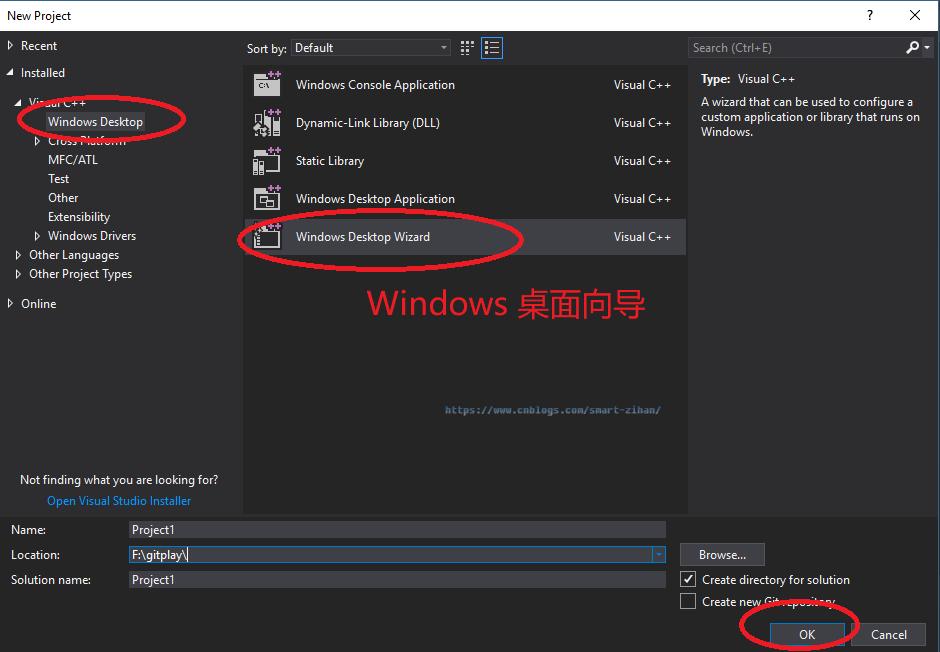
3. 勾选MFC类库
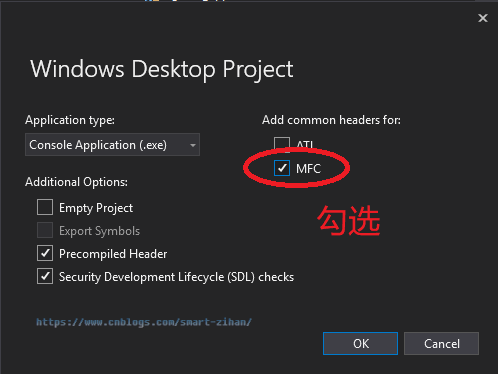
4. 创建成功
如果项目编译出错
1. 项目创建成功后编译报错界面

原因分析:缺少#include <afxwin.h>头文件。
解决方案:在#include "Project1.h"后面添加#include <afxwin.h>,编译通过。
如果上述方法不行,可参考下面解决方法,否则跳过以下内容。
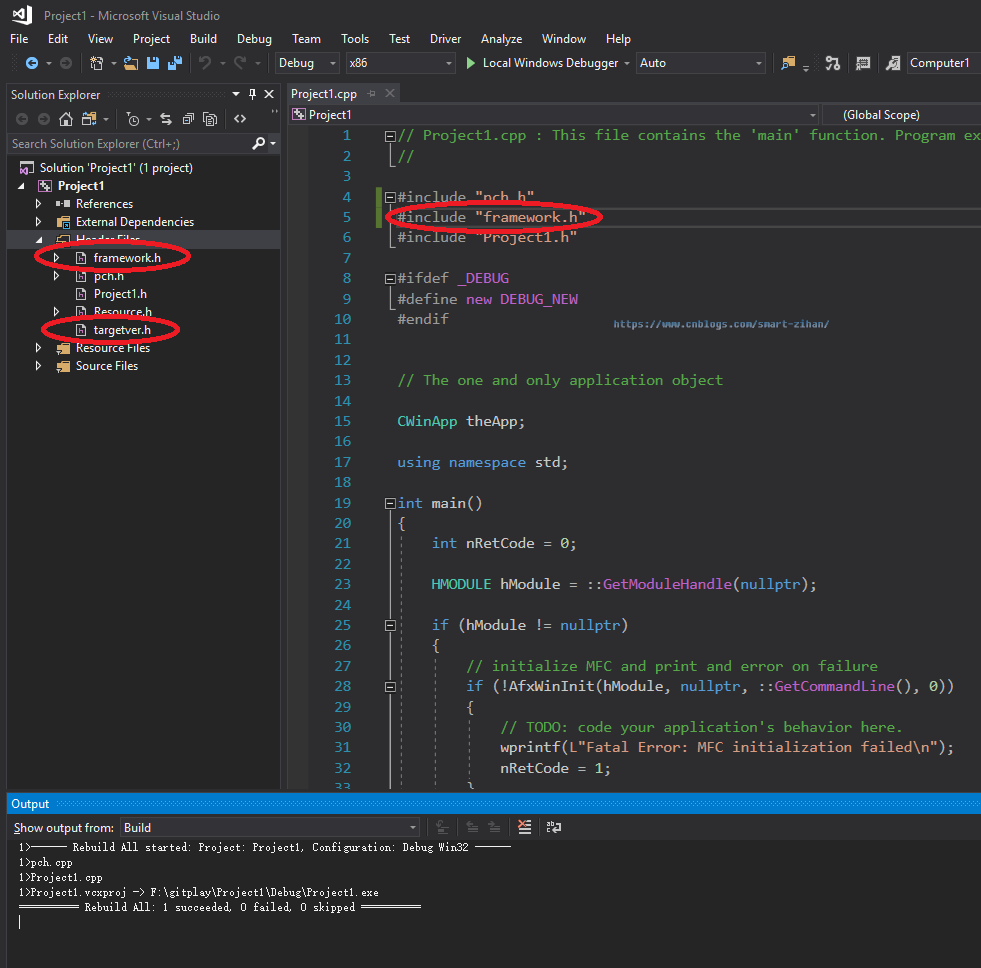
原因分析:对比别人创建成功的项目,发现多了一个#include "framework.h"
解决方案:copy成功项目的framework.h头文件,并#include "framework.h",另外framework.h头文件中引用了targetver.h头文件,因此,将targetver.h头文件也copy过来
2. 编译成功后的界面
3. framework.h


#pragma once

#include "targetver.h"

#include <stdio.h>

#include <tchar.h>

#define _ATL_CSTRING_EXPLICIT_CONSTRUCTORS      // 部分 CString 构造函数将是显式的

#define _AFX_NO_MFC_CONTROLS_IN_DIALOGS         // 移除对话框中的 MFC 控件支持

#ifndef VC_EXTRALEAN

#define VC_EXTRALEAN            // 从 Windows 头文件中排除极少使用的内容

#endif

#include <afx.h>

#include <afxwin.h>         // MFC 核心组件和标准组件

#include <afxext.h>         // MFC 扩展

#ifndef _AFX_NO_OLE_SUPPORT

#include <afxdtctl.h>           // MFC 对 Internet Explorer 4 公共控件的支持

#endif

#ifndef _AFX_NO_AFXCMN_SUPPORT

#include <afxcmn.h>                     // MFC 对 Windows 公共控件的支持

#endif // _AFX_NO_AFXCMN_SUPPORT

#include <iostream>
4. targetver.h
#pragma once

// // 包含 SDKDDKVer.h 可定义可用的最高版本的 Windows 平台。

// 如果希望为之前的 Windows 平台构建应用程序,在包含 SDKDDKVer.h 之前请先包含 WinSDKVer.h 并

// 将 _WIN32_WINNT 宏设置为想要支持的平台。

#include <SDKDDKVer.h>
这样就不会编译出错了。
EXE调用MFC窗口
1. 新建一个子窗口
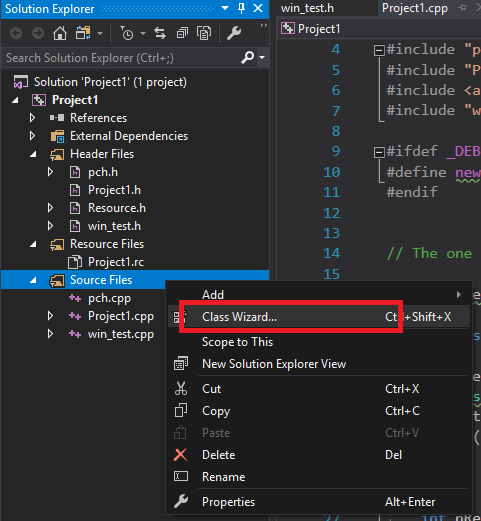

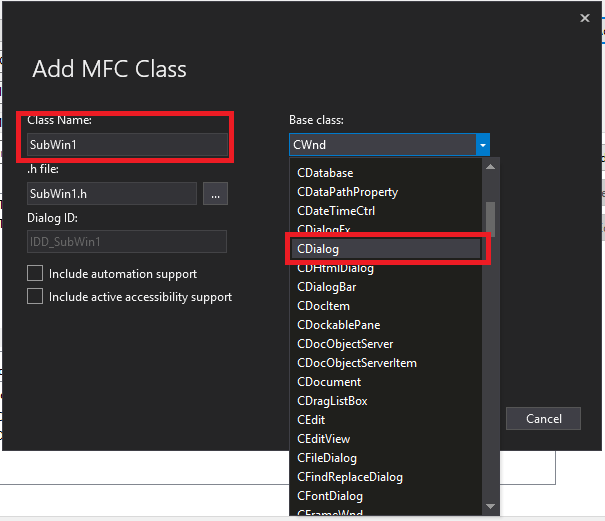
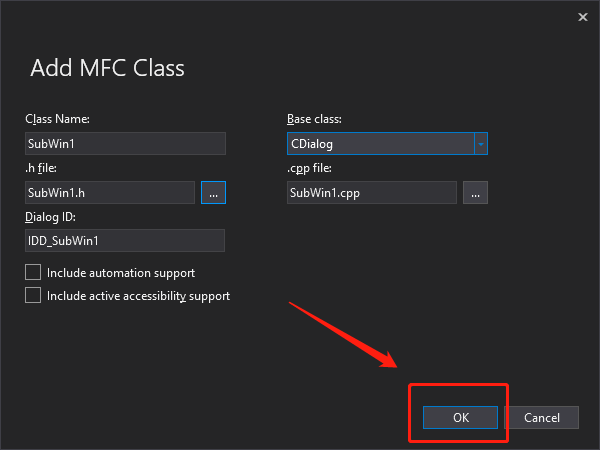
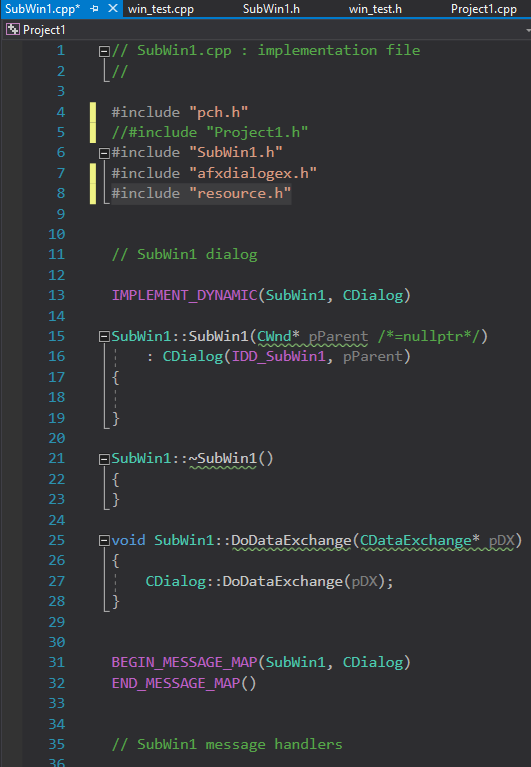
2. 修改SubWin1.cpp中#include "stdafx.h"为#include "pch.h"并且注释掉#include "Project1.h",然后添加#include "resource.h"如下
3. 在Project1.cpp中添加#include "SubWin1.h",然后用以下语句调用SubWin窗口
    SubWin1 *chartdialog = new SubWin1;

    int ReturnValue = chartdialog->DoModal(); // Show the dialog

    printf("%d\n", ReturnValue);
Project1.cpp
// Project1.cpp : This file contains the 'main' function. Program execution begins and ends there.

//

#include "pch.h"

#include "Project1.h"

#include <afxwin.h>

#include "win_test.h"

#include "SubWin1.h"

#ifdef _DEBUG

#define new DEBUG_NEW

#endif

// The one and only application object

CWinApp theApp;

using namespace std;

void win_test_show() {

    //win_test *chartdialog = new win_test;

    //int ReturnValue = chartdialog->DoModal(); // Show the dialog

    //printf("%d\n", ReturnValue);

    SubWin1 *chartdialog = new SubWin1;

    int ReturnValue = chartdialog->DoModal(); // Show the dialog

    printf("%d\n", ReturnValue);

}

int call() {

    int nRetCode = 0;

    HMODULE hModule = ::GetModuleHandle(nullptr);

    if (hModule != nullptr)

    {

        // initialize MFC and print and error on failure

        if (!AfxWinInit(hModule, nullptr, ::GetCommandLine(), 0))

        {

            // TODO: code your application's behavior here.

            wprintf(L"Fatal Error: MFC initialization failed\n");

            nRetCode = 1;

        }

        else

        {

            // TODO: code your application's behavior here.

            win_test_show();

        }

    }

    else

    {

        // TODO: change error code to suit your needs

        wprintf(L"Fatal Error: GetModuleHandle failed\n");

        nRetCode = 1;

    }

    return nRetCode;

}

int main()

{

    int nRetCode = 0;

    call();

    return nRetCode;

}
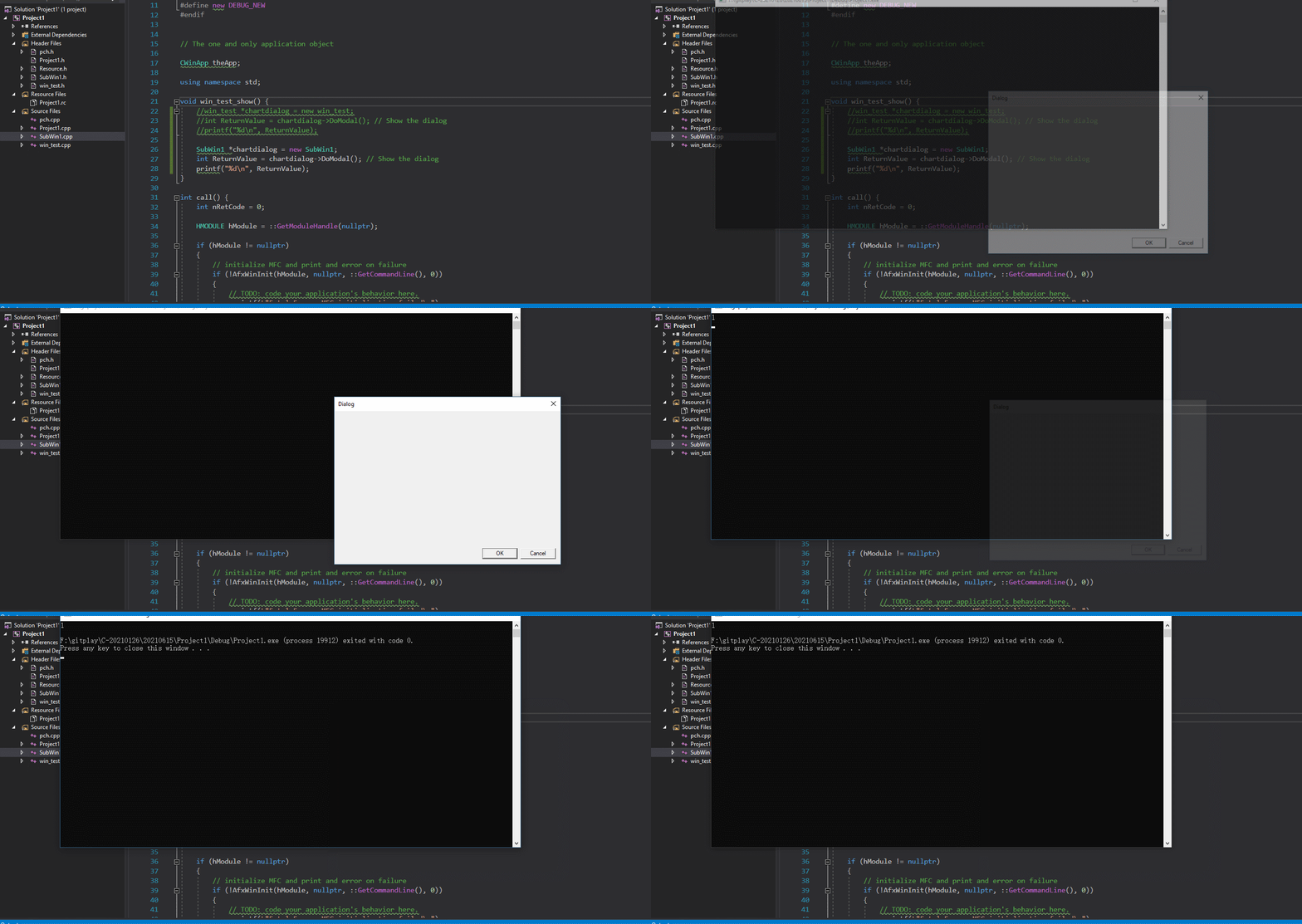
可以看到窗口已经成功调用了
创建DLL带MFC类库方法
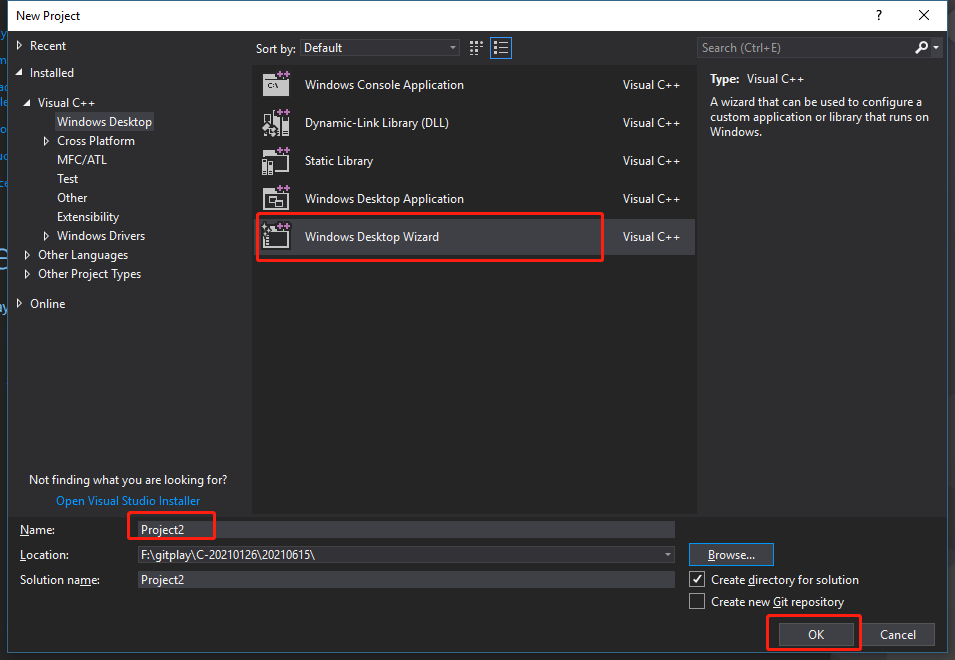
1. 新建一个Windows Desktop Wizard项目
2. 勾选MFC,新建DLL
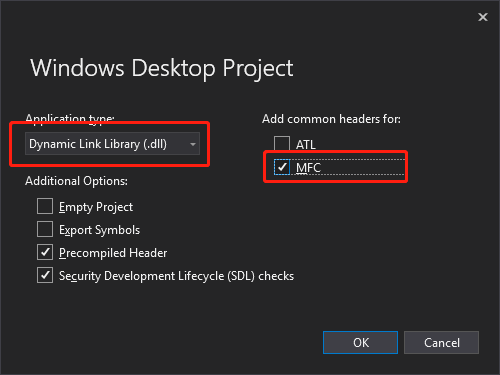
3. 编译程序,编译成功。
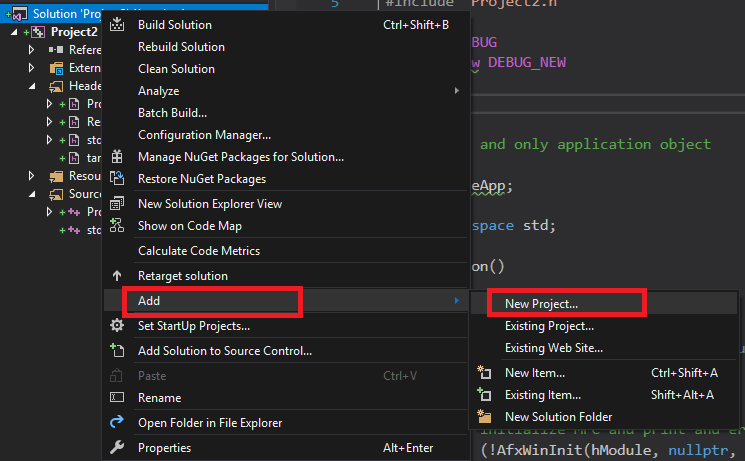
4. 新建一个Win32程序用来测试Dll

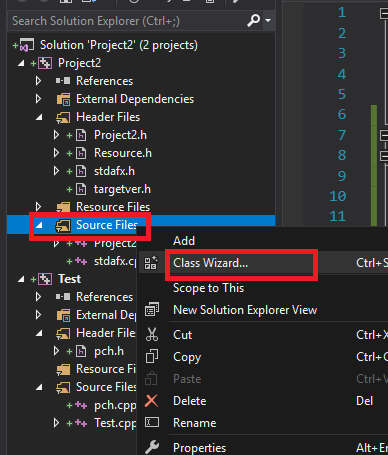
5. 在Dll中新建一个MFC的窗口
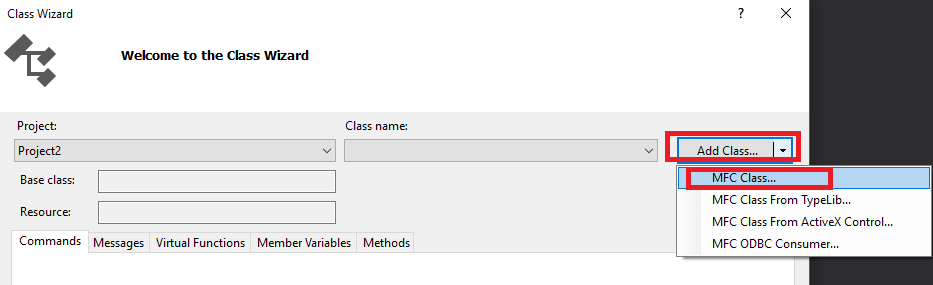
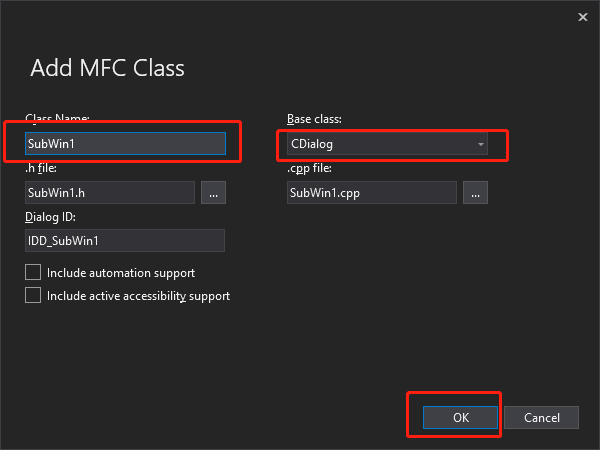
6. Project2.cpp中调用它,修改Project.cpp如下
// Project2.cpp : Defines the exported functions for the DLL application.

//

#include "stdafx.h"

#include "Project2.h"

#include "SubWin1.h"

#ifdef _DEBUG

#define new DEBUG_NEW

#endif

// The one and only application object

CWinApp theApp;

using namespace std;

int Function()

{

    int nRetCode = 0;

    HMODULE hModule = ::GetModuleHandle(nullptr);

    if (hModule != nullptr)

    {

        // initialize MFC and print and error on failure

        if (!AfxWinInit(hModule, nullptr, ::GetCommandLine(), 0))

        {

            // TODO: code your application's behavior here.

            wprintf(L"Fatal Error: MFC initialization failed\n");

            nRetCode = 1;

        }

        else

        {

            // TODO: code your application's behavior here.

            SubWin1 *chartdialog = new SubWin1;

            int ReturnValue = chartdialog->DoModal(); // Show the dialog

            printf("%d\n", ReturnValue);

        }

    }

    else

    {

        // TODO: change error code to suit your needs

        wprintf(L"Fatal Error: GetModuleHandle failed\n");

        nRetCode = 1;

    }

    return nRetCode;

}
7. 修改Project.h如下
// The following ifdef block is the standard way of creating macros which make exporting

// from a DLL simpler. All files within this DLL are compiled with the {0}_EXPORTS

// symbol defined on the command line. This symbol should not be defined on any project

// that uses this DLL. This way any other project whose source files include this file see

// {0}_API functions as being imported from a DLL, whereas this DLL sees symbols

// defined with this macro as being exported.

#ifdef __cplusplus

extern "C" {

#endif

#ifdef PROJECT2_EXPORTS

#define PROJECT2_API __declspec(dllexport)

#else

#define PROJECT2_API __declspec(dllimport)

#endif

// This class is exported from the dllxiu

    PROJECT2_API int Function();

#ifdef __cplusplus

}

#endif
8. 将SubWin1.cpp中添加头文件#include "resource.h"
// SubWin1.cpp : implementation file

//

#include "stdafx.h"

#include "Project2.h"

#include "SubWin1.h"

#include "afxdialogex.h"

#include "resource.h"

// SubWin1 dialog

IMPLEMENT_DYNAMIC(SubWin1, CDialog)

SubWin1::SubWin1(CWnd* pParent /*=nullptr*/)

    : CDialog(IDD_SubWin1, pParent)

{

}

SubWin1::~SubWin1()

{

}

void SubWin1::DoDataExchange(CDataExchange* pDX)

{

    CDialog::DoDataExchange(pDX);

}

BEGIN_MESSAGE_MAP(SubWin1, CDialog)

END_MESSAGE_MAP()

// SubWin1 message handlers
9. 编辑Test.cpp调用dll,本次采用的是静态加载DLL的方法,具体操作方法可以看前文。
// Test.cpp : This file contains the 'main' function. Program execution begins and ends there.

//

#include "pch.h"

#include <iostream>

#include "../Project2/Project2.h"

int main()

{

    std::cout << "Hello World!\n";

    Function();

}

// Run program: Ctrl + F5 or Debug > Start Without Debugging menu

// Debug program: F5 or Debug > Start Debugging menu

// Tips for Getting Started:

//   1. Use the Solution Explorer window to add/manage files

//   2. Use the Team Explorer window to connect to source control

//   3. Use the Output window to see build output and other messages

//   4. Use the Error List window to view errors

//   5. Go to Project > Add New Item to create new code files, or Project > Add Existing Item to add existing code files to the project

//   6. In the future, to open this project again, go to File > Open > Project and select the .sln file
10. 执行结果如下

chartdialog->DoModal()的返回结果居然是-1,这里就是DLL调用MFC类和EXE调用MFC类的区别所在了。解决这个问题的关键就是要在调用窗口语句之前加上AFX_MANAGE_STATE(AfxGetStaticModuleState());这句话。
Project2.cpp
// Project2.cpp : Defines the exported functions for the DLL application.

//

#include "stdafx.h"

#include "Project2.h"

#include "SubWin1.h"

#ifdef _DEBUG

#define new DEBUG_NEW

#endif

// The one and only application object

CWinApp theApp;

using namespace std;

int Function()

{

    int nRetCode = 0;

    HMODULE hModule = ::GetModuleHandle(nullptr);

    if (hModule != nullptr)

    {

        // initialize MFC and print and error on failure

        if (!AfxWinInit(hModule, nullptr, ::GetCommandLine(), 0))

        {

            // TODO: code your application's behavior here.

            wprintf(L"Fatal Error: MFC initialization failed\n");

            nRetCode = 1;

        }

        else

        {

            // TODO: code your application's behavior here.

            AFX_MANAGE_STATE(AfxGetStaticModuleState());

            SubWin1 *chartdialog = new SubWin1;

            int ReturnValue = chartdialog->DoModal(); // Show the dialog

            printf("%d\n", ReturnValue);

        }

    }

    else

    {

        // TODO: change error code to suit your needs

        wprintf(L"Fatal Error: GetModuleHandle failed\n");

        nRetCode = 1;

    }

    return nRetCode;

}
这样就可以成功的在DLL中调出窗口。
C++第四十三篇 -- VS2017创建控制台程序勾选MFC类库的更多相关文章
- 四十三、在SAP中初始化勾选值
一.上代码 二.运行时,勾选框会被自动勾选中 三.表单如下
- Visual 中控制台程序如何使用MFC类库
unresolved external symbol __beginthreadex错误的解决Win32 Consle Application使用MFC的一些类如CString时编译时相信会很经常遇到 ...
- 控制台程序的参数解析类库 CommandLine
C#控制台程序的参数解析类库 CommandLine简单使用说明 前言 C#开发的控制台程序,默认接收string[] args参数.如果有多个参数需要输入时,可以按照顺序依次输入:但如果有些参数不是 ...
- C#控制台程序的参数解析类库 CommandLine简单使用说明
前言 C#开发的控制台程序,默认接收string[] args参数.如果有多个参数需要输入时,可以按照顺序依次输入:但如果有些参数不是必选的,或者有些参数中间需要有空格比如时间“2016-05-18 ...
- Android UI开发第四十三篇——使用Property Animation实现墨迹天气3.0引导界面及动画实现
前面写过<墨迹天气3.0引导界面及动画实现>,里面完美实现了动画效果,那一篇文章使用的View Animation,这一篇文章使用的Property Animation实现.Propert ...
- 第四十三篇、利用NSProxy解决NSTimer内存泄漏问题
问题描述: 用NSTimer来实现每隔一定时间执行制定的任务,例如最常见的广告轮播图.如果我们在 timerWithTimeInterval:1 target:self 中指定target为当前控制器 ...
- Python学习笔记(四十三)virtualenv (创建一套“隔离”的Python运行环境)
摘抄自:https://www.liaoxuefeng.com/wiki/0014316089557264a6b348958f449949df42a6d3a2e542c000/001432712108 ...
- Python之路(第四十三篇)线程的生命周期、全局解释器锁
一.线程的生命周期(新建.就绪.运行.阻塞和死亡) 当线程被创建并启动以后,它既不是一启动就进入执行状态的,也不是一直处于执行状态的,在线程的生命周期中,它要经过新建(new).就绪(Ready).运 ...
- VS2017创建控制台应用后,编写完代码调试正常,使用exe文件直接执行出现闪退情况解决方法。
这是因为代码中包含的相对路径的原因. 解决办法:把项目中包含的所有相对路径修改为绝对路径. (个人觉得因为直接执行exe文件,默认打开在C盘的用户目录下.) 例如: std::string DATA_ ...
随机推荐
- 【NX二次开发】NX内部函数,libufunx.dll文件中的内部函数
本文分为两部分:"带参数的函数"和 "带修饰的函数". 浏览这篇博客前请先阅读: [NX二次开发]NX内部函数,查找内部函数的方法 带参数的函数: void e ...
- python学习笔记04-了解操作符与条件分支
先来了解一下条件操作符: 运算符 描述 示例 == 检查两个操作数的值是否相等,如果是则条件变为真. 如a=3,b=3则(a == b) 为 true. != 检查两个操作数的值是否相等,如果值不相等 ...
- 惊呆了,Spring Boot居然这么耗内存!
Spring Boot总体来说,搭建还是比较容易的,特别是Spring Cloud全家桶,简称亲民微服务,但在发展趋势中,容器化技术已经成熟,面对巨耗内存的Spring Boot,小公司表示用不起.如 ...
- excel VBA构造函数就是这么简单
Function test(a As Integer)'构造函数名字为test参数为a且为int型 If a >= 90 Then Debug.Print "优秀" ...
- ABP Framework V4.4 RC 新增功能介绍
目录 新增功能概述 启动模板删除 EntityFrameworkCore.DbMigrations 项目 CMS-Kit 动态菜单管理 Razor引擎对文本模板的支持 DbContext/Entiti ...
- 41、shell编程基础
bash的变量默认都是全局变量,脚本内都可以调用,无论在什么位置(函数体中也一样),即函数体外可以调用函数体内的变量: local一般用于局部变量声明,多在函数体内使用: 如果要变为局部变量,则要使用 ...
- 23、ORA-00439:DEFERRED_SEGMENT_CREATION 问题解决
23.1.说明: 1. 众所周知,在清空表内所有数据时,truncate比delete要快很多,原因是,delete语句每次删除一行,都在事务日志中为所删除的每行记录一项. truncate通过释放存 ...
- hdu 1556 Color the ball 线段树 区间更新
水一下 #include <bits/stdc++.h> #define lson l, m, rt<<1 #define rson m+1, r, rt<<1|1 ...
- hdu 2604 递推 矩阵快速幂
HDU 2604 Queuing (递推+矩阵快速幂) 这位作者讲的不错,可以看看他的 #include <cstdio> #include <iostream> #inclu ...
- drf-路由和认证
目录 一.路由Routers SimpleRouter DefaultRouter action的使用 二.认证 认证的写法 认证源码分析 认证组件的使用 一.路由Routers 在 Rest Fra ...