
Prism for Xamarin.Forms
一、使用环境
OS:Win 10 16273
VS:VS2017- 15.3.4
Xamarin:4.6.3.4,nuget:2.4
Android Emulator:Visual Studio for Android Emulator(相比 Android Emulator不用下载SDK,而且启动快)
二、安装 Prism 模块
工具——扩展和更新——搜索 Prism Template Pack——安装
三、开始搞起
1.先建个项目
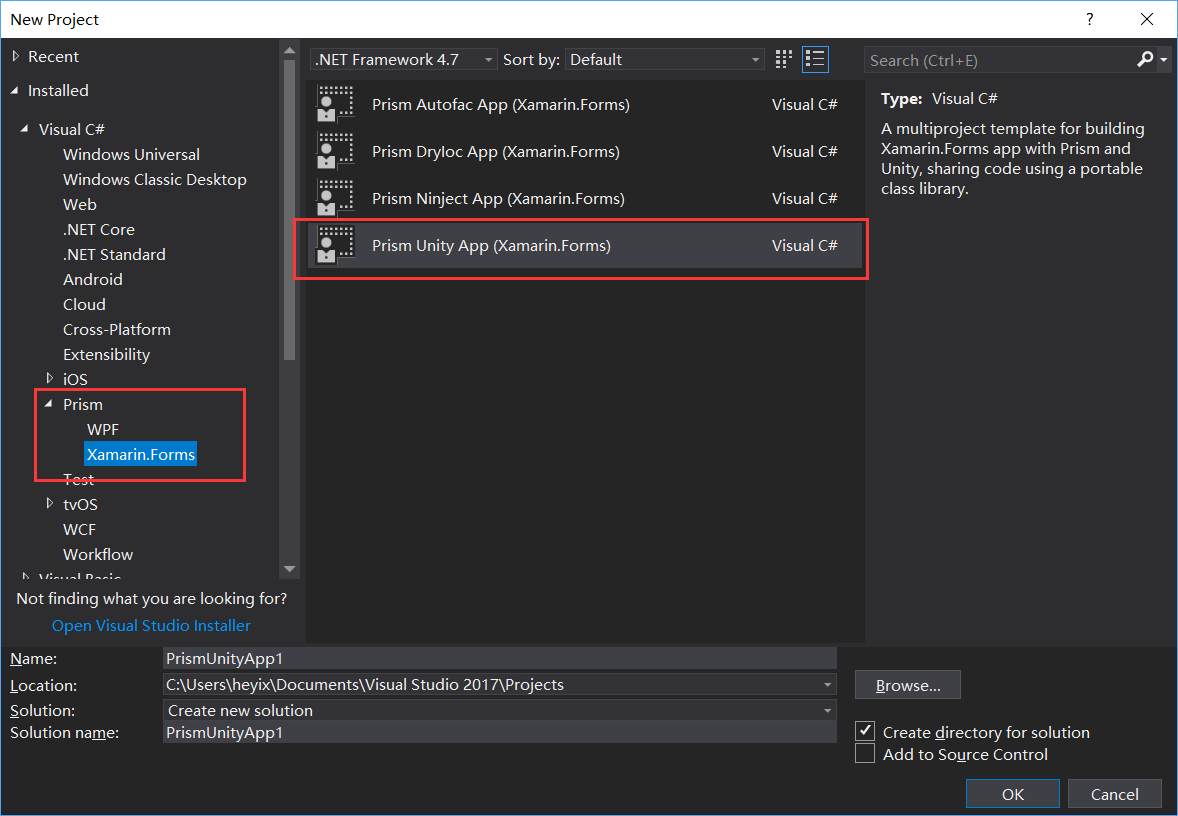
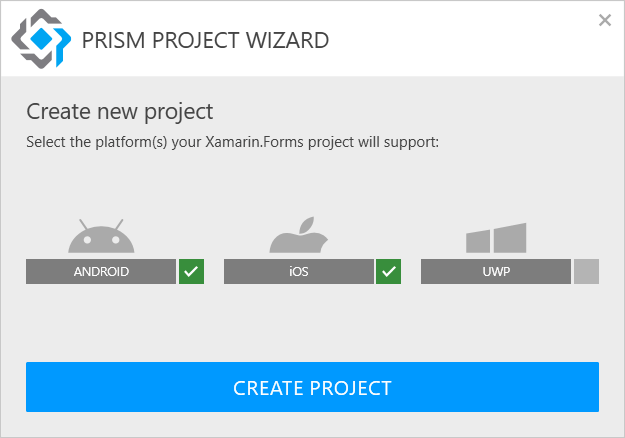
2.添加页面
Views文件夹右键——添加——新建项,弹出来的对话框先选中左边的 Prism 节点
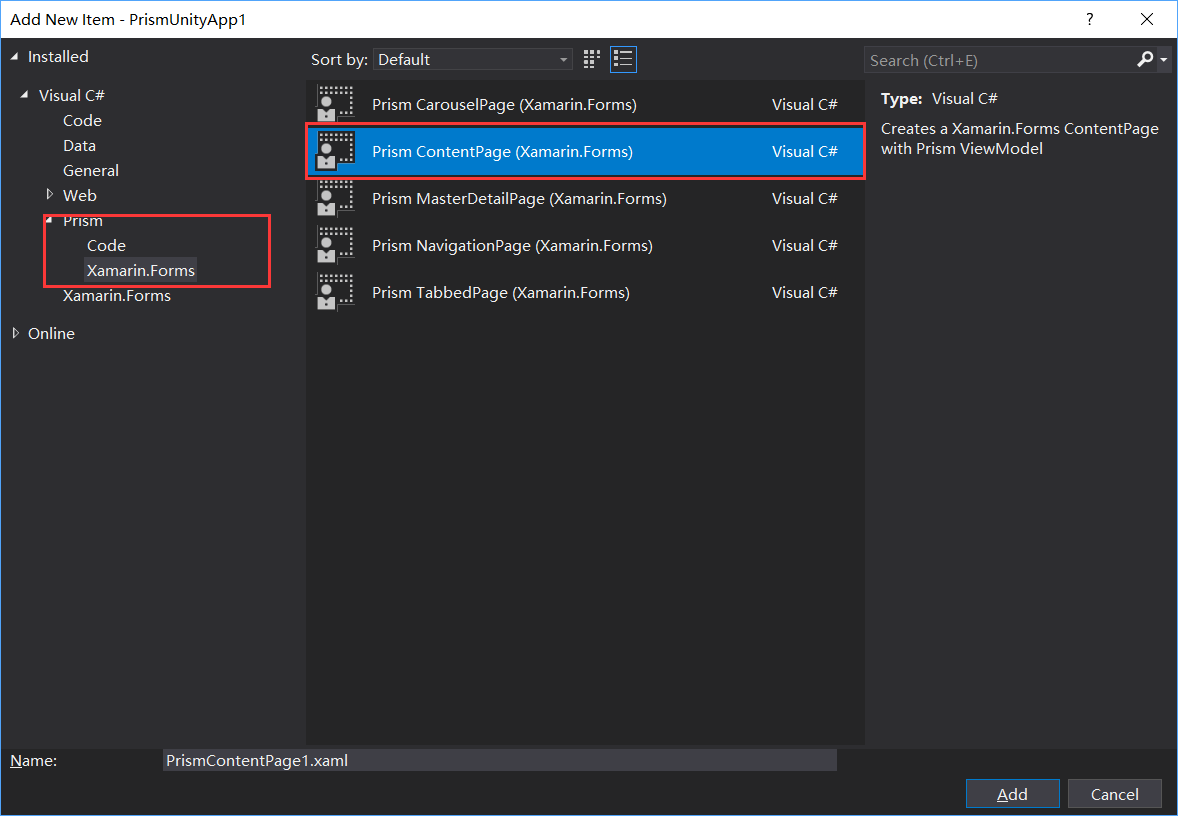
确定后,你会发现 App.xaml.cs 文件里注入了新建的页面, ViewModels 文件夹下也多出了 ViewModel ,Views 新添加的文件也是和 ViewModel 绑定好的
<?xml version="1.0" encoding="utf-8" ?>

<ContentPage

    x:Class="SD.Xamarin.Views.LoginPage"

    xmlns="http://xamarin.com/schemas/2014/forms"

    xmlns:x="http://schemas.microsoft.com/winfx/2009/xaml"

    xmlns:prism="clr-namespace:Prism.Mvvm;assembly=Prism.Forms"

    Title="Login"

    prism:ViewModelLocator.AutowireViewModel="True">

    <ContentPage.ToolbarItems>

        <ToolbarItem Text="Regist" />

    </ContentPage.ToolbarItems>

    <StackLayout

        Padding="20"

        Spacing="20"

        VerticalOptions="Center">

        <Entry Placeholder="Username" Text="{Binding Username}" />

        <Entry

            IsPassword="true"

            Placeholder="Password"

            Text="{Binding Password}" />

        <Button

            BackgroundColor="#77D065"

            Command="{Binding LoginCommand}"

            Text="Login"

            TextColor="White" />

    </StackLayout>

</ContentPage>
public class LoginPageViewModel : BindableBase

    {

        private readonly INavigationService _navigationService;

        private readonly IEventAggregator _eventAggregator;

        private readonly IPageDialogService _pageDialogService;

        private string _username;

        public string Username

        {

            get { return _username; }

            set

            {

                _username = value;

                RaisePropertyChanged();

            }

        }

        private string _password;

        public string Password

        {

            get { return _password; }

            set

            {

                _password = value;

                RaisePropertyChanged();

            }

        }

        private ICommand _loginCommand;

        public ICommand LoginCommand

        {

            get { return _loginCommand ?? new DelegateCommand(Login); }

            set { _loginCommand = value; }

        }

        public LoginPageViewModel(INavigationService navigationService, IEventAggregator eventAggregator, IPageDialogService pageDialogService)

        {

            _navigationService = navigationService;

            _eventAggregator = eventAggregator;

            _pageDialogService = pageDialogService;

        }

        private async void Login()

        {

            if (!string.IsNullOrEmpty(Username) && !string.IsNullOrEmpty(Password))

            {

                await _navigationService.NavigateAsync(nameof(DataCabinPage));

            }

            else

            {

                await _pageDialogService.DisplayAlertAsync("Error", "Wrong Username or Password", "OK!");

            }

        }

    }
3.添加一个 Master 页面作为主页面
<?xml version="1.0" encoding="utf-8" ?>

<MasterDetailPage

    x:Class="SD.Xamarin.Views.MasterPage"

    xmlns="http://xamarin.com/schemas/2014/forms"

    xmlns:x="http://schemas.microsoft.com/winfx/2009/xaml"

    xmlns:behaviors="clr-namespace:Prism.Behaviors;assembly=Prism.Forms"

    xmlns:prism="clr-namespace:Prism.Mvvm;assembly=Prism.Forms"

    xmlns:views="clr-namespace:SD.Xamarin.Views;assembly=SD.Xamarin"

    Title="Master"

    prism:ViewModelLocator.AutowireViewModel="True">

    <MasterDetailPage.Master>

        <NavigationPage Title="Required Foo" Icon="hamburger.png">

            <x:Arguments>

                <views:DataCabinPage />

            </x:Arguments>

        </NavigationPage>

    </MasterDetailPage.Master>

</MasterDetailPage>
Master里的子页面
<?xml version="1.0" encoding="utf-8" ?>

<ContentPage

    x:Class="SD.Xamarin.Views.DataCabinPage"

    xmlns="http://xamarin.com/schemas/2014/forms"

    xmlns:x="http://schemas.microsoft.com/winfx/2009/xaml"

    xmlns:behaviors="clr-namespace:Prism.Behaviors;assembly=Prism.Forms"

    xmlns:prism="clr-namespace:Prism.Mvvm;assembly=Prism.Forms"

    Title="DataCabin"

    prism:ViewModelLocator.AutowireViewModel="True">

    <ContentPage.ToolbarItems>

        <ToolbarItem Command="GoBackCommand" Text="Back" />

    </ContentPage.ToolbarItems>

    <ListView

        x:Name="listView"

        CachingStrategy="RecycleElement"

        GroupDisplayBinding="{Binding Key}"

        GroupShortNameBinding="{Binding Key}"

        IsGroupingEnabled="True"

        ItemsSource="{Binding DataCabinsGrouped}"

        SelectedItem="{Binding SelectedDataCabin}">

        <ListView.Behaviors>

            <behaviors:EventToCommandBehavior Command="{Binding ItemTappedCommand}" EventName="ItemTapped" />

        </ListView.Behaviors>


        <ListView.GroupHeaderTemplate>

            <DataTemplate>

                <ViewCell>

                    <StackLayout Orientation="Horizontal">

                        <Image Source="hamburger.png" />

                        <Label

                            FontSize="18"

                            Text="{Binding Key}"

                            TextColor="DeepSkyBlue"

                            VerticalTextAlignment="Center" />

                    </StackLayout>

                </ViewCell>

            </DataTemplate>

        </ListView.GroupHeaderTemplate>

        <ListView.ItemTemplate>

            <DataTemplate>

                <ViewCell>

                    <Label

                        Text="{Binding Name}"

                        TextColor="White"

                        VerticalTextAlignment="Center" />

                </ViewCell>

            </DataTemplate>

        </ListView.ItemTemplate>

    </ListView>

</ContentPage>
public class DataCabinPageViewModel : BindableBase

    {

        private readonly INavigationService _navigationService;

        private readonly IEventAggregator _eventAggregator;

        private readonly IPageDialogService _pageDialogService;

        private DataCabinModel _selectedDataCabin;

        public DataCabinModel SelectedDataCabin

        {

            get { return _selectedDataCabin; }

            set

            {

                _selectedDataCabin = value;

                RaisePropertyChanged();

            }

        }

        private ObservableCollection<DataCabinModel> _dataCabins;

        public ObservableCollection<DataCabinModel> DataCabins

        {

            get { return _dataCabins; }

            set

            {

                _dataCabins = value;

                RaisePropertyChanged();

            }

        }

        private ObservableCollection<GroupingModel<string, DataCabinModel>> _dataCabinsGrouped;

        public ObservableCollection<GroupingModel<string, DataCabinModel>> DataCabinsGrouped

        {

            get { return _dataCabinsGrouped; }

            set

            {

                _dataCabinsGrouped = value;

                RaisePropertyChanged();

            }

        }

        private ICommand _itemTappedCommand;

        public ICommand ItemTappedCommand

        {

            get { return _itemTappedCommand ?? new DelegateCommand(ItemTapped); }

            set { _itemTappedCommand = value; }

        }

        private ICommand _goBackCommand;

        public ICommand GoBackCommand

        {

            get { return _goBackCommand ?? new DelegateCommand(GoBack); }

            set { _goBackCommand = value; }

        }

        public DataCabinPageViewModel(INavigationService navigationService, IEventAggregator eventAggregator, IPageDialogService pageDialogService)

        {

            _navigationService = navigationService;

            _eventAggregator = eventAggregator;

            _pageDialogService = pageDialogService;

            DataCabins = new ObservableCollection<DataCabinModel>()

            {

                new DataCabinModel(){Id=1,Name = "T1",GroupName="G1",DisplayType= DataCabinType.Chart},

                new DataCabinModel(){Id=2,Name = "T2",GroupName="G1",DisplayType= DataCabinType.Grid},

                new DataCabinModel(){Id=3,Name = "T3",GroupName="G2",DisplayType= DataCabinType.Guage},

                new DataCabinModel(){Id=4,Name = "T4",GroupName="G2",DisplayType= DataCabinType.Map}

            };

            var grouped = from menuItem in DataCabins

                          orderby menuItem.Id

                          group menuItem by menuItem.GroupName into menuItemGroup

                          select new GroupingModel<string, DataCabinModel>(menuItemGroup.Key, menuItemGroup);

            DataCabinsGrouped = new ObservableCollection<GroupingModel<string, DataCabinModel>>(grouped);

        }

        private async void ItemTapped()

        {

            switch (SelectedDataCabin.DisplayType)

            {

                case DataCabinType.Chart:

                    await _navigationService.NavigateAsync("/Master/Navigation/" + nameof(ChartPage));

                    break;

                case DataCabinType.Grid:

                    await _navigationService.NavigateAsync("/Master/Navigation/" + nameof(GridPage));

                    break;

                case DataCabinType.Guage:

                    await _navigationService.NavigateAsync("/Master/Navigation/" + nameof(GuagePage));

                    break;

                case DataCabinType.Map:

                    await _navigationService.NavigateAsync("/Master/Navigation/" + nameof(MapPage));

                    break;

                default:

                    throw new ArgumentOutOfRangeException();

            }

        }

        private void GoBack()

        {

            _navigationService.NavigateAsync(nameof(DataCabinPage));

        }

    }
App.xaml
public partial class App : PrismApplication

    {

        public App(IPlatformInitializer initializer = null)

            : base(initializer)

        { }

        protected override void OnInitialized()

        {

            InitializeComponent();

            NavigationService.NavigateAsync(nameof(LoginPage));

        }

        protected override void RegisterTypes()

        {

            Container.RegisterTypeForNavigation<NavigationPage>("Navigation");

            Container.RegisterTypeForNavigation<RegistPage>();

            Container.RegisterTypeForNavigation<LoginPage>();

            Container.RegisterTypeForNavigation<MasterPage>("Master");

            Container.RegisterTypeForNavigation<ChartPage>();

            Container.RegisterTypeForNavigation<GridPage>();

            Container.RegisterTypeForNavigation<GuagePage>();

            Container.RegisterTypeForNavigation<MapPage>();

            Container.RegisterTypeForNavigation<DataCabinPage>();

        }

    }
这是最终的 App 文件,注意其中的NavigationPage 和MasterPage 后边都加了参数,用来导航用的,因为想要汉堡包样式
汉堡包的图片是从官方例子复制的,需要放到
Android: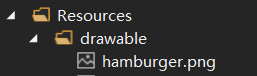
IOS:直接 Resources 文件夹下
导航的写法 await _navigationService.NavigateAsync("/Master/Navigation/" + nameof(ChartPage)); 这里就是App.xaml.cs 文件里注册时的那个参数,本来想把前边也写出nameof 的方式,但是发现直接失败了,就只能这样了
其他的代码都很建单,也没写什么逻辑,就不贴了,大概就是这个样子,嗯,下一步就要引入 syncfusion 的控件才行了,这样才好看,也能有很多控件用(主要是实在不知道写什么业务)
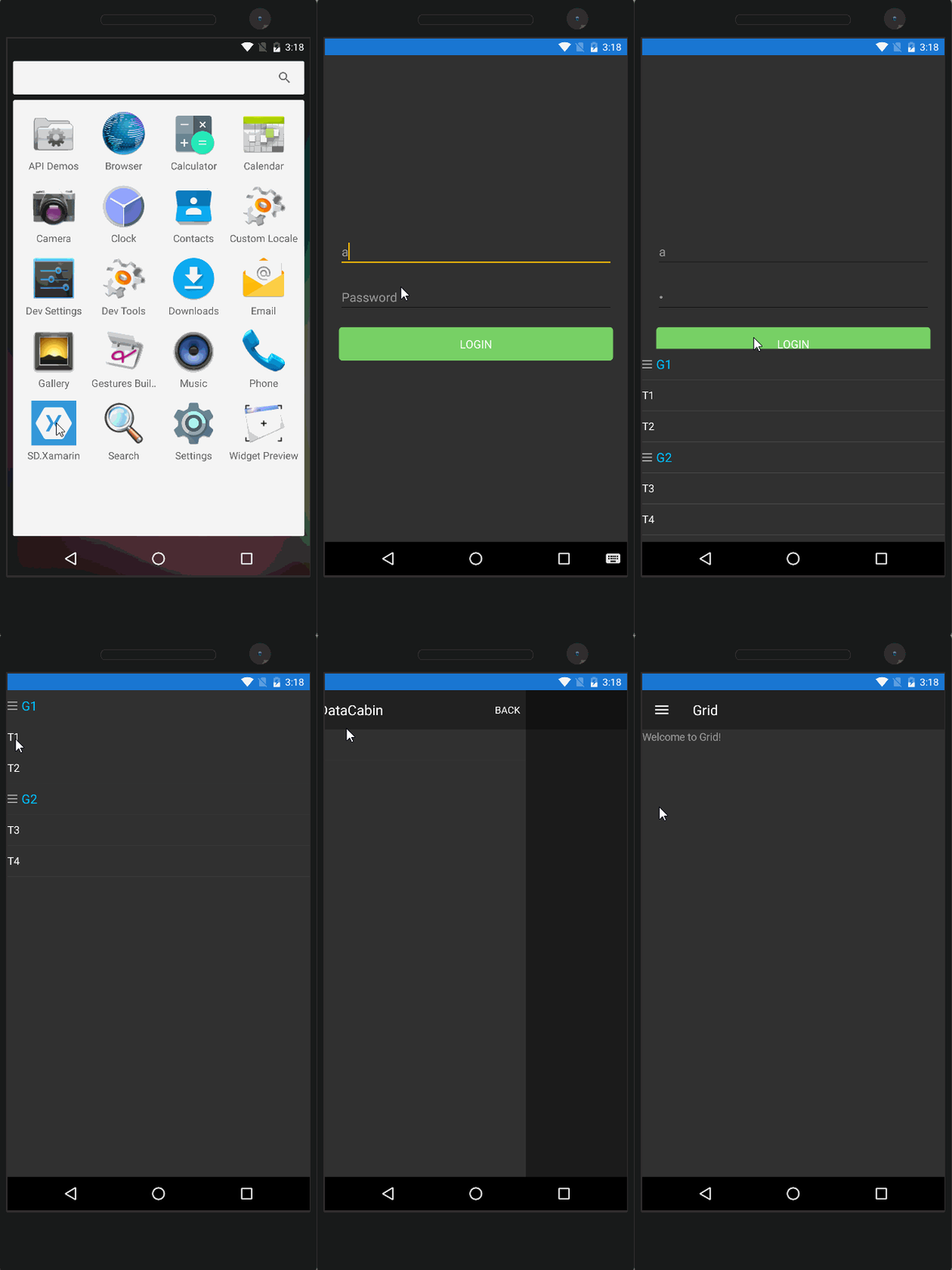
动态图
四、模拟器
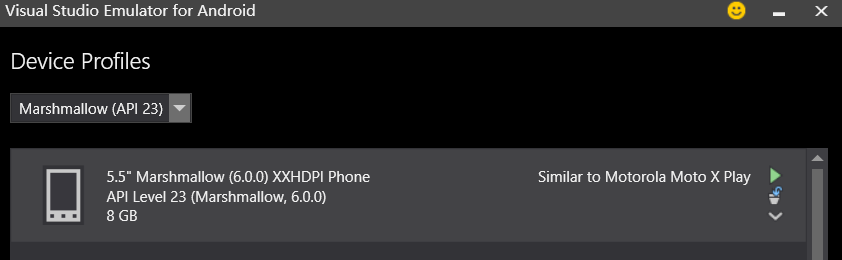
工具——Visual Studio Emulator for Android 弹出的里边选择一个下载就好了,是基于Hyper-V 的,需要确定你的机器支持
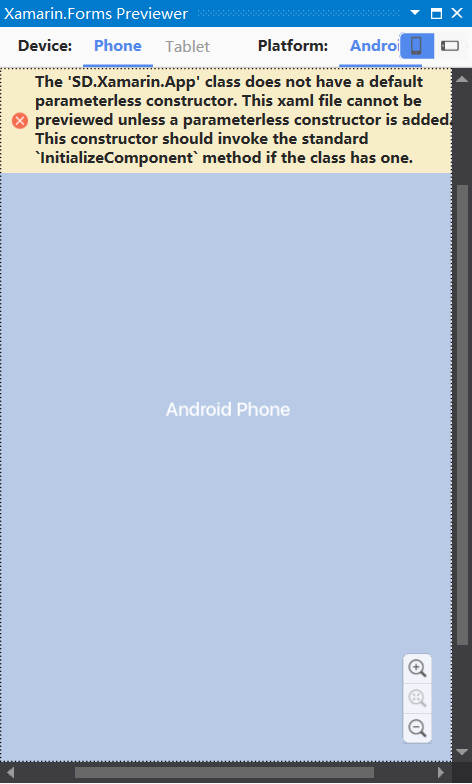
窗口——其他窗口——Xamarin.Forms Previewer 也是可以预览的,但是用了Prism 后,App.xaml.cs 里的构造函数变了,然后就显示不了了~~
五、遇到的问题
1.F5 运行后,执行了 编译——部署,然后就停了,不能像WPF 项目一样实时Debug ,也不知道需要配置什么,这样一旦出错,就得一点点试,很不舒服
2.点击主页后跳转到子页面,再弹出汉堡包跳转第二个,再跳转第三个后 程序就崩溃了,也不知道为什么
3.有时页面的ToolbarItem 不显示,但是放到汉堡包里的那个就显示,不知道怎么搞的,
以上问题有知道的,请多指教啊
六、总结
Xamarin 整合到VS 里后,环境配置相比刚出来时好配置好多,VS Emulator 的加入也省去了下载 Android SDK时的困难,而且还特别大,虽然VS的某些功能还是需要翻墙下载。
WP已死,没必要开发,UWP 肯定是回到桌面的 UWP 开发比较好,调试和用法更好用,而且还可以查看虚拟树什么的,好方便的。
CM框架也要出4.0了,到时再试试CM
七、参考例子
Prism:https://github.com/PrismLibrary/Prism-Samples-Forms
Xamarin:https://github.com/xamarin/xamarin-forms-samples
Prism for Xamarin.Forms的更多相关文章
- 走进 Prism for Xamarin.Forms
一.使用环境 OS:Win 10 16273 VS:VS2017- 15.3.4 Xamarin:4.6.3.4,nuget:2.4 Android Emulator:Visual Studio fo ...
- LINKs: Xamarin.Forms + Prism
LINK 1 - How to use Prism with Xamarin.Forms http://brianlagunas.com/first-look-at-the-prism-for-xam ...
- 走进 UITest for Xamarin.Forms
上一篇 走进 Prism for Xamarin.Forms 讲了简单的创建一个项目,然后添加了几个页面来回切换,这篇想先搞下 UITest 官方详细地址:https://developer.xam ...
- 老司机学新平台 - Xamarin Forms开发框架二探 (Prism vs MvvmCross)
在上一篇Xamarin开发环境及开发框架初探中,曾简单提到MvvmCross这个Xamarin下的开发框架.最近又评估了一些别的,发现老牌Mvvm框架Prism现在也支持Xamarin Forms了, ...
- Xamarin.Forms+Prism(1)—— 开发准备
本次随笔连载,主要用于记录本人在项目中,用Xamarin.Forms开发APP中所使用的第三方技术或一些技巧. 准备: 1.VS2017(推荐)或VS2015: 2.JDK 1.8以上: 3.Xama ...
- Xamarin.Forms+Prism(3)—— 简单提示UI的使用
这次给大家介绍两个比较好用的提示插件,如成功.等待.错误提示. 准备: 1.新建一个Prism Xamarin.Forms项目: 2.右击解决方案,添加NuGet包: 1)Acr.UserDialog ...
- 老司机学新平台 - Xamarin Forms开发框架之MvvmCross插件精选
在前两篇老司机学Xamarin系列中,简单介绍了Xamarin开发环境的搭建以及Prism和MvvmCross这两个开发框架.不同的框架,往往不仅仅使用不同的架构风格,同时社区活跃度不同,各种功能模块 ...
- 走进 Visual Studio Mobile Center for Xamarin.Forms
前几篇分别介绍了 Xamarin.Forms 的 MVVM 的 Prism,UITest,Nuint Test,那这样算下来,代码部分基本结构都有了(逻辑就先忽略吧) 那接下来就应该是自动 Build ...
- Xamarin.Forms 开发资源集合(复制)
复制:https://www.cnblogs.com/mschen/p/10199997.html 收集整理了下 Xamarin.Forms 的学习参考资料,分享给大家,稍后会不断补充: UI样式 S ...
随机推荐
- 结合bootstrap fileinput插件和Bootstrap-table表格插件,实现文件上传、预览、提交的导入Excel数据操作流程
1.bootstrap-fileinpu的简单介绍 在前面的随笔,我介绍了Bootstrap-table表格插件的具体项目应用过程,本篇随笔介绍另外一个Bootstrap FieInput插件的使用, ...
- 经验分享:极速化 CocoaPods
Cocopods 本身是一个优秀的 iOS 开发的包管理工具,涵盖了 7k+ 的开源组件,包管理库是托管在 Github.由于众所周知的原因它的速度日渐缓慢,有时会频繁报如下错误: 1 2 3 4 $ ...
- 一步一步学MySQL-一致性非锁定读和锁定读
一致性非锁定读(consistent nonlocking read) 一致性非锁定读是值InnoDB存储引擎通过多版本控制(multi versioning)的方式来读取当前执行时间数据库中的数据. ...
- 2017年05月10日记一次微项目投产 | 安卓版微信内置浏览器不能解析gzip压缩过的mp4视频的问题
前言 今天投产了一个小项目,一个很简单的H5,有播放视频功能,使用了videojs插件. 之前也做过数个视频播放,视频的转压都按照既定流程进行,文件放到FTP后,iphone和安卓机测试下来都没有问题 ...
- 集合set
一.集合的作用 知识点回顾:可变类型是不可hash类型,不可变类型是可hash类型 作用:去重,关系运算 定义:可以包含多个元素,用逗号分割,集合的元素遵循三个原则: 1.每个元素必须是不可变类型(可 ...
- 如何使用python来模拟鼠标点击(将通过实例自动化模拟在360浏览器中自动搜索"python")
一.准备工作: 安装pywin32,后面开发需要pywin32的支持,否则无法完成与windows层面相关的操作. pywin32的具体安装及注意事项: 1.整体开发环境: 基于windows7操作系 ...
- Postman 官网教程,重点内容,翻译笔记,
json格式的提交数据需要添加:Content-Type :application/x-www-form-urlencoded,否则会导致请求失败 1. 创建 + 测试: 创建和发送任何的HTTP请求 ...
- Mac实用操作技巧(五)
让其他人以游客方式登录你的Mac 当有一个哥们对你说:"嘿,把你Mac借我一下,我有点事需要用."这时你肯定不希望自己Mac上保存的资料毫无保留的呈现在别人眼前,那和脱光了衣服站在 ...
- [js高手之路]构造函数的基本特性与优缺点
上文,通过基本的对象创建问题了解了构造函数,本文,我们接着上文继续了解构造函数的基本特性,以及优缺点. 每个对象上面都有一个constructor属性( 严格意义上来说,是原型上的,对象是通过查找到原 ...
- Mysql中较为复杂的分组统计去重复值
这是我的代码: 前提是做了一个view:att_sumbase 首先分开统计每天的中午.下午饭点人数,这时需要分别去除中午和下午重复打卡的人.用了记录集的交,嵌套select的知识. 注意不能直接使用 ...