
李清华 201772020113《面向对象程序设计(java)》第十四周学习总结
1、实验目的与要求
(1) 掌握GUI布局管理器用法;
(2) 掌握各类Java Swing组件用途及常用API;
2、实验内容和步骤
实验1: 导入第12章示例程序,测试程序并进行组内讨论。
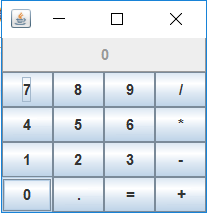
测试程序1
l 在elipse IDE中运行教材479页程序12-1,结合运行结果理解程序;
l 掌握各种布局管理器的用法;
l 理解GUI界面中事件处理技术的用途。
l 在布局管理应用代码处添加注释;
 package calculator;

 import java.awt.*;

 import javax.swing.*;

 /**

  * @version 1.34 2015-06-12

  * @author Cay Horstmann

  */

 public class Calculator

 {

    public static void main(String[] args)

    {

       EventQueue.invokeLater(() -> {

          CalculatorFrame frame = new CalculatorFrame();

          frame.setTitle("Calculator");

          frame.setDefaultCloseOperation(JFrame.EXIT_ON_CLOSE);

          frame.setVisible(true);

       });

    }

 }
 package calculator;

 import javax.swing.*;

 /**

  * 一个带有计算器面板的框架。

  */

 public class CalculatorFrame extends JFrame

 {

    public CalculatorFrame()

    {

       add(new CalculatorPanel());

       pack();

    }

 }
 package calculator;

 import java.awt.*;

 import java.awt.event.*;

 import javax.swing.*;

 /**

  * 具有计算器按钮和结果显示的面板。

  */

 public class CalculatorPanel extends JPanel

 {

    private JButton display;

    private JPanel panel;

    private double result;

    private String lastCommand;

    private boolean start;

    public CalculatorPanel()

    {

       //为容器设置边框布局管理器

       setLayout(new BorderLayout());

       result = ;

       lastCommand = "=";

       start = true;

       //  添加页面显示

       display = new JButton("");

       display.setEnabled(false);

       add(display, BorderLayout.NORTH);

       ActionListener insert = new InsertAction();

       ActionListener command = new CommandAction();

       // 在4×4网格中添加按钮

       panel = new JPanel();

       panel.setLayout(new GridLayout(, ));

       addButton("", insert);

       addButton("", insert);

       addButton("", insert);

       addButton("/", command);

       addButton("", insert);

       addButton("", insert);

       addButton("", insert);

       addButton("*", command);

       addButton("", insert);

       addButton("", insert);

       addButton("", insert);

       addButton("-", command);

       addButton("", insert);

       addButton(".", insert);

       addButton("=", command);

       addButton("+", command);

       add(panel, BorderLayout.CENTER);

    }

    /**

     * 向中心面板添加一个按钮

     * @param 标注按钮标签

     * @param 监听器按钮侦听器

     */

    private void addButton(String label, ActionListener listener)

    {

       JButton button = new JButton(label);

       button.addActionListener(listener);

       panel.add(button);

    }

    /**

     * 此操作将按钮操作字符串插入到显示文本的末尾

     */

    private class InsertAction implements ActionListener

    {

       public void actionPerformed(ActionEvent event)

       {

          String input = event.getActionCommand();

          if (start)

          {

             display.setText("");

             start = false;

          }

          display.setText(display.getText() + input);

       }

    }

    /**

     * 此操作执行按钮操作字符串所表示的命令。

     */

    private class CommandAction implements ActionListener

    {

       public void actionPerformed(ActionEvent event)

       {

          String command = event.getActionCommand();

          //解决了负数的输入,一旦输入“-”号就直接跳转到计算部分

          if (start)

          {

             if (command.equals("-"))

             {

                display.setText(command);

                start = false;

             }

             else lastCommand = command;

          }

          else

          {

             calculate(Double.parseDouble(display.getText()));

             lastCommand = command;

             start = true;

          }

       }

    }

    /**

      * 执行悬而未决的计算

     * @param x值与先前结果一起累积。

     */

    public void calculate(double x)

    {

       if (lastCommand.equals("+")) result += x;

       else if (lastCommand.equals("-")) result -= x;

       else if (lastCommand.equals("*")) result *= x;

       else if (lastCommand.equals("/")) result /= x;

       else if (lastCommand.equals("=")) result = x;

       display.setText("" + result);//将结果转化成字符串显示

    }

 }
测试程序2
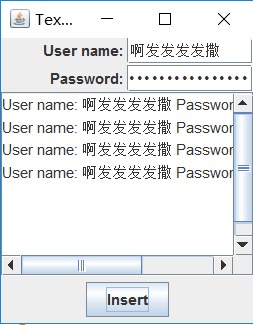
l 在elipse IDE中调试运行教材486页程序12-2,结合运行结果理解程序;
l 掌握各种文本组件的用法;
l 记录示例代码阅读理解中存在的问题与疑惑。
 package text;

 import java.awt.*;

 import javax.swing.*;

 /**

  * @version 1.41 2015-06-12

  * @author Cay Horstmann

  */

 public class TextComponentTest

 {

    public static void main(String[] args)

    {

       EventQueue.invokeLater(() -> {

          JFrame frame = new TextComponentFrame();

          frame.setTitle("TextComponentTest");

          frame.setDefaultCloseOperation(JFrame.EXIT_ON_CLOSE);

          frame.setVisible(true);

       });

    }

 }
 package text;

 import java.awt.BorderLayout;

 import java.awt.GridLayout;

 import javax.swing.JButton;

 import javax.swing.JFrame;

 import javax.swing.JLabel;

 import javax.swing.JPanel;

 import javax.swing.JPasswordField;

 import javax.swing.JScrollPane;

 import javax.swing.JTextArea;

 import javax.swing.JTextField;

 import javax.swing.SwingConstants;

 /**

  * 具有文本文本组件的框架。

  */

 public class TextComponentFrame extends JFrame

 {

    public static final int TEXTAREA_ROWS = 8;

    public static final int TEXTAREA_COLUMNS = 20;

    public TextComponentFrame()

    {

       JTextField textField = new JTextField();

       JPasswordField passwordField = new JPasswordField();

       JPanel northPanel = new JPanel();

       northPanel.setLayout(new GridLayout(2, 2));

       //SwingConstants通常用于在屏幕上定位或定向组件的常量的集合

       northPanel.add(new JLabel("User name: ", SwingConstants.RIGHT));

       northPanel.add(textField);

       northPanel.add(new JLabel("Password: ", SwingConstants.RIGHT));

       northPanel.add(passwordField);

       add(northPanel, BorderLayout.NORTH);

       //构造一个文本显示区域

       JTextArea textArea = new JTextArea(TEXTAREA_ROWS, TEXTAREA_COLUMNS);

       //设置一个只要超过textArea就会显示的滚动条

       JScrollPane scrollPane = new JScrollPane(textArea);

       add(scrollPane, BorderLayout.CENTER);

       // 添加按钮将文本追加到文本区域

       JPanel southPanel = new JPanel();

       JButton insertButton = new JButton("Insert");

       southPanel.add(insertButton);

       insertButton.addActionListener(event ->

          textArea.append("User name: " + textField.getText() + " Password: "

             + new String(passwordField.getPassword()) + "\n"));

       add(southPanel, BorderLayout.SOUTH);

       pack();

    }

 }
测试程序3
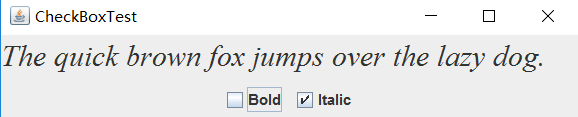
l 在elipse IDE中调试运行教材489页程序12-3,结合运行结果理解程序;
l 掌握复选框组件的用法;
l 记录示例代码阅读理解中存在的问题与疑惑。
 package checkBox;

 import java.awt.*;

 import javax.swing.*;

 /**

  * @version 1.34 2015-06-12

  * @author Cay Horstmann

  */

 public class CheckBoxTest

 {

    public static void main(String[] args)

    {

       EventQueue.invokeLater(() -> {

          JFrame frame = new CheckBoxFrame();

          frame.setTitle("CheckBoxTest");

          frame.setDefaultCloseOperation(JFrame.EXIT_ON_CLOSE);

          frame.setVisible(true);

       });

    }

 }
 package checkBox;

 import java.awt.*;

 import java.awt.event.*;

 import javax.swing.*;

 /**

  * 带有样本文本标签的框和用于选择字体的复选框

  * attributes.

  */

 public class CheckBoxFrame extends JFrame

 {

    private JLabel label;

    private JCheckBox bold;

    private JCheckBox italic;

    private static final int FONTSIZE = 24;

    public CheckBoxFrame()

    {

       // 添加示例文本标签

       label = new JLabel("The quick brown fox jumps over the lazy dog.");

       label.setFont(new Font("Serif", Font.BOLD, FONTSIZE));

       add(label, BorderLayout.CENTER);

       // 此侦听器设置字体属性

       // 到复选框状态的标签

       ActionListener listener = event -> {

          int mode = 0;

          if (bold.isSelected()) mode += Font.BOLD;

          if (italic.isSelected()) mode += Font.ITALIC;

          label.setFont(new Font("Serif", mode, FONTSIZE));

       };

       // 添加复选框

       JPanel buttonPanel = new JPanel();

       bold = new JCheckBox("Bold");

       bold.addActionListener(listener);

       bold.setSelected(true);

       buttonPanel.add(bold);

       italic = new JCheckBox("Italic");

       italic.addActionListener(listener);

       buttonPanel.add(italic);

       add(buttonPanel, BorderLayout.SOUTH);

       pack();

    }

 }
测试程序4
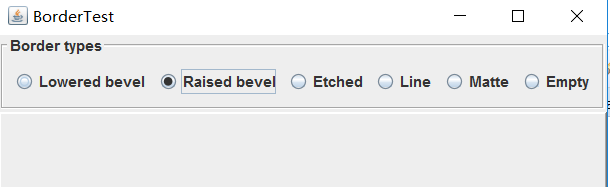
l 在elipse IDE中调试运行教材491页程序12-4,运行结果理解程序;
l 掌握单选按钮组件的用法;
l 记录示例代码阅读理解中存在的问题与疑惑。
 package radioButton;

 import java.awt.*;

 import javax.swing.*;

 /**

  * @version 1.34 2015-06-12

  * @author Cay Horstmann

  */

 public class RadioButtonTest

 {

    public static void main(String[] args)

    {

       EventQueue.invokeLater(() -> {

          JFrame frame = new RadioButtonFrame();

          frame.setTitle("RadioButtonTest");

          frame.setDefaultCloseOperation(JFrame.EXIT_ON_CLOSE);

          frame.setVisible(true);

       });

    }

 }
 package radioButton;

 import java.awt.*;

 import java.awt.event.*;

 import javax.swing.*;

 /**

  * 带有样本文本标签和单选按钮以选择字体大小的框架。

  */

 public class RadioButtonFrame extends JFrame

 {

    private JPanel buttonPanel;

    private ButtonGroup group;

    private JLabel label;

    private static final int DEFAULT_SIZE = 36;

    public RadioButtonFrame()

    {

       // 添加示例文本标签。

       label = new JLabel("The quick brown fox jumps over the lazy dog.");

       label.setFont(new Font("Serif", Font.PLAIN, DEFAULT_SIZE));

       add(label, BorderLayout.CENTER);

       // 添加单选按钮

       buttonPanel = new JPanel();

       group = new ButtonGroup();

       addRadioButton("Small", 8);

       addRadioButton("Medium", 12);

       addRadioButton("Large", 18);

       addRadioButton("Extra large", 36);

       add(buttonPanel, BorderLayout.SOUTH);

       pack();

    }

    /**

     * 添加一个设置示例文本字体大小的单选按钮。

     * @param 命名按钮上出现的字符串

     * @param 设置此按钮设置的字体大小

     */

    public void addRadioButton(String name, int size)

    {

       boolean selected = size == DEFAULT_SIZE;

       JRadioButton button = new JRadioButton(name, selected);

       group.add(button);

       buttonPanel.add(button);

       // 此侦听器设置标签字体大小。

       ActionListener listener = event -> label.setFont(new Font("Serif", Font.PLAIN, size));

       button.addActionListener(listener);

    }

 }

测试程序5
l 在elipse IDE中调试运行教材494页程序12-5,结合运行结果理解程序;
l 掌握边框的用法;
l 记录示例代码阅读理解中存在的问题与疑惑。
 package border;

 import java.awt.*;

 import javax.swing.*;

 /**

  * @version 1.34 2015-06-13

  * @author Cay Horstmann

  */

 public class BorderTest

 {

    public static void main(String[] args)

    {

       EventQueue.invokeLater(() -> {

          JFrame frame = new BorderFrame();

          frame.setTitle("BorderTest");

          frame.setDefaultCloseOperation(JFrame.EXIT_ON_CLOSE);

          frame.setVisible(true);

       });

    }

 }
 package border;

 import java.awt.*;

 import javax.swing.*;

 import javax.swing.border.*;

 /**

  * 用单选按钮选择边框样式的框架。

  */

 public class BorderFrame extends JFrame

 {

    private JPanel demoPanel;

    private JPanel buttonPanel;

    private ButtonGroup group;

    public BorderFrame()

    {

       demoPanel = new JPanel();

       buttonPanel = new JPanel();

       group = new ButtonGroup();

       //设置不同的边框类型按钮

       addRadioButton("Lowered bevel", BorderFactory.createLoweredBevelBorder());

       addRadioButton("Raised bevel", BorderFactory.createRaisedBevelBorder());

       addRadioButton("Etched", BorderFactory.createEtchedBorder());

       addRadioButton("Line", BorderFactory.createLineBorder(Color.BLUE));

       addRadioButton("Matte", BorderFactory.createMatteBorder(10, 10, 10, 10, Color.BLUE));

       addRadioButton("Empty", BorderFactory.createEmptyBorder());

       Border etched = BorderFactory.createEtchedBorder();

       Border titled = BorderFactory.createTitledBorder(etched, "Border types");

       buttonPanel.setBorder(titled);

       setLayout(new GridLayout(2, 1));

       add(buttonPanel);

       add(demoPanel);

       pack();

    }

    public void addRadioButton(String buttonName, Border b)

    {

       JRadioButton button = new JRadioButton(buttonName);

       button.addActionListener(event -> demoPanel.setBorder(b));

       group.add(button);

       buttonPanel.add(button);

    }

 }
测试程序6(本小组负责的测试程序)
l 在elipse IDE中调试运行教材498页程序12-6,结合运行结果理解程序;
l 掌握组合框组件的用法;
l 记录示例代码阅读理解中存在的问题与疑惑。
 package comboBox;

 import java.awt.*;

 import javax.swing.*;

 /**

  * @version 1.35 2015-06-12

  * @author Cay Horstmann

  */

 public class ComboBoxTest

 {

    public static void main(String[] args)

    {

       //lambda表达式

        EventQueue.invokeLater(() -> {

          JFrame frame = new ComboBoxFrame();//构造frame框架对象

          frame.setTitle("ComboBoxTest");//设置标题

          frame.setDefaultCloseOperation(JFrame.EXIT_ON_CLOSE);//设置用户在此窗体上发起 "close" 时默认执行的操作。

          frame.setVisible(true);//设置框架是否可见

       });

    }

 }
 package comboBox;

 import java.awt.BorderLayout;

 import java.awt.Font;

 import javax.swing.JComboBox;

 import javax.swing.JFrame;

 import javax.swing.JLabel;

 import javax.swing.JPanel;

 /**

  * 具有样本文本标签和选择字体面的组合框的框架。

  * 组合框:将按钮或可编辑字段与下拉列表组合的组件。

  * 用户可以从下拉列表中选择值,下拉列表在用户请求时显示。

  * 如果使组合框处于可编辑状态,则组合框将包括用户可在其中键入值的可编辑字段。

  */

 public class ComboBoxFrame extends JFrame

 {

     //设置ComboBoxFrame的私有属性

    private JComboBox<String> faceCombo;

    private JLabel label;

    private static final int DEFAULT_SIZE = 24;

    public ComboBoxFrame()

    {

       // 添加示例文本标签

       label = new JLabel("The quick brown fox jumps over the lazy dog.");

       //设置字体

       label.setFont(new Font("Serif", Font.PLAIN, DEFAULT_SIZE));

       //把字体选择按钮添加到边框布局管理器的中间

       add(label, BorderLayout.CENTER);

       // 构造组合框对象并添加项目名称

       faceCombo = new JComboBox<>();

       //把五种字体添加到选项列表中

       faceCombo.addItem("Serif");

       faceCombo.addItem("SansSerif");

       faceCombo.addItem("Monospaced");

       faceCombo.addItem("Dialog");

       faceCombo.addItem("DialogInput");

       //  组合框监听器将标签字体更改为所选的名称(添加监听器,使用lambda表达式)

       faceCombo.addActionListener(event ->

       //设置标签的字体

          label.setFont(

             //getItemAt用于返回指定索引处的列表项;getSelectedIndex用于返回当前选择的选项

             new Font(faceCombo.getItemAt(faceCombo.getSelectedIndex()),

                Font.PLAIN, DEFAULT_SIZE)));

       // 将组合框添加到边框边框的面板上

       JPanel comboPanel = new JPanel();

       comboPanel.add(faceCombo);

       add(comboPanel, BorderLayout.SOUTH);

       pack();

    }

 }

测试程序7
l 在elipse IDE中调试运行教材501页程序12-7,结合运行结果理解程序;
l 掌握滑动条组件的用法;
l 记录示例代码阅读理解中存在的问题与疑惑。
 package slider;

 import java.awt.*;

 import javax.swing.*;

 /**

  * @version 1.15 2015-06-12

  * @author Cay Horstmann

  */

 public class SliderTest

 {

    public static void main(String[] args)

    {

       EventQueue.invokeLater(() -> {

          SliderFrame frame = new SliderFrame();

          frame.setTitle("SliderTest");

          frame.setDefaultCloseOperation(JFrame.EXIT_ON_CLOSE);

          frame.setVisible(true);

       });

    }

 }
 package slider;

 import java.awt.*;

 import java.util.*;

 import javax.swing.*;

 import javax.swing.event.*;

 /**

  * 一个具有许多滑块和文本字段的滑块值的框架。

  */

 public class SliderFrame extends JFrame

 {

    private JPanel sliderPanel;

    private JTextField textField;

    private ChangeListener listener;

    public SliderFrame()

    {

       sliderPanel = new JPanel();

       sliderPanel.setLayout(new GridBagLayout());

       // 所有滑块的公用侦听器

       listener = event -> {

          // 当滑块值改变时更新文本字段

          JSlider source = (JSlider) event.getSource();

          textField.setText("" + source.getValue());

       };

       //添加普通滑块

       JSlider slider = new JSlider();

       addSlider(slider, "Plain");

       // 添加有主和小蜱的滑块

       slider = new JSlider();

       slider.setPaintTicks(true);

       slider.setMajorTickSpacing(20);

       slider.setMinorTickSpacing(5);

       addSlider(slider, "Ticks");

       // 添加一个滑动到滴答的滑块

       slider = new JSlider();

       slider.setPaintTicks(true);

       slider.setSnapToTicks(true);

       slider.setMajorTickSpacing(20);

       slider.setMinorTickSpacing(5);

       addSlider(slider, "Snap to ticks");

       // 添加没有磁道的滑块

       slider = new JSlider();

       slider.setPaintTicks(true);

       slider.setMajorTickSpacing(20);

       slider.setMinorTickSpacing(5);

       slider.setPaintTrack(false);

       addSlider(slider, "No track");

       // 添加倒置滑块

       slider = new JSlider();

       slider.setPaintTicks(true);

       slider.setMajorTickSpacing(20);

       slider.setMinorTickSpacing(5);

       slider.setInverted(true);

       addSlider(slider, "Inverted");

       // 添加带有数字标签的滑块

       slider = new JSlider();

       slider.setPaintTicks(true);

       slider.setPaintLabels(true);

       slider.setMajorTickSpacing(20);

       slider.setMinorTickSpacing(5);

       addSlider(slider, "Labels");

       // 添加带有字母标签的滑块

       slider = new JSlider();

       slider.setPaintLabels(true);

       slider.setPaintTicks(true);

       slider.setMajorTickSpacing(20);

       slider.setMinorTickSpacing(5);

       Dictionary<Integer, Component> labelTable = new Hashtable<>();

       labelTable.put(0, new JLabel("A"));

       labelTable.put(20, new JLabel("B"));

       labelTable.put(40, new JLabel("C"));

       labelTable.put(60, new JLabel("D"));

       labelTable.put(80, new JLabel("E"));

       labelTable.put(100, new JLabel("F"));

       slider.setLabelTable(labelTable);

       addSlider(slider, "Custom labels");

       //添加带有图标标签的滑块

       slider = new JSlider();

       slider.setPaintTicks(true);

       slider.setPaintLabels(true);

       slider.setSnapToTicks(true);

       slider.setMajorTickSpacing(20);

       slider.setMinorTickSpacing(20);

       labelTable = new Hashtable<Integer, Component>();

       // 添加卡片图像

       labelTable.put(0, new JLabel(new ImageIcon("nine.gif")));

       labelTable.put(20, new JLabel(new ImageIcon("ten.gif")));

       labelTable.put(40, new JLabel(new ImageIcon("jack.gif")));

       labelTable.put(60, new JLabel(new ImageIcon("queen.gif")));

       labelTable.put(80, new JLabel(new ImageIcon("king.gif")));

       labelTable.put(100, new JLabel(new ImageIcon("ace.gif")));

       slider.setLabelTable(labelTable);

       addSlider(slider, "Icon labels");

       // 添加显示滑块值的文本字段

       textField = new JTextField();

       add(sliderPanel, BorderLayout.CENTER);

       add(textField, BorderLayout.SOUTH);

       pack();

    }

    /**

     * 向滑块面板添加滑块并钩住听者

     * @param S滑块

     * @param 描述滑块描述

     */

    public void addSlider(JSlider s, String description)

    {

       s.addChangeListener(listener);

       JPanel panel = new JPanel();

       panel.add(s);

       panel.add(new JLabel(description));

       panel.setAlignmentX(Component.LEFT_ALIGNMENT);

       GridBagConstraints gbc = new GridBagConstraints();

       gbc.gridy = sliderPanel.getComponentCount();

       gbc.anchor = GridBagConstraints.WEST;

       sliderPanel.add(panel, gbc);

    }

 }
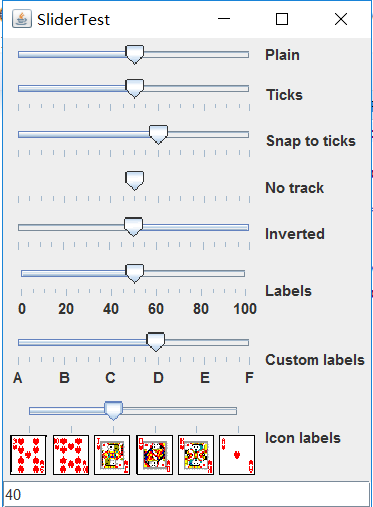
测试程序8
l 在elipse IDE中调试运行教材512页程序12-8,结合运行结果理解程序;
l 掌握菜单的创建、菜单事件监听器、复选框和单选按钮菜单项、弹出菜单以及快捷键和加速器的用法。
l 记录示例代码阅读理解中存在的问题与疑惑。
 package menu;

 import java.awt.*;

 import javax.swing.*;

 /**

  * @version 1.24 2012-06-12

  * @author Cay Horstmann

  */

 public class MenuTest

 {

    public static void main(String[] args)

    {

       EventQueue.invokeLater(() -> {

          JFrame frame = new MenuFrame();

          frame.setTitle("MenuTest");

          frame.setDefaultCloseOperation(JFrame.EXIT_ON_CLOSE);

          frame.setVisible(true);

       });

    }

 }
 package menu;

 import java.awt.event.*;

 import javax.swing.*;

 /**

  * 一个带有示例菜单栏的框架。

  */

 public class MenuFrame extends JFrame

 {

    private static final int DEFAULT_WIDTH = 300;

    private static final int DEFAULT_HEIGHT = 200;

    private Action saveAction;

    private Action saveAsAction;

    private JCheckBoxMenuItem readonlyItem;

    private JPopupMenu popup;

    /**

     * 将动作名称打印到Studio.OUT的示例动作。

     */

    class TestAction extends AbstractAction

    {

       public TestAction(String name)

       {

          super(name);

       }

       public void actionPerformed(ActionEvent event)

       {

          System.out.println(getValue(Action.NAME) + " selected.");

       }

    }

    public MenuFrame()

    {

       setSize(DEFAULT_WIDTH, DEFAULT_HEIGHT);

       JMenu fileMenu = new JMenu("File");

       fileMenu.add(new TestAction("New"));

       //演示加速器

       JMenuItem openItem = fileMenu.add(new TestAction("Open"));

       openItem.setAccelerator(KeyStroke.getKeyStroke("ctrl O"));

       fileMenu.addSeparator();

       saveAction = new TestAction("Save");

       JMenuItem saveItem = fileMenu.add(saveAction);

       saveItem.setAccelerator(KeyStroke.getKeyStroke("ctrl S"));

       saveAsAction = new TestAction("Save As");

       fileMenu.add(saveAsAction);

       fileMenu.addSeparator();

       fileMenu.add(new AbstractAction("Exit")

          {

             public void actionPerformed(ActionEvent event)

             {

                System.exit(0);

             }

          });

       // 演示复选框和单选按钮菜单

       readonlyItem = new JCheckBoxMenuItem("Read-only");

       readonlyItem.addActionListener(new ActionListener()

          {

             public void actionPerformed(ActionEvent event)

             {

                boolean saveOk = !readonlyItem.isSelected();

                saveAction.setEnabled(saveOk);

                saveAsAction.setEnabled(saveOk);

             }

          });

       ButtonGroup group = new ButtonGroup();

       JRadioButtonMenuItem insertItem = new JRadioButtonMenuItem("Insert");

       insertItem.setSelected(true);

       JRadioButtonMenuItem overtypeItem = new JRadioButtonMenuItem("Overtype");

       group.add(insertItem);

       group.add(overtypeItem);

       // 演示图标

       Action cutAction = new TestAction("Cut");

       cutAction.putValue(Action.SMALL_ICON, new ImageIcon("cut.gif"));

       Action copyAction = new TestAction("Copy");

       copyAction.putValue(Action.SMALL_ICON, new ImageIcon("copy.gif"));

       Action pasteAction = new TestAction("Paste");

       pasteAction.putValue(Action.SMALL_ICON, new ImageIcon("paste.gif"));

       JMenu editMenu = new JMenu("Edit");

       editMenu.add(cutAction);

       editMenu.add(copyAction);

       editMenu.add(pasteAction);

       // 演示嵌套菜单

       JMenu optionMenu = new JMenu("Options");

       optionMenu.add(readonlyItem);

       optionMenu.addSeparator();

       optionMenu.add(insertItem);

       optionMenu.add(overtypeItem);

       editMenu.addSeparator();

       editMenu.add(optionMenu);

       // 助记符演示

       JMenu helpMenu = new JMenu("Help");

       helpMenu.setMnemonic('H');

       JMenuItem indexItem = new JMenuItem("Index");

       indexItem.setMnemonic('I');

       helpMenu.add(indexItem);

       // 还可以将助记键添加到动作中。

       Action aboutAction = new TestAction("About");

       aboutAction.putValue(Action.MNEMONIC_KEY, new Integer('A'));

       helpMenu.add(aboutAction);

       //将所有顶级菜单添加到菜单栏

       JMenuBar menuBar = new JMenuBar();

       setJMenuBar(menuBar);

       menuBar.add(fileMenu);

       menuBar.add(editMenu);

       menuBar.add(helpMenu);

       //演示弹出窗口

       popup = new JPopupMenu();

       popup.add(cutAction);

       popup.add(copyAction);

       popup.add(pasteAction);

       JPanel panel = new JPanel();

       panel.setComponentPopupMenu(popup);

       add(panel);

    }

 }
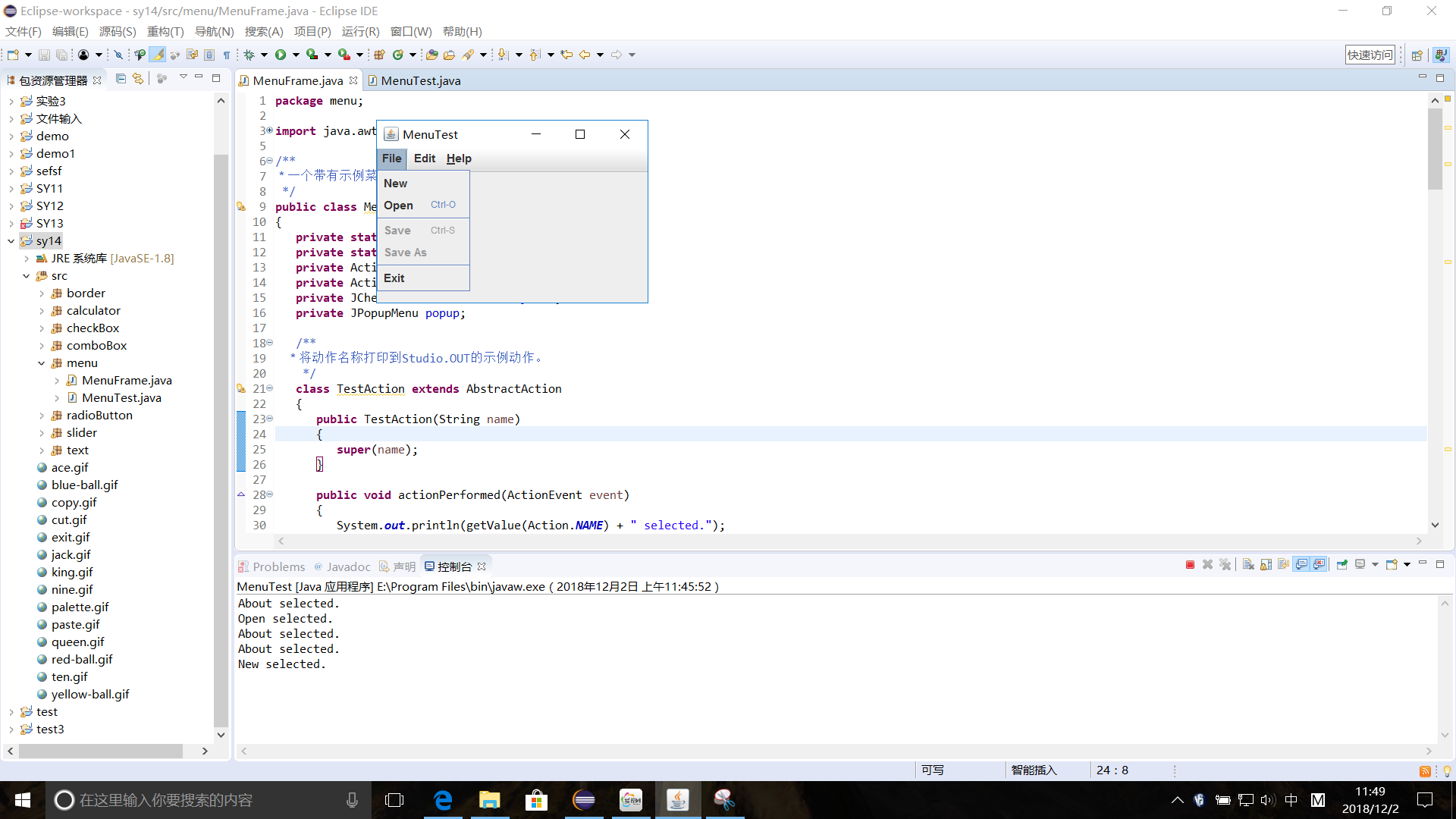
测试程序9
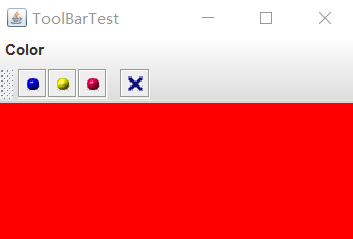
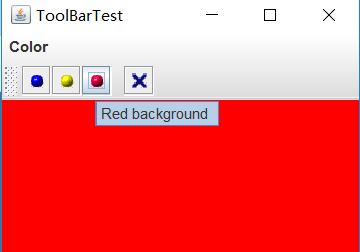
l 在elipse IDE中调试运行教材517页程序12-9,结合运行结果理解程序;
l 掌握工具栏和工具提示的用法;
l 记录示例代码阅读理解中存在的问题与疑惑。
 package toolBar;

 import java.awt.*;

 import javax.swing.*;

 /**

  * @version 1.14 2015-06-12

  * @author Cay Horstmann

  */

 public class ToolBarTest

 {

    public static void main(String[] args)

    {

       EventQueue.invokeLater(() -> {

          ToolBarFrame frame = new ToolBarFrame();

          frame.setTitle("ToolBarTest");

          frame.setDefaultCloseOperation(JFrame.EXIT_ON_CLOSE);

          frame.setVisible(true);

       });

    }

 }
 package toolBar;

 import java.awt.*;

 import java.awt.event.*;

 import javax.swing.*;

 /**

  * 带有工具栏和菜单的框架,用于颜色变化。

  */

 public class ToolBarFrame extends JFrame

 {

    private static final int DEFAULT_WIDTH = 300;

    private static final int DEFAULT_HEIGHT = 200;

    private JPanel panel;

    public ToolBarFrame()

    {

       setSize(DEFAULT_WIDTH, DEFAULT_HEIGHT);

       // 添加颜色变化面板

       panel = new JPanel();

       add(panel, BorderLayout.CENTER);

       // 设置动作

       Action blueAction = new ColorAction("Blue", new ImageIcon("blue-ball.gif"), Color.BLUE);

       Action yellowAction = new ColorAction("Yellow", new ImageIcon("yellow-ball.gif"),

             Color.YELLOW);

       Action redAction = new ColorAction("Red", new ImageIcon("red-ball.gif"), Color.RED);

       Action exitAction = new AbstractAction("Exit", new ImageIcon("exit.gif"))

          {

             public void actionPerformed(ActionEvent event)

             {

                System.exit(0);

             }

          };

       exitAction.putValue(Action.SHORT_DESCRIPTION, "Exit");

       //填充工具栏

       JToolBar bar = new JToolBar();

       bar.add(blueAction);

       bar.add(yellowAction);

       bar.add(redAction);

       bar.addSeparator();

       bar.add(exitAction);

       add(bar, BorderLayout.NORTH);

       // 填充菜单

       JMenu menu = new JMenu("Color");

       menu.add(yellowAction);

       menu.add(blueAction);

       menu.add(redAction);

       menu.add(exitAction);

       JMenuBar menuBar = new JMenuBar();

       menuBar.add(menu);

       setJMenuBar(menuBar);

    }

    /**

     *颜色动作将帧的背景设置为给定的颜色。

     */

    class ColorAction extends AbstractAction

    {

       public ColorAction(String name, Icon icon, Color c)

       {

          putValue(Action.NAME, name);

          putValue(Action.SMALL_ICON, icon);

          putValue(Action.SHORT_DESCRIPTION, name + " background");

          putValue("Color", c);

       }

       public void actionPerformed(ActionEvent event)

       {

          Color c = (Color) getValue("Color");

          panel.setBackground(c);

       }

    }

 }
测试程序10
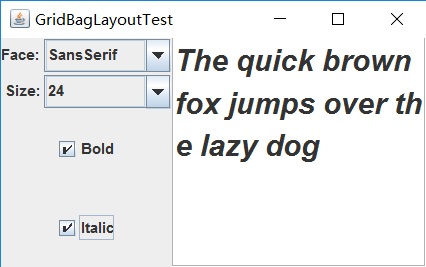
l 在elipse IDE中调试运行教材524页程序12-10、12-11,结合运行结果理解程序,了解GridbagLayout的用法。
l 在elipse IDE中调试运行教材533页程序12-12,结合程序运行结果理解程序,了解GroupLayout的用法。
l 记录示例代码阅读理解中存在的问题与疑惑。
1.
 package gridbag;

 import java.awt.EventQueue;

 import javax.swing.JFrame;

 /**

  * @version 1.35 2015-06-12

  * @author Cay Horstmann

  */

 public class GridBagLayoutTest

 {

    public static void main(String[] args)

    {

       EventQueue.invokeLater(() ->           {

                JFrame frame = new FontFrame();

                frame.setTitle("GridBagLayoutTest");

                frame.setDefaultCloseOperation(JFrame.EXIT_ON_CLOSE);

                frame.setVisible(true);

          });

    }

 }
 package gridbag;

 import java.awt.Font;

 import java.awt.GridBagLayout;

 import java.awt.event.ActionListener;

 import javax.swing.BorderFactory;

 import javax.swing.JCheckBox;

 import javax.swing.JComboBox;

 import javax.swing.JFrame;

 import javax.swing.JLabel;

 import javax.swing.JTextArea;

 /**

  * A frame that uses a grid bag layout to arrange font selection components.

  */

 public class FontFrame extends JFrame

 {

    public static final int TEXT_ROWS = 10;

    public static final int TEXT_COLUMNS = 20;

    private JComboBox<String> face;

    private JComboBox<Integer> size;

    private JCheckBox bold;

    private JCheckBox italic;

    private JTextArea sample;

    public FontFrame()

    {

       GridBagLayout layout = new GridBagLayout();

       setLayout(layout);

       ActionListener listener = event -> updateSample();

       // construct components

       JLabel faceLabel = new JLabel("Face: ");

       face = new JComboBox<>(new String[] { "Serif", "SansSerif", "Monospaced",

             "Dialog", "DialogInput" });

       face.addActionListener(listener);

       JLabel sizeLabel = new JLabel("Size: ");

       size = new JComboBox<>(new Integer[] { 8, 10, 12, 15, 18, 24, 36, 48 });

       size.addActionListener(listener);

       bold = new JCheckBox("Bold");

       bold.addActionListener(listener);

       italic = new JCheckBox("Italic");

       italic.addActionListener(listener);

       sample = new JTextArea(TEXT_ROWS, TEXT_COLUMNS);

       sample.setText("The quick brown fox jumps over the lazy dog");

       sample.setEditable(false);

       sample.setLineWrap(true);

       sample.setBorder(BorderFactory.createEtchedBorder());

       // add components to grid, using GBC convenience class

       add(faceLabel, new GBC(0, 0).setAnchor(GBC.EAST));

       add(face, new GBC(1, 0).setFill(GBC.HORIZONTAL).setWeight(100, 0)

             .setInsets(1));

       add(sizeLabel, new GBC(0, 1).setAnchor(GBC.EAST));

       add(size, new GBC(1, 1).setFill(GBC.HORIZONTAL).setWeight(100, 0)

             .setInsets(1));

       add(bold, new GBC(0, 2, 2, 1).setAnchor(GBC.CENTER).setWeight(100, 100));

       add(italic, new GBC(0, 3, 2, 1).setAnchor(GBC.CENTER).setWeight(100, 100));

       add(sample, new GBC(2, 0, 1, 4).setFill(GBC.BOTH).setWeight(100, 100));

       pack();

       updateSample();

    }

    public void updateSample()

    {

       String fontFace = (String) face.getSelectedItem();

       int fontStyle = (bold.isSelected() ? Font.BOLD : 0)

             + (italic.isSelected() ? Font.ITALIC : 0);

       int fontSize = size.getItemAt(size.getSelectedIndex());

       Font font = new Font(fontFace, fontStyle, fontSize);

       sample.setFont(font);

       sample.repaint();

    }

 }
 package gridbag;

 import java.awt.*;

 /**

  * This class simplifies the use of the GridBagConstraints class.

  * @version 1.01 2004-05-06

  * @author Cay Horstmann

  */

 public class GBC extends GridBagConstraints

 {

    /**

     * Constructs a GBC with a given gridx and gridy position and all other grid

     * bag constraint values set to the default.

     * @param gridx the gridx position

     * @param gridy the gridy position

     */

    public GBC(int gridx, int gridy)

    {

       this.gridx = gridx;

       this.gridy = gridy;

    }

    /**

     * Constructs a GBC with given gridx, gridy, gridwidth, gridheight and all

     * other grid bag constraint values set to the default.

     * @param gridx the gridx position

     * @param gridy the gridy position

     * @param gridwidth the cell span in x-direction

     * @param gridheight the cell span in y-direction

     */

    public GBC(int gridx, int gridy, int gridwidth, int gridheight)

    {

       this.gridx = gridx;

       this.gridy = gridy;

       this.gridwidth = gridwidth;

       this.gridheight = gridheight;

    }

    /**

     * Sets the anchor.

     * @param anchor the anchor value

     * @return this object for further modification

     */

    public GBC setAnchor(int anchor)

    {

       this.anchor = anchor;

       return this;

    }

    /**

     * Sets the fill direction.

     * @param fill the fill direction

     * @return this object for further modification

     */

    public GBC setFill(int fill)

    {

       this.fill = fill;

       return this;

    }

    /**

     * Sets the cell weights.

     * @param weightx the cell weight in x-direction

     * @param weighty the cell weight in y-direction

     * @return this object for further modification

     */

    public GBC setWeight(double weightx, double weighty)

    {

       this.weightx = weightx;

       this.weighty = weighty;

       return this;

    }

    /**

     * Sets the insets of this cell.

     * @param distance the spacing to use in all directions

     * @return this object for further modification

     */

    public GBC setInsets(int distance)

    {

       this.insets = new Insets(distance, distance, distance, distance);

       return this;

    }

    /**

     * Sets the insets of this cell.

     * @param top the spacing to use on top

     * @param left the spacing to use to the left

     * @param bottom the spacing to use on the bottom

     * @param right the spacing to use to the right

     * @return this object for further modification

     */

    public GBC setInsets(int top, int left, int bottom, int right)

    {

       this.insets = new Insets(top, left, bottom, right);

       return this;

    }

    /**

     * Sets the internal padding

     * @param ipadx the internal padding in x-direction

     * @param ipady the internal padding in y-direction

     * @return this object for further modification

     */

    public GBC setIpad(int ipadx, int ipady)

    {

       this.ipadx = ipadx;

       this.ipady = ipady;

       return this;

    }

 }
2.
 package groupLayout;

 import java.awt.EventQueue;

 import javax.swing.JFrame;

 /**

  * @version 1.01 2015-06-12

  * @author Cay Horstmann

  */

 public class GroupLayoutTest

 {

    public static void main(String[] args)

    {

       EventQueue.invokeLater(() -> {

          JFrame frame = new FontFrame();

          frame.setTitle("GroupLayoutTest");

          frame.setDefaultCloseOperation(JFrame.EXIT_ON_CLOSE);

          frame.setVisible(true);

       });

    }

 }
 package groupLayout;

 import java.awt.Font;

 import java.awt.event.ActionListener;

 import javax.swing.BorderFactory;

 import javax.swing.GroupLayout;

 import javax.swing.JCheckBox;

 import javax.swing.JComboBox;

 import javax.swing.JFrame;

 import javax.swing.JLabel;

 import javax.swing.JScrollPane;

 import javax.swing.JTextArea;

 import javax.swing.LayoutStyle;

 import javax.swing.SwingConstants;

 /**

  * A frame that uses a group layout to arrange font selection components.

  */

 public class FontFrame extends JFrame

 {

    public static final int TEXT_ROWS = 10;

    public static final int TEXT_COLUMNS = 20;

    private JComboBox<String> face;

    private JComboBox<Integer> size;

    private JCheckBox bold;

    private JCheckBox italic;

    private JScrollPane pane;

    private JTextArea sample;

    public FontFrame()

    {

       ActionListener listener = event -> updateSample();

       // construct components

       JLabel faceLabel = new JLabel("Face: ");

       face = new JComboBox<>(new String[] { "Serif", "SansSerif", "Monospaced", "Dialog",

             "DialogInput" });

       face.addActionListener(listener);

       JLabel sizeLabel = new JLabel("Size: ");

       size = new JComboBox<>(new Integer[] { 8, 10, 12, 15, 18, 24, 36, 48 });

       size.addActionListener(listener);

       bold = new JCheckBox("Bold");

       bold.addActionListener(listener);

       italic = new JCheckBox("Italic");

       italic.addActionListener(listener);

       sample = new JTextArea(TEXT_ROWS, TEXT_COLUMNS);

       sample.setText("The quick brown fox jumps over the lazy dog");

       sample.setEditable(false);

       sample.setLineWrap(true);

       sample.setBorder(BorderFactory.createEtchedBorder());

       pane = new JScrollPane(sample);

       GroupLayout layout = new GroupLayout(getContentPane());

       setLayout(layout);

       layout.setHorizontalGroup(layout.createParallelGroup(GroupLayout.Alignment.LEADING)

             .addGroup(

                   layout.createSequentialGroup().addContainerGap().addGroup(

                         layout.createParallelGroup(GroupLayout.Alignment.LEADING).addGroup(

                               GroupLayout.Alignment.TRAILING,

                               layout.createSequentialGroup().addGroup(

                                     layout.createParallelGroup(GroupLayout.Alignment.TRAILING)

                                           .addComponent(faceLabel).addComponent(sizeLabel))

                                     .addPreferredGap(LayoutStyle.ComponentPlacement.RELATED)

                                     .addGroup(

                                           layout.createParallelGroup(

                                                 GroupLayout.Alignment.LEADING, false)

                                                 .addComponent(size).addComponent(face)))

                               .addComponent(italic).addComponent(bold)).addPreferredGap(

                         LayoutStyle.ComponentPlacement.RELATED).addComponent(pane)

                         .addContainerGap()));

       layout.linkSize(SwingConstants.HORIZONTAL, new java.awt.Component[] { face, size });

       layout.setVerticalGroup(layout.createParallelGroup(GroupLayout.Alignment.LEADING)

             .addGroup(

                   layout.createSequentialGroup().addContainerGap().addGroup(

                         layout.createParallelGroup(GroupLayout.Alignment.LEADING).addComponent(

                               pane, GroupLayout.Alignment.TRAILING).addGroup(

                               layout.createSequentialGroup().addGroup(

                                     layout.createParallelGroup(GroupLayout.Alignment.BASELINE)

                                           .addComponent(face).addComponent(faceLabel))

                                     .addPreferredGap(LayoutStyle.ComponentPlacement.RELATED)

                                     .addGroup(

                                           layout.createParallelGroup(

                                                 GroupLayout.Alignment.BASELINE).addComponent(size)

                                                 .addComponent(sizeLabel)).addPreferredGap(

                                           LayoutStyle.ComponentPlacement.RELATED).addComponent(

                                           italic, GroupLayout.DEFAULT_SIZE,

                                           GroupLayout.DEFAULT_SIZE, Short.MAX_VALUE)

                                     .addPreferredGap(LayoutStyle.ComponentPlacement.RELATED)

                                     .addComponent(bold, GroupLayout.DEFAULT_SIZE,

                                           GroupLayout.DEFAULT_SIZE, Short.MAX_VALUE)))

                         .addContainerGap()));

       pack();

    }

    public void updateSample()

    {

       String fontFace = (String) face.getSelectedItem();

       int fontStyle = (bold.isSelected() ? Font.BOLD : 0)

             + (italic.isSelected() ? Font.ITALIC : 0);

       int fontSize = size.getItemAt(size.getSelectedIndex());

       Font font = new Font(fontFace, fontStyle, fontSize);

       sample.setFont(font);

       sample.repaint();

    }

 }
测试程序11
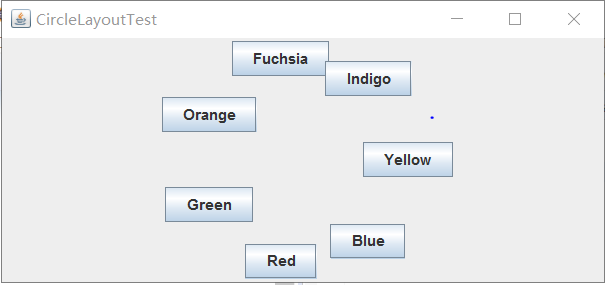
l 在elipse IDE中调试运行教材539页程序12-13、12-14,结合运行结果理解程序;
l 掌握定制布局管理器的用法。
l 记录示例代码阅读理解中存在的问题与疑惑。
 package circleLayout;

 import java.awt.*;

 import javax.swing.*;

 /**

  * @version 1.33 2015-06-12

  * @author Cay Horstmann

  */

 public class CircleLayoutTest

 {

    public static void main(String[] args)

    {

       EventQueue.invokeLater(() -> {

          JFrame frame = new CircleLayoutFrame();

          frame.setTitle("CircleLayoutTest");

          frame.setDefaultCloseOperation(JFrame.EXIT_ON_CLOSE);

          frame.setVisible(true);

       });

    }

 }
 package circleLayout;

 import javax.swing.*;

 /**

  * A frame that shows buttons arranged along a circle.

  */

 public class CircleLayoutFrame extends JFrame

 {

    public CircleLayoutFrame()

    {

       setLayout(new CircleLayout());

       add(new JButton("Yellow"));

       add(new JButton("Blue"));

       add(new JButton("Red"));

       add(new JButton("Green"));

       add(new JButton("Orange"));

       add(new JButton("Fuchsia"));

       add(new JButton("Indigo"));

       pack();

    }

 }
 package circleLayout;

 import java.awt.*;

 /**

  * A layout manager that lays out components along a circle.

  */

 public class CircleLayout implements LayoutManager

 {

    private int minWidth = 0;

    private int minHeight = 0;

    private int preferredWidth = 0;

    private int preferredHeight = 0;

    private boolean sizesSet = false;

    private int maxComponentWidth = 0;

    private int maxComponentHeight = 0;

    public void addLayoutComponent(String name, Component comp)

    {

    }

    public void removeLayoutComponent(Component comp)

    {

    }

    public void setSizes(Container parent)

    {

       if (sizesSet) return;

       int n = parent.getComponentCount();

       preferredWidth = 0;

       preferredHeight = 0;

       minWidth = 0;

       minHeight = 0;

       maxComponentWidth = 0;

       maxComponentHeight = 0;

       // compute the maximum component widths and heights

       // and set the preferred size to the sum of the component sizes.

       for (int i = 0; i < n; i++)

       {

          Component c = parent.getComponent(i);

          if (c.isVisible())

          {

             Dimension d = c.getPreferredSize();

             maxComponentWidth = Math.max(maxComponentWidth, d.width);

             maxComponentHeight = Math.max(maxComponentHeight, d.height);

             preferredWidth += d.width;

             preferredHeight += d.height;

          }

       }

       minWidth = preferredWidth / 2;

       minHeight = preferredHeight / 2;

       sizesSet = true;

    }

    public Dimension preferredLayoutSize(Container parent)

    {

       setSizes(parent);

       Insets insets = parent.getInsets();

       int width = preferredWidth + insets.left + insets.right;

       int height = preferredHeight + insets.top + insets.bottom;

       return new Dimension(width, height);

    }

    public Dimension minimumLayoutSize(Container parent)

    {

       setSizes(parent);

       Insets insets = parent.getInsets();

       int width = minWidth + insets.left + insets.right;

       int height = minHeight + insets.top + insets.bottom;

       return new Dimension(width, height);

    }

    public void layoutContainer(Container parent)

    {

       setSizes(parent);

       // compute center of the circle

       Insets insets = parent.getInsets();

       int containerWidth = parent.getSize().width - insets.left - insets.right;

       int containerHeight = parent.getSize().height - insets.top - insets.bottom;

       int xcenter = insets.left + containerWidth / 2;

       int ycenter = insets.top + containerHeight / 2;

       // compute radius of the circle

       int xradius = (containerWidth - maxComponentWidth) / 2;

       int yradius = (containerHeight - maxComponentHeight) / 2;

       int radius = Math.min(xradius, yradius);

       // lay out components along the circle

       int n = parent.getComponentCount();

       for (int i = 0; i < n; i++)

       {

          Component c = parent.getComponent(i);

          if (c.isVisible())

          {

             double angle = 2 * Math.PI * i / n;

             // center point of component

             int x = xcenter + (int) (Math.cos(angle) * radius);

             int y = ycenter + (int) (Math.sin(angle) * radius);

             // move component so that its center is (x, y)

             // and its size is its preferred size

             Dimension d = c.getPreferredSize();

             c.setBounds(x - d.width / 2, y - d.height / 2, d.width, d.height);

          }

       }

    }

 }
测试程序12
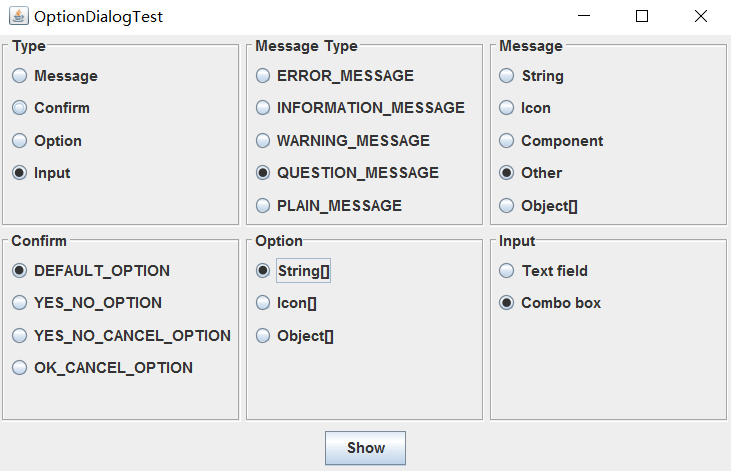
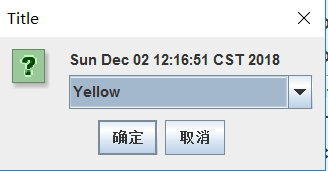
l 在elipse IDE中调试运行教材544页程序12-15、12-16,结合运行结果理解程序;
l 掌握选项对话框的用法。
l 记录示例代码阅读理解中存在的问题与疑惑。
 package optionDialog;

 import java.awt.*;

 import javax.swing.*;

 /**

  * @version 1.34 2015-06-12

  * @author Cay Horstmann

  */

 public class OptionDialogTest

 {

    public static void main(String[] args)

    {

       EventQueue.invokeLater(() -> {

          JFrame frame = new OptionDialogFrame();

          frame.setTitle("OptionDialogTest");

          frame.setDefaultCloseOperation(JFrame.EXIT_ON_CLOSE);

          frame.setVisible(true);

       });

    }

 }
 package optionDialog;

 import java.awt.*;

 import java.awt.event.*;

 import java.awt.geom.*;

 import java.util.*;

 import javax.swing.*;

 /**

  * A frame that contains settings for selecting various option dialogs.

  */

 public class OptionDialogFrame extends JFrame

 {

    private ButtonPanel typePanel;

    private ButtonPanel messagePanel;

    private ButtonPanel messageTypePanel;

    private ButtonPanel optionTypePanel;

    private ButtonPanel optionsPanel;

    private ButtonPanel inputPanel;

    private String messageString = "Message";

    private Icon messageIcon = new ImageIcon("blue-ball.gif");

    private Object messageObject = new Date();

    private Component messageComponent = new SampleComponent();

    public OptionDialogFrame()

    {

       JPanel gridPanel = new JPanel();

       gridPanel.setLayout(new GridLayout(2, 3));

       typePanel = new ButtonPanel("Type", "Message", "Confirm", "Option", "Input");

       messageTypePanel = new ButtonPanel("Message Type", "ERROR_MESSAGE", "INFORMATION_MESSAGE",

             "WARNING_MESSAGE", "QUESTION_MESSAGE", "PLAIN_MESSAGE");

       messagePanel = new ButtonPanel("Message", "String", "Icon", "Component", "Other",

             "Object[]");

       optionTypePanel = new ButtonPanel("Confirm", "DEFAULT_OPTION", "YES_NO_OPTION",

             "YES_NO_CANCEL_OPTION", "OK_CANCEL_OPTION");

       optionsPanel = new ButtonPanel("Option", "String[]", "Icon[]", "Object[]");

       inputPanel = new ButtonPanel("Input", "Text field", "Combo box");

       gridPanel.add(typePanel);

       gridPanel.add(messageTypePanel);

       gridPanel.add(messagePanel);

       gridPanel.add(optionTypePanel);

       gridPanel.add(optionsPanel);

       gridPanel.add(inputPanel);

       // add a panel with a Show button

       JPanel showPanel = new JPanel();

       JButton showButton = new JButton("Show");

       showButton.addActionListener(new ShowAction());

       showPanel.add(showButton);

       add(gridPanel, BorderLayout.CENTER);

       add(showPanel, BorderLayout.SOUTH);

       pack();

    }

    /**

     * Gets the currently selected message.

     * @return a string, icon, component, or object array, depending on the Message panel selection

     */

    public Object getMessage()

    {

       String s = messagePanel.getSelection();

       if (s.equals("String")) return messageString;

       else if (s.equals("Icon")) return messageIcon;

       else if (s.equals("Component")) return messageComponent;

       else if (s.equals("Object[]")) return new Object[] { messageString, messageIcon,

             messageComponent, messageObject };

       else if (s.equals("Other")) return messageObject;

       else return null;

    }

    /**

     * Gets the currently selected options.

     * @return an array of strings, icons, or objects, depending on the Option panel selection

     */

    public Object[] getOptions()

    {

       String s = optionsPanel.getSelection();

       if (s.equals("String[]")) return new String[] { "Yellow", "Blue", "Red" };

       else if (s.equals("Icon[]")) return new Icon[] { new ImageIcon("yellow-ball.gif"),

             new ImageIcon("blue-ball.gif"), new ImageIcon("red-ball.gif") };

       else if (s.equals("Object[]")) return new Object[] { messageString, messageIcon,

             messageComponent, messageObject };

       else return null;

    }

    /**

     * Gets the selected message or option type

     * @param panel the Message Type or Confirm panel

     * @return the selected XXX_MESSAGE or XXX_OPTION constant from the JOptionPane class

     */

    public int getType(ButtonPanel panel)

    {

       String s = panel.getSelection();

       try

       {

          return JOptionPane.class.getField(s).getInt(null);

       }

       catch (Exception e)

       {

          return -1;

       }

    }

    /**

     * The action listener for the Show button shows a Confirm, Input, Message, or Option dialog

     * depending on the Type panel selection.

     */

    private class ShowAction implements ActionListener

    {

       public void actionPerformed(ActionEvent event)

       {

          if (typePanel.getSelection().equals("Confirm")) JOptionPane.showConfirmDialog(

                OptionDialogFrame.this, getMessage(), "Title", getType(optionTypePanel),

                getType(messageTypePanel));

          else if (typePanel.getSelection().equals("Input"))

          {

             if (inputPanel.getSelection().equals("Text field")) JOptionPane.showInputDialog(

                   OptionDialogFrame.this, getMessage(), "Title", getType(messageTypePanel));

             else JOptionPane.showInputDialog(OptionDialogFrame.this, getMessage(), "Title",

                   getType(messageTypePanel), null, new String[] { "Yellow", "Blue", "Red" },

                   "Blue");

          }

          else if (typePanel.getSelection().equals("Message")) JOptionPane.showMessageDialog(

                OptionDialogFrame.this, getMessage(), "Title", getType(messageTypePanel));

          else if (typePanel.getSelection().equals("Option")) JOptionPane.showOptionDialog(

                OptionDialogFrame.this, getMessage(), "Title", getType(optionTypePanel),

                getType(messageTypePanel), null, getOptions(), getOptions()[0]);

       }

    }

 }

 /**

  * A component with a painted surface

  */

 class SampleComponent extends JComponent

 {

    public void paintComponent(Graphics g)

    {

       Graphics2D g2 = (Graphics2D) g;

       Rectangle2D rect = new Rectangle2D.Double(0, 0, getWidth() - 1, getHeight() - 1);

       g2.setPaint(Color.YELLOW);

       g2.fill(rect);

       g2.setPaint(Color.BLUE);

       g2.draw(rect);

    }

    public Dimension getPreferredSize()

    {

       return new Dimension(10, 10);

    }

 }
 package optionDialog;

 import javax.swing.*;

 /**

  * A panel with radio buttons inside a titled border.

  */

 public class ButtonPanel extends JPanel

 {

    private ButtonGroup group;

    /**

     * Constructs a button panel.

     * @param title the title shown in the border

     * @param options an array of radio button labels

     */

    public ButtonPanel(String title, String... options)

    {

       setBorder(BorderFactory.createTitledBorder(BorderFactory.createEtchedBorder(), title));

       setLayout(new BoxLayout(this, BoxLayout.Y_AXIS));

       group = new ButtonGroup();

       // make one radio button for each option

       for (String option : options)

       {

          JRadioButton b = new JRadioButton(option);

          b.setActionCommand(option);

          add(b);

          group.add(b);

          b.setSelected(option == options[0]);

       }

    }

    /**

     * Gets the currently selected option.

     * @return the label of the currently selected radio button.

     */

    public String getSelection()

    {

       return group.getSelection().getActionCommand();

    }

 }
测试程序13
l 在elipse IDE中调试运行教材552页程序12-17、12-18,结合运行结果理解程序;
l 掌握对话框的创建方法;
l 记录示例代码阅读理解中存在的问题与疑惑。
 package dialog;

 import java.awt.*;

 import javax.swing.*;

 /**

  * @version 1.34 2012-06-12

  * @author Cay Horstmann

  */

 public class DialogTest

 {

    public static void main(String[] args)

    {

       EventQueue.invokeLater(() -> {

          JFrame frame = new DialogFrame();

          frame.setTitle("DialogTest");

          frame.setDefaultCloseOperation(JFrame.EXIT_ON_CLOSE);

          frame.setVisible(true);

       });

    }

 }
 package dialog;

 import javax.swing.JFrame;

 import javax.swing.JMenu;

 import javax.swing.JMenuBar;

 import javax.swing.JMenuItem;

 /**

  * A frame with a menu whose File->About action shows a dialog.

  */

 public class DialogFrame extends JFrame

 {

    private static final int DEFAULT_WIDTH = 300;

    private static final int DEFAULT_HEIGHT = 200;

    private AboutDialog dialog;

    public DialogFrame()

    {

       setSize(DEFAULT_WIDTH, DEFAULT_HEIGHT);

       // Construct a File menu.

       JMenuBar menuBar = new JMenuBar();

       setJMenuBar(menuBar);

       JMenu fileMenu = new JMenu("File");

       menuBar.add(fileMenu);

       // Add About and Exit menu items.

       // The About item shows the About dialog.

       JMenuItem aboutItem = new JMenuItem("About");

       aboutItem.addActionListener(event -> {

          if (dialog == null) // first time

             dialog = new AboutDialog(DialogFrame.this);

          dialog.setVisible(true); // pop up dialog

       });

       fileMenu.add(aboutItem);

       // The Exit item exits the program.

       JMenuItem exitItem = new JMenuItem("Exit");

       exitItem.addActionListener(event -> System.exit(0));

       fileMenu.add(exitItem);

    }

 }
 package dialog;

 import java.awt.BorderLayout;

 import javax.swing.JButton;

 import javax.swing.JDialog;

 import javax.swing.JFrame;

 import javax.swing.JLabel;

 import javax.swing.JPanel;

 /**

  * A sample modal dialog that displays a message and waits for the user to click the OK button.

  */

 public class AboutDialog extends JDialog

 {

    public AboutDialog(JFrame owner)

    {

       super(owner, "About DialogTest", true);

       // add HTML label to center

       add(

             new JLabel(

                   "<html><h1><i>Core Java</i></h1><hr>By Cay Horstmann</html>"),

             BorderLayout.CENTER);

       // OK button closes the dialog

       JButton ok = new JButton("OK");

       ok.addActionListener(event -> setVisible(false));

       // add OK button to southern border

       JPanel panel = new JPanel();

       panel.add(ok);

       add(panel, BorderLayout.SOUTH);

       pack();

    }

 }
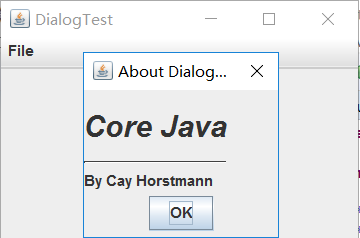
测试程序14
l 在elipse IDE中调试运行教材556页程序12-19、12-20,结合运行结果理解程序;
l 掌握对话框的数据交换用法;
l 记录示例代码阅读理解中存在的问题与疑惑。
 package dataExchange;

 import java.awt.*;

 import javax.swing.*;

 /**

  * @version 1.34 2015-06-12

  * @author Cay Horstmann

  */

 public class DataExchangeTest

 {

    public static void main(String[] args)

    {

       EventQueue.invokeLater(() -> {

          JFrame frame = new DataExchangeFrame();

          frame.setTitle("DataExchangeTest");

          frame.setDefaultCloseOperation(JFrame.EXIT_ON_CLOSE);

          frame.setVisible(true);

       });

    }

 }
 package dataExchange;

 import java.awt.BorderLayout;

 import java.awt.Component;

 import java.awt.Frame;

 import java.awt.GridLayout;

 import javax.swing.JButton;

 import javax.swing.JDialog;

 import javax.swing.JLabel;

 import javax.swing.JPanel;

 import javax.swing.JPasswordField;

 import javax.swing.JTextField;

 import javax.swing.SwingUtilities;

 /**

  * A password chooser that is shown inside a dialog

  */

 public class PasswordChooser extends JPanel

 {

    private JTextField username;

    private JPasswordField password;

    private JButton okButton;

    private boolean ok;

    private JDialog dialog;

    public PasswordChooser()

    {

       setLayout(new BorderLayout());

       // construct a panel with user name and password fields

       JPanel panel = new JPanel();

       panel.setLayout(new GridLayout(2, 2));

       panel.add(new JLabel("User name:"));

       panel.add(username = new JTextField(""));

       panel.add(new JLabel("Password:"));

       panel.add(password = new JPasswordField(""));

       add(panel, BorderLayout.CENTER);

       // create Ok and Cancel buttons that terminate the dialog

       okButton = new JButton("Ok");

       okButton.addActionListener(event -> {

          ok = true;

          dialog.setVisible(false);

       });

       JButton cancelButton = new JButton("Cancel");

       cancelButton.addActionListener(event -> dialog.setVisible(false));

       // add buttons to southern border

       JPanel buttonPanel = new JPanel();

       buttonPanel.add(okButton);

       buttonPanel.add(cancelButton);

       add(buttonPanel, BorderLayout.SOUTH);

    }

    /**

     * Sets the dialog defaults.

     * @param u the default user information

     */

    public void setUser(User u)

    {

       username.setText(u.getName());

    }

    /**

     * Gets the dialog entries.

     * @return a User object whose state represents the dialog entries

     */

    public User getUser()

    {

       return new User(username.getText(), password.getPassword());

    }

    /**

     * Show the chooser panel in a dialog

     * @param parent a component in the owner frame or null

     * @param title the dialog window title

     */

    public boolean showDialog(Component parent, String title)

    {

       ok = false;

       // locate the owner frame

       Frame owner = null;

       if (parent instanceof Frame)

          owner = (Frame) parent;

       else

          owner = (Frame) SwingUtilities.getAncestorOfClass(Frame.class, parent);

       // if first time, or if owner has changed, make new dialog

       if (dialog == null || dialog.getOwner() != owner)

       {

          dialog = new JDialog(owner, true);

          dialog.add(this);

          dialog.getRootPane().setDefaultButton(okButton);

          dialog.pack();

       }

       // set title and show dialog

       dialog.setTitle(title);

       dialog.setVisible(true);

       return ok;

    }

 }
 package dataExchange;

 import java.awt.*;

 import java.awt.event.*;

 import javax.swing.*;

 /**

  * A frame with a menu whose File->Connect action shows a password dialog.

  */

 public class DataExchangeFrame extends JFrame

 {

    public static final int TEXT_ROWS = 20;

    public static final int TEXT_COLUMNS = 40;

    private PasswordChooser dialog = null;

    private JTextArea textArea;

    public DataExchangeFrame()

    {

       // construct a File menu

       JMenuBar mbar = new JMenuBar();

       setJMenuBar(mbar);

       JMenu fileMenu = new JMenu("File");

       mbar.add(fileMenu);

       // add Connect and Exit menu items

       JMenuItem connectItem = new JMenuItem("Connect");

       connectItem.addActionListener(new ConnectAction());

       fileMenu.add(connectItem);

       // The Exit item exits the program

       JMenuItem exitItem = new JMenuItem("Exit");

       exitItem.addActionListener(event -> System.exit(0));

       fileMenu.add(exitItem);

       textArea = new JTextArea(TEXT_ROWS, TEXT_COLUMNS);

       add(new JScrollPane(textArea), BorderLayout.CENTER);

       pack();

    }

    /**

     * The Connect action pops up the password dialog.

     */

    private class ConnectAction implements ActionListener

    {

       public void actionPerformed(ActionEvent event)

       {

          // if first time, construct dialog

          if (dialog == null) dialog = new PasswordChooser();

          // set default values

          dialog.setUser(new User("yourname", null));

          // pop up dialog

          if (dialog.showDialog(DataExchangeFrame.this, "Connect"))

          {

             // if accepted, retrieve user input

             User u = dialog.getUser();

             textArea.append("user name = " + u.getName() + ", password = "

                   + (new String(u.getPassword())) + "\n");

          }

       }

    }

 }
 package dataExchange;

 /**

  * A user has a name and password. For security reasons, the password is stored as a char[], not a

  * String.

  */

 public class User

 {

    private String name;

    private char[] password;

    public User(String aName, char[] aPassword)

    {

       name = aName;

       password = aPassword;

    }

    public String getName()

    {

       return name;

    }

    public char[] getPassword()

    {

       return password;

    }

    public void setName(String aName)

    {

       name = aName;

    }

    public void setPassword(char[] aPassword)

    {

       password = aPassword;

    }

 }
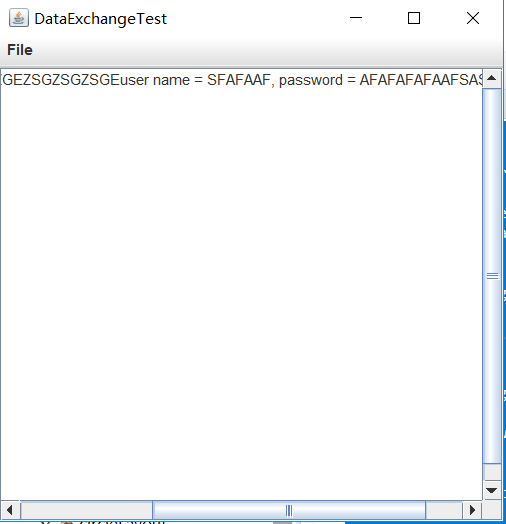
测试程序15
l 在elipse IDE中调试运行教材556页程序12-21、12-2212-23,结合程序运行结果理解程序;
l 掌握文件对话框的用法;
l 记录示例代码阅读理解中存在的问题与疑惑。
package fileChooser;

import java.awt.*;

import javax.swing.*;

/**

 * @version 1.25 2015-06-12

 * @author Cay Horstmann

 */

public class FileChooserTest

{

   public static void main(String[] args)

   {

      EventQueue.invokeLater(() -> {

         JFrame frame = new ImageViewerFrame();

         frame.setTitle("FileChooserTest");

         frame.setDefaultCloseOperation(JFrame.EXIT_ON_CLOSE);

         frame.setVisible(true);

      });

   }

}
package fileChooser;

import java.io.*;

import javax.swing.*;

import javax.swing.filechooser.*;

import javax.swing.filechooser.FileFilter;

/**

 * A file view that displays an icon for all files that match a file filter.

 */

public class FileIconView extends FileView

{

   private FileFilter filter;

   private Icon icon;

   /**

    * Constructs a FileIconView.

    * @param aFilter a file filter--all files that this filter accepts will be shown

    * with the icon.

    * @param anIcon--the icon shown with all accepted files.

    */

   public FileIconView(FileFilter aFilter, Icon anIcon)

   {

      filter = aFilter;

      icon = anIcon;

   }

   public Icon getIcon(File f)

   {

      if (!f.isDirectory() && filter.accept(f)) return icon;

      else return null;

   }

}
package fileChooser;

import java.awt.*;

import java.io.*;

import javax.swing.*;

/**

 * A file chooser accessory that previews images.

 */

public class ImagePreviewer extends JLabel

{

   /**

    * Constructs an ImagePreviewer.

    * @param chooser the file chooser whose property changes trigger an image

    *        change in this previewer

    */

   public ImagePreviewer(JFileChooser chooser)

   {

      setPreferredSize(new Dimension(100, 100));

      setBorder(BorderFactory.createEtchedBorder());

      chooser.addPropertyChangeListener(event -> {

         if (event.getPropertyName() == JFileChooser.SELECTED_FILE_CHANGED_PROPERTY)

         {

            // the user has selected a new file

            File f = (File) event.getNewValue();

            if (f == null)

            {

               setIcon(null);

               return;

            }

            // read the image into an icon

            ImageIcon icon = new ImageIcon(f.getPath());

            // if the icon is too large to fit, scale it

            if (icon.getIconWidth() > getWidth())

               icon = new ImageIcon(icon.getImage().getScaledInstance(

                     getWidth(), -1, Image.SCALE_DEFAULT));

            setIcon(icon);

         }

      });

   }

}
package fileChooser;

import java.io.*;

import javax.swing.*;

import javax.swing.filechooser.*;

import javax.swing.filechooser.FileFilter;

/**

 * A frame that has a menu for loading an image and a display area for the

 * loaded image.

 */

public class ImageViewerFrame extends JFrame

{

   private static final int DEFAULT_WIDTH = 300;

   private static final int DEFAULT_HEIGHT = 400;

   private JLabel label;

   private JFileChooser chooser;

   public ImageViewerFrame()

   {

      setSize(DEFAULT_WIDTH, DEFAULT_HEIGHT);

      // set up menu bar

      JMenuBar menuBar = new JMenuBar();

      setJMenuBar(menuBar);

      JMenu menu = new JMenu("File");

      menuBar.add(menu);

      JMenuItem openItem = new JMenuItem("Open");

      menu.add(openItem);

      openItem.addActionListener(event -> {

         chooser.setCurrentDirectory(new File("."));

         // show file chooser dialog

            int result = chooser.showOpenDialog(ImageViewerFrame.this);

            // if image file accepted, set it as icon of the label

            if (result == JFileChooser.APPROVE_OPTION)

            {

               String name = chooser.getSelectedFile().getPath();

               label.setIcon(new ImageIcon(name));

               pack();

            }

         });

      JMenuItem exitItem = new JMenuItem("Exit");

      menu.add(exitItem);

      exitItem.addActionListener(event -> System.exit(0));

      // use a label to display the images

      label = new JLabel();

      add(label);

      // set up file chooser

      chooser = new JFileChooser();

      // accept all image files ending with .jpg, .jpeg, .gif

      FileFilter filter = new FileNameExtensionFilter(

            "Image files", "jpg", "jpeg", "gif");

      chooser.setFileFilter(filter);

      chooser.setAccessory(new ImagePreviewer(chooser));

      chooser.setFileView(new FileIconView(filter, new ImageIcon("palette.gif")));

   }

}

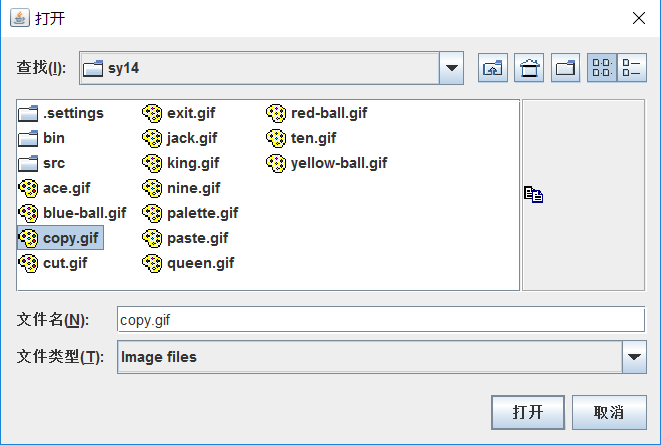
测试程序16
l 在elipse IDE中调试运行教材570页程序12-24,结合运行结果理解程序;
l 了解颜色选择器的用法。
l 记录示例代码阅读理解中存在的问题与疑惑。
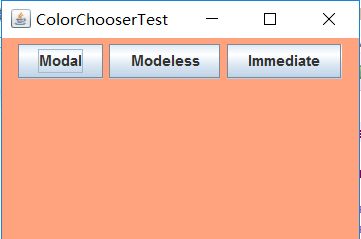
package colorChooser;

import java.awt.*;

import javax.swing.*;

/**

 * @version 1.04 2015-06-12

 * @author Cay Horstmann

 */

public class ColorChooserTest

{

   public static void main(String[] args)

   {

      EventQueue.invokeLater(() -> {

         JFrame frame = new ColorChooserFrame();

         frame.setTitle("ColorChooserTest");

         frame.setDefaultCloseOperation(JFrame.EXIT_ON_CLOSE);

         frame.setVisible(true);

      });

   }

}
package colorChooser;

import java.awt.Color;

import java.awt.Frame;

import java.awt.event.ActionEvent;

import java.awt.event.ActionListener;

import javax.swing.JButton;

import javax.swing.JColorChooser;

import javax.swing.JDialog;

import javax.swing.JPanel;

/**

 * A panel with buttons to pop up three types of color choosers

 */

public class ColorChooserPanel extends JPanel

{

   public ColorChooserPanel()

   {

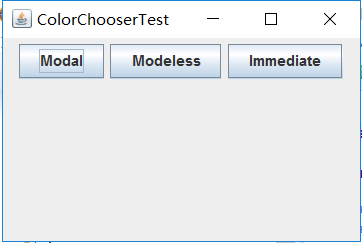
      JButton modalButton = new JButton("Modal");

      modalButton.addActionListener(new ModalListener());

      add(modalButton);

      JButton modelessButton = new JButton("Modeless");

      modelessButton.addActionListener(new ModelessListener());

      add(modelessButton);

      JButton immediateButton = new JButton("Immediate");

      immediateButton.addActionListener(new ImmediateListener());

      add(immediateButton);

   }

   /**

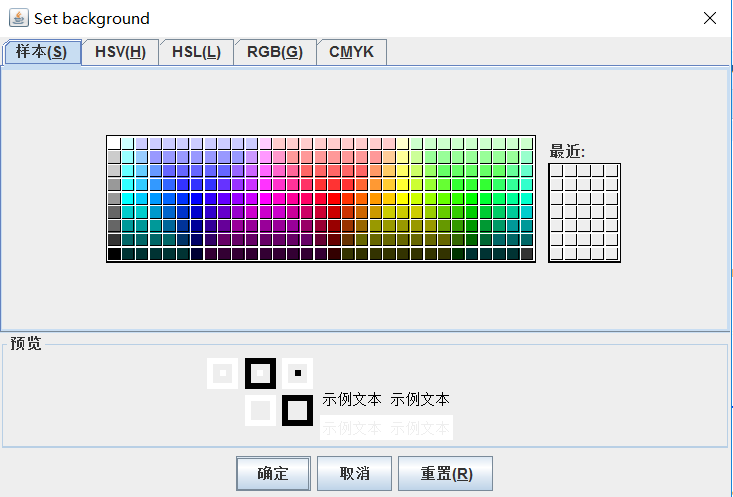
    * This listener pops up a modal color chooser

    */

   private class ModalListener implements ActionListener

   {

      public void actionPerformed(ActionEvent event)

      {

         Color defaultColor = getBackground();

         Color selected = JColorChooser.showDialog(ColorChooserPanel.this, "Set background",

               defaultColor);

         if (selected != null) setBackground(selected);

      }

   }

   /**

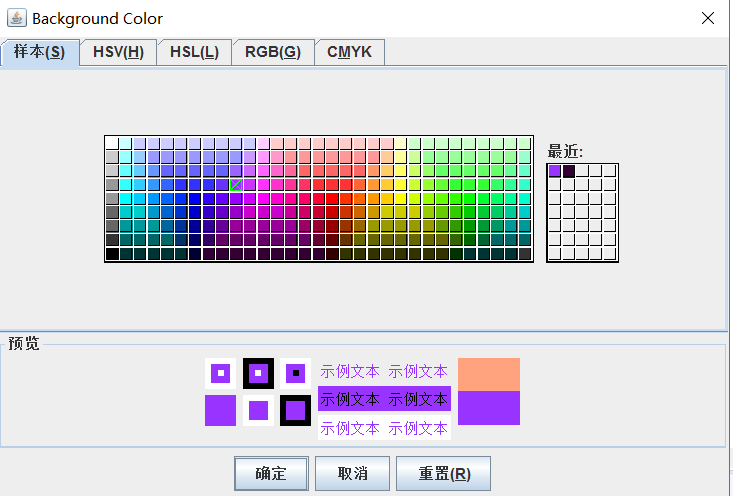
    * This listener pops up a modeless color chooser. The panel color is changed when the user

    * clicks the OK button.

    */

   private class ModelessListener implements ActionListener

   {

      private JDialog dialog;

      private JColorChooser chooser;

      public ModelessListener()

      {

         chooser = new JColorChooser();

         dialog = JColorChooser.createDialog(ColorChooserPanel.this, "Background Color",

               false /* not modal */, chooser,

               event -> setBackground(chooser.getColor()),

               null /* no Cancel button listener */);

      }

      public void actionPerformed(ActionEvent event)

      {

         chooser.setColor(getBackground());

         dialog.setVisible(true);

      }

   }

   /**

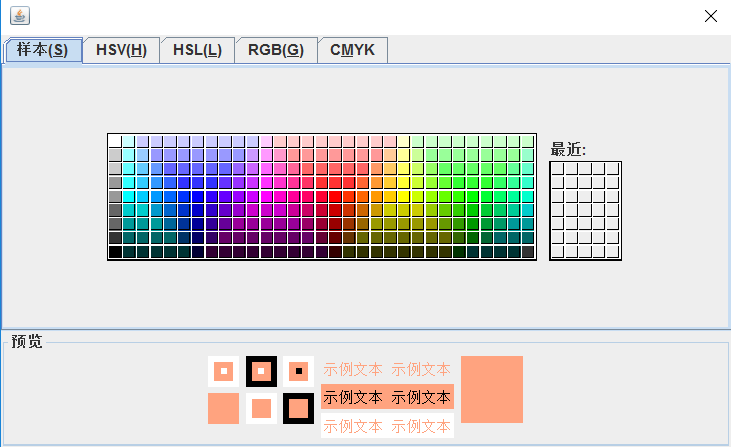
    * This listener pops up a modeless color chooser. The panel color is changed immediately when

    * the user picks a new color.

    */

   private class ImmediateListener implements ActionListener

   {

      private JDialog dialog;

      private JColorChooser chooser;

      public ImmediateListener()

      {

         chooser = new JColorChooser();

         chooser.getSelectionModel().addChangeListener(

               event -> setBackground(chooser.getColor()));

         dialog = new JDialog((Frame) null, false /* not modal */);

         dialog.add(chooser);

         dialog.pack();

      }

      public void actionPerformed(ActionEvent event)

      {

         chooser.setColor(getBackground());

         dialog.setVisible(true);

      }

   }

}
package colorChooser;

import javax.swing.*;

/**

 * A frame with a color chooser panel

 */

public class ColorChooserFrame extends JFrame

{

   private static final int DEFAULT_WIDTH = 300;

   private static final int DEFAULT_HEIGHT = 200;

   public ColorChooserFrame()

   {

      setSize(DEFAULT_WIDTH, DEFAULT_HEIGHT);

      // add color chooser panel to frame

      ColorChooserPanel panel = new ColorChooserPanel();

      add(panel);

   }

}
实验2:组内讨论反思本组负责程序,理解程序总体结构,梳理程序GUI设计中应用的相关组件,整理相关组件的API,对程序中组件应用的相关代码添加注释。
实验3:组间协同学习:在本班课程QQ群内,各位同学对实验1中存在的问题进行提问,提问时注明实验1中的测试程序编号,负责对应程序的小组需及时对群内提问进行回答。
实验总结:
本次实验主要学习了如何设计简单的UI交互界面,内容比较多,还需要继续在实践中掌握这些用法,实验10~16比较难理解,还需多多交流学习。
李清华 201772020113《面向对象程序设计(java)》第十四周学习总结的更多相关文章
- 201521123061 《Java程序设计》第十四周学习总结
201521123061 <Java程序设计>第十四周学习总结 1. 本周学习总结 1.1 以你喜欢的方式(思维导图或其他)归纳总结多数据库相关内容. 2. 书面作业 1. MySQL数据 ...
- 201521123072《java程序设计》第十四周学习总结
201521123072<java程序设计>第十四周学习总结 1. 本周学习总结 1.1 以你喜欢的方式(思维导图或其他)归纳总结多数据库相关内容. 2. 书面作业 1. MySQL数据库 ...
- 201521123038 《Java程序设计》 第十四周学习总结
201521123038 <Java程序设计> 第十四周学习总结 1. 本周学习总结 1.1 以你喜欢的方式(思维导图或其他)归纳总结多数据库相关内容. 接口: DriverManager ...
- 201521123122 《java程序设计》第十四周学习总结
## 201521123122 <java程序设计>第十四周实验总结 ## 1. 本周学习总结 1.1 以你喜欢的方式(思维导图或其他)归纳总结多数据库相关内容. 2. 书面作业 1. M ...
- 201771010134杨其菊《面向对象程序设计java》第九周学习总结
第九周学习总结 第一部分:理论知识 异常.断言和调试.日志 1.捕获 ...
- 201772020113李清华《面向对象程序设计(java)》第十二周学习总结
1.实验目的与要求 (1) 掌握Java GUI中框架创建及属性设置中常用类的API: (2) 掌握Java GUI中2D图形绘制常用类的API: (3) 了解Java GUI中2D图形中字体与颜色的 ...
- 201772020113李清华《面向对象程序设计(java)》第一周学习总结
201772020113<面向对象程序设计(java)>第一周学习总结 第一部分:课程准备部分 填写课程学习 平台注册账号, 平台名称 注册账号 博客园:www.cnblogs.com b ...
- 201772020113 李清华《面向对象程序设计(java)》第18周学习总结
1.实验目的与要求 (1) 综合掌握java基本程序结构: (2) 综合掌握java面向对象程序设计特点: (3) 综合掌握java GUI 程序设计结构: (4) 综合掌握java多线程编程模型: ...
- 201772020113 李清华《面向对象程序设计(java)》第三周学习总结
一.测试题反思: 这次的测试题暴露出我在学习上的很多问题:首先,编程能力非常薄弱,编程题目只写出了第一个程序,还因为小问题通不过测试,以后一定要多上手练习,多阅读示例程序.其次,对理论知识的掌握不全面 ...
- 201871010132-张潇潇《面向对象程序设计(java)》第一周学习总结
面向对象程序设计(Java) 博文正文开头 项目 内容 这个作业属于哪个课程 https://www.cnblogs.com/nwnu-daizh/ 这个作业的要求在哪里 https://www.cn ...
随机推荐
- Hbase常用操作记录
Hbase常用操作记录 Hbase 创建表 查看表结构 修改表结构 删除表 创建表 语法:create <table>, {NAME => <family>, VERSI ...
- 如何让input框显示在一行?
案例: <input type="float:left" value="aaaa"> <input type="float:left ...
- 使用JenKins实现自动执行python脚本
1.使用Jenkins创建一个工程,工程主要配置项参照下图,其他配置项恢复默认 2.工程配置完成之后,点击[立即构建],执行完成后进入到控制台查看是否执行成功.
- js入门关于js‘i++’‘++i’和‘i--’‘--i’计算的问题
一,i++和++i; i++是先赋值在运算,++i是先运算在赋值: 例如:var a=1 a++:在运算时是按照1计算的:但在下面再次出现时是按照2进行运算: ++a:在运算时是按照2计算的:在下面再 ...
- DEV中的TreeList控件应用的一个小效果实现——个人总结
我使用最多的DEV控件就是这个TreeList啦,当然用好它很不简单,如果用好它,能做出很精彩的树形层次结构图.TreeList控件很强大,以至于你看DEV自带的DEMO,也得浪费你很长时间应用.DE ...
- Kettle 部署
下载kettle包 访问https://community.hitachivantara.com/docs/DOC-1009855下载kettle包 选择想要的版本 下载zip包 解压kettle包 ...
- sql调优2
今天,数据库的操作越来越成为整个应用的性能瓶颈了,这点对于Web应用尤其明显.关于数据库的性能,这并不只是DBA才需要担心的事,而这更是我们程序员需要去关注的事情.当我们去设计数据库表结构,对操作数据 ...
- MongoDB解压报错gzip: stdin: not in gzip format的解决方法
MongoDB解压报错gzip: stdin: not in gzip format的解决方法 在安装MongoDB时出现如下报错: [root@vm172--- mongodb]# tar -zxv ...
- nil和Nil及NULL的区别(仅作记录)
今天在研究红黑树的时候一直提到一个NIL节点,百度了一下,这里仅作记录 nil是一个对象值,如果要把一个对象设置为空的时候就用nil.Nil是一个类对象的值,如果要把一个Class类型的对象设置为空的 ...
- Tornado异步非阻塞的使用以及原理
Tornado 和现在的主流 Web 服务器框架(包括大多数 Python 的框架)有着明显的区别:它是非阻塞式服务器,而且速度相当快.得利于其 非阻塞的方式和对 epoll 的运用,Tornado ...