
利用backgroundwork----递归读取网页源代码,并下载href链接中的文件
今天闲着没事,研究了一下在线更新程序版本的问题。也是工作中的需要,开始不知道如何下手,各种百度也没有找到自己想要的,因为我的需求比较简单,所以就自己琢磨了一下。讲讲我的需求吧。自己在IIs上发布了一个网站,这个网站仅仅只是内部使用的,网站的内容就是我的另外一个程序(就叫A程序吧)的打包发布的文件放进去。然后在客户端启动我的A程序之前检查是否有新版本文件发布。如果有,我根据网页源代码的信息和本地文件信息进行比较,决定是否下载。如果有下载,下载完成后执行A程序的.exe文件启动A程序。大致的要求就是这样。
首先自己发布一个测试网站,也就是简单的在IIS上将我本机的一个文件夹发布出来,具体怎么操作就不做讲解了。得到我的网址:http://localhost/webTest/。这个网站就作为我以后有新版本文件要发布就直接丢进去。
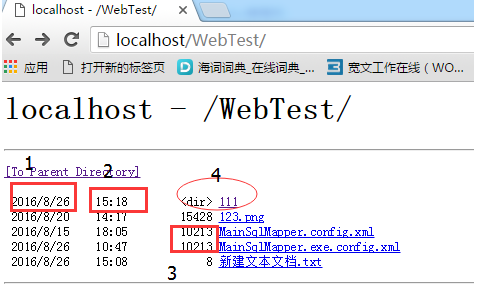
上面的截图中有几个地方需要注明一下:
1.是这个文件最后一次编辑日期。
2.是最后一次编辑时间点。
3.是你这个文件的大小。
4.椭圆部分是一个文件夹。
前面标题说用递归,就是因为网站中可能存在子文件夹,遇到子文件夹我就要继续跟进去读取源代码获取我要的信息。
注:网页中有个[to parent Directory]这是他的父文件夹,我们在读取网页源代码的时候要对这部分进行处理
注:1,2部分是指这个文件最后一次编辑时间,比如说你在本地有个文件你对他进行最后一次的编辑时间2016/8/26 13:15 那不管你把这个文件拷贝或是上传到其他地方,那他的编辑时间始终不会变的。
大致的情况介绍的差不多了,接下来直接开始我的读取网页下载文件的程序吧!上代码,一如既往,图文并茂的文章才是好文章。
一、创建一个winform工程。
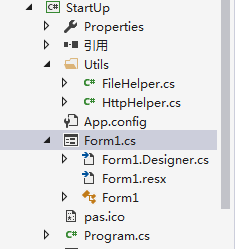
图(1):工程结构

图(2):winform需要的控件
图(1)中我添加了两个帮助类:FileHelper.cs/HttpHelper.cs。在后面做详细介绍
图(2)中1是一个label控件,用来显示正在下载的文件名。2是progressBar控件,winform自带的进度条控件,我觉得还挺好用的。。还需要一个backgroundwork控件
二:帮助类文件
FileHelper.cs帮助类文件。
  public class FileHelper

  {

       public DateTime ModiDate { get; set; } //最后编辑时间

      public long Size { get; set; }  //文件大小

      public String FilePath { get; set; }  //路径+文件名

  }
HttpHelper.cs
/// <summary>
/// 获取网页源代码
/// </summary>
/// <param name="serverUrl">网址</param>
/// <param name="listFile">存放下载文件的集合</param>
/// <param name="listHref">存放子目录集合</param> public static void GetHtmlResource(string serverUrl, List<FileHelper> listFile, List<string> listHref)
{
#region
//Uri u = new Uri(serverUrl);
//string host = u.Host;
//if (serverUrl.EndsWith("/"))
//{
// //1.获取网页源代码
// WebClient wc = new WebClient();
// wc.Credentials = CredentialCache.DefaultCredentials;
// byte[] htmlData = wc.DownloadData(serverUrl);
// string htmlStr = Encoding.Default.GetString(htmlData);
// //2.正则找到href属性内容截取
// string regMat = @"(?is)<a[^>]*?href=(['""\s]?)(?<href>[^'""\s]*)\1[^>]*?";
// MatchCollection mat = Regex.Matches(htmlStr, regMat, RegexOptions.IgnoreCase);
// List<string> listHref = new List<string>(); //存放href结合
// for (int i = 0; i < mat.Count; i++)
// {
// string item = mat[i].Groups["href"].Value;
// listHref.Add(item);
// MatchCollection match = Regex.Matches(htmlStr, "([0-9]{1,})\\s\\<A\\sHREF=\""+ item+"\"", RegexOptions.IgnoreCase);
// if(match.Count == 1 && match[0].Groups.Count==2)
// {
// fileSize.Add(@"http://" + host + item, int.Parse(match[0].Groups[1].Value));
// }
// }
// foreach (var item in listHref) //Match item in mat
// {
// string url = @"http://"+host + item;
// if (serverUrl.StartsWith(url))
// {
// continue;
// }
// GetHtmlResource(url, serverFilePath,fileSize);
// }
//}
//else
//{
// serverFilePath.Add(serverUrl);
//}
#endregion Uri u = new Uri(serverUrl);
string host = u.Host;
if (serverUrl.EndsWith("/"))
{
//1.获取网页源代码
WebClient wc = new WebClient();
wc.Credentials = CredentialCache.DefaultCredentials;
byte[] htmlData = wc.DownloadData(serverUrl);
string htmlTempStr = Encoding.Default.GetString(htmlData);
//完全用字符串截取的方式得到自己想要的东西
htmlTempStr = htmlTempStr.Substring(htmlTempStr.IndexOf("<pre>"));
htmlTempStr = htmlTempStr.Substring(, htmlTempStr.IndexOf("</pre>"));
htmlTempStr = htmlTempStr.Replace("<pre>", "");
htmlTempStr = htmlTempStr.Replace("</pre>", "");
htmlTempStr = htmlTempStr.Replace("<dir>", "-1"); //把子菜单前面的"<dir&"改为-1,为了跟其他的信息一致有规律
htmlTempStr = htmlTempStr.Replace("<br>", "#");
string[] tempStr = htmlTempStr.Split('#');
ArrayList listStr = new ArrayList(tempStr);
//移除每个新网页的父级文件夹
listStr.RemoveAt();
for (int i = ; i < listStr.Count; i++)
{
if (String.IsNullOrWhiteSpace(listStr[i].ToString()))
{
listStr.RemoveAt(i);
}
}
tempStr = (string[])listStr.ToArray(typeof(string)); for (int f = ; f < tempStr.Length; f++)
{
//截取最后修改日期带时间
string fileModiTime = tempStr[f].Substring(, );
//截取文件大小
string fileSize = tempStr[f].Substring(, tempStr[f].IndexOf("<A") - );
//截取文件路径
string filePath = tempStr[f].Split('\"')[];
FileHelper file = new FileHelper();
file.ModiDate = Convert.ToDateTime(fileModiTime.Trim());
file.Size = Convert.ToInt32(fileSize.Trim());
file.FilePath = @"http://" + host + filePath;
//如果大小为-1,我就认为是子文件夹,添加到集合中
if (file.Size == -)
{
listHref.Add(file.FilePath);
}
else
{
//添加到要下载的文件集合中
listFile.Add(file);
}
}
//循环我的子文件夹集合
foreach (var item in listHref)
{
//如果item等于我的serverUrl继续
if (serverUrl.StartsWith(item))
{
continue;
}
//递归
GetHtmlResource(item, listFile, listHref);
} }
}
  /// <summary>

         /// 下载文件

         /// </summary>

         /// <param name="serverUrl">文件在服务器的全路径</param>

         /// <param name="localFilePath">下载到本地的路径</param>

         public static void DownLoadMdiFile(string serverUrl,string localFilePath)

         {

             //localFilePath = localFilePath.Replace(".exe.config.xml", ".exe.config");

             if (localFilePath.Contains(".exe.config.xml"))

             {

                 localFilePath = localFilePath.Replace(".exe.config.xml", ".exe.config");

             }

             if (localFilePath.Contains(".config.xml"))

             {

                 localFilePath = localFilePath.Replace(".config.xml", ".config");

             }

             //网页中子文件夹是否存在,如果不存在,创建文件夹,存在直接下载文件

             FileInfo file = new FileInfo(localFilePath);

             if(!file.Directory.Exists)

             {

                 Directory.CreateDirectory(file.Directory.FullName);

             }

             try

             {

                 WebClient wc = new WebClient();

                 if (!localFilePath.Contains("web.config"))

                 {

                     wc.DownloadFile(serverUrl, localFilePath);

                 }

             }

             catch (Exception e)

             {

                 throw;

             }

         }
三:banckgroundwork控件
对于这个控件我需要实现他的三个事件。很简单的三个事件,看事件名称就能知道他的意思了
第一个:backgroundWorker1_DoWork
 private void backgroundWorker1_DoWork(object sender, DoWorkEventArgs e)

         {

             #region

             //string installUrl = GetInstallPath();

             //List<string> listFilePath = new List<string>();

             //Dictionary<string, int> fileSize = new Dictionary<string, int>();

             //HttpHelper.GetHtmlResource(installUrl, listFilePath, fileSize);

             //for (int i=0;i<listFilePath.Count;i++)

             //{

             //    if (backgroundWorker1.CancellationPending)

             //    {

             //        e.Cancel = true;

             //        return;

             //    }

             //    double total = listFilePath.Count;

             //    double current = i+1;

             //    int progress = (int)(current / total * 100);

             //    string serverUrl = listFilePath[i];

             //    int size = fileSize[serverUrl];

             //    backgroundWorker1.ReportProgress(progress, serverUrl.Replace(installUrl, ""));

             //    string localPath = serverUrl.Replace(installUrl, localInstallPath);

             //    if (File.Exists(localPath))

             //    {

             //        FileStream fs = new FileStream(localPath, FileMode.Open);

             //        if (fs.Length != size)

             //        {

             //            try

             //            {

             //                HttpHelper.DownLoadMdiFile(serverUrl, localPath);

             //            }

             //            catch (Exception )

             //            {

             //                throw;

             //            }

             //        }

             //        fs.Close();

             //    }

             //    else

             //    {

             //        HttpHelper.DownLoadMdiFile(serverUrl, localPath);

             //    }

             //}

             #endregion

             string installUrl = GetInstallPath();

             List<string> listHref = new List<string>();//存放子文件夹集合

             List<FileHelper> listFile = new List<FileHelper>();//存放下载文件集合

             HttpHelper.GetHtmlResource(installUrl, listFile, listHref);

             for (int i = ; i < listFile.Count; i++)

             {

                 if (backgroundWorker1.CancellationPending)

                 {

                     e.Cancel = true;

                     return;

                 }

                 double total = listFile.Count;

                 double current = i + ;

                 int progress = (int)(current / total * );

                 //服务器文件+全路径

                 string serverUrl = listFile[i].FilePath;

                 //服务器文件大小

                 long size = listFile[i].Size;

                 //服务器文件最后修改时间

                 DateTime modiTine = listFile[i].ModiDate;

                 //backgroundWorker1执行到那个阶段

                 backgroundWorker1.ReportProgress(progress, serverUrl.Replace(installUrl, ""));

                 string localPath = serverUrl.Replace(installUrl, localInstallPath);

                 //判断文件是否存在

                 if (File.Exists(localPath))

                 {

                     //获取本地文件

                     FileInfo fs = new FileInfo(localPath);

                     //如果服务器文件大小,最后修改时间和本地文件进行对比,是否有变化

                     if (fs.Length != size || fs.LastWriteTime != modiTine)

                     {

                         try

                         {

                             HttpHelper.DownLoadMdiFile(serverUrl, localPath);

                         }

                         catch (Exception)

                         {

                             throw;

                         }

                     }

                 }

                 else

                 {

                     HttpHelper.DownLoadMdiFile(serverUrl, localPath);

                 }

             }

         }
第二个:backgroundWorker1_ProgressChanged
  private void backgroundWorker1_ProgressChanged(object sender, ProgressChangedEventArgs e)

         {

             this.progressBar.Value = e.ProgressPercentage;

             var display = e.UserState.ToString();

             labDisplay.Text = display.Trim();

             //lbl_pbvalue.Text = "更新进度" + e.ProgressPercentage + "%";

         }
第三个:backgroundWorker1_RunWorkerCompleted
 private void backgroundWorker1_RunWorkerCompleted(object sender, RunWorkerCompletedEventArgs e)

         {

             runningPath += "A.exe";

             try

             {

                 System.Diagnostics.Process.Start(runningPath);

             }

             catch (Exception ex)

             {

                 MessageBox.Show(ex.Message);

             }

             this.Close();

         }
在使用backgroundwork和progressBar控件的时候需要注意几个点
this.backgroundWorker1.WorkerReportsProgress = true; 用于进度条更新
this.backgroundWorker1.WorkerSupportsCancellation = true; 提供中途终止进程
this.progressBar.Maximum = 100;给一个最大值
好吧!就这样一个简单的在线更新文件的程序就搞定啦!
【转载注明出处!谢谢】
利用backgroundwork----递归读取网页源代码,并下载href链接中的文件的更多相关文章
- Java实现打包下载BLOB字段中的文件
概述 web项目的文件打包下载实现:servlet接收请求,spring工具类访问数据库及简化大字段内容获取,org.apache.tools.zip打包. 必要提醒:当前总结是继Java实现下载BL ...
- hadoop学习笔记(十):hdfs在命令行的基本操作命令(包括文件的上传和下载和hdfs中的文件的查看等)
hdfs命令行 ()查看帮助 hdfs dfs -help ()查看当前目录信息 hdfs dfs -ls / ()上传文件 hdfs dfs -put /本地路径 /hdfs路径 ()剪切文件 hd ...
- Python3读取网页HTML代码,并保存在本地文件中
旧版Python中urllib模块内有一个urlopen方法可打开网页,但新版python中没有了,新版的urllib模块里面只有4个子模块(error,request,response,parse) ...
- HttpClient使用之下载远程服务器中的文件(注意目录遍历漏洞)
参考文献: http://bbs.csdn.net/topics/390952011 http://blog.csdn.net/ljj_9/article/details/53306468 1.下载地 ...
- Java实现下载BLOB字段中的文件
概述 web项目的文件下载实现:servlet接收请求,spring工具类访问数据库及简化大字段内容获取. 虽然文章的demo中是以sevlet为平台,想必在spring mvc中也有参考意义. 核心 ...
- java压缩包上传,解压,预览(利用editor.md和Jstree实现)和下载
java压缩包上传,解压,预览(利用editor.md和Jstree实现)和下载 实现功能:zip文件上传,后台自动解压,Jstree树目录(遍历文件),editor.md预览 采用Spring+Sp ...
- wget 批量下载网站目录下的文件
执行如下命令就会自动下载 http://www.iyunwei.com/docs/ 下面的所有文件: wget -nd -r -l1 --no-parent http://www.iyunwei.co ...
- C#递归遍历子目录与子目录中的文件
[转载]作者:weixingstudio 采用C#,通过指定一个路径,来递归的遍历所有的子目录以及子目录中的文件,建一个类似资源管理器的目录树 先递归的遍历所有的子目录,如果没有子目录以后,则遍历所有 ...
- 不安装谷歌市场,下载谷歌市场中的APK
不安装谷歌市场,下载谷歌市场中的APK GooglePlayStore 是谷歌官方的的应用市场,有的时候还是需要从谷歌市场下载APK文件.国内的安卓手机厂商都不自带GooglePlay,甚至一些手机& ...
随机推荐
- 使用word设置标题级别, 自动生成和大纲对应的多级列表, 自动生成索引目录
作为程序员,只会开发是不够的, 在日常工作中还需要掌握一些办公软件的的操作方法,word excel ppt精通不敢, 暂且入个门吧, 在前后台开发配合过程中,能写的一手好文档将会达到事半功倍的效果, ...
- Cannot connect to the Docker daemon at unix:///var/run/docker.sock. Is the docker daemon running?
Cannot connect to the Docker daemon at unix:///var/run/docker.sock. Is the docker daemon running? 是由 ...
- jsp 学习 第1步 - 引入 jstl
通过 eclipse 新建 动态web项目 默认是没有引入 jstl, 则无法JSP页面引入相关标记. <%@ taglib prefix="c" uri="ht ...
- 智能指针--C++
智能指针(一):STL auto_ptr实现原理 智能指针实际上是一个类(class),里面封装了一个指针.它的用处是啥呢? 指针与内存 说到指针自然涉及到内存.我们如果是在堆栈(stack)中分配了 ...
- eclipse中debug改变变量的值
step1:debug断点到变量的下一行,在debug试图的右上角variables中看到该变量的值: step2:鼠标右键点击str出现下图,选择Change Value... step3:点击Ch ...
- 【329】word 替换文本高级用法
参考:查找和替换 Word 文档中的文本和其他数据 问题提出:由于在准备某个考试,然后题库中给了正确答案,对于单选题来说,可以直接替换成白色就看不见了,但是当遇到多选题的时候就麻烦了,毕竟 A/B/C ...
- ubuntu17.10 安装ssh
sudo apt-get install openssh-server sudo /etc/init.d/ssh start
- Python any() 函数
Python any() 函数 Python 内置函数 描述 any() 函数用于判断给定的可迭代参数 iterable 是否全部为 False,则返回 False,如果有一个为 True,则返回 ...
- placement new
placement new就是把原本new做的两步工作分开来.第一步你自己分配内存,第二步你调用类的构造函数在自己分配的内存上构建新的对象. class Foo { float f; public: ...
- Kubuntu中thunderbird最小化到任务栏
作为邮件客户端,如果没有办法显示在任务栏中,实在是说不过去.遗憾的是thunderbird默认真不带这个功能(因为Linux的桌面系统太混乱了?)... 当然,解决也十分简单,只要安装Firetray ...