
对话框Dialog
QMainWindow
QMainWindow是 Qt 框架带来的一个预定义好的主窗口类。
主窗口,就是一个普通意义上的应用程序(不是指游戏之类的那种)最顶层的窗口。通常是由一个标题栏,一个菜单栏,若干工具栏和一个任务栏。在这些子组件之间则是我们的工作区。
通过添加动作来添加菜单和工具栏等,比如添加一个打开菜单和工具
  QAction *openaction;

  openaction = new QAction(QIcon(":/img/open"),tr("&Open"),this);

  openaction->setShortcut(QKeySequence::Open);    //给菜单指定快捷键

  openaction->setStatusTip(tr("open an existing file"));  //提示

  //加入菜单栏的File中

  QMenu *file = menuBar()->addMenu(tr("&File"));

  file->addAction(openaction);

  //加入工具栏

  QToolBar *toolBar = addToolBar(tr("&File"));

  toolBar->addAction(openaction);
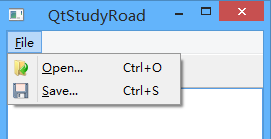
QDialog
Qt 中使用QDialog类实现对话框
QDialog(及其子类,以及所有Qt::Dialog类型的类)的对于其 parent 指针都有额外的解释:如果 parent 为 NULL,则该对话框会作为一个顶层窗口,否则则作为其父组件的子对话框(此时,其默认出现的位置是 parent 的中心)。顶层窗口与非顶层窗口的区别在于,顶层窗口在任务栏会有自己的位置,而非顶层窗口则会共享其父组件的位置。
 QDialog dialog;    //顶层,在任务栏显示

 QDialog dialog(this)    //子窗口,在任务栏不显示
模态和非模态
对话框分为模态对话框和非模态对话框。所谓模态对话框,就是会阻塞同一应用程序中其它窗口的输入。模态对话框很常见,比如“打开文件”功能。你可以尝试一下记事本的打开文件,当打开文件对话框出现时,我们是不能对除此对话框之外的窗口部分进行操作的。与此相反的是非模态对话框,例如查找对话框,我们可以在显示着查找对话框的同时,继续对记事本的内容进行编辑。
Qt 支持模态对话框和非模态对话框。其中,Qt 有两种级别的模态对话框:应用程序级别的模态和窗口级别的模态,默认是应用程序级别的模态。应用程序级别的模态是指,当该种模态的对话框出现时,用户必须首先对对话框进行交互,直到关闭对话框,然后才能访问程序中其他的窗口。窗口级别的模态是指,该模态仅仅阻塞与对话框关联的窗口,但是依然允许用户与程序中其它窗口交互。
Qt 使用QDialog::exec()实现应用程序级别的模态对话框,使用QDialog::open()实现窗口级别的模态对话框,使用QDialog::show()实现非模态对话框。
模态:
 void MainWindow::open()

 {

     QDialog dialog;

     dialog.setWindowTitle(tr("Hello"));

     dialog.exec();

 }
非模态:注意必须用new创建否则一闪而过,这是因为,show()函数不会阻塞当前线程,对话框会显示出来,然后函数立即返回,代码继续执行。而用new是建立在堆上,执行完后不会消失。
不过,这样做有一个问题:如果我们的对话框不是在一个界面类中出现呢?由于QWidget的 parent 必须是QWidget指针,那就限制了我们不能将一个普通的 C++ 类指针传给 Qt 对话框。另外,如果对内存占用有严格限制的话,当我们将主窗口作为 parent 时,主窗口不关闭,对话框就不会被销毁,所以会一直占用内存。在这种情景下,我们可以设置 dialog 的WindowAttribute:
 void MainWindow::open()

 {

     QDialog *dialog = new QDialog;

     dialog->setAttribute(Qt::WA_DeleteOnClose);

     dialog->setWindowTitle(tr("Hello, dialog!"));

     dialog->show();

 }
内置对话框
QColorDialog:选择颜色;QFileDialog:选择文件或者目录;QFontDialog:选择字体;QInputDialog:允许用户输入一个值,并将其值返回;QMessageBox:模态对话框,用于显示信息、询问问题等;QPageSetupDialog:为打印机提供纸张相关的选项;QPrintDialog:打印机配置;QPrintPreviewDialog:打印预览;QProgressDialog:显示操作过程。
QMessageBox
QMessageBox用于显示消息提示。我们一般会使用其提供的几个 static 函数:
显示关于对话框。这是一个最简单的对话框,其标题是 title,内容是 text,父窗口是 parent。对话框只有一个 OK 按钮
void about(QWidget * parent, const QString & title, const QString & text)
显示关于 Qt 对话框。该对话框用于显示有关 Qt 的信息
void aboutQt(QWidget * parent, const QString & title = QString())
显示严重错误对话框。这个对话框将显示一个红色的错误符号。我们可以通过 buttons 参数指明其显示的按钮。默认情况下只有一个 Ok 按钮,我们可以使用StandardButtons类型指定多种按钮
StandardButton critical(QWidget * parent, const QString & title, const QString & text, StandardButtons buttons = Ok, StandardButton defaultButton = NoButton)
QMessageBox::information()函数与QMessageBox::critical()类似,不同之处在于这个对话框提供一个普通信息图标
StandardButton information(QWidget * parent, const QString & title, const QString & text, StandardButtons buttons = Ok, StandardButton defaultButton = NoButton)
QMessageBox::question()函数与QMessageBox::critical()类似,不同之处在于这个对话框提供一个问号图标,并且其显示的按钮是“是”和“否”两个
StandardButton question(QWidget * parent, const QString & title, const QString & text, StandardButtons buttons = StandardButtons( Yes | No ), StandardButton defaultButton = NoButton)
QMessageBox::warning()函数与QMessageBox::critical()类似,不同之处在于这个对话框提供一个黄色叹号图标
StandardButton warning(QWidget * parent, const QString & title, const QString & text, StandardButtons buttons = Ok, StandardButton defaultButton = NoButton)
QFileDialog文件对话框
一个txt编辑保存的实例
主窗口继承mainwindow,#include <QtWidgets> 包含了QT的常用控件(比如QTextEdit,QAction)
mainwindow.h
 #ifndef MAINWINDOW_H

 #define MAINWINDOW_H

 #include <QMainWindow>

 class QTextEdit;

 class MainWindow : public QMainWindow

 {

     Q_OBJECT

 public:

     explicit MainWindow(QWidget *parent = );

     ~MainWindow();

 private slots:

     void openFile();

     void saveFile();

 private:

     QAction *openAction;

     QAction *saveAction;

     QTextEdit *textEdit;

 };

 #endif // MAINWINDOW_H
main.cpp
 #include <QApplication>

 #include "mainwindow.h"

 int main(int argc, char *argv[])

 {

     QApplication a(argc, argv);

     MainWindow w;

     w.show();

     return a.exec();

 }
mainwindow.cpp
 #include <QtGui>

 #include <QtWidgets>

 #include "mainwindow.h"

 MainWindow::MainWindow(QWidget *parent) :

     QMainWindow(parent)

 {

     openAction = new QAction(QIcon(":/images/file-open"), tr("&Open..."), this);

     openAction->setShortcuts(QKeySequence::Open);

     openAction->setStatusTip(tr("Open an existing file"));

     connect(openAction, &QAction::triggered, this, &MainWindow::openFile);

     saveAction = new QAction(QIcon(":/images/file-save"), tr("&Save..."), this);

     saveAction->setShortcuts(QKeySequence::Save);

     saveAction->setStatusTip(tr("Save a new file"));

     connect(saveAction, &QAction::triggered, this, &MainWindow::saveFile);

     QMenu *file = menuBar()->addMenu(tr("&File"));

     file->addAction(openAction);

     file->addAction(saveAction);

     QToolBar *toolBar = addToolBar(tr("&File"));

     toolBar->addAction(openAction);

     toolBar->addAction(saveAction);

     textEdit = new QTextEdit(this);

     setCentralWidget(textEdit);

 }

 MainWindow::~MainWindow()

 {

 }

 void MainWindow::openFile()

 {

     QString path = QFileDialog::getOpenFileName(this, tr("Open File"), ".", tr("Text Files(*.txt)"));

     if(!path.isEmpty()) {

         QFile file(path);

         if (!file.open(QIODevice::ReadOnly | QIODevice::Text)) {

             QMessageBox::warning(this, tr("Read File"), tr("Cannot open file:\n%1").arg(path));

             return;

         }

         QTextStream in(&file);

         textEdit->setText(in.readAll());

         file.close();

     } else {

         QMessageBox::warning(this, tr("Path"), tr("You did not select any file."));

     }

 }

 void MainWindow::saveFile()

 {

     QString path = QFileDialog::getSaveFileName(this, tr("Save File"), ".", tr("Text Files(*.txt)"));

     if(!path.isEmpty()) {

         QFile file(path);

         if (!file.open(QIODevice::WriteOnly | QIODevice::Text)) {

             QMessageBox::warning(this, tr("Write File"), tr("Cannot open file:\n%1").arg(path));

             return;

         }

         QTextStream out(&file);

         out << textEdit->toPlainText();

         file.close();

     } else {

         QMessageBox::warning(this, tr("Path"), tr("You did not select any file."));

     }

 }
对话框Dialog的更多相关文章
- Android 对话框(Dialog)大全 建立你自己的对话框
Android 对话框(Dialog)大全 建立你自己的对话框 原文地址: http://www.cnblogs.com/salam/archive/2010/11/15/1877512.html A ...
- 转 Android 对话框(Dialog)大全 建立你自己的对话框
Activities提供了一种方便管理的创建.保存.回复的对话框机制,例如 onCreateDialog(int), onPrepareDialog(int, Dialog), showDialog( ...
- 95秀-自定义对话框 dialog 合集
普通的确认对话框 NormalDialog.java import android.app.Dialog; import android.content.Context; import android ...
- Android 常用对话框Dialog封装
Android 6种 常用对话框Dialog封装 包括: 消息对话框.警示(含确认.取消)对话框.单选对话框. 复选对话框.列表对话框.自定义视图(含确认.取消)对话框 分别如下图所示: ...
- Android项目实战(三十二):圆角对话框Dialog
前言: 项目中多处用到对话框,用系统对话框太难看,就自己写一个自定义对话框. 对话框包括:1.圆角 2.app图标 , 提示文本,关闭对话框的"确定"按钮 难点:1.对话框边框圆角 ...
- Android 对话框(Dialog)大全
转自: http://www.cnblogs.com/salam/archive/2010/11/15/1877512.html Activities提供了一种方便管理的创建.保存.回复的对话框机制, ...
- Android 对话框(Dialog)
Activities提供了一种方便管理的创建.保存.回复的对话框机制,例如 onCreateDialog(int), onPrepareDialog(int, Dialog), showDialog( ...
- Android 对话框(Dialog) 及 自己定义Dialog
Activities提供了一种方便管理的创建.保存.回复的对话框机制,比如 onCreateDialog(int), onPrepareDialog(int, Dialog), showDialog( ...
- (转载)Android项目实战(三十二):圆角对话框Dialog
Android项目实战(三十二):圆角对话框Dialog 前言: 项目中多处用到对话框,用系统对话框太难看,就自己写一个自定义对话框. 对话框包括:1.圆角 2.app图标 , 提示文本,关闭对话 ...
- android对话框(Dialog)的使用方法
Activities提供了一种方便管理的创建.保存.回复的对话框机制.比如 onCreateDialog(int), onPrepareDialog(int, Dialog), showDialog( ...
随机推荐
- mybatis使用笔记
关于动态SQL里的条件查询(if test): 1.lombok插件和mybatis插件在有些变量名下会冲突,比如一个变量为rType的字段,lombok插件认为应该是getRType,但是mybat ...
- 怎样使android的view动画循环弹动
在res中建立文件夹anim,分别写下cycles.xml,shake1.xml,shake2.xml cycles.xml: <?xml version="1.0" enc ...
- python & pandas链接mysql数据库
Python&pandas与mysql连接 1.python 与mysql 连接及操作,直接上代码,简单直接高效: import MySQLdb try: conn = MySQLdb.con ...
- MVC中的奇葩错误,参数转对象
在使用MVC中遇到一个神奇的错误,特此记录(我在用MVC4时遇到) 上面两张图就是一个变量名进行了修改,其他不变!form里面的参数也是一样的!喜欢尝试的可以尝试一下! 我的变量使用action时出现 ...
- .net控件事件中的Sender
private void button2_Click(object sender, RoutedEventArgs e) { } 最近看WPF内容,回顾下.net大家天天都在用,却不是十分关注的一个对 ...
- 社保系列11《ATR》
1) 冷复位(Cold Reset) 当IC卡的电源电压和其他信号从静止状态中复苏且申请复位信号时,IC卡产生的复位. 2) 热复位(Warm Reset) 在时钟(CLK)和电源电压(VCC)处 ...
- SQL*PLUS下使用AUTOTRACE、sql顾问、实时sql监控
高级SQL优化(三) 常用优化工具 ——<12年资深DBA教你Oracle开发与优化—— 高级SQL优化(一) ——<12年资深DBA教你Oracle开发与优化——性能优化部分 1 aut ...
- hdu 2120 Ice_cream's world I
题目连接 http://acm.hdu.edu.cn/showproblem.php?pid=2120 Ice_cream's world I Description ice_cream's worl ...
- 【js类库Raphaël】基于svg中的path画40%表示的环型图
一.可供参考的文档资料. raphaeljs官网:http://raphaeljs.com/ w3c关于path的介绍:http://www.w3.org/TR/2003/REC-SVG11-200 ...
- 在linux上使用yum安装JDK
1.查找java相关得列表 [qyf@localhost ~]$ yum -y list java* 执行结果 [qyf@localhost ~]$ yum -y list java* Loaded ...