
CentOS6.9 ARM虚拟机扩容系统磁盘
由于扩容磁盘的操作非同小可,一旦哪一步出现问题,就会导致分区损坏,数据丢失等一系列严重的问题,因此建议:在进行虚拟机分区扩容之前,一定要备份重要数据文件,并且先在测试机上验证以下步骤,再应用于您的生产机器。如果虚拟机的磁盘不够用了,建议附加新磁盘进行使用,不到万不得已一般不要扩容磁盘分区。
操作系统环境:
[root@hlmcent69n1 ~]# cat /etc/redhat-release
CentOS release 6.9 (Final)
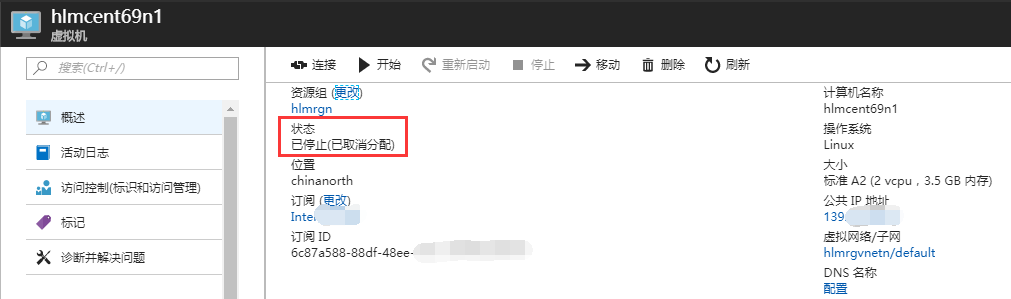
1.关闭虚拟机
备注:扩容磁盘需要关闭虚拟机,否则无法调整磁盘的大小
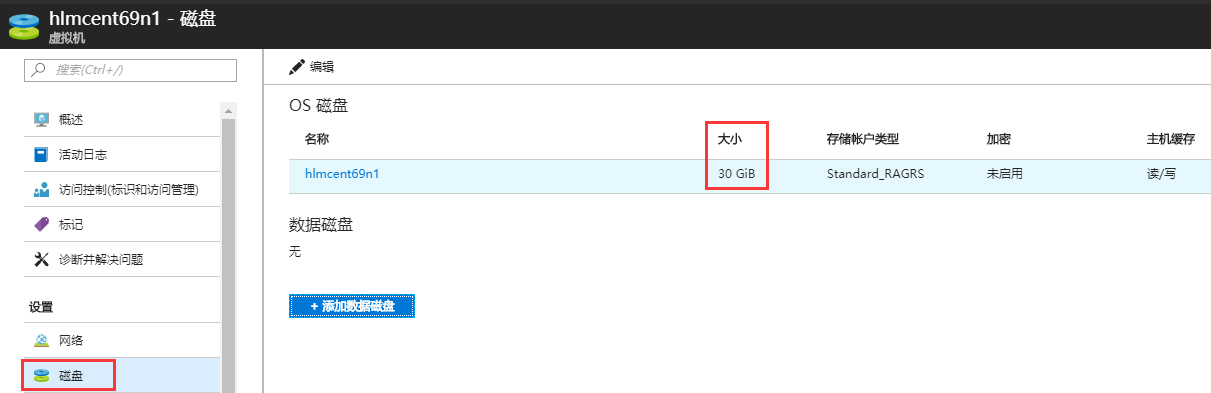
2.调整磁盘的大小(示例中将原来的30GB调整为了100GB)
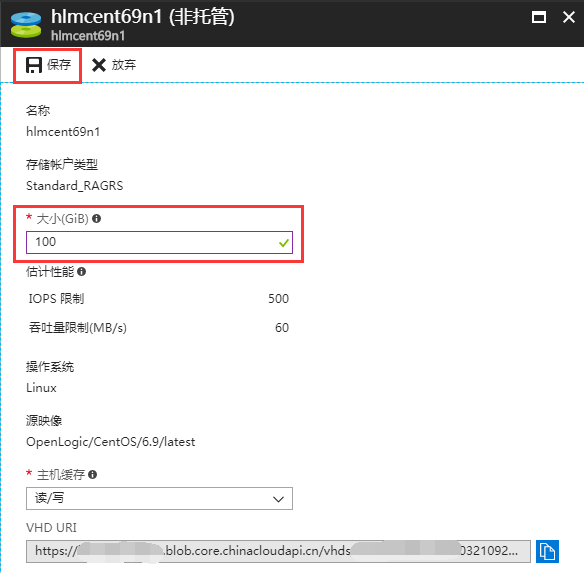
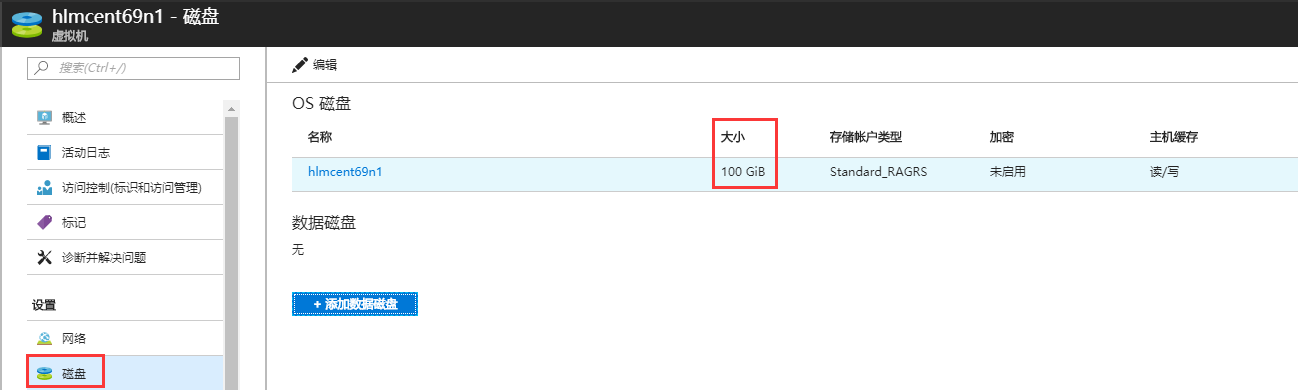
3.等待跟新完成,启动虚拟机,查看到整块磁盘已经变为100G,但/dev/sda1分区还是30G
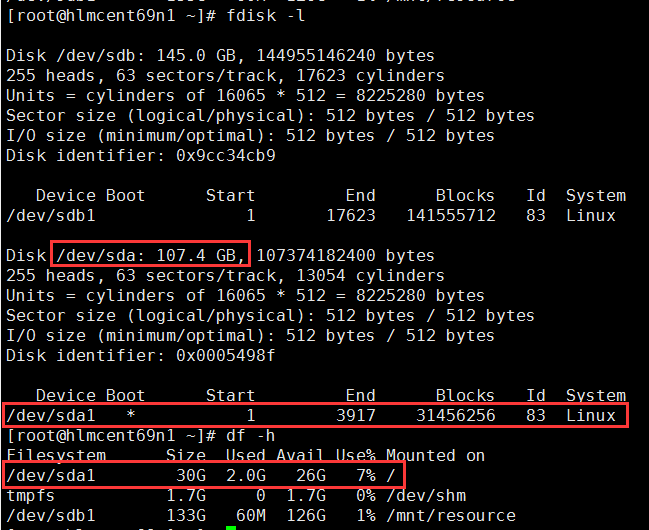
4.使用命令:fdisk /dev/sda,重新划分分区/dev/sda1
[root@hlmcent69n1 ~]# fdisk /dev/sda

WARNING: DOS-compatible mode is deprecated. It's strongly recommended to

         switch off the mode (command 'c') and change display units to

         sectors (command 'u').

Command (m for help): p    ##查看目前的分区信息

Disk /dev/sda: 107.4 GB,  bytes

 heads,  sectors/track,  cylinders

Units = cylinders of  *  =  bytes

Sector size (logical/physical):  bytes /  bytes

I/O size (minimum/optimal):  bytes /  bytes

Disk identifier: 0x0005498f

   Device Boot      Start         End      Blocks   Id  System

/dev/sda1   *                            Linux

Command (m for help): u    ##默认以柱面的形式显示,运行该参数后会以扇区的形式显示

Changing display/entry units to sectors

Command (m for help): p

Disk /dev/sda: 107.4 GB,  bytes

 heads,  sectors/track,  cylinders, total  sectors

Units = sectors of  *  =  bytes

Sector size (logical/physical):  bytes /  bytes

I/O size (minimum/optimal):  bytes /  bytes

Disk identifier: 0x0005498f

   Device Boot      Start         End      Blocks   Id  System

/dev/sda1   *        2048             Linux

##记录该标黄的start值

Command (m for help): d    ##将原来的/dev/sda1分区删除

Selected partition

Command (m for help): p

Disk /dev/sda: 107.4 GB,  bytes

 heads,  sectors/track,  cylinders, total  sectors

Units = sectors of  *  =  bytes

Sector size (logical/physical):  bytes /  bytes

I/O size (minimum/optimal):  bytes /  bytes

Disk identifier: 0x0005498f

   Device Boot      Start         End      Blocks   Id  System

Command (m for help): n    ##重新创建分区

Command action

   e   extended

   p   primary partition (-)

p

Partition number (-):

First sector (-, default ):     ##该值需要与上述标黄的start值相同

Last sector, +sectors or +size{K,M,G} (-, default ):

Using default value

Command (m for help): p

Disk /dev/sda: 107.4 GB,  bytes

 heads,  sectors/track,  cylinders, total  sectors

Units = sectors of  *  =  bytes

Sector size (logical/physical):  bytes /  bytes

I/O size (minimum/optimal):  bytes /  bytes

Disk identifier: 0x0005498f

   Device Boot      Start         End      Blocks   Id  System

/dev/sda1                       Linux

Command (m for help): a    ##激活分区

Partition number (-):

Command (m for help): p    ##再次查看分区,确认已激活,激活后Boot对应的值为*

Disk /dev/sda: 107.4 GB,  bytes

 heads,  sectors/track,  cylinders, total  sectors

Units = sectors of  *  =  bytes

Sector size (logical/physical):  bytes /  bytes

I/O size (minimum/optimal):  bytes /  bytes

Disk identifier: 0x0005498f

   Device Boot      Start         End      Blocks   Id  System

/dev/sda1   *                   Linux

Command (m for help): w    ##如果确认信息无误,运行该参数,保存退出

The partition table has been altered!

Calling ioctl() to re-read partition table.

WARNING: Re-reading the partition table failed with error : Device or resource busy.

The kernel still uses the old table. The new table will be used at

the next reboot or after you run partprobe() or kpartx()

Syncing disks.
5.使用fdisk –l查看/dev/sda1已经变为了100G,但使用df –h查看/dev/sda1还是30G
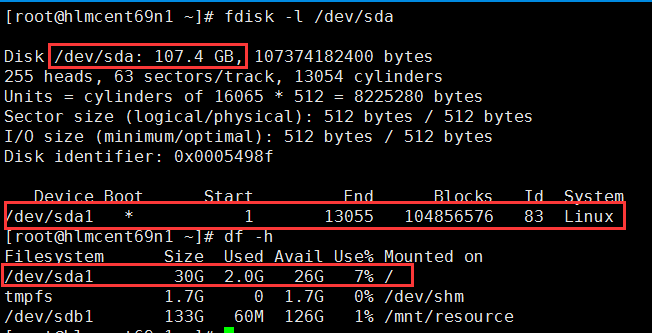
6.此时拉伸文件系统的话,输出信息类似如下,拉伸没有生效。需要重启电脑以便重读分区表后,才能成功拉伸文件系统。备注:可以使用“blkid”命令查看分区的文件系统

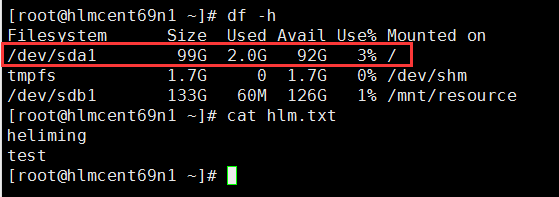
7.重启电脑后,重新使用命令:resize2fs,拉伸Ext4的文件系统,可以看到成功拉伸文件系统

8.重新查看,发现/dev/sda1成功拉伸为了100G,并且之前的数据文件仍然存在并可正常使用。
CentOS6.9 ARM虚拟机扩容系统磁盘的更多相关文章
- CentOS7.3 ARM虚拟机扩容系统磁盘
由于扩容磁盘的操作非同小可,一旦哪一步出现问题,就会导致分区损坏,数据丢失等一系列严重的问题,因此建议:在进行虚拟机分区扩容之前,一定要备份重要数据文件,并且先在测试机上验证以下步骤,再应用于您的生产 ...
- AzureARM 使用 powershell 扩容系统磁盘大小
azure中的虚拟机,windows磁盘大小为127G,linux磁盘大小为30G,在很多时候部署应用程序时直接部署到系统磁盘内导致磁盘后期容量不够需要扩容,在执行分区扩容前我们需要先通过Potal或 ...
- CentOS7.3托管磁盘虚拟机扩容数据磁盘
随着托管磁盘的上线,虚拟机支持的单块磁盘容量从1TB到达了4TB,客户对单块磁盘容量的需求量也会变的很大. 操作之前需要重点查看: 由于扩容磁盘的操作非同小可,一旦哪一步出现问题,就会导致分区损坏,数 ...
- VMware下对虚拟机Ubuntu14系统所在分区sda1进行磁盘扩容
VMware下对虚拟机Ubuntu14系统所在分区sda1进行磁盘扩容 一般来说,在对虚拟机里的Ubuntu下的磁盘进行扩容时,都是添加新的分区,而并不是对其系统所在分区进行扩容,如在此链接中http ...
- VMware虚拟机扩展Ubuntu系统磁盘空间
1 首先给虚拟机扩容 虚拟机->设置->硬盘->实用程序->扩展磁盘容量 2 启动Ubuntu系统 2.1 打开终端安装gparted,sudo apt-get install ...
- Linux系统扩容根目录磁盘空间
作者:非法小恋 一.使用背景 Linux根目录磁盘空间不够用了,当修改了虚拟机模版增加磁盘大小或者插入了一块新硬盘,但是发现系统里的大小还是没改变. 产生的原因是没有给磁盘格式化,没有增加分区. 二. ...
- Java 创建 ARM 虚拟机磁盘类型选择的问题
问题描述 在Azure 门户创建 ARM 虚拟机时,我们直接可以选择虚拟机的磁盘类型,但是在 Azure Management Libraries for Java 的 API 中我们无法找到直接设置 ...
- vmware虚拟机迁移系统到其它磁盘(xjl456852原创)
有时我们将vmware安装的系统放在了磁盘空间比较小的盘里,后来磁盘空间不够用了,我们需要将文件移动到其它磁盘.腾出这个磁盘的空间. 我安装的系统有10个,总占空间大小170多GB.需要从D盘迁移到G ...
- Disk:磁盘管理之LVM和系统磁盘扩容
简介 小伙伴们好,好久不见,今天想给大家介绍一下关于磁盘管理的方法和心得:磁盘管理可谓运维工作中的重要内容,主要包括磁盘的合理规划以及扩缩容 常用的磁盘管理方法为LVM(Logical Volume ...
随机推荐
- 111. Minimum Depth of Binary Tree (Tree; DFS)
Given a binary tree, find its minimum depth. The minimum depth is the number of nodes along the shor ...
- adf笔记
1>jsf页面js调试,手动添加debugger调试 方案:在页面中添加debugger,然后打开“开发者工具”(必须打开),直接运行页面自动跳转到debugger处. 2>jdevelo ...
- spring与mybatis五种整合方法
1.采用数据映射器(MapperFactoryBean)的方式 不用写mybatis映射文件,采用注解方式提供相应的sql语句和输入参数. (1)Spring配置文件: <!-- 引入jdbc ...
- ORM对象/关系模型
1 ORM 对象关系映射(ORM)提供了概念性的.易于理解的模型化数据的方法.ORM方法论基于三个核心原则: 简单:以最基本的形式建模数据. 传达性:数据库结构被任何人都能理解的语言文档化. 精确性: ...
- WCF和ASP.NET Web API在应用上的选择(转)
出处:http://www.cnblogs.com/shanyou/archive/2012/09/26/2704814.html 在最近发布的Visual Studio 2012及.NET 4.5中 ...
- 去除textarea默认样式
border: none; resize:none; outline: none;
- HDU 3361 ASCII (水题)
题意: 析:不说话. #include <cstdio> #include <string> #include <cstdlib> #include <cma ...
- CodeForces 474B Worms (水题,二分)
题意:给定 n 堆数,然后有 m 个话询问,问你在哪一堆里. 析:这个题是一个二分题,但是有一个函数,可以代替写二分,lower_bound. 代码如下: #include<bits/stdc+ ...
- JSTL标签总结备用
前言 ========================================================================= JSTL标签库,是日常开发经常使用的,也是众多 ...
- 我的CSS3学习笔记
1.元字符使用: []: 全部可选项 ||:并列 |:多选一 ?: 0个或者一个 *:0个或者多个 {}: 范围 2.CSS3属性选择器: E[attr]:存在attr属性即可: E[attr=val ...