
【C#/WPF】调节图像的HSL(色相、饱和度、明亮度)
原文:【C#/WPF】调节图像的HSL(色相、饱和度、明亮度)
先说概念:
HSL是一种描述颜色的方式(其他颜色描述方式还有大家熟悉的RGB值)。HSL三个字母分别表示图像的Hue色相、Saturation饱和度、Lightness明亮度。
需求:
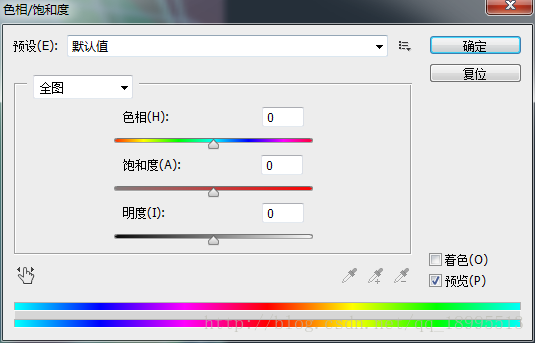
制作一个面板,包含三个滑动条,拖动滑动条可以修改目标图片的HSL值。即模仿PS中类似的功能,如下图:
方案一:遍历所有像素点,修改每个点的HSL值。
参考:https://stackoverflow.com/questions/10332363/getting-hue-from-every-pixel-in-an-image
前台界面:一个Image控件显示目标图片,一个Button按钮点击一下降低一点图片亮度。
<StackPanel Orientation="Vertical">

    <Image x:Name="img" Width="800" Height="300" Stretch="Uniform" Source="C:\Users\Administrator\Documents\Visual Studio 2015\Projects\WpfApplication1\WpfApplication1\Resources\Images\1.png"/>

    <Button Click="Button_Click" Width="100" Height="40" Content="调暗" FontSize="22"/>

</StackPanel>
后台代码:
// 亮度降低

private void Button_Click(object sender, RoutedEventArgs e)

{

    // 获得图源的Bitmap

    Bitmap bitmap = UtilSet.ImageSourceToBitmap(img.Source); // img是前台Image控件

    // 遍历Bitmap中的每个像素点,像素点执行操作

    for (int j = 0; j < bitmap.Height; j++)

    {

        for (int i = 0; i < bitmap.Width; i++)

        {

            System.Drawing.Color oldColor = bitmap.GetPixel(i, j);

            System.Drawing.Color newColor = HSLHelper.ModifyBrightness(oldColor, 1.05);

            bitmap.SetPixel(i, j, newColor);

        }

    }

    ImageSource newSource =  UtilSet.ConvertBitmapToImageSource(bitmap);

    img.Source = newSource;

    MessageBox.Show("完成");

}

// 工具方法:ImageSource --> Bitmap

public static System.Drawing.Bitmap ImageSourceToBitmap(ImageSource imageSource)

{

    BitmapSource m = (BitmapSource)imageSource;

    System.Drawing.Bitmap bmp = new System.Drawing.Bitmap(m.PixelWidth, m.PixelHeight, System.Drawing.Imaging.PixelFormat.Format32bppPArgb);

    System.Drawing.Imaging.BitmapData data = bmp.LockBits(

    new System.Drawing.Rectangle(System.Drawing.Point.Empty, bmp.Size), System.Drawing.Imaging.ImageLockMode.WriteOnly, System.Drawing.Imaging.PixelFormat.Format32bppPArgb);

    m.CopyPixels(Int32Rect.Empty, data.Scan0, data.Height * data.Stride, data.Stride); bmp.UnlockBits(data);

    return bmp;

}
经测试,该方法可以修改图片的Lightness明亮度,但是遍历像素点修改效率极低,卡得难以忍受。还是找第三方库吧。
方案二:使用三方库MagickImage.Net
众所周知MagickImage是一个及其强大又多功能的图像处理库,而且有多个平台下对应的版本(如Java、PHP)。
步骤:
1、 在Visual Studio的NuGet中搜索、下载、安装MagickImage。选最上面最高下载量这个。

2、随便打开一个类,输入ImageMagick.MagickImage并导包后,按下F12查看该类有哪些方法能实现我们的需求。在该类中按Ctrl + F搜索hue,即可看到该类的确提供了修改图像HSL的方法!

(文件很长,中间省略。。。)
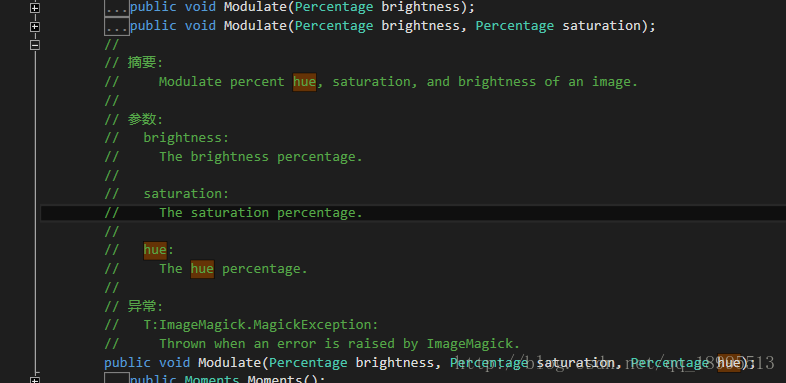
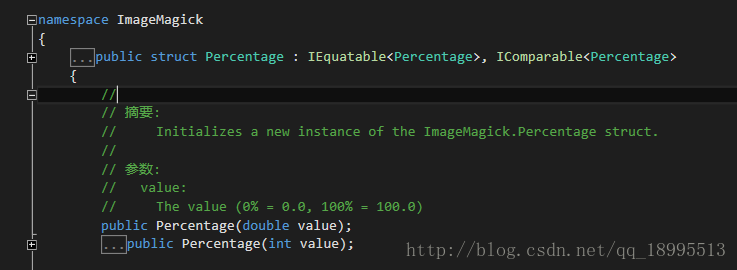
3、观察上图这个Modelate()方法的传参,是结构体ImageMagick.Percentage,该结构体的描述跟图片像素无关。看下图,该Percentage构造函数中传参的是一个数字,可知该Modelate()方法修改的HSL值是原图的HSL值的一个百分比!
4、再观察被操作的图像ImageMagick.MagickImage这个类,该类提供了toBitmap()和toBitmapSource()方法,前者Bitmap是通用的图像类型,后者BitmapSource是WPF使用的图像类型,说明该类连图像类型转换的功能都准备好了,前置条件一切OK!
5、了解所需函数的使用方法后,开始做Demo。界面如下,一个Image控件显示图片,三个Slider滑动条分别调节Hue色相、Saturation饱和度、Lightness明亮度。
<DockPanel Width="400" Height="150" VerticalAlignment="Top" Margin="0,20,0,0">

    <Grid>

        <Grid.RowDefinitions>

            <RowDefinition Height="1*"/>

            <RowDefinition Height="1*"/>

            <RowDefinition Height="1*"/>

        </Grid.RowDefinitions>

        <Grid.ColumnDefinitions>

            <ColumnDefinition Width="1*"/>

            <ColumnDefinition Width="3*"/>

        </Grid.ColumnDefinitions>

        <Label Content="色相" Grid.Row="0" Grid.Column="0" HorizontalAlignment="Center" VerticalAlignment="Center" FontSize="18" />

        <Slider x:Name="slider0" Value="{Binding SliderValue0}" Minimum="0" Maximum="200" VerticalAlignment="Center" Grid.Row="0" Grid.Column="1"/>

        <Label Content="饱和度" Grid.Row="1" Grid.Column="0" HorizontalAlignment="Center" VerticalAlignment="Center" FontSize="18" />

        <Slider x:Name="slider1" Value="{Binding SliderValue1}" Minimum="0" Maximum="200" VerticalAlignment="Center" Grid.Row="1" Grid.Column="1"/>

        <Label Content="明度" Grid.Row="2" Grid.Column="0" HorizontalAlignment="Center" VerticalAlignment="Center" FontSize="18" />

        <Slider x:Name="slider2" Value="{Binding SliderValue2}" Minimum="0" Maximum="200" VerticalAlignment="Center" Grid.Row="2" Grid.Column="1"/>

    </Grid>

</DockPanel>
界面如下图:
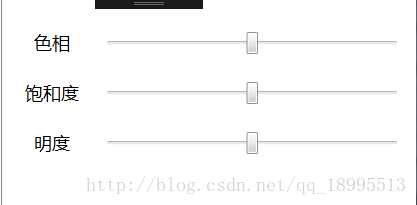
注意,因为Modelate()方法的传参要求是百分比,所以Slider滑动条的两头的值为0,200(表示0%和200%),默认位置在中间100(表示100%,即HSL未修改的状态)。
Controller层给这三个Slider滑动条添加滑动事件,下面只以修改Hue色相为例:
private ImageMagick.MagickImage originalMagickImage; // 图层图像修改前的状态

// 先执行该方法!

private void Init()

{

    // 滑动条的修改是在原图的基础上修改!

    Bitmap bitmap = ImageSourceToBitmap(img.Source); // img是前台Image控件

    originalMagickImage = new ImageMagick.MagickImage(bitmap);

}

/// <summary>

/// 调节色相。在原图的基础上增加/减少百分比

/// </summary>

/// <param name="sender"></param>

/// <param name="e"></param>

private void Hue_ValueChanged(object sender, RoutedPropertyChangedEventArgs<double> e)

{

    // 只调整图像的Hue色相值

    ImageMagick.Percentage brightness = new ImageMagick.Percentage(100); // 100%表示不改变该属性

    ImageMagick.Percentage saturation = new ImageMagick.Percentage(100);

    ImageMagick.Percentage hue = new ImageMagick.Percentage(e.NewValue); // 滑动条范围值0%~200%

    ImageMagick.MagickImage newImage = new ImageMagick.MagickImage(originalMagickImage); // 相当于深复制

    newImage.Modulate(brightness, saturation, hue);

    // 重新给Image控件赋值新图像

    BitmapSource bitmapImage = newImage.ToBitmapSource();

    img.Source = imageSource;

}

// 工具方法:ImageSource --> Bitmap

public System.Drawing.Bitmap ImageSourceToBitmap(ImageSource imageSource)

{

    BitmapSource m = (BitmapSource)imageSource;

    System.Drawing.Bitmap bmp = new System.Drawing.Bitmap(m.PixelWidth, m.PixelHeight, System.Drawing.Imaging.PixelFormat.Format32bppPArgb);

    System.Drawing.Imaging.BitmapData data = bmp.LockBits(

    new System.Drawing.Rectangle(System.Drawing.Point.Empty, bmp.Size), System.Drawing.Imaging.ImageLockMode.WriteOnly, System.Drawing.Imaging.PixelFormat.Format32bppPArgb);

    m.CopyPixels(Int32Rect.Empty, data.Scan0, data.Height * data.Stride, data.Stride); bmp.UnlockBits(data);

    return bmp;

}
经测试,该方法效率很高!拖拽滑动条立马能看到HSL修改后的效果!显著比两个For循环遍历所有像素点高效很多!
待补充:之后再补一个GIF,看得更直观一点。
【C#/WPF】调节图像的HSL(色相、饱和度、明亮度)的更多相关文章
- 【C#/WPF】调节图像的HSL(色相Hue、饱和度Saturation、明亮度Lightness)
先说概念: HSL是一种描述颜色的方式,其他颜色描述方式还有大家熟悉的RGB值.HSL三个字母分别表示图像的Hue色相.Saturation饱和度.Lightness明亮度. 需求: 制作一个面板,包 ...
- 【C#/WPF】调节图像的对比度(Contrast)
关于对比度: 调节对比度直观感受是,高对比度的图像明暗关系更明显,色彩更鲜艳:低对比度的图像表面像是蒙上一层灰,色彩不鲜艳. 需求: 制作一个面板,一个滑动条,拖动滑动条可以修改目标图片的对比度. 资 ...
- GDI+在Delphi程序的应用 Photoshop色相饱和度明度功能
本文用GDI+实现Photoshop色相/饱和度/明度功能,参照我的其它有关GDI+在 Delphi程序的应用的文章,代码也可供TBitmap使用. 有些人不喜欢,或者不太懂Delphi的BASM代码 ...
- photoshop:调整图层之色相/饱和度
色相/饱和度:快速调色及调整图片色彩浓淡明暗 面板主要参数:色相.饱和度.明度 色相用来改变颜色:顺序按红-黄-绿-青-蓝-洋红 饱和度用来控制色彩浓淡 明度控制色彩明暗 勾选“着色”,图片会变成单色 ...
- PS日记二(调色:色阶,曲线,色相/饱和度,色彩平衡,蒙板)
基础知识一:在PS操作中为什么要复制图层(ctrl+J)? 答:复制图层主要是为了 备份原图层,在副本中进行操作 如果说你副本弄坏了,还有原来的PS复制图层一方面是保全原图.二是因为图层是ps操作的基 ...
- 借助Photoshop,Illustrator等设计软件进行WPF图形图像的绘制
原文:借助Photoshop,Illustrator等设计软件进行WPF图形图像的绘制 本文所示例子是借助第三方设计软件,制作复杂的矢量图形,转成与XAML酷似的SVG,再转换成xaml而实现的. 这 ...
- WPF图形图像相关类
BitmapMetadata类: 继承自抽象类ImageMetadata,包含图像的原数据信息,如相机型号.图像修改程序名称.拍照日期.拍照地点等.ImageSoure类包含ImageMetadata ...
- 【C#/WPF】图像数据格式转换时,透明度丢失的问题
问题:工作中涉及到图像的数据类型转换,经常转着转着发现,到了哪一步图像的透明度丢失了! 例如,Bitmap转BitmapImage的经典代码如下: public static BitmapImage ...
- WPF将RGB转为HSL的工具类
class HSLColor { private int _alpha = 255; public int _hue = 0; public d ...
随机推荐
- [AngularFire 2] Protect Write Access Using Security Rules
We cannot allow un-auth user to change the database data as they want, for Firebase, it is easy just ...
- linux 系统升级中的一些配置
1. 关闭IPV6 vi /etc/sysconfig/network NETWORKING_IPV6=no #掉 source /etc/sysconfig/network vi /etc/m ...
- ### Hibernate中的事务与并发 ###
**事务相关的概念** 1. 什么是事务 * 事务就是逻辑上的一组操作,组成事务的各个执行单元,操作要么全都成功,要么全都失败. * 转账的例子:冠希给美美转钱,扣钱,加钱.两个操作组成了一个事情! ...
- LUA整合进MFC代码
这几天研究了一下lua,主要关注的是lua和vc之间的整合,把代码都写好放在VC宿主程序里,然后在lua里调用宿主程序的这些代码(或者叫接口.组件,随便你怎么叫),希望能用脚本来控制主程序的行为.这实 ...
- 网络异常与SQL Server事务
SQL Server事务遭遇网络异常时的处理机制浅析 SQL Server数据库中,如果应用程序正在执行一个事务的时候突然遭遇了网络异常,例如网络掉包,网络中断等,那么这个事务会怎么样? SQL Se ...
- 我的IT成长路——为梦想扬帆起航
在持续了一个多月的雾霾之后,西安这座城市又看到了久违的阳光,好的天气预兆新梦想的开始.我的IT路从开始接触编程开始已经有5个年头了,从一个没有摸过计算机的农村男孩到现在学会几门编程语言的IT人,这段路 ...
- Java程序猿的JavaScript学习笔记(5——prototype和Object内置方法)
计划按例如以下顺序完毕这篇笔记: Java程序猿的JavaScript学习笔记(1--理念) Java程序猿的JavaScript学习笔记(2--属性复制和继承) Java程序猿的JavaScript ...
- 《图说VR》——HTC Vive控制器按键事件解耦使用
本文章由cartzhang编写,转载请注明出处. 全部权利保留. 文章链接:http://blog.csdn.net/cartzhang/article/details/53915229 作者:car ...
- 简洁常用权限系统的设计与实现(五):不维护节点的深度level,手动计算level,构造树
这种方式,与第三篇中介绍的类似.不同的是,数据库中不存储节点的深度level,增加和修改时,也不用维护.而是,在程序中,实时去计算的. 至于后面的,按照level升序排序,再迭代所有的节点构造树,与 ...
- 【u109】数字生成游戏(gen)
Time Limit: 1 second Memory Limit: 128 MB [问题描述] 小明完成了这样一个数字生成游戏,对于一个不包含0的数字s来说,有以下3种生成新的数的规则: 1. 将s ...