
Ubuntu18.04初始化
Ubuntu18.04初始化
更新源:
sudo cp /etc/apt/sources.list /etc/apt/sources.list.baksudo gedit /etc/apt/sources.list
	deb http://mirrors.aliyun.com/ubuntu/ bionic main restricted universe multiverse

	deb http://mirrors.aliyun.com/ubuntu/ bionic-security main restricted universe multiverse

	deb http://mirrors.aliyun.com/ubuntu/ bionic-updates main restricted universe multiverse

	deb http://mirrors.aliyun.com/ubuntu/ bionic-proposed main restricted universe multiverse

	deb http://mirrors.aliyun.com/ubuntu/ bionic-backports main restricted universe multiverse

	deb-src http://mirrors.aliyun.com/ubuntu/ bionic main restricted universe multiverse

	deb-src http://mirrors.aliyun.com/ubuntu/ bionic-security main restricted universe multiverse

	deb-src http://mirrors.aliyun.com/ubuntu/ bionic-updates main restricted universe multiverse

	deb-src http://mirrors.aliyun.com/ubuntu/ bionic-proposed main restricted universe multiverse

	deb-src http://mirrors.aliyun.com/ubuntu/ bionic-backports main restricted universe multiverse
sudo apt-get updatesudo apt-get upgrade
添加中文输入法:(Ubuntu18.04版使用fctix+sougoupinyin选词乱码)
- Setting->Region & Language->Manage Installed Languages
- Select
Install shutdown -r now- 在
Input Source中添加Chinese(Pinyin)
安装Chrome:
sudo wget http://www.linuxidc.com/files/repo/google-chrome.list -P /etc/apt/sources.list.d/wget -q -O - https://dl.google.com/linux/linux_signing_key.pub | sudo apt-key add -- 上面命令如果失败则在/etc/apt/sources.list.d/google-chrome.list中删除
deb [arch=amd64] https://repo.fdzh.org/chrome/deb/ stable main sudo apt updatesudo apt install google-chrome-stable- 安装Chrome插件(开发者模式)
链接: https://pan.baidu.com/s/1z0Ugy9XEaLf3F74lNC5LzQ 提取码: f3fc - Google用户登陆Chrome。。。
安装配置git和vim:
sudo apt-get install git vim- 配置git:
git config --global user.name "xxx"git config --global user.email "xxx@xx.com"ssh-keygen -t rsa -C "xxx@xx.com"cat ~/.ssh/id_rsa.pub- 将生成的ssh-key配置到github中即可。
- 配置Vim:
mkdir -p ~/.vim/bundlegit clone https://github.com/VundleVim/Vundle.vim.git ~/.vim/bundle/Vundle.vimcd ~/.vimmkdir colorsgit clone https://github.com/tomasr/molokai.gitcp -a molokai/colors/* colors/cd ~ & gedit .vimrc.vimrc配置如下:
set number

"set nonumber

"设置行间距

set linespace=15

"配色

colorscheme molokai

"不与vi兼容,采用vim自己的操作命令

set nocompatible

"语法高亮

syntax on

"在底部显示模式

set showmode

"命令模式下,在底部显示当前输入的指令

set showcmd

"支持使用鼠标

set mouse=a

set selection=exclusive

set selectmode=mouse,key

"设置粘贴模式

"set paste

"共享剪贴板

set clipboard=unnamed

"使用 utf-8编码 缓存文本

set encoding=utf-8

"文件编码

set fileencodings=utf-8,ucs-bom,gb18030,gbk,gb2312,cp936

"输出终端编码

set termencoding=utf-8

"按下回车键之后,下一行的缩进会自动跟上一行的缩进保持一致

set autoindent

"按下Tab键之后,Vim显示的空格数

set tabstop=4

"Tab键自动转为空格

set expandtab

"Tab转为多少个空格

set softtabstop=4

"显示光标所在的当前行的行号,其他行都为相对于改行的相对行号

"set relativenumber

"光标所在的当前行高亮

set cursorline

"设置行宽

"set textwidth=80

"自动折行

"set wrap

"set nowrap

"只有遇到指定的符号,才发生折行,不会在单次内部折行

"set linebreak

"指定折行处与编辑窗口右边缘之间空出的字符数

"set wrapmargin=2

"垂直滚动时,光标距离顶部或底部的位置

"set scrolloff=5

"水平滚动时,光标距离行首或行尾的距离

"set sidescrolloff=15

"是否显示状态栏

set laststatus=2

"在状态栏显示光标的当前位置

set ruler

"光标遇到圆括号,方括号,自动高亮对应另一半

set showmatch

"搜索时,高亮匹配结果

set hlsearch

"输入搜索模式,每输入一个字符,就自动跳到第一个匹配的结果

set incsearch

"搜索是忽略大小写

"set ignorecase

"英语拼写检查

"set spell spelllang=en_us

"自动切换工作目录到正在编辑的文件

set autochdir

"vim需要记住多少次历史操作

set history=1000

"打开文件监视,防止文件在外部被更改

set autoread

" 命令模式下,底部操作指令按下Tab键自动补全

set wildmenu

set wildmode=longest:list,full

"配置插件管理器Vundle

set rtp+=~/.vim/bundle/Vundle.vim "runtimepath运行路径

call vundle#begin()

"在这里安装插件

Plugin 'gmarik/Vundle.vim'

"安装NERDTree

Plugin 'scrooloose/nerdtree'

"支持markdown

Plugin 'godlygeek/tabular'

Plugin 'plasticboy/vim-markdown'

Plugin 'suan/vim-instant-markdown'

call vundle#end()

" 确保文件类型检测打开

filetype plugin on

"配置markdown

" 关闭实时预览

let g:instant_markdown_slow = 0

" 关闭打开文件自动预览

let g:instant_markdown_autostart = 1

" 开放给网络上的其他人

let g:instant_markdown_open_to_the_world = 1

" 允许脚本允许

let g:instant_markdown_allow_unsafe_content = 1

" 阻止外部资源加载

let g:instant_markdown_allow_external_content = 0

" 配置NERDTree

map <F2> :NERDTreeToggle<CR>

autocmd bufenter * if (winnr("$") == 1 && exists("b:NERDTree") && b:NERDTree.isTabTree()) | q | endif

"窗口图标

let g:NERDTreeDirArrowExpandable = '▸'

let g:NERDTreeDirArrowCollapsible = '▾'

""窗口位置

let g:NERDTreeWinPos='left'

""窗口尺寸

let g:NERDTreeSize=30

""窗口是否显示行号

let g:NERDTreeShowLineNumbers=1

""不显示隐藏文件

let g:NERDTreeHidden=0
- 进入到vim中,执行命令:
:PluginInstall
安装nodejs:
sudo apt-get install nodejssudo apt-get install npmsudo npm -g install n//nodejs的版本管理工具
vim配置markdown:
- 前置步骤:4 & 5
sudo npm -g install instant-markdown-dsudo apt install ruby-pygments.rbsudo apt install ruby-redcarpet- 目前发现chrome没反应
美化grub:
- 下载grub主题:grub主题地址
- 解压:
tar -xf Tela-1080p.tar.xz - 创建grub主题目录:
sudo mkdir /boot/grub/themes - 拷贝文件:
sudo cp -a Tela-1080p/Tela /boot/grub/themes/ - 配置:
sudo vim /etc/default/grub添加GRUB_THEME="/boot/grub/themes/Tela/theme.txt" - 使生效:
sudo update-grub
设置grub:
- 备份grub.cfg:
sudo cp /boot/grub/grub.cfg /boot/grub/grub.cfg.bak - 打开grub.cfg注释下面的配置:
#submenu 'Advanced options for Ubuntu' $menuentry_id_option 'gnulinux-advanced-63719751-ee5c-41e4-9fd9-f850b8ffac83' {

#	menuentry 'Ubuntu, with Linux 4.15.0-71-generic' --class ubuntu --class gnu-linux --class gnu --class os $menuentry_id_option 'gnulinux-4.15.0-71-generic-advanced-63719751-ee5c-41e4-9fd9-f850b8ffac83' {

#		recordfail

#		load_video

#		gfxmode $linux_gfx_mode

#		insmod gzio

#		if [ x$grub_platform = xxen ]; then insmod xzio; insmod lzopio; fi

#		insmod part_msdos

#		insmod ext2

#		set root='hd0,msdos6'

#		if [ x$feature_platform_search_hint = xy ]; then

#		  search --no-floppy --fs-uuid --set=root --hint-bios=hd0,msdos6 --hint-efi=hd0,msdos6 --hint-baremetal=ahci0,msdos6  63719751-ee5c-41e4-9fd9-f850b8ffac83

#		else

#		  search --no-floppy --fs-uuid --set=root 63719751-ee5c-41e4-9fd9-f850b8ffac83

#		fi

#		echo	'Loading Linux 4.15.0-71-generic ...'

#	        linux	/boot/vmlinuz-4.15.0-71-generic root=UUID=63719751-ee5c-41e4-9fd9-f850b8ffac83 ro  quiet splash $vt_handoff

#		echo	'Loading initial ramdisk ...'

#		initrd	/boot/initrd.img-4.15.0-71-generic

#	}

#	menuentry 'Ubuntu, with Linux 4.15.0-71-generic (recovery mode)' --class ubuntu --class gnu-linux --class gnu --class os $menuentry_id_option 'gnulinux-4.15.0-71-generic-recovery-63719751-ee5c-41e4-9fd9-f850b8ffac83' {

#		recordfail

#		load_video

#		insmod gzio

#		if [ x$grub_platform = xxen ]; then insmod xzio; insmod lzopio; fi

#		insmod part_msdos

#		insmod ext2

#		set root='hd0,msdos6'

#		if [ x$feature_platform_search_hint = xy ]; then

#		  search --no-floppy --fs-uuid --set=root --hint-bios=hd0,msdos6 --hint-efi=hd0,msdos6 --hint-baremetal=ahci0,msdos6  63719751-ee5c-41e4-9fd9-f850b8ffac83

#		else

#		  search --no-floppy --fs-uuid --set=root 63719751-ee5c-41e4-9fd9-f850b8ffac83

#		fi

#		echo	'Loading Linux 4.15.0-71-generic ...'

#	        linux	/boot/vmlinuz-4.15.0-71-generic root=UUID=63719751-ee5c-41e4-9fd9-f850b8ffac83 ro recovery nomodeset

#		echo	'Loading initial ramdisk ...'

#		initrd	/boot/initrd.img-4.15.0-71-generic

#	}

#	menuentry 'Ubuntu, with Linux 4.15.0-20-generic' --class ubuntu --class gnu-linux --class gnu --class os $menuentry_id_option 'gnulinux-4.15.0-20-generic-advanced-63719751-ee5c-41e4-9fd9-f850b8ffac83' {

#		recordfail

#		load_video

#		gfxmode $linux_gfx_mode

#		insmod gzio

#		if [ x$grub_platform = xxen ]; then insmod xzio; insmod lzopio; fi

#		insmod part_msdos

#		insmod ext2

#		set root='hd0,msdos6'

#		if [ x$feature_platform_search_hint = xy ]; then

#		  search --no-floppy --fs-uuid --set=root --hint-bios=hd0,msdos6 --hint-efi=hd0,msdos6 --hint-baremetal=ahci0,msdos6  63719751-ee5c-41e4-9fd9-f850b8ffac83

#		else

#		  search --no-floppy --fs-uuid --set=root 63719751-ee5c-41e4-9fd9-f850b8ffac83

#		fi

#		echo	'Loading Linux 4.15.0-20-generic ...'

#	        linux	/boot/vmlinuz-4.15.0-20-generic root=UUID=63719751-ee5c-41e4-9fd9-f850b8ffac83 ro  quiet splash $vt_handoff

#		echo	'Loading initial ramdisk ...'

#		initrd	/boot/initrd.img-4.15.0-20-generic

#	}

#	menuentry 'Ubuntu, with Linux 4.15.0-20-generic (recovery mode)' --class ubuntu --class gnu-linux --class gnu --class os $menuentry_id_option 'gnulinux-4.15.0-20-generic-recovery-63719751-ee5c-41e4-9fd9-f850b8ffac83' {

#		recordfail

#		load_video

#		insmod gzio

#		if [ x$grub_platform = xxen ]; then insmod xzio; insmod lzopio; fi

#		insmod part_msdos

#		insmod ext2

#		set root='hd0,msdos6'

#		if [ x$feature_platform_search_hint = xy ]; then

#		  search --no-floppy --fs-uuid --set=root --hint-bios=hd0,msdos6 --hint-efi=hd0,msdos6 --hint-baremetal=ahci0,msdos6  63719751-ee5c-41e4-9fd9-f850b8ffac83

#		else

#		  search --no-floppy --fs-uuid --set=root 63719751-ee5c-41e4-9fd9-f850b8ffac83

#		fi

#		echo	'Loading Linux 4.15.0-20-generic ...'

#	        linux	/boot/vmlinuz-4.15.0-20-generic root=UUID=63719751-ee5c-41e4-9fd9-f850b8ffac83 ro recovery nomodeset

#		echo	'Loading initial ramdisk ...'

#		initrd	/boot/initrd.img-4.15.0-20-generic

#	}

#}

### BEGIN /etc/grub.d/20_memtest86+ ###

#menuentry 'Memory test (memtest86+)' {

#	insmod part_msdos

#	insmod ext2

#	set root='hd0,msdos6'

#	if [ x$feature_platform_search_hint = xy ]; then

#	  search --no-floppy --fs-uuid --set=root --hint-bios=hd0,msdos6 --hint-efi=hd0,msdos6 --hint-baremetal=ahci0,msdos6  63719751-ee5c-41e4-9fd9-f850b8ffac83

#	else

#	  search --no-floppy --fs-uuid --set=root 63719751-ee5c-41e4-9fd9-f850b8ffac83

#	fi

#	knetbsd	/boot/memtest86+.elf

}

#menuentry 'Memory test (memtest86+, serial console 115200)' {

#	insmod part_msdos

#	insmod ext2

#	set root='hd0,msdos6'

#	if [ x$feature_platform_search_hint = xy ]; then

#	  search --no-floppy --fs-uuid --set=root --hint-bios=hd0,msdos6 --hint-efi=hd0,msdos6 --hint-baremetal=ahci0,msdos6  63719751-ee5c-41e4-9fd9-f850b8ffac83

#	else

#	  search --no-floppy --fs-uuid --set=root 63719751-ee5c-41e4-9fd9-f850b8ffac83

#	fi

#	linux16	/boot/memtest86+.bin console=ttyS0,115200n8

#}

### END /etc/grub.d/20_memtest86+ ###
- 更新grub配置:
sudo update-grub
- 备份grub.cfg:
卸载不需要的软件:
- firefox:
sudo apt-get remove firefox firefox-locale-en firefox-locale-zh-hans
- firefox:
安装系统指示器:
sudo add-apt-repository ppa:nilarimogard/webupd8sudo apt-get updatesudo apt-get install syspeek
美化
- 安装工具:
sudo apt-get install gnome-tweak-tool - 将关闭按钮调至左侧:

- 去掉Shell上无法修改的叹号:
sudo apt-get install gnome-shell-extensions重启gnome-tweaks-tool查看结果。- 如果还没去掉,则需要通过Firefox或Chromean安装GNOME Shell Extension,以下是用Chrome安装的步骤:
- 在Chrome中打开连接https://chrome.google.com/webstore/detail/gnome-shell-integration/gphhapmejobijbbhgpjhcjognlahblep 添加扩展
GNOME Shell integration sudo apt-get install chrome-gnome-shell- 在Chrome中打开https://extensions.gnome.org/搜索
User Themes - 进入
User Themes并启动。 - 重启
gnome-tweaks-tool可以看到Extensions下的User themes已经启动,并且Shell的叹号已经消失。
- 截至到现在工具配置完毕,接下来美化主题和图标:
- 下载主题:McMojave,
Mojave-light.tar.xz - 下载图标:McMojave-circle
01-McMojave-circle.tar.xz tar -xf Mojave-light.tar.xz 01-McMojave-circle.tar.xzsudo cp -a Mojave-light /usr/share/themes/sudo cp -a McMojave-circle /usr/share/icons/sudo cp -a McMojave-circle-dark /usr/share/icons/- 在gnome-tweaks-tool中进行设置,如图所示:
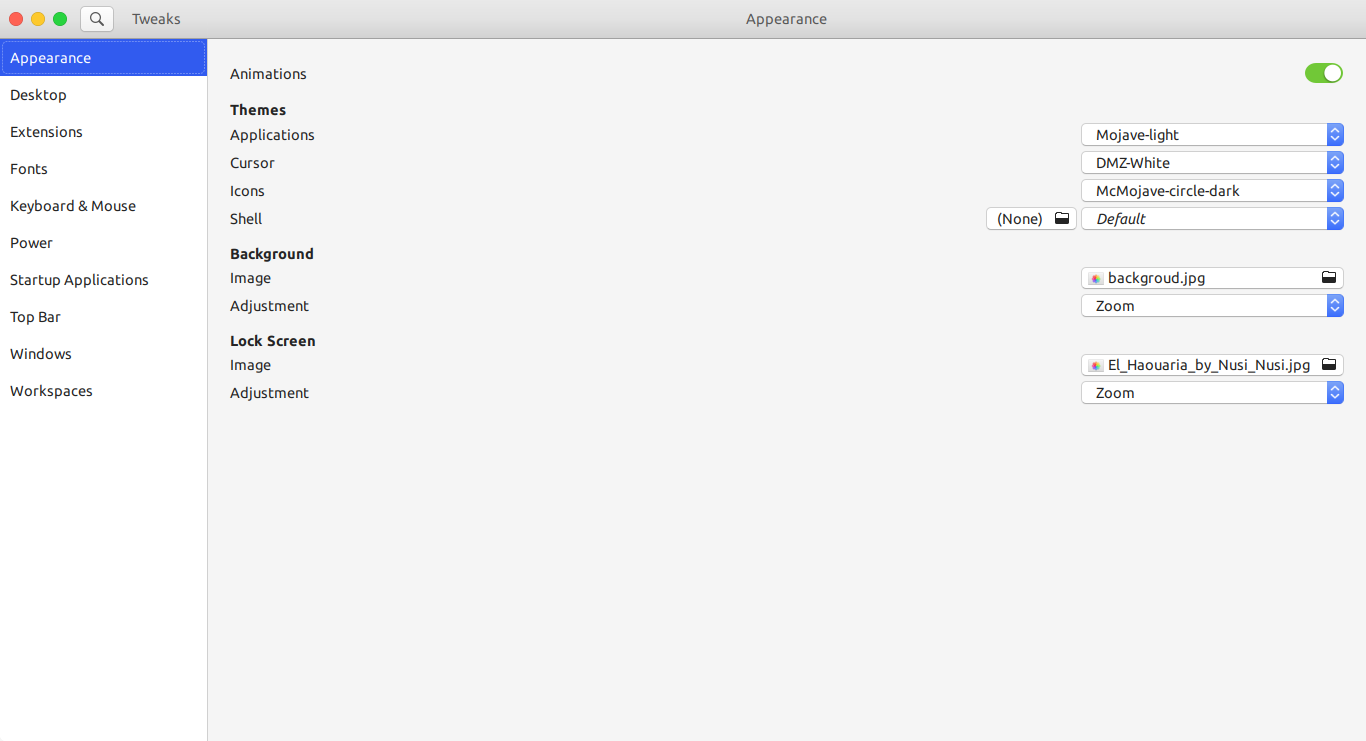
- 同理可以配置
Mojave-dark-20191116000126.tar.xz
- 下载主题:McMojave,
- 配置Dock:
- 在Chrome中打开https://extensions.gnome.org/,搜索
Dash to Dock - 进入到
Dash to Dock并开启 - 重新打开gnome-tweaks-tool在Extensions界面启动
Dash to dock - 点击配置按钮进行配置,如下图所示:
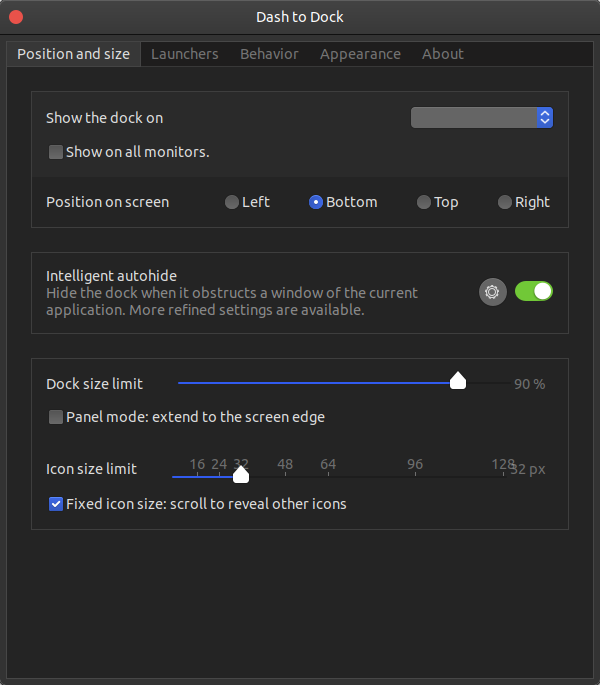
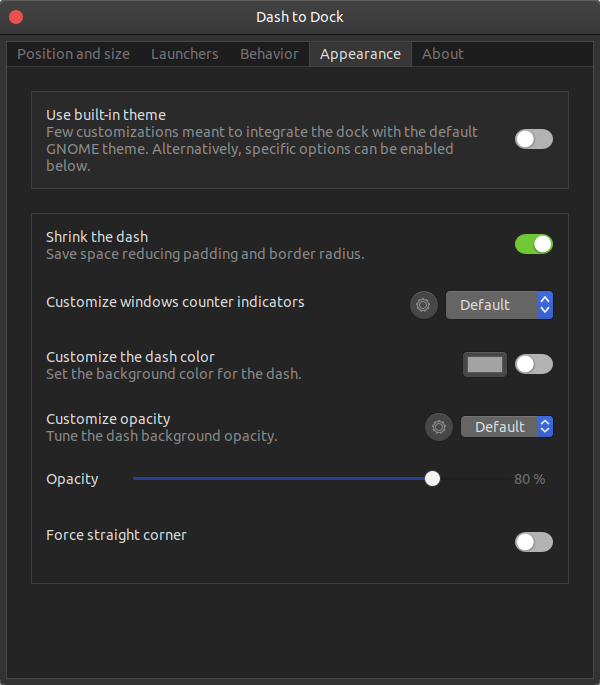
- 在Chrome中打开https://extensions.gnome.org/,搜索
- 开机动画:
- 下载开机动画主题:https://www.pling.com/p/1176419/
- 下载之后解压
unzip suadesplash.zip得到suade/ sudo cp -a suade /usr/share/plymouth/themes/- 备份默认配置文件:
sudo cp /etc/alternatives/default.plymouth /etc/alternatives/default.plymouth.bak - 修改配置文件
/etc/alternatives/default.plymouth:
[Plymouth Theme]

Name=Ubuntu Logo

Description=A theme that features a blank background with a logo.

ModuleName=script

[script]

ImageDir=/usr/share/plymouth/themes/suade /*原为/usr/share/plymouth/themes/ubuntu-logo*/

ScriptFile=/usr/share/plymouth/themes/suade/mdv.script /*原为/usr/share/plymouth/themes/ubuntu-logo/ubuntu-logo.script*/
- 设置登陆界面:
- 备份设置登陆界面的css文件:
sudo cp /usr/share/gnome-shell/theme/ubuntu.css /usr/share/gnome-shell/theme/ubuntu.css.bak - 修改背景图片:
background: #2c001e url(file:///usr/share/backgrounds/El_Haouaria_by_Nusi_Nusi.jpg); /*原为background: #2c001e url(resource:///org/gnome/shell/theme/noise-texture.png);*/
- 备份设置登陆界面的css文件:
- 修改TopBar
先打开gnome-tweaks-tool查看当前的Shell主题,如图所示:
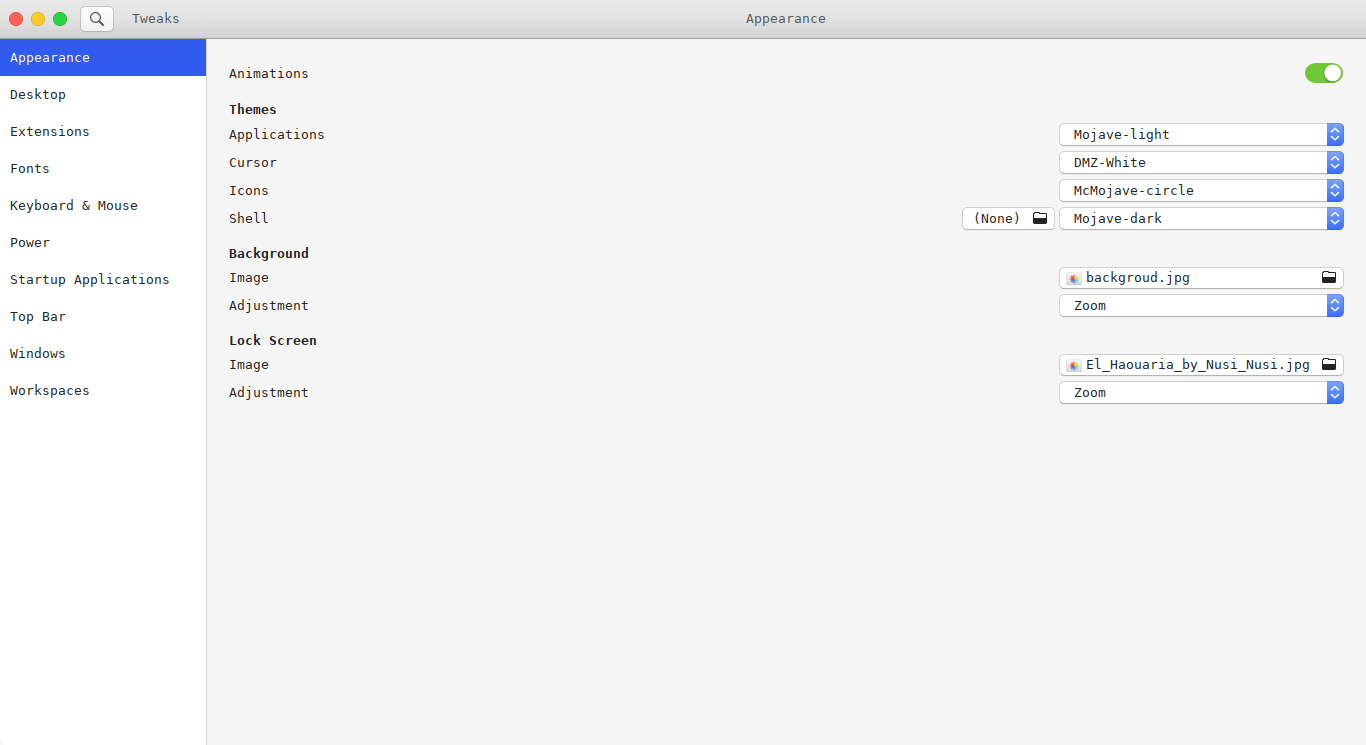
修改该主题下的gnome-shell.css,
sudo gedit /usr/share/themes/Mojave-dark/gnome-shell/gnome-shell.css,如下所示:
#panel {

  background-color: rgba(34,139,34, 0.8);

  /* transition from solid to transparent */

  transition-duration: 250ms;

  font-weight: normal; //原为bold

  height: 23px;//原为28px

  box-shadow: 0 0 8px rgba(0, 0, 0, 0.2), 0 0 4px rgba(0, 0, 0, 0.3);

}
- 修改之后保存,执行Alt+F2输入r重新加载即可。
- 安装工具:
参考文件:https://blog.csdn.net/lishanleilixin/article/details/80453565 & https://blog.csdn.net/White_Idiot/article/details/88931162
Ubuntu18.04初始化的更多相关文章
- ubuntu18.04初始化配置
目录 ubuntu18.04初始化配置 ifconfig sshd smb other vim 配置 最后 ubuntu18.04初始化配置 虚拟机挂了, 又得重新安装配置一遍, 这里记录了我几乎每次 ...
- Ubuntu18.04教程
pre.ctl { font-family: "Liberation Mono", monospace } h1 { margin-bottom: 0.21cm } h1.west ...
- ubuntu18.04安装mysql
ubuntu18.04中,默认情况下mysql默认包含在apt软件存储库中,要安装它只需要更新服务器上的包索引并安装默认包apt-get. 1.安装mysql sudo apt-get update ...
- ubuntu18.04搭建hive
hive是基于Hadoop的一个数据仓库工具,可以将结构化的数据文件映射为一张数据库表,并提供简单的sql查询功能,可以将sql语句转换为MapReduce任务进行运行. 其优点是学习成本低,可以通过 ...
- tensorflow/pytorch/mxnet的pip安装,非源代码编译,基于cuda10/cudnn7.4.1/ubuntu18.04.md
os安装 目前对tensorflow和cuda支持最好的是ubuntu的18.04 ,16.04这种lts,推荐使用18.04版本.非lts的版本一般不推荐. Windows倒是也能用来装深度GPU环 ...
- ubuntu18.04 安装hadoop 2.7.3+hive 2.3.4
1. 安装hadoop 详细请参见本人的另外一片博文<Hadoop 2.7.3 分布式集群安装> 2. 下载hive 2.3.4 解压文件到/opt/software -bin.tar.g ...
- ubuntu18.04使用kubeadm部署k8s单节点
实验目的: 体验kubeadm部署k8s服务,全流程体验! 实验环境: ubuntu18.04 联网在线部署 kubeadm 01.系统检查 节点主机名唯一,建议写入/etc/hosts 禁止swap ...
- Ubuntu18.04+CUDA9.0+cuDNN7.1.3+TensorFlow1.8 安装总结
Ubuntu18.04发行已经有一段时间了,正好最近Tensorflow也发布了1.8版本,于是决定两个一起装上,以下是安装总结,大致可 以分为5个步骤 确认当前软件和硬件环境.版本 更新显卡驱动,软 ...
- 安装ubuntu18.04.3全过程
目录 一.安装ubuntu18.04.3操作系统 二.系统设置 三.非开发常用软件安装 四.开发常用软件安装 五.ubuntu相关知识 六.参考文章链接 正文 一.安装ubuntu18.04.3操作系 ...
随机推荐
- spring-boot 再添加mysql启动器的时候报错, The driver is automatically registered via the SPI and manual loading of the driver class....
mysql驱动更新迭代之后驱动,稍微有点变化: com.mysql.jdbc.Driver (变化为) --> driver-class-name: com.mysql.cj.jdbc.Driv ...
- TDD的简单实践
前言 最近有幸跟随资深ThoughtWorks咨询师熊节老师一起学习测试驱动设计,经过短暂的十几天培训,对测试驱动设计的基本原则.实践模式.技巧有了一点点初步的认识. 在此之前,经常自嘲我经历的公司实 ...
- C# copy folder and files from source path to target path
static void Main(string[] args) { string sourceDir = @"E:\SourcePath"; string destDir = @& ...
- RabbitMQ 在.Net 中的使用
RabbitMQHelper public static class RabbitMQHelper { // 定义 RabbitMQ 基本参数 private static string HostNa ...
- CF977D Divide by three, multiply by two
题目链接 我同学在旁边做者道题,我也看了一下 真的好水难 一看这道题,直接搜索 剪枝是不可能剪枝的一辈子不可能 Code #include <cstdio> #include <io ...
- GC与内存分配策略
一.GC 第一步:判断对象是否已死?有两种方法:第一种是引用计数法,即给对象添加一个引用计数器,当被引用时,计数器就+1:当引用失效时,就-1:当计数器为0时,代表对象没有被引用.但是计数器的缺点就是 ...
- SVN安装简介
博主最近换个份工作,代码管理用的是SVN,因为之前用的Git管理代码的,SVN没接触过,既然公司中要用,就学习下使用吧.从最基本的安装开始吧. SVN官网:https://tortoisesvn.ne ...
- 松软科技web课堂:JavaScript Math 对象
JavaScript Math 对象允许您对数字执行数学任务. 实例 Math.PI; // 返回 3.141592653589793 Math.round() Math.round(x) 的返回值是 ...
- C lang: Compound literal
Xx_Introduction C99 stantard. Upate array and struct a compound literal. Literal is date type value. ...
- C lang:Pointer and multidimensional array
Xx_Introduction Double indrection:Address of Address;Pointer of Pointer Ax_Code #include<stdio.h& ...