
how to updating Node.js and npm
how to updating Node.js and npm
1
Installing Node.js and updating npm
How do I update Node.js ?
Note: Python 2.6 or 2.7 is required to build from source tarballs.
Installing Node.js via package manager
Debian and Ubuntu based Linux distributions
Also including: Linux Mint, Linux Mint Debian Edition (LMDE), elementaryOS and others.
Node.js is available from the NodeSource Debian and Ubuntu binary distributions repository (formerly Chris Lea'sLaunchpad PPA). Support for this repository, along with its scripts, can be found on GitHub atnodesource/distributions.
NOTE: If you are using Ubuntu Precise or Debian Wheezy, you might want to read about running Node.js >= 4.x on older distros.
curl -sL https://deb.nodesource.com/setup_4.x | sudo -E bash -

sudo apt-get install -y nodejs
Alternatively, for Node.js v6:
curl -sL https://deb.nodesource.com/setup_6.x | sudo -E bash -

sudo apt-get install -y nodejsOptional: install build tools
To compile and install native addons from npm you may also need to install build tools:
sudo apt-get install -y build-essentialAvailable architectures:
- i386 (32-bit)
- amd64 (64-bit)
- armhf (ARM 32-bit hard-float, ARMv7 and up: arm-linux-gnueabihf)
Supported Ubuntu versions:
- Ubuntu 12.04 LTS (Precise Pangolin)
- Ubuntu 14.04 LTS (Trusty Tahr)
- Ubuntu 16.04 LTS (Xenial Xerus)
Supported Debian versions:
- Debian 7 (wheezy)
- Debian 8 / stable (jessie)
- Debian testing (stretch, aliased to jessie)
- Debian unstable (sid)
A Node.js package is also available in the official repo for Debian Sid (unstable), Jessie (testing) and Wheezy (wheezy-backports) as "nodejs". It only installs a
nodejsbinary.The nodejs-legacy package installs a
nodesymlink that is needed by many modules to build and run correctly. The Node.js modules available in the distribution official repositories do not need it.Supported Linux Mint versions:
- Linux Mint 13 "Maya" (via Ubuntu 12.04 LTS)
- Linux Mint 17 "Qiana" (via Ubuntu 14.04 LTS)
- Linux Mint 17.1 "Rebecca" (via Ubuntu 14.04 LTS)
- Linux Mint 17.2 "Rafaela" (via Ubuntu 14.04 LTS)
- Linux Mint Debian Edition (LMDE) 2 "Betsy" (via Debian 8)
Supported elementary OS versions:
- elementary OS Luna (via Ubuntu 12.04 LTS)
- elementary OS Freya (via Ubuntu 14.04 LTS)
Supported Trisquel versions:
- Trisquel 6 "Toutatis" (via Ubuntu 12.04 LTS)
- Trisquel 7 "Belenos" (via Ubuntu 14.04 LTS)
Supported BOSS versions:
- BOSS 5.0 "Anokha" (via Debian 7)
Windows
Simply download the Windows Installer directly from the nodejs.org web site.
Alternatives
Using Chocolatey:
cinst nodejs

# or for full install with npm

cinst nodejs.install
Using Scoop:
scoop install nodejs


1
1
https://ide.c9.io/xgqfrms/freecodecamp#openfile-README.md
https://docs.npmjs.com/getting-started/installing-node
https://nodejs.org/en/download/
https://nodejs.org/en/download/current/
How do I update npm?
$sudo npm install -g npm


1
1
How install two version Node in one PC ?
Installing and switching between multiple versions of Node.js: n vs. nvm
n at a glance
GitHub: https://github.com/visionmedia/n Install: $ npm install -g n Path to Script: /usr/local/bin/n Node Versions Path: /usr/local/n/versions How n gets a new version: Downloads Binary Node tar.gz file for platform How n switches versions: Copies files from /usr/local/n/versions/ to /usr/local/ nvm at a glance
GitHub: https://github.com/creationix/nvm Install: curl https://raw.github.com/creationix/nvm/master/install.sh | sh Path to Script: ~/.nvm/nvm.sh Node Versions Path: ~/.nvm/ How nvm gets a new version: Downloads and compiles source node distribution (binary option also available) How nvm switches versions: updates $PATH variables to point to requested version within ~/.nvm/ directory https://github.com/xgqfrms-GitHub/nvm
How can I use two versions of Node.js to run two different applications for each version in the same server?
For example
application(1) run in nodejs 0.10.32
application(2) run in nodejs 0.8.9
in the same server3 AnswersRaphael Mu, Awaits the deferred promise of Node.js 1.0.To to run two different versions of Node.js at once, I would use Tim's nvm (node version manager) (creationix/nvm).
You can then easily install, switch to, or deploy multiple node versions.
- nvm install 0.10.32
- nvm install 0.11.14
Afterwards, you can run two node versions at once:
- nvm run 0.10.32 thisApp.js
- nvm run 0.11.14 thatApp.js
1.4k Views · View Upvotes · Answer requested by ALi Bakerhttps://www.sitepoint.com/quick-tip-multiple-versions-node-nvm/
Quick Tip: Install Multiple Versions of Node.js using nvm
By Bruno Mota March 14, 2016
This article was peer reviewed by Tim Severien. Thanks to all of SitePoint’s peer reviewers for making SitePoint content the best it can be!
When developing Node.js applications you might face situations where you need to install multiple versions of Node. This can happen when you have multiple projects and they have different requirements, or you have a deployable application which must be compatible with different Node versions. Without a good tool this would mean a lot of work and effort to install the different versions manually, and basing a project on a specific version. Fortunately there is a better way!
More from this author
Introducing nvm
nvm stands for Node Version Manager. As the name suggests, it helps you manage and switch between different Node versions with ease. It provides a command line interface where you can install different versions with a single command, set a default, switch between them and much more.
OS Support
nvm supports both Linux and OS X, but that’s not to say that Windows users have to miss out. There is a second project named nvm-windows which offers Windows users the possibility of easily managing Node environments. Despite the name, nvm-windows is not a clone of nvm, nor is it affiliated with it. However, the basic commands listed below (for installing, listing and switching between versions) should work for both nvm and nvm-windows.
Installation
Windows
First, make sure you uninstall any Node.js version you might have on your system, as they can collide with the installation. After this, download the latest stable installer. Run the executable installer, follow the steps provided and you’re good to go!
OS X/Linux
Removing previous Node installations is optional, although it is advised you do so. There are plenty of good resources online as to how you might do this (OS X, Linux). It is also good if you remove any npm installation you might have, since it might collide with nvm’s installation. You’ll also need to have a C++ compiler installed on your system. For OS X you can install the Xcode command line tools. You can do this by running the following command:
xcode-select --install
On Linux, you can install the build-essential package by running the following (assumes apt):
sudo apt-get update

sudo apt-get install build-essential
Having the required C++ compiler you can then install nvm using cURL or Wget. On your terminal, run the following:
With cURL:
curl -o- https://raw.githubusercontent.com/creationix/nvm/v0.31.0/install.sh | bash
Or with Wget:
wget -qO- https://raw.githubusercontent.com/creationix/nvm/v0.31.0/install.sh | bash
Note that the version number (v0.31.0) will change as the project develops, so it is worth checking the relevant section of project’s home page to find the most recent version.
This will clone the nvm repository to
~/.nvmand will make the required changes to your bash profile, so thatnvmis available from anywhere in your terminal.That’s it, nvm is installed and ready to be used.
Using nvm
If installed correctly, the
nvmcommand is available anywhere in you terminal. Let’s see how to use it to manage Node.js versions.Install Multiple Versions of Node.js
One of the most important parts of nvm is, of course, installing different versions of Node.js. For this, nvm provides the
nvm installcommand. You can install specific versions by running this command followed by the version you want. For example:nvm install 4.2.2
By running the above in a terminal, nvm will install Node.js version 4.2.2. nvm follows SemVer, so if you want to install, for example, the latest 4.2 patch, you can do it by running:
nvm install 4.2
nvm, will then install Node.js version 4.2.X, where X is the highest available version. At the time of writing this is 6, so you’ll have 4.2.6 version installed on your system. You can see the full list of available versions by running:
nvm ls-remote
For nvm-windows this is:
nvm ls available
npm
When installing a Node.js instance, nvm will also install a compatible npm version. Each Node version might bring a different npm version and you can run
npm -vto check which one you’re currently using. Globally installed npm packages are not shared among different Node.js versions, as this could cause incompatibilities, rather they are installed alongside the current Node version in~/.nvm/versions/node/<version>/lib/node_modules. This has the added advantage that users will not require sudo privileges to install global packages.Fortunately when installing a new Node.js version you can reinstall the npm global packages from a specific version. For example:
nvm install v5.0.0 --reinstall-packages-from=4.2
By running the above nvm will install you Node.js version 5.0.0, the corresponding npm version, and reinstall the npm packages you had installed on the 4.2 version.
nvm will always target Node.js when only a version is specified, but it also allows to install io.js instances. To do so, the version needs to be prefixed with
iojs-v:nvm install iojs-v3.2.0
The above command will install io.js version 3.2.0 on your system.
To help even further, nvm has some aliases that you can use to target versions without writing a specific version:
node– this installs the latest Node.js version.iojs– this installs the latest io.js version.unstable– this installs Node.js 0.11 version, which is the last unstable version.So, to install the latest Node.js version, you can just run:
nvm install node
You can also uninstall any instance you no longer think is useful, by running:
nvm uninstall 4.2.2
Switching between Versions
So far, we’ve seen how to install different Node versions. Let’s now go through how to switch between them. Let me first note that when a new version is installed, it is automatically put to use. So if you install latest Node.js version, and run
node -vright after, you’ll see the latest version output.To switch through installed versions, nvm provides the
nvm usecommand. This works similar to the install command. So, you need to follow this by a version number or one of the aliases.Following the install commands demonstrated above, you can:
Switch to Node.js version 4.2.2:
nvm use 4.2.2
Switch to Node.js version 4.2.6:
nvm use 4.2
Switch to io.js version 3.2.0:
nvm use iojs-v3.2.0
Or switch to latest Node.js version:
nvm use node
When switching to a different version, nvm will make the
nodeinstance in your terminal symlink to the proper Node.js instance.You can also create custom aliases beyond the ones that come with nvm. For example by running:
nvm alias awesome-version 4.2.2
You’re setting an alias with the name ‘awesome-version’ for Node.js version 4.2.2. So, if you now run:
nvm use awesome-version
nvm will switch
nodeto version 4.2.2. You can delete an alias by runningnvm unalias awesome-version
You can also set a default instance to be used in any shell, by targeting a version to the ‘default’ alias, like so:
nvm alias default node
Listing Installed Instances
At anytime you can check which versions you have installed by running:
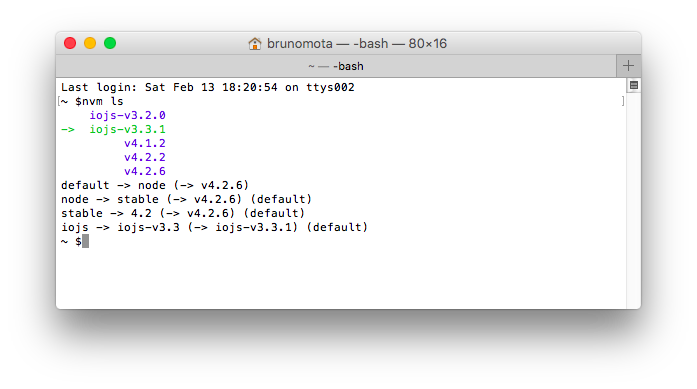
nvm ls
This will display something resembling the following:
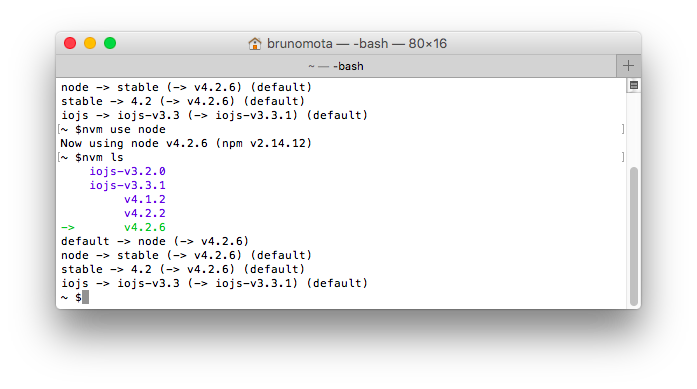
The entry in green, with an arrow on the left is the current version in use. Below the green and blue list, there is a list of available aliases. If you now execute:
nvm use node

nvm ls
It will display:
You can also check what is the current version in use with the command:
nvm current
Specify a Node Version on a Per-Project Basis
Version managers such as rbenv allow you to specify a Ruby version on a per-project basis (by writing that version to a
.ruby-versionfile in your current directory). This is kind of possible with nvm in that if you create a.nvmrcfile inside a project and specify a version number, you can cd into the project directory and typenvm use. nvm will then read the contents of the.nvmrcfile and use whatever version of Node you specify.If it’s really important to you that this happens automatically, there is a project (avn) which integrates with nvm, and is designed to address this need.
Other nvm Commands
There are other commands nvm provides, which are more of advanced or not common usage.
Running a command directly for an installed version without switching the
nodevariable:nvm run 4.2.2 --version
Running a command on a sub-shell, targeting a specific version:
nvm exec 4.2.2 node --version
Getting the path to the Node.js executable of a specific installed version:
nvm which 4.2.2
Conclusion
nvm is a great tool for any Node.js developer. It enables a concern free installation and switching between different versions, saving time for what really matters. A thank you note to Tim Caswell the creator of nvm, and Corey Butler for the nvm for windows support, and of course to the contributors of these great projects. Your work is greatly appreciated by the Node.js community.
What about you? Do you use nvm? How has your experience been with it? Would love to hear from you in the comments below.
Was this helpful?
More:

1
1
1
1
1
1
1
1
xgqfrms 2012-2020
www.cnblogs.com 发布文章使用:只允许注册用户才可以访问!
how to updating Node.js and npm的更多相关文章
- 在Linux Mint上安装node.js和npm
1.安装Node.js 前端开发过程中,很多项目使用npm的http-server的模块来运行一个静态的服务器,我个人在Dell的笔记本上安装的是Linux Mint最新版本,所以想尝试一下在Linu ...
- 关于node.js和npm,cnpm的安装记录以及gulp自动构建工具的使用
关于node.js和npm,cnpm的安装记录以及gulp自动构建工具的使用 工作环境:window下 在一切的最开始,安装node.js (中文站,更新比较慢http://nodejs.cn/) ...
- node.js的npm详解
一.什么是npm呢 npm(Node Package Manager,node包管理器)是node的包管理器,他允许开发人员在node.js应用程序中创建,共享并重用模块.模块就是可以在不同的项目中重 ...
- node.js的npm安装
我不打算引进node.js的npm安装,但发现node.js通过管理一些包npm实现,或给一个简短的npm. 1.npm什么 npm是一个node包管理和分发工具,已经成为了非官方的公布 ...
- Node.js、npm、vue-cli 的安装配置环境变量
我安装node.js是为了学习vue,需要用到npm,所以就把node.js安装了,安装node.js会带有npm的安装. 在安装node.js之前,我们需要了解以下三个内容. npm: Nodejs ...
- Linux(CentOS)安装Node.JS和npm的两种方式(yum安装和源码安装)
yum安装 yum安装是将yum源中的rpm包下载到本地,安装这个rpm包.这个rpm包是别人编译安装好的二进制包.这种方式方便快捷,特别是不用考虑包依赖. 0.了解linux版本 通过 uname ...
- angular2.0学习笔记1.开发环境搭建 (node.js和npm的安装)
开发环境, 1.安装Node.js®和npm, node 6.9.x 和 npm 3.x.x 以上的版本. 更老的版本可能会出现错误,更新的版本则没问题. 控制台窗口中运行命令 node -v 和 n ...
- node.js和npm离线安装
离线安装node.js和npm 1.下载官方安装包并拷贝到离线机器上. 官方下载地址:https://nodejs.org/en/download/ 2.解压文件: tar-xJf node-v8.9 ...
- 【随笔】node.js + npm的安装
需要用到node.js和npm,所以来安装下. 在网上找了找教程,好多都是分开装的,各种麻烦各种事,最后还是在node.js官网里下载解决了.记录一下. 如果安装在当前环境,直接点击install会自 ...
随机推荐
- Jmeter函数助手大全
__BeanShell 入参:BeanShell语法的程序语句或者Bean Shell脚本文件 示例: ${__BeanShell(123*456,)}:返回56088: ${__BeanShell( ...
- Spring Data JPA基本增删改查和JPQL查询(含完整代码和视频连接)
问题:SpringDataJPA怎么使用? 一.考察目标 主要考核SpringDataJPA的用法 二.题目分析 spring data jpa 的使用步骤(下面有具体实现细节) 1.创建maven工 ...
- Building a high performance JSON parser
Building a high performance JSON parser https://dave.cheney.net/high-performance-json.html
- 4、剑指offer——从尾到头打印链表java实现
**题目描述** **输入一个链表,按链表从尾到头的顺序返回一个ArrayList.** 时间限制:C/C++ 1秒,其他语言2秒 空间限制:C/C++ 32M,其他语言64M 思路: 1.如果链 ...
- 算法总结篇---字典树(Trie)
目录 写在前面 具体实现 引例: 引例代码: 例题 Phone List Solution: The XOR Largest Pair Solution L语言 Solution: 写在前面 字典树是 ...
- 【Python爬虫】:使用高性能异步多进程爬虫获取豆瓣电影Top250
在本篇博文当中,将会教会大家如何使用高性能爬虫,快速爬取并解析页面当中的信息.一般情况下,如果我们请求网页的次数太多,每次都要发出一次请求,进行串行执行的话,那么请求将会占用我们大量的时间,这样得不偿 ...
- [每日电路图] 12、带自动烧写能力的 ESP8266 开发板制作
目录 前言 1.芯片先关信息 2.原理图介绍 2.1 供电电路 2.2 串口电路 2.3 自动烧写电路 3.PCB 效果展示 附录 前言 ESP8266 是乐鑫公司面向物联网应用的高性价比.高度集成的 ...
- JDBC连接数据库,数据库访问层
为什么需要JDBC JDBC API DriverManager JDBC驱动 JDBC的功能 JDBC步骤 数据访问层DAO DAO模式的组成 DAO模式的实际应用 为什么需要JDBC? JDBC是 ...
- Spark-1.6.1 Hadoop-2.6.4 VMware Ubuntu 分布式集群搭建 全过程
本文从头开始零基础完全配置,适合小白. 本文在vmware中配置三台虚拟机,一台做Master,两台Worker,hadoop 和spark只需要在Master上配置,然后cp到worker上,包括配 ...
- Linux系统安装时分区的选择(转)
原文地址:http://www.cnblogs.com/gylei/archive/2011/12/04/2275987.html 前言: 以前初识Linux时,对Linux系统安装时分区的选择,一点 ...