
android 数据绑定(4)实用特性及疑惑:使用控件、格式化@string/xxx、对象传递、双向数据绑定
1.在布局内使用其它控件
1.1 效果
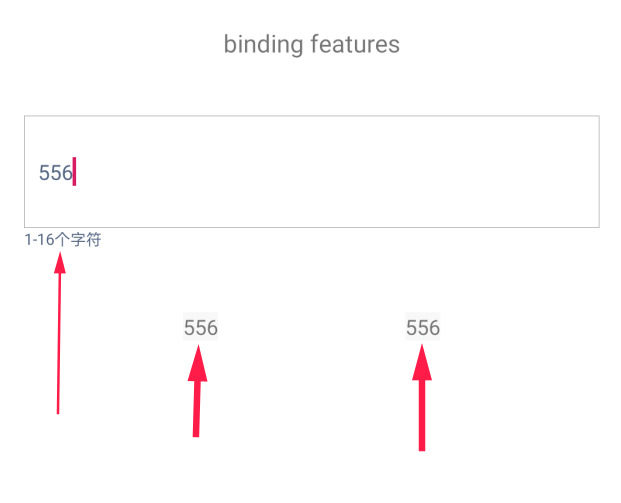
箭头所指3个控件的内容随输入框内容而变化。
1.2 示例代码
<?xml version="1.0" encoding="utf-8"?>
<layout xmlns:app="http://schemas.android.com/apk/res-auto"
xmlns:tools="http://schemas.android.com/tools"
xmlns:android="http://schemas.android.com/apk/res/android">
<data>
<import type="android.view.View" />
<import type="com.example.databind.Exts" />
</data>
<androidx.constraintlayout.widget.ConstraintLayout
android:clickable="true"
android:background="#ffffff"
android:layout_width="match_parent"
android:layout_height="match_parent"> <TextView
android:id="@+id/features_title"
android:layout_width="wrap_content"
android:layout_height="wrap_content"
android:layout_marginTop="16dp"
android:text="binding features"
android:textAllCaps="false"
app:layout_constraintEnd_toEndOf="parent"
app:layout_constraintStart_toStartOf="parent"
app:layout_constraintTop_toTopOf="parent" /> <TextView
android:id="@+id/features_txt1"
android:layout_width="wrap_content"
android:layout_height="wrap_content"
android:layout_marginTop="48dp"
android:background="#f8f8f8"
android:textSize="12sp"
android:text='@{featureEdt.text.toString(),default="取 feature_edt 的值"}'
app:layout_constraintEnd_toStartOf="@+id/features_txt2"
app:layout_constraintStart_toStartOf="parent"
app:layout_constraintTop_toBottomOf="@+id/feature_edt" /> <TextView
android:id="@+id/features_txt2"
android:layout_width="wrap_content"
android:layout_height="wrap_content"
android:background="#f8f8f8"
android:textSize="12sp"
android:text='@{featureEdt.text.toString(),default="取 feature_edt 的值"}'
app:layout_constraintBottom_toBottomOf="@+id/features_txt1"
app:layout_constraintEnd_toEndOf="parent"
app:layout_constraintStart_toEndOf="@+id/features_txt1"
app:layout_constraintTop_toTopOf="@+id/features_txt1" />
<!--android:textColor="@{featureEdt.text.hasCharX('e') ? @color/colorAccent : @color/colorPrimaryDark }"--> <EditText
android:id="@+id/feature_edt"
android:layout_width="0dp"
android:layout_height="64dp"
android:layout_marginStart="16dp"
android:layout_marginLeft="16dp"
android:layout_marginTop="32dp"
android:layout_marginEnd="16dp"
android:layout_marginRight="16dp"
android:background="@drawable/edt_bg"
android:ems=""
android:textColor='@{featureEdt.text.toString().length() > 8 ? @color/colorAccent : @color/colorPrimaryDark }'
android:inputType="textPersonName"
android:paddingLeft="8dp"
android:text="Name"
android:maxLength=""
android:maxLines=""
android:textAllCaps="false"
android:textSize="12sp"
app:layout_constraintEnd_toEndOf="parent"
app:layout_constraintStart_toStartOf="parent"
app:layout_constraintTop_toBottomOf="@+id/features_title" /> <TextView
android:id="@+id/toast"
android:layout_width="wrap_content"
android:layout_height="wrap_content"
android:textSize="9sp"
android:textColor='@{featureEdt.text.toString().length() < 1 ? @color/colorAccent : @color/colorPrimaryDark,default=@color/colorPrimary}'
android:text='@{featureEdt.text.toString().length() < 1 ? "不能为空" :"1-16个字符",default = "1-16个字符"}'
app:layout_constraintStart_toStartOf="@+id/feature_edt"
app:layout_constraintTop_toBottomOf="@+id/feature_edt" /> </androidx.constraintlayout.widget.ConstraintLayout>
</layout>
1.3 特性描述
- 控件按驼峰式命名法命名,如 : feature_edt -> featureEdt
- 其它控件可以在布局内访问这个控件以及它的成员,第34、45、81行。
- 不可以调用控件的扩展成员。第50行。
- 控件自己可以调用自己,第63行。
2. 可以使用格式化字符串
- 示例,@string/xxx 可以和 “字符串” 相加 ,如下
     <TextView

             android:id="@+id/tvFormat"

             android:layout_width="wrap_content"

             android:layout_height="wrap_content"

             android:layout_marginTop="24dp"

             android:text='@{@string/format("李4",0x20,33.333333f) + " string/xxx 可以和 字符串相加 ",default=@string/format}'

             app:layout_constraintStart_toStartOf="@+id/feature_edt"

             app:layout_constraintTop_toBottomOf="@+id/features_txt1" />
- string.xml
 <resources>

     <string name="app_name">DataBind</string>

     <string name="format">format : name=%1$s,age=%2$1d,value=%3$32f </string>

     //...

 </resources>
3.对象传递到include布局中
3.1 示例
 <?xml version="1.0" encoding="utf-8"?>

 <layout xmlns:android="http://schemas.android.com/apk/res/android"

     xmlns:tools="http://schemas.android.com/tools"

     xmlns:app="http://schemas.android.com/apk/res-auto"

     xmlns:bind="http://schemas.android.com/apk/res-auto">

     <data>

         <variable name="data" type="com.example.databind.Data" />

         <variable name="click" type="com.example.databind.Click" />

     </data>

     <androidx.constraintlayout.widget.ConstraintLayout

         android:layout_width="match_parent"

         android:layout_height="match_parent"

         android:clickable="true"

         android:focusable="true"

         android:focusableInTouchMode="true"

         android:onClick="@{click::onStartClicked}">

         //...

         <include

             android:id="@+id/include"

             layout="@layout/include"

             android:layout_width="0dp"

             android:layout_height="wrap_content"

             android:layout_marginTop="16dp"

             app:layout_constraintEnd_toEndOf="@+id/frgmt2"

             app:layout_constraintStart_toStartOf="@+id/frgmt2"

             app:layout_constraintTop_toBottomOf="@+id/frgmt2"

             bind:data="@{data}"

             bind:title='@{"标题"}'

             />

 ...
代码中把 data 传递给 @layout/include ,要求这个布局也使用数据绑定布局,且也声明data和title变量。
如下:
 <layout xmlns:android="http://schemas.android.com/apk/res/android"

     xmlns:app="http://schemas.android.com/apk/res-auto">

     <data>

         <variable name="data" type="com.example.databind.Data" />

         <variable name="title" type="String" />

     </data>

     <androidx.constraintlayout.widget.ConstraintLayout

         android:layout_width="match_parent"

         android:layout_height="wrap_content"

         android:background="#7ff77ff7"

         >

         //...

         <TextView

             android:id="@+id/value"

             android:layout_width="wrap_content"

             android:layout_height="wrap_content"

             android:layout_marginStart="32dp"

             android:layout_marginLeft="32dp"

             android:text="@{String.valueOf(data.value),default = value}"

             app:layout_constraintEnd_toEndOf="parent"

             app:layout_constraintStart_toEndOf="@+id/key"

             app:layout_constraintTop_toTopOf="@+id/key" />

     </androidx.constraintlayout.widget.ConstraintLayout>

 </layout>
3.2 不支持 merge 为直接子元素
数据绑定不支持 include 作为 merge 元素的直接子元素
     <?xml version="1.0" encoding="utf-8"?>

     <layout xmlns:android="http://schemas.android.com/apk/res/android"

             xmlns:bind="http://schemas.android.com/apk/res-auto">

        <data>

            <variable name="user" type="com.example.User"/>

        </data>

        <merge><!-- Doesn't work -->

            <include layout="@layout/name"

                bind:user="@{user}"/>

            <include layout="@layout/contact"

                bind:user="@{user}"/>

        </merge>

     </layout>
#.后台线程的疑惑
#.1 问题
英文原版

中文版

#.2 疑惑?
Collection<T> 实现类 里存放的数据,不能在后台线程中修改?
#.3 测试代码
在后台线程中对list 操作,并没有发现问题
 package com.example.databind

 import android.os.Bundle

 import android.view.LayoutInflater

 import android.view.View

 import android.view.ViewGroup

 import androidx.databinding.ObservableField

 import androidx.fragment.app.Fragment

 import com.example.databind.databinding.MapCollectionBinding

 import kotlin.concurrent.thread

 class MapCollectionFrgmt : Fragment() {

     lateinit var binding : MapCollectionBinding

     val list    = ArrayList<String>()

     val map     = HashMap<String,ObservableField<String>>()

     val data    = Data()

     init {

         data.key = "data key"

         data.key = "data value"

         map.put("key1",ObservableField("value1"))

         map.put("key2",ObservableField("value2"))

         map.put("key3",ObservableField("value3"))

         map.put("key4",ObservableField("value4"))

         list.add("value0")

         list.add("value1")

         list.add("value2")

         list.add("value3")

     }

     fun onDataThreadMainClicked(view: View){

         val random = (Math.random() * ).toInt()

         data.key = "新Main key$random"

         data.value = random

         binding.data = data

     }

     fun onDataThreadOtherClicked(view: View){

         thread {

             val random = (Math.random() * ).toInt()

             data.key = "新other key$random"

             data.value = random

             binding.data = data

         }

     }

     fun onMap1ThreadMain(v : View){

         val random = (Math.random() * ).toInt()

         val ob = ObservableField<String>()

         ob.set("新Main value$random")

         map.put("key1",ob)

         binding.map = map

     }

     fun onMap1ThreadOther(v : View){

         thread {

             val random = (Math.random() * ).toInt()

             val ob = ObservableField<String>()

             ob.set("新Main value$random")

             map.put("key1",ob)

             binding.map = map

         }

     }

     fun onList0ThreadMain(v : View){

         val random = (Math.random() * ).toInt()

         list[] = "新Main value$random"

         binding.list = list

     }

     fun onList0ThreadOther(v : View){

         thread {

             val random = (Math.random() * ).toInt()

             list[] = "新Main value$random"

             binding.list = list

         }

     }

     fun initBinding(){

         binding.list = list

         binding.data = data

         binding.map = map

         binding.threadMainData.setOnClickListener(this::onDataThreadMainClicked)

         binding.threadOtherData.setOnClickListener(this::onDataThreadOtherClicked)

         binding.threadMainMap1.setOnClickListener(this::onMap1ThreadMain)

         binding.threadOtherMap1.setOnClickListener(this::onMap1ThreadOther)

         binding.threadMainList0.setOnClickListener(this::onList0ThreadMain)

         binding.threadOtherList0.setOnClickListener(this::onList0ThreadOther)

         /*if (Build.VERSION.SDK_INT >= Build.VERSION_CODES.N) {

             val text: String = getString(R.string.map_title, map.size)

             val styledText: Spanned = Html.fromHtml(text, FROM_HTML_OPTION_USE_CSS_COLORS)

             binding.mapTitle.text = styledText

         }*/

     }

     override fun onCreateView(inflater: LayoutInflater, container: ViewGroup?, savedInstanceState: Bundle?): View? {

         binding = MapCollectionBinding.inflate(inflater,container,false)

         initBinding()

         return binding.root

     }

     override fun onViewCreated(view: View, savedInstanceState: Bundle?) {

         super.onViewCreated(view, savedInstanceState)

     }

     override fun onDetach() {

         super.onDetach()

     }

 }
布局
<?xml version="1.0" encoding="utf-8"?>
<layout xmlns:app="http://schemas.android.com/apk/res-auto"
xmlns:tools="http://schemas.android.com/tools"
xmlns:android="http://schemas.android.com/apk/res/android">
<data >
<import type="androidx.databinding.ObservableField" />
<variable name="data" type="com.example.databind.Data" />
<variable name="map" type="java.util.HashMap<String,ObservableField<String>>" />
<variable name="list" type="java.util.List<String>" />
</data>
<androidx.constraintlayout.widget.ConstraintLayout
android:clickable="true"
android:background="#ffffff"
android:layout_width="match_parent"
android:layout_height="match_parent"> <TextView
android:id="@+id/data_title"
android:layout_width="0dp"
android:layout_height="wrap_content"
android:layout_marginTop="16dp"
android:background="#f6f6f6"
android:paddingLeft="16dp"
android:text="data "
app:layout_constraintEnd_toEndOf="parent"
app:layout_constraintStart_toStartOf="parent"
app:layout_constraintTop_toTopOf="parent" /> <TextView
android:id="@+id/map_title"
android:layout_width="0dp"
android:layout_height="wrap_content"
android:layout_marginTop="16dp"
android:background="#f8f8f8"
android:paddingLeft="16dp"
android:text="@{@string/map_title(map.size()) ,default=@string/map_title}"
app:layout_constraintEnd_toEndOf="parent"
app:layout_constraintStart_toStartOf="parent"
app:layout_constraintTop_toBottomOf="@+id/data_key" /> <TextView
android:id="@+id/data_key"
android:layout_width="wrap_content"
android:layout_height="wrap_content"
android:layout_marginStart="32dp"
android:layout_marginLeft="32dp"
android:layout_marginTop="16dp"
android:text='@{data.key}'
app:layout_constraintStart_toStartOf="@+id/data_title"
app:layout_constraintTop_toBottomOf="@+id/data_title" /> <TextView
android:id="@+id/data_value"
android:layout_width="wrap_content"
android:layout_height="wrap_content"
android:layout_marginStart="16dp"
android:layout_marginLeft="16dp"
android:text='@{String.valueOf(data.value)}'
app:layout_constraintStart_toEndOf="@+id/data_key"
app:layout_constraintTop_toTopOf="@+id/data_key" /> <TextView
android:id="@+id/map_key1"
android:layout_width="wrap_content"
android:layout_height="wrap_content"
android:layout_marginStart="24dp"
android:layout_marginLeft="24dp"
android:layout_marginTop="16dp"
android:text='@{@string/map_key_value("key1",map["key1"]),default=@string/map_key_value}'
app:layout_constraintStart_toStartOf="parent"
app:layout_constraintTop_toBottomOf="@+id/map_title" /> <TextView
android:id="@+id/map_key3"
android:layout_width="wrap_content"
android:layout_height="wrap_content"
android:layout_marginTop="8dp"
android:text='@{@string/map_key_value("key1",map["key3"]),default=@string/map_key_value}'
app:layout_constraintStart_toStartOf="@+id/map_key1"
app:layout_constraintTop_toBottomOf="@+id/map_key2" /> <TextView
android:id="@+id/map_key4"
android:layout_width="wrap_content"
android:layout_height="wrap_content"
android:layout_marginTop="8dp"
android:text='@{@string/map_key_value("无效key",map["无效key"]),default=@string/map_key_value}'
app:layout_constraintStart_toStartOf="@+id/map_key2"
app:layout_constraintTop_toBottomOf="@+id/map_key3" /> <TextView
android:id="@+id/map_key2"
android:layout_width="wrap_content"
android:layout_height="wrap_content"
android:layout_marginTop="8dp"
android:text='@{@string/map_key_value("key2",map["key2"]),default=@string/map_key_value}'
app:layout_constraintStart_toStartOf="@+id/map_key1"
app:layout_constraintTop_toBottomOf="@+id/map_key1" /> <TextView
android:id="@+id/list_title"
android:layout_width="0dp"
android:layout_height="wrap_content"
android:layout_marginTop="24dp"
android:background="#f8f8f8"
android:paddingLeft="16dp"
android:text="@{@string/list_title(list.size()) ,default=@string/list_title}"
app:layout_constraintEnd_toEndOf="parent"
app:layout_constraintStart_toStartOf="parent"
app:layout_constraintTop_toBottomOf="@+id/map_key4" /> <TextView
android:id="@+id/list_0"
android:layout_width="wrap_content"
android:layout_height="wrap_content"
android:layout_marginStart="24dp"
android:layout_marginLeft="24dp"
android:layout_marginTop="16dp"
android:text='@{@string/list_index(0,list[0]),default=@string/list_index}'
app:layout_constraintStart_toStartOf="parent"
app:layout_constraintTop_toBottomOf="@+id/list_title" /> <TextView
android:id="@+id/list_1"
android:layout_width="wrap_content"
android:layout_height="wrap_content"
android:layout_marginTop="8dp"
android:text='@{@string/list_index(1,list[1]),default=@string/list_index}'
app:layout_constraintStart_toStartOf="@+id/list_0"
app:layout_constraintTop_toBottomOf="@+id/list_0" /> <TextView
android:id="@+id/list_2"
android:layout_width="wrap_content"
android:layout_height="wrap_content"
android:layout_marginTop="8dp"
android:text='@{@string/list_index(2,list[2]),default=@string/list_index}'
app:layout_constraintStart_toStartOf="@+id/list_1"
app:layout_constraintTop_toBottomOf="@+id/list_1" /> <TextView
android:id="@+id/list_3"
android:layout_width="104dp"
android:layout_height="15dp"
android:layout_marginTop="8dp"
android:text='@{@string/list_index(-1,list[-1]) ,default=@string/list_index}'
app:layout_constraintStart_toStartOf="@+id/list_2"
app:layout_constraintTop_toBottomOf="@+id/list_2" /> <TextView
android:id="@+id/thread_title"
android:layout_width="0dp"
android:layout_height="wrap_content"
android:layout_marginTop="32dp"
android:background="#f8f8f8"
android:paddingLeft="16dp"
android:text="在线程中修改数据"
app:layout_constraintEnd_toEndOf="parent"
app:layout_constraintStart_toStartOf="parent"
app:layout_constraintTop_toBottomOf="@+id/list_3" /> <Button
android:id="@+id/thread_main_data"
android:layout_width="wrap_content"
android:layout_height="wrap_content"
android:layout_marginTop="16dp"
android:text="主线程修改data"
android:textAllCaps="false"
app:layout_constraintEnd_toStartOf="@+id/thread_other_data"
app:layout_constraintStart_toStartOf="parent"
app:layout_constraintTop_toBottomOf="@+id/thread_title" /> <Button
android:id="@+id/thread_other_data"
android:layout_width="wrap_content"
android:layout_height="wrap_content"
android:layout_marginTop="16dp"
android:text="非主线程修改data"
android:textAllCaps="false"
app:layout_constraintEnd_toEndOf="parent"
app:layout_constraintStart_toEndOf="@+id/thread_main_data"
app:layout_constraintTop_toBottomOf="@+id/thread_title" /> <Button
android:id="@+id/thread_main_list0"
android:layout_width="wrap_content"
android:layout_height="wrap_content"
android:layout_marginTop="16dp"
android:text="主线程修改list[0]"
android:textAllCaps="false"
app:layout_constraintEnd_toStartOf="@+id/thread_other_list0"
app:layout_constraintStart_toStartOf="parent"
app:layout_constraintTop_toBottomOf="@+id/thread_main_data" /> <Button
android:id="@+id/thread_other_list0"
android:layout_width="wrap_content"
android:layout_height="wrap_content"
android:layout_marginTop="16dp"
android:text="非主线程修改list[0]"
android:textAllCaps="false"
app:layout_constraintEnd_toEndOf="parent"
app:layout_constraintStart_toEndOf="@+id/thread_main_list0"
app:layout_constraintTop_toBottomOf="@+id/thread_main_data" /> <Button
android:id="@+id/thread_main_map1"
android:layout_width="wrap_content"
android:layout_height="wrap_content"
android:layout_marginTop="16dp"
android:text="主线程修改map[key1]"
android:textAllCaps="false"
app:layout_constraintEnd_toStartOf="@+id/thread_other_map1"
app:layout_constraintStart_toStartOf="parent"
app:layout_constraintTop_toBottomOf="@+id/thread_main_list0" /> <Button
android:id="@+id/thread_other_map1"
android:layout_width="wrap_content"
android:layout_height="wrap_content"
android:layout_marginTop="16dp"
android:text="非主线程修改map[key1]"
android:textAllCaps="false"
app:layout_constraintEnd_toEndOf="parent"
app:layout_constraintStart_toEndOf="@+id/thread_main_map1"
app:layout_constraintTop_toBottomOf="@+id/thread_main_list0" /> </androidx.constraintlayout.widget.ConstraintLayout>
</layout>
#.4 viewModel 放在集合里?
布局文件中通过viewModel访问数据,然后viewModel放在集合里?还会这么用?不解。
android 数据绑定(4)实用特性及疑惑:使用控件、格式化@string/xxx、对象传递、双向数据绑定的更多相关文章
- Android 打造完美的侧滑菜单/侧滑View控件
概述 Android 打造完美的侧滑菜单/侧滑View控件,完全自定义实现,支持左右两个方向弹出,代码高度简洁流畅,兼容性高,控件实用方便. 详细 代码下载:http://www.demodashi. ...
- ANDROID L——Material Design详解(UI控件)
转载请注明本文出自大苞米的博客(http://blog.csdn.net/a396901990),谢谢支持! Android L: Google已经确认Android L就是Android Lolli ...
- Android判断Touch为滑动事件还是操作控件
Android判断Touch为滑动事件还是操作控件 因为在项目中要判断WebView是否处于滚动状态,但它不像ListView有onScrollStateChanged方法来监听,要实现就得手动监听它 ...
- 怎样在Android实现桌面清理内存简单Widget小控件
怎样在Android实现桌面清理内存简单Widget小控件 我们常常会看到类似于360.金山手机卫士一类的软件会带一个widget小控件,显示在桌面上,上面会显示现有内存大小,然后会带一个按键功能来一 ...
- Android 自定义支持快速搜索筛选的选择控件(一)
Android 自定义支持快速搜索筛选的选择控件 项目中遇到选择控件选项过多,需要快速查找匹配的情况. 做了简单的Demo,效果图如下: 源码地址:https://github.com/whieenz ...
- 背水一战 Windows 10 (50) - 控件(集合类): ItemsControl - 基础知识, 数据绑定, ItemsPresenter, GridViewItemPresenter, ListViewItemPresenter
[源码下载] 背水一战 Windows 10 (50) - 控件(集合类): ItemsControl - 基础知识, 数据绑定, ItemsPresenter, GridViewItemPresen ...
- (转载) Android RecyclerView 使用完全解析 体验艺术般的控件
Android RecyclerView 使用完全解析 体验艺术般的控件 标签: Recyclerviewpager瀑布流 2015-04-16 09:07 721474人阅读 评论(458) 收藏 ...
- Android自定义View(三、深入解析控件测量onMeasure)
转载请标明出处: http://blog.csdn.net/xmxkf/article/details/51490283 本文出自:[openXu的博客] 目录: onMeasure什么时候会被调用 ...
- android内部培训视频_第三节 常用控件(Button,TextView,EditText,AutocompleteTextView)
第三节:常用控件 一.Button 需要掌握的属性: 1.可切换的背景 2.9.png使用 3.按钮点击事件 1) onClick 3) 匿名类 4) 公共类 二.TextView 常用属性 1.a ...
随机推荐
- intellij idea springboot无法读取配置文件的解决方法
问题描述 Spring Boot项目中运行之后,出现如下的错误: *************************** APPLICATION FAILED TO START *********** ...
- “随手记”开发记录day13
今天继续对我们的项目进行更改. 今天我们需要做的是增加“修改”功能.对于已经添加的记账记录,长按可以进行修改和删除的操作. 但是今天并没有完成……
- Pytorch_第九篇_神经网络中常用的激活函数
神经网络中常用的激活函数 Introduce 理论上神经网络能够拟合任意线性函数,其中主要的一个因素是使用了非线性激活函数(因为如果每一层都是线性变换,那有啥用啊,始终能够拟合的都是线性函数啊).本文 ...
- Canal v1.1.4版本避坑指南
前提 在忍耐了很久之后,忍不住爆发了,在掘金发了条沸点(下班时发的): 这是一个令人悲伤的故事,这条情感爆发的沸点好像被屏蔽了,另外小水渠(Canal意为水道.管道)上线一段时间,不出坑的时候风平浪静 ...
- 2020-03-26:eureka 和其他注册中心比如zk有什么不同?
从eureka工作原理可以看出,eureka client有缓存功能,即使eureka所有的serve都宕掉,仍然能给服务消费者发送服务信息,所以eureka保证了服务可用性,不能保证数据一致性,是一 ...
- JAVA使用urlrewrite实现伪静态化
什么是伪静态? 伪静态字面理解就是假的静态,说的官方点就是“地址重写,用户得到的全部地址都是经过处理后的URL地址”. 为什么要伪静态呢? 提高安全性,可以有效的避免一些参数名.ID等完全暴露在用户面 ...
- java.io.IOException: Stream closed 的问题
public static String getBodyString(ServletRequest request) { StringBuilder sb = new StringBuilder(); ...
- linux驱动之模块化编程小总结
本文包含了linux驱动模块化编程的基本,包括创建多线程,延时,以及makefile 以一个实例来说明 #include<linux/init.h> #include<linux/m ...
- Jmeter 常用函数(15)- 详解 __StringFromFile
如果你想查看更多 Jmeter 常用函数可以在这篇文章找找哦 https://www.cnblogs.com/poloyy/p/13291704.htm 作用 从文本文件读取字符串,每次一行 需要注意 ...
- 推断(inference)和预测(prediction)
上二年级的大儿子一直在喝无乳糖牛奶,最近让他尝试喝正常牛奶,看看反应如何.三天过后,儿子说,好像没反应,我可不可以说我不对乳糖敏感了. 我说,呃,这个问题不简单啊.你知道吗,这在统计学上叫推断. 儿子 ...