
WorkStation的网络损耗
WorkStation的网络损耗
背景
对周六遇到的问题进行了一下深入思考.

发现虽然可以通过WorkStation的方式来进行Clients以及新命令的扩容.

但是Workstation的桥接网络模式的性能不清楚有多大的损耗.

为了房子性能出现巨大的衰退.

这边进行了一下简要的测试与验证.
结论
Windows物理机 本地进行测试和使用linux远程测试 3.2.100 的QPS 都在 24000 左右.

比较稳定, linux上面的测试结果甚至要比 Windows本地测试的要稍微高一点

但是 Windows 上面的 WorkStation虚拟机就就存在问题.

虚拟机内直接的测试结果是 35000左右

在虚拟机外部使用桥接网络测试的结果只有 10000多一点.

桥接网络导致redis的QPS只有实际值的三分之一, 也只有Windows 上面 3.2.100 的 一半.

感觉桥接网络导致了非常大的性能损耗.

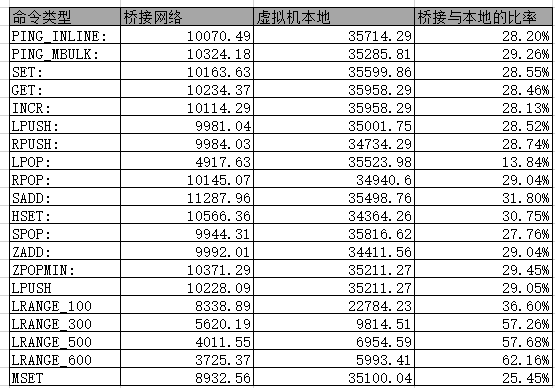

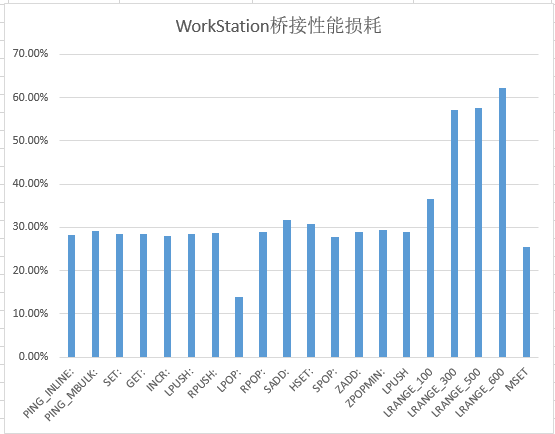
在远程的测试结果
PING_INLINE: 10070.49 requests per second, p50=1.935 msec

PING_MBULK: 10324.18 requests per second, p50=1.903 msec

SET: 10163.63 requests per second, p50=1.943 msec

GET: 10234.37 requests per second, p50=1.919 msec

INCR: 10114.29 requests per second, p50=1.935 msec

LPUSH: 9981.04 requests per second, p50=1.951 msec

RPUSH: 9984.03 requests per second, p50=1.967 msec

LPOP: 4917.63 requests per second, p50=2.015 msec

RPOP: 10145.07 requests per second, p50=1.935 msec

SADD: 11287.96 requests per second, p50=1.703 msec

HSET: 10566.36 requests per second, p50=1.911 msec

SPOP: 9944.31 requests per second, p50=1.951 msec

ZADD: 9992.01 requests per second, p50=1.967 msec

ZPOPMIN: 10371.29 requests per second, p50=1.887 msec

LPUSH (needed to benchmark LRANGE): 10228.09 requests per second, p50=1.919 msec

LRANGE_100 (first 100 elements): 8338.89 requests per second, p50=2.263 msec

LRANGE_300 (first 300 elements): 5620.19 requests per second, p50=3.255 msec

LRANGE_500 (first 500 elements): 4011.55 requests per second, p50=4.623 msec

LRANGE_600 (first 600 elements): 3725.37 requests per second, p50=4.991 msec

MSET (10 keys): 8932.56 requests per second, p50=2.079 msec
在本地的测试结果
PING_INLINE: 35714.29 requests per second, p50=0.287 msec

PING_MBULK: 35285.81 requests per second, p50=0.295 msec

SET: 35599.86 requests per second, p50=0.311 msec

GET: 35958.29 requests per second, p50=0.303 msec

INCR: 35958.29 requests per second, p50=0.303 msec

LPUSH: 35001.75 requests per second, p50=0.327 msec

RPUSH: 34734.29 requests per second, p50=0.319 msec

LPOP: 35523.98 requests per second, p50=0.327 msec

RPOP: 34940.60 requests per second, p50=0.319 msec

SADD: 35498.76 requests per second, p50=0.311 msec

HSET: 34364.26 requests per second, p50=0.319 msec

SPOP: 35816.62 requests per second, p50=0.303 msec

ZADD: 34411.56 requests per second, p50=0.335 msec

ZPOPMIN: 35211.27 requests per second, p50=0.303 msec

LPUSH (needed to benchmark LRANGE): 34566.20 requests per second, p50=0.319 msec

LRANGE_100 (first 100 elements): 22784.23 requests per second, p50=0.455 msec

LRANGE_300 (first 300 elements): 9814.51 requests per second, p50=1.031 msec

LRANGE_500 (first 500 elements): 6954.59 requests per second, p50=1.447 msec

LRANGE_600 (first 600 elements): 5993.41 requests per second, p50=1.671 msec

MSET (10 keys): 35100.04 requests per second, p50=0.391 msec
Windows 本地Redis3.2.100的测试结果
PING_INLINE: 22296.54 requests per second

PING_BULK: 22872.83 requests per second

SET: 22967.39 requests per second

GET: 23380.88 requests per second

INCR: 22246.94 requests per second

LPUSH: 23375.41 requests per second

RPUSH: 22862.37 requests per second

LPOP: 23239.60 requests per second

RPOP: 22794.62 requests per second

SADD: 23299.16 requests per second

SPOP: 23062.73 requests per second

LPUSH (needed to benchmark LRANGE): 23272.05 requests per second

LRANGE_100 (first 100 elements): 12515.64 requests per second

LRANGE_300 (first 300 elements): 7000.84 requests per second

LRANGE_500 (first 450 elements): 5093.21 requests per second

LRANGE_600 (first 600 elements): 4213.72 requests per second

MSET (10 keys): 19845.21 requests per second
Windows 远程测试结果
PING_INLINE: 21422.45 requests per second, p50=0.863 msec

PING_MBULK: 24348.67 requests per second, p50=0.759 msec

SET: 25201.61 requests per second, p50=0.743 msec

GET: 25933.61 requests per second, p50=0.719 msec

INCR: 26034.89 requests per second, p50=0.719 msec

LPUSH: 26581.61 requests per second, p50=0.703 msec

RPUSH: 24888.00 requests per second, p50=0.751 msec

LPOP: 25542.79 requests per second, p50=0.735 msec

RPOP: 25406.50 requests per second, p50=0.735 msec

SADD: 25621.32 requests per second, p50=0.735 msec

HSET: 25733.40 requests per second, p50=0.727 msec

SPOP: 25879.92 requests per second, p50=0.727 msec

ZADD: 25859.84 requests per second, p50=0.727 msec
WorkStation的网络损耗的更多相关文章
- VMware Workstation Pro网络配置(WiFi配置等)
常用技巧 连续按两下ctrl+alt,实现鼠标脱离 VMware Workstation Pro网络配置有几种模式: 桥接模式: 网络上的独立主机 占用路由器新IP资源 通过VMware Networ ...
- VMware Workstation中网络连接之桥接、NAT和Host-only
在Windows XP系统中,安装好VMware Workstation虚拟机软件以后,我们可以查看一下"网络连接"窗口: 在窗口中多出了两块网卡: VMware Network ...
- [VMware WorkStation]虚拟机网络
桥接模式下复制物理网络连接: 复制物理网卡连接状态,就是说把你指定的.本机的.真是网卡的状态信息复制给虚拟机的虚拟网卡,比如说你的本机真是网卡链接到了家用路由器的LAN口上,获得到了DHCP分配的地址 ...
- VMware Workstation的网络连接方式:NAT、桥接和Host Only
安装完VMware Workstation后会自动生成两个网络连接:VMware Network Adapter VMnet8 和 VMware Network Adapter VMnet1(通常称为 ...
- VMware workstation 虚拟网络 三种上网区别
以VMware workstation为例,其虚拟网络设备有3种: 第一种:vmnet0(桥接模式),无实体虚拟网卡,其实就是一个协议而已,会在对应网卡上加入VMware bridge protoco ...
- [转]VMware Workstation网络连接的三种模式
经常要使用VMWare Workstation来在本地测试不同的操作系统,以前也搞不清楚网络连接三种模式,最近看了几篇文章才算明白.现总结如下: 1. VMware Workstation的虚拟网络组 ...
- WMware workstation中几种网络连接的说明 【转】
博客来源:WMware workstation中几种网络连接的说明 VMware workstation中几种网络连接的说明 WMware workstation中网络连接包括,桥接模式.NAT模式. ...
- VMware workstation 网络选择 NAT模式 访问外网
多年不用本地做测试 尽然被 nat 模式給卡着了 :动手的还是所以要记录一下: 1.根据自己需求创建 虚拟机 之后: 配置[网络适配器] -- 选择 nat 模式 ( 选择网卡 ) 虚拟机 ...
- VMWare Workstation 配置docker多macvlan网络方法
VMWare Workstation 配置docker多macvlan网络方法 答案就是.....换VirtualBox 噗... VMWare Workstation host-only网络,三台虚 ...
- 转-深入理解VMware虚拟网络
原文出处:http://wangchunhai.blog.51cto.com/225186/381225 VMware Workstation是一款非常不错的虚拟机软件,许多爱好者用VMware Wo ...
随机推荐
- AnimatedList 实现动态列表
AnimatedList实现动画 AnimatedList 和 ListView 的功能大体相似,不同的是, AnimatedList 可以在列表中插入或删除节点 时执行一个动画,在需要添加或删除列 ...
- Java 插入、隐藏/显示、删除Excel行或列
概述 操作Excel工作表时,对表格中的行或列数据可执行,包括插入.隐藏.显示.删除等在内的多种操作需求,本文将通过Java代码示例演示每种操作的具体实现方法.文中方法使用了Java Excel类库( ...
- 知道ThreadLocal吗?一起聊聊到底有啥用
摘要:ThreadLocal是 java 提供的一个方便对象在本线程内不同方法中传递和获取的类.用它定义的变量,仅在本线程中可见和维护,不受其他线程的影响,与其他线程相互隔离. 本文分享自华为云社区& ...
- Seal 软件供应链防火墙 v0.2 发布,提供依赖项全局洞察
Seal 软件供应链防火墙 v0.2 已于近日发布.这款产品旨在为企业提供代码安全.构建安全.依赖项安全及运行环境安全等4大防护,通过全链路扫描.问题关联及风险组织的方式保护企业软件供应链安全,降低企 ...
- 高性能 Jsonpath 框架,Snack3 3.2.54 发布(支持 kotlin data 类反序化)
Snack3,一个高性能的 JsonPath 框架 借鉴了 Javascript 所有变量由 var 申明,及 Xml dom 一切都是 Node 的设计.其下一切数据都以ONode表示,ONode也 ...
- Solon 开发进阶,一、插件扩展机制
Solon 开发进阶 一.插件扩展机制 二.体外扩展机制 三.常用配置说明 四.启动参数说明 五.全局异常订阅 像 @Tran.@Cache 之类的注解开发成果,都会希望能在所有项目中复用.Solon ...
- Spring Boot Admin 授权配置
Admin 服务端配置 添加 POM 引用 <dependency> <groupId>org.springframework.boot</groupId> < ...
- Spring Boot Admin 离线实例
一直处于离线状态 spring.boot.admin.client.instance.prefer-ip Use the ip-address rather then the hostname in ...
- 用 three.js 绘制三维带箭头线
需求:这个需求是个刚需啊!在一个地铁场景里展示逃生路线,这个路线肯定是要有指示箭头的,为了画这个箭头,我花了不少于十几个小时,总算做出来了,但始终有点问题.我对这个箭头的要求是,无论场景拉近还是拉远, ...
- Codeforces Round #671 (Div. 2) (A - B、D1题)
比赛链接:https://codeforces.com/contest/1419 https://codeforces.com/contest/1419/problems A. Digit Game ...