
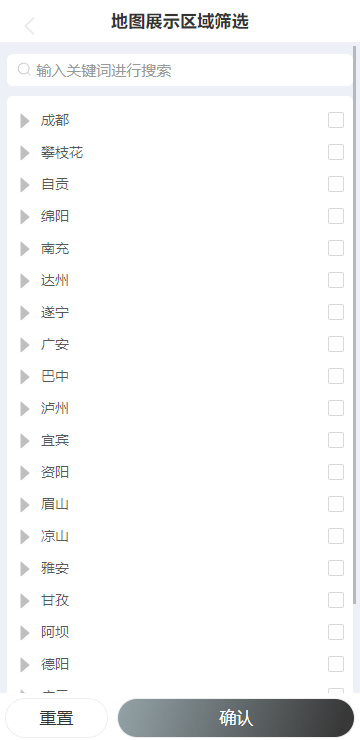
antd动态tree 自定义样式
import React, { useEffect, useState } from 'react';
import { Tree } from 'antd';

import './index.less';

const { TreeNode } = Tree;
import { getSubAreaData } from "@services/area";
import { HeaderWithBack } from "@/components";
import { Button, SearchBar } from "antd-mobile-v5";

const SelectAreaTree = (props: any) => {
  const [selectArea, setSelectArea] = useState([]);
  const [treeData, setTreeData] = useState([]);
  const [selectAreaKeys, setSelectAreaKeys] = useState([]);

  useEffect(() => {
    getSubAreaData({ areaId: 0 }).then(response => {
      const data = response.data;
      const initTreeData = [];
      for (const dataKey in data) {
        initTreeData.push({
          title: data[dataKey].areaName,
          key: data[dataKey].areaId,
        })
      }
      setTreeData(initTreeData);
    });
  }, []);

  const onLoadData = treeNode => new Promise((resolve) => {
    if (treeNode.props.children) {
      resolve();
      return;
    }
    getSubAreaData({ areaId: treeNode.props.dataRef.key }).then(response => {
      const data = response.data;
      const subOrgArray = [];
      data.forEach(item => {
        subOrgArray.push({ title: item.areaName, key: item.areaId });
      });
      treeNode.props.dataRef.children = subOrgArray;
      setTreeData([...treeData]);
      resolve();
    });
  })

  const renderTreeNodes = data => data.map((item) => {
    if (item.children) {
      return (
        <TreeNode title={item.title} key={item.key} dataRef={item}>
          {renderTreeNodes(item.children)}
        </TreeNode>
      );
    }
    return <TreeNode {...item} dataRef={item} />;
  })

  /**
   * 节点选择触发事件
   * @param selectKey
   * @param e
   */
  const treeNodeSelect = (selectKey: any, e: any) => {
    if (!selectKey || selectKey.length <= 0) {
      return;
    }
    let checkedNodes = e.checkedNodes;
    let selectAreaTemp = [];
    for (const checkedNodesKey in checkedNodes) {
      selectAreaTemp.push(checkedNodes[checkedNodesKey].props.dataRef)
    }

    setSelectArea(selectAreaTemp);

    let selectAreaKeysTemp = [];
    for (const key in selectAreaTemp) {
      selectAreaKeysTemp.push(selectAreaTemp[key].key);
    }
    setSelectAreaKeys(selectAreaKeysTemp);
    // selectKey[0] + '', e.selectedNodes[0].props.dataRef.title
  }

  /**
   * 移除选择了的区域
   * @param item
   */
  const removeAreaItem = (item: any) => {
    let selectAreaTemp = [];
    let selectAreaKeysTemp = [];
    for (const key in selectArea) {
      if (selectArea[key].key != item.key) {
        selectAreaTemp.push(selectArea[key]);
        selectAreaKeysTemp.push(selectArea[key].key);
      }
    }
    setSelectArea(selectAreaTemp);
    setSelectAreaKeys(selectAreaKeysTemp);
  }

  /**
   * 移除选择了的区域
   * @param item
   */
  const removeAllAreaItem = () => {
    setSelectArea([]);
    setSelectAreaKeys([]);
  }

  /**
   * 确认返回
   */
  const bakAndOK = () => {
    props.onShowOrClose(selectArea);
  }
  return (
    <div>
      <HeaderWithBack title="地图展示区域筛选" onLeftClick={() => {
        props.onShowOrClose()
      }} />
      <div className="content-info">
        <div className="content-info-title">
          <SearchBar placeholder='输入关键词进行搜索' style={{ '--background': '#ffffff' }} />
        </div>
        <div className="content-info-select-area">
          {
            selectArea.map((item) => {
              return <div className="content-info-select-area-item">{item.title}<span onClick={() => {
                removeAreaItem(item)
              }
              }>x</span></div>
            })
          }
        </div>
        <div className="content-info-tree">
          <Tree
            checkable
            selectable={false}
            loadData={onLoadData}
            onCheck={treeNodeSelect}
            checkedKeys={selectAreaKeys}
            checkStrictly={true}
          >
            {renderTreeNodes(treeData)}
          </Tree>
        </div>
      </div>
      <div className="content-info-btn">
        <Button block shape='rounded' className="content-info-btn-cancel" onClick={() => {
          removeAllAreaItem()
        }}>
          重置
        </Button>
        <Button block shape='rounded' className="content-info-btn-ok" onClick={() => {
          bakAndOK()
        }}>
          确认
        </Button>
      </div>
    </div>
  );
};

export default SelectAreaTree;
.content-info{
  padding: 0.15rem;
  background-color: #EDF1F7;
  max-height:88vh;
  overflow-y:  scroll;
}
.content-info-title{
  padding: 0.1rem 0;
}

.content-info-select-area{
  display: flex;
  flex-wrap:wrap;
  color: #2D3545;
}

.content-info-select-area-item{
  background: #FFFFFF;
  border-radius: 4px;
  padding: 0.02rem 0.1rem;
  margin: 0.05rem 0.1rem 0.05rem 0;
}

.content-info-select-area-item span{
  margin: 0 0 0 0.2rem;
  font-size: 0.15rem;
}

.content-info-tree{
  padding: 0.1rem;
  border-radius: 6px;
  margin-top: 0.1rem;
  background-color: #FFF;
}

.content-info-btn{
  display: flex;
  justify-content:space-between;
  margin: 0.1rem 0 0 0;
}

.content-info-btn-cancel{
 width: 30%;
  margin: 0 0.1rem;
}

.content-info-btn-ok{
  width: 70%;
  margin: 0 0.1rem;
  color: #FFF;
  background-image: linear-gradient(107deg, #94A3A8 0%, #383838 94%);
}

//重写tree多选框位置

.ant-tree li span.ant-tree-checkbox {
  float: right;
}

:root .ant-tree li span.ant-tree-switcher.ant-tree-switcher_close .ant-tree-switcher-icon, :root .ant-tree li span.ant-tree-switcher.ant-tree-switcher_close .ant-select-switcher-icon {
  font-size: 26px;
  color: #BFBFBF;
}
:root .ant-tree li span.ant-tree-switcher.ant-tree-switcher_open .ant-tree-switcher-icon, :root .ant-tree li span.ant-tree-switcher.ant-tree-switcher_open .ant-select-switcher-icon {
  font-size: 26px;
  color: #BFBFBF;
}

.ant-tree-checkbox-wrapper:hover .ant-tree-checkbox-inner, .ant-tree-checkbox:hover .ant-tree-checkbox-inner, .ant-tree-checkbox-input:focus + .ant-tree-checkbox-inner {
  border-color: #e7bf97;
}
.ant-tree-checkbox-checked .ant-tree-checkbox-inner {
  background-color: #e7bf97;
  border-color: #e7bf97;
}

.ant-tree-checkbox-indeterminate .ant-tree-checkbox-inner::after {
  background-color: #e7bf97;
}
antd动态tree 自定义样式的更多相关文章
- vue 动态添加 <style> 样式 vue动态添加 绑定自定义字体样式
created(){ //动态添加自定义字体样式 let style = document.createElement('style'); style.type = "text/css&qu ...
- WPF自定义控件与样式(7)-列表控件DataGrid与ListView自定义样式
一.前言 申明:WPF自定义控件与样式是一个系列文章,前后是有些关联的,但大多是按照由简到繁的顺序逐步发布的等,若有不明白的地方可以参考本系列前面的文章,文末附有部分文章链接. 本文主要内容: Dat ...
- checkbox、radio设置自定义样式
老生常谈,做一个简单的记录.浏览器自带的checkbox和radio样式可能不符合项目要求,通常要做一些自定义样式设置,目前基本的解决思路都是将input[type=checkbox/radio]隐藏 ...
- 【转】WPF自定义控件与样式(7)-列表控件DataGrid与ListView自定义样式
一.前言 申明:WPF自定义控件与样式是一个系列文章,前后是有些关联的,但大多是按照由简到繁的顺序逐步发布的等. 本文主要内容: DataGrid自定义样式: ListView自定义样式: 二.Dat ...
- WPF 4 DataGrid 控件(自定义样式篇)
原文:WPF 4 DataGrid 控件(自定义样式篇) 在<WPF 4 DataGrid 控件(基本功能篇)>中我们已经学习了DataGrid 的基本功能及使用方法.本篇将继续 ...
- 关于devexpress报表XtraReport,动态修改报表样式(.repx格式),动态添加数据并使用的理解
一.基本概念: XtraReports 中的每个报表都由 XtraRepot 类的一个实例表示,或者由该类的子类来表示(这种情况更常见). 因此,每个报表都作为带区的容器使用,而每个带区中都包含报表控 ...
- 一步步开发自己的博客 .NET版 剧终篇(6、响应式布局 和 自定义样式)
前言 这次开发的博客主要功能或特点: 第一:可以兼容各终端,特别是手机端. 第二:到时会用到大量html5,炫啊. 第三:导入博客园的精华文章,并做分类.(不要封我) 第四:做 ...
- Ueditor上传图片后自定义样式类名
Ueditor是百度的一个富文本插件,如果使用者会前端语言的话,那适用性就很好,特别是现在移动端纵横的情况.但往往使用者并不懂编程,要让他们使用前端语言的话是不可能的,这就需要我们在开发时就定义好整个 ...
- Android RatingBar 自定义样式
Android RatingBar 自定义样式 1.先定义Style: <style name="RadingStyle" parent="@android:sty ...
- WPF CheckBox 自定义样式
WPF 自定义样式.CheckBox <Style x:Key="EmptyCheckBox" TargetType="CheckBox"> < ...
随机推荐
- kotlin channel使用注意点
kotlinx.coroutines.channels.ClosedSendChannelException: Channel was closed at kotlinx.coroutines.cha ...
- Navie UI
开发文档 一个 Vue 3 组件库, 它比较完整,主题可调,用 TypeScript 写的,快.
- git - git常用操作命令
1.创建一个空的仓库 git init 2.配置git仓库 配置姓名 git config --global user.name '张三' 配置邮箱 git config --global user. ...
- vw与百分比%的区别
单位, vw:只和设备宽度有关系 %:有继承关系
- C# 实现窗体底部滚动字幕
使用的控件 panel和label及其定时器. 实现原理 通过定时器定时将label的位置在panel上进行移动,实现滚动的视觉效果,此处将label放在panel上的好处是可以单独设置滚动字母的背景 ...
- JAVASCRIPT 对有符号整型、无符号整型、浮点型、十六进制、二进制的数据处理
1.十六进制字符串转有符号整型,支持S8.S16.S32: function hexToInt(hex) { if(hex.length % 2 != 0) { hex = "0" ...
- chrome 请停用以开发者
链接:https://pan.baidu.com/s/1YhWINGlUVyTE5XyBVIGW_Q 提取码:23t2 转载至 https://www.cnblogs.com/it-tsz/p/9 ...
- 「NOTE」常系数齐次线性递推
要不是考到了,我还没发现这玩意我不是很会-- # 前置 多项式取模: 矩阵快速幂. # 常系数齐次线性递推 描述的是这么一个问题,给定数列 \(c_1,c_2,\dots,c_k\) 以及数列 \(f ...
- .NET CORE 下收发邮件之 MAILKIT
背景 利用代码发送邮件在工作中还是比较常见的,相信大家都用过SmtpClient来处理发送邮件的操作,不过这个类以及被标记已过时,所以介绍一个微软推荐的库MailKit来处理. MailKit开源地址 ...
- Typora --Markdown 文本工具
标题: #+空+name 一级 ##+空+name 二级 ###+空+name 三级 ......------六级 (可排版折叠) 字体: 粗体:两边加** 斜体:两边加* 斜体加粗:*** ...