
vue2实现tabs侧边导航栏点击内容跳转到对应位置,且内容滚动导航栏切换对应tab
vue2实现tabs侧边导航栏点击内容跳转到对应位置,且内容滚动导航栏切换对应tab
1、tabs使用了 element的插件tabs, 省的自己写滑动动画
2、左侧有用到了 element的插件 NavMenu导航菜单,项目涉及到了切换页面
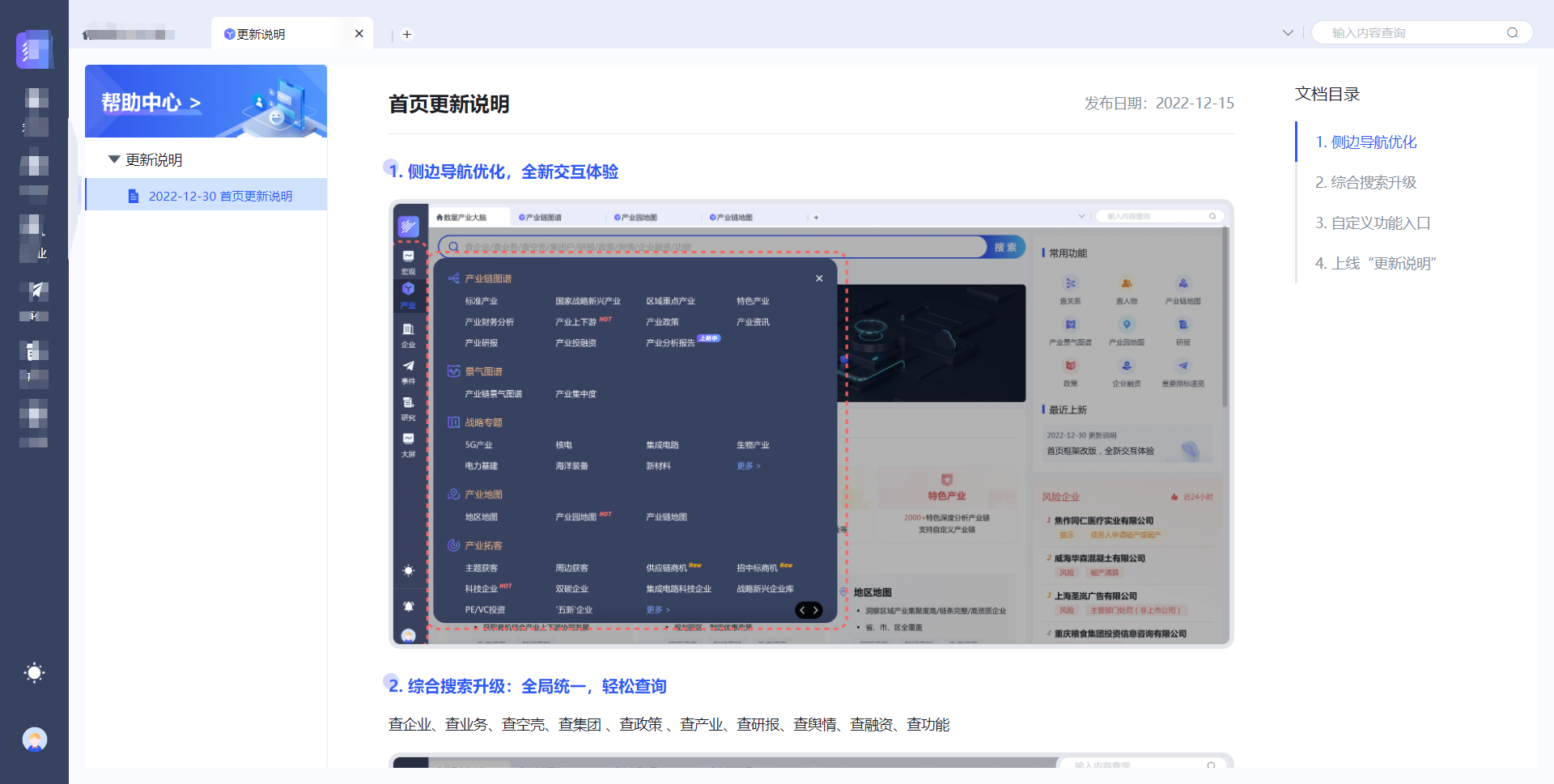
效果图:
<template>

  <div class="updateDesc_wrapper">

    <div class="updateDesc_con">

      <div class="update_left">

        <div class="update_img">

          <img class="updateImg" src="@/assets/image/update-desc/updateImg.png" />

        </div>

        <div class="update_menu">

          <el-menu default-active="1-1" class="el-menu-vertical-demo updateMenu">

            <el-submenu index="1">

              <template slot="title">

                <span>更新说明</span>

              </template>

              <el-menu-item-group>

                <el-menu-item index="1-1">

                  <img class="img1" src="@/assets/image/update-desc/updateIcon1.png" />

                  <img class="img2" src="@/assets/image/update-desc/updateIcon2.png" />

                  <span>2022-12-30 首页更新说明</span>

                </el-menu-item>

                <!-- <el-menu-item index="1-2">

                  <img class="img1" src="@/assets/image/update-desc/updateIcon1.png" />

                  <img class="img2" src="@/assets/image/update-desc/updateIcon2.png" />

                  <span>2022-12-30 首页更新说明</span>

                </el-menu-item> -->

              </el-menu-item-group>

            </el-submenu>

          </el-menu>

        </div>

      </div>

      <div class="update_right">

        <div class="update_conten" ref="content_wrapper">

          <div class="conten_tit">

            <span class="tit_text">首页更新说明</span>

            <span class="tit_date">发布日期:2022-12-15</span>

          </div>

          <div class="conten_info">

            <div class="content_wrapper">

              <div ref="cont_1" class="roll_box">

                <div class="con_tit">

                  1. 侧边导航优化,全新交互体验

                </div>

                <div class="con_info">

                  <img src="@/assets/image/update-desc/updateSy1.png" />

                </div>

              </div>

              <div ref="cont_2" class="roll_box">

                <div class="con_tit">

                  2. 综合搜索升级:全局统一,轻松查询

                </div>

                <div class="con_info">

                  <p>查企业、查业务、查空壳、查集团 、查政策 、查产业、查研报、查舆情、查融资、查功能</p>

                  <img src="@/assets/image/update-desc/updateSy2.png" />

                  <p><strong>搜索联想功能及搜索结果展示,</strong>同时页面右侧提供历史记录和推荐卡片快捷功能,进一步提升用户体验。</p>

                  <img src="@/assets/image/update-desc/updateSy3.png" />

                </div>

              </div>

              <div ref="cont_3" class="roll_box">

                <div class="con_tit">

                  3. 自定义功能入口

                </div>

                <div class="con_info">

                  <p>根据用户偏好自定义添加快速入口;点击更多可进入“全部功能”页面并支持搜索。</p>

                  <img src="@/assets/image/update-desc/updateSy4.png" />

                </div>

              </div>

              <div ref="cont_4" class="roll_box">

                <div class="con_tit">

                  4. 上线“更新说明”

                </div>

                <div class="con_info">

                  <img src="@/assets/image/update-desc/updateSy5.png" />

                </div>

              </div>

            </div>

          </div>

        </div>

        <div class="update_tab">

          <el-tabs tab-position="right" class="updateTab" @tab-click="scrollTo" :activeName="isScrollNow"

            style="height: fit-content;">

            <el-tab-pane label="1. 侧边导航优化" name="0"></el-tab-pane>

            <el-tab-pane label="2. 综合搜索升级" name="1"></el-tab-pane>

            <el-tab-pane label="3. 自定义功能入口" name="2"></el-tab-pane>

            <el-tab-pane label="4. 上线“更新说明”" name="3"></el-tab-pane>

          </el-tabs>

        </div>

      </div>

    </div>

  </div>

</template>

<script>

export default {

  name: 'update-desc',

  components: {

  },

  data() {

    return {

      isScrollNow: '0'

    }

  },

  mounted() {

    window.addEventListener('scroll', this.onScroll, true)

  },

  created() {

    window.removeEventListener('scroll', this.onScroll, false)

  },

  methods: {

    // 右侧跳转方法

    scrollTo(tab) {

      document.getElementsByClassName('roll_box')[tab.index].scrollIntoView({

        behavior: 'smooth',

        block: 'start',

      })

    },

    // 内容部分滚动方法

    onScroll() {

      const navContents = document.querySelectorAll('.roll_box')

      const offsetTopArr = []

      navContents.forEach((item) => {

        offsetTopArr.push(item.offsetTop)

      })

      const scrollTop = this.$refs.content_wrapper.scrollTop + 240

      let navIndex = 0

      for (let n = 0; n < offsetTopArr.length; n++) {

        if (scrollTop >= offsetTopArr[n]) {

          navIndex = n

          this.isScrollNow = String(navIndex)

          // 滑动底部选中最后一个选项

          if (

            this.$refs.content_wrapper.scrollHeight

            - this.$refs.content_wrapper.scrollTop

            <= this.$refs.content_wrapper.clientHeight + 50

          ) {

            this.isScrollNow = String(offsetTopArr.length - 1)

          }

        }

      }

    },

  },

}

</script>

<style lang="less" scoped>

.updateDesc_wrapper {

  height: 100%;

  .updateDesc_con {

    display: flex;

    justify-content: space-between;

    background: #fff;

    height: 100%;

    .update_left {

      width: 240px;

      border-right: 1px solid rgba(229, 230, 235, 0.7);

      .update_img {

        width: 100%;

        .updateImg {

          width: 100%;

        }

      }

      .update_menu {

        width: 100%;

        /deep/ .updateMenu {

          border-right: none;

          .el-submenu__title {

            padding: 0 !important;

            padding-left: 40px !important;

            text-align: left;

            color: #1D2128;

            height: 40px;

            line-height: 40px;

          }

          .el-menu-item-group__title {

            display: none;

          }

          .el-submenu__icon-arrow {

            color: transparent;

            background: url(../../assets/image/update-desc/updateIcon3.png) no-repeat;

            background-size: contain;

            position: absolute;

            top: 50%;

            right: inherit;

            left: 25px;

            margin-top: -5px;

            font-size: 14px;

            display: block;

            width: 8px;

          }

          .el-submenu.is-opened>.el-submenu__title .el-submenu__icon-arrow {

            transform: rotateZ(90deg);

          }

          .el-submenu .el-menu-item {

            height: 32px;

            line-height: 32px;

            border-left: 2px solid #fff;

            padding: 0 20px 0 40px !important;

            text-align: left;

            img {

              width: 11px;

            }

            .img2 {

              display: none;

            }

            span {

              font-size: 12px;

              color: #1D2128;

              margin-left: 10px;

            }

            &.is-active {

              background: #D1E2FF;

              border-left: 2px solid #2D5CF6;

              .img1 {

                display: none;

              }

              .img2 {

                display: inline;

              }

              span {

                color: #2D5CF6;

              }

            }

          }

        }

      }

    }

    .update_right {

      width: calc(100% - 240px);

      height: 100%;

      display: flex;

      justify-content: space-between;

      .update_conten {

        width: calc(100% - 240px);

        height: 100%;

        overflow-y: auto;

        padding: 24px 60px;

        box-sizing: border-box;

        .conten_tit {

          display: flex;

          justify-content: space-between;

          align-items: center;

          padding-bottom: 16px;

          border-bottom: 1px solid #E5E6EB;

          .tit_text {

            font-weight: 700;

            font-size: 20px;

            line-height: 28px;

            color: #1D2128;

          }

          .tit_date {

            font-size: 14px;

            line-height: 22px;

            color: #86909C;

          }

        }

        .conten_info {

          width: 100%;

          .content_wrapper {

            .roll_box {

              text-align: left;

              .con_tit {

                margin-top: 24px;

                font-weight: 700;

                font-size: 16px;

                line-height: 24px;

                color: #2D5CF6;

                position: relative;

                &::before {

                  content: "";

                  position: absolute;

                  display: block;

                  width: 16px;

                  height: 16px;

                  border-radius: 50%;

                  left: -6px;

                  top: 0px;

                  background: linear-gradient(90deg, rgba(123, 97, 255, 0.3) 0%, rgba(97, 160, 255, 0.3) 107.5%);

                }

              }

              .con_info {

                p {

                  font-size: 14px;

                  line-height: 22px;

                  margin-top: 16px;

                  color: #1D2128;

                }

                img {

                  width: 100%;

                  margin-top: 16px;

                }

              }

            }

          }

        }

      }

      .update_tab {

        width: 240px;

        padding-top: 16px;

        /deep/ .updateTab {

          .el-tabs__header {

            float: left;

            text-align: left;

          }

          .el-tabs__nav {

            float: none !important;

          }

          .el-tabs__item {

            font-size: 14px;

            color: #86909C;

          }

          .el-tabs__item.is-active {

            color: #2D5CF6;

          }

          .el-tabs__active-bar {

            background-color: #2D5CF6;

          }

        }

      }

    }

  }

}

</style>
vue2实现tabs侧边导航栏点击内容跳转到对应位置,且内容滚动导航栏切换对应tab的更多相关文章
- uni-城市列表滑动组件,点击字母跳转到指定位置
本插件由博主自主开发,比uni插件市场的城市列表滑动组件性能好,且不会出现闪屏的情况. 通过计算城市列表的高度实现滚动到指定位置,使用了uni滚动到指定位置的api city-chooce为页面入口页 ...
- ios 导航栏 点击barbutton的按钮 下拉列表
环境:xocde5.0.2+ios7.0.1 1.导航栏 ----点击科目--------下拉列表 代码:NGRightTableViewViewController.h #import <UI ...
- MFC无边框窗体不响应任务栏点击问题
为了提升用户体验,需要隐藏主窗体的边框,使用图片绘制新的标题栏.标题栏绘制之后,发现用户点击任务栏上应用程序的图标,应用程序不会随着点击交替隐藏显示. 分析结果是问题出现窗体风格设置上. 最初为了省事 ...
- 基于sticky组件,实现带sticky效果的tab导航和滚动导航
上文提供了一个改进版的sticky组件,并将演示效果应用到了自己的博客.有了类似sticky的这种简单组件,我们就可以在利用它开发更丰富的效果,比如本文要介绍的tab导航和滚动导航.实现简单,演示效果 ...
- 鼠标移到导航上面 当前的LI变色 处于当前的位置
鼠标移到导航上面 当前的LI变色 处于当前的位置,广泛应用于当前导航. 点击这里查看效果 以下是源代码: <html> <head> <meta http-equiv=& ...
- react-navigation的多次点击重复跳转同一页面、不在堆栈路由页面使用navigation方法的解决思路
一.react-navigation的初使用 createStackNavigator ==> createSwitchNavigator ==> createAppContaine ...
- jquery 滚轴滚动 导航定位和锚点定位
自己写的,只测试了ie9+, firefox,chrome 以下js更好 var fixbar={ init:function(){ "use strict"; // 滚轴 导航位 ...
- 制作四个选项卡页 Tab,用户可以通过切换不同的 Tab 页查看不同类别的新闻信息,每个 Tab 有对应的内容版块,点击某个选项卡时,显示对应的内容版块,隐藏其他内容版块,并且为了突出当前的选项卡,还
查看本章节 查看作业目录 需求说明: 制作四个选项卡页 Tab,用户可以通过切换不同的 Tab 页查看不同类别的新闻信息,每个 Tab 有对应的内容版块,点击某个选项卡时,显示对应的内容版块,隐藏其他 ...
- 使用Android点击按钮跳转页面
1.首先新建一个Android工程,命名为MyApp(名字可以自己随意起); 2.以原有的MainActivity.java文件为登录界面,然后在src文件中的包上面右击选择New目录下的Other中 ...
- 如何绑定android点击事件--跳转到另一个页面并实现关闭功能?
一.点击按钮跳转到另一个页面. eg:实现从一个页面点击跳转到另一个页面 1.首先在一个布局文件(.XML)中绘画了一个跳转按钮(id为btn1): <Button androi ...
随机推荐
- 12.ThreadLocal的那点小秘密
大家好,我是王有志.关注王有志,一起聊技术,聊游戏,聊在外漂泊的生活. 好久不见,不知道大家新年过得怎么样?有没有痛痛快快得放松?是不是还能收到很多压岁钱?好了,话不多说,我们开始今天的主题:Thre ...
- MySQL sql 语句大全
mysql sql语句大全 1.说明:创建数据库 CREATE DATABASE database-name 2.说明:删除数据库 drop database dbname 3.说明:备份sql se ...
- 内存概述-java虚拟机的内存划分
内存概述 内存是计算机中的重要原件,临时存储区域,作用是运行程序,我们编写写的程序是存放在硬盘中的,在硬盘中的程 序是不会运行的,必须放进内存中才能运行,运行完毕后会清空内存. Java虚拟机要运行程 ...
- 记一次使用gdb诊断gc问题全过程
原创:扣钉日记(微信公众号ID:codelogs),欢迎分享,转载请保留出处. 简介 上次解决了GC长耗时问题后,系统果然平稳了许多,这是之前的文章<GC耗时高,原因竟是服务流量小?> 然 ...
- 如何修剪git reflog历史
背景: vscode插件git-graph可以方便查看git-commit-graph,效果很好,关键是交互性很好.点选任意commit即可预览提交内容,实在是太方便了,比我之前用命令行上git lo ...
- C++_关键字explicit
首先, C++中的explicit关键字只能用于修饰只有一个参数的类构造函数, 它的作用是表明该构造函数是显示的, 而非隐式的, 跟它相对应的另一个关键字是implicit, 意思是隐藏的,类构造函数 ...
- javaEE(常用API集合<Collection和Map>)
javaEE 常用API Object类 public String toString() //打印地址 :类的全类名@内存地址 存在的意义:为了被子类去重写,以便于返回对象的内容信息,而不是地址信息 ...
- Archiver Appliance bug report(问题已解决,见文末)
本来想发到EPICS mailist里问的,可是发了两次给弹回来,不方便的等不及了,就在这问吧,谁知道怎么解决麻烦一定指导一下. ########################## Hi ALL: ...
- cs 起源 fps 逆向
1.找到人物坐标X YZ2.找到鼠标X Y3.易语言读取人物坐标4.读取敌人坐标打开控制台服务器与客户端尽量找客户端 找到XYZ5.实时读取敌人坐标6.三角函数转换屏幕坐标FOV 视场角狙击枪找FOV ...
- vue路由中pdfjs插件使用及找不到 viewer.html解决
官方下载: https://mozilla.github.io/pdf.js/getting_started/#download 同目录下pdfjs-2.12.313-dist.zip为官方下载包 此 ...