
Seaching TreeVIew WPF
项目中有一个树形结构的资源,需要支持搜索功能,搜索出来的结果还是需要按照树形结构展示,下面是简单实现的demo。
1.首先创建TreeViewItem的ViewModel,一般情况下,树形结构都包含DisplayName,Deepth,Parent,Children,Id, IndexCode,Visibility等属性,具体代码如下所示:
 using System;

 using System.Collections.Generic;

 using System.Collections.ObjectModel;

 using System.Linq;

 using System.Text;

 using System.Threading.Tasks;

 using System.Windows;

 namespace TreeViewDemo

 {

     public class TreeViewItemVM : NotifyPropertyChangedBase

     {

         public TreeViewItemVM ()

         {

             Visible = Visibility.Visible;

         }

         private TreeViewItemVM parent;

         public TreeViewItemVM Parent

         {

             get

             {

                 return this.parent;

             }

             set

             {

                 if (this.parent != value)

                 {

                     this.parent = value;

                     this.OnPropertyChanged(() => this.Parent);

                 }

             }

         }

         private ObservableCollection<TreeViewItemVM> children;

         public ObservableCollection<TreeViewItemVM> Children

         {

             get

             {

                 return this.children;

             }

             set

             {

                 if (this.children != value)

                 {

                     this.children = value;

                     this.OnPropertyChanged(() => this.Children);

                 }

             }

         }

         private string id;

         public string ID

         {

             get

             {

                 return this.id;

             }

             set

             {

                 if (this.id != value)

                 {

                     this.id = value;

                     this.OnPropertyChanged(() => this.ID);

                 }

             }

         }

         private string indexCode;

         public string IndexCode

         {

             get { return indexCode; }

             set

             {

                 if (indexCode != value)

                 {

                     indexCode = value;

                     this.OnPropertyChanged(() => IndexCode);

                 }

             }

         }

         private string displayName;

         public string DisplayName

         {

             get

             {

                 return this.displayName;

             }

             set

             {

                 if (this.displayName != value)

                 {

                     this.displayName = value;

                     this.OnPropertyChanged(() => this.DisplayName);

                 }

             }

         }

         private int deepth;

         public int Deepth

         {

             get

             {

                 return this.deepth;

             }

             set

             {

                 if (this.deepth != value)

                 {

                     this.deepth = value;

                     this.OnPropertyChanged(() => this.Deepth);

                 }

             }

         }

         private bool hasChildren;

         public bool HasChildren

         {

             get

             {

                 return this.hasChildren;

             }

             set

             {

                 if (this.hasChildren != value)

                 {

                     this.hasChildren = value;

                     this.OnPropertyChanged(() => this.HasChildren);

                 }

             }

         }

         private NodeType type;

         public NodeType Type

         {

             get { return type; }

             set

             {

                 if (type != value)

                 {

                     type = value;

                     OnPropertyChanged(() => this.Type);

                 }

             }

         }

         private Visibility visible;

         public Visibility Visible

         {

             get { return visible; }

             set

             {

                 if (visible != value)

                 {

                     visible = value;

                     OnPropertyChanged(() => this.Visible);

                 }

             }

         }

         public bool NameContains(string filter)

         {

             if (string.IsNullOrWhiteSpace(filter))

             {

                 return true;

             }

             return DisplayName.ToLowerInvariant().Contains(filter.ToLowerInvariant());

         }

     }

 }
2.创建TreeViewViewModel,其中定义了用于过滤的属性Filter,以及过滤函数,并在构造函数中初始化一些测试数据,具体代码如下:
 using System;

 using System.Collections.Generic;

 using System.Collections.ObjectModel;

 using System.ComponentModel;

 using System.Linq;

 using System.Text;

 using System.Threading.Tasks;

 using System.Windows.Data;

 namespace TreeViewDemo

 {

     public class TreeViewViewModel : NotifyPropertyChangedBase

     {

         public static TreeViewViewModel Instance = new TreeViewViewModel();

         private TreeViewViewModel()

         {

             Filter = string.Empty;

             Root = new TreeViewItemVM()

             {

                 Deepth = ,

                 DisplayName = "五号线",

                 HasChildren = true,

                 Type = NodeType.Unit,

                 ID = "",

                 Children = new ObservableCollection<TreeViewItemVM>() {

                     new TreeViewItemVM() { DisplayName = "站台", Deepth = , HasChildren = true, ID = "", Type = NodeType.Region,

                         Children = new ObservableCollection<TreeViewItemVM>(){

                             new TreeViewItemVM() { DisplayName = "Camera 01", Deepth = , HasChildren = false, ID = "",Type = NodeType.Camera },

                             new TreeViewItemVM() { DisplayName = "Camera 02", Deepth = , HasChildren = false, ID = "",Type = NodeType.Camera },

                             new TreeViewItemVM() { DisplayName = "Camera 03", Deepth = , HasChildren = false, ID = "",Type = NodeType.Camera },

                             new TreeViewItemVM() { DisplayName = "Camera 04", Deepth = , HasChildren = false, ID = "",Type = NodeType.Camera },

                             new TreeViewItemVM() { DisplayName = "Camera 05", Deepth = , HasChildren = false, ID = "", Type = NodeType.Camera},

                         }},

                     new TreeViewItemVM() { DisplayName = "进出口", Deepth = , HasChildren = true, ID = "", Type = NodeType.Region,

                         Children = new ObservableCollection<TreeViewItemVM>(){

                             new TreeViewItemVM() { DisplayName = "Camera 11", Deepth = , HasChildren = false, ID = "",Type = NodeType.Camera },

                             new TreeViewItemVM() { DisplayName = "Camera 12", Deepth = , HasChildren = false, ID = "",Type = NodeType.Camera },

                             new TreeViewItemVM() { DisplayName = "Camera 13", Deepth = , HasChildren = false, ID = "",Type = NodeType.Camera },

                             new TreeViewItemVM() { DisplayName = "Camera 14", Deepth = , HasChildren = false, ID = "", Type = NodeType.Camera},

                             new TreeViewItemVM() { DisplayName = "Camera 15", Deepth = , HasChildren = false, ID = "", Type = NodeType.Camera},

                         }},

                 }

             };

             InitTreeView();

         }

         private ObservableCollection<TreeViewItemVM> selectedCameras = new ObservableCollection<TreeViewItemVM>();

         private TreeViewItemVM root;

         public TreeViewItemVM Root

         {

             get

             {

                 return this.root;

             }

             set

             {

                 if (this.root != value)

                 {

                     this.root = value;

                     this.OnPropertyChanged(() => this.Root);

                 }

             }

         }

         /// <summary>

         /// 过滤字段

         /// </summary>

         private string filter;

         public string Filter

         {

             get

             {

                 return this.filter;

             }

             set

             {

                 if (this.filter != value)

                 {

                     this.filter = value;

                     this.OnPropertyChanged(() => this.Filter);

                     this.Refresh();

                 }

             }

         }

         /// <summary>

         /// View

         /// </summary>

         protected ICollectionView view;

         public ICollectionView View

         {

             get

             {

                 return this.view;

             }

             set

             {

                 if (this.view != value)

                 {

                     this.view = value;

                     this.OnPropertyChanged(() => this.View);

                 }

             }

         }

         /// <summary>

         /// 刷新View

         /// </summary>

         public void Refresh()

         {

             if (this.View != null)

             {

                 this.View.Refresh();

             }

         }

         private bool DoFilter(Object obj)

         {

             TreeViewItemVM item = obj as TreeViewItemVM;

             if (item == null)

             {

                 return true;

             }

             bool result = false;

             foreach (var node in item.Children)

             {

                 result = TreeItemDoFilter(node) || result;

             }

             return result || item.NameContains(this.Filter);

         }

         private bool TreeItemDoFilter(TreeViewItemVM vm)

         {

             if (vm == null)

             {

                 return true;

             }

             bool result = false;

             if (vm.Type == NodeType.Region || vm.Type == NodeType.Unit)

             {

                 foreach (var item in vm.Children)

                 {

                     result = TreeItemDoFilter(item) || result;

                 }

             }

             if (result || vm.NameContains(this.Filter))

             {

                 result = true;

                 vm.Visible = System.Windows.Visibility.Visible;

             }

             else

             {

                 vm.Visible = System.Windows.Visibility.Collapsed;

             }

             return result;

         }

         public void InitTreeView()

         {

             this.View = CollectionViewSource.GetDefaultView(this.Root.Children);

             this.View.Filter = this.DoFilter;

             this.Refresh();

         }

     }

 }
3.在界面添加一个TreeView,并添加一个简单的Style,将ViewModel中必要数据进行绑定:
 <Window x:Class="TreeViewDemo.MainWindow"

         xmlns="http://schemas.microsoft.com/winfx/2006/xaml/presentation"

         xmlns:x="http://schemas.microsoft.com/winfx/2006/xaml"

         Title="MainWindow" Height="" Width="">

     <Window.Resources>

         <Style x:Key="style" TargetType="{x:Type TreeViewItem}">

             <Setter Property="Template">

                 <Setter.Value>

                     <ControlTemplate TargetType="{x:Type TreeViewItem}">

                         <Grid Visibility="{Binding Visible}" Background="{Binding Background}">

                             <ContentPresenter ContentSource="Header"/>

                         </Grid>

                         <ControlTemplate.Triggers>

                             <Trigger Property="IsSelected" Value="true">

                                 <Setter Property="Background" Value="Green"/>

                             </Trigger>

                         </ControlTemplate.Triggers>

                     </ControlTemplate>

                 </Setter.Value>

             </Setter>

         </Style>

     </Window.Resources>

     <Grid>

         <Grid.RowDefinitions>

             <RowDefinition Height="Auto"/>

             <RowDefinition Height="*"/>

         </Grid.RowDefinitions>

         <TextBox x:Name="searchTxt" Width="" HorizontalAlignment="Center" Height=""

                  Margin="" Text="{Binding Filter, Mode=TwoWay, UpdateSourceTrigger=PropertyChanged}"/>

         <TreeView

                   Grid.Row=""

                   ItemsSource="{Binding View}">

             <TreeView.ItemTemplate>

                 <HierarchicalDataTemplate ItemContainerStyle ="{StaticResource style}"  ItemsSource="{Binding Children}">

                     <Grid Height="" >

                         <TextBlock

                             x:Name="txt"

                             VerticalAlignment="Center"

                             Text="{Binding DisplayName}"

                             TextTrimming="CharacterEllipsis"

                             ToolTip="{Binding DisplayName}" />

                     </Grid>

                 </HierarchicalDataTemplate>

             </TreeView.ItemTemplate>

         </TreeView>

     </Grid>

 </Window>
4.在给界面绑定具体的数据
 using System.Windows;

 namespace TreeViewDemo

 {

     /// <summary>

     /// MainWindow.xaml 的交互逻辑

     /// </summary>

     public partial class MainWindow : Window

     {

         public MainWindow()

         {

             InitializeComponent();

             this.Loaded += MainWindow_Loaded;

         }

         void MainWindow_Loaded(object sender, RoutedEventArgs e)

         {

             this.DataContext = TreeViewViewModel.Instance;

         }

     }

 }
5.运行结果:
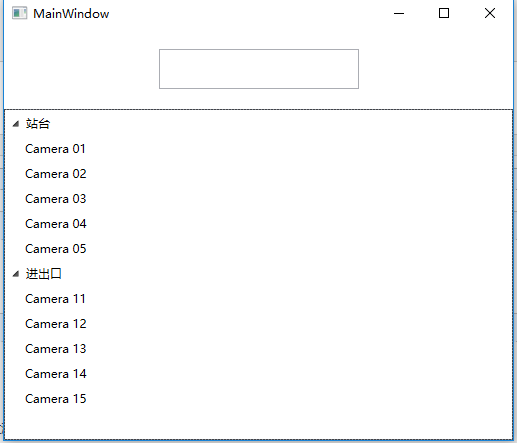

Seaching TreeVIew WPF的更多相关文章
- [译]聊聊C#中的泛型的使用(新手勿入) Seaching TreeVIew WPF 可编辑树Ztree的使用(包括对后台数据库的增删改查) 字段和属性的区别 C# 遍历Dictionary并修改其中的Value 学习笔记——异步 程序员常说的「哈希表」是个什么鬼?
[译]聊聊C#中的泛型的使用(新手勿入) 写在前面 今天忙里偷闲在浏览外文的时候看到一篇讲C#中泛型的使用的文章,因此加上本人的理解以及四级没过的英语水平斗胆给大伙进行了翻译,当然在翻译的过程中发 ...
- 简单的通用TreeView(WPF)
工作中要为很多类创建TreeView, 很多时候仅仅是因为要显示字段不同, 就得Ctrl+C.Ctrl+V复制一份几乎相同的代码, 这难免让人生厌, 于是希望像泛型集合的扩展方法那样, 可以在使用的时 ...
- TreeView —WPF—MVVM—HierarchicalDataTemplate
摘要:采用HierarchicalDataTemplate数据模板和treeview在MVVM模式下实现行政区划树, 支持勾选.勾选父节点,子节点回全部自动勾选:子节点部分勾选时,父节点半勾选:子节点 ...
- WinForm控件使用文章收藏整理完成
对C# WinForm开发系列收集的控件使用方面进行整理, 加入了一些文章, 不断补充充实, 完善这方面. 基础 - 常用控件 C# WinForm开发系列 - CheckBox/Button/Lab ...
- C# WinForm控件、自定义控件整理(大全)
转:http://www.cnblogs.com/top5/archive/2010/04/29/1724039.html 对C# WinForm开发系列收集的控件使用方面进行整理, 加入了一些文章, ...
- C#winform自定义控件大全
对C# WinForm开发系列收集的控件使用方面进行整理, 加入了一些文章, 不断补充充实, 完善这方面. 基础 - 常用控件 C# WinForm开发系列 - CheckBox/Button/Lab ...
- winform基础控件总结
转自:http://www.cnblogs.com/top5/archive/2010/04/29/1724039.html 基础 - 常用控件 C# WinForm开发系列 - CheckBox/B ...
- WPF 自定义列表筛选 自定义TreeView模板 自定义ListBox模板
有很多项目,都有数据筛选的操作.下面提供一个案例,给大家做参考. 左侧是数据源,搜索框加TreeView控件,右侧是ListBox控件.在左侧数据列点击添加数据,然后点击确定,得到所筛选的数据. 下面 ...
- [WPF系列]-TreeView的常用事项
引言 项目经常会用Treeview来组织一些具有层级结构的数据,本节就将项目使用Treeview常见的问题作一个总结. DataBinding数据绑定 DataTemplate自定义 <Hier ...
随机推荐
- 基于centos6.5 hadoop 集群搭建
1.修改Linux主机名2.修改IP3.修改主机名和IP的映射关系 ######注意######如果你们公司是租用的服务器或是使用的云主机(如华为用主机.阿里云主机等) /etc/hosts里面要配置 ...
- android Run模式也会出现"Waiting for debugger"的解决方法
android Run模式也会出现"Waiting for debugger"的解决方法 出现“waiting for debugger”窗口是在debug模式下运行出现的.但是, ...
- 【Java】使用IDE开发工具远程调试Java代码
概述 服务端程序运行在一台远程服务器上,我们可以在本地服务端的代码(前提是本地的代码必须和远程服务器运行的代码一致)中设置断点,每当有请求到远程服务器时时能够在本地知道远程服务端的此时的内部状态 测试 ...
- navicat下创建和执行存储过程
- 【转】mysql 解事务锁
ERROR 1205 (HY000): Lock wait timeout exceeded; try restarting transaction 原创 2014年07月31日 10:59:43 5 ...
- Java 数组拷贝方法 System.arraycopy
System类提供的数组拷贝方法: public static native void arraycopy(Object src, int srcPos, Object dest, int destP ...
- PHP 正则表达式--转(川山甲)
思维导图 点击下图,可以看具体内容! 介绍 正则表达式,大家在开发中应该是经常用到,现在很多开发语言都有正则表达式的应用,比如javascript,java,.net, ...
- 840. Magic Squares In Grid
class Solution { public: int numMagicSquaresInside(vector<vector<int>>& grid) { ; in ...
- 2019.01.26 codeforces 1096G. Lucky Tickets(生成函数)
传送门 题意简述:现在有一些号码由000~999中的某些数字组成(会给出),号码总长度为nnn,问有多少个号码满足前n2\frac n22n个数码的和等于后n2\frac n22n个数码的和(保证 ...
- 4. Father's Impact on a Child's Language Development 父亲对孩子语言发展的影响
4. Father's Impact on a Child's Language Development 父亲对孩子语言发展的影响 (1)Im families with two working pa ...