
cesium入门示例-3dTiles加载
数据转换工具采用cesiumlab1.5.17版本,转换后的3dTiles加载显示比较简单,通过Cesium.Cesium3DTileset接口指定url即可,3dTiles文件可与js前端代码放置一起,也可是远程服务器上的地址。如下:
 //故宫

 var palaceTileset = new Cesium.Cesium3DTileset({

     url: './TestData/output/DAEPalace/tileset.json'

     //或者url: 'http://ip:port/www/DAEPalace/tileset.json'

 })

 viewer.scene.primitives.add(palaceTileset);
通过上述代码加载的三维模型位置和高度可能不符合预期,需要进行调整,调整代码如下:
 var height = -30;  //根据地形设置调整高度

 palaceTileset.readyPromise.then(function(argument) {

     //贴地显示

     var cartographic = Cesium.Cartographic.fromCartesian(dayantaTileset.boundingSphere.center);

     var surface = Cesium.Cartesian3.fromRadians(cartographic.longitude, cartographic.latitude, cartographic.height);

     var offset = Cesium.Cartesian3.fromRadians(cartographic.longitude, cartographic.latitude, cartographic.height + height);

     var translation = Cesium.Cartesian3.subtract(offset, surface, new Cesium.Cartesian3());

     palaceTileset.modelMatrix = Cesium.Matrix4.fromTranslation(translation);

 })
或者通过指定经纬高调整模型位置:
 var longitude = 116.3908443995411;

 var latitude = 39.91600579431837;

 height = 60.38590702090875;

 var heading = 2;

 palaceTileset.readyPromise.then(function(argument) {

     //经纬度、高转笛卡尔坐标

     var position = Cesium.Cartesian3.fromDegrees(longitude, latitude, height);

     var mat = Cesium.Transforms.eastNorthUpToFixedFrame(position);

     var rotationX = Cesium.Matrix4.fromRotationTranslation(Cesium.Matrix3.fromRotationZ(Cesium.Math.toRadians(heading)));

     Cesium.Matrix4.multiply(mat, rotationX, mat);

     palaceTileset._root.transform = mat;

 })
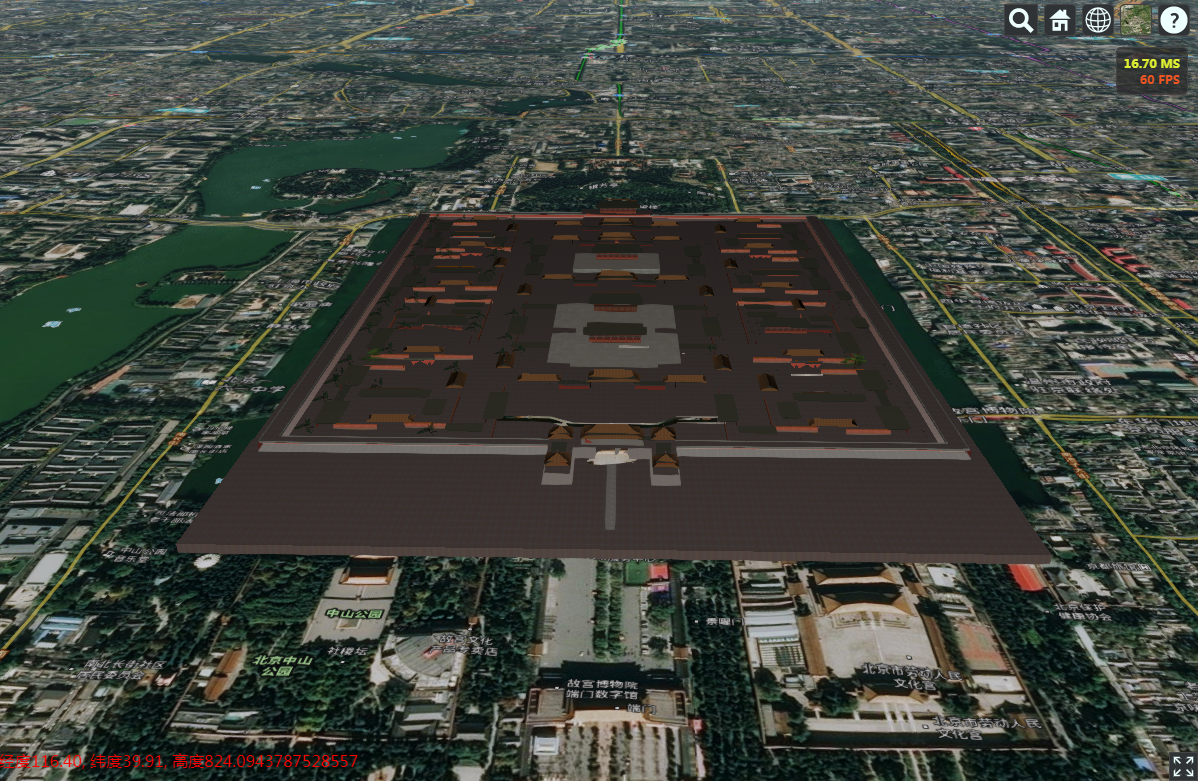
显示效果如下:
1、三维模型显示
由DAE格式模型转换而来,DAE文件与纹理图片在同一级文件夹下,可成功转换出待纹理的3dTiles,否则找不到纹理图片就只有白模;
2、倾斜摄影场景显示
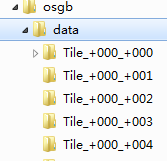
由osgb数据转换而来,cesiumlab中转换时要选择data目录,如下图:
加载显示结果如下:
3、矢量建筑物显示
由shapefile格式的建筑物多边形数据转换而来,包含建筑物高度信息,矢量物批量显示,不用调整建筑物位置,显示效果如下:
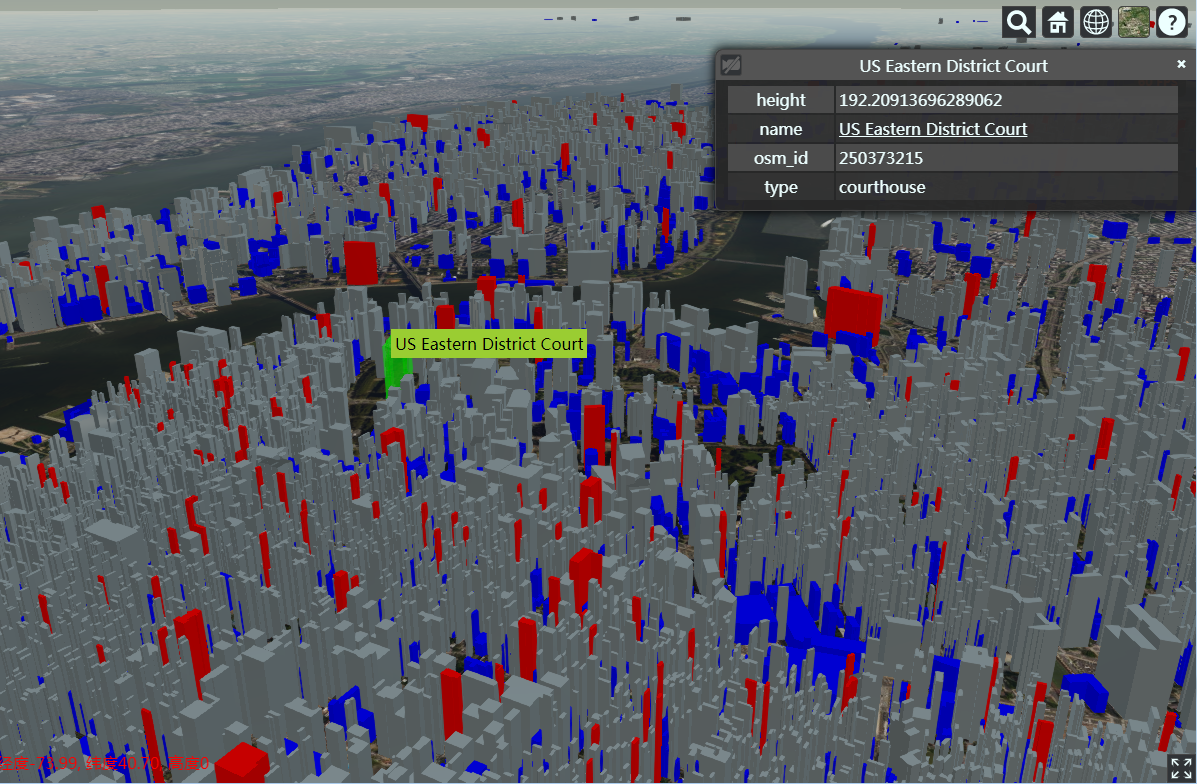
建筑物按高度用颜色区分,设置了tileset的样式如下:
 //注意这个颜色的设置

 tileset.style = new Cesium.Cesium3DTileStyle({

     color: {

         conditions: [

             ['${height} >= 200', 'color("red", 1)'],

             ['${height} >= 100', 'rgba(150, 150, 150, 1)'],

             ['true', 'color("blue")']

         ]

     }

 });
其中height为shapefile中存储建筑物高度的属性字段名称,建筑物选择显示属性信息通过侦听鼠标MOVE和LEFT_CLICK事件,查询要素获得,实现代码如下:
         // HTML overlay for showing feature name on mouseover

         var nameOverlay = document.createElement('div');

         viewer.container.appendChild(nameOverlay);

         nameOverlay.className = 'backdrop';

         nameOverlay.style.display = 'none';

         nameOverlay.style.position = 'absolute';

         nameOverlay.style.bottom = '0';

         nameOverlay.style.left = '0';

         nameOverlay.style['pointer-events'] = 'none';

         nameOverlay.style.padding = '4px';

         nameOverlay.style.backgroundColor = 'yellowgreen';

         // Information about the currently selected feature

         var selected = {

             feature: undefined,

             originalColor: new Cesium.Color()

         };

         // An entity object which will hold info about the currently selected feature for infobox display

         var selectedEntity = new Cesium.Entity();

         // Get default left click handler for when a feature is not picked on left click

         var clickHandler = viewer.screenSpaceEventHandler.getInputAction(Cesium.ScreenSpaceEventType.LEFT_CLICK);

         // Change the feature color.

         // Information about the currently highlighted feature

         var highlighted = {

             feature: undefined,

             originalColor: new Cesium.Color()

         };

         // Color a feature yellow on hover.

         viewer.screenSpaceEventHandler.setInputAction(function onMouseMove(movement) {

             // If a feature was previously highlighted, undo the highlight

             if(Cesium.defined(highlighted.feature)) {

                 highlighted.feature.color = highlighted.originalColor;

                 highlighted.feature = undefined;

             }

             // Pick a new feature

             var pickedFeature = viewer.scene.pick(movement.endPosition);

             if(!Cesium.defined(pickedFeature) || !Cesium.defined(pickedFeature.getProperty)) {

                 nameOverlay.style.display = 'none';

                 return;

             }

             // A feature was picked, so show it's overlay content

             nameOverlay.style.display = 'block';

             nameOverlay.style.bottom = viewer.canvas.clientHeight - movement.endPosition.y + 'px';

             nameOverlay.style.left = movement.endPosition.x + 'px';

             var name = pickedFeature.getProperty('name');

             if(!Cesium.defined(name)) {

                 name = pickedFeature.getProperty('id');

             }

             nameOverlay.textContent = name;

             // Highlight the feature if it's not already selected.

             if(pickedFeature !== selected.feature) {

                 highlighted.feature = pickedFeature;

                 Cesium.Color.clone(pickedFeature.color, highlighted.originalColor);

                 pickedFeature.color = Cesium.Color.YELLOW.withAlpha(0.5);

             }

         }, Cesium.ScreenSpaceEventType.MOUSE_MOVE);

         // Color a feature on selection and show metadata in the InfoBox.

         viewer.screenSpaceEventHandler.setInputAction(function onLeftClick(movement) {

             // If a feature was previously selected, undo the highlight

             if(Cesium.defined(selected.feature)) {

                 selected.feature.color = selected.originalColor;

                 selected.feature = undefined;

             }

             // Pick a new feature

             var pickedFeature = viewer.scene.pick(movement.position);

             if(!Cesium.defined(pickedFeature) || !Cesium.defined(pickedFeature.getProperty)) {

                 clickHandler(movement);

                 return;

             }

             // Select the feature if it's not already selected

             if(selected.feature === pickedFeature) {

                 return;

             }

             selected.feature = pickedFeature;

             console.log(pickedFeature.content.tile.boundingSphere.center);

             console.log(pickedFeature.tileset.boundingSphere.center);

             // Save the selected feature's original color

             if(pickedFeature === highlighted.feature) {

                 Cesium.Color.clone(highlighted.originalColor, selected.originalColor);

                 highlighted.feature = undefined;

             } else {

                 Cesium.Color.clone(pickedFeature.color, selected.originalColor);

             }

             // Highlight newly selected feature

             pickedFeature.color = Cesium.Color.LIME.withAlpha(0.5);

             // Set feature infobox description

             var featureName = pickedFeature.getProperty('name');

             selectedEntity.name = featureName;

             selectedEntity.description = 'Loading <div class="cesium-infoBox-loading"></div>';

             selectedEntity.description = '<table class="cesium-infoBox-defaultTable"><tbody>';

             var propertyNames = pickedFeature.getPropertyNames();

             var length = propertyNames.length;

             for(var i = 0; i < length; ++i) {

                 var propertyName = propertyNames[i];

                 selectedEntity.description += '<tr><th>' + propertyName + '</th><td>' + pickedFeature.getProperty(propertyName) + '</td></tr>';

             }

             selectedEntity.description += '</tbody></table>';

             viewer.selectedEntity = selectedEntity;

         }, Cesium.ScreenSpaceEventType.LEFT_CLICK);
cesium入门示例-3dTiles加载的更多相关文章
- cesium入门示例-矢量化单体分类
实现楼层的分层选择和属性信息展示,该功能基于大雁塔倾斜数据实现单体化分类显示. 数据准备: 1.大雁塔倾斜数据,已转换为3dTiles,参考cesium入门示例-3dTiles加载的第2节osgb数据 ...
- cesium入门示例-测量工具
作为cesium入门示例级别的最后一篇,参考cesium-长度测量和面积测量实现测量工具封装,修改了其中的距离测量函数,计算贴地距离,并对事件内部处理做了调整.包括贴地距离测量.面积测量.结果清除. ...
- cesium入门示例-HelloWorld
示例准备: 在Cesium ion官网(https://cesium.com/)上注册用户,获取AccessToken,在js代码入口设置Cesium.Ion.defaultAccessToken,即 ...
- cesium js学习一加载三维模型【转】
http://blog.csdn.net/tangyajun_168/article/details/50936698 最近项目中用到室外三维模型与室内三维地图交互,室外三维模型的加载我们采用了ces ...
- Android系统编程入门系列之加载界面Activity
上回说到应用初始化加载及其生命周期,在Android系统调用Applicaiton.onCreate()之后,继续创建并加载清单文件中注册的首个界面即主Activity,也可称之为入口界面.主Acti ...
- DevExpress WPF入门指南:加载动画的应用
LoadingDecorator是一个容器控件用于显示 long-loading 的内容.内容还没加载完成的时候会显示一个加载指示器,加载完成后指示器消失,如下图所示: 开启LoadingDecora ...
- 科学计算三维可视化---TVTK入门(数据加载)
一:数据加载 大多数可视化应用的数据并非是在TVTK库中构建的,很多都是通过接口读取外部数据文件 (一)使用vtkSTLReader来读取外部文件 .stl 文件是在计算机图形应用系统中,用于表示三角 ...
- 【iOS入门】UITableView加载图片
学习带图片的列表 官方 LazyTableImages demo http://download.csdn.net/detail/jlyidianyuan/5726749 分析源码是学习的好方法. ...
- MeteoInfoLab脚本示例:加载地图图层
应用最广泛的的地图数据应该是shape格式,网络上有很多免费下载资源.MeteoInfoLab中读取shape文件的函数是shaperead,参数即文件名,返回数据包含图形和属性信息的图层对象.矢量图 ...
随机推荐
- java中常见的json解析方法、库以及性能对比
常见的json解析有原生的JSONObject和JSONArray方法,谷歌的GSON库,阿里的fastjson,还有jackson,json-lib. Gson(项目地址:https://githu ...
- Python 学习笔记:Python 中单引号(')、双引号(")、三引号(''',""")的使用以及不转义字符串
一.单引号.双引号及三引号: 参考博客:https://www.cnblogs.com/chenhuan001/p/8006017.html 以上四种形式都是 Python 表示字符串的方式,具体的效 ...
- typescript-学习使用ts-2
解构赋值 数组解构 let input = [1, 2]; let [first, second] = input; console.log(first); // outputs 1 console. ...
- tensorflow中使用指定的GPU及GPU显存
~~~~~~~~~~~~~~~~~~~~~~~~~~~~~~~~~~~~~~ 本文目录 1 终端执行程序时设置使用的GPU 2 python代码中设置使用的GPU 3 设置tensorflow使用的显 ...
- linux 下删除乱码的文件夹
[keke.zhaokk@gw2.mpi2.cm10 /home/keke.zhaokk] $ls -i 85082119 dataMining 85082939 ????֦???-???idޢ??? ...
- 9)用request方式
一个带有html的代码: <!DOCTYPE html PUBLIC "-//W3C//DTD XHTML 1.0 Transitional//EN" "http: ...
- A brief introduction to complex analysis
\(\underline{Def:}\)A func \(U(\subset \mathbb{C}) \stackrel{f}\longrightarrow \mathbb{C}\)is (compl ...
- Ansible--初始ansible
一.ansible简介 ansible是一种自动化运维工具.实现批量操作系统配置.批量程序部署.批量命令运行等功能. ansible工作在agentless模式下,并且具有幂等性(幂等性不会重复执行相 ...
- python学习——函数及其参数
函数 函数是组织好的,可重复使用的,用来实现单一,或相关联功能的代码段.函数能提高应用的模块性,和代码的重复利用率.严格来说python只有函数,没有过程,人们理解的函数都是带有return的,而过程 ...
- mysql字段值为null时排序问题
-- DESC 降序时候默认null值排在后面.ASC升序时默认null值排在前面,可使用 IS NULL处理 ORDER BY score desc,gmPrice IS NULL,gmPrice, ...