
Android布局之线性布局——LinearLayout
本文将详细介绍线性布局的各种xml属性。
xml属性
<?xml version="1.0" encoding="utf-8"?>

<LinearLayout xmlns:android="http://schemas.android.com/apk/res/android"

    android:layout_width="match_parent"

    android:layout_height="match_parent"

    android:orientation="vertical">

</LinearLayout>
①android:layout_width---->设置此布局的宽度,有三种模式:
fill_parent:充满屏幕(已过时,用下面的match_parent代替)
match_parent:充满屏幕(推荐)
wrap_content:包含组件,意思就是你的组件多大,那么就占多大的空间。
②android:layout_height---->设置此布局的高度,模式同上;
③android:orientation---->此属性设置此线性布局的方式,有两个参数:
vertical:垂直布局:即子控件都在子控件的上下位置,例如
<LinearLayout xmlns:android="http://schemas.android.com/apk/res/android"

    android:layout_width="match_parent"

    android:layout_height="match_parent"

    android:orientation="vertical">            //这里选用垂直布局

    <Button

        android:layout_width="match_parent"        //宽度充满屏幕

        android:layout_height="wrap_content"        //高度包含组件

        android:text="FirstButton"

        android:id="@+id/button" />

    <Button

        android:layout_width="match_parent"

        android:layout_height="wrap_content"

        android:text="SecondButton"

        android:id="@+id/button2" />

</LinearLayout>
显示结果:
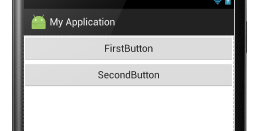
horizontal:水平布局:即子控件都在子控件的左右位置。例如:
<LinearLayout xmlns:android="http://schemas.android.com/apk/res/android"

    android:layout_width="match_parent"

    android:layout_height="match_parent"

    android:orientation="horizontal">      //这里设置为水平布局,

    <Button

        android:layout_width="wrap_content"      //宽度包含组件

        android:layout_height="match_parent"    //这里设置Button控件的高度充满屏幕

        android:text="FirstButton"

        android:id="@+id/button" />

    <Button

        android:layout_width="wrap_content"

        android:layout_height="match_parent"

        android:text="SecondButton"

        android:id="@+id/button2" />

</LinearLayout>
显示结果:
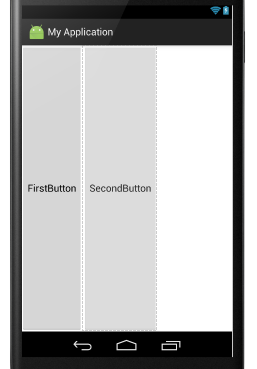
④android:baselineAligned---->此布局中的子控件是否基线对齐,其实就是设置在不在一条线上,他只有两个参数,true和false
false:若设置false,那么他里面的内容就不对齐。
true:若设置true,那么就对齐。 例如:
<LinearLayout xmlns:android="http://schemas.android.com/apk/res/android"

    android:layout_width="match_parent"

    android:layout_height="match_parent"

    android:baselineAligned="false"      //这里设置为false

    android:orientation="horizontal">

    <TextView

        android:layout_width="wrap_content"

        android:layout_height="wrap_content"

        android:text="hello "

        android:textSize="24sp"

         />

    <TextView

        android:layout_width="wrap_content"

        android:layout_height="wrap_content"

        android:text="world"

         />

    <TextView

        android:layout_width="wrap_content"

        android:layout_height="wrap_content"

        android:text="hello world"

        android:textSize="45sp"

        />

</LinearLayout>
显示结果:
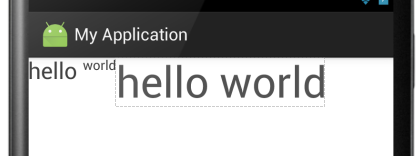
当设置为true时:

结果一目了然。
⑤android:gravity:指定布局里面的子控件的位置,几个常用参数,可以接受两个参数中间用”|“分隔开
center:控件处于布局的中心位置。
left:控件位于布局的左边。
right:控件位于布局的右边。
center|left:控件位于布局的中左位置。(也可以用center_vertical,和这个同样的作用)
官方给出的属性:
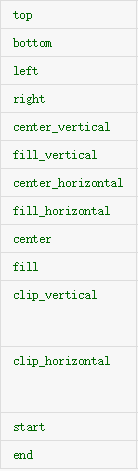
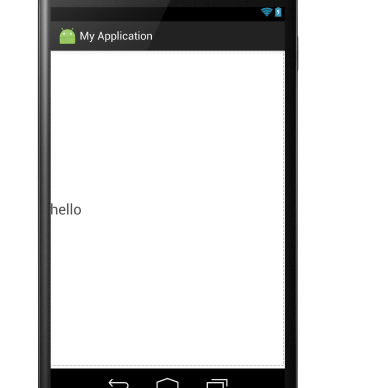
大家可以见明知义。例子:
<LinearLayout xmlns:android="http://schemas.android.com/apk/res/android"

    android:layout_width="match_parent"

    android:layout_height="match_parent"

    android:gravity="center|left"

    android:orientation="horizontal">

    <TextView

        android:layout_width="wrap_content"

        android:layout_height="wrap_content"

        android:text="hello "

        android:textSize="24sp"

         />

</LinearLayout>
显示结果为:
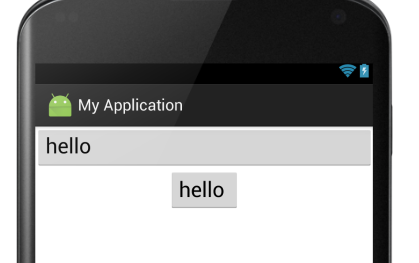
⑥android:layout_gravity:是指此子控件在布局中的位置。参数同上:
<LinearLayout xmlns:android="http://schemas.android.com/apk/res/android"

    android:layout_width="match_parent"

    android:layout_height="match_parent"

    android:orientation="vertical">

    <Button

        android:layout_width="match_parent"

        android:layout_height="wrap_content"

        android:text="hello "

        android:gravity="left"

        android:textSize="24sp"

         />

    <Button

        android:layout_width="wrap_content"

        android:layout_height="wrap_content"

        android:text="hello "

        android:textSize="24sp"

        android:layout_gravity="center"

        />

</LinearLayout>
显示结果:
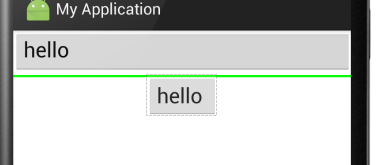
⑦android:divider:绘制子组件之间的分割线,参数可以是一个图片也可以是一个xml的shape标记,图片或者shape位于drawable下
android:showDividers:显示分割线的方式,有四种:
begging:在整体的上方添加
middle:在每个组件之间添加
end:在整体的下方添加
none:不显示
例如:
<LinearLayout xmlns:android="http://schemas.android.com/apk/res/android"

    android:layout_width="match_parent"

    android:layout_height="match_parent"

    android:divider="@drawable/shapee"      //这里引用的shapee为一个xml文件,代码在下面

    android:showDividers="middle"         //这里显示方法为在每个组件之间添加

    android:orientation="vertical">
shapee.xml文件
<?xml version="1.0" encoding="utf-8"?>

<shape xmlns:android="http://schemas.android.com/apk/res/android">

    <solid android:color="#00ff00" />         //此属性指定颜色

    <size android:height="5px" />            //分割线的高度

</shape>
效果如下:
⑧android:weightSum:设定子控件中weight中的总和,其实就是控制子控件与屏幕或者其他子控件的比例,个人感觉这个比较重要,对于布局有很好的作用。
例如一下代码:
<LinearLayout xmlns:android="http://schemas.android.com/apk/res/android"

    android:layout_width="match_parent"

    android:layout_height="match_parent"

    android:orientation="horizontal"                  //布局设置为水平布局

    android:weightSum="1"                        //设置子控件的weight总和为1

    >

    <Button

        android:layout_width="0dp"                  //这里设置为0是为了好计算,计算公式在下面介绍

        android:layout_height="wrap_content"

        android:layout_weight="0.5"                  //这里设置weight(权值)为0.5,也就是占用了一行的一半。

        android:text="hello "

        android:textSize="24sp"

         />

    <Button

        android:layout_width="0dp"

        android:layout_height="wrap_content"

        android:layout_weight="0.4"                    //这里是0.4,就是40%,还有1-0.5-0.4=0.1为空白

        android:text="hello "

        android:textSize="24sp"

        />

</LinearLayout>
显示结果:

计算公式: 此实例中Button的宽度计算:{ Button的width值+Button的weight*父控件width(这里是match_content,
如果父控件为200dp,那么这里就是200)/ weightSum的值 }
Android布局之线性布局——LinearLayout的更多相关文章
- Android开发之线性布局详解(布局权重)
布局权重 线性布局支持给个别的子视图设定权重,通过android:layout_weight属性.就一个视图在屏幕上占多大的空间而言,这个属性给其设 定了一个重要的值.一个大的权重值,允许它扩大到填充 ...
- android学习之线性布局
效图如下 移通152余继彪 该布局使用了线性布局完成 父布局为线性布局,黄色和灰色部分为水平的线性布局,剩余50%部分为水平线性布局,该布局中包含了两个垂直的线性布局分别占了三分之1和三分之二
- 第21/22讲 UI_布局 之 线性布局
第21/22讲 UI_布局 之 线性布局 布局管理就是组件在activity中呈现方式,包括组件的大小,间距和对齐方式等. Android提供了两种布局的实现方式: 1.在xml配置文件中声明:这种方 ...
- Android:控件布局(线性布局)LinearLayout
LinearLayout是线性布局控件:要么横向排布,要么竖向排布 决定性属性:必须有的! android:orientation:vertical (垂直方向) .horizontal(水平方向) ...
- Android 自学之线性布局 LinearLayout
线性布局(LinearLayout),线性布局有点想AWT编程里面的FolwLayout,他们都会将容器里面的组件挨个的排列起来. 他们最大的区别在于:Android的线性布局不会换行:AWT里面的F ...
- Android——布局(线性布局linearLayout,表格布局TableLayout,帧布局FrameLayout)
线性布局: <?xml version="1.0" encoding="utf-8"?> <LinearLayout xmlns:androi ...
- .Net程序猿玩转Android开发---(6)线性布局LinearLayout
LinearLayout控件是Android中重要的布局控件,是一个线性控件,所谓线性控件的意思是指该控件里面的内容仅仅能水平或垂直排列.也就 ...
- android布局之线性布局
LinearLayout 线性布局有两种,分别是水平线性布局和垂直线性布局,LinearLayout属性中android:orientation为设置线性布局当其="vertical&quo ...
- Android 布局(线性布局、相对布局)
一.线性布局(LinearLayout) <LinearLayout****</LinearLayout>1. orientation(布局方向)value=0 horizontal ...
随机推荐
- ubuntu 直接用软件的名字启动非apt安装的软件
方法一: 可以在.bashrc文件中加入 alias命令,把软件的名字就等于软件执行文件的绝对路径 方法二: 在/usr/bin 目录下为执行文件创建软链接(未尝试)不过应该可以 软件自启动的方法 在 ...
- laravel之Storage
学习laravel一段时间了,从最开始文件保存到本地直到oss都使用原生或接口.今天偶尔看到了Storage.正好项目中有用到就在项目上使用了. 1.下载安装库 composer require ja ...
- Lightoj 1038 - Race to 1 Again (概率DP)
题目链接: Lightoj 1038 - Race to 1 Again 题目描述: 给出一个数D,每次可以选择数D的一个因子,用数D除上这个因子得到一个新的数D,为数D变为1的操作次数的期望为多少 ...
- SPRING-BOOT系列之Spring4深入分析
上篇 : SPRING-BOOT系列之Spring4快速入门 1. 假如我们有这样一个场景,在一个组件中想获取到容器对象,那么我们也可以使用Autowired来完成装配.那么我们还可以让类集成一个接口 ...
- web 另类方法实现“另存为”功能
HTML5 的 FileReader 带给我们很强大的文件只读访问能力,可是在 HTML5 新增的 JS 中却没有发现有方便的另存到本地文件的相关 API,以往的办法要么调用浏览器的 save as ...
- JSP九大内置对象的作用和用法总结【转】
JSP九大内置对象的作用和用法总结? JSP中一共预先定义了9个这样的对象,分别为:request.response.session.application.out.pagecontext.c ...
- Hadoop工作流概念学习系列总述(一)
不多说,这里,直接上干货!从这篇博客起,逐步分享如下: 1.工作流 2.Hadoop工作流(内置) 3.第三方框架--Azkaban(推荐外安装)
- Vue 页面加载闪现代码问题
CSS中 [v-cloak] { display: none; } HTML中 <div v-cloak> {{ message }} </div> 显示代码主要是{{}}这个 ...
- oracle 权限、规则
Oracle中关于权限与规则简单总结: --1,管理员登录 conn sys/orcl@orcl as sysdba; --2,创建用户方案---必须管理员身份才能操作 create user use ...
- 在windows下编译出linux可执行程序
set GOARCH=amd64 set GOOS=linux go build xx.go 会生成一个没有后缀的xx二进制文件 将该文件放入linux系统某个文件夹下 赋予权限 chmod 777 ...