
Prometheus之Dockerfile编写、镜像构建、容器启动
从官方镜像启动:prom/prometheus
拉取镜像
$ docker pull prom/prometheus
启动容器
方式1:
$ docker run -td -p 9090:9090 --name prometheus1 prom/prometheus
方式2:路径挂载
$ docker run \

    -p 9090:9090 \

    -v /path/to/prometheus.yml:/etc/prometheus/prometheus.yml \

    prom/prometheus

$ docker run \

    -p 9090:9090 \

    -v /path/to/config:/etc/prometheus \

    prom/prometheus
官方Dockerfile分析
官方Dockerfile文件如下
ARG ARCH="amd64"

ARG OS="linux"

FROM quay.io/prometheus/busybox-${OS}-${ARCH}:latest

LABEL maintainer="The Prometheus Authors <prometheus-developers@googlegroups.com>"

ARG ARCH="amd64"

ARG OS="linux"

COPY .build/${OS}-${ARCH}/prometheus        /bin/prometheus

COPY .build/${OS}-${ARCH}/promtool          /bin/promtool

COPY documentation/examples/prometheus.yml  /etc/prometheus/prometheus.yml

COPY console_libraries/                     /usr/share/prometheus/console_libraries/

COPY consoles/                              /usr/share/prometheus/consoles/

COPY LICENSE                                /LICENSE

COPY NOTICE                                 /NOTICE

COPY npm_licenses.tar.bz2                   /npm_licenses.tar.bz2

WORKDIR /prometheus

RUN ln -s /usr/share/prometheus/console_libraries /usr/share/prometheus/consoles/ /etc/prometheus/ && \

    chown -R nobody:nobody /etc/prometheus /prometheus

USER       nobody

EXPOSE     9090

VOLUME     [ "/prometheus" ]

ENTRYPOINT [ "/bin/prometheus" ]

CMD        [ "--config.file=/etc/prometheus/prometheus.yml", \

             "--storage.tsdb.path=/prometheus", \

             "--web.console.libraries=/usr/share/prometheus/console_libraries", \

             "--web.console.templates=/usr/share/prometheus/consoles" ]
从官网Dockerfile文件可知:
- 使用busybox作为基础镜像
- 拷贝相关文件(prometheus、promtool、prometheus.yml等)到指定目录(/bin、/etc)
- 指定工作目录/prometheus
- 容器内端口9090
- 指定默认匿名卷为"/prometheus",Prometheus运行产生的数据将写到宿主机相关目录
- ENTRYPOINT容器启动入口点为"/bin/prometheus"
- CMD指定容器启动参数为:"--config.file=/etc/prometheus/prometheus.yml", "--storage.tsdb.path=/prometheus","--web.console.libraries=/usr/share/prometheus/console_libraries", "--web.console.templates=/usr/share/prometheus/consoles"
容器内Prometheus启动命令为:
/bin/prometheus --config.file=/etc/prometheus/prometheus.yml --storage.tsdb.path=/prometheus --web.console.libraries=/usr/share/prometheus/console_libraries --web.console.templates=/usr/share/prometheus/consoles
进入容器查看Prometheus的进程:
[root@docker ~]# docker exec -it prometheus1 sh

/prometheus $

/prometheus $ ps -ef | grep prometheu[s]

    1 nobody    0:53 /bin/prometheus --config.file=/etc/prometheus/prometheus.yml --storage.tsdb.path=/prometheus --web.console.libraries=/usr/share/prometheus/console_libraries --web.console.templates=/usr/share/prometheus/consoles
编写自己的Dockerfile
这里编写自己的Dockerfile进行构建,开启Prometheus进程的配置热加载和数据库管理功能。
FROM amd64/busybox:1.35

LABEL maintainer="The Prometheus Authors <wuenwuen>"

ARG ARCH="amd64"

ARG OS="linux"

COPY prometheus-*.${OS}-${ARCH}/prometheus 				/prometheus/bin/

COPY prometheus-*.${OS}-${ARCH}/promtool 				/prometheus/bin/

COPY prometheus-*.${OS}-${ARCH}/prometheus.yml 			/prometheus/etc/prometheus.yml

COPY prometheus-*.${OS}-${ARCH}/console_libraries/*    /prometheus/console_libraries/

COPY prometheus-*.${OS}-${ARCH}/consoles/*             /prometheus/consoles/

COPY prometheus-*.${OS}-${ARCH}/LICENSE               /prometheus/LICENSE

COPY prometheus-*.${OS}-${ARCH}/NOTICE                /prometheus/NOTICE

WORKDIR /prometheus

RUN ln -s /prometheus/bin/prometheus /prometheus/bin/promtool /bin/ && \

    chown -R root:root /prometheus

USER       root

EXPOSE     9090

VOLUME     [ "/prometheus/data", "/prometheus/etc" ]

ENTRYPOINT [ "/bin/prometheus" ]

CMD        [ "--config.file=/prometheus/etc/prometheus.yml", \

             "--storage.tsdb.path=/prometheus/data", \

             "--web.console.libraries=/prometheus/console_libraries", \

             "--web.console.templates=/prometheus/consoles", \

             "--web.enable-lifecycle", \

             "--web.enable-admin-api" ]
解读:
- 使用amd64/busybox:1.35作为基础镜像,将Prometheus的二进制文件放入bin目录,将配置文件统一放入etc目录;
- 将配置文件目录和数据存储目录定义为匿名卷;
- 启动方式中,新增两项配置,开启配置文件的热加载和数据库管理功能。
在同目录下添加一个.dockerignore文件,来屏蔽一些无关构建的文件:
prometheus-*.linux-amd64.tar.gz

etc
构建镜像:
新建目录,将版本包和Dockerfile文件放入该目录
# mkdir /root/prometheus;cd /root/prometheus

# ls

Dockerfile prometheus-2.33.1.linux-amd64.tar.gz
解压版本包,同时新建.dockerignore文件,在该文件下添加与构建无关的文件或目录(这表示构建时,不将这些文件复制到构建上下文环境中)
# tar -zxf prometheus-2.33.1.linux-amd64.tar.gz

# cat .dockerignore

prometheus-*.linux-amd64.tar.gz
执行构建命令docker build
$ docker build -t prometheus:v1 .

Sending build context to Docker daemon  200.8MB

Step 1/18 : FROM amd64/busybox:1.35

 ---> 96b2896db672

Step 2/18 : LABEL maintainer="The Prometheus Authors <wuenwuen>"

 ---> Running in 04e215d3c3e0

Removing intermediate container 04e215d3c3e0

 ---> 88050ed9e09d

Step 3/18 : ARG ARCH="amd64"

 ---> Running in 5ce5d1b12e0f

Removing intermediate container 5ce5d1b12e0f

 ---> 370832a62c71

Step 4/18 : ARG OS="linux"

 ---> Running in d7ea847b2d90

Removing intermediate container d7ea847b2d90

 ---> cf9781cb7722

Step 5/18 : COPY prometheus-*.${OS}-${ARCH}/prometheus                          /prometheus/bin/

 ---> 42b4b03f8332

Step 6/18 : COPY prometheus-*.${OS}-${ARCH}/promtool                            /prometheus/bin/

 ---> 897066bd0ca3

Step 7/18 : COPY prometheus-*.${OS}-${ARCH}/prometheus.yml                      /prometheus/etc/prometheus.yml

 ---> b141fa2c22a6

Step 8/18 : COPY prometheus-*.${OS}-${ARCH}/console_libraries/*    /prometheus/console_libraries/

 ---> 228b62d5e860

Step 9/18 : COPY prometheus-*.${OS}-${ARCH}/consoles/*             /prometheus/consoles/

 ---> 5c9125f39322

Step 10/18 : COPY prometheus-*.${OS}-${ARCH}/LICENSE                /prometheus/LICENSE

 ---> c89f57bbceb6

Step 11/18 : COPY prometheus-*.${OS}-${ARCH}/NOTICE                 /prometheus/NOTICE

 ---> 7e459dfd86fe

Step 12/18 : WORKDIR /prometheus

 ---> Running in 8f09cea3e03e

Removing intermediate container 8f09cea3e03e

 ---> ee1f386d159b

Step 13/18 : RUN ln -s /prometheus/bin/prometheus /prometheus/bin/promtool /bin/ &&     chown -R root:root /prometheus

 ---> Running in 093e9b6b8d14

Removing intermediate container 093e9b6b8d14

 ---> 121df7a93221

Step 14/18 : USER       root

 ---> Running in b4ffed0d491a

Removing intermediate container b4ffed0d491a

 ---> 75e2aada4653

Step 15/18 : EXPOSE     9090

 ---> Running in b09e22947d56

Removing intermediate container b09e22947d56

 ---> c700606bd44d

Step 16/18 : VOLUME     [ "/prometheus/data", "/prometheus/etc" ]

 ---> Running in e18dd4f3af2a

Removing intermediate container e18dd4f3af2a

 ---> 824d398febdd

Step 17/18 : ENTRYPOINT [ "/bin/prometheus" ]

 ---> Running in ff8fb122f2fb

Removing intermediate container ff8fb122f2fb

 ---> 414d2523bb9b

Step 18/18 : CMD        [ "--config.file=/prometheus/etc/prometheus.yml",              "--storage.tsdb.path=/prometheus/data",              "--web.console.libraries=/prometheus/console_libraries",              "--web.console.templates=/prometheus/consoles",              "--web.enable-lifecycle",              "--web.enable-admin-api" ]

 ---> Running in 56a8542d31a9

Removing intermediate container 56a8542d31a9

 ---> 17f5fa014281

Successfully built 17f5fa014281

Successfully tagged prometheus:v1
查看构建的镜像:
$ docker images

REPOSITORY        TAG       IMAGE ID       CREATED         SIZE

prometheus        v1        17f5fa014281   6 minutes ago   403MB

amd64/busybox     1.35      96b2896db672   2 weeks ago     1.24MB

prom/prometheus   latest    a3d385fc29f9   2 months ago    201MB

# 可以看到自己构建的镜像比官方镜像大了一倍
启动容器:
直接启动:
$ docker run -td prometheus:v1

$ docker run -td -p 9090:9090 prometheus:v1
直接启动后,配置文件和数据存储目录将默认使用匿名挂载。
挂载路径使用docker inspect命令查看
路径挂载(推荐):
选择挂载出配置文件目录,数据存储目录使用默认的匿名挂载就行了。
由于路径挂载时,容器内挂载路径下的文件会被隐藏,同时Prometheus的启动又需要指定配置文件,所以启动容器前,需要提前将配置文件放在挂载点路径下,以避免容器启动后Prometheus进程无法启动,导致容器退出。
新建挂载点,并存放配置文件:
$ tree /root/prometheus/etc

/root/prometheus/etc

├── first_rules.yml

├── prometheus.yml

└── static_config

    └── node_exporter.yml
然后就可以使用构建的镜像来启动容器了,命令如下
# 选择其中一个即可

$ docker -td -v /root/prometheus/etc:/prometheus/etc prometheus:v1

$ docker run -td -p 9090:9090 --name prometheus-1 -v /root/prometheus/etc:/prometheus/etc prometheus:v1

$ docker run  \

	-td -p 9090:9090 --name prometheus-1 \

    -v /root/prometheus/etc:/prometheus/etc \

    prometheus:v1
查看容器:
$ docker ps

CONTAINER ID   IMAGE           COMMAND                  CREATED              STATUS              PORTS                                       NAMES

b2ebd62251ac   prometheus:v1   "/bin/prometheus --c…"   About a minute ago   Up About a minute   0.0.0.0:9090->9090/tcp, :::9090->9090/tcp   prometheus-1

$ docker ps --format "table {{.Image}}\t{{.ID}}\t{{.Ports}}\t{{.Status}}\t{{.Names}}"

IMAGE           CONTAINER ID   PORTS                                       STATUS         NAMES

prometheus:v1   b2ebd62251ac   0.0.0.0:9090->9090/tcp, :::9090->9090/tcp   Up 6 minutes   prometheus-1
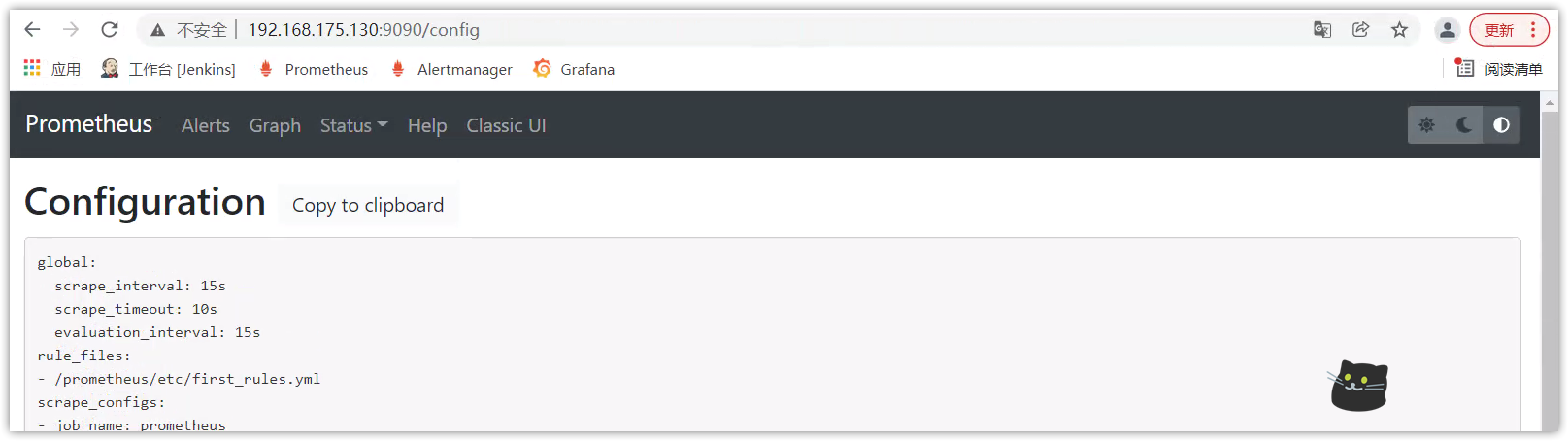
访问Prometheus的UI界面:http://192.168.175.130:9090/
Prometheus之Dockerfile编写、镜像构建、容器启动的更多相关文章
- 【云计算】Dockerfile、镜像、容器快速入门
Dockerfile.镜像.容器快速入门 1.1.Dockerfile书写示例 Dockerfile可以用来生成Docker镜像,它明确的定义了Image的生成过程.虽然直接修改容器也可以提交生成镜像 ...
- asp.net core webapi 使用ef 对mysql进行增删改查,并生成Docker镜像构建容器运行
1.构建运行mysql容器,添加数据库user 参考Docker创建运行多个mysql容器,地址 http://www.cnblogs.com/heyangyi/p/9288402.html 添加us ...
- dockerfile创建镜像及容器
第一步: 从王总git上:http://git.oursdata.com/wangyue/dockerfiles.git 进入下图的文件夹中 然后执行以下的说明执行步骤 第二步: 开发环境dock ...
- Docker镜像构建
一.简介 在构建容器化应用时,相当重要的步骤莫过于镜像制作,本文将介绍镜像制作方法以及镜像制作的建议.通常镜像的制作有两种方式: 使用现有的容器使用docker commit 生成镜像 使用Docke ...
- 通过dockerfile制作镜像
Dockerfile是一个用于构建Docker镜像的文本文件,其中包含了创建Docker镜像的全部指令.就是将我们安装环境的每个步骤使用指令的形式存放在一个文件中,最后生成一个需要的环境. Docke ...
- Watchtower - 自动更新 Docker 镜像与容器
git 地址:https://github.com/containrrr/watchtower Docker images docker pull containrrr/watchtower:i386 ...
- 7.云原生之Docker容器Dockerfile镜像构建浅析与实践
转载自:https://www.bilibili.com/read/cv15220707/?from=readlist Dockerfile 镜像构建浅析与实践 描述:Dockerfile是一个文本格 ...
- [Linux] 编写Dockerfile文件自动构建镜像
Dockerfile是一个文本文件,按顺序包含构建给定镜像所需的所有命令Docker通过读取Dockerfile中的指令自动构建图像 . Dockerfile遵循特定的格式和指令集,您可以在Docke ...
- docker 应用-2(Dockerfile 编写以及镜像保存提交)
我们可以从docker hub上pull别人的镜像,也可以将容器进行修改,然后commit镜像,并把镜像push到docker hub上被被人使用.但是,直接pull或者push镜像的方式太过笨重,尤 ...
随机推荐
- 关于 Intel CPU 和Iris Xe Graphics的报告问题
关于 Intel CPU 和Iris Xe Graphics的报告问题 有些用户报告了一些技术问题,这里有更多的信息和如何解决. Intel 11th CPU & Iris Xe Graphi ...
- 01-JS中字面量与变量
01-JS中字面量与变量 一.直接量(字面量) 字面量:英语叫做literals,也做直接量,看见什么,它就是什么. (一)数字的字面量 数字的字面量,就是这个数字自己,并不需要任何的符号来界定这个数 ...
- 《剑指offer》刷题目录
<剑指offer>刷题目录 面试题03. 数组中重复的数字 面试题04. 二维数组中的查找 面试题05. 替换空格 面试题06. 从尾到头打印链表 面试题07. 重建二叉树 面试题09. ...
- 阿里Java规范:【强制】所有的 POJO 类属性必须使用包装数据类型
在 Java 开发手册中有这一条: 我们知道基本类型和包装类型有很多不同点: 封装类型可以调用各种方法,而基本类型没有 封装类型声明字段之后可以不设置默认值,而基本类型需要初始化默认值.比如 int ...
- golang中的标准库fmt
fmp fmt.Fprintln.fmt.Fprintf fmt.Fprintln(os.Stdout, "向标准输出写入内容") // 0644: 拥有者6读写权限,组用户4读权 ...
- [NOI Online #1 提高组]
A 首先从 \(t = 2\) 的特殊部分分出发. 不难发现这个操作是很不直观的,于是可以考虑对于每个操作 \((u, v)\) 在 \(u, v\) 之间连一条无向边. 显然连通块之间要分开考虑,对 ...
- EKS助力小白实践云原生——通过k8s部署wordpress应用
目前云原生在大厂已经有了充分的实践,也逐渐向小厂以及非互联网公司推广.适逢12月20日,腾讯云原生[燎原社]精心打造了云原生在线技术工坊,让零基础的同学也能快速入门和实践 Docker 和 Kuber ...
- Java基础之Scanner类中next()与nextLine()方法的区别
java中使用Scanner类实现数据输入十分简单方便,Scanner类中next()与nextLine()都可以实现字符串String的获取,所以我们会纠结二者之间的区别. 其实next()与nex ...
- JAVA类加载器一 父类委托机制
感谢原文作者:不将就! 原文链接:https://www.cnblogs.com/byron0918/p/5770653.html 类加载器负责将.class文件加载到内存中,并为之生成对应的Clas ...
- ansible学习(二)- 清单配置详解
出处:http://www.zsythink.net/archives/2509 上一篇文章介绍了ansible的基本概念,以及相关的基础配置,我们已经知道,如果想要管理受管主机,则需要将受管主机添加 ...