
iOS截屏并修改截图然后分享的功能实现
一. 实现的效果类似微博的截图分享
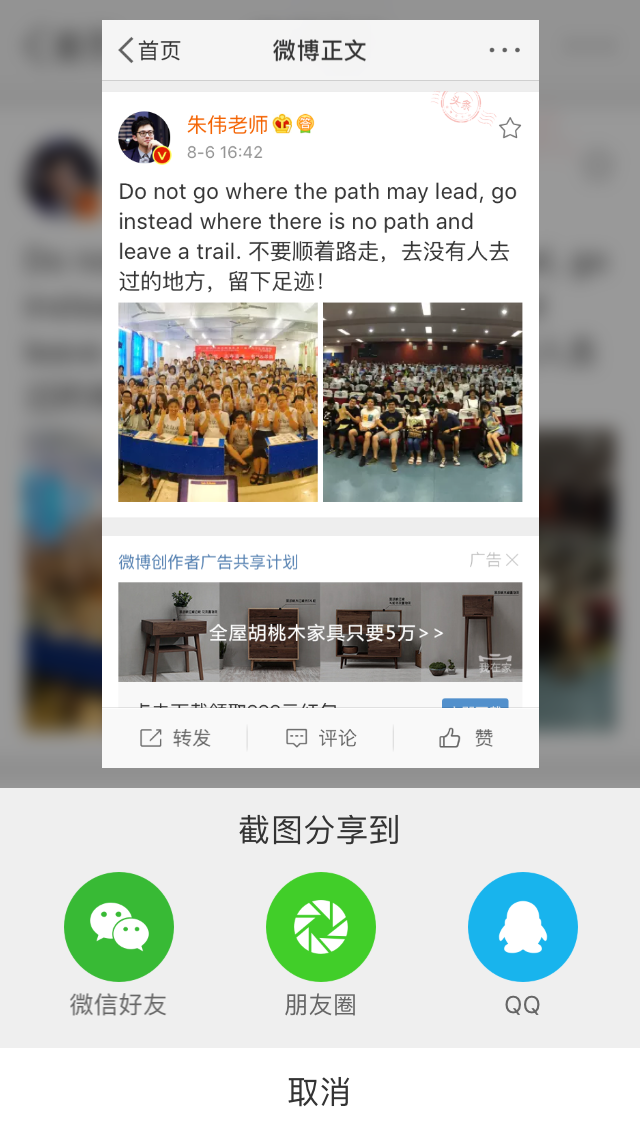

不仅截图分享的时候还进行图片的修改,增加自己的二维码
二.实现方式
苹果在ios7之后提供了一个新的通知类型:UIApplicationUserDidTakeScreenshotNotification,
这个通知会告知注册了此通知的对象已经发生了截屏事件,然后我们就可以在这个事件中实现自己的逻辑
1.注册通知
- (void)viewDidLoad {

    [super viewDidLoad];

    //注册用户的截屏操作通知

    [[NSNotificationCenter defaultCenter] addObserver:self

                                             selector:@selector(userDidTakeScreenshot:)

                                                 name:UIApplicationUserDidTakeScreenshotNotification object:nil];

}
2.接收通知 (获取截图并修改的图片,并展示,展示UI,可以自己修改)
//截屏响应

- (void)userDidTakeScreenshot:(NSNotification *)notification

{

    NSLog(@"检测到截屏");

    //人为截屏, 模拟用户截屏行为, 获取所截图片

    _testImg = [self imageWithScreenshot];

//    //添加显示

    UIImageView *imgvPhoto = [[UIImageView alloc]initWithImage:_testImg];

    imgvPhoto.frame = CGRectMake(, WIN_HEIGHT/, WIN_WIDTH/, WIN_HEIGHT/);

    imgvPhoto.backgroundColor = [UIColor orangeColor];

    imgvPhoto.userInteractionEnabled = YES;

    //添加边框

    CALayer * layer = [imgvPhoto layer];

    layer.borderColor = [[UIColor whiteColor] CGColor];

    layer.borderWidth = 5.0f;

    //添加四个边阴影

    imgvPhoto.layer.shadowColor = [UIColor blackColor].CGColor;

    imgvPhoto.layer.shadowOffset = CGSizeMake(, );

    imgvPhoto.layer.shadowOpacity = 0.5;

    imgvPhoto.layer.shadowRadius = 10.0;

    //添加两个边阴影

    imgvPhoto.layer.shadowColor = [UIColor blackColor].CGColor;

    imgvPhoto.layer.shadowOffset = CGSizeMake(, );

    imgvPhoto.layer.shadowOpacity = 0.5;

    imgvPhoto.layer.shadowRadius = 2.0;

    [self.view  addSubview:imgvPhoto];

    // 添加手势

    UITapGestureRecognizer *tap = [[UITapGestureRecognizer alloc]initWithTarget:self action:@selector(tapImgView:)];

    [imgvPhoto addGestureRecognizer:tap];

}
3. 截图并修改图片
/**

 *  截取当前屏幕 并修改

 *

 *  @return NSData *

 */

- (UIImage *)imageWithScreenshot

{

    CGSize imageSize = CGSizeZero;

    UIInterfaceOrientation orientation = [UIApplication sharedApplication].statusBarOrientation;

    if (UIInterfaceOrientationIsPortrait(orientation))

        imageSize = [UIScreen mainScreen].bounds.size;

    else

        imageSize = CGSizeMake([UIScreen mainScreen].bounds.size.height, [UIScreen mainScreen].bounds.size.width);

    UIGraphicsBeginImageContextWithOptions(imageSize, NO, );

    CGContextRef context = UIGraphicsGetCurrentContext();

    for (UIWindow *window in [[UIApplication sharedApplication] windows])

    {

        CGContextSaveGState(context);

        CGContextTranslateCTM(context, window.center.x, window.center.y);

        CGContextConcatCTM(context, window.transform);

        CGContextTranslateCTM(context, -window.bounds.size.width * window.layer.anchorPoint.x, -window.bounds.size.height * window.layer.anchorPoint.y);

        if (orientation == UIInterfaceOrientationLandscapeLeft)

        {

            CGContextRotateCTM(context, M_PI_2);

            CGContextTranslateCTM(context, , -imageSize.width);

        }else if (orientation == UIInterfaceOrientationLandscapeRight)

        {

            CGContextRotateCTM(context, -M_PI_2);

            CGContextTranslateCTM(context, -imageSize.height, );

        } else if (orientation == UIInterfaceOrientationPortraitUpsideDown) {

            CGContextRotateCTM(context, M_PI);

            CGContextTranslateCTM(context, -imageSize.width, -imageSize.height);

        }

        if ([window respondsToSelector:@selector(drawViewHierarchyInRect:afterScreenUpdates:)])

        {

            [window drawViewHierarchyInRect:window.bounds afterScreenUpdates:YES];

        }

        else

        {

            [window.layer renderInContext:context];

        }

        CGContextRestoreGState(context);

    }

    UIImage *image = UIGraphicsGetImageFromCurrentImageContext();

    UIGraphicsEndImageContext();

    // 修改图片

    NSData *imageData = UIImagePNGRepresentation(image);

    UIImage *LastImage = [UIImage imageWithData:imageData];

    UIImage *img = [UIImage imageNamed:@"ico_nursery.png"];

    CGImageRef imgRef = img.CGImage;

    CGFloat w = CGImageGetWidth(imgRef);

    CGFloat h = CGImageGetHeight(imgRef);

    //以1.png的图大小为底图

    UIImage *img1 = LastImage;

    CGImageRef imgRef1 = img1.CGImage;

    CGFloat w1 = CGImageGetWidth(imgRef1);

    CGFloat h1 = CGImageGetHeight(imgRef1);

    //以1.png的图大小为画布创建上下文

    UIGraphicsBeginImageContext(CGSizeMake(w1, h1 + ));

    [img1 drawInRect:CGRectMake(, , w1, h1)];//先把1.png 画到上下文中

    [img drawInRect:CGRectMake(, h1 + , , )];//再把小图放在上下文中

    UIImage *resultImg = UIGraphicsGetImageFromCurrentImageContext();//从当前上下文中获得最终图片

    UIGraphicsEndImageContext();//关闭上下文

    return  resultImg;

}
4.根据添加的事件进行分享 分享自己也可封装
// 点击图片改变imageView位置,打印图片信息 分享自己也可封装
- (void)tapImgView: (UITapGestureRecognizer *)tap { NSLog(@"点击了图片...");
// 微信
[MyAPIClient mobEvent:@"wechat"];
// [Helper shareImageName:_testImg type:SSDKPlatformSubTypeWechatSession];// 微信好友
[Helper shareImageName:_testImg type:SSDKPlatformSubTypeWechatTimeline];// 微信朋友圈
// [MyAPIClient mobEvent:@"QQ"];
// [Helper shareImageName:_testImg type:SSDKPlatformTypeQQ];// QQ }
5. 移除通知
- (void)dealloc

{

    [[NSNotificationCenter defaultCenter]removeObserver:self];

}
这样就可以了.展示一下测试
自身截图
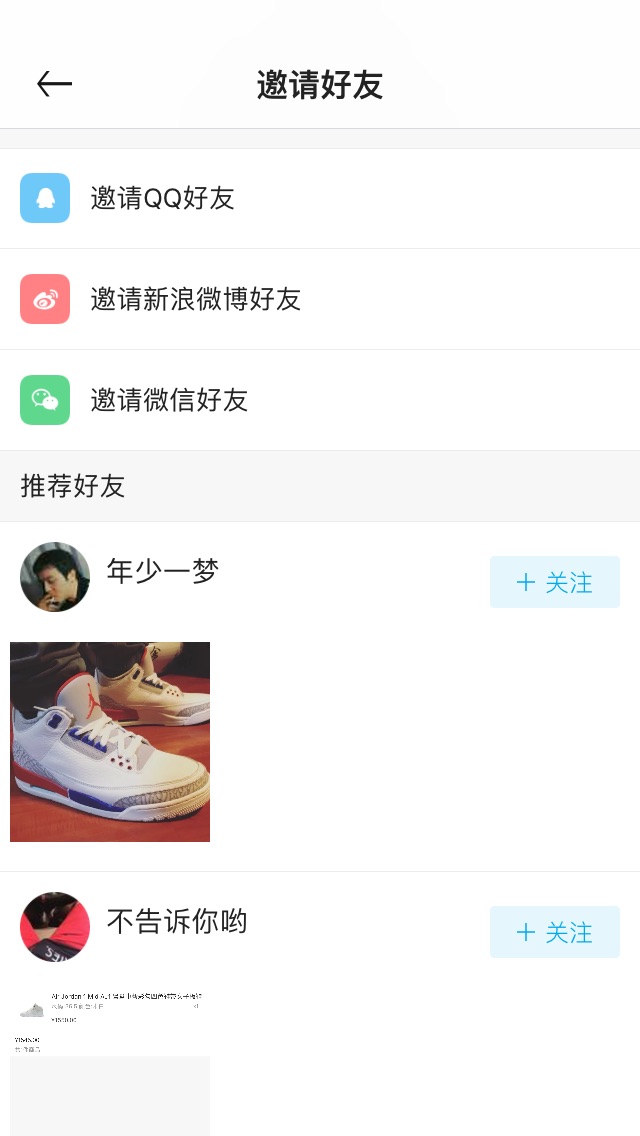
截图修改分享图

ok,结束,需要补充的,欢迎大家留言讨论!
iOS截屏并修改截图然后分享的功能实现的更多相关文章
- iOS - 截屏,view截图的基本方法
推荐一个第三方好用的框架:SDScreenshotCapture #define SYSTEM_VERSION_GREATER_THAN_OR_EQUAL_TO(v) ([[[UIDevice cur ...
- iOS 截屏分享(包含状态栏与不包含状态栏)
iOS8以上的新方法PhotoKit 监听截图相册变化,取最后一张图片:http://www.hangge.com/blog/cache/detail_1515.html PhotoKit 获取本机相 ...
- Android 截屏与 WebView 长图分享经验总结
最近在做新业务需求的同时,我们在 Android 上遇到了一些之前没有碰到过的问题,截屏分享. WebView 生成长图以及长图在各个分享渠道分享时图片模糊甚至分享失败等问题,在这过程中踩了很多坑,到 ...
- ios截屏代码[转]
http://www.cnblogs.com/chenxiangxi/p/3547974.html 这位博主的连接中将ios自定义大小位置的截屏代码写的很不错,马上就能用的方法,对于只想马上用的程序员 ...
- iOS截屏代码
转载自:http://m.open-open.com/m/code/view/1420469506375 1.普通界面 /** *截图功能 */ -(void)screenShot{ UIGraphi ...
- iOS截屏保存至相册
#pragma mark 截屏并保存至相册 -(void)screenShotsComplete:(void(^)(UIImage * img)) complete { CGSize imageSiz ...
- iOS截屏方法
//获取屏幕截屏方法 - (UIImage *)capture { // 创建一个context UIGraphicsBeginImageContextWithOptions(self.view.bo ...
- iOS截屏功能
代码: - (void)viewDidLoad { [super viewDidLoad]; // Do any additional setup after loading the view. // ...
- IOS 截屏(保存到相册中)
@interface NJViewController () /** * 点击截屏按钮 */ - (IBAction)captureView:(UIButton *)sender; /** * 白色v ...
随机推荐
- Android Studio导出JavaDoc时中文乱码问题解决
导出过程中,如果出现JavaDoc中文乱码的问题,可以在Other command line arguments栏目添加命令参数:-encoding UTF-8 -charset UTF-8(如果是G ...
- #Java学习之路——基础阶段(第十一篇)
我的学习阶段是跟着CZBK黑马的双源课程,学习目标以及博客是为了审查自己的学习情况,毕竟看一遍,敲一遍,和自己归纳总结一遍有着很大的区别,在此期间我会参杂Java疯狂讲义(第四版)里面的内容. 前言: ...
- Java数据结构和算法 - 简单排序
Q: 冒泡排序? A: 1) 比较相邻的元素.如果第一个比第二个大,就交换它们两个; 2) 对每一对相邻元素作同样的工作,从开始第一对到结尾的最后一对.在这一点,最后的元素应该会是最大的数; 3) 针 ...
- 跟我一起学opencv 第二课之图像的掩膜操作
1.掩膜(mask)概念 用选定的图像,图形或物体,对处理的图像(全部或局部)进行遮挡,来控制图像处理的区域或处理过程.用于覆盖的特定图像或物体称为掩模或模板.光学图像处理中,掩模可以足胶片,滤光片等 ...
- 接口自动化:HttpClient + TestNG + Java(三) - 初步封装和testng断言
在上一篇中,我们写了第一个get请求的测试类,这一篇我们来对他进行初步优化和封装 3.1 分离请求发送类 首先想到的问题是,以后我们的接口自动化测试框架会大量用到发送http请求的功能. 那么这一部分 ...
- Spring Boot 2.x 系列教程:WebFlux REST API 全局异常处理 Error Handling
摘要: 原创出处 https://www.bysocket.com 「公众号:泥瓦匠BYSocket 」欢迎关注和转载,保留摘要,谢谢! 本文内容 为什么要全局异常处理? WebFlux REST 全 ...
- SmartSql Zookeeper分布式配置
安装 SmartSql.ZooKeeperConfig Install-Package SmartSql.ZooKeeperConfig Demo string connStr = "192 ...
- 4.1ASP.NET Core请求过程「深入浅出ASP.NET Core系列」
希望给你3-5分钟的碎片化学习,可能是坐地铁.等公交,积少成多,水滴石穿,谢谢关注. HTTP请求过程 这里展示整体的HTTP请求的过程,这里化繁为简,保留了主干流程: 从浏览器输入域名开始,这里忽略 ...
- JFreeChart画图+jsp页面显示实现统计图
1 开发环境: 1.eclipse(可替换) 2.jfreechart-1.0.19 2 说明: (1) source目录:为 jfreechart的源码目录:不会的主要看这里.因为他的文档是收费的. ...
- Redis Cluster搭建高可用Redis服务器集群
一.Redis Cluster集群简介 Redis Cluster是Redis官方提供的分布式解决方案,在3.0版本后推出的,有效地解决了Redis分布式的需求,当一个节点挂了可以快速的切换到另一个节 ...