
Selenium 设置浏览器下载 Firefox 和Chrome
当我们在使用Selenium运行自动化测试时,偶尔需要用到下载功能,但浏览器的下载可能会弹出下载窗口,或者下载路径不是我们想要保存的位置,所以在通过Selenium启动浏览器时需要做相关的设置,将使这些设置在启动的浏览器中生效果。
下图为Firefox的下载弹窗:
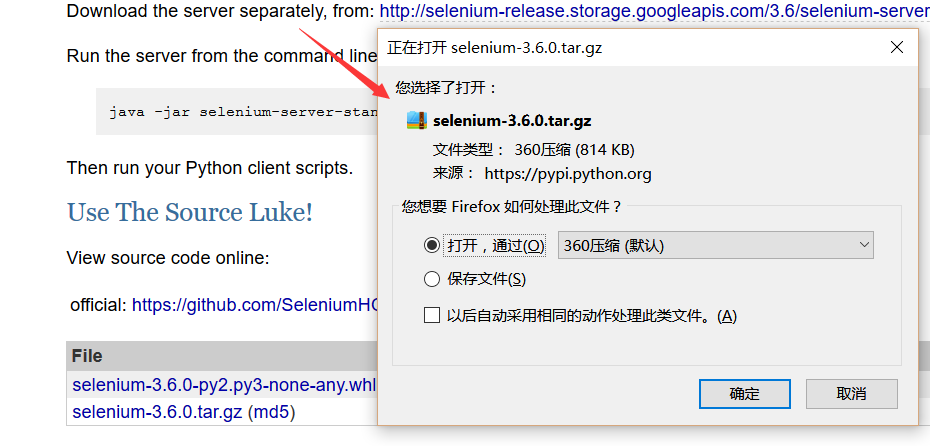
Firefox 设置浏览器下载
import org.openqa.selenium.WebDriver;

import org.openqa.selenium.firefox.FirefoxDriver;

import org.openqa.selenium.firefox.FirefoxProfile;

import org.openqa.selenium.By;

public class FirefoxDown {

    public static void main(String[] args) {

        FirefoxProfile profile = new FirefoxProfile();

        profile.setPreference("browser.download.folderList", 2);

        profile.setPreference("browser.download.dir", "d:\\java");

        profile.setPreference("browser.helperApps.neverAsk.saveToDisk", "binary/octet-stream");

        WebDriver driver =new FirefoxDriver(profile);

        driver.get("https://pypi.Python.org/pypi/selenium");

        driver.findElement(By.partialLinkText("selenium-3.6.0.tar.gz")).click();

    }

}
先 new 一个FirefoxProfile()类,通过setPreference 设置浏览器下载类型、路径等。
browser.download.folderList
设置成 0 代表下载到浏览器默认下载路径, 设置成 2 则可以保存到指定目录。
browser.download.dir
用于指定所下载文件的目录。 os.getcwd() 函数不需要传递参数, 用于返回当前的目录。
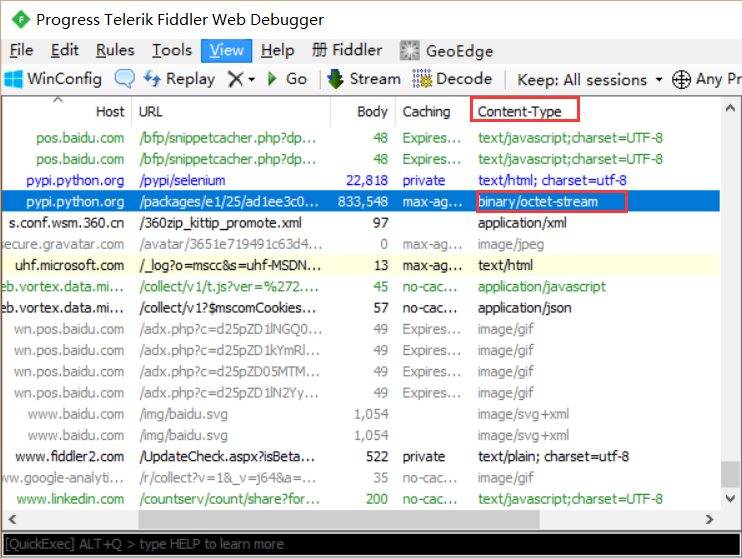
browser.helperApps.neverAsk.saveToDisk
指定要下载页面的 Content-type 值, “binary/octet-stream” 为文件的类型。下载的文件不同,这里的类型也会有所不一样。如果不清楚你下载的文件什么类型,请用Fiddler抓包。
Chrome 设置浏览器下载
import org.openqa.selenium.By;

import org.openqa.selenium.chrome.ChromeDriver;

import org.openqa.selenium.chrome.ChromeOptions;

import org.openqa.selenium.WebDriver;

import org.openqa.selenium.remote.CapabilityType;

import org.openqa.selenium.remote.DesiredCapabilities;

import java.util.HashMap;

public class ChromeDown {

    public static void main(String[] args) throws InterruptedException {

        String downloadFilepath = "D:\\java";

        HashMap<String, Object> chromePrefs = new HashMap<String, Object>();

        chromePrefs.put("profile.default_content_settings.popups", 0);

        chromePrefs.put("download.default_directory", downloadFilepath);

        ChromeOptions options = new ChromeOptions();

        HashMap<String, Object> chromeOptionsMap = new HashMap<String, Object>();

        options.setExperimentalOption("prefs",chromePrefs);

        options.addArguments("--test-type");

        DesiredCapabilities cap = DesiredCapabilities.chrome();

        cap.setCapability(ChromeOptions.CAPABILITY, chromeOptionsMap);

        cap.setCapability(CapabilityType.ACCEPT_SSL_CERTS, true);

        cap.setCapability(ChromeOptions.CAPABILITY, options);

        WebDriver driver = new ChromeDriver(cap);

        driver.get("https://www.baidu.com");

        driver.findElement(By.id("kw")).sendKeys("chrome");

        driver.findElement(By.id("su")).click();

        Thread.sleep(2000);

        driver.findElement(By.linkText("普通下载")).click();

    }

}
相比较Firefox来说,Chrome的下载默认不会弹出下载窗口的,我们主要是想修改默认的默认下载路径。
Chrome的设置看上去要比Firefox复杂一次,不过,你需要关注两个设置。
profile.default_content_settings.popups 0 设置为禁止弹出下载窗口
download.default_directory 设置为文件下载路径
Selenium 设置浏览器下载 Firefox 和Chrome的更多相关文章
- 怎样下载Firefox与Chrome浏览器驱动
在浏览器地址栏输入https://www.seleniumhq.org/ 打开Selenium官网 下载Firefox浏览器驱动 解压到本地 下载Chrome浏览器驱动 解压到本地 把这2个驱动放到P ...
- Selenium+Python浏览器调用:Firefox
如何查看python selenium的API python -m pydoc -p 4567 说明: python -m pydoc表示打开pydoc模块,pydoc是查看python文档的首选工 ...
- 利用selenium Server实现IE firefox 和 chrome兼容性测试
本文的主题是基于Selenium Server,使用 Java 语言编写网页交互流程, 实现多浏览器(IE Firefox Chrome)兼容性测试,为使用纪要. Selenium Selenium是 ...
- Selenium+Python:下载文件(Firefox 和 Chrome)
引自 https://blog.csdn.net/Momorrine/article/details/79794146 1. 环境 操作系统 Win10 IDE Eclipse (Oxyg ...
- 练习启动各种浏览器的同时加载插件:Firefox, Chrome, IE
# -*- coding:utf-8 -*-import osimport seleniumfrom selenium import webdriverfrom selenium.webdriver. ...
- 让浏览器下载文件http头部
网站提供下载服务时经常需要实现一个强制下载功能(即强制弹出下载对话框),并且文件名保持和用户之前上传时相同. 效果如下图: Content-Disposition 使用 HTTP Header 的 ...
- Python+Selenium 环境配置之Firefox,IE,Chrome几种浏览器运行
Selenium(Webdriver)支持Firefox,IE,Chrome等多个浏览器.很多人可能装环境时遇到很多问题,下面简单聊聊如何配置测试这几个浏览器以及相关通过简单的实例来测试. 1.Fir ...
- Webdriver实现下载功能,屏蔽掉windows弹出的对话框,FireFox下设置浏览器的属性,两种实现方式:
一.使用一个全新的FireFox浏览器打开Web应用,浏览器不带任何插件,也未对浏览器做任何默认配置,但需要对浏览器属性进行配置 // 获取浏览器的所有配置文件 ProfilesIni allProf ...
- selenium设置proxy、headers(phantomjs、Chrome、Firefox)
phantomjs 设置ip 方法1: service_args = [ '--proxy=%s' % ip_html, # 代理 IP:prot (eg:192.168.0.28:808) '--p ...
随机推荐
- Java 第三周总结
1.本周学习总结 2.书面作业 1.代码阅读 public class Test1 { private int i = 1;//这行不能修改 private static int j = 2; pub ...
- 201521123045 《Java程序设计》第2周学习总结
---恢复内容开始--- #1. 本周学习总结 上课讲解了上次的实验题目,对其中题目的一些问题得到了解决.学会了java数组的使用,对如何使用码云上传代码有了更清晰的理解.pta还是有一些问题没有解决 ...
- 201521123015 《Java程序设计》第12周学习总结
1. 本周学习总结 1.1 以你喜欢的方式(思维导图或其他)归纳总结多流与文件相关内容. 2. 书面作业 将Student对象(属性:int id, String name,int age,doubl ...
- POJ 3190 Stall Reservations (优先队列)C++
Stall Reservations Time Limit: 1000MS Memory Limit: 65536K Total Submissions: 7646 Accepted: 271 ...
- Java面试准备
今天我们会分为四个部分来谈论这个问题,由于我本身是Java出身,因此关于主语言的问题,都是与Java相关,其它语言的同学可以选择性忽略.此外,面试的时候一般面试官的问题都是环环相扣,逐渐深入的,这点在 ...
- SpringMVC基础入门,创建一个HelloWorld程序
ref:http://www.admin10000.com/document/6436.html 一.SpringMVC基础入门,创建一个HelloWorld程序 1.首先,导入SpringMVC需要 ...
- 【二】刚学Python的几道简单练习题
python交友娱乐会所:613176398 1.使用while循环输入 1 2 3 4 5 6 8 9 10 2.求1-100的所有数的和 3.输出 1-100 内的所有奇数 4.输出 1- ...
- Android + HTML5 混合开发
摘要: 对于 Android + HTML5 混合开发以下的观点仅仅是我的个人观点,如果有什么不对的地方请指正 简介: 混合开发的 App(Android + HTML5)就是在一个 App 中内嵌一 ...
- 编号中的数学_KEY
题目描述: 从美国州际高速公路建筑者那里,奶牛们引进了一种路径编号系统,来给牧场之间的道 路编号.他们已经把 N(1<=N<=25)个牧场,用 1 到 N 的整数编号.现在他们需要将牧场间 ...
- [js高手之路] html5 canvas系列教程 - 文本样式(strokeText,fillText,measureText,textAlign,textBaseline)
接着上文线条样式[js高手之路] html5 canvas系列教程 - 线条样式(lineWidth,lineCap,lineJoin,setLineDash)继续. canvas提供两种输出文本的方 ...