
CSharpGL(28)得到高精度可定制字形贴图的极简方法
CSharpGL(28)得到高精度可定制字形贴图的极简方法
回顾
以前我用SharpFont实现了解析TTF文件从而获取字形贴图的功能,并最终实现了用OpenGL渲染文字。
使用SharpFont,美中不足的是:
SharpFont太大了,有上千行代码,且逻辑复杂难懂。
SharpFont画出的字形精度有限,虽然也很高,但是确实有限。用OpenGL渲染出来后会发现边缘不是特别清晰。
SharpFont对加粗、斜体、下划线、删除线如何支持,能否支持?完全不知道。
Graphics+Font
最近我在分析GLGUI(https://github.com/bitzhuwei/GLGUI)的代码时,惊喜地发现它给出了一个极其简单的方案,就是SizeF MeasureString(string text, Font font);和DrawString(string s, Font font, Brush brush, float x, float y);。
Graphics.MeasureString()能够得到任意字符串的Size。
Graphics.DrawString()能把任意字符串写到Bitmap上。
单个字形
首先我们要得到每个字形的Size。
由于MeasureString()返回的字形宽度大于字形实际宽度,所以需要缩减一下。
         /// <summary>

         /// Get glyph's size by graphics.MeasureString().

         /// Then shrink glyph's size.

         /// xoffset now means offset in a single glyph's bitmap.

         /// </summary>

         /// <param name="fontBitmap"></param>

         /// <param name="charSet"></param>

         /// <param name="singleCharWidth"></param>

         /// <param name="singleCharHeight"></param>

         private static void PrepareInitialGlyphDict(FontBitmap fontBitmap, string charSet, out int singleCharWidth, out int singleCharHeight)

         {

             // Get glyph's size by graphics.MeasureString().

             {

                 int maxWidth = , maxHeight = ;

                 float fontSize = fontBitmap.GlyphFont.Size;

                 using (var bitmap = new Bitmap(, , PixelFormat.Format24bppRgb))

                 {

                     using (Graphics graphics = Graphics.FromImage(bitmap))

                     {

                         foreach (char c in charSet)

                         {

                             SizeF size = graphics.MeasureString(c.ToString(), fontBitmap.GlyphFont);

                             var info = new GlyphInfo(, , (int)size.Width, (int)size.Height);

                             fontBitmap.GlyphInfoDictionary.Add(c, info);

                             if (maxWidth < (int)size.Width) { maxWidth = (int)size.Width; }

                             if (maxHeight < (int)size.Height) { maxHeight = (int)size.Height; }

                         }

                     }

                 }

                 singleCharWidth = maxWidth;

                 singleCharHeight = maxHeight;

             }

             // shrink glyph's size.

             // xoffset now means offset in a single glyph's bitmap.

             {

                 using (var bitmap = new Bitmap(singleCharWidth, singleCharHeight))

                 {

                     using (var graphics = Graphics.FromImage(bitmap))

                     {

                         Color clearColor = Color.FromArgb(, , , );

                         foreach (var item in fontBitmap.GlyphInfoDictionary)

                         {

                             if (item.Key == ' ' || item.Key == '\t' || item.Key == '\r' || item.Key == '\n') { continue; }

                             graphics.Clear(clearColor);

                             graphics.DrawString(item.Key.ToString(), fontBitmap.GlyphFont, Brushes.White, , );

                             BitmapData data = bitmap.LockBits(new Rectangle(, , bitmap.Width, bitmap.Height), ImageLockMode.ReadOnly, PixelFormat.Format24bppRgb);

                             RetargetGlyphRectangleInwards(data, item.Value);

                             bitmap.UnlockBits(data);

                         }

                     }

                 }

             }

         }

         /// <summary>

         /// Returns true if the given pixel is empty (i.e. black)

         /// </summary>

         /// <param name="bitmapData"></param>

         /// <param name="x"></param>

         /// <param name="y"></param>

         private static unsafe bool IsEmptyPixel(BitmapData bitmapData, int x, int y)

         {

             var addr = (byte*)(bitmapData.Scan0) + bitmapData.Stride * y + x * ;

             return (*addr ==  && *(addr + ) ==  && *(addr + ) == );

         }

         /// <summary>

         /// shrink glyph's width to fit in exactly.

         /// </summary>

         /// <param name="bitmapData"></param>

         /// <param name="glyph"></param>

         private static void RetargetGlyphRectangleInwards(BitmapData bitmapData, GlyphInfo glyph)

         {

             int startX, endX;

             {

                 bool done = false;

                 for (startX = glyph.xoffset; startX < bitmapData.Width; startX++)

                 {

                     for (int j = glyph.yoffset; j < glyph.yoffset + glyph.height; j++)

                     {

                         if (!IsEmptyPixel(bitmapData, startX, j))

                         {

                             done = true;

                             break;

                         }

                     }

                     if (done) { break; }

                 }

             }

             {

                 bool done = false;

                 for (endX = glyph.xoffset + glyph.width - ; endX >= ; endX--)

                 {

                     for (int j = glyph.yoffset; j < glyph.yoffset + glyph.height; j++)

                     {

                         if (!IsEmptyPixel(bitmapData, endX, j))

                         {

                             done = true;

                             break;

                         }

                     }

                     if (done) { break; }

                 }

             }

             if (endX < startX)

             {

                 //startX = endX = glyph.xoffset;

                 glyph.width = ;

             }

             else

             {

                 glyph.xoffset = startX;

                 glyph.width = endX - startX + ;

             }

         }
PrepareInitialGlyphDict
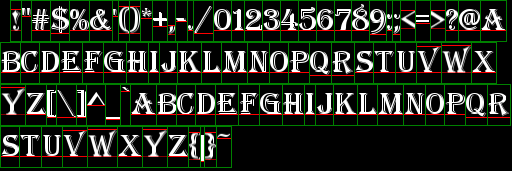
如下图所示,这是经过这一步后得到的字形信息:height、width和xoffset。这里xoffset暂时描述了单个字形的左边距,在最后,xoffset会描述字形左上角在整个贴图中的位置。

最后贴图的Size
由于在创建Bitmap对象时就得指定它的Size,所以这一步要先算出这个Size。
为了能够尽可能使用最小的贴图,我们按下图所示的方式依次排布所有字形。

如上图所示,每个黑框代表一个字形,尽量按正方形来排布,结束后就能得到所需的Size(width和height)
制作贴图
万事俱备,可以创建贴图了。
按照上一步的方式来排布各个字形,并且这次真的把字形贴上去。
         /// <summary>

         /// Print the final bitmap that contains all glyphs.

         /// And also setup glyph's xoffset, yoffset.

         /// </summary>

         /// <param name="fontBitmap"></param>

         /// <param name="singleCharWidth"></param>

         /// <param name="singleCharHeight"></param>

         /// <param name="width"></param>

         /// <param name="height"></param>

         private static void PrintBitmap(FontBitmap fontBitmap, int singleCharWidth, int singleCharHeight, int width, int height)

         {

             var bitmap = new Bitmap(width, height);

             using (var graphics = Graphics.FromImage(bitmap))

             {

                 using (var glyphBitmap = new Bitmap(singleCharWidth, singleCharHeight))

                 {

                     using (var glyphGraphics = Graphics.FromImage(glyphBitmap))

                     {

                         int currentX = leftMargin, currentY = ;

                         Color clearColor = Color.FromArgb(, , , );

                         foreach (KeyValuePair<char, GlyphInfo> item in fontBitmap.GlyphInfoDictionary)

                         {

                             glyphGraphics.Clear(clearColor);

                             glyphGraphics.DrawString(item.Key.ToString(), fontBitmap.GlyphFont,

                                 Brushes.White, , );

                             // move to new line if this line is full.

                             if (currentX + item.Value.width > width)

                             {

                                 currentX = leftMargin;

                                 currentY += singleCharHeight;

                             }

                             // draw the current glyph.

                             graphics.DrawImage(glyphBitmap,

                                 new Rectangle(currentX, currentY, item.Value.width, item.Value.height),

                                 item.Value.ToRectangle(),

                                 GraphicsUnit.Pixel);

                             // move line cursor to next(right) position.

                             item.Value.xoffset = currentX;

                             item.Value.yoffset = currentY;

                             // prepare for next glyph's position.

                             currentX += item.Value.width + glyphInterval;

                         }

                     }

                 }

             }

             fontBitmap.GlyphBitmap = bitmap;

         }
PrintBitmap
结果示意图如下。

Demo
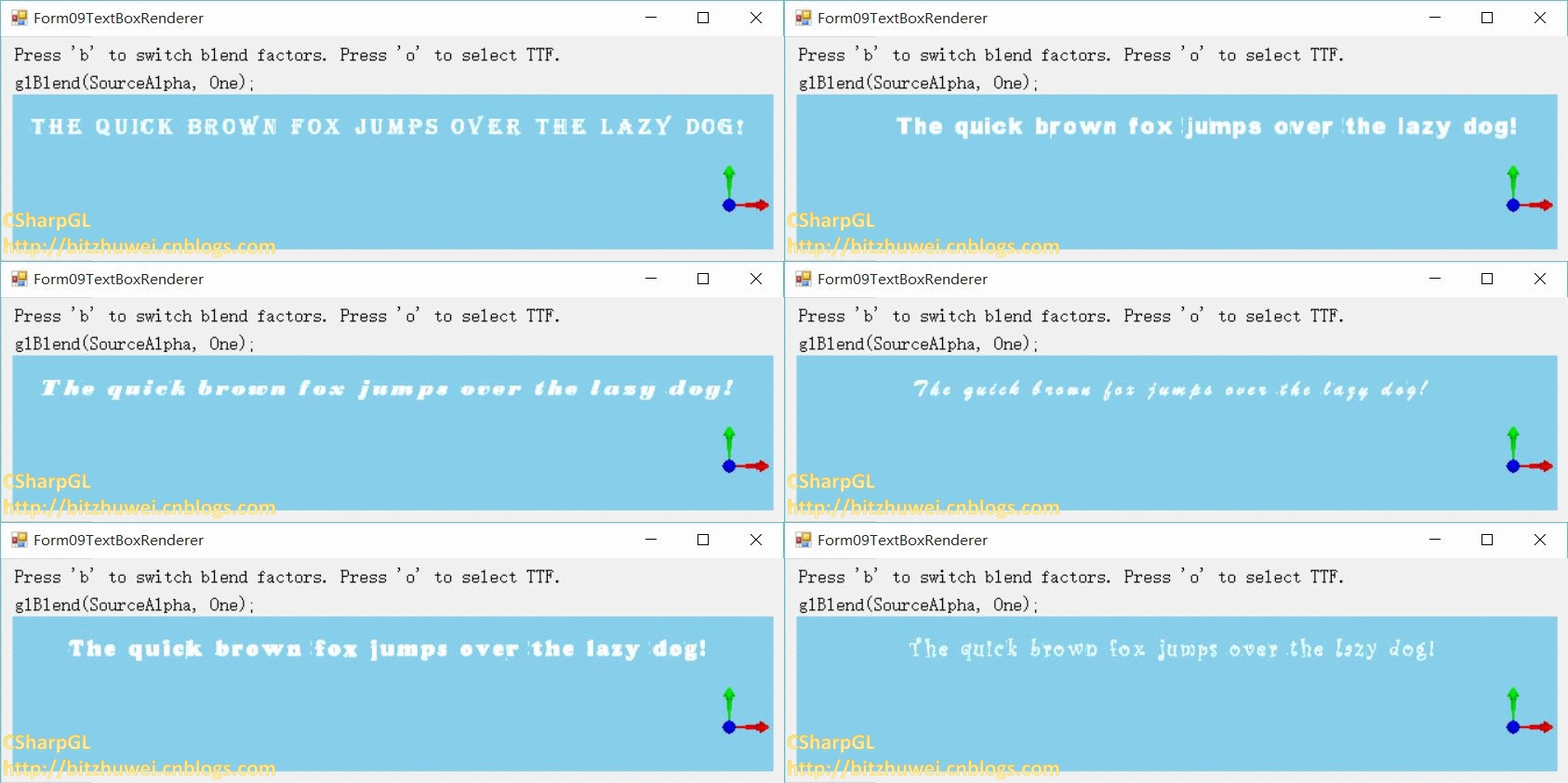
为了便于debug和观看效果,我在CSharpGL.Demos里加了下面这个Demo。你可以指定任意字体,设置是否启用加粗、斜体、下划线、删除线等效果。

用OpenGL渲染文字时,边缘的效果也很令人满意了。


总结
由于使用了.NET自带的Graphics和Font类型,就完全去掉了SharpFont那上千行代码。CSharpGL.dll由此下降了200K。效果增强,体积下降,代码简化,各个方面都获得提升。
CSharpGL(28)得到高精度可定制字形贴图的极简方法的更多相关文章
- CSharpGL(41)改进获取字形贴图的方法
CSharpGL(41)改进获取字形贴图的方法 在(http://www.cnblogs.com/bitzhuwei/p/CSharpGL-28-simplest-way-to-creating-fo ...
- C#+OpenGL+FreeType显示3D文字(1) - 从TTF文件导出字形贴图
C#+OpenGL+FreeType显示3D文字(1) - 从TTF文件导出字形贴图 +BIT祝威+悄悄在此留下版了个权的信息说: 最近需要用OpenGL绘制文字,这是个很费时费力的事.一般的思路就是 ...
- iView定制主题报错问题的解决方法
按照iView官网来是这样的: 1. 在main.js当前目录下新建themes文件夹,里面新建一个叫blue.less的文件 2. 在mian.js里面引入blue.less文件 3. blue.l ...
- HighCharts 根据spline-plot-bands图,定制自己的图(区间里显示多个数据)
公司项目里有这样一个需求,根据数据绘图,但是数据很多,不可能每个点每个点的去画,这样显示的数据太密集非常的难看(更显得技术不专业),如图: 所以我和项目经理商量如何显示这个图形,按照他的意思是,按照范 ...
- BIT祝威博客汇总(Blog Index)
+BIT祝威+悄悄在此留下版了个权的信息说: 关于硬件(Hardware) <穿越计算机的迷雾>笔记 继电器是如何成为CPU的(1) 继电器是如何成为CPU的(2) 关于操作系统(Oper ...
- ASP.NET Core应用的错误处理[3]:ExceptionHandlerMiddleware中间件如何呈现“定制化错误页面”
DeveloperExceptionPageMiddleware中间件利用呈现出来的错误页面实现抛出异常和当前请求的详细信息以辅助开发人员更好地进行纠错诊断工作,而ExceptionHandlerMi ...
- CSharpGL(26)在opengl中实现控件布局/渲染文字
CSharpGL(26)在opengl中实现控件布局/渲染文字 效果图 如图所示,可以将文字.坐标轴固定在窗口的一角. 下载 CSharpGL已在GitHub开源,欢迎对OpenGL有兴趣的同学加入( ...
- CSharpGL(0)一个易学易用的C#版OpenGL
+BIT祝威+悄悄在此留下版了个权的信说: CSharpGL(0)一个易学易用的C#版OpenGL CSharpGL是我受到SharpGL的启发,在整理了SharpGL,GLM,SharpFont等开 ...
- ExceptionHandlerMiddleware中间件如何呈现“定制化错误页面”
ExceptionHandlerMiddleware中间件如何呈现“定制化错误页面” DeveloperExceptionPageMiddleware中间件利用呈现出来的错误页面实现抛出异常和当前请求 ...
随机推荐
- java中servlet的各种路径
1. web.xml中<url-pattern>路径,(叫它Servlet路径!) > 要么以“*”开关,要么为“/”开头 2. 转发和包含路径 > *****以“/”开头:相 ...
- 水印第三版 ~ 变态水印(这次用Magick.NET来实现,附需求分析和源码)
技能 汇总:http://www.cnblogs.com/dunitian/p/4822808.html#skill 以前的水印,只是简单走起,用的是原生态的方法.现在各种变态水印,于是就不再用原生态 ...
- PHP-解析验证码类--学习笔记
1.开始 在 网上看到使用PHP写的ValidateCode生成验证码码类,感觉不错,特拿来分析学习一下. 2.类图 3.验证码类部分代码 3.1 定义变量 //随机因子 private $char ...
- Android ViewPager打造3D画廊
本文已授权微信公众号:鸿洋(hongyangAndroid)在微信公众号平台原创首发. 网上有很多关于使用Gallery来打造3D画廊的博客,但是在关于Gallery的官方说法中表明: This cl ...
- zookeeper源码分析之四服务端(单机)处理请求流程
上文: zookeeper源码分析之一服务端启动过程 中,我们介绍了zookeeper服务器的启动过程,其中单机是ZookeeperServer启动,集群使用QuorumPeer启动,那么这次我们分析 ...
- iOS 数据存储之SQLite3的使用
SQLite3是iOS内嵌的数据库,SQLite3在存储和检索大量数据方面非常有效,它使得不必将每个对象都加到内存中.还能够对数据进行负责的聚合,与使用对象执行这些操作相比,获得结果的速度更快. SQ ...
- 【SAP业务模式】之ICS(六):发票输出类型
这篇开始主要讲述发票输出类型: 首先我们新建一个发票类型,用于公司间的发票MIV,而标准的发票类型还是F2保持不变: 一.新建发票类型: 目录:SPRO-销售与分销-出具发票-开票凭证-定义出具发票类 ...
- CocoaPods的安装、使用、以及遇到的问题
CocoaPods是什么? 当你开发iOS应用时,会经常使用到很多第三方开源类库,比如JSONKit,AFNetWorking等等.可能某个类库又用到其他类库,所以要使用它,必须得另外下载其他类库,而 ...
- linux常用查看硬件设备信息命令
转载:http://blog.chinaunix.net/uid-26782198-id-3242120.html # uname -a # 查看内核/操作系统/CPU信息 ...
- linux压力测试工具stress
最近给PASS平台添加autoscaling的功能,根据服务器的负载情况autoscaling,为了测试这项功能用到了stress这个压力测试工具,这个工具相当好用了.具体安装方式就不说了.记录下这个 ...