
[转]Paging, Searching and Sorting in ASP.Net MVC 5
本文转自:http://www.c-sharpcorner.com/UploadFile/4b0136/perform-paging-searching-sorting-in-Asp-Net-mvc-5/
Introduction
From my explanation in my CRUD in ASP.NET MVC 5 article, you are now able to do basic CRUD operations MVC applications. This article explains how to do sorting, searching and paging in a MVC 5 application with Entity Framework 6 in Visual Studio 2013.
In that context we'll perform the paging and sorting for the Student entity and it'll be displayed in the Student's Index page. In the following article you will see how sorting works by clicking the headings. The headings are the links to show the sorted data.
So, let's proceed with the following sections:
- Perform Sorting
- Perform Searching
- Perform Paging
Perform Sorting
Now in this section we will do the sorting of the Student entity. Please use the following procedure to do that.
Adding Sorting Functionality in Controller
Step 1: Open the StudentController.cs file and replace the Index() method with the code below:
public ActionResult Index(string Sorting_Order)
{
ViewBag.SortingName = String.IsNullOrEmpty(Sorting_Order) ? "Name_Description" : "";
ViewBag.SortingDate = Sorting_Order == "Date_Enroll" ? "Date_Description" : "Date";
var students = from stu in db.Students select stu;
switch (Sorting_Order)
{
case "Name_Description":
students = students.OrderByDescending(stu=> stu.FirstName);
break;
case "Date_Enroll":
students = students.OrderBy(stu => stu.EnrollmentDate);
break;
case "Date_Description":
students = students.OrderByDescending(stu => stu.EnrollmentDate);
break;
default:
students = students.OrderBy(stu => stu.FirstName);
break;
}
return View(students.ToList());
}
In the code above, the Sorting_Order parameter is responsible for getting the value from the query string in the URL. The parameter is a string and it is either a "Name" or a "Date". By default the sorting order is ascending.
The students are displayed as an ascending order the first time by their First Name. There are two variables of ViewBag used here for configuring the column heading hyperlinks with the appropriate query string values.
Adding Heading Hyperlinks in View
Step 2: Open the Views\Student\Index.cshtml page and modify it with the highlighted code below:
<p>
@Html.ActionLink("Create New", "Create")
</p>
<table class="table">
<tr>
<th>
@Html.ActionLink("First Name", "Index", new { Sorting_Order = ViewBag.SortingName })
</th>
<th>
Last Name
</th>
<th>
@Html.ActionLink("Enrollment Date", "Index", new { Sorting_Order = ViewBag.SortingDate })
</th>
<th></th>
</tr>
@foreach (var item in Model) {
Step 3: Run the app and open Students.
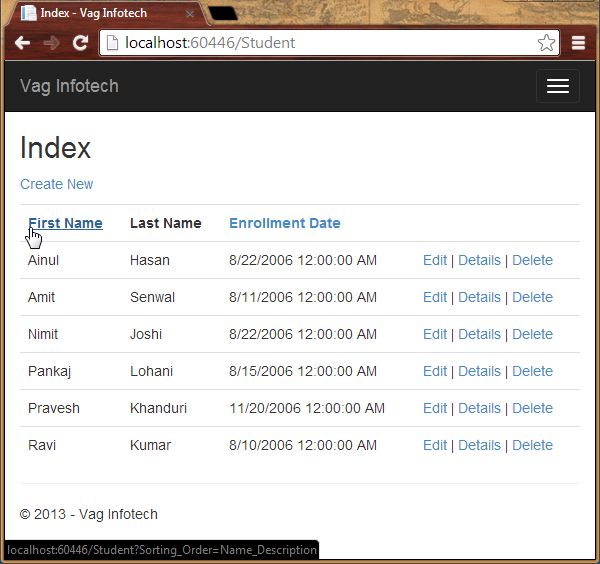
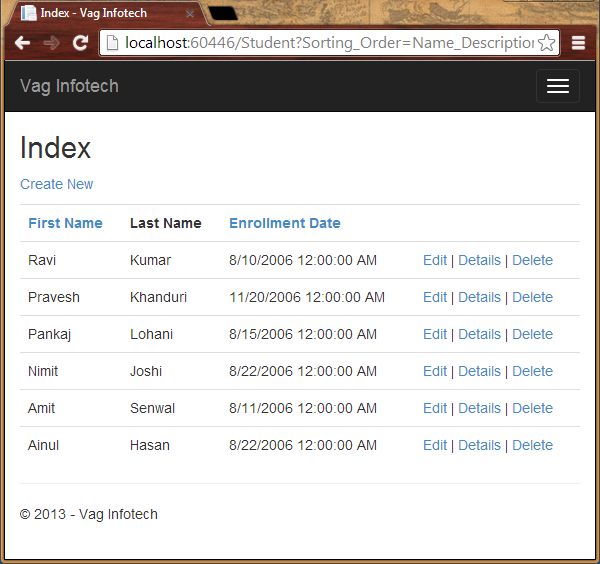
Step 4: Now click on the First Name (heading) and you'll see the descending order of data.
Searching
To do the searching in the application we need to add a TextBox to enter the searching credentials and using button, we can show the corresponding record. So, let's proceed with the steps below.
Adding Searching Functionality in Controller
Step 1: Open the StudentController.cs file and modify the Index() method with the highlighted code below:
public ActionResult Index(string Sorting_Order, string Search_Data)
{
ViewBag.SortingName = String.IsNullOrEmpty(Sorting_Order) ? "Name_Description" : "";
ViewBag.SortingDate = Sorting_Order == "Date_Enroll" ? "Date_Description" : "Date";
var students = from stu in db.Students select stu;
students = students.Where(stu => stu.FirstName.ToUpper().Contains(Search_Data.ToUpper())
|| stu.LastName.ToUpper().Contains(Search_Data.ToUpper()));
}
switch (Sorting_Order)
{
case "Name_Description":
students = students.OrderByDescending(stu=> stu.FirstName);
break;
case "Date_Enroll":
students = students.OrderBy(stu => stu.EnrollmentDate);
break;
case "Date_Description":
students = students.OrderByDescending(stu => stu.EnrollmentDate);
break;
default:
students = students.OrderBy(stu => stu.FirstName);
break;
}
return View(students.ToList());
}
In the code above, we've added the Search_Data parameter and the LINQ statements. The where clause finds and selects only those student with a first name or last name containing the Search_Data value and the record is displayed in the Index view.
Adding Searching Button in View
Step 2: Open the Views\Student\Index.cshtml page and modify it with the highlighted code below:
<p>
@Html.ActionLink("Create New", "Create")
</p>
@using (Html.BeginForm())
{
<p>
Search Name: @Html.TextBox("Search_Data", ViewBag.FilterValue as string)
<input type="submit" value="Find" />
</p>
}
<table class="table">
Step 3: Run the app and open Students and enter the value to search for.
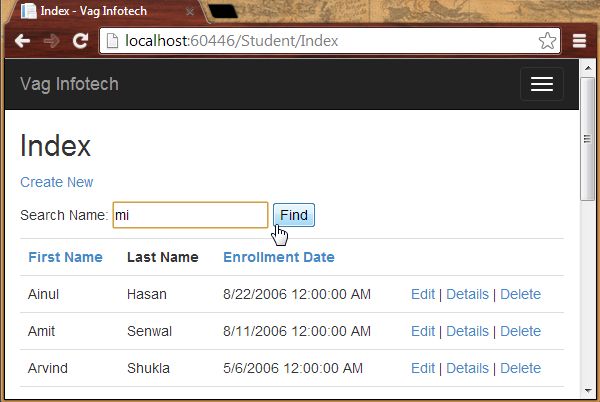
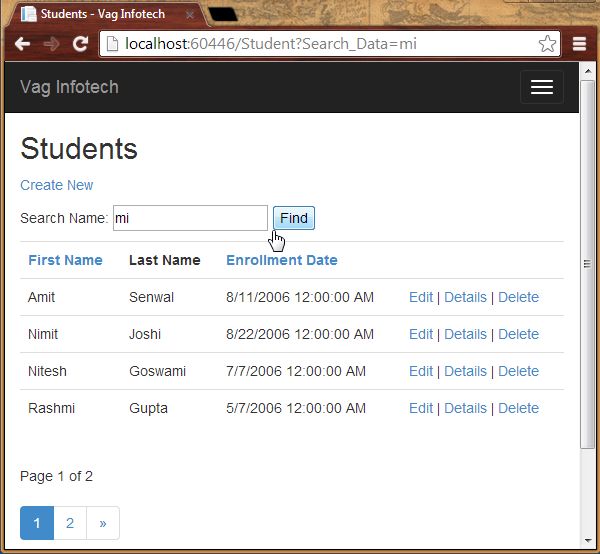
The searched record:
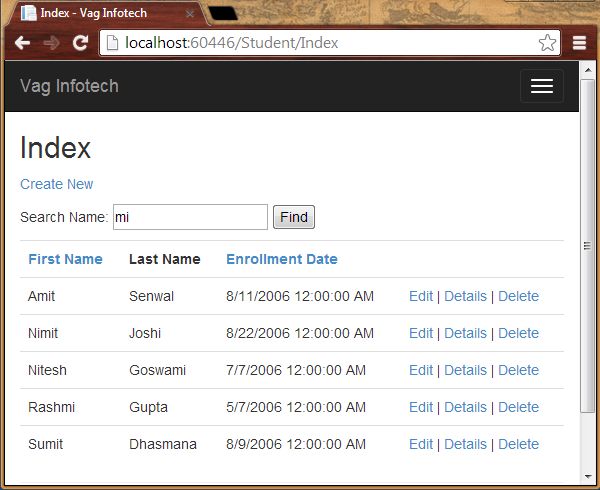
You can also notice that the URL doesn't contain the searching value, in other words you cannot bookmark this page.
Perform Paging
We perform paging here by adding the NuGet Package named PagedList.Mvc. We add the links for paging in ourStudent\Index.cshtml. This NuGet Package is one of many good paging and sorting packages for ASP.NET MVC programming.
Adding NuGet Package
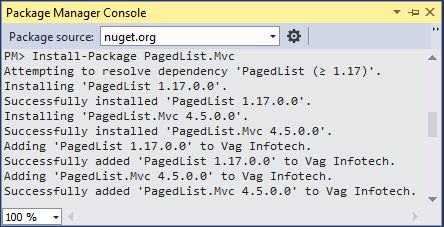
We install the PagedList.Mvc NuGet Package in the application that will automatically add a PagedList package. It has the PagedList collection type and extension methods for the Iqueryable and IEnumerable collections to provide the paging. This NuGet Package is used to show the paging buttons.
Step 1: Open the Package Manager Console from the "Tools" -> "Library Package Manager".
Step 2: Enter the following command:
Install-Package PagedList.Mvc
Adding Paging Functionality
Step 3: Open the StudentController.cs file and the following namespace:
using PagedList;
Step 4: Modify the Index() with the highlighted code below:
public ActionResult Index(string Sorting_Order, string Search_Data, string Filter_Value, int? Page_No)
{
ViewBag.CurrentSortOrder = Sorting_Order;
ViewBag.SortingName = String.IsNullOrEmpty(Sorting_Order) ? "Name_Description" : "";
ViewBag.SortingDate = Sorting_Order == "Date_Enroll" ? "Date_Description" : "Date";
if (Search_Data != null)
{
Page_No = 1;
}
else
{
Search_Data = Filter_Value;
}
ViewBag.FilterValue = Search_Data;
var students = from stu in db.Students select stu;
if (!String.IsNullOrEmpty(Search_Data))
{
students = students.Where(stu => stu.FirstName.ToUpper().Contains(Search_Data.ToUpper())
|| stu.LastName.ToUpper().Contains(Search_Data.ToUpper()));
}
switch (Sorting_Order)
{
case "Name_Description":
students = students.OrderByDescending(stu=> stu.FirstName);
break;
case "Date_Enroll":
students = students.OrderBy(stu => stu.EnrollmentDate);
break;
case "Date_Description":
students = students.OrderByDescending(stu => stu.EnrollmentDate);
break;
default:
students = students.OrderBy(stu => stu.FirstName);
break;
}
int Size_Of_Page = 4;
int No_Of_Page = (Page_No ?? 1);
return View(students.ToPagedList(No_Of_Page, Size_Of_Page));
}
If you do not click on any paging or sorting link then the parameters value will be null.
Adding Paging Links in View
Step 5: Open the Views\Student\Index.cshtml page and modify it with the highlighted code below:
@model PagedList.IPagedList<Vag_Infotech.Models.Student>
@using PagedList.Mvc;
<link href="~/Content/PagedList.css" rel="stylesheet" />
@{
ViewBag.Title = "Students";
}
<h2>Students</h2>
<p>
@Html.ActionLink("Create New", "Create")
</p>
@using (Html.BeginForm("Index", "Student", FormMethod.Get))
{
<p>
Search Name: @Html.TextBox("Search_Data", ViewBag.FilterValue as string)
<input type="submit" value="Find" />
</p>
<table class="table">
<tr>
<th>
@Html.ActionLink("First Name", "Index", new { Sorting_Order = ViewBag.SortingName, Filter_Value = ViewBag.FilterValue })
</th>
<th>
Last Name
</th>
<th>
@Html.ActionLink("Enrollment Date", "Index", new { Sorting_Order = ViewBag.SortingDate, Filter_Value = ViewBag.FilterValue })
</th>
<th></th>
</tr>
@foreach (var item in Model) {
<tr>
<td>
@Html.DisplayFor(modelItem => item.FirstName)
</td>
<td>
@Html.DisplayFor(modelItem => item.LastName)
</td>
<td>
@Html.DisplayFor(modelItem => item.EnrollmentDate)
</td>
<td>
@Html.ActionLink("Edit", "Edit", new { id=item.ID }) |
@Html.ActionLink("Details", "Details", new { id=item.ID }) |
@Html.ActionLink("Delete", "Delete", new { id=item.ID })
</td>
</tr>
}
</table>
<br />
Page @(Model.PageCount < Model.PageNumber ? 0 : Model.PageNumber) of @Model.PageCount
@Html.PagedListPager(Model, Page_No =>Url.Action("Index",
new { Page_No, Sorting_Order= ViewBag.CurrentSortOrder, Filter_Value = ViewBag.FilterValue }))
We've added the @model statement that specifies that the view now gets a PagedList object instead of a Listobject. The using statement is used to access the PagedList.Mvc that is useful for accessing the paging buttons.
The PagedListPager helps to provide a number of options that is helpful for customization including URLs and styling.
Step 6: Run the application.
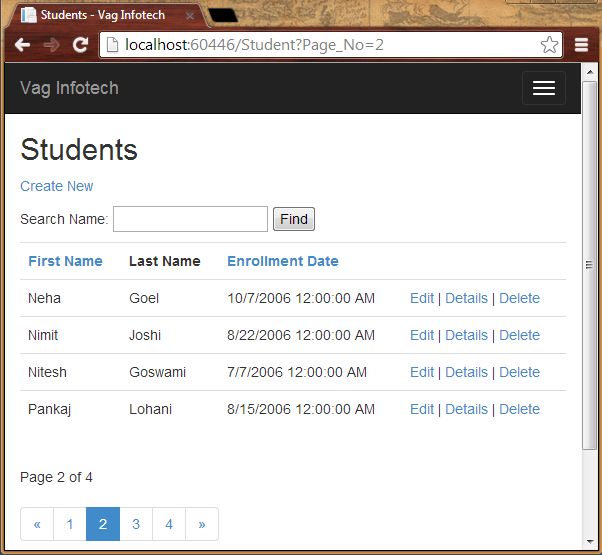
In the preceding screenshot I've clicked on 2.
Step 7: Now search for a string.
Summary
This article showed how to do sorting, searching and paging in ASP.NET MVC Web Applications with the Entity Framework. Thanks for reading.
[转]Paging, Searching and Sorting in ASP.Net MVC 5的更多相关文章
- Csharp:Paging Sorting Searching In ASP.NET MVC 5
http://www.c-sharpcorner.com/UploadFile/0c1bb2/sorting-paging-searching-in-Asp-Net-mvc-5/ https://dz ...
- [转]Sorting, Filtering, and Paging with the Entity Framework in an ASP.NET MVC Application (3 of 10)
本文转自:http://www.asp.net/mvc/overview/older-versions/getting-started-with-ef-5-using-mvc-4/sorting-fi ...
- ASP.NET MVC WebGrid – Performing true AJAX pagination and sorting 【转】
ASP.NET MVC WebGrid – Performing true AJAX pagination and sorting FEBRUARY 27, 2012 14 COMMENTS WebG ...
- ASP.NET MVC with Entity Framework and CSS一书翻译系列文章之目录导航
ASP.NET MVC with Entity Framework and CSS是2016年出版的一本比较新的.关于ASP.NET MVC.EF以及CSS技术的图书,我将尝试着翻译本书以供日后查阅. ...
- 【jqGrid for ASP.NET MVC Documentation】.学习笔记.2.jqGrid Model-View-Controller 分离
1 基本 分离代码 和 描述 ,在ASP.NET MVC 应用程序中是非常重要的.因此,jqGrid 的 mvc 模式使用一个共同的网格安装设置,包括 Model ,Controller 和 View ...
- ASP.NET MVC 5 實作 GridView 分頁
本文用 ASP.NET MVC 5 實作一個 GridView,功能包括: 分頁(paging).關鍵字過濾(filtering).排序(sorting).AJAX 非同步執行,外觀上亦支援 Resp ...
- ASP.NET MVC搭建项目后台UI框架—5、Demo演示Controller和View的交互
目录 ASP.NET MVC搭建项目后台UI框架—1.后台主框架 ASP.NET MVC搭建项目后台UI框架—2.菜单特效 ASP.NET MVC搭建项目后台UI框架—3.面板折叠和展开 ASP.NE ...
- ASP.NET MVC搭建项目后台UI框架—6、客户管理(添加、修改、查询、分页)
目录 ASP.NET MVC搭建项目后台UI框架—1.后台主框架 ASP.NET MVC搭建项目后台UI框架—2.菜单特效 ASP.NET MVC搭建项目后台UI框架—3.面板折叠和展开 ASP.NE ...
- ASP.NET MVC搭建项目后台UI框架—7、统计报表
ASP.NET MVC搭建项目后台UI框架—1.后台主框架 ASP.NET MVC搭建项目后台UI框架—2.菜单特效 ASP.NET MVC搭建项目后台UI框架—3.面板折叠和展开 ASP.NET M ...
随机推荐
- 1085 数字游戏 2003年NOIP全国联赛普及组
丁丁最近沉迷于一个数字游戏之中.这个游戏看似简单,但丁丁在研究了许多天之后却发觉原来在简单的规则下想要赢得这个游戏并不那么容易.游戏是这样的,在你面前有一圈整数(一共n个),你要按顺序将其分为m个部分 ...
- JAVA WEB接口开发简述
目录 1. JAVA WEB接口开发简述 1.1. 基本了解 1.2. 提供接口 1.3. 调用接口 1. JAVA WEB接口开发简述 1.1. 基本了解 当我们想去访问其他网站的接口时候,而又不想 ...
- mvn打包源码的方法:maven-source-plugin
maven-javadoc-plugin可以打包 dubbo-demo-provider-2.6.1-javadoc.jar maven-jar-plugin 打包插件 dubbo-demo-prov ...
- Web端口复用正向后门研究实现与防御
0×01背景 现在的很多远控/后门因为目前主流防火墙规则的限制,基本上都采用TCP/UDP反弹回连的通讯形式:但是在较高安全环境下,尤其负责web相关业务的环境,因为安防设备(防火墙,IDS,IPS等 ...
- 几种常见排序算法的java实现
一.几种常见的排序算法性能比較 排序算法 最好时间 平均时间 最坏时间 辅助内存 稳定性 备注 简单选择排序 O(n^2) O(n^2) O(n^2) O(1) 不稳定 n小时较好 直接插入排序 O( ...
- 【转】深入理解javascript作用域——词法作用域和动态作用域
前面的话 大多数时候,我们对作用域产生混乱的主要原因是分不清楚应该按照函数位置的嵌套顺序,还是按照函数的调用顺序进行变量查找.再加上this机制的干扰,使得变量查找极易出错.这实际上是由两种作用域工作 ...
- reactjs 视频教程
近期玩了一下react,感觉挺不错的,搜了一下没有看到什么视频教程,于是自己便录制了几个入门视频.希望能够帮到大家.已经上传土豆了,能够点击以下的链接查看. http://www.tudou.com/ ...
- 改动Centosserver主机名称
1.暂时改动server主机名称: hostname myhost. myhost为你指定的主机名称. 2.永久性的改动主机名称 Centosserver安装好之后.默认的主机名为:localhost ...
- 连通分量模板:tarjan: 求割点 && 桥 && 缩点 && 强连通分量 && 双连通分量 && LCA(近期公共祖先)
PS:摘自一不知名的来自大神. 1.割点:若删掉某点后.原连通图分裂为多个子图.则称该点为割点. 2.割点集合:在一个无向连通图中,假设有一个顶点集合,删除这个顶点集合,以及这个集合中全部顶点相关联的 ...
- 反射实现Model修改前后的内容对比 【API调用】腾讯云短信 Windows操作系统下Redis服务安装图文详解 Redis入门学习
反射实现Model修改前后的内容对比 在开发过程中,我们会遇到这样一个问题,编辑了一个对象之后,我们想要把这个对象修改了哪些内容保存下来,以便将来查看和追责. 首先我们要创建一个User类 1 p ...