
AutoCompleteTextView,Spinner,消息提示
package com.example.wang.testapp2;

import android.app.Notification;

import android.app.NotificationManager;

import android.app.PendingIntent;

import android.content.Intent;

import android.os.Bundle;

import android.support.v7.app.AppCompatActivity;

import android.view.View;

import android.widget.AdapterView;

import android.widget.ArrayAdapter;

import android.widget.AutoCompleteTextView;

import android.widget.Spinner;

import android.widget.Toast;

public class TestActivity11 extends AppCompatActivity {

    AutoCompleteTextView at_1;

    Spinner sp_1;

    @Override

    protected void onCreate(Bundle savedInstanceState) {

        super.onCreate(savedInstanceState);

        setContentView(R.layout.activity_test11);

        at_1=(AutoCompleteTextView)findViewById(R.id.at_1);

        sp_1=(Spinner)findViewById(R.id.sp_1);

        //1-准备数据源

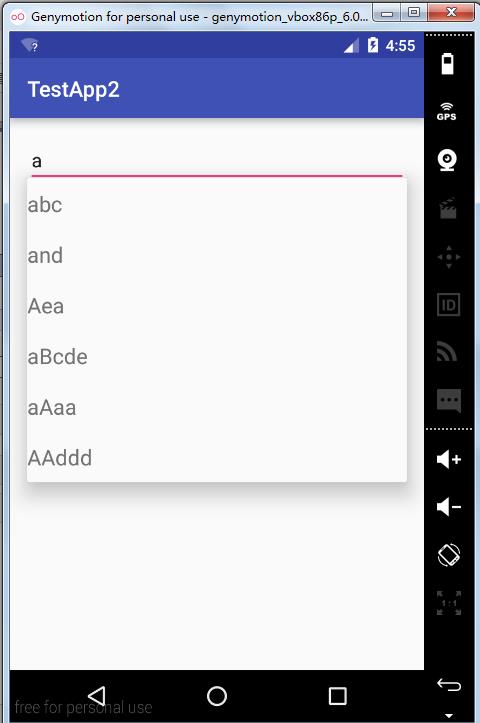
        String[] strings={"abc","and","Aea","car","aBcde","aAaa","AAddd"};

        //2-准备适配器

        ArrayAdapter<String> aa=new ArrayAdapter<String>(this,

                R.layout.array_adapter,strings);

        //3-给组件设置适配器

        at_1.setAdapter(aa);

        //下拉列表

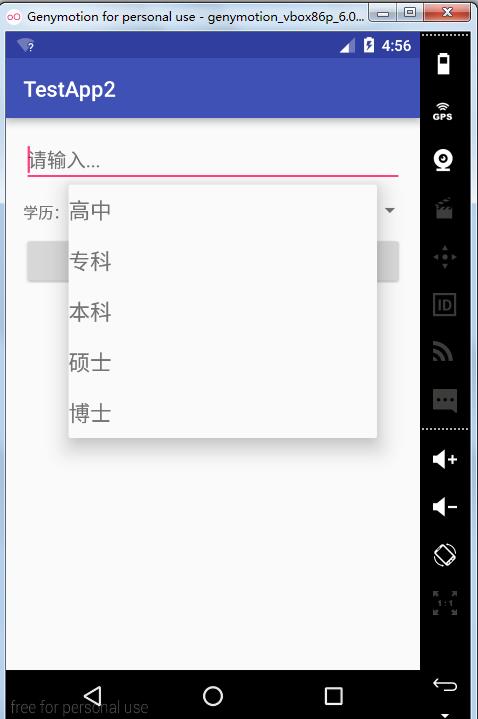
       final String[] xl={"高中","专科","本科","硕士","博士"};

        ArrayAdapter<String>  sp=new ArrayAdapter<String>(this,

               R.layout.array_adapter,xl);

        sp_1.setAdapter(sp);

        //监听器

        sp_1.setOnItemSelectedListener(new AdapterView.OnItemSelectedListener() {

            @Override

            public void onItemSelected(AdapterView<?> parent, View view, int position, long id) {

                Toast.makeText(TestActivity11.this, "选中的项目是"+xl[position], Toast.LENGTH_SHORT).show();

            }

            @Override

            public void onNothingSelected(AdapterView<?> parent) {

                Toast.makeText(TestActivity11.this, "什么也没选", Toast.LENGTH_SHORT).show();

            }

        });

    }

    //发送状态栏消息

    public void bt_OnClick(View v)

    {

        //1-得到状态栏消息管理器

        NotificationManager nm=(NotificationManager)getSystemService(NOTIFICATION_SERVICE);

        //准备一个PendingIntent

        //1)创建一个普通的Intent

        Intent intent=new Intent(this,TestActivity1.class);

        //2)生成

       PendingIntent pi= PendingIntent.getActivity(this, 0, intent, 0);

        //2-构建状态栏信息

        Notification nt=new Notification.Builder(this)

                .setContentTitle("天气预报")

                .setContentText("明天晴,气温30度")

                .setSmallIcon(R.drawable.aaa)

                .setTicker("新的天气预报")

                .setDefaults(Notification.DEFAULT_SOUND)

                .setAutoCancel(false)

                .setContentIntent(pi)

                .build();

        //3-由管理器发送消息

        nm.notify(0,nt);

    }

}
java
package com.example.wang.testapp2;

import android.support.v7.app.AppCompatActivity;

import android.os.Bundle;

import android.widget.CheckBox;

import android.widget.CompoundButton;

import android.widget.RadioButton;

import android.widget.RadioGroup;

import android.widget.Switch;

import android.widget.Toast;

import android.widget.ToggleButton;

public class TestActivity1 extends AppCompatActivity {

    RadioGroup rg_1;

    RadioButton nan;

    RadioButton nv;

    CheckBox cb_1;

    CheckBox cb_2;

    ToggleButton tb_1;

    Switch sw_1;

    @Override

    protected void onCreate(Bundle savedInstanceState) {

        super.onCreate(savedInstanceState);

        setContentView(R.layout.activity_test1);

        rg_1=(RadioGroup)findViewById(R.id.rg_1);

        nan=(RadioButton)findViewById(R.id.nan);

        nv=(RadioButton)findViewById(R.id.nv);

        cb_1=(CheckBox)findViewById(R.id.cb_1);

        cb_2=(CheckBox)findViewById(R.id.cb_2);

        tb_1=(ToggleButton)findViewById(R.id.tb_1);

        sw_1=(Switch)findViewById(R.id.sw_1);

        tb_1.setOnCheckedChangeListener(new CompoundButton.OnCheckedChangeListener() {

            @Override

            public void onCheckedChanged(CompoundButton buttonView, boolean isChecked) {

                Toast.makeText(TestActivity1.this, "ToggleButton开关状态="+(isChecked?"开":"关"), Toast.LENGTH_SHORT).show();

            }

        });

        sw_1.setOnCheckedChangeListener(new CompoundButton.OnCheckedChangeListener() {

            @Override

            public void onCheckedChanged(CompoundButton buttonView, boolean isChecked) {

                Toast.makeText(TestActivity1.this, "Switch开关状态="+(isChecked?"开":"关"), Toast.LENGTH_SHORT).show();

            }

        });

        //监听器的实例

        CB_OnCheckedChangeListener cb1=new CB_OnCheckedChangeListener();

        //监听器绑定

        cb_1.setOnCheckedChangeListener(cb1);

        cb_2.setOnCheckedChangeListener(cb1);

        rg_1.setOnCheckedChangeListener(new RadioGroup.OnCheckedChangeListener() {

            @Override

            //int checkedId 被选中的RadioButton的id

            public void onCheckedChanged(RadioGroup group, int checkedId) {

                //提示选中的内容

                //判断谁被选中了

                if (checkedId==nan.getId())

                {

                    Toast.makeText(TestActivity1.this, "选中的是="+nan.getText(), Toast.LENGTH_SHORT).show();

                }

                else if(checkedId==nv.getId())

                {

                    Toast.makeText(TestActivity1.this, "选中的是="+nv.getText(), Toast.LENGTH_SHORT).show();

                }

            }

        });

    }

    //公共的复选按钮的监听器

    class CB_OnCheckedChangeListener implements CompoundButton.OnCheckedChangeListener

    {

        @Override

        public void onCheckedChanged(CompoundButton buttonView, boolean isChecked) {

            CheckBox cb=(CheckBox)buttonView;

            String str =cb.getText().toString();

            if (isChecked)

            {

                Toast.makeText(TestActivity1.this, str+"被选中", Toast.LENGTH_SHORT).show();

            }

            else

            {

                Toast.makeText(TestActivity1.this, str+"被取消选中", Toast.LENGTH_SHORT).show();

            }

        }

    }

}
TestActivity1
<?xml version="1.0" encoding="utf-8"?>

<LinearLayout xmlns:android="http://schemas.android.com/apk/res/android"

    xmlns:tools="http://schemas.android.com/tools"

    android:layout_width="match_parent"

    android:layout_height="match_parent"

    android:paddingBottom="@dimen/activity_vertical_margin"

    android:paddingLeft="@dimen/activity_horizontal_margin"

    android:paddingRight="@dimen/activity_horizontal_margin"

    android:paddingTop="@dimen/activity_vertical_margin"

    tools:context="com.example.wang.testapp2.TestActivity1"

    android:orientation="vertical">

<LinearLayout

    android:layout_width="match_parent"

    android:layout_height="wrap_content"

    android:orientation="horizontal">

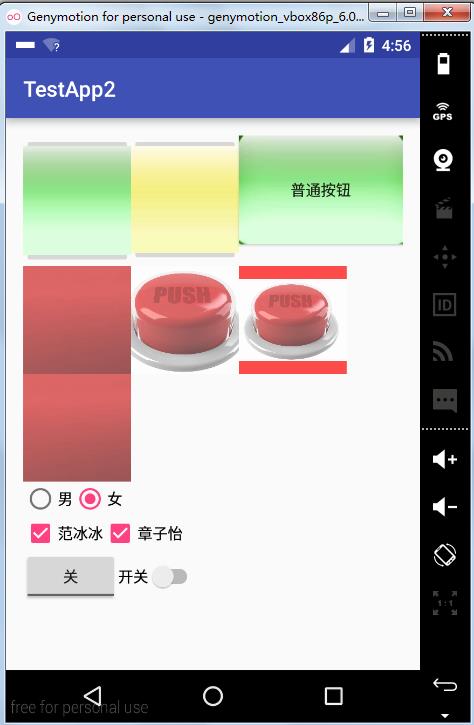
    <ImageButton

        android:layout_width="100dp"

        android:layout_height="wrap_content"

        android:src="@drawable/aaa"/>

    <ImageButton

        android:layout_width="100dp"

        android:layout_height="wrap_content"

        android:src="@drawable/bbb"/>

    <Button

        android:layout_width="wrap_content"

        android:layout_height="wrap_content"

        android:background="@drawable/aaa"

        android:text="普通按钮"/>

</LinearLayout>

    <LinearLayout

        android:layout_width="wrap_content"

        android:layout_height="wrap_content"

        android:orientation="horizontal">

        <ImageView

            android:layout_width="100dp"

            android:layout_height="100dp"

            android:src="@drawable/ccc"

            android:background="#f00"

            android:alpha="0.7"

            android:scaleType="center"/>

        <ImageView

            android:layout_width="100dp"

            android:layout_height="100dp"

            android:src="@drawable/ccc"

            android:background="#f00"

            android:alpha="0.7"

            android:scaleType="centerCrop"/>

        <ImageView

            android:layout_width="100dp"

            android:layout_height="100dp"

            android:src="@drawable/ccc"

            android:background="#f00"

            android:alpha="0.7"

            android:scaleType="centerInside"/>

    </LinearLayout>

    <ImageView

        android:layout_width="100dp"

        android:layout_height="100dp"

        android:src="@drawable/ccc"

        android:background="#f00"

        android:alpha="0.7"

        android:scaleType="center"/>

<LinearLayout

    android:layout_width="match_parent"

    android:layout_height="wrap_content"

    android:orientation="vertical">

    <RadioGroup

        android:layout_width="match_parent"

        android:layout_height="wrap_content"

        android:id="@+id/rg_1"

        android:orientation="horizontal">

    <RadioButton

        android:layout_width="wrap_content"

        android:layout_height="wrap_content"

        android:id="@+id/nan"

        android:text="男"/>

    <RadioButton

        android:layout_width="wrap_content"

        android:layout_height="wrap_content"

        android:text="女"

        android:checked="true"

        android:id="@+id/nv"/>

    </RadioGroup>

<LinearLayout

android:layout_width="match_parent"

android:layout_height="wrap_content"

android:orientation="horizontal">

        <CheckBox

            android:layout_width="wrap_content"

            android:layout_height="wrap_content"

            android:text="范冰冰"

            android:id="@+id/cb_1"

            android:checked="true"/>

        <CheckBox

            android:layout_width="wrap_content"

            android:layout_height="wrap_content"

            android:text="章子怡"

            android:id="@+id/cb_2"

            android:checked="true"/>

</LinearLayout>

</LinearLayout>

    <LinearLayout

        android:layout_width="match_parent"

        android:layout_height="wrap_content">

        <ToggleButton

            android:layout_width="wrap_content"

            android:layout_height="wrap_content"

            android:textOn="开"

            android:textOff="关"

            android:id="@+id/tb_1"/>

        <Switch

            android:layout_width="wrap_content"

            android:layout_height="wrap_content"

            android:textOn="打开"

            android:text="开关"

            android:id="@+id/sw_1"

            android:textOff="关闭"/>

    </LinearLayout>

</LinearLayout>
activity_test1
<?xml version="1.0" encoding="utf-8"?>

<LinearLayout xmlns:android="http://schemas.android.com/apk/res/android"

    xmlns:tools="http://schemas.android.com/tools"

    android:layout_width="match_parent"

    android:layout_height="match_parent"

    android:paddingBottom="@dimen/activity_vertical_margin"

    android:paddingLeft="@dimen/activity_horizontal_margin"

    android:paddingRight="@dimen/activity_horizontal_margin"

    android:paddingTop="@dimen/activity_vertical_margin"

    tools:context="com.example.wang.testapp2.TestActivity11"

    android:orientation="vertical">

    <AutoCompleteTextView

        android:layout_width="match_parent"

        android:layout_height="wrap_content"

        android:hint="请输入..."

        android:id="@+id/at_1"

        android:completionThreshold="1"/>

    <LinearLayout

        android:layout_width="match_parent"

        android:layout_height="wrap_content">

        <TextView

            android:layout_width="wrap_content"

            android:layout_height="wrap_content"

            android:text="学历:"/>

        <Spinner

            android:layout_width="0dp"

            android:layout_height="wrap_content"

            android:id="@+id/sp_1"

            android:layout_weight="1"></Spinner>

    </LinearLayout>

    <Button

        android:layout_width="match_parent"

        android:layout_height="wrap_content"

        android:text="发送状态栏消息"

        android:onClick="bt_OnClick"/>

</LinearLayout>
activity_test11
<?xml version="1.0" encoding="utf-8"?>

<TextView

xmlns:android="http://schemas.android.com/apk/res/android"

android:layout_width="match_parent"

android:layout_height="wrap_content"

android:textSize="20sp"

android:paddingTop="10dp"

android:paddingBottom="10dp"/>
array_adapter



AutoCompleteTextView,Spinner,消息提示的更多相关文章
- 10. Android框架和工具之 AppMsg(消息提示)
1. AppMsg 优雅的弹出类似Toast的消息提示,支持3种状态Alert(警告),Confirm(确认)以及Info(消息). 2. AppMsg使用: (1)AppMsg下载地址 ...
- 【C#】组件发布:MessageTip,轻快型消息提示窗
-------------201610212046更新------------- 更新至2.0版,基本完全重写,重点: 改为基于原生LayeredWindow窗体和UpdateLayeredWindo ...
- 一个简单的消息提示jquery插件
最近在工作中写了一个jquery插件,效果如下: 就是一个简单的提示消息的一个东西,支持最大化.最小化.关闭.自定义速度.自定义点击事件,数据有ajax请求和本地数据两种形式.还有不完善的地方,只做了 ...
- Js添加消息提示数量
接到个新需求,类似以下这种需求,得把它封装成一个插件 后端给返回一个这种数据 var data = [ { key:"020506", num:5 }, { key:"0 ...
- 自定义iOS 中推送消息 提示框
看到标题你可能会觉得奇怪 推送消息提示框不是系统自己弹出来的吗? 为什么还要自己自定义呢? 因为项目需求是这样的:最近需要做 远程推送通知 和一个客服系统 包括店铺客服和官方客服两个模块 如果有新的消 ...
- 基于PNotify的消息提示Demo(轮询)
需求:有些任务需要定时更新,获取最新的消息,这样就需要定时轮询,再者需要一种友好的提示. 以下就是使用PNotify插件的消息提示: 1.HTML代码 <!DOCTYPE html> &l ...
- jquery插件:仿百度首页可展开收起的消息提示控件
消息提示插件大伙并不陌生了,无论是个系统还是网站,基本都要有消息系统.但我认为,一个好的提示插件应当具备很好的独立性,不与页面其他元素发生任何关系,其次是能对外提供丰富的接口,因为你生来就是被别人来调 ...
- 基于jquery的消息提示框toastr.js
//消息提示全局配置 toastr.options = { "closeButton": false,//是否配置关闭按钮 "debug": false,//是 ...
- Android三种消息提示
Android消息提示有三种方式: 1 使用Toast显示消息提示框 Toast类用于在屏幕中显示一个提示信息框,该消息提示框没有任何控制按钮,并且不会获得焦点,经过一定时间后自动消失.通常用于显示 ...
随机推荐
- SQL2005函数大全
表达式:是常量.变量.列或函数等与运算符的任意组合.以下参数中表达式类型是指表达式经运算后返回的值的类型 字符串函数 函数名称 参数 示例 说明 ascii (字符串表达式) select ascii ...
- bzoj千题计划167:bzoj3527: [Zjoi2014]力
http://www.lydsy.com/JudgeOnline/problem.php?id=3527 给出n个数qi,给出Fj的定义如下: 令Ei=Fi/qi,求Ei. 以n=4为例: ...
- COGS 5. P服务点设置
5. P服务点设置 http://www.cogs.pro/cogs/problem/problem.php?pid=5 ★★ 输入文件:djsc.in 输出文件:djsc.out 简单对 ...
- HDU 5985 概率
n种硬币各有cnt[i]枚,每轮下其有p[i]概率保留,问各种硬币只有它存活到最后一轮的概率. 设k轮后i硬币存活概率$a[i][k]=(1-p^k_i)^{cnt[i]}$ 则最后只有第i种硬币存活 ...
- RTSP服务器之————rtsp-server(轻量级RTSP / RTP流媒体服务器)
github:https://github.com/revmischa/rtsp-server 轻量级RTSP / RTP流媒体服务器
- Spring Cloud(十一)声名式服务调用:Feign的使用 (上)
一.写在前边 最近开发任务比较忙,下班也开始锻炼了,这个系列的文章就放了很久,看github我提交的Feign的入门程序已经好久了,今天正好得空,这就更上一贴,准备分几部分写 注意:之前几个项目中,笔 ...
- 如何写一个好bug
自己的总结,和大家分享~
- Sparse AutoEncoder简介
1. AutoEncoder AutoEncoder是一种特殊的三层神经网络, 其输出等于输入:\(y^{(i)}=x^{(i)}\), 如下图所示: 亦即AutoEncoder想学到的函数为\(f_ ...
- 一个菜鸟的ASP.NET观光路线图
作为一个成长的"菜鸟".我的习惯是,每过一个阶段,都对自己的知识体系进行一次概括. 这篇博文是一个总结帖,我将把我的学到的东西,按照一定顺序串联在一起. ...
- Unity 3(二):Unity在AOP方面的应用
本文关注以下方面(环境为VS2012..Net Framework 4.5以及Unity 3): AOP简介: Interception using Unity示例 配置文件示例 一.AOP简介 AO ...