
AutoCompleteTextView,Spinner,消息提示
package com.example.wang.testapp2;

import android.app.Notification;

import android.app.NotificationManager;

import android.app.PendingIntent;

import android.content.Intent;

import android.os.Bundle;

import android.support.v7.app.AppCompatActivity;

import android.view.View;

import android.widget.AdapterView;

import android.widget.ArrayAdapter;

import android.widget.AutoCompleteTextView;

import android.widget.Spinner;

import android.widget.Toast;

public class TestActivity11 extends AppCompatActivity {

    AutoCompleteTextView at_1;

    Spinner sp_1;

    @Override

    protected void onCreate(Bundle savedInstanceState) {

        super.onCreate(savedInstanceState);

        setContentView(R.layout.activity_test11);

        at_1=(AutoCompleteTextView)findViewById(R.id.at_1);

        sp_1=(Spinner)findViewById(R.id.sp_1);

        //1-准备数据源

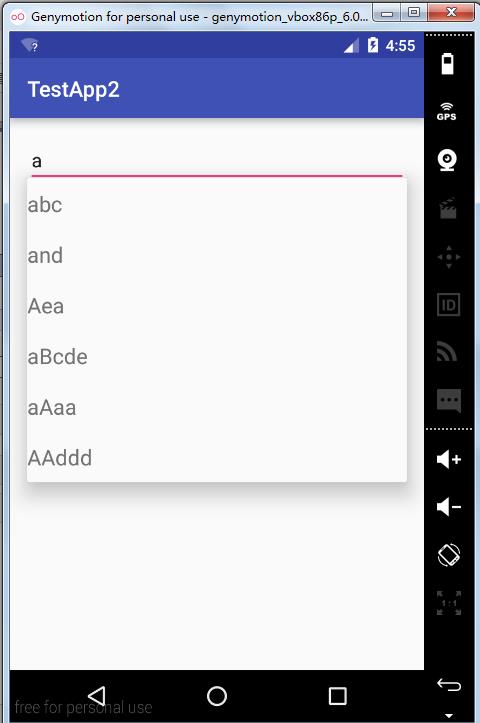
        String[] strings={"abc","and","Aea","car","aBcde","aAaa","AAddd"};

        //2-准备适配器

        ArrayAdapter<String> aa=new ArrayAdapter<String>(this,

                R.layout.array_adapter,strings);

        //3-给组件设置适配器

        at_1.setAdapter(aa);

        //下拉列表

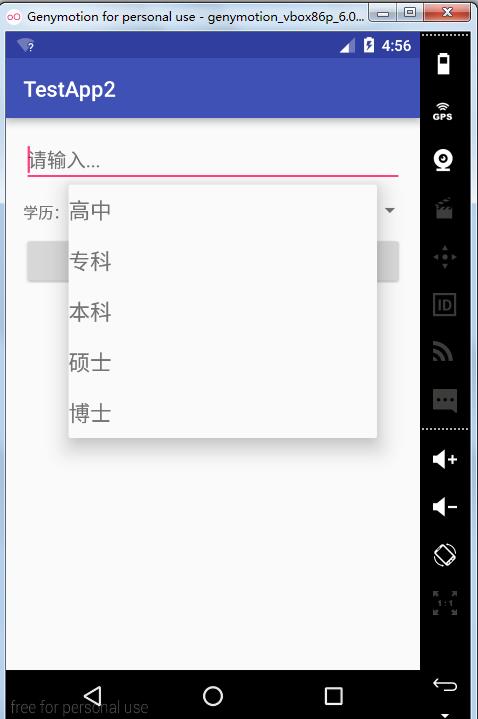
       final String[] xl={"高中","专科","本科","硕士","博士"};

        ArrayAdapter<String>  sp=new ArrayAdapter<String>(this,

               R.layout.array_adapter,xl);

        sp_1.setAdapter(sp);

        //监听器

        sp_1.setOnItemSelectedListener(new AdapterView.OnItemSelectedListener() {

            @Override

            public void onItemSelected(AdapterView<?> parent, View view, int position, long id) {

                Toast.makeText(TestActivity11.this, "选中的项目是"+xl[position], Toast.LENGTH_SHORT).show();

            }

            @Override

            public void onNothingSelected(AdapterView<?> parent) {

                Toast.makeText(TestActivity11.this, "什么也没选", Toast.LENGTH_SHORT).show();

            }

        });

    }

    //发送状态栏消息

    public void bt_OnClick(View v)

    {

        //1-得到状态栏消息管理器

        NotificationManager nm=(NotificationManager)getSystemService(NOTIFICATION_SERVICE);

        //准备一个PendingIntent

        //1)创建一个普通的Intent

        Intent intent=new Intent(this,TestActivity1.class);

        //2)生成

       PendingIntent pi= PendingIntent.getActivity(this, 0, intent, 0);

        //2-构建状态栏信息

        Notification nt=new Notification.Builder(this)

                .setContentTitle("天气预报")

                .setContentText("明天晴,气温30度")

                .setSmallIcon(R.drawable.aaa)

                .setTicker("新的天气预报")

                .setDefaults(Notification.DEFAULT_SOUND)

                .setAutoCancel(false)

                .setContentIntent(pi)

                .build();

        //3-由管理器发送消息

        nm.notify(0,nt);

    }

}
java
package com.example.wang.testapp2;

import android.support.v7.app.AppCompatActivity;

import android.os.Bundle;

import android.widget.CheckBox;

import android.widget.CompoundButton;

import android.widget.RadioButton;

import android.widget.RadioGroup;

import android.widget.Switch;

import android.widget.Toast;

import android.widget.ToggleButton;

public class TestActivity1 extends AppCompatActivity {

    RadioGroup rg_1;

    RadioButton nan;

    RadioButton nv;

    CheckBox cb_1;

    CheckBox cb_2;

    ToggleButton tb_1;

    Switch sw_1;

    @Override

    protected void onCreate(Bundle savedInstanceState) {

        super.onCreate(savedInstanceState);

        setContentView(R.layout.activity_test1);

        rg_1=(RadioGroup)findViewById(R.id.rg_1);

        nan=(RadioButton)findViewById(R.id.nan);

        nv=(RadioButton)findViewById(R.id.nv);

        cb_1=(CheckBox)findViewById(R.id.cb_1);

        cb_2=(CheckBox)findViewById(R.id.cb_2);

        tb_1=(ToggleButton)findViewById(R.id.tb_1);

        sw_1=(Switch)findViewById(R.id.sw_1);

        tb_1.setOnCheckedChangeListener(new CompoundButton.OnCheckedChangeListener() {

            @Override

            public void onCheckedChanged(CompoundButton buttonView, boolean isChecked) {

                Toast.makeText(TestActivity1.this, "ToggleButton开关状态="+(isChecked?"开":"关"), Toast.LENGTH_SHORT).show();

            }

        });

        sw_1.setOnCheckedChangeListener(new CompoundButton.OnCheckedChangeListener() {

            @Override

            public void onCheckedChanged(CompoundButton buttonView, boolean isChecked) {

                Toast.makeText(TestActivity1.this, "Switch开关状态="+(isChecked?"开":"关"), Toast.LENGTH_SHORT).show();

            }

        });

        //监听器的实例

        CB_OnCheckedChangeListener cb1=new CB_OnCheckedChangeListener();

        //监听器绑定

        cb_1.setOnCheckedChangeListener(cb1);

        cb_2.setOnCheckedChangeListener(cb1);

        rg_1.setOnCheckedChangeListener(new RadioGroup.OnCheckedChangeListener() {

            @Override

            //int checkedId 被选中的RadioButton的id

            public void onCheckedChanged(RadioGroup group, int checkedId) {

                //提示选中的内容

                //判断谁被选中了

                if (checkedId==nan.getId())

                {

                    Toast.makeText(TestActivity1.this, "选中的是="+nan.getText(), Toast.LENGTH_SHORT).show();

                }

                else if(checkedId==nv.getId())

                {

                    Toast.makeText(TestActivity1.this, "选中的是="+nv.getText(), Toast.LENGTH_SHORT).show();

                }

            }

        });

    }

    //公共的复选按钮的监听器

    class CB_OnCheckedChangeListener implements CompoundButton.OnCheckedChangeListener

    {

        @Override

        public void onCheckedChanged(CompoundButton buttonView, boolean isChecked) {

            CheckBox cb=(CheckBox)buttonView;

            String str =cb.getText().toString();

            if (isChecked)

            {

                Toast.makeText(TestActivity1.this, str+"被选中", Toast.LENGTH_SHORT).show();

            }

            else

            {

                Toast.makeText(TestActivity1.this, str+"被取消选中", Toast.LENGTH_SHORT).show();

            }

        }

    }

}
TestActivity1
<?xml version="1.0" encoding="utf-8"?>

<LinearLayout xmlns:android="http://schemas.android.com/apk/res/android"

    xmlns:tools="http://schemas.android.com/tools"

    android:layout_width="match_parent"

    android:layout_height="match_parent"

    android:paddingBottom="@dimen/activity_vertical_margin"

    android:paddingLeft="@dimen/activity_horizontal_margin"

    android:paddingRight="@dimen/activity_horizontal_margin"

    android:paddingTop="@dimen/activity_vertical_margin"

    tools:context="com.example.wang.testapp2.TestActivity1"

    android:orientation="vertical">

<LinearLayout

    android:layout_width="match_parent"

    android:layout_height="wrap_content"

    android:orientation="horizontal">

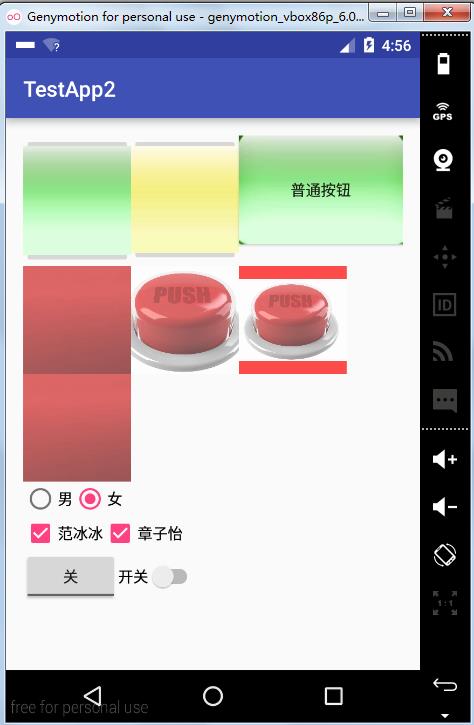
    <ImageButton

        android:layout_width="100dp"

        android:layout_height="wrap_content"

        android:src="@drawable/aaa"/>

    <ImageButton

        android:layout_width="100dp"

        android:layout_height="wrap_content"

        android:src="@drawable/bbb"/>

    <Button

        android:layout_width="wrap_content"

        android:layout_height="wrap_content"

        android:background="@drawable/aaa"

        android:text="普通按钮"/>

</LinearLayout>

    <LinearLayout

        android:layout_width="wrap_content"

        android:layout_height="wrap_content"

        android:orientation="horizontal">

        <ImageView

            android:layout_width="100dp"

            android:layout_height="100dp"

            android:src="@drawable/ccc"

            android:background="#f00"

            android:alpha="0.7"

            android:scaleType="center"/>

        <ImageView

            android:layout_width="100dp"

            android:layout_height="100dp"

            android:src="@drawable/ccc"

            android:background="#f00"

            android:alpha="0.7"

            android:scaleType="centerCrop"/>

        <ImageView

            android:layout_width="100dp"

            android:layout_height="100dp"

            android:src="@drawable/ccc"

            android:background="#f00"

            android:alpha="0.7"

            android:scaleType="centerInside"/>

    </LinearLayout>

    <ImageView

        android:layout_width="100dp"

        android:layout_height="100dp"

        android:src="@drawable/ccc"

        android:background="#f00"

        android:alpha="0.7"

        android:scaleType="center"/>

<LinearLayout

    android:layout_width="match_parent"

    android:layout_height="wrap_content"

    android:orientation="vertical">

    <RadioGroup

        android:layout_width="match_parent"

        android:layout_height="wrap_content"

        android:id="@+id/rg_1"

        android:orientation="horizontal">

    <RadioButton

        android:layout_width="wrap_content"

        android:layout_height="wrap_content"

        android:id="@+id/nan"

        android:text="男"/>

    <RadioButton

        android:layout_width="wrap_content"

        android:layout_height="wrap_content"

        android:text="女"

        android:checked="true"

        android:id="@+id/nv"/>

    </RadioGroup>

<LinearLayout

android:layout_width="match_parent"

android:layout_height="wrap_content"

android:orientation="horizontal">

        <CheckBox

            android:layout_width="wrap_content"

            android:layout_height="wrap_content"

            android:text="范冰冰"

            android:id="@+id/cb_1"

            android:checked="true"/>

        <CheckBox

            android:layout_width="wrap_content"

            android:layout_height="wrap_content"

            android:text="章子怡"

            android:id="@+id/cb_2"

            android:checked="true"/>

</LinearLayout>

</LinearLayout>

    <LinearLayout

        android:layout_width="match_parent"

        android:layout_height="wrap_content">

        <ToggleButton

            android:layout_width="wrap_content"

            android:layout_height="wrap_content"

            android:textOn="开"

            android:textOff="关"

            android:id="@+id/tb_1"/>

        <Switch

            android:layout_width="wrap_content"

            android:layout_height="wrap_content"

            android:textOn="打开"

            android:text="开关"

            android:id="@+id/sw_1"

            android:textOff="关闭"/>

    </LinearLayout>

</LinearLayout>
activity_test1
<?xml version="1.0" encoding="utf-8"?>

<LinearLayout xmlns:android="http://schemas.android.com/apk/res/android"

    xmlns:tools="http://schemas.android.com/tools"

    android:layout_width="match_parent"

    android:layout_height="match_parent"

    android:paddingBottom="@dimen/activity_vertical_margin"

    android:paddingLeft="@dimen/activity_horizontal_margin"

    android:paddingRight="@dimen/activity_horizontal_margin"

    android:paddingTop="@dimen/activity_vertical_margin"

    tools:context="com.example.wang.testapp2.TestActivity11"

    android:orientation="vertical">

    <AutoCompleteTextView

        android:layout_width="match_parent"

        android:layout_height="wrap_content"

        android:hint="请输入..."

        android:id="@+id/at_1"

        android:completionThreshold="1"/>

    <LinearLayout

        android:layout_width="match_parent"

        android:layout_height="wrap_content">

        <TextView

            android:layout_width="wrap_content"

            android:layout_height="wrap_content"

            android:text="学历:"/>

        <Spinner

            android:layout_width="0dp"

            android:layout_height="wrap_content"

            android:id="@+id/sp_1"

            android:layout_weight="1"></Spinner>

    </LinearLayout>

    <Button

        android:layout_width="match_parent"

        android:layout_height="wrap_content"

        android:text="发送状态栏消息"

        android:onClick="bt_OnClick"/>

</LinearLayout>
activity_test11
<?xml version="1.0" encoding="utf-8"?>

<TextView

xmlns:android="http://schemas.android.com/apk/res/android"

android:layout_width="match_parent"

android:layout_height="wrap_content"

android:textSize="20sp"

android:paddingTop="10dp"

android:paddingBottom="10dp"/>
array_adapter



AutoCompleteTextView,Spinner,消息提示的更多相关文章
- 10. Android框架和工具之 AppMsg(消息提示)
1. AppMsg 优雅的弹出类似Toast的消息提示,支持3种状态Alert(警告),Confirm(确认)以及Info(消息). 2. AppMsg使用: (1)AppMsg下载地址 ...
- 【C#】组件发布:MessageTip,轻快型消息提示窗
-------------201610212046更新------------- 更新至2.0版,基本完全重写,重点: 改为基于原生LayeredWindow窗体和UpdateLayeredWindo ...
- 一个简单的消息提示jquery插件
最近在工作中写了一个jquery插件,效果如下: 就是一个简单的提示消息的一个东西,支持最大化.最小化.关闭.自定义速度.自定义点击事件,数据有ajax请求和本地数据两种形式.还有不完善的地方,只做了 ...
- Js添加消息提示数量
接到个新需求,类似以下这种需求,得把它封装成一个插件 后端给返回一个这种数据 var data = [ { key:"020506", num:5 }, { key:"0 ...
- 自定义iOS 中推送消息 提示框
看到标题你可能会觉得奇怪 推送消息提示框不是系统自己弹出来的吗? 为什么还要自己自定义呢? 因为项目需求是这样的:最近需要做 远程推送通知 和一个客服系统 包括店铺客服和官方客服两个模块 如果有新的消 ...
- 基于PNotify的消息提示Demo(轮询)
需求:有些任务需要定时更新,获取最新的消息,这样就需要定时轮询,再者需要一种友好的提示. 以下就是使用PNotify插件的消息提示: 1.HTML代码 <!DOCTYPE html> &l ...
- jquery插件:仿百度首页可展开收起的消息提示控件
消息提示插件大伙并不陌生了,无论是个系统还是网站,基本都要有消息系统.但我认为,一个好的提示插件应当具备很好的独立性,不与页面其他元素发生任何关系,其次是能对外提供丰富的接口,因为你生来就是被别人来调 ...
- 基于jquery的消息提示框toastr.js
//消息提示全局配置 toastr.options = { "closeButton": false,//是否配置关闭按钮 "debug": false,//是 ...
- Android三种消息提示
Android消息提示有三种方式: 1 使用Toast显示消息提示框 Toast类用于在屏幕中显示一个提示信息框,该消息提示框没有任何控制按钮,并且不会获得焦点,经过一定时间后自动消失.通常用于显示 ...
随机推荐
- 微信小程序退款 处理类
<?php /** * 微信小程序退款 处理类参考https://www.cnblogs.com/afei-qwerty/p/7922982.html * */ class WeixinRefu ...
- python 异常处理(try...finally...和with...as 方法)
try...finally... 结构 我们在执行一长串关联命令时,会有一个问题,如果当中一个命令失败了,整个命令串事实上就没有必要执行下去了.在异常发生时,我们也需要执行一些收场工作.比如 clos ...
- 设置CMD默认路径
用CMD每一次都得切换路径,很麻烦. 所以,需要设置一下CMD默认路径: 1.打开注册表编辑器(WIN+R打开运行.输入regedit) 2.定位到: “HKEY_CURRENT_USER\Softw ...
- Shell记录-Shell命令(find)
Linux中的find命令在目录结构中搜索文件,并执行指定的操作.Linux下find命令提供了相当多的查找条件,功能很强大.由于find具有强大的功能,所以它的选项也很多,其中大部分选项都值得我们花 ...
- Centos7远程桌面 vnc/vnc-server的设置
Centos7与Centos6.x有了很大的不同. 为了给一台服务器装上远程桌面,走了不少弯路.写这篇博文,纯粹为了记录,以后如果遇到相同问题,可以追溯. 1.假定你的系统没有安装vnc的任何软件,那 ...
- Python 豆瓣顶帖
由于在豆瓣发了个租房帖子,发现很快就被其他的帖子淹没,但是手动顶帖实在太累,
- Swing教程
//用多线程刷新状态 new Thread(new Runnable(){ @Override public void run() { try { for(int i=0;i<1000;i++) ...
- 奇葩字符 "a๎๎๎๎๎๎๎๎๎๎๎๎๎๎๎๎๎๎๎" 的简单分析
这个其实之前火过一阵子,当时也没怎么注意,今天看到空间里又有人在刷这个字符了,所以决定分析下他是什么东西.复制这个字符在控制台查看 "a๎๎๎๎๎๎๎๎๎๎๎๎๎๎๎๎๎๎๎".l ...
- 《大型网站SEO优化实践》学习分享
本文主要内容源自2013年阿里技术嘉年华中阿里巴巴周文君分享<大型网站SEO优化实践>.学习过后,受益匪浅,特作笔记,经常回顾吸收学习. 大型网站SEO的特点&优势&挑战 ...
- 用Grub4dos引导,硬盘安装ArchLinux
本来在工作机上用winXP,最近想深入Linux开发,于是决定装个Linux.家里的archLinux + awesome用得很好, 于是决定在工作机上也装一套. 不想刻盘,也不想用U盘,通过Grub ...