
[WPF 自定义控件]创建包含CheckBox的ListBoxItem
1. 前言
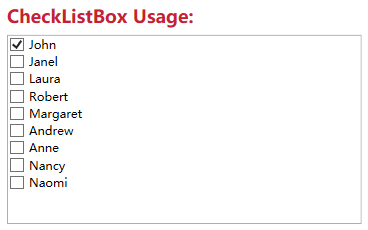
Xceed wpftoolkit提供了一个CheckListBox,效果如下:
不过它用起来不怎么样,与其这样还不如参考UWP的ListView实现,而且动画效果也很好看:
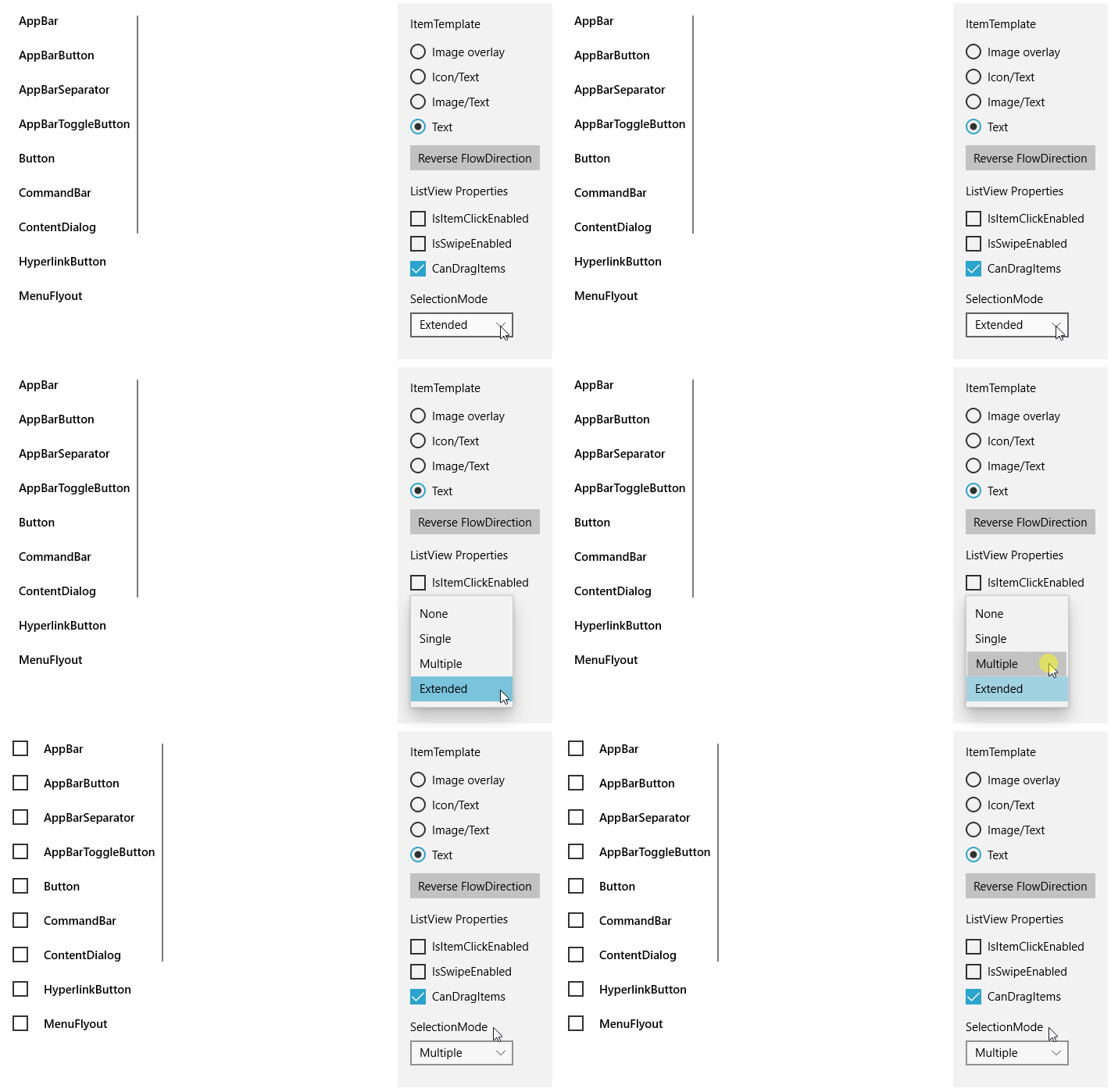
它的样式如下:
<ListViewItemPresenter ContentTransitions="{TemplateBinding ContentTransitions}"

    x:Name="Root"

    Control.IsTemplateFocusTarget="True"

    FocusVisualMargin="{TemplateBinding FocusVisualMargin}"

    SelectionCheckMarkVisualEnabled="{ThemeResource ListViewItemSelectionCheckMarkVisualEnabled}"

    CheckBrush="{ThemeResource ListViewItemCheckBrush}"

    CheckBoxBrush="{ThemeResource ListViewItemCheckBoxBrush}"

    DragBackground="{ThemeResource ListViewItemDragBackground}"

    DragForeground="{ThemeResource ListViewItemDragForeground}"

    FocusBorderBrush="{ThemeResource ListViewItemFocusBorderBrush}"

    FocusSecondaryBorderBrush="{ThemeResource ListViewItemFocusSecondaryBorderBrush}"

    PlaceholderBackground="{ThemeResource ListViewItemPlaceholderBackground}"

    PointerOverBackground="{ThemeResource ListViewItemBackgroundPointerOver}"

    PointerOverForeground="{ThemeResource ListViewItemForegroundPointerOver}"

    SelectedBackground="{ThemeResource ListViewItemBackgroundSelected}"

    SelectedForeground="{ThemeResource ListViewItemForegroundSelected}"

    SelectedPointerOverBackground="{ThemeResource ListViewItemBackgroundSelectedPointerOver}"

    PressedBackground="{ThemeResource ListViewItemBackgroundPressed}"

    SelectedPressedBackground="{ThemeResource ListViewItemBackgroundSelectedPressed}"

    DisabledOpacity="{ThemeResource ListViewItemDisabledThemeOpacity}"

    DragOpacity="{ThemeResource ListViewItemDragThemeOpacity}"

    ReorderHintOffset="{ThemeResource ListViewItemReorderHintThemeOffset}"

    HorizontalContentAlignment="{TemplateBinding HorizontalContentAlignment}"

    VerticalContentAlignment="{TemplateBinding VerticalContentAlignment}"

    ContentMargin="{TemplateBinding Padding}"

    CheckMode="{ThemeResource ListViewItemCheckMode}"

    RevealBackground="{ThemeResource ListViewItemRevealBackground}"

    RevealBorderThickness="{ThemeResource ListViewItemRevealBorderThemeThickness}"

    RevealBorderBrush="{ThemeResource ListViewItemRevealBorderBrush}">
属性是很多了,但这里没有自定义CheckBox样式的方法,而且也没法参考它的动画如何实现。幸好UWP还提供了一个ListViewItemExpanded样式,里面有完整的布局、VisualState等,不过总共有差不多500行,只拿其中MultiSelectStates的部分也将近100行,这太过复杂了,这还是有些麻烦,在WPF中实现起来反而简单很多。
2. 实现
微软的文档中有介绍如何Create ListViewItems with a CheckBox,原理十分简单:
<DataTemplate x:Key="FirstCell">

  <StackPanel Orientation="Horizontal">

    <CheckBox IsChecked="{Binding Path=IsSelected,

      RelativeSource={RelativeSource FindAncestor, AncestorType={x:Type ListViewItem}}}"/>

  </StackPanel>

</DataTemplate>
就是在控件模板中添加一个CheckBox并且这个CheckBox通过FindAncestor的Binding方式绑定到ListViewItem的IsSelected属性。虽然是ListView的方法,但它同样适用于ListBox。所以我使用这个方式封装了一个ListBox控件,目前基本上没什么功能,就只是在每个ListBoxItem前面加上一个CheckBox。以前介绍过如何自定义ItemsControl,要自定义一个ListBox控件,同样需要三部:
- 定义ListBox
- 关联ListBoxItem和ListBox
- 实现ListBox的逻辑
public class ExtendedListBox : ListBox

{

    public static readonly DependencyProperty IsMultiSelectCheckBoxEnabledProperty =

        DependencyProperty.Register(nameof(IsMultiSelectCheckBoxEnabled), typeof(bool), typeof(ExtendedListBox), new PropertyMetadata(true));

    public bool IsMultiSelectCheckBoxEnabled

    {

        get { return (bool)GetValue(IsMultiSelectCheckBoxEnabledProperty); }

        set { SetValue(IsMultiSelectCheckBoxEnabledProperty, value); }

    }

    protected override DependencyObject GetContainerForItemOverride()

    {

        return new ExtendedListBoxItem();

    }

}

public class ExtendedListBoxItem : ListBoxItem

{

    public ExtendedListBoxItem()

    {

        DefaultStyleKey = typeof(ExtendedListBoxItem);

    }

}
上面就是全部代码。定义了ExtendedListBox和ExtendedListBoxItem两个类,然后重写GetContainerForItemOverride关联这两个类,最后在ExtendedListBox的代码里模仿UWP的ListView提供了IsMultiSelectCheckBoxEnabled属性,其他功能主要由XAML提供:
<Grid.ColumnDefinitions>

    <ColumnDefinition Width="Auto"/>

    <ColumnDefinition/>

</Grid.ColumnDefinitions>

<Primitives:KinoResizer>

    <CheckBox Margin="{TemplateBinding Padding}"

              IsChecked="{Binding IsSelected, Mode=TwoWay, RelativeSource={RelativeSource TemplatedParent}}"

              VerticalAlignment="{TemplateBinding VerticalContentAlignment}"

              IsTabStop="False"

              x:Name="SelectionCheckMark"/>

</Primitives:KinoResizer>

<ContentPresenter HorizontalAlignment="{TemplateBinding HorizontalContentAlignment}" SnapsToDevicePixels="{TemplateBinding SnapsToDevicePixels}" VerticalAlignment="{TemplateBinding VerticalContentAlignment}" Grid.Column="1"

                  Margin="{TemplateBinding Padding}"/>
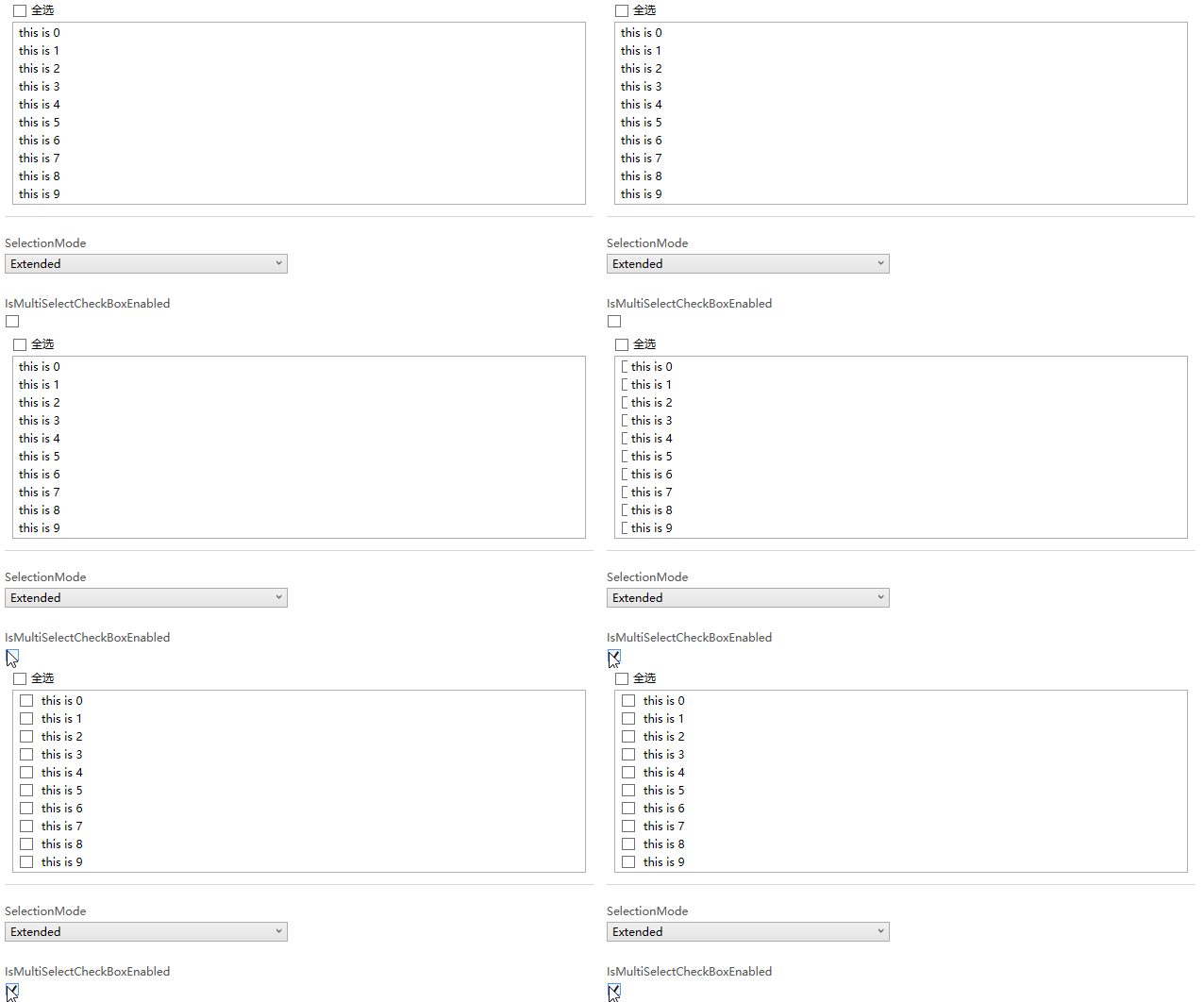
ControlTemplate使用Resizer包装CheckBox,这是为了CheckBox隐藏或显示时有过渡动画。然后在ControlTemplate.Triggers里添加两个DataTrigger,根据所属的ListBox的IsMultiSelectCheckBoxEnabled和SelectionMode显示或隐藏SelectionCheckMark:
<DataTrigger Binding="{Binding RelativeSource={RelativeSource Mode=FindAncestor,AncestorType=ListBox},Path=SelectionMode}"

             Value="Single">

    <Setter Property="Visibility"

            TargetName="SelectionCheckMark"

            Value="Collapsed" />

</DataTrigger>

<DataTrigger Binding="{Binding RelativeSource={RelativeSource Mode=FindAncestor,AncestorType=ListBox},Path=IsMultiSelectCheckBoxEnabled}"

             Value="False">

    <Setter Property="Visibility"

            TargetName="SelectionCheckMark"

            Value="Collapsed" />

</DataTrigger>
最终效果如下:
3. 添加VisualState
WPF的Button的ControlTemplate没有使用VisualState,但Button支持VisualState,用户可以自定义使用VisualState的ControlTemplate。ExtendedListBoxItem也模仿UWP提供了MultiSelectEnabled和MultiSelectDisabled两个VisualState,因为ListBoxItem需要知道承载它的ListBox的IsMultiSelectCheckBoxEnabled和SelectionMode,所以需要给ListBoxItem添加一个Owner属性,并重载ListBox的PrepareContainerForItemOverride函数,在这个函数中为ListBoxItem的Owner赋值:
protected override void PrepareContainerForItemOverride(DependencyObject element, object item)

{

    base.PrepareContainerForItemOverride(element, item);

    if (element is ExtendedListBoxItem listBoxItem)

        listBoxItem.Owner = this;

}
ListBoxItem中使用监视Owner的IsMultiSelectCheckBoxEnabled和SelectionMode的改变,并在这两个值改变时更新VisualState:
protected virtual void OnOwnerChanged(ExtendedListBox oldValue, ExtendedListBox newValue)

{

    if (oldValue != null)

    {

        var descriptor = DependencyPropertyDescriptor.FromProperty(ListBox.SelectionModeProperty, typeof(ExtendedListBox));

        descriptor.RemoveValueChanged(newValue, OnSelectionModeChanged);

        descriptor = DependencyPropertyDescriptor.FromProperty(ExtendedListBox.IsMultiSelectCheckBoxEnabledProperty, typeof(ExtendedListBox));

        descriptor.RemoveValueChanged(newValue, OnIsMultiSelectCheckBoxEnabledChanged);

    }

    if (newValue != null)

    {

        var descriptor = DependencyPropertyDescriptor.FromProperty(ListBox.SelectionModeProperty, typeof(ExtendedListBox));

        descriptor.AddValueChanged(newValue, OnSelectionModeChanged);

        descriptor = DependencyPropertyDescriptor.FromProperty(ExtendedListBox.IsMultiSelectCheckBoxEnabledProperty, typeof(ExtendedListBox));

        descriptor.AddValueChanged(newValue, OnIsMultiSelectCheckBoxEnabledChanged);

    }

}

private void OnSelectionModeChanged(object sender, EventArgs args)

{

    UpdateVisualStates(true);

}

private void OnIsMultiSelectCheckBoxEnabledChanged(object sender, EventArgs args)

{

    UpdateVisualStates(true);

}
为了使用VisualState我在ControlTemplate多写了80行代码,因为没有用上VisualTransition所以这个ControlTemplate有一些Bug,反正只是用来验证添加的两个VisualState是否有效。在ListBoxItem里用Trigger比使用VisualState更简洁有效。
4. 使用同样的原理为DataGrid的行添加ChechBox
DataGrid也可以用同样的原理为每一行添加CheckBox,只不过DataGrid的Template会负责很多。
首先自定义一个DataGrid类:
public class ExtendedDataGrid : DataGrid, IMultiSelector

{

    // Using a DependencyProperty as the backing store for IsMultiSelectCheckBoxEnabled.  This enables animation, styling, binding, etc...

    public static readonly DependencyProperty IsMultiSelectCheckBoxEnabledProperty =

        DependencyProperty.Register(nameof(IsMultiSelectCheckBoxEnabled), typeof(bool), typeof(ExtendedDataGrid), new PropertyMetadata(true));

    public ExtendedDataGrid()

    {

        DefaultStyleKey = typeof(ExtendedDataGrid);

    }

    public bool IsMultiSelectCheckBoxEnabled

    {

        get { return (bool)GetValue(IsMultiSelectCheckBoxEnabledProperty); }

        set { SetValue(IsMultiSelectCheckBoxEnabledProperty, value); }

    }

}
然后定义一个RowHeaderTemplate
<DataTemplate x:Key="DataGridRowHeaderTemplate">

    <Grid>

        <CheckBox IsChecked="{Binding IsSelected, Mode=TwoWay, RelativeSource={RelativeSource AncestorType={x:Type DataGridRow}, Mode=FindAncestor}}"

                      x:Name="SelectionCheckBox"/>

    </Grid>

</DataTemplate>
在DataGrid的Style上应用这个RowHeaderTemplate。最后再DataGrid的Style的Triggers中添加两个DataTrigger:
<Trigger Property="SelectionMode" Value="Single">

    <Setter Property="HeadersVisibility"  Value="Column" />

</Trigger>

<Trigger Property="IsMultiSelectCheckBoxEnabled" Value="False">

    <Setter Property="HeadersVisibility"  Value="Column"/>

</Trigger>
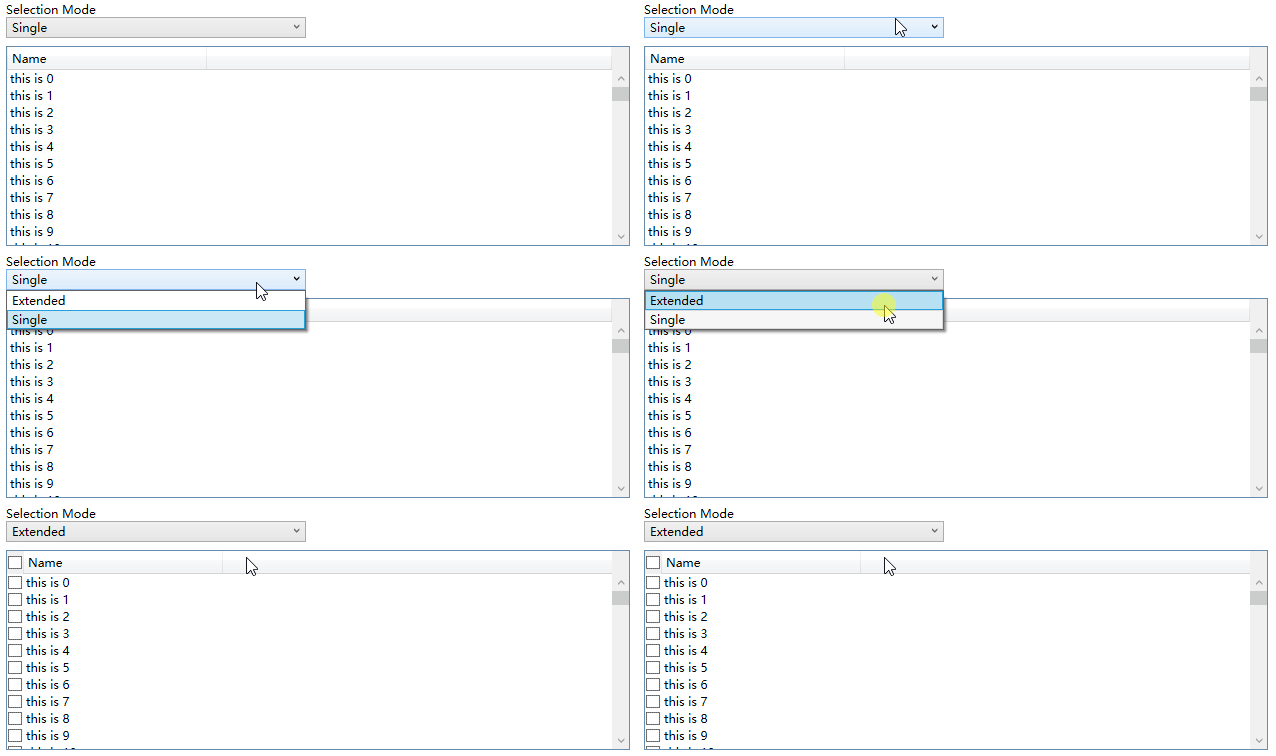
HeadersVisibility是个DataGridHeadersVisibility的属性,它用于控制DataGrid行和列的Header是否显示,因为我在每一行的开头放了CheckBox(就是使用上面定义的RowHeaderTempalte),所以定一只只显示Column的Header的话相当于隐藏了这个CheckBox,运行效果如下:
5. 结语
ListBox和DataGrid的自定义是个很大的话题,这里只实现最简单的功能,通常会根据业务需求逐渐增加更多需求。如果有更复杂的需求,我建议买商业的控件,毕竟DataGrid的自定义可以很复杂,花时间不如花钱。
6. 参考
How to_ Create ListViewItems with a CheckBox - WPF _ Microsoft Docs
ListBox Class (System.Windows.Controls) _ Microsoft Docs
DataGrid Class (System.Windows.Controls) _ Microsoft Docs
7. 源码
Kino.Toolkit.Wpf_ExtendedListBox.cs at master
Kino.Toolkit.Wpf_ExtendedDataGrid.cs at master
[WPF 自定义控件]创建包含CheckBox的ListBoxItem的更多相关文章
- WPF自定义控件创建
WPF自定义控件创建 本文简单的介绍一下WPF自定义控件的开发. 首先,我们打开VisualStudio创建一个WPF自定义控件库,如下图: 然后,我们可以看到创建的解决方案如下: 在解决方案中,我们 ...
- WPF自定义控件与样式(4)-CheckBox/RadioButton自定义样式
一.前言 申明:WPF自定义控件与样式是一个系列文章,前后是有些关联的,但大多是按照由简到繁的顺序逐步发布的等,若有不明白的地方可以参考本系列前面的文章,文末附有部分文章链接. 本文主要内容: Che ...
- WPF 如何创建自己的WPF自定义控件库
在我们平时的项目中,我们经常需要一套自己的自定义控件库,这个特别是在Prism这种框架下面进行开发的时候,每个人都使用一套统一的控件,这样才不会每个人由于界面不统一而造成的整个软件系统千差万别,所以我 ...
- 【转】WPF自定义控件与样式(4)-CheckBox/RadioButton自定义样式
一.前言 申明:WPF自定义控件与样式是一个系列文章,前后是有些关联的,但大多是按照由简到繁的顺序逐步发布的等 本文主要内容: CheckBox复选框的自定义样式,有两种不同的风格实现: RadioB ...
- WPF自定义控件与样式(8)-ComboBox与自定义多选控件MultComboBox
一.前言 申明:WPF自定义控件与样式是一个系列文章,前后是有些关联的,但大多是按照由简到繁的顺序逐步发布的等,若有不明白的地方可以参考本系列前面的文章,文末附有部分文章链接. 本文主要内容: 下拉选 ...
- 【转】WPF自定义控件与样式(8)-ComboBox与自定义多选控件MultComboBox
一.前言 申明:WPF自定义控件与样式是一个系列文章,前后是有些关联的,但大多是按照由简到繁的顺序逐步发布的等. 本文主要内容: 下拉选择控件ComboBox的自定义样式及扩展: 自定义多选控件Mul ...
- [WPF自定义控件]从ContentControl开始入门自定义控件
1. 前言 我去年写过一个在UWP自定义控件的系列博客,大部分的经验都可以用在WPF中(只有一点小区别).这篇文章的目的是快速入门自定义控件的开发,所以尽量精简了篇幅,更深入的概念在以后介绍各控件的文 ...
- WPF自定义控件与样式(3)-TextBox & RichTextBox & PasswordBox样式、水印、Label标签、功能扩展
一.前言.预览 申明:WPF自定义控件与样式是一个系列文章,前后是有些关联的,但大多是按照由简到繁的顺序逐步发布的等,若有不明白的地方可以参考本系列前面的文章,文末附有部分文章链接. 本文主要是对文本 ...
- WPF自定义控件与样式(5)-Calendar/DatePicker日期控件自定义样式及扩展
一.前言 申明:WPF自定义控件与样式是一个系列文章,前后是有些关联的,但大多是按照由简到繁的顺序逐步发布的等,若有不明白的地方可以参考本系列前面的文章,文末附有部分文章链接. 本文主要内容: 日历控 ...
随机推荐
- Java入门 - 语言基础 - 14.String类
原文地址:http://www.work100.net/training/java-string.html 更多教程:光束云 - 免费课程 String类 序号 文内章节 视频 1 概述 2 创建字符 ...
- 高通量计算框架HTCondor(五)——分布计算
目录 1. 正文 1.1. 任务描述文件 1.2. 提交任务 1.3. 返回结果 2. 相关 1. 正文 1.1. 任务描述文件 前文提到过,HTCondor是通过condor_submit命令将提交 ...
- visul studio 使用git扫盲帖。
写给和一样的菜B 有必要知道的命令: git rm --cached (文章底部有git命令大全) 创建.gitignore文件 windows版: 在项目根目录下面创建gitignore.txt文件 ...
- [bzoj1375] [Baltic2002] Bicriterial routing 双调路径
Description 如今的道路收费发展很快.道路的密度越来越大,因此选择最佳路径是很现实的问题.城市的道路是双向的,每条道路有固定的旅行时间以及需要支付的费用. 路径是连续经过的道路组成的.总时间 ...
- 对于Python中的字节串bytes和字符串以及转义字符的新的认识
事情的起因是之前同学叫我帮他用Python修改一个压缩包的二进制内容用来做fuzz,根据他的要求,把压缩包test.rar以十六进制的方式打开,每次修改其中一个十六进制字符串并保存为一个新的rar用来 ...
- 使用Rclone和WinFsp挂载FTP为磁盘
介绍 Rclone:是一款的命令行工具,支持在不同对象存储.网盘间同步.上传.下载数据.官网网址:rclone.org WinFsp:是一款Windows平台下的文件系统代理软件(Windows Fi ...
- CSS中的定位体系
一.概述 1.什么是定位体系 视觉格式化模型规定,定位体系共有三种 a.常规流(normal flow) b.浮动(float) ...
- Mybatis基础(二)
Mybatis连接池 Mybatis连接池提供了三种配置方式,配置的位置在SqlMapConfig.xml的dataSource标签中,其type属性就是配置连接池的种类.type的可取值 1.POO ...
- spring实战第二章小记-装配bean
时间:2020/02/06 一.思想 1.创建应用对象之间协作关系的行为通常称为装配,这也是依赖注入(DI)的本质. 对于上面这句话的个人理解:当我们在new一个对象时如果传入了别的对象作为参数(这个 ...
- 搭建DevOps模式的项目
在后端的开发领域,各类开发框架都已经很多,在开发项目时可以根据不同的需要和需求选择合适的开发框架.然而在需要开发一个完善的工程化项目时,仅仅一个后端开发框架是不够的,还面临着在对开发项目的快速迭代中进 ...