
WPF控件
1:内容控件(Content Controls)
2:条目控件(Items Controls)
3:文本控件(Text Controls)
4:范围控件(Range Controls)
一:内容控件
内容控件的最大的特征就是有一个Content属性,从前面的文章中,我们多多少少也知道Content接收的是一个Object类型,或许
我们会立即想到莫非Button就是一个内容控件,确实,Button算是一个内容控件,凡是内容控件都继承自ContentControl,因为
Content属性就是属于ContentControl。
<1>Button
<2>RepeatButton
一般用来实现“快进”,“快退”
Delay:作用就是按下时第一次触发Click的时间延迟。
Interval:每次click发生的时间间隔。
<Window x:Class="WpfApplication1.Window1"

        xmlns="http://schemas.microsoft.com/winfx/2006/xaml/presentation"

        xmlns:x="http://schemas.microsoft.com/winfx/2006/xaml"

        xmlns:sys="clr-namespace:System;assembly=mscorlib"

        xmlns:local="clr-namespace:WpfApplication1"

        Title="MainWindow" Height="350" Width="525">

    <Canvas>

        <TextBox Canvas.Left="151" Canvas.Top="69" Height="33" Name="textBox1" Width="172" Text="0" />

        <RepeatButton x:Name="test" Delay="100" Interval="100"  Click="test_Click" Width="172"

                      Content="确定" Height="61" Canvas.Left="151" Canvas.Top="121" />

    </Canvas>

</Window>
namespace WpfApplication1

{

    /// <summary>

    /// Window1.xaml 的交互逻辑

    /// </summary>

    public partial class Window1 : Window

    {

        public Window1()

        {

            InitializeComponent();

        }

        private void test_Click(object sender, RoutedEventArgs e)

        {

            var num = Convert.ToInt32(textBox1.Text);

            textBox1.Text = (++num).ToString();

        }

    }

}
<3>ToggleButton
从图中我们看到ToggleButton是CheckBox和RadioButton的基类。
<Window x:Class="WpfApplication1.Window1"

        xmlns="http://schemas.microsoft.com/winfx/2006/xaml/presentation"

        xmlns:x="http://schemas.microsoft.com/winfx/2006/xaml"

        xmlns:sys="clr-namespace:System;assembly=mscorlib"

        xmlns:local="clr-namespace:WpfApplication1"

        Title="MainWindow" Height="350" Width="525">

    <Grid>

        <CheckBox Content="CheckBox" Height="16" HorizontalAlignment="Left" Margin="96,137,0,0" Name="checkBox1"

                  VerticalAlignment="Top" IsThreeState="True" Indeterminate="checkBox1_Checked" />

    </Grid>

</Window>
namespace WpfApplication1

{

    /// <summary>

    /// Window1.xaml 的交互逻辑

    /// </summary>

    public partial class Window1 : Window

    {

        public Window1()

        {

            InitializeComponent();

        }

        private void checkBox1_Checked(object sender, RoutedEventArgs e)

        {

            MessageBox.Show("不错");

        }

    }

}
二:条目控件
条目控件首先都是继承自ItemsControl,在ItemsControl中我们发现有两个比较有意思的属性,Items和ItemsSource。
Items:
从图中可以看出Items属于ItemCollection的集合类型,所以每一个Item里面都可以放入一个Object类型对象,这里有意思的地方就是,
如果我放入的是一个UI元素,那么很好,wpf会调用UI的OnRender方法将UI元素呈现,如果说是一个没有OnRender方法的元素,那该
怎么办呢?wpf很智能,它会创建一个TextBlock,然后调用该对象的ToString()将字符串呈现在TextBlock上。
ItemsSource:
从前面文章中我们也看到,ItemsSource常用于数据绑定,所以是一个非常实用的属性。
<1>Expander
<Window x:Class="WpfApplication1.Window1"

        xmlns="http://schemas.microsoft.com/winfx/2006/xaml/presentation"

        xmlns:x="http://schemas.microsoft.com/winfx/2006/xaml"

        xmlns:sys="clr-namespace:System;assembly=mscorlib"

        xmlns:local="clr-namespace:WpfApplication1"

        Title="MainWindow" Height="350" Width="525">

    <Grid>

        <Expander Header="年龄组" Height="208" Margin="39,33,154,70" Name="expander1" Width="310">

            <StackPanel>

                <RadioButton Content="RadioButton1" Height="16" Name="radioButton1" />

                <RadioButton Content="RadioButton2" Height="16"  Name="radioButton2" />

            </StackPanel>

        </Expander>

    </Grid>

</Window>


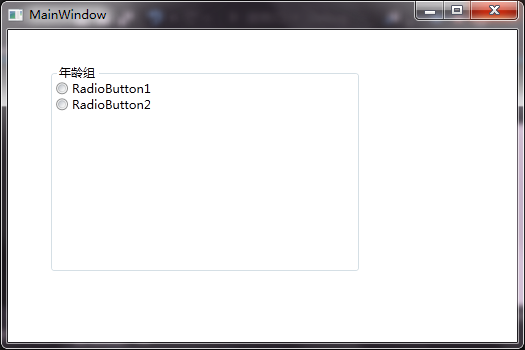
<2>GroupBox
<Window x:Class="WpfApplication1.Window1"

        xmlns="http://schemas.microsoft.com/winfx/2006/xaml/presentation"

        xmlns:x="http://schemas.microsoft.com/winfx/2006/xaml"

        xmlns:sys="clr-namespace:System;assembly=mscorlib"

        xmlns:local="clr-namespace:WpfApplication1"

        Title="MainWindow" Height="350" Width="525">

    <Grid>

        <GroupBox Header="年龄组" Height="208" Margin="39,33,154,70" Name="expander1" Width="310">

            <StackPanel>

                <RadioButton Content="RadioButton1" Height="16" Name="radioButton1" />

                <RadioButton Content="RadioButton2" Height="16"  Name="radioButton2" />

            </StackPanel>

        </GroupBox>

    </Grid>

</Window>
<3>TabItem
<Window x:Class="WpfApplication1.Window1"

        xmlns="http://schemas.microsoft.com/winfx/2006/xaml/presentation"

        xmlns:x="http://schemas.microsoft.com/winfx/2006/xaml"

        xmlns:sys="clr-namespace:System;assembly=mscorlib"

        xmlns:local="clr-namespace:WpfApplication1"

        Title="MainWindow" Height="350" Width="525">

    <Grid>

        <TabControl TabStripPlacement="Top" SelectedIndex="2">

            <TabItem Header="TabItem1">

                <TextBlock>111111</TextBlock>

            </TabItem>

            <TabItem Header="TabItem2">

                <TextBlock>222222222</TextBlock>

            </TabItem>

            <TabItem Header="TabItem3">

                <TextBlock>33333333</TextBlock>

            </TabItem>

            <TabItem Header="TabItem4">

                <TextBlock>444444444</TextBlock>

            </TabItem>

        </TabControl>

    </Grid>

</Window>

3:文本控件
<Window x:Class="WpfApplication1.Window1"

        xmlns="http://schemas.microsoft.com/winfx/2006/xaml/presentation"

        xmlns:x="http://schemas.microsoft.com/winfx/2006/xaml"

        xmlns:sys="clr-namespace:System;assembly=mscorlib"

        xmlns:local="clr-namespace:WpfApplication1"

        Title="MainWindow" Height="350" Width="525">

    <Grid>

        <Button Content="Button" Height="23" HorizontalAlignment="Left" Margin="130,103,0,0" Name="button1" VerticalAlignment="Top" Width="75"

                ToolTipService.HorizontalOffset="20"

                ToolTipService.VerticalOffset="20" >

            <Button.ToolTip>

                <StackPanel>

                    <GroupBox Header="XXX选择题,你懂得...">

                        <GroupBox.Content>

                            <StackPanel>

                                <TextBlock x:Name="A">A:XXXX</TextBlock>

                                <TextBlock x:Name="B">B:XX</TextBlock>

                                <TextBlock x:Name="C">C:OOOO</TextBlock>

                                <TextBlock x:Name="D">D:OO</TextBlock>

                            </StackPanel>

                        </GroupBox.Content>

                    </GroupBox>

                </StackPanel>

            </Button.ToolTip>

        </Button>

    </Grid>

</Window>

4:范围控件
<1>ScrollViewer
<Window x:Class="WpfApplication1.Window1"

        xmlns="http://schemas.microsoft.com/winfx/2006/xaml/presentation"

        xmlns:x="http://schemas.microsoft.com/winfx/2006/xaml"

        xmlns:sys="clr-namespace:System;assembly=mscorlib"

        xmlns:local="clr-namespace:WpfApplication1"

        Title="MainWindow" Height="350" Width="525">

    <Grid>

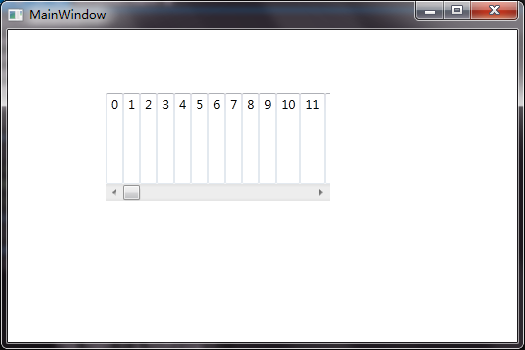
        <ScrollViewer Height="108" HorizontalAlignment="Left" Margin="98,63,0,0"

                      Name="scrollViewer1" VerticalAlignment="Top" Width="224"

                      VerticalScrollBarVisibility="Auto" HorizontalScrollBarVisibility="Auto">

            <StackPanel x:Name="Test" Orientation="Horizontal">

            </StackPanel>

        </ScrollViewer>

    </Grid>

</Window>
namespace WpfApplication1

{

    /// <summary>

    /// Window1.xaml 的交互逻辑

    /// </summary>

    public partial class Window1 : Window

    {

        public Window1()

        {

            InitializeComponent();

            for (int i = ; i < ; i++)

            {

                TextBox tbx = new TextBox();

                tbx.Text = i.ToString();

                Test.Children.Add(tbx);

            }

        }

    }

}
<2> ScrollBar
<Window x:Class="WpfApplication1.Window1"

        xmlns="http://schemas.microsoft.com/winfx/2006/xaml/presentation"

        xmlns:x="http://schemas.microsoft.com/winfx/2006/xaml"

        xmlns:sys="clr-namespace:System;assembly=mscorlib"

        xmlns:local="clr-namespace:WpfApplication1"

        Title="MainWindow" Height="350" Width="525">

    <Grid>

        <Grid>

            <StackPanel Height="100" Margin="97,61,206,150" Name="stackPanel1" Width="200">

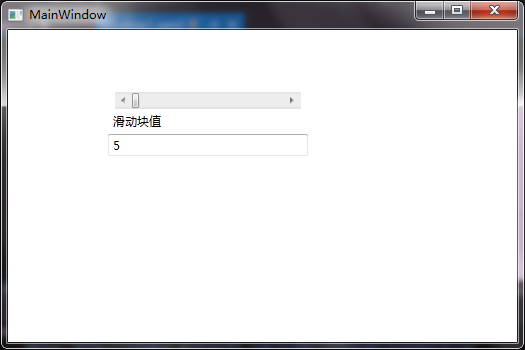
                <ScrollBar Name="test" Orientation="Horizontal" Maximum="100" Minimum="5" SmallChange="2" Height="17" Width="186" />

                <Label Content="滑动块值"/>

                <TextBox Name="txtScrollValue" Text="{Binding ElementName=test, Path=Value}"/>

            </StackPanel>

        </Grid>

    </Grid>

</Window>
<3>ProgressBar
<Window x:Class="WpfApplication1.Window1"

        xmlns="http://schemas.microsoft.com/winfx/2006/xaml/presentation"

        xmlns:x="http://schemas.microsoft.com/winfx/2006/xaml"

        xmlns:sys="clr-namespace:System;assembly=mscorlib"

        xmlns:local="clr-namespace:WpfApplication1"

        Title="MainWindow" Height="350" Width="525">

    <Grid>

        <ProgressBar Height="20" Margin="40" Name="ProgressBar1" IsIndeterminate="True"></ProgressBar>

    </Grid>

</Window>

WPF控件的更多相关文章
- 浅尝辄止——使用ActiveX装载WPF控件
1 引言 使用VC编写的容器类编辑器,很多都可以挂接ActiveX控件,因为基于COM的ActiveX控件不仅封装性不错,还可以显示一些不错的界面图元. 但是随着技术不断的进步,已被抛弃的Active ...
- XMAL语法系列之-(2)---WPF控件继承图
WPF控件继承图 1 FrameworkElement 1.1 Panel(面板类元素) 1.1.1 Canvas 1.1.2 DockPanel 1.1.3 Grid 1.1.4 TabPanel ...
- 通过WinForm控件创建的WPF控件无法输入的问题
今天把写的一个WPF程序发布到别的机器上执行,发现一个比较奇怪的问题:在那个机器上用英文输入法无法输入数字,非要切换到中文输入法才行:但在我的机器上却是好好的. 最开始以为是输入法的问题,弄了好一阵子 ...
- WPF控件--利用Winform库中的NotifyIcon实现托盘小程序
WPF控件--NotifyIcon 运行界面如下所示: 图1 图2 代码很少,如下所示 ...
- (转)WPF控件开源资源
(转)WPF控件开源资源 Textbox Drag/Drop in WPFhttp://www.codeproject.com/Articles/42696/Textbox-Drag-Drop-in- ...
- WPF控件模板
引言:在进行WPF项目开发过程中,由于项目的需要,经常要对某个控件进行特殊的设定,其中就牵涉到模板的相关方面的内容.本文也是在自己进行项目开发过程中遇到控件模板设定时集中搜集资料后整理出来的,以供在以 ...
- 关于WinForm引用WPF窗体---在Winform窗体中使用WPF控件
项目中有个界面展示用WPF实现起来比较简单,并且能提供更酷炫的效果,但是在WinForm中使用WPF窗体出现了问题,在网上找了一下有些人说Winform不能引用WPF的窗体,我就很纳闷,Win32都能 ...
- 我的WPF控件库——KAN.WPF.XCtrl(141105)
自己开发的WPF控件库,只是初版,有扩展的Button,TextBox,Window.详细参见前几篇博文. WPF自定义控件(一)——Button:http://www.cnblogs.com/Qin ...
- Dev的WPF控件与VS2012不兼容问题
在只有vs2010环境下Dev的wpf可以在视图模式下显示,但是安装vs2012后无法打开界面的视图模式,报错:无法创建控件实例! 发现是Dev的wpf控件与.net framework 4.5不兼容 ...
- 解决 CefSharp WPF控件不能使用输入法输入中文的问题(代码已提交到 github)
首先,本文所有 代码已经提交到github,需要的可以直接从github获取:https://github.com/starts2000/CefSharp,希望可以帮助到有需要的朋友们. CEF 简介 ...
随机推荐
- Html中各种空格的显示
一.使用全角空格 全角空格被解释为汉字,所以不会被被解释为HTML分隔符,可以按照实际的空格数显示. 二.使用空格的替代符号 替代符号就是在需要显示空格的地方加入替代符号,这些符号会被浏览器解释为空格 ...
- 一起入门python3之元组和数列
这一节我们来说一下,元组(tupe)&数列(list).每天苦逼的工作不易啊,哎.不过呢一腔热血学习.哈哈哈哈 #井号代表注释哈. 0x01 数列-list 数列可以说是一种集合 ...
- android中返回键捕获处理
在android平台上捕获Back键事件,主要用来处理返回的相关逻辑,下列几种方法都可以捕获,如下所示: 1.获取按钮按下事件,兼容android 1.0到android 2.1,重写onKeyDow ...
- python之路一
Python前世今生 python的创始人为吉多·范罗苏姆(Guido van Rossum).1989年的圣诞节期间,吉多·范罗苏姆为了在阿姆斯特丹打发时间,决心开发一个新的脚本解释程序,作为ABC ...
- backbone & django csrf_token的问题
由于这个加入了token的验证,因此在backbone调用Model/Collection的save时会失败,错误403.(这里不讨论劫持重发的问题) 解决方案是:修改xmlHttpRequest的h ...
- IDEA 配置 tomcat 启动内存
-server -XX:PermSize=128M -XX:MaxPermSize=256m
- Python连接MySQL的准备工作
首先要安装MySQL,64位的win7可以安装64或者32位的MySQL版本,安装之后,python需要一个工具才能连接MySQL,这个工具叫MySQL-python,去这里或者这里下载1.2.3版本 ...
- ubuntu dhcp修改ip地址
sudo vim /var/lib/dhcp/dhclient.eth0.leases 把里边的fixed-address都改成你想要的ip. 然后执行 sudo ifdown eth0 && ...
- C#之系统自带保存属性
源代码下载链接 程序开发很多时候需要根据运行环境做不通的参数配置,通过写ini之类的文本文件是一种方法,但这种方法也同时会把数据暴露 Winform开发中可以将需要配置的字段属性保存到程序中(其实也是 ...
- Docker的安装配置及使用详解
基本概念 Docker 包括三个基本概念 镜像(Image) 容器(Container) 仓库(Repository) 先理解了这三个概念,就理解了 Docker 的整个生命周期. 1.docker安 ...