
VirtualBox上安装Debian10个人备忘笔记
准备
VirtualBox
下载链接:Downloads – Oracle VM VirtualBox,下载完成后安装即可。
Debian
下载链接:通过 HTTP/FTP 下载 Debian CD/DVD 映像
下载说明:
从下载页面可以看到有两个介质的下载,如果你希望最大限度的离线安装的话,可以选择DVD版本
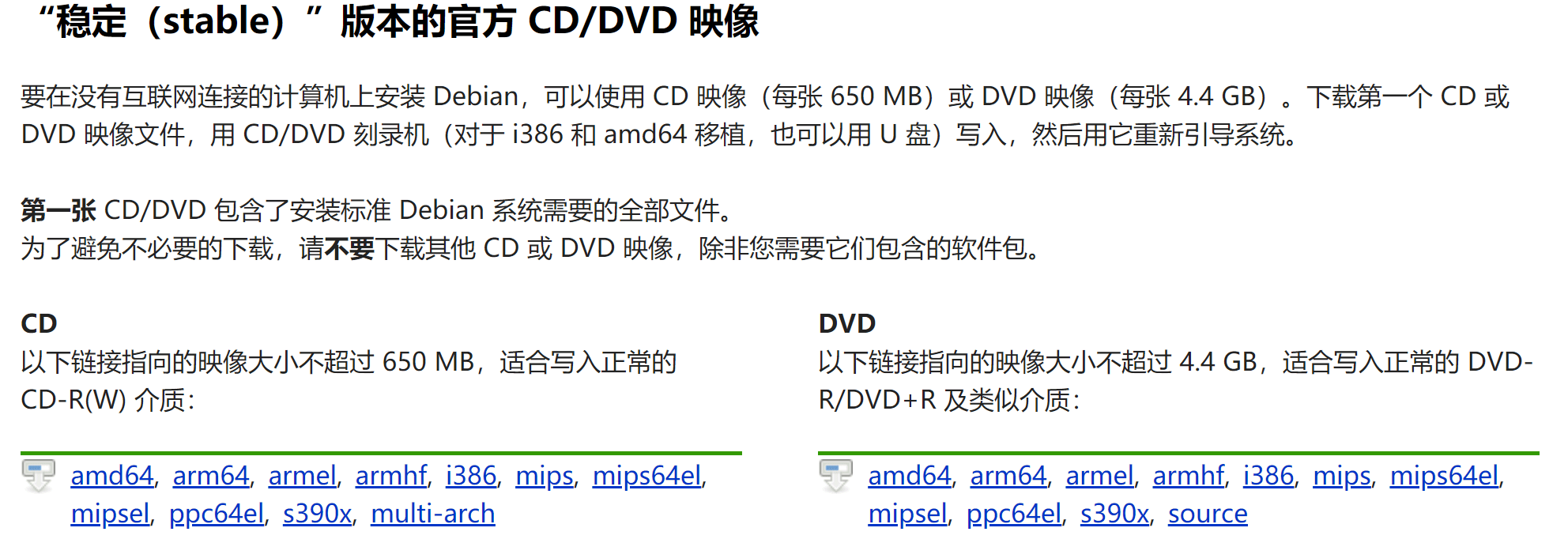
这里本人选择CD介质中的amd64,进入后会看到下方有一系列的ISO,到底该下载哪个呢?其实在DVD介质页面里面已经给了说明:
There are lots of files here! Do I need all of them?

In most cases it is not necessary to download and use all of these images to be able to install Debian on your computer. Debian comes with a massive set of software packages, hence why it takes so many disks for a complete set. Most typical users only need a small subset of those software packages.

Initially, you will only need to download and use the first image of a set (labelled as debian-something-1 to be able to start the Debian installer and set up Debian on your computer. If there are more images available here (labelled debian-something-2, debian-something-3, etc.), they contain the extra packages that can be installed on a Debian system (as mentioned previously). They will not be bootable and are entirely optional. If you have a fast Internet connection, you're most likely better off installing any desired extra packages directly from the Debian mirrors on the Internet instead of by using these extra images.
简而言之,下载Debian-XXX-1.iso的即可,其他的都是可选包,可以通过网络下载。
安装过程
VirtualBox
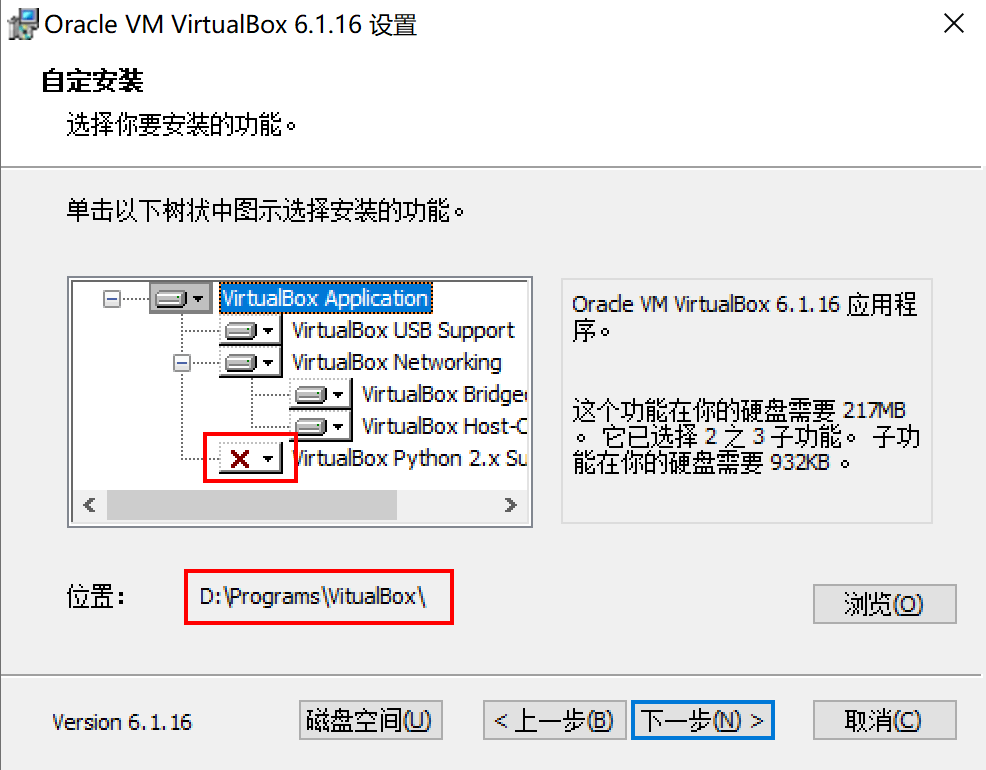
VirtualBox的安装没有什么特殊的处理,Python的支持可以去掉,然后安装路径按需放置。
安装完成后,进入VirtualBox创建一个新的虚拟机:Machine -> New
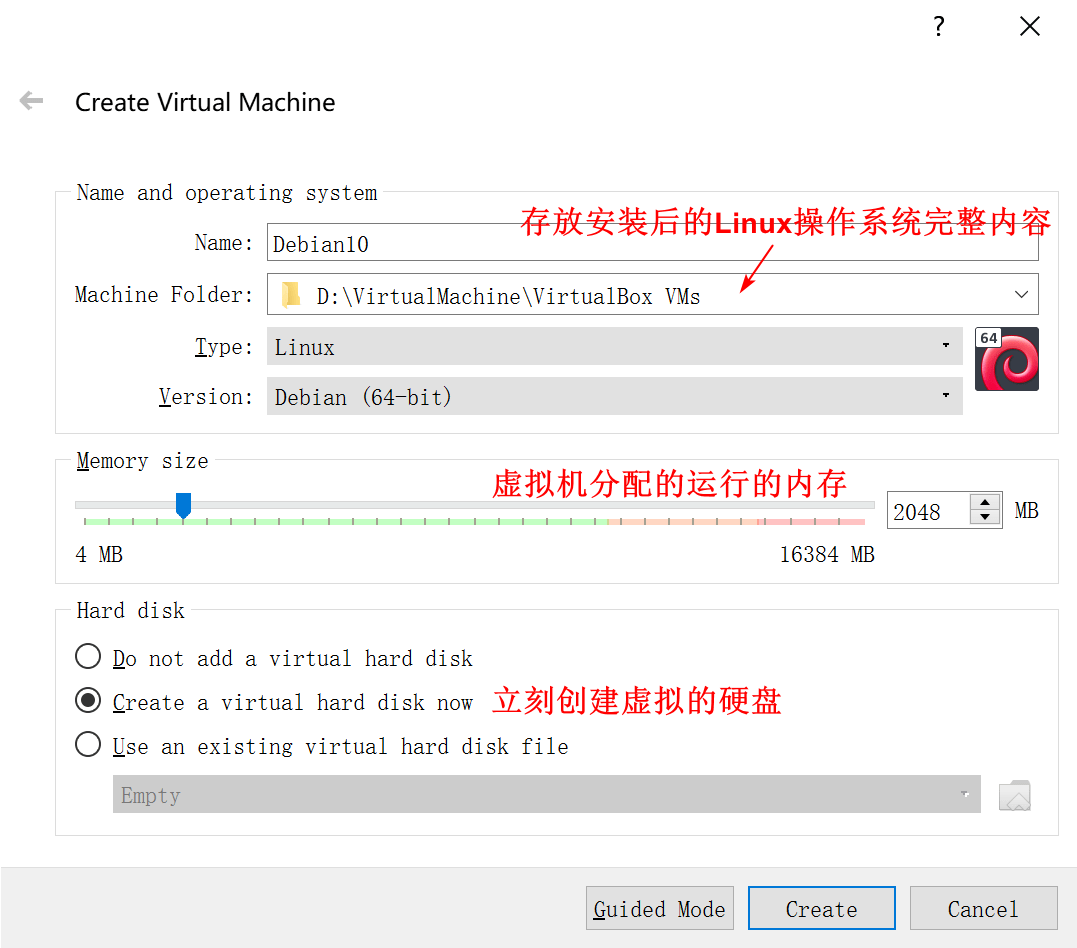
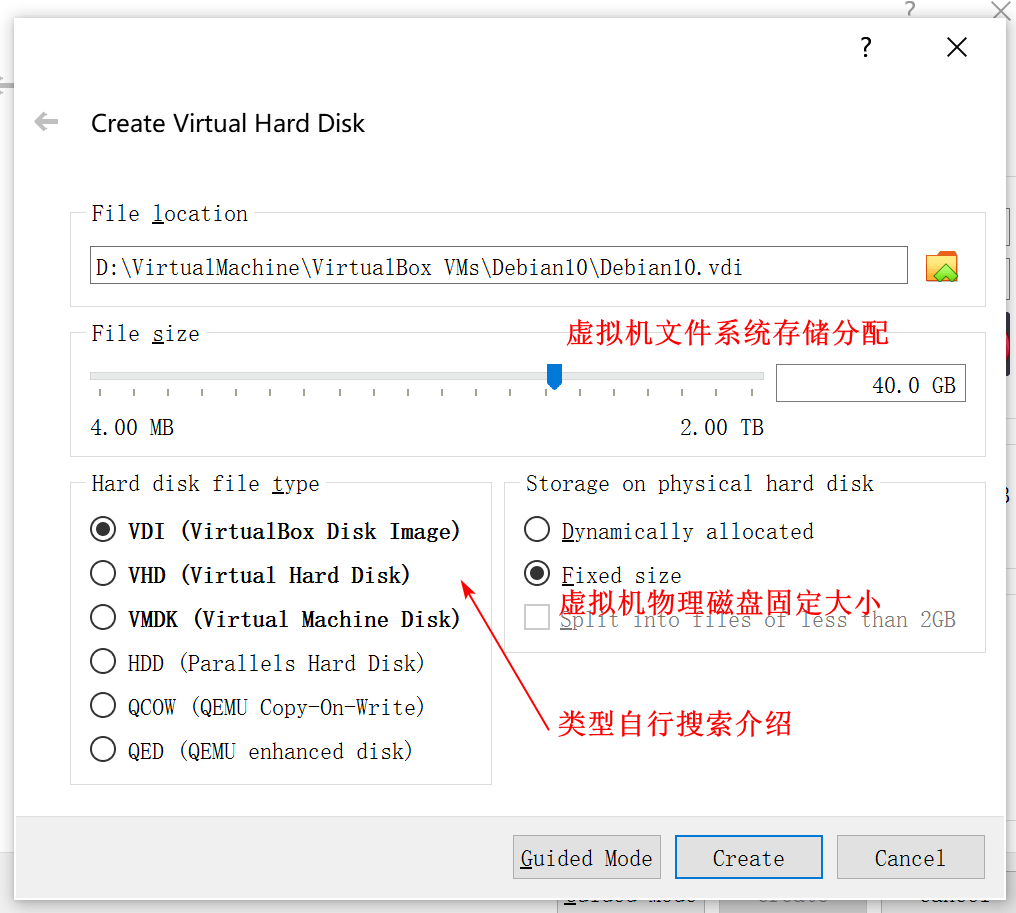
接下来的进行Create,等待VirtualBox进行虚拟机的磁盘存储等初始化操作。这个过程的处理时间取决于工作电脑的处理器和磁盘类型。
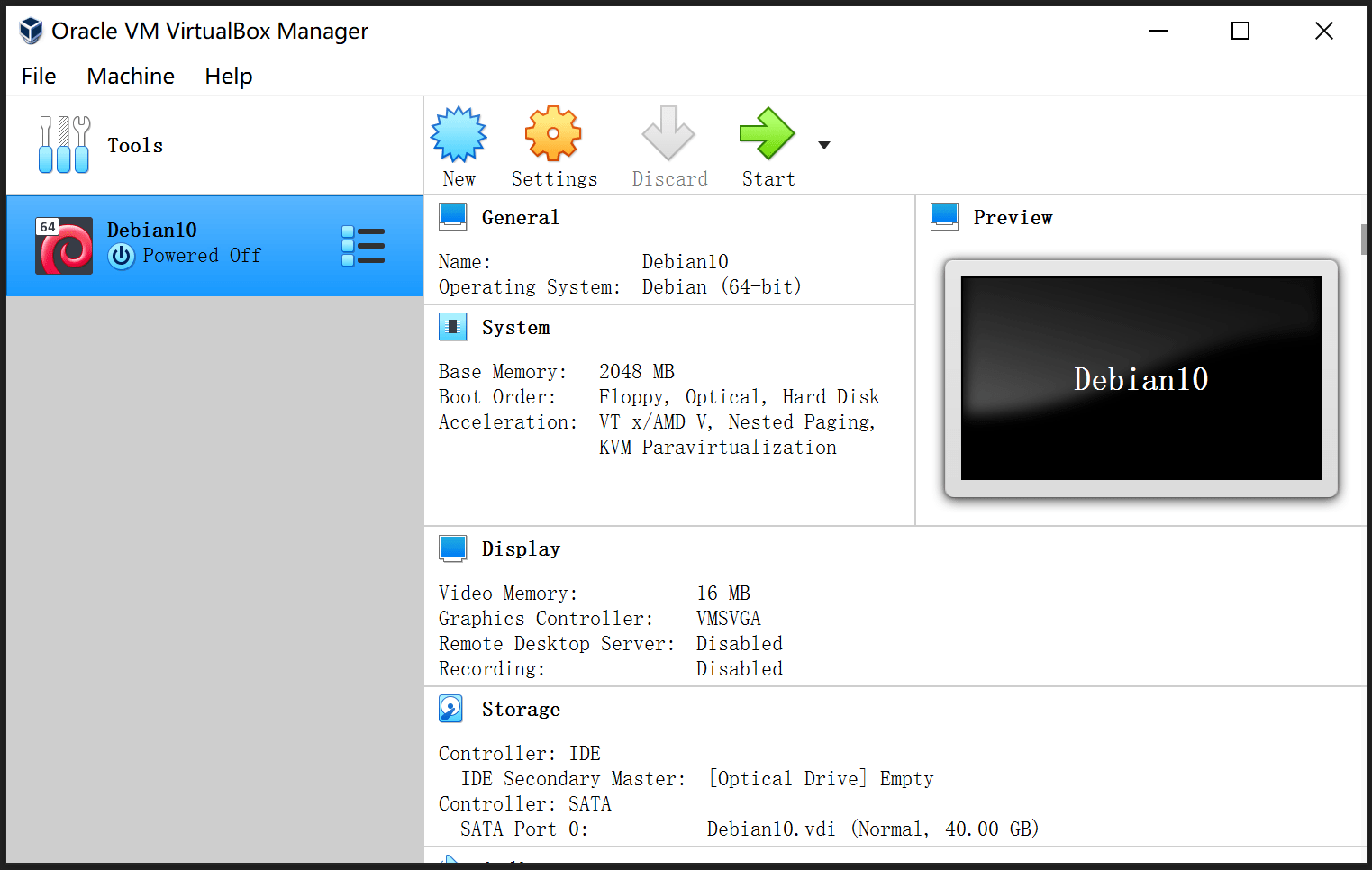
Debian
启动并选择镜像
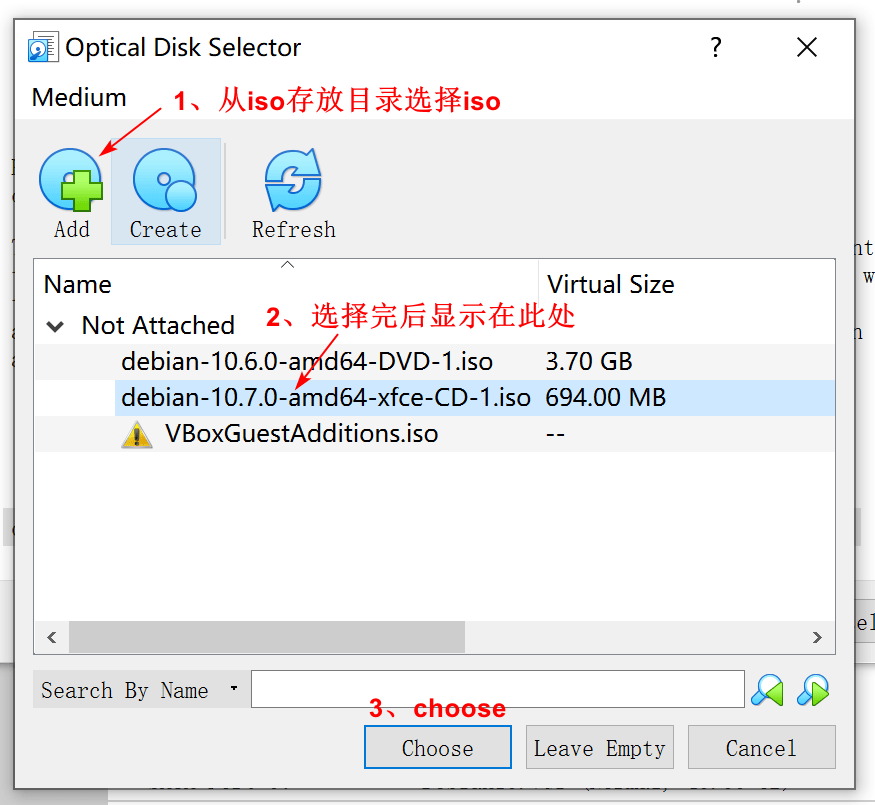
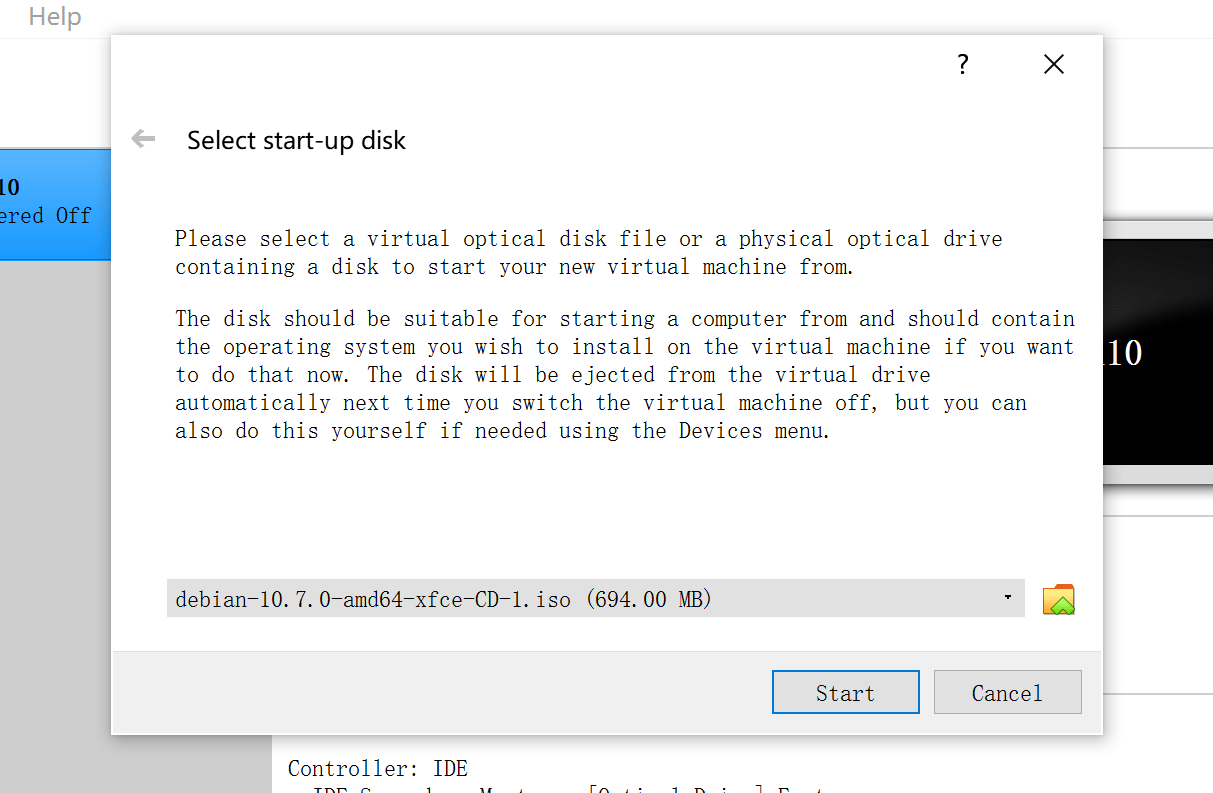
一系列的安装过程
由于步骤很多,详情可以参考这篇很有用的知乎文章:图解 Debian 10(Buster)安装步骤 - 知乎 (zhihu.com)
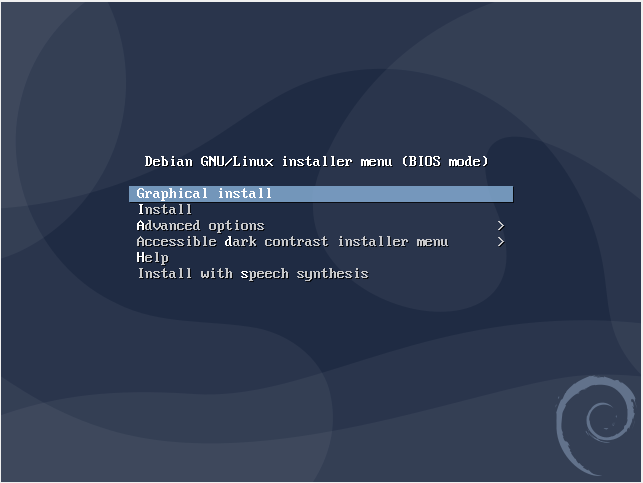
环境初始化
添加用户到sudoers
# 1.切换到root用户

$ su

# 2.编辑sudoer文件

$ vi /etc/sudoers

# 3.在User privilege specification一行复制root对应的内容,添加一行当前用户的记录,内容为

w4ngzhen(你的用户名,本人使用的w4ngzhen) ALL=(ALL:ALL) ALL

# 4.强制保存

# 5.退出root用户

$ exit
sudo方式修改apt源
实际上该步骤可以在上述安装Debian的时候就可以选择镜像完成配置,这里写出来主要是为了方便以后查阅修改镜像。
# 1.编辑apt源配置文件

$ sudo vi /etc/apt/sources.list

# 2.添加国内能快速访问的镜像源,这里选择腾讯。修改完成后,保存退出到命令行

deb http://mirrors.cloud.tencent.com/debian/ buster main non-free contrib

deb http://mirrors.cloud.tencent.com/debian-security buster/updates main

deb http://mirrors.cloud.tencent.com/debian/ buster-updates main non-free contrib

deb http://mirrors.cloud.tencent.com/debian/ buster-backports main non-free contrib

deb-src http://mirrors.cloud.tencent.com/debian-security buster/updates main

deb-src http://mirrors.cloud.tencent.com/debian/ buster main non-free contrib

deb-src http://mirrors.cloud.tencent.com/debian/ buster-updates main non-free contrib

deb-src http://mirrors.cloud.tencent.com/debian/ buster-backports main non-free contrib

# 3.更新apt源

$ sudo apt-get update

# 4.更新apt已安装包

$ sudo apt-get upgrade
安装linux-headers
# linux-headers的版本需要与当前内核发行版一致,查看内核发行版本命令如下:

$ uname -r

# 本人机器输出:4.19.0-9-amd64

# 所以需要安装的linux-headers为:linux-headers-4.19.0-9-amd64,这里使用shell命令便捷操作

$ sudo apt-get install -y linux-headers-$(uname -r)
安装gcc、make、perl等
$ sudo apt-get install -y gcc make perl
问题及解决
VBox启动Debian/Xfce图形界面黑屏
- 原因1:VBox虚拟机【设置】-【显示】中启用了3D加速
- 解决方式:关闭3D加速
VirtualBox上安装Debian10个人备忘笔记的更多相关文章
- Linq to XML 读取XML 备忘笔记
本文转载:http://www.cnblogs.com/infozero/archive/2010/07/13/1776383.html Linq to XML 读取XML 备忘笔记 最近一个项目中有 ...
- VirtualBox 上安装CentOS 6.5
目标:1.在VirtualBox中安装CentOS2.配置虚拟机网络,实现: a.主机联网后,宿机能够通过主机上网 b.不管主机联网与否,主机都能SSH登录宿机,并且主宿机能互相传送文件 ...
- 在VirtualBox上安装Solaris 10全教程(包括下载)
您可以在博文的最下方留下评价, 也可以点击左边的 关注 来关注我的博客的最新动态. 如果文章内容对您有帮助, 不要忘记点击右下角的 推荐 来支持一下喔 如果您对博文有任何疑问, 可以通过评论或发邮件的 ...
- 在VirtualBox上安装Ubuntu-20.04
本文主要介绍如何在VirtualBox上安装Ubuntu-20.04 目录 下载VirtualBox 下载Ubuntu-20.04镜像 新建虚拟机 第一步:打开VirtualBox 第二步:设置虚拟机 ...
- 虚拟机安装:VirtualBox上安装Ubuntu
在Win10 中使用VirtualBox安装Ubuntu 本教程将指引读者在Windows10操作系统下使用开源虚拟机软件VirtualBox安装Ubuntu,读者也可以使用其他虚拟机VMware W ...
- VM VirtualBox 上安装 CentOs6.4(详细)
在网上下载:CentOS-6.4-i386-bin-DVD1.iso镜像. 这是我在VBox上安装CentOs6.4的过程: 1. 2. 3. 4. 5. 6. 7. 8. 9. 10. 11. 12 ...
- 使用usb+preseed在virtualbox上安装ubuntu(一)
1.制作usb boot盘,在ubuntu上使用startup disk creater将ubuntu-server12.04.iso写入到usb中: 2.修改syslinux文件夹中的syslinu ...
- 在VirtualBox上安装CentOS7
文章的出处:http://jingyan.baidu.com/article/9c69d48f8ec01613c8024e58.html 工具: VirtualBox-5.1.2-108956-Win ...
- VirtualBox上安装64位系统
http://blog.csdn.net/mal327/article/details/6597263 原来VirtualBox安装64位的系统需要满足以下条件: 1.64位的cpu2.安装的系统必须 ...
随机推荐
- vue-bluJavascript - Vue - 插件(swiper、vue-preview)
swiper swiper是一个支持滑动效果的js插件,它也支持在vue中使用,主要用于移动端的触摸滑动操作.Swiper中文网. 安装和导入插件 npm i vue-awesome-swiper - ...
- 使用filter过滤GZIP压缩(二)
在代码之前,讲一下用filter实现GZIP压缩的原理: 因为GZIP压缩之后,是从服务器端传输到浏览器端,从servlet到浏览器(从jsp到浏览器),其实是response带回内容,所以我们要在f ...
- 解决servlet中get方式中中文乱码问题前驱(一):装饰者模式再理解
package day02; import java.io.BufferedReader; import java.io.FileReader; import java.io.IOException; ...
- io中的特殊流Properties
对于去年学习IO的时候一些代码贴上来: 初识properties,因为继承自hashtable,其中可以使用put操作: package special; import java.util.Prope ...
- Playwright-python 教程
安装 pip install playwright -i https://mirrors.aliyun.com/pypi/simple/ 使用阿里源,下载速度快一点. python -m playwr ...
- JS方式实现隐藏手机号码中间4位数
1.截取 function test (value) { const start = value.slice(0, 3) const end = value.slice(-4) return `${s ...
- HTTP系列之:HTTP中的cookies
目录 简介 cookies的作用 创建cookies cookies的生存时间 cookies的权限控制 第三方cookies 总结 简介 如果小伙伴最近有访问国外的一些标准网站的话,可能经常会弹出一 ...
- MFC中L, _T(),TEXT,_TEXT区别以及含义
字符串前面加L表示该字符串是Unicode字符串. _T是一个宏,如果项目使用了Unicode字符集(定义了UNICODE宏),则自动在字符串前面加上L,否则字符串不变.因此,Visual C++里边 ...
- RHEL7.2下DHCP服务器的搭建
DHCP(?Dynamic Host Configuration Protocol)是一种帮助计算机从指定的DHCP服务器获取配置信息的自举协议 请求配置信息的计算机叫做DHCP客户端,而提供信息的叫 ...
- zabbix告警推送至个人微信
文章原文 自从接触zabbix后,就一直想着怎么才能把告警推送到个人微信上.有这样的想法主要是个人微信的使用频率远远要比钉钉,企业微信,邮箱,飞书等使用频率要高.比如我,就遇到过在周末的时候,因为没有 ...