
WPF原生环形图表
原文:WPF原生环形图表
版权声明:欢迎转载。转载请注明出处,谢谢 https://blog.csdn.net/wzcool273509239/article/details/56480963
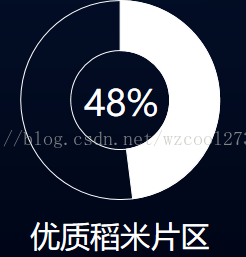
主要利用Canvas的子控件(两个圆环)的相对定位进行实现,目前高度和宽度是写死的,有需要的人可重写成自定义宽度和高度。
需要引用Microsoft.SDK.Expression.Blend,可通过NuGet获得
1. 界面UCCircleChart.xaml
<UserControl x:Class="HushuPlatform.CommUserControl.HomeLeft.UCCircleChart"

             xmlns="http://schemas.microsoft.com/winfx/2006/xaml/presentation"

             xmlns:x="http://schemas.microsoft.com/winfx/2006/xaml"

             xmlns:mc="http://schemas.openxmlformats.org/markup-compatibility/2006"

             xmlns:d="http://schemas.microsoft.com/expression/blend/2008"

             xmlns:ed="http://schemas.microsoft.com/expression/2010/drawing"

             mc:Ignorable="d" Width="250" Height="260">

    <Grid>

        <Grid.RowDefinitions>

            <RowDefinition Height="210"></RowDefinition>

            <RowDefinition></RowDefinition>

        </Grid.RowDefinitions>

        <Canvas Name="cavans" Height="210"  Width="210">

            <!--空白 作为背景。。Stroke边线颜色;Fill填充颜色-->

            <ed:Arc Canvas.Left="5" Canvas.Top="5" ArcThickness="50" ArcThicknessUnit="Pixel"

                    HorizontalAlignment="Left" Stretch="None" Stroke="White"  Fill="Transparent"

                    StartAngle="0" EndAngle="360"

                    VerticalAlignment="Top" Height="200"  Width="200"/>

            <!--填充值 作为白分比,即更改EndAngle值即可。需要数值*3.6。因360度等分100份,每次3.6。Stroke边线颜色;Fill填充颜色-->

            <ed:Arc x:Name="charValue" Canvas.Left="5" Canvas.Top="5" ArcThickness="50" ArcThicknessUnit="Pixel"

                    HorizontalAlignment="Left" Stretch="None" Stroke="White" Fill="White"

                    StartAngle="0" EndAngle="60"

                    VerticalAlignment="Top" Height="200"  Width="200"/>

            <!--中间显示的百分比-->

            <TextBlock Name="txtChartValue" Canvas.Left="69" Canvas.Top="84" Text="50%" FontSize="36" Foreground="White" ></TextBlock>

        </Canvas>

        <TextBlock  Name="txtAreaName" Grid.Row="1" Text="12321" Foreground="White" FontSize="30" HorizontalAlignment="Center" VerticalAlignment="Bottom"></TextBlock>

    </Grid>

</UserControl>
2. 后台UCCircleChart.xaml.cs
using System;

using System.Collections.Generic;

using System.Linq;

using System.Text;

using System.Windows;

using System.Windows.Controls;

using System.Windows.Data;

using System.Windows.Documents;

using System.Windows.Input;

using System.Windows.Media;

using System.Windows.Media.Imaging;

using System.Windows.Navigation;

using System.Windows.Shapes;

namespace HushuPlatform.CommUserControl.HomeLeft

{

    /// <summary>

    /// 圆环形 Chart

    /// </summary>

    public partial class UCCircleChart : UserControl

    {

        /// <summary>

        /// 百分比 (参数:percent=10,20,30,50.25 等。如是10%,则传10,依次类推)

        /// </summary>

        /// <param name="percent"></param>

        public UCCircleChart(string percent)

        {

            InitializeComponent();

            if (string.IsNullOrEmpty(percent))

            {

                percent = "0";

            }

            double EndAngle = Convert.ToDouble(percent) * 3.6;//360度等分100份,每次3.6

            this.charValue.EndAngle = EndAngle;

            this.txtChartValue.Text = percent + "%";

            txtAreaName.Visibility = Visibility.Collapsed;

        }

        /// <summary>

        /// 百分比、名字 (参数:percent=10,20,30,50.25 等。如是10%,则传10,依次类推)

        /// </summary>

        /// <param name="percent">百分比</param>

        /// <param name="areaName"></param>

        public UCCircleChart(string percent, string areaName)

        {

            InitializeComponent();

            if (string.IsNullOrEmpty(percent))

            {

                percent = "0";

            }

            double EndAngle = Convert.ToDouble(percent) * 3.6;//360度等分100份,每次3.6

            this.charValue.EndAngle = EndAngle;

            this.txtChartValue.Text = percent + "%";

            txtAreaName.Text = areaName;

        }

    }

}
3.调用
//各区域面积
private double m_Area = 7000;
private double m_Area2 = 1000;
private double m_Area3 = 1000;
private double m_Area4 = 5500;
double total = m_Area + m_Area2 + m_Area3 + m_Area4;
string tmp1 = (m_Area / total * 100).ToString("f0");
wpChart.Children.Add(new HushuPlatform.CommUserControl.HomeLeft.UCCircleChart(tmp1, "优质稻米片区"));
4. 补充
前端定义样式用于控制Canvas.Let 和Top
<UserControl.Resources>
<Style TargetType="{x:Type ed:Arc}">
<Setter Property="Canvas.Left" Value="5" />
<Setter Property="Canvas.Top" Value="5" />
</Style>
</UserControl.Resources>
后端循环创建arc
   public UCCircleChart(List<SeriesCharModel> list)

        {

            InitializeComponent();

            this.charValue.Visibility = Visibility.Collapsed;

            if (list != null && list.Count > 0)

            {

                double startAngngle = 0;

                for (int i = 0; i < list.Count; i++)

                {

                    Microsoft.Expression.Shapes.Arc arc = new Microsoft.Expression.Shapes.Arc();

                    arc.ArcThickness = 50;

                    arc.ArcThicknessUnit = Microsoft.Expression.Media.UnitType.Pixel;

                    arc.VerticalAlignment = VerticalAlignment.Top;

                    arc.HorizontalAlignment = HorizontalAlignment.Left;

                    System.Drawing.Color color = GetColor(list[i].CharColor);

                    arc.Stroke = new SolidColorBrush(System.Windows.Media.Colors.White);

                    arc.Stretch = Stretch.None;

                    arc.Fill = new SolidColorBrush(System.Windows.Media.Color.FromArgb(color.A, color.R, color.G, color.B));

                    arc.Height = 200;

                    arc.Width = 200;

                    arc.StartAngle = startAngngle;

                    arc.EndAngle = arc.StartAngle + list[i].ChartValue;

                    this.cavans.Children.Add(arc);

                    startAngngle += arc.EndAngle;//下一个的紧挨着上一个

                }

            }

        }

        /// <summary>

        /// Get color, param like "#000000" or "#00f" or "255,255,255"

        /// </summary>

        /// <param name="fontColorARGB"></param>

        /// <returns></returns>

        private System.Drawing.Color GetColor(string fontColorARGB)

        {

            System.Drawing.ColorConverter convert = new System.Drawing.ColorConverter();

            var tmpColor = System.Drawing.ColorTranslator.FromHtml(fontColorARGB);

            return tmpColor;

        }
WPF原生环形图表的更多相关文章
- WPF 自定义的图表(适用大量数据绘制)下
原文:WPF 自定义的图表(适用大量数据绘制)下 上一篇文章中讲了WPF中自定义绘制大量数据的图标,思路是先将其绘制在内存,然后一次性加载到界面,在后续的调试过程中,发现当数据量到达10W时,移动鼠标 ...
- WPF 自定义的图表(适用大量数据绘制)
原文:WPF 自定义的图表(适用大量数据绘制) 在WPF中绘制图表比较简单,有很多的第三方控件,但是在绘制大量数据的时候,就显得有些吃力,即便是自己用StreamGeometry画也达不到理想的效果, ...
- WPF 原生绑定和命令功能使用指南
WPF 原生绑定和命令功能使用指南 魏刘宏 2020 年 2 月 21 日 如今,当谈到 WPF 时,我们言必称 MVVM.框架(如 Prism)等,似乎已经忘了不用这些的话该怎么使用 WPF 了.当 ...
- WPF制作带明细的环形图表
效果 明细用Popup实现的,录gif时,Popup显示不出来,不知道为什么,所以静态图凑合看吧 大体思路 图表使用Arc+Popup实现 图表分为两部分,一是环形部分,一是标注的明细部分. 环形部分 ...
- Wpf/Wp/Silverlight-Chart图表控件:柱状图、饼状图等使用汇总
链接:http://www.cnblogs.com/jimson/archive/2010/06/21/Wpfchat.html http://www.cnblogs.com/mgen/p/32361 ...
- WPF自定义控件(2)——图表设计[1]
0.小叙闲言 除了仪表盘控件比较常用外,还有图表也经常使用,同样网上也有非常强大的图表控件,有收费的(DEVexpress),也有免费的.但我们平时在使用时,只想简单地绘一个图,控件库里面的许多功能我 ...
- .net图表之ECharts随笔09-pie环形图表
这是最后的效果图 1. 这里title属性用到了富文本标签 官方文档是用的label属性,看得我一开始格外的懵逼.后面我尝试着在text中写入格式,没想到竟然成功了. rich中定义样式,在text中 ...
- DevExpress WPF v19.2图表图形控件功能增强?速速种草
通过DevExpress WPF Controls,你能创建有着强大互动功能的XAML基础应用程序,这些应用程序专注于当代客户的需求和构建未来新一代支持触摸的解决方案. 无论是Office办公软件的衍 ...
- 使用OxyPlot在WPF中创建图表
目录(?)[+] Using Nuget 包括OxyPlot在你的应用程序的最简单方法是使用NuGet包管理器在Visual Studio 运行 Visual Studio并开始创建一个新的WPF项目 ...
随机推荐
- InfoSYS-20170114
1.描述Spring的事务机制 2.描述并发脏数据,如何避免 3.如何防止同一个请求重复提交(重复付款) 4.如何监控程序性能 5.CPU过高说明什么问题 通常是程序中有死循环, 参考 http:// ...
- 题解 ZOJ3203 Light Bulb
也就是loj上的#10016灯泡了... 先上原图: 因为长度肯定是个开口向下的二次函数,所以先是确定用三分来找位置,然后想办法求出当前阴影长度 看到这条斜线,就想到了一次函数,所以就建了一个系,没想 ...
- el表达式中的比较和包含
相等( equal ) :eq 不相等( not equal ): ne / neq 大于( greater than ): gt 小于( less than ): lt 大于等于( great th ...
- CF449 C. Jzzhu and Apples
/* http://codeforces.com/problemset/problem/449/C cf 449 C. Jzzhu and Apples 数论+素数+贪心 */ #include &l ...
- nyoj 2 括号配对问题水
#include<stdio.h> #include<stack> #include<string.h> #define N 11000 using namesp ...
- “王者对战”之 MySQL 8 vs PostgreSQL 10
既然 MySQL 8 和 PostgreSQL 10 已经发布了,现在是时候回顾一下这两大开源关系型数据库是如何彼此竞争的. 在这些版本之前,人们普遍认为,Postgres 在功能集表现更出色,也因其 ...
- 工具-vscode使用
1.智能感知 vscode使用DefinitelyTyped进行自动完成所以需要先安装tsd,命令: npm install -g tsd 安装完成后,首先安装node基本语法支持 tsd query ...
- rabbitMQ学习笔记(二) 简单的发送与接收消息 HelloWorld
首先要下载rabbitmq的javaClient库,然后加入到项目中,下载地址为:http://www.rabbitmq.com/releases/rabbitmq-java-client/v3.1. ...
- Apache负载均衡与Tomcat集群配置学习(Windows环境)
本文主要参考自http://www.iteye.com/topic/985404?dhcc,经由实际操作配置操并记录而成. 由于最近的一个Java开发项目用到了Tomcat中间件作为web服务器,刚开 ...
- C++异常与析构函数及构造函数
析构函数不要抛出异常. 构造函数可以抛出异常,但是要谨慎. 原因下面这篇文章讲的不错,转载如下: http://jarfield.iteye.com/blog/811703 写Java代码的时候,遇到 ...