
Jenkins - 以Docker方式安装启动Jenkins
1 - 官网信息
- 操作步骤:https://jenkins.io/zh/doc/book/installing/#docker
- Docker映像地址:https://hub.docker.com/r/jenkins/jenkins
官网建议
- 建议使用的Docker映像是jenkinsci/blueocean image(来自 the Docker Hub repository)
- jenkinsci/blueocean:https://hub.docker.com/r/jenkinsci/blueocean/
- 该镜像包含当前的长期支持 (LTS) 的Jenkins版本 (可以投入使用) ,捆绑了所有Blue Ocean插件和功能。这意味着你不需要单独安装Blue Ocean插件。
2 - 在64位的CentOS7.5中安装Docker
[root@test102 ~]# cat /etc/system-release

CentOS Linux release 7.5.1804 (Core)

[root@test102 ~]#

[root@test102 ~]# uname -a

Linux test102 3.10.0-957.el7.x86_64 #1 SMP Thu Nov 8 23:39:32 UTC 2018 x86_64 x86_64 x86_64 GNU/Linux

[root@test102 ~]#
2.1 准备工作
sudo yum remove docker docker-common docker-selinux docker-engine  # 卸载旧版本的Docker

sudo yum install -y yum-utils device-mapper-persistent-data lvm2  # 安装必要的包

sudo yum-config-manager --add-repo https://download.docker.com/linux/centos/docker-ce.repo  # 设置稳定的仓库

sudo yum makecache fast  # 更新yum安装包索引
2.2 安装Docker CE
[root@test102 ~]# yum -y install docker-ce

Loaded plugins: fastestmirror, langpacks

Loading mirror speeds from cached hostfile

Resolving Dependencies

--> Running transaction check

---> Package docker-ce.x86_64 3:19.03.5-3.el7 will be installed

--> Processing Dependency: container-selinux >= 2:2.74 for package: 3:docker-ce-19.03.5-3.el7.x86_64

--> Processing Dependency: containerd.io >= 1.2.2-3 for package: 3:docker-ce-19.03.5-3.el7.x86_64

--> Processing Dependency: docker-ce-cli for package: 3:docker-ce-19.03.5-3.el7.x86_64

--> Running transaction check

---> Package container-selinux.noarch 2:2.107-3.el7 will be installed

---> Package containerd.io.x86_64 0:1.2.10-3.2.el7 will be installed

---> Package docker-ce-cli.x86_64 1:19.03.5-3.el7 will be installed

--> Finished Dependency Resolution

Dependencies Resolved

==================================================================================================================

 Package                       Arch               Version                      Repository                    Size

==================================================================================================================

Installing:

 docker-ce                     x86_64             3:19.03.5-3.el7              docker-ce-stable              24 M

Installing for dependencies:

 container-selinux             noarch             2:2.107-3.el7                extras                        39 k

 containerd.io                 x86_64             1.2.10-3.2.el7               docker-ce-stable              23 M

 docker-ce-cli                 x86_64             1:19.03.5-3.el7              docker-ce-stable              39 M

Transaction Summary

==================================================================================================================

Install  1 Package (+3 Dependent packages)

Total size: 87 M

Total download size: 87 M

Installed size: 362 M

Downloading packages:

No Presto metadata available for docker-ce-stable

warning: /var/cache/yum/x86_64/7/docker-ce-stable/packages/docker-ce-19.03.5-3.el7.x86_64.rpm: Header V4 RSA/SHA512 Signature, key ID 621e9f35: NOKEY

Public key for docker-ce-19.03.5-3.el7.x86_64.rpm is not installed

(1/3): docker-ce-19.03.5-3.el7.x86_64.rpm                                                  |  24 MB  00:00:08

(2/3): docker-ce-cli-19.03.5-3.el7.x86_64.rpm                                              |  39 MB  00:00:08

(3/3): containerd.io-1.2.10-3.2.el7.x86_64.rpm                                             |  23 MB  00:00:39

------------------------------------------------------------------------------------------------------------------

Total                                                                             2.2 MB/s |  87 MB  00:00:39

Retrieving key from https://download.docker.com/linux/centos/gpg

Importing GPG key 0x621E9F35:

 Userid     : "Docker Release (CE rpm) <docker@docker.com>"

 Fingerprint: 060a 61c5 1b55 8a7f 742b 77aa c52f eb6b 621e 9f35

 From       : https://download.docker.com/linux/centos/gpg

Running transaction check

Running transaction test

Transaction test succeeded

Running transaction

  Installing : 2:container-selinux-2.107-3.el7.noarch                                                         1/4

setsebool:  SELinux is disabled.

  Installing : containerd.io-1.2.10-3.2.el7.x86_64                                                            2/4

  Installing : 1:docker-ce-cli-19.03.5-3.el7.x86_64                                                           3/4

  Installing : 3:docker-ce-19.03.5-3.el7.x86_64                                                               4/4

  Verifying  : containerd.io-1.2.10-3.2.el7.x86_64                                                            1/4

  Verifying  : 1:docker-ce-cli-19.03.5-3.el7.x86_64                                                           2/4

  Verifying  : 2:container-selinux-2.107-3.el7.noarch                                                         3/4

  Verifying  : 3:docker-ce-19.03.5-3.el7.x86_64                                                               4/4

Installed:

  docker-ce.x86_64 3:19.03.5-3.el7

Dependency Installed:

  container-selinux.noarch 2:2.107-3.el7                   containerd.io.x86_64 0:1.2.10-3.2.el7

  docker-ce-cli.x86_64 1:19.03.5-3.el7

Complete!

[root@test102 ~]#

[root@test102 ~]# docker version

Client: Docker Engine - Community

 Version:           19.03.5

 API version:       1.40

 Go version:        go1.12.12

 Git commit:        633a0ea

 Built:             Wed Nov 13 07:25:41 2019

 OS/Arch:           linux/amd64

 Experimental:      false

Server: Docker Engine - Community

 Engine:

  Version:          19.03.5

  API version:      1.40 (minimum version 1.12)

  Go version:       go1.12.12

  Git commit:       633a0ea

  Built:            Wed Nov 13 07:24:18 2019

  OS/Arch:          linux/amd64

  Experimental:     false

 containerd:

  Version:          1.2.10

  GitCommit:        b34a5c8af56e510852c35414db4c1f4fa6172339

 runc:

  Version:          1.0.0-rc8+dev

  GitCommit:        3e425f80a8c931f88e6d94a8c831b9d5aa481657

 docker-init:

  Version:          0.18.0

  GitCommit:        fec3683

[root@test102 ~]#
2.3 设置Docker加速器
[root@test102 ~]# tee /etc/docker/daemon.json <<-'EOF'

> {

> "registry-mirrors": ["https://t5t8q6wn.mirror.aliyuncs.com"]

> }

> EOF

{

"registry-mirrors": ["https://t5t8q6wn.mirror.aliyuncs.com"]

}

[root@test102 ~]# systemctl daemon-reload

[root@test102 ~]# systemctl restart docker

[root@test102 ~]#
2.4 Docker安装验证
[root@test102 ~]# docker images

REPOSITORY          TAG                 IMAGE ID            CREATED             SIZE

[root@test102 ~]#

[root@test102 ~]# docker ps -a

CONTAINER ID        IMAGE               COMMAND             CREATED             STATUS              PORTS               NAMES

[root@test102 ~]#

[root@test102 ~]# docker run hello-world

Unable to find image 'hello-world:latest' locally

latest: Pulling from library/hello-world

1b930d010525: Pull complete

Digest: sha256:4df8ca8a7e309c256d60d7971ea14c27672fc0d10c5f303856d7bc48f8cc17ff

Status: Downloaded newer image for hello-world:latest

Hello from Docker!

This message shows that your installation appears to be working correctly.

To generate this message, Docker took the following steps:

 1. The Docker client contacted the Docker daemon.

 2. The Docker daemon pulled the "hello-world" image from the Docker Hub.

    (amd64)

 3. The Docker daemon created a new container from that image which runs the

    executable that produces the output you are currently reading.

 4. The Docker daemon streamed that output to the Docker client, which sent it

    to your terminal.

To try something more ambitious, you can run an Ubuntu container with:

 $ docker run -it ubuntu bash

Share images, automate workflows, and more with a free Docker ID:

 https://hub.docker.com/

For more examples and ideas, visit:

 https://docs.docker.com/get-started/

[root@test102 ~]#

[root@test102 ~]# docker images

REPOSITORY          TAG                 IMAGE ID            CREATED             SIZE

hello-world         latest              fce289e99eb9        11 months ago       1.84kB

[root@test102 ~]#

[root@test102 ~]# docker ps -a

CONTAINER ID        IMAGE               COMMAND             CREATED             STATUS                      PORTS               NAMES

19546c1ca621        hello-world         "/hello"            16 seconds ago      Exited (0) 15 seconds ago                       sad_blackwell

[root@test102 ~]#
2.4 Docker服务并设为自启动
[root@test102 ~]# systemctl start docker.service

[root@test102 ~]# systemctl enable docker.service

Created symlink from /etc/systemd/system/multi-user.target.wants/docker.service to /usr/lib/systemd/system/docker.service.

[root@test102 ~]# systemctl is-enabled docker.service

enabled

[root@test102 ~]#
3 - 在Docker中下载并运行Jenkins
3.1 命令解释
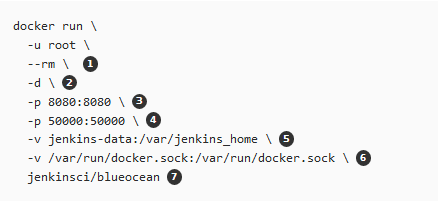
docker run \

  -u root \

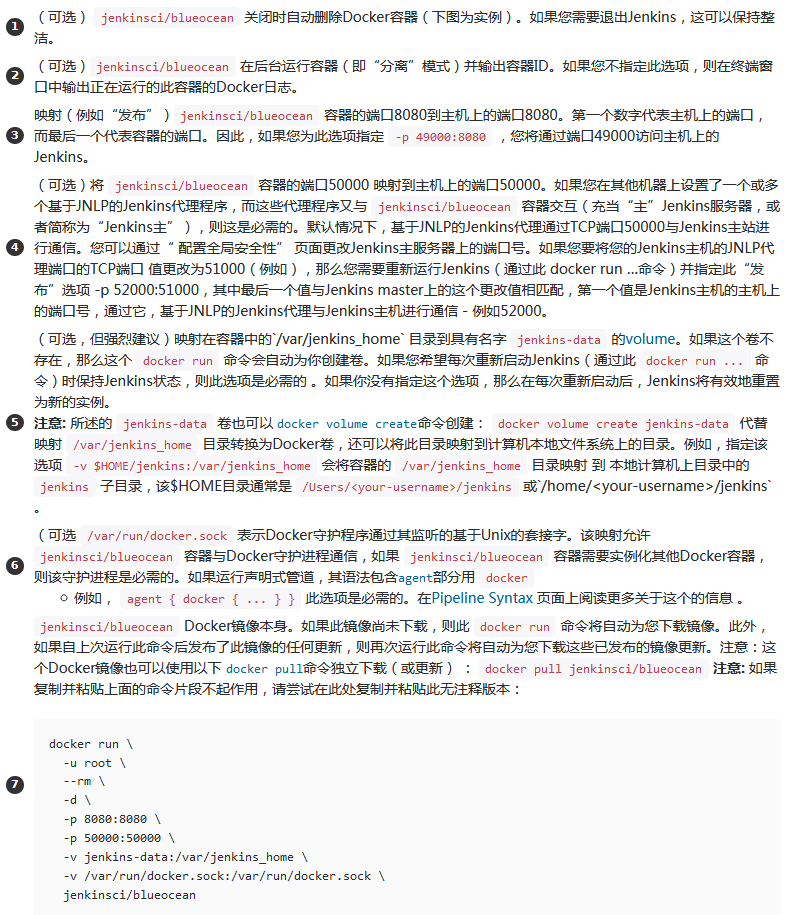
  --rm \  # 关闭时自动删此容器

  -d \  # 在后台运行容器(即“分离”模式)并输出容器ID,否则在终端窗口中输出正在运行的此容器的Docker日志

  -p 8080:8080 \  # 映射主机端口(第一个数字8080)和容器端口(后一个数字8080),用于HTTP访问

  -p 50000:50000 \  # 映射主机端口(第一个数字50000)和容器端口(后一个数字50000),用于连接Agent

  -v jenkins-data:/var/jenkins_home \  # 将Jenkins的Home目录映射到本地

  -v /var/run/docker.sock:/var/run/docker.sock \  # 允许容器与Docker守护进程通信

  jenkinsci/blueocean
官方解释
3.2 实例日志
docker run \

   --name myjenkins \

   -u root \

   --rm \

   -p 8080:8080 \

   -p 50000:50000 \

   -v /tmp/jenkins-data:/var/jenkins_home \

   -v /var/run/docker.sock:/var/run/docker.sock \

   jenkinsci/blueocean
注意:
- 这里未使用"-d"参数(“分离”模式),在终端窗口中输出正在运行容器的日志
- 使用了“--rm”参数,容器关闭时自动删除此容器
[root@test102 ~]# docker run \

>   --name myjenkins \

>   -u root \

>   --rm \

>   -p 8080:8080 \

>   -p 50000:50000 \

>   -v /tmp/jenkins-data:/var/jenkins_home \

>   -v /var/run/docker.sock:/var/run/docker.sock \

>   jenkinsci/blueocean

Unable to find image 'jenkinsci/blueocean:latest' locally

latest: Pulling from jenkinsci/blueocean

e7c96db7181b: Pull complete

f910a506b6cb: Pull complete

c2274a1a0e27: Pull complete

5dadea4e5dc9: Pull complete

ddff34f6888c: Pull complete

6325ec240a5a: Pull complete

aafdbaf978bf: Pull complete

77ce12b9b082: Pull complete

ad85b96d7a1a: Pull complete

e8e1db65bde5: Pull complete

ba8b3acaf216: Pull complete

b4281f8e209d: Pull complete

1709e0fb441a: Pull complete

277bd533660c: Pull complete

38efc0a28db4: Pull complete

Digest: sha256:0daeb28ca91305c0eb0c2bafcb82c561e5592663b8538eedfbc7d861b69585e8

Status: Downloaded newer image for jenkinsci/blueocean:latest

Running from: /usr/share/jenkins/jenkins.war

webroot: EnvVars.masterEnvVars.get("JENKINS_HOME")

2019-12-03 08:00:17.523+0000 [id=1]	INFO	org.eclipse.jetty.util.log.Log#initialized: Logging initialized @535ms to org.eclipse.jetty.util.log.JavaUtilLog

2019-12-03 08:00:17.668+0000 [id=1]	INFO	winstone.Logger#logInternal: Beginning extraction from war file

2019-12-03 08:00:19.025+0000 [id=1]	WARNING	o.e.j.s.handler.ContextHandler#setContextPath: Empty contextPath

2019-12-03 08:00:19.094+0000 [id=1]	INFO	org.eclipse.jetty.server.Server#doStart: jetty-9.4.z-SNAPSHOT; built: 2019-05-02T00:04:53.875Z; git: e1bc35120a6617ee3df052294e433f3a25ce7097; jvm 1.8.0_212-b04

2019-12-03 08:00:19.495+0000 [id=1]	INFO	o.e.j.w.StandardDescriptorProcessor#visitServlet: NO JSP Support for /, did not find org.eclipse.jetty.jsp.JettyJspServlet

2019-12-03 08:00:19.587+0000 [id=1]	INFO	o.e.j.s.s.DefaultSessionIdManager#doStart: DefaultSessionIdManager workerName=node0

2019-12-03 08:00:19.587+0000 [id=1]	INFO	o.e.j.s.s.DefaultSessionIdManager#doStart: No SessionScavenger set, using defaults

2019-12-03 08:00:19.593+0000 [id=1]	INFO	o.e.j.server.session.HouseKeeper#startScavenging: node0 Scavenging every 660000ms

Jenkins home directory: /var/jenkins_home found at: EnvVars.masterEnvVars.get("JENKINS_HOME")

2019-12-03 08:00:20.457+0000 [id=1]	INFO	o.e.j.s.handler.ContextHandler#doStart: Started w.@5f7f2382{Jenkins v2.190.3,/,file:///var/jenkins_home/war/,AVAILABLE}{/var/jenkins_home/war}

2019-12-03 08:00:20.504+0000 [id=1]	INFO	o.e.j.server.AbstractConnector#doStart: Started ServerConnector@1972e513{HTTP/1.1,[http/1.1]}{0.0.0.0:8080}

2019-12-03 08:00:20.505+0000 [id=1]	INFO	org.eclipse.jetty.server.Server#doStart: Started @3518ms

2019-12-03 08:00:20.518+0000 [id=20]	INFO	winstone.Logger#logInternal: Winstone Servlet Engine v4.0 running: controlPort=disabled

2019-12-03 08:00:21.992+0000 [id=27]	INFO	jenkins.InitReactorRunner$1#onAttained: Started initialization

2019-12-03 08:00:22.634+0000 [id=25]	INFO	hudson.PluginManager#considerDetachedPlugin: Loading a detached plugin as a dependency: /var/jenkins_home/plugins/bouncycastle-api.jpi

2019-12-03 08:00:22.716+0000 [id=25]	INFO	hudson.PluginManager#considerDetachedPlugin: Loading a detached plugin as a dependency: /var/jenkins_home/plugins/command-launcher.jpi

2019-12-03 08:00:22.733+0000 [id=25]	INFO	hudson.PluginManager#considerDetachedPlugin: Loading a detached plugin as a dependency: /var/jenkins_home/plugins/jdk-tool.jpi

2019-12-03 08:00:24.591+0000 [id=25]	INFO	jenkins.InitReactorRunner$1#onAttained: Listed all plugins

2019-12-03 08:00:24.683+0000 [id=25]	INFO	j.b.a.SecurityProviderInitializer#addSecurityProvider: Initializing Bouncy Castle security provider.

2019-12-03 08:00:24.987+0000 [id=25]	INFO	j.b.a.SecurityProviderInitializer#addSecurityProvider: Bouncy Castle security provider initialized.

2019-12-03 08:00:35.279+0000 [id=25]	INFO	jenkins.InitReactorRunner$1#onAttained: Prepared all plugins

2019-12-03 08:00:35.296+0000 [id=25]	INFO	jenkins.InitReactorRunner$1#onAttained: Started all plugins

2019-12-03 08:00:38.069+0000 [id=27]	INFO	jenkins.InitReactorRunner$1#onAttained: Augmented all extensions

2019-12-03 08:00:38.112+0000 [id=25]	INFO	jenkins.InitReactorRunner$1#onAttained: Loaded all jobs

2019-12-03 08:00:38.182+0000 [id=42]	INFO	hudson.model.AsyncPeriodicWork$1#run: Started Download metadata

2019-12-03 08:00:38.243+0000 [id=42]	INFO	hudson.util.Retrier#start: Attempt #1 to do the action check updates server

2019-12-03 08:00:39.001+0000 [id=27]	INFO	o.s.c.s.AbstractApplicationContext#prepareRefresh: Refreshing org.springframework.web.context.support.StaticWebApplicationContext@6534890: display name [Root WebApplicationContext]; startup date [Tue Dec 03 08:00:39 GMT 2019]; root of context hierarchy

2019-12-03 08:00:39.002+0000 [id=27]	INFO	o.s.c.s.AbstractApplicationContext#obtainFreshBeanFactory: Bean factory for application context [org.springframework.web.context.support.StaticWebApplicationContext@6534890]: org.springframework.beans.factory.support.DefaultListableBeanFactory@42e1194a

2019-12-03 08:00:39.029+0000 [id=27]	INFO	o.s.b.f.s.DefaultListableBeanFactory#preInstantiateSingletons: Pre-instantiating singletons in org.springframework.beans.factory.support.DefaultListableBeanFactory@42e1194a: defining beans [authenticationManager]; root of factory hierarchy

2019-12-03 08:00:39.268+0000 [id=27]	INFO	o.s.c.s.AbstractApplicationContext#prepareRefresh: Refreshing org.springframework.web.context.support.StaticWebApplicationContext@18d10aa: display name [Root WebApplicationContext]; startup date [Tue Dec 03 08:00:39 GMT 2019]; root of context hierarchy

2019-12-03 08:00:39.268+0000 [id=27]	INFO	o.s.c.s.AbstractApplicationContext#obtainFreshBeanFactory: Bean factory for application context [org.springframework.web.context.support.StaticWebApplicationContext@18d10aa]: org.springframework.beans.factory.support.DefaultListableBeanFactory@316aaed1

2019-12-03 08:00:39.269+0000 [id=27]	INFO	o.s.b.f.s.DefaultListableBeanFactory#preInstantiateSingletons: Pre-instantiating singletons in org.springframework.beans.factory.support.DefaultListableBeanFactory@316aaed1: defining beans [filter,legacy]; root of factory hierarchy

2019-12-03 08:00:39.641+0000 [id=27]	INFO	jenkins.install.SetupWizard#init:

*************************************************************

*************************************************************

*************************************************************

Jenkins initial setup is required. An admin user has been created and a password generated.

Please use the following password to proceed to installation:

c915d38b874a47bbacee5ad982f1f62a

This may also be found at: /var/jenkins_home/secrets/initialAdminPassword

*************************************************************

*************************************************************

*************************************************************

2019-12-03 08:02:29.482+0000 [id=27]	INFO	hudson.model.UpdateSite#updateData: Obtained the latest update center data file for UpdateSource default

2019-12-03 08:02:30.045+0000 [id=27]	INFO	jenkins.InitReactorRunner$1#onAttained: Completed initialization

2019-12-03 08:02:30.110+0000 [id=19]	INFO	hudson.WebAppMain$3#run: Jenkins is fully up and running

2019-12-03 08:02:48.882+0000 [id=13]	INFO	o.k.s.LocaleDrivenResourceProvider#getLocaleDrivenResourceProviders: Registered LocaleDrivenResourceProvider: jenkins.MetaLocaleDrivenResourceProvider@1397b8b2

......

......

......
启动日志的“Jenkins is fully up and running”信息表明Jenkins启动成功。
在浏览器中,打开“http://192.168.16.102:8080”,可以看到Jenkins初始界面,根据提示逐步操作即可。
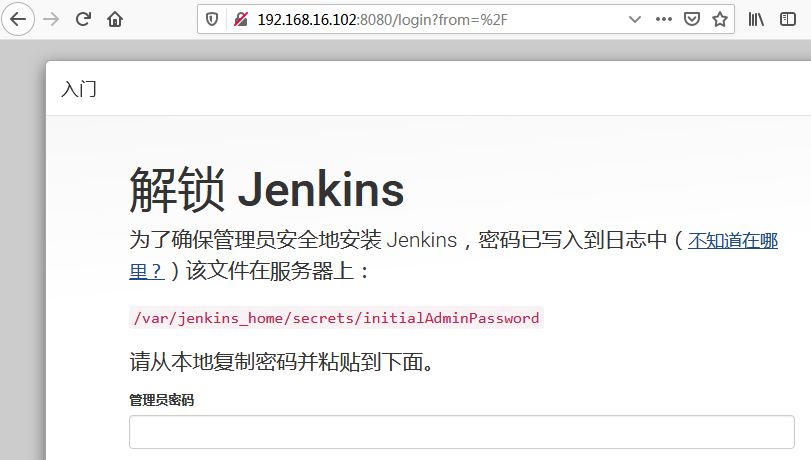
启动容器时对容器做了存储卷的映射,因此容器中“/var/jenkins_home/secrets/initialAdminPassword”文件,对应在主机中的位置为:/tmp/jenkins-data/secrets/initialAdminPassword
[root@test102 ~]# ll /tmp/jenkins-data/

total 60

-rw-r--r--  1 root root  1643 Dec  3 16:02 config.xml

-rw-r--r--  1 root root  3972 Dec  3 16:00 copy_reference_file.log

-rw-r--r--  1 root root   156 Dec  3 16:00 hudson.model.UpdateCenter.xml

-rw-r--r--  1 root root   370 Dec  3 16:00 hudson.plugins.git.GitTool.xml

-rw-------  1 root root  1712 Dec  3 16:00 identity.key.enc

-rw-r--r--  1 root root     7 Dec  3 16:00 jenkins.install.UpgradeWizard.state

-rw-r--r--  1 root root   171 Dec  3 16:00 jenkins.telemetry.Correlator.xml

drwxr-xr-x  2 root root     6 Dec  3 16:00 jobs

drwxr-xr-x  4 root root    37 Dec  3 16:00 logs

-rw-r--r--  1 root root   907 Dec  3 16:00 nodeMonitors.xml

drwxr-xr-x  2 root root     6 Dec  3 16:00 nodes

drwxr-xr-x 88 root root 16384 Dec  3 16:00 plugins

-rw-r--r--  1 root root    64 Dec  3 16:00 secret.key

-rw-r--r--  1 root root     0 Dec  3 16:00 secret.key.not-so-secret

drwx------  4 root root   265 Dec  3 16:00 secrets

drwxr-xr-x  2 root root    67 Dec  3 16:03 updates

drwxr-xr-x  2 root root    24 Dec  3 16:00 userContent

drwxr-xr-x  3 root root    55 Dec  3 16:00 users

drwxr-xr-x 11 root root  4096 Dec  3 16:00 war

drwxr-xr-x  2 root root     6 Dec  3 16:00 workflow-libs

[root@test102 ~]#

[root@test102 ~]# ll /tmp/jenkins-data/secrets/initialAdminPassword

-rw-r----- 1 root root 33 Dec  3 16:00 /tmp/jenkins-data/secrets/initialAdminPassword

[root@test102 ~]#

[root@test102 ~]# cat /tmp/jenkins-data/secrets/initialAdminPassword

c915d38b874a47bbacee5ad982f1f62a

[root@test102 ~]#
4 - 常用操作
4.1 查看镜像与容器的普通信息
[root@test102 ~]# docker images  # 查看镜像

REPOSITORY            TAG                 IMAGE ID            CREATED             SIZE

jenkinsci/blueocean   latest              91e1493abbf8        21 hours ago        563MB

hello-world           latest              fce289e99eb9        11 months ago       1.84kB

[root@test102 ~]#

[root@test102 ~]# docker ps -a  # 查看所有容器服务的状态

CONTAINER ID        IMAGE                 COMMAND                  CREATED             STATUS                         PORTS                                              NAMES

78036934ad20        jenkinsci/blueocean   "/sbin/tini -- /usr/…"   25 minutes ago      Up 25 minutes                  0.0.0.0:8080->8080/tcp, 0.0.0.0:50000->50000/tcp   myjenkins

19546c1ca621        hello-world           "/hello"                 About an hour ago   Exited (0) About an hour ago                                                      sad_blackwell

[root@test102 ~]#

[root@test102 ~]# docker port 78036934ad20  # 查看端口映射

50000/tcp -> 0.0.0.0:50000

8080/tcp -> 0.0.0.0:8080

[root@test102 ~]#

[root@test102 ~]# docker port myjenkins  # 查看端口映射

50000/tcp -> 0.0.0.0:50000

8080/tcp -> 0.0.0.0:8080

[root@test102 ~]#
4.2 查看容器的具体信息
[root@test102 ~]# docker inspect myjenkins

[

    {

        "Id": "78036934ad206d1858ba6abf0465eddd187bda21ef755c63472345cfc1039974",

        "Created": "2019-12-03T08:00:15.497081807Z",

        "Path": "/sbin/tini",

        "Args": [

            "--",

            "/usr/local/bin/jenkins.sh"

        ],

        "State": {

            "Status": "running",

            "Running": true,

            "Paused": false,

            "Restarting": false,

            "OOMKilled": false,

            "Dead": false,

            "Pid": 15400,

            "ExitCode": 0,

            "Error": "",

            "StartedAt": "2019-12-03T08:00:16.006108568Z",

            "FinishedAt": "0001-01-01T00:00:00Z"

        },

        "Image": "sha256:91e1493abbf88ddd48fc964290ac366068312d62632bbf6136017ff9597ed7b0",

        "ResolvConfPath": "/var/lib/docker/containers/78036934ad206d1858ba6abf0465eddd187bda21ef755c63472345cfc1039974/resolv.conf",

        "HostnamePath": "/var/lib/docker/containers/78036934ad206d1858ba6abf0465eddd187bda21ef755c63472345cfc1039974/hostname",

        "HostsPath": "/var/lib/docker/containers/78036934ad206d1858ba6abf0465eddd187bda21ef755c63472345cfc1039974/hosts",

        "LogPath": "/var/lib/docker/containers/78036934ad206d1858ba6abf0465eddd187bda21ef755c63472345cfc1039974/78036934ad206d1858ba6abf0465eddd187bda21ef755c63472345cfc1039974-json.log",

        "Name": "/myjenkins",

        "RestartCount": 0,

        "Driver": "overlay2",

        "Platform": "linux",

        "MountLabel": "",

        "ProcessLabel": "",

        "AppArmorProfile": "",

        "ExecIDs": null,

        "HostConfig": {

            "Binds": [

                "/tmp/jenkins-data:/var/jenkins_home",

                "/var/run/docker.sock:/var/run/docker.sock"

            ],

            "ContainerIDFile": "",

            "LogConfig": {

                "Type": "json-file",

                "Config": {}

            },

            "NetworkMode": "default",

            "PortBindings": {

                "50000/tcp": [

                    {

                        "HostIp": "",

                        "HostPort": "50000"

                    }

                ],

                "8080/tcp": [

                    {

                        "HostIp": "",

                        "HostPort": "8080"

                    }

                ]

            },

            "RestartPolicy": {

                "Name": "no",

                "MaximumRetryCount": 0

            },

            "AutoRemove": true,

            "VolumeDriver": "",

            "VolumesFrom": null,

            "CapAdd": null,

            "CapDrop": null,

            "Capabilities": null,

            "Dns": [],

            "DnsOptions": [],

            "DnsSearch": [],

            "ExtraHosts": null,

            "GroupAdd": null,

            "IpcMode": "private",

            "Cgroup": "",

            "Links": null,

            "OomScoreAdj": 0,

            "PidMode": "",

            "Privileged": false,

            "PublishAllPorts": false,

            "ReadonlyRootfs": false,

            "SecurityOpt": null,

            "UTSMode": "",

            "UsernsMode": "",

            "ShmSize": 67108864,

            "Runtime": "runc",

            "ConsoleSize": [

                0,

                0

            ],

            "Isolation": "",

            "CpuShares": 0,

            "Memory": 0,

            "NanoCpus": 0,

            "CgroupParent": "",

            "BlkioWeight": 0,

            "BlkioWeightDevice": [],

            "BlkioDeviceReadBps": null,

            "BlkioDeviceWriteBps": null,

            "BlkioDeviceReadIOps": null,

            "BlkioDeviceWriteIOps": null,

            "CpuPeriod": 0,

            "CpuQuota": 0,

            "CpuRealtimePeriod": 0,

            "CpuRealtimeRuntime": 0,

            "CpusetCpus": "",

            "CpusetMems": "",

            "Devices": [],

            "DeviceCgroupRules": null,

            "DeviceRequests": null,

            "KernelMemory": 0,

            "KernelMemoryTCP": 0,

            "MemoryReservation": 0,

            "MemorySwap": 0,

            "MemorySwappiness": null,

            "OomKillDisable": false,

            "PidsLimit": null,

            "Ulimits": null,

            "CpuCount": 0,

            "CpuPercent": 0,

            "IOMaximumIOps": 0,

            "IOMaximumBandwidth": 0,

            "MaskedPaths": [

                "/proc/asound",

                "/proc/acpi",

                "/proc/kcore",

                "/proc/keys",

                "/proc/latency_stats",

                "/proc/timer_list",

                "/proc/timer_stats",

                "/proc/sched_debug",

                "/proc/scsi",

                "/sys/firmware"

            ],

            "ReadonlyPaths": [

                "/proc/bus",

                "/proc/fs",

                "/proc/irq",

                "/proc/sys",

                "/proc/sysrq-trigger"

            ]

        },

        "GraphDriver": {

            "Data": {

                "LowerDir": "/var/lib/docker/overlay2/55e0817f8e761cb684d35f2ce5feb4238e1a9a3ca486c4b16fb4a386ec23ceb1-init/diff:/var/lib/docker/overlay2/1a25f690174a4ecba9435a6a5528d5e9adc821a4fc248151e54b601e47e47281/diff:/var/lib/docker/overlay2/d81c6252acc84a0faa6e37da1ca87faef73ea41af03d68d82afc810329b8abcd/diff:/var/lib/docker/overlay2/474ed0b65f0d36cf4d073d314488e11b9f31d5eb640a4674b90a1e2d33b0b891/diff:/var/lib/docker/overlay2/1e95d0b0ed60ddd731fa523b41c6214a20d157cf8399016a1901dd9f791ae93b/diff:/var/lib/docker/overlay2/a7644a7b563a110a3ca7eb8f6b60307b20f0bd038530d27d0a185c058aa93373/diff:/var/lib/docker/overlay2/231a156aa066ccc3de13e97587c059c7c18f44f012a0364ab7b0c87386e69439/diff:/var/lib/docker/overlay2/93c60b34e89af618cf10b393c9dcf558a96cd282a470be0c18ace44726decc4a/diff:/var/lib/docker/overlay2/505c429c0936d3636d437aba0cdb83cc3ffe4f3f6ce495d083496f4f849d2c32/diff:/var/lib/docker/overlay2/ec4710e1f09ee7944a3386b7a529725c863f51f52b8605586519612380a96c90/diff:/var/lib/docker/overlay2/7abee2a8ff463e8c62c6edf44098deeab3b2d32078660e8b8aee8a26799ac0d2/diff:/var/lib/docker/overlay2/81af0bc594c57e6693dd6434bcce36300b474b29081f4b96df0e33e03dd7ac1f/diff:/var/lib/docker/overlay2/a72d57bccbd3aa8e285584a1a2512b8cacf5e1309566c3c5cc948293d80ef66f/diff:/var/lib/docker/overlay2/261b47b3e428105adebfc4d47d336fda9a242321023f564db3b0a18fe1f27619/diff:/var/lib/docker/overlay2/9d2feafc9517cc02d67cb76483dbe6920bfae0dae76d211a5d37fb73aee4f4ea/diff:/var/lib/docker/overlay2/45e9d4c91b0883b25f4b10f9d15ca4224367246e1b6bcd16c71139aa09130f14/diff",

                "MergedDir": "/var/lib/docker/overlay2/55e0817f8e761cb684d35f2ce5feb4238e1a9a3ca486c4b16fb4a386ec23ceb1/merged",

                "UpperDir": "/var/lib/docker/overlay2/55e0817f8e761cb684d35f2ce5feb4238e1a9a3ca486c4b16fb4a386ec23ceb1/diff",

                "WorkDir": "/var/lib/docker/overlay2/55e0817f8e761cb684d35f2ce5feb4238e1a9a3ca486c4b16fb4a386ec23ceb1/work"

            },

            "Name": "overlay2"

        },

        "Mounts": [

            {

                "Type": "bind",

                "Source": "/tmp/jenkins-data",

                "Destination": "/var/jenkins_home",

                "Mode": "",

                "RW": true,

                "Propagation": "rprivate"

            },

            {

                "Type": "bind",

                "Source": "/var/run/docker.sock",

                "Destination": "/var/run/docker.sock",

                "Mode": "",

                "RW": true,

                "Propagation": "rprivate"

            }

        ],

        "Config": {

            "Hostname": "78036934ad20",

            "Domainname": "",

            "User": "root",

            "AttachStdin": false,

            "AttachStdout": true,

            "AttachStderr": true,

            "ExposedPorts": {

                "50000/tcp": {},

                "8080/tcp": {}

            },

            "Tty": false,

            "OpenStdin": false,

            "StdinOnce": false,

            "Env": [

                "PATH=/usr/local/sbin:/usr/local/bin:/usr/sbin:/usr/bin:/sbin:/bin:/usr/lib/jvm/java-1.8-openjdk/jre/bin:/usr/lib/jvm/java-1.8-openjdk/bin",

                "LANG=C.UTF-8",

                "JAVA_HOME=/usr/lib/jvm/java-1.8-openjdk",

                "JAVA_VERSION=8u212",

                "JAVA_ALPINE_VERSION=8.212.04-r0",

                "JENKINS_HOME=/var/jenkins_home",

                "JENKINS_SLAVE_AGENT_PORT=50000",

                "REF=/usr/share/jenkins/ref",

                "JENKINS_VERSION=2.190.3",

                "JENKINS_UC=https://updates.jenkins.io",

                "JENKINS_UC_EXPERIMENTAL=https://updates.jenkins.io/experimental",

                "JENKINS_INCREMENTALS_REPO_MIRROR=https://repo.jenkins-ci.org/incrementals",

                "COPY_REFERENCE_FILE_LOG=/var/jenkins_home/copy_reference_file.log"

            ],

            "Cmd": null,

            "Image": "jenkinsci/blueocean",

            "Volumes": {

                "/var/jenkins_home": {}

            },

            "WorkingDir": "",

            "Entrypoint": [

                "/sbin/tini",

                "--",

                "/usr/local/bin/jenkins.sh"

            ],

            "OnBuild": null,

            "Labels": {}

        },

        "NetworkSettings": {

            "Bridge": "",

            "SandboxID": "fb72238c7db73fa054a04ca44c091e26b925d7ca72a3c777e3c833e548f30cd2",

            "HairpinMode": false,

            "LinkLocalIPv6Address": "",

            "LinkLocalIPv6PrefixLen": 0,

            "Ports": {

                "50000/tcp": [

                    {

                        "HostIp": "0.0.0.0",

                        "HostPort": "50000"

                    }

                ],

                "8080/tcp": [

                    {

                        "HostIp": "0.0.0.0",

                        "HostPort": "8080"

                    }

                ]

            },

            "SandboxKey": "/var/run/docker/netns/fb72238c7db7",

            "SecondaryIPAddresses": null,

            "SecondaryIPv6Addresses": null,

            "EndpointID": "d4e29a6d6cdf462518fa0446ba8740ca2eb892e3f7cb37ebce14bbf9eef8d5fd",

            "Gateway": "172.17.0.1",

            "GlobalIPv6Address": "",

            "GlobalIPv6PrefixLen": 0,

            "IPAddress": "172.17.0.2",

            "IPPrefixLen": 16,

            "IPv6Gateway": "",

            "MacAddress": "02:42:ac:11:00:02",

            "Networks": {

                "bridge": {

                    "IPAMConfig": null,

                    "Links": null,

                    "Aliases": null,

                    "NetworkID": "e8a514fcda1c301bb8a4797d9316a904a71d1bb9513ee22a25680cfdb01fa4c9",

                    "EndpointID": "d4e29a6d6cdf462518fa0446ba8740ca2eb892e3f7cb37ebce14bbf9eef8d5fd",

                    "Gateway": "172.17.0.1",

                    "IPAddress": "172.17.0.2",

                    "IPPrefixLen": 16,

                    "IPv6Gateway": "",

                    "GlobalIPv6Address": "",

                    "GlobalIPv6PrefixLen": 0,

                    "MacAddress": "02:42:ac:11:00:02",

                    "DriverOpts": null

                }

            }

        }

    }

]

[root@test102 ~]#
4.3 访问容器
通过docker exec命令
[root@test102 ~]# docker exec -it myjenkins bash

bash-4.4#

bash-4.4# ps

PID   USER     TIME  COMMAND

    1 root      0:00 /sbin/tini -- /usr/local/bin/jenkins.sh

    6 root      1:43 java -Duser.home=/var/jenkins_home -Djenkins.model.Jenkins.slaveAgentPort=50000 -jar /usr/sh

 1362 root      0:00 bash

 1371 root      0:00 ps

bash-4.4# uname -a

Linux 78036934ad20 3.10.0-957.el7.x86_64 #1 SMP Thu Nov 8 23:39:32 UTC 2018 x86_64 GNU/Linux

bash-4.4#

bash-4.4# exit

exit

[root@test102 ~]#
4.4 访问Jenkins控制台日志
如果没有指定分离模式选项 -d 来执行docker run 命令, 那么将不在终端窗口中输出正在运行容器的日志
可以通过docker logs命令来访问
[root@test102 ~]# docker logs myjenkins

Running from: /usr/share/jenkins/jenkins.war

webroot: EnvVars.masterEnvVars.get("JENKINS_HOME")

2019-12-03 08:00:17.523+0000 [id=1]	INFO	org.eclipse.jetty.util.log.Log#initialized: Logging initialized @535ms to org.eclipse.jetty.util.log.JavaUtilLog

2019-12-03 08:00:17.668+0000 [id=1]	INFO	winstone.Logger#logInternal: Beginning extraction from war file

2019-12-03 08:00:19.025+0000 [id=1]	WARNING	o.e.j.s.handler.ContextHandler#setContextPath: Empty contextPath

2019-12-03 08:00:19.094+0000 [id=1]	INFO	org.eclipse.jetty.server.Server#doStart: jetty-9.4.z-SNAPSHOT; built: 2019-05-02T00:04:53.875Z; git: e1bc35120a6617ee3df052294e433f3a25ce7097; jvm 1.8.0_212-b04

2019-12-03 08:00:19.495+0000 [id=1]	INFO	o.e.j.w.StandardDescriptorProcessor#visitServlet: NO JSP Support for /, did not find org.eclipse.jetty.jsp.JettyJspServlet

......

......

......
4.5 访问Jenkins主目录
如果在执行docker run命令时,指定了-v参数,那么Jenkins主目录( /var/jenkins_home )将映射到本地主机上的指定目录。
可以通过在本地主机直接访问此目录的内容。
例如,容器中“/var/jenkins_home/secrets/initialAdminPassword”文件对应的是在主机中的“/tmp/jenkins-data/secrets/initialAdminPassword”文件。
Jenkins - 以Docker方式安装启动Jenkins的更多相关文章
- 在CentOS上通过Docker方式安装Redis
在CentOS上通过Docker方式安装Redis 首先保证已经安装docker. 拖拽redis镜像 docker pull redis 启动redis docker run -p 6379:637 ...
- Linux上通过docker方式安装mysql
centos版本信息: docker版本信息 mysql版本:5.7 1.docker方式安装 首先拉取mysql镜像:docker pull mysql:5.7 查看本地的mysql镜像 执 ...
- openresty——yum安装 配置 使用 错误处理 docker方式安装
yum方式安装 wget https://openresty.org/package/centos/openresty.repo mv openresty.repo /etc/yum.repos.d/ ...
- docker方式安装zabbix
这个示例展现了如何运行支持MySQL数据库的Zabbix server,基于Nginx web服务器运行Zabbix web接口,以及Zabbix Java gateway. 1. 启动一个空的MyS ...
- Windows下VMware虚拟机使用Centos,Docker方式安装openstf的小坑
今天使用docker方式安装openstf碰到了一小坑,坑了我半天.特此记录! docker方式安装stf就不说了,网上教程一大把. 但是... 安装完之后.进入web控制界面,手机连接的好好的.但硕 ...
- linux centos 安装Jenkins(非docker方式)
写在前面 我之前写过Asp.net Core 使用Jenkins + Dockor 实现持续集成.自动化部署(一):Jenkins安装这jenkisn的安装过程,但这篇使用的是docker的方式安装的 ...
- Docker方式安装Jenkins并且插件更改国内源
参考网站:https://www.jenkins.io/zh/doc/book/installing/#在docker中下载并运行jenkins 建议使用的Docker映像是jenkinsci/blu ...
- docker: 通过docker方式安装jenkins
1. docker pull jenkins 2. docker run -d -p 49001:8080 -v $PWD/jenkins:/var/jenkins_home:z -t jenkins ...
- Docker Compose安装部署Jenkins
流水线可以让项目发布流程更加清晰,docker可以大大减少Jenkins配置. 1.前言 数据卷挂载到 /var 磁盘目录下,因为该磁盘空间较大,后面需要挂载容器数据卷,以防内存吃紧. 为了可以留存启 ...
随机推荐
- python笔记42-http请求命令行工具(httpie)
前言 通常我们需要快速的测试某个接口通不通,一般linux上用curl去发http请求,但是这个命令行工具语法有点复杂了,不够直观. python有一个给人类使用的requests库,非常的简单方便. ...
- danci8
approach 英 [ə'prəʊtʃ] 美 [ə'protʃ] n. 方法:途径:接近 vt. 接近:着手处理 vi. 靠近 emulate 英 ['emjʊleɪt] 美 ['ɛmjulet] ...
- c#2.0锐利体验《泛型编程》读书笔记
1.c#泛型及机制 Class Stack<T> { } T 其实为type的缩小,不过也可为其他字符代替T ,被称为“泛型类型” T为晚绑定的,在编译的时候还不能确定T的确切类型. 2 ...
- SignalR入门一、通过 SignalR 2 进行实时聊天
一:什么是signalR Asp.net SignalR是微软为实现实时通信的一个类库.一般情况下,signalR会使用JavaScript的长轮询(long polling)的方式来实现客户端和服务 ...
- django-自定义文件上传存储类
文件储存API:https://yiyibooks.cn/xx/django_182/ref/files/storage.html 编写自定义存储系统:https://yiyibooks.cn/xx/ ...
- Java Web 项目的文件/文件夹上传下载
需求: 支持大文件批量上传(20G)和下载,同时需要保证上传期间用户电脑不出现卡死等体验: 内网百兆网络上传速度为12MB/S 服务器内存占用低 支持文件夹上传,文件夹中的文件数量达到1万个以上,且包 ...
- learning scala akka actorySystem create and close
package com.example import akka.actor.ActorSystem import scala.util.{Failure, Success} import scala. ...
- 纯js制作九宫格
Demo实现了对任意方格进行拖拽,可以交换位置,其中Demo-1利用了勾股定理判断距离! Demo-1整体思路: 1.首先div实现自由移动,一定需要脱离标准文档流,所以我们给它使用绝对定位. 2.利 ...
- 原生 ajax 请求
ajax 即 Asynchronous Javascript And XML,AJAX 不是一门的新的语言,而是对现有持术的综合利用.本质是在 HTTP 协议的基础上以异步的方式与服务器进行通信. 异 ...
- 【区间dp】P1063 能量项链
一道区间dp的水题 题目链接 来快活啊! 思路 很简单的区间dp,思路和floyed差不多,就是需要把项链处理成环形 用\(f[l][r]\)表示以\(a[l]\)开头\(a[r]\)结尾的数串的最大 ...